Basic Fixes
- Re-sign in Microsoft Team: It could be a temporary glitch which can be easily fixed by signing out and then signing back into your Microsft account
- Reinstall the Microsoft Teams app: If no update is available, uninstall Microsoft Teams from the Apps section and reinstall it from the Microsoft Store.
Fix 1: Clear Teams App Cache
Microsoft Teams maintains a cache to speed up the experience like any other app. However, the cache sometimes needs to be refreshed but gets stuck. In this case, manually clear the Teams app cache.
Step 1: First, close Microsoft Teams completely. You can do this by going to the System tray > right-clicking on Teams > selecting Quit Teams.
Step 2: Press Ctrl + Shift + ESC to open Task Manager.
Step 3: In the Task Manager, go to the Processes tab > find and right-click on Microsoft Teams > select End Task.
Step 4: Press Windows Key + R > paste %appdata%\Microsoft\Teams > press Enter.
Step 5: Delete the contents of the following folders:
- \application cache\cache
- \blob_storage
- \cache
- \databases
- \GPUcache
- \IndexedDB
- \Local Storage

Step 6: Finally, re-open Microsoft Teams and see if it works for you.
Fix 2: Set Default Browser to Edge or Chrome
Users have reported that Microsoft Teams might have issues opening links if they don’t find Edge Webview 2 as default.
Step 1: First, download and install Edge Webview 2. Ensure that it is installed for all users.
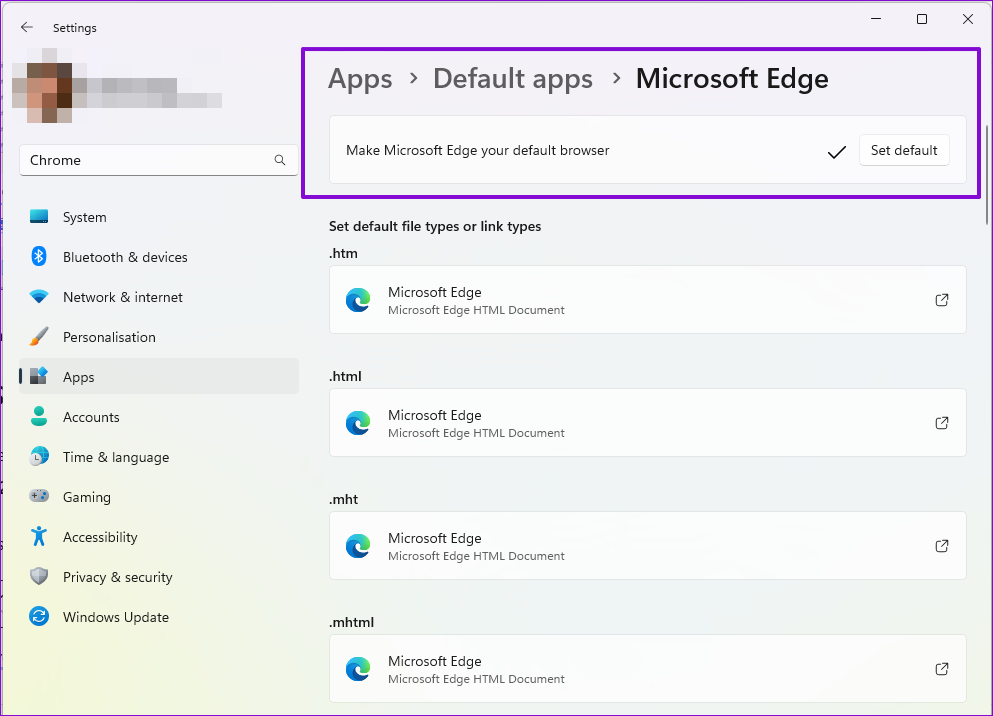
Step 2: Press Windows Key + I to launch Settings. Then, navigate to Apps > Default Apps.
Step 3: Search the Microsoft Edge listing, open it, and click the Set default button.
Fix 3: Check With IT for Security Policy
The security policy may prevent you from opening links using Teams on VRM (virtual remote desktops). To fix this, you must disable the SafeLinks Policy in the Security AdminCenter.
Ask your IT admin to check with the following link: To add entries to the list in new or existing Safe Links policies, see Create Safe Links policies or Modify Safe Links policies.
Was this helpful?
Last updated on 11 July, 2024
Read Next
 How to Add and Delete a Hyperlink in an Outlook Email
Inserting a Hyperlink into an Outlook Email As one of the popular email solutions for organizations, different types of information get passed across on Microsoft Outlook.
How to Add and Delete a Hyperlink in an Outlook Email
Inserting a Hyperlink into an Outlook Email As one of the popular email solutions for organizations, different types of information get passed across on Microsoft Outlook.
 How to Hyperlink in Google Docs: A Detailed Guide
Hyperlinks help connect one document with another.
How to Hyperlink in Google Docs: A Detailed Guide
Hyperlinks help connect one document with another.
 2 Ways to Fix Microsoft Teams Notifications Not Working on Windows 11/10
Preliminary Fixes Turn off Battery Saver: To ensure Microsoft Teams notifications work properly on Windows 11/10, turning off Battery Saver is essential.
2 Ways to Fix Microsoft Teams Notifications Not Working on Windows 11/10
Preliminary Fixes Turn off Battery Saver: To ensure Microsoft Teams notifications work properly on Windows 11/10, turning off Battery Saver is essential.
 How to Fix Microsoft Teams Notification Sound Not Working
On Windows Method 1: Check Notifications Options in the Settings App Step 1: Press the Windows + I keys shortcut to open the Settings app.
How to Fix Microsoft Teams Notification Sound Not Working
On Windows Method 1: Check Notifications Options in the Settings App Step 1: Press the Windows + I keys shortcut to open the Settings app.
 How to Fix Polls Not Working in Microsoft Teams for Windows
Try Basic Fixes Close and reopen the Teams app: You can start by closing and reopening the Teams app.
How to Fix Polls Not Working in Microsoft Teams for Windows
Try Basic Fixes Close and reopen the Teams app: You can start by closing and reopening the Teams app.
 4 Ways to Fix Microsoft Teams Notifications Not Working on Android
Basic Fixes Check the Microsoft Teams server: Open the Microsoft Service Health page and click on Teams in the left sidebar to check its service status.
4 Ways to Fix Microsoft Teams Notifications Not Working on Android
Basic Fixes Check the Microsoft Teams server: Open the Microsoft Service Health page and click on Teams in the left sidebar to check its service status.
 Top 4 Ways to Fix Microsoft Teams Notifications Not Working on Mac
Basic Fixes Check Microsoft Teams Status: If Microsoft suffers from an outage, you might want to confirm the issue via Downdetector.
Top 4 Ways to Fix Microsoft Teams Notifications Not Working on Mac
Basic Fixes Check Microsoft Teams Status: If Microsoft suffers from an outage, you might want to confirm the issue via Downdetector.
 6 Ways to Fix Microsoft Teams App Not Working on Android
Basic Fixes Check internet connectivity: Ensure your device is connected to a Wi-Fi network or cellular data with good signal strength and an active plan.
6 Ways to Fix Microsoft Teams App Not Working on Android
Basic Fixes Check internet connectivity: Ensure your device is connected to a Wi-Fi network or cellular data with good signal strength and an active plan.
The article above may contain affiliate links which help support Guiding Tech. The content remains unbiased and authentic and will never affect our editorial integrity.