

Basic Fixes
- Keep the tab open: Google Chrome may fail to send notifications from a particular website if you have closed the website tab. To avoid this, you must always keep the website tab open.
- Unmute the site: Have you muted any of your sites? If so, you won’t hear an alert sound when those sites send notifications. To receive sound alerts for notifications, right-click on the website tab and select Unmute site.
Fix 1: Check Notification Settings in Chrome
It’s a good idea to review Google Chrome’s notifications settings to ensure that websites can show notifications on your PC. Here’s how to check.
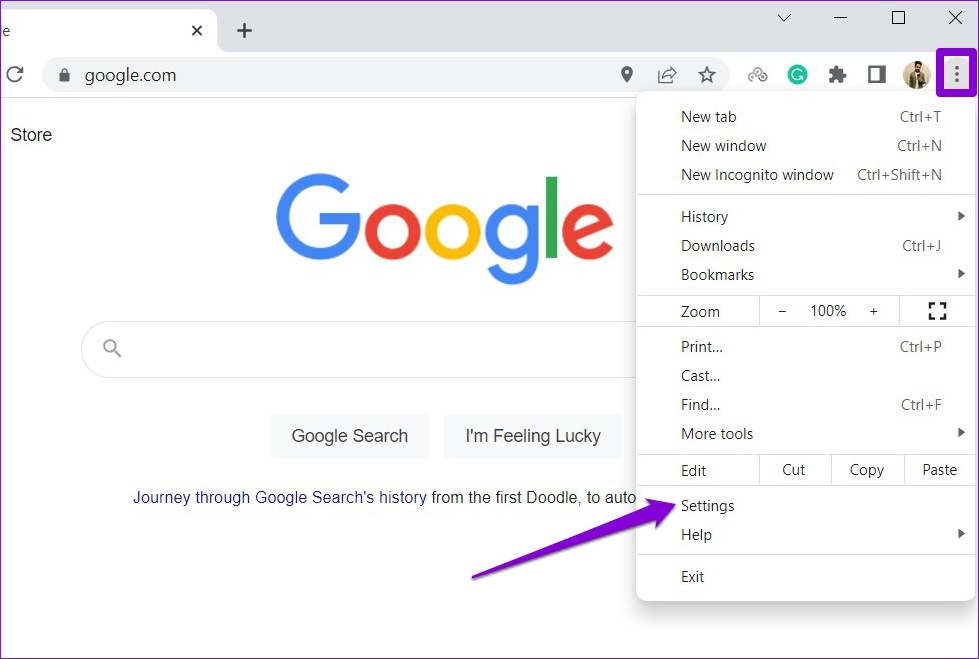
Step 1: In Google Chrome, click the three-dot menu icon at the top right corner and select Settings.
Step 2: Navigate to the Privacy and security tab and click Site Settings.

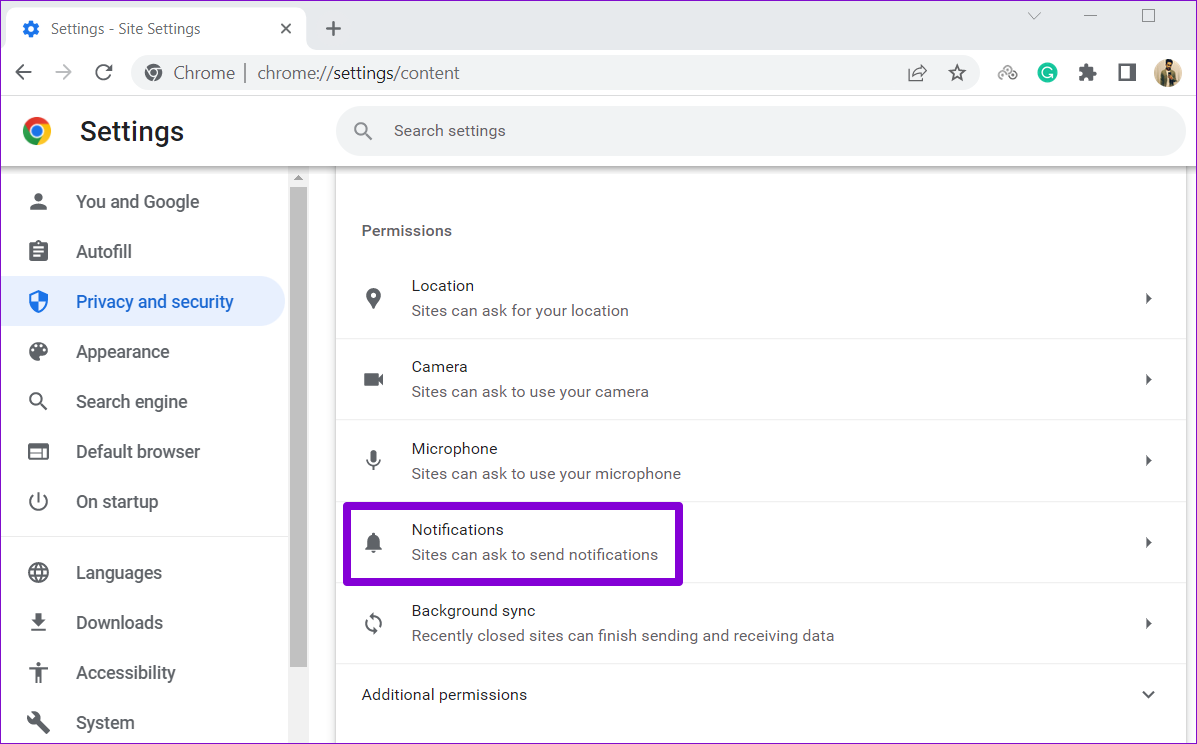
Step 3: Under Permissions, click on Notifications.
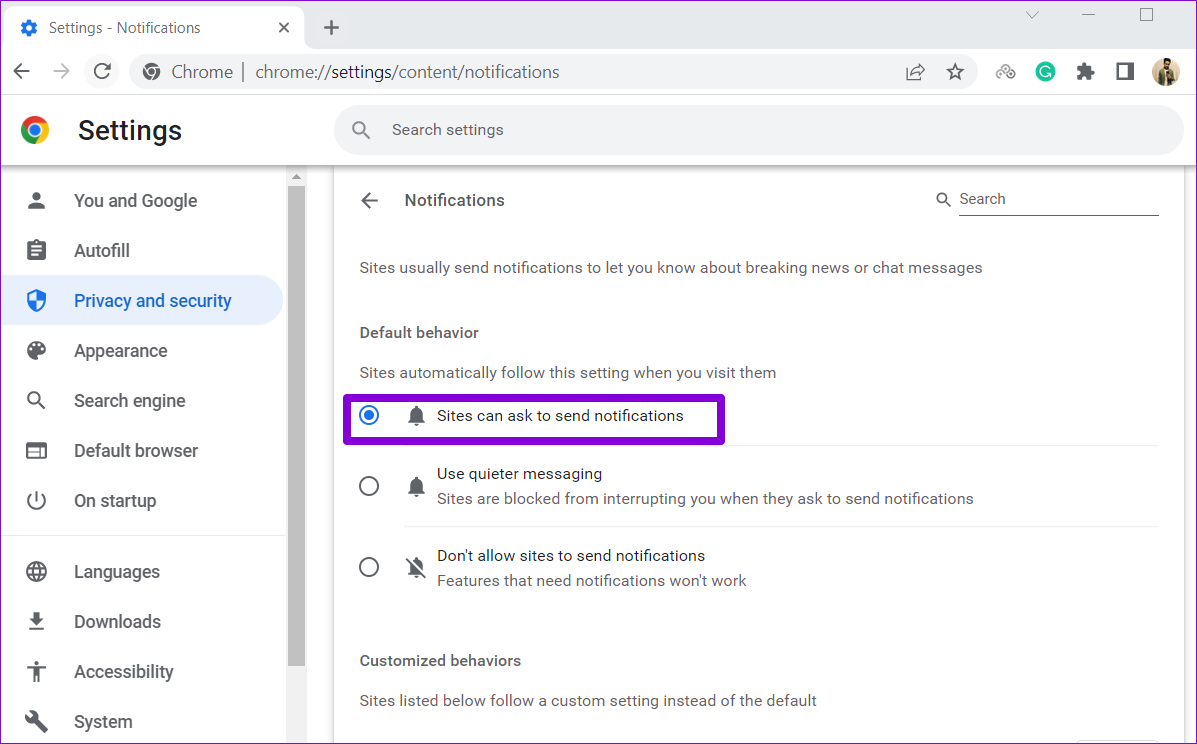
Step 4: Under Default behavior, select Sites can ask to send notifications.
Additionally, ensure that none of your favorite websites are listed under “Not allowed to send notifications.” If you find any, click the three-dot menu icon next to the site’s URL and select Remove.

Fix 2: Check System Notification Settings
Windows 11 offers numerous notification management options, including the ability to disable notifications for specific apps. If you’ve accidentally turned off notifications for Google Chrome, here’s how to get them working again.
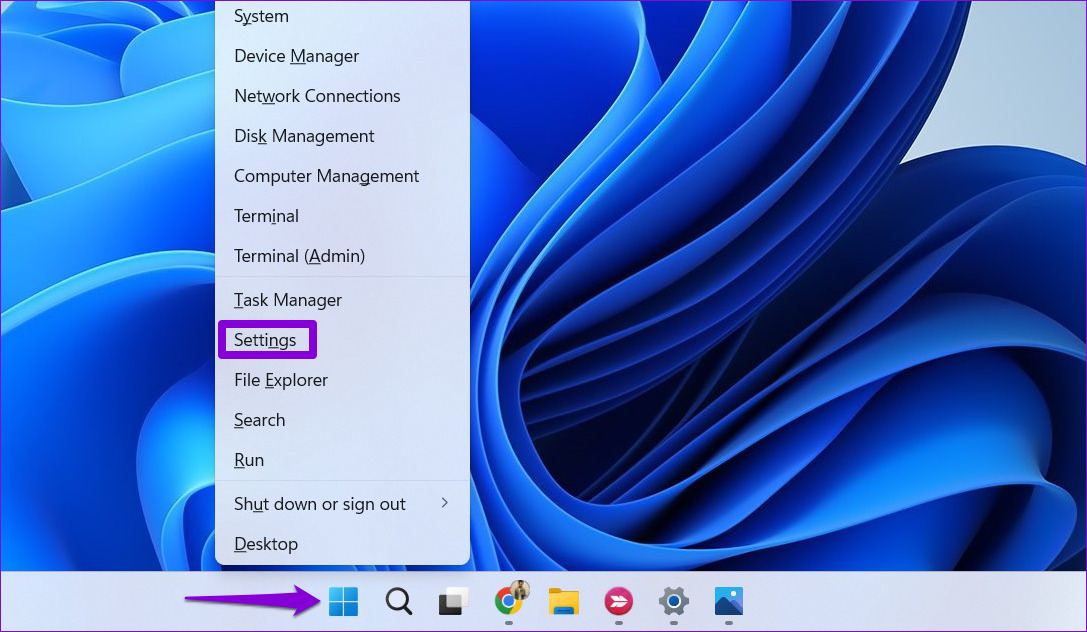
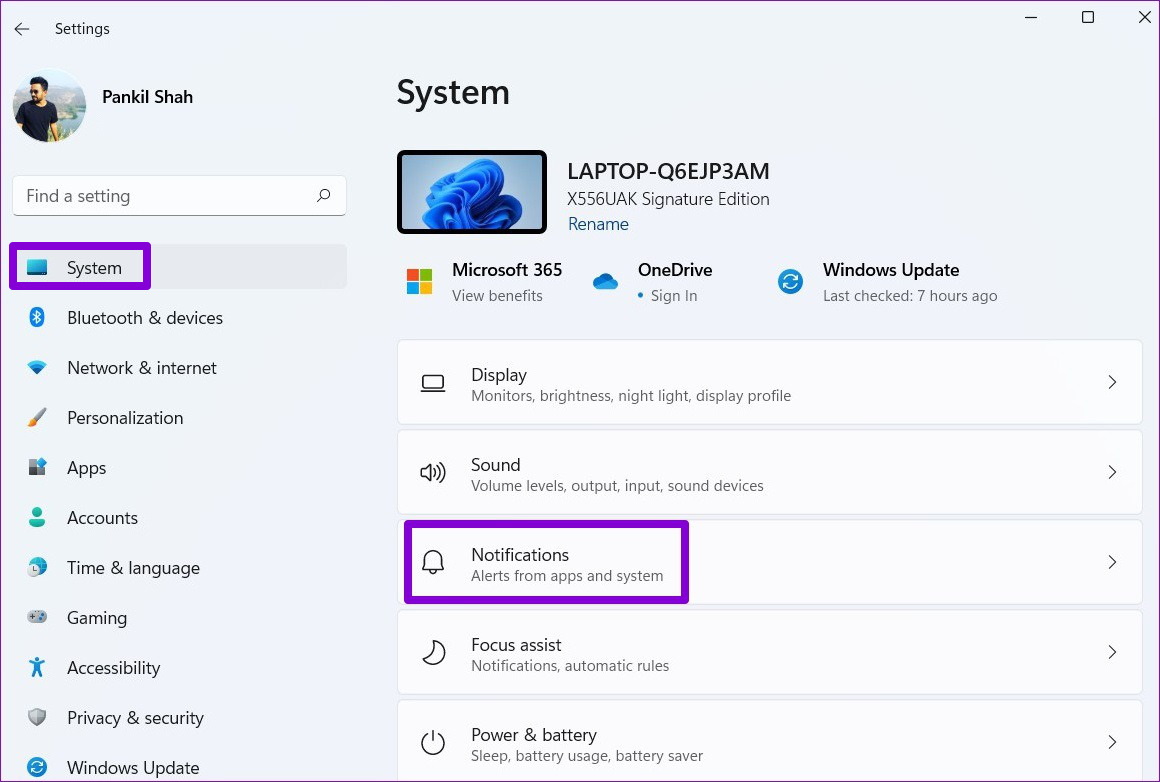
Step 1: Right-click on the Start icon and select Settings from the list.
Step 2: Head to System > Notifications.
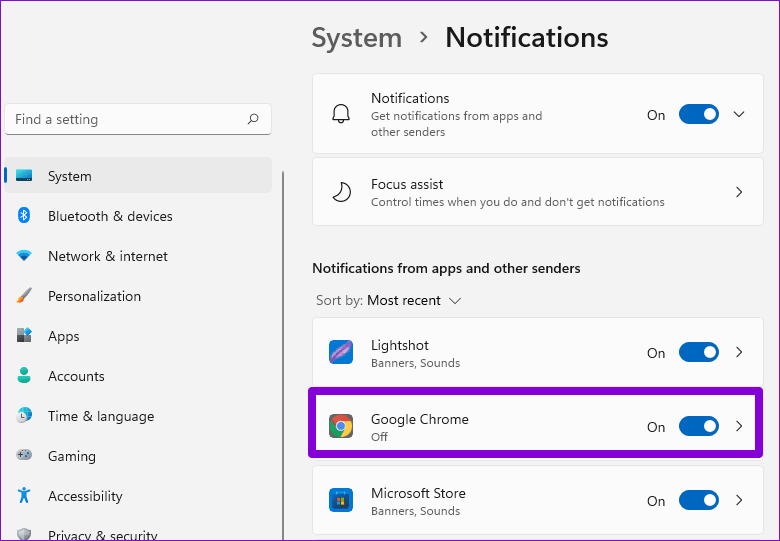
Step 3: Under “Notifications from apps and other senders,” enable the toggle next to Google Chrome, if not already.
Fix 3: Check Website’s Native Notification Settings
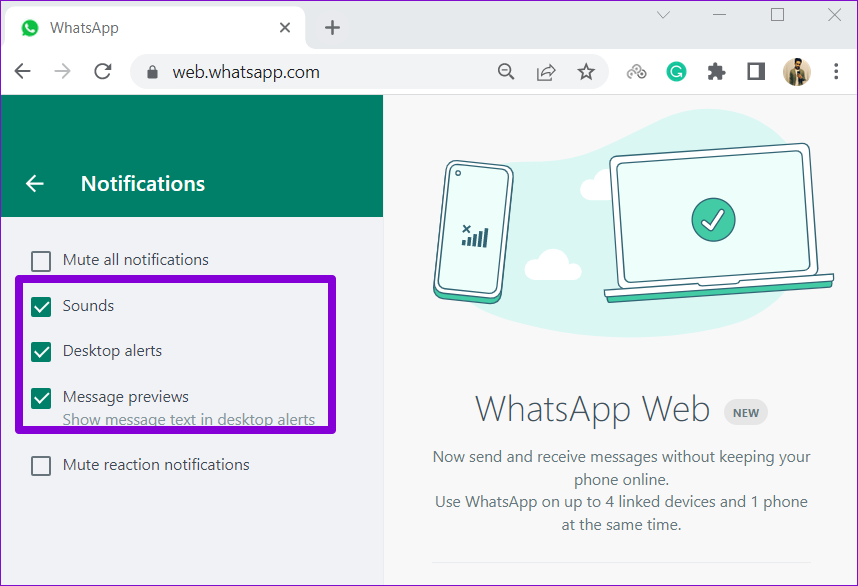
Several websites, including Gmail, YouTube, WhatsApp Web, and others, allow you to set notification preferences. If you’ve disabled desktop alerts for any of these services, it might seem like Google Chrome notifications are not working properly.
For instance, if you aren’t getting notifications from WhatsApp Web, open its notification settings. Then, check the boxes for Sounds, Desktop alerts, and Message previews.
Similarly, you can check the native notification settings for other sites that aren’t sending notifications.
Fix 4: Disable Do Not Disturb Mode
If Google Chrome still fails to send notifications despite the correct settings, you may have enabled Do Not Disturb mode on Windows. Here’s how to turn it off.
Step 1: Press the Windows key + I to open the Settings app and head to System > Notifications.
Step 2: Toggle off Do Not Disturb.
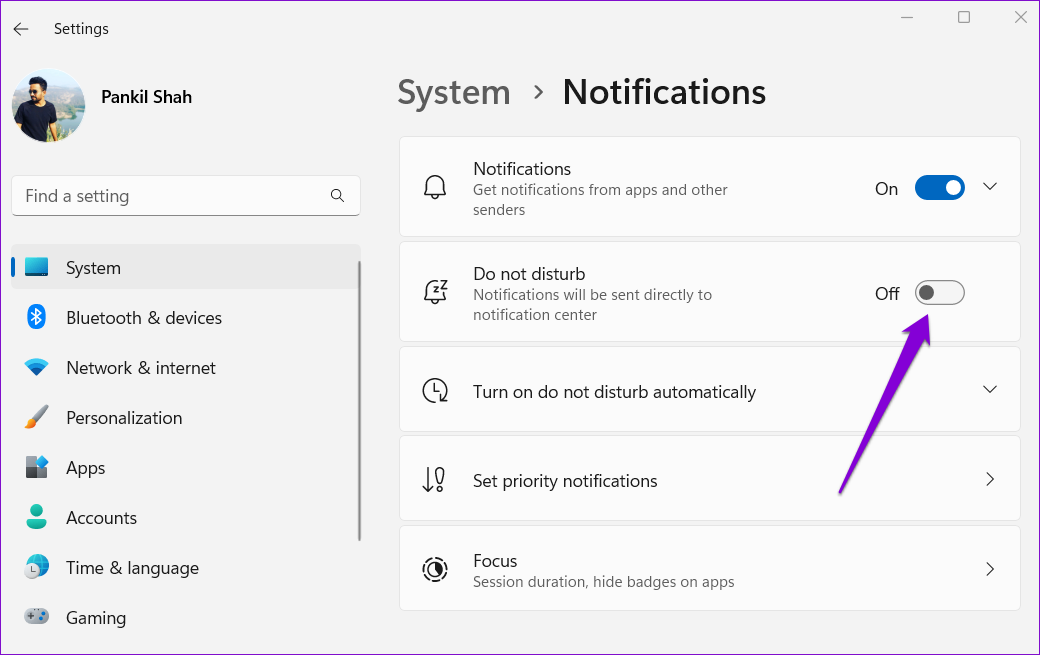
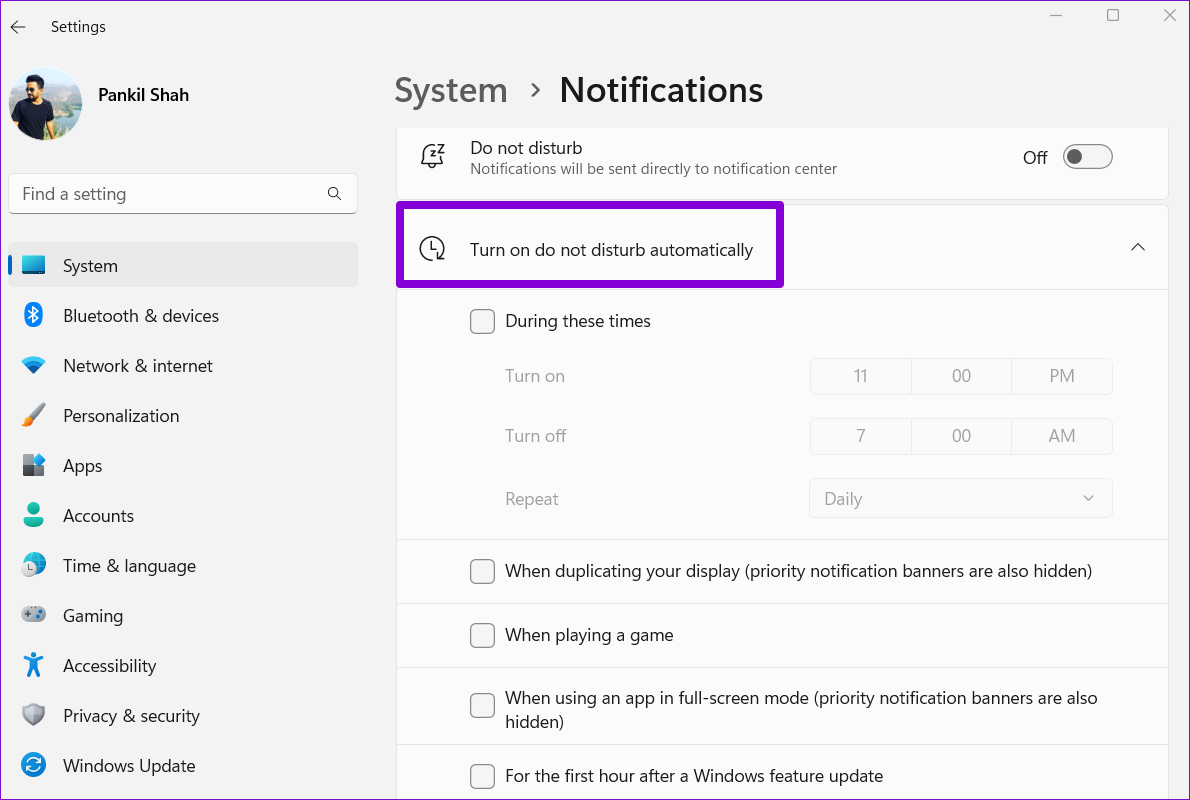
Further, ensure that Do Not Disturb isn’t set to turn on automatically in Windows. To do so, click on Turn on do not disturb automatically and uncheck all the boxes.
Fix 5: Reset Google Chrome
Lastly, if none of the above solutions work, try resetting Google Chrome to its default configuration. Here’s how to do that:
Step 1: Click the three-dot menu icon at the top right corner to open Settings.
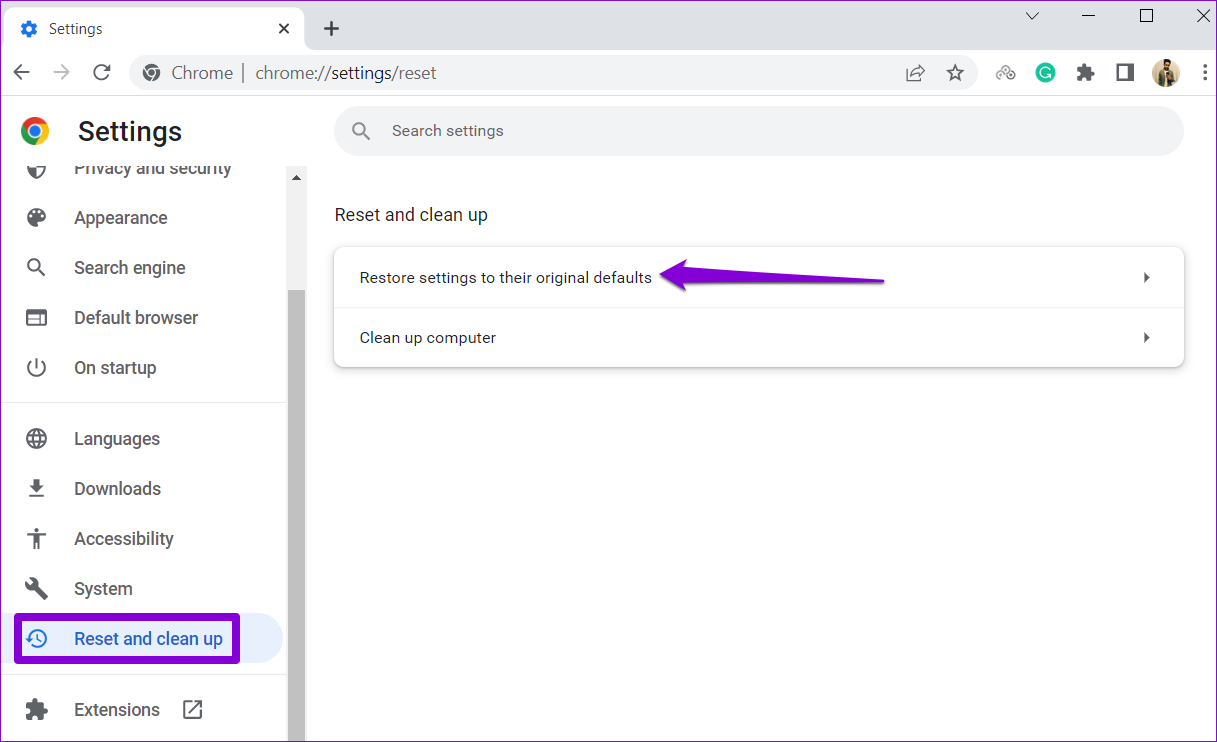
Step 2: Use the left pane to switch to the Reset and clean up tab. Then, click Restore settings to their original defaults.
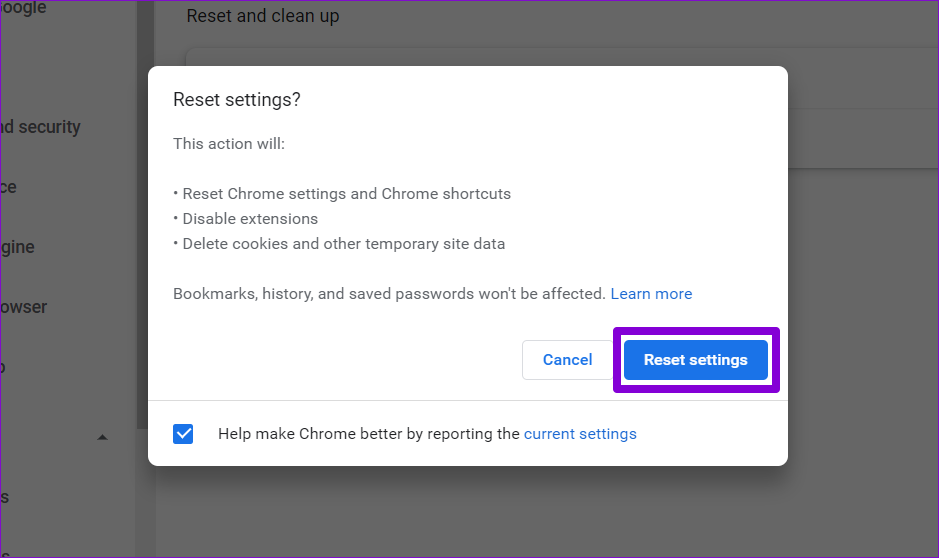
Step 3: Click on Reset settings to confirm.
Was this helpful?
Last updated on 07 May, 2024
2 Comments
Leave a Reply
Read Next
 Top 7 Ways to Fix Gmail Notifications Not Working in Chrome on Windows 10
Notifications make things easy to tend to an update, especially the email app.
Top 7 Ways to Fix Gmail Notifications Not Working in Chrome on Windows 10
Notifications make things easy to tend to an update, especially the email app.
 4 Fixes When Microsoft Teams Notifications Are Not Working in Google Chrome
Basic Fixes: Ensure Team status is not set to DND: If you set your status to Do Not Disturb, you will not get notifications by default.
4 Fixes When Microsoft Teams Notifications Are Not Working in Google Chrome
Basic Fixes: Ensure Team status is not set to DND: If you set your status to Do Not Disturb, you will not get notifications by default.
 4 Ways to Fix Telegram Notifications Not Working on Windows 10 and Windows 11
Try Basic Fixes Disable Do Not Disturb mode: The Telegram app may not be showing notifications due to the Do Not Disturb mode on your Windows PC.
4 Ways to Fix Telegram Notifications Not Working on Windows 10 and Windows 11
Try Basic Fixes Disable Do Not Disturb mode: The Telegram app may not be showing notifications due to the Do Not Disturb mode on your Windows PC.
 2 Ways to Fix Microsoft Teams Notifications Not Working on Windows 11/10
Preliminary Fixes Turn off Battery Saver: To ensure Microsoft Teams notifications work properly on Windows 11/10, turning off Battery Saver is essential.
2 Ways to Fix Microsoft Teams Notifications Not Working on Windows 11/10
Preliminary Fixes Turn off Battery Saver: To ensure Microsoft Teams notifications work properly on Windows 11/10, turning off Battery Saver is essential.
 6 Ways to Fix Notifications Not Working on Windows 11
Basic Fixes Restart Your PC: Before trying other things, it's a good idea to restart your Windows PC.
6 Ways to Fix Notifications Not Working on Windows 11
Basic Fixes Restart Your PC: Before trying other things, it's a good idea to restart your Windows PC.
 6 Ways to Fix Microsoft Edge Notifications Not Working on Windows
Fix 1: Check System Notification Settings The first thing you should do is check the system notification settings and ensure that Microsoft Edge is allowed to send notifications on your
6 Ways to Fix Microsoft Edge Notifications Not Working on Windows
Fix 1: Check System Notification Settings The first thing you should do is check the system notification settings and ensure that Microsoft Edge is allowed to send notifications on your
 5 Ways to Fix Camera Not Working in Google Chrome on Windows 11
Basic Fixes: Close all background apps: If the camera is not working in Google Chrome, check and see if other apps are using the camera in the background.
5 Ways to Fix Camera Not Working in Google Chrome on Windows 11
Basic Fixes: Close all background apps: If the camera is not working in Google Chrome, check and see if other apps are using the camera in the background.
 7 Ways to Fix Google Chrome Sound Not Working on Headphones
Basic Fixes Restart Chrome: Restart Chrome, reload the tab, and restart your PC to eliminate temporary bugs and glitches.
7 Ways to Fix Google Chrome Sound Not Working on Headphones
Basic Fixes Restart Chrome: Restart Chrome, reload the tab, and restart your PC to eliminate temporary bugs and glitches.
The article above may contain affiliate links which help support Guiding Tech. The content remains unbiased and authentic and will never affect our editorial integrity.
# 2 worked for me, thanks so much!!
#3 worked for me! I was going crazy wondering why notifications were not working on Google’s Messages for Web even though I cleared cookies and made sure notifications were allowed. Turns out there were native settings for notifications that got disabled in the webapp.
No other article I’ve seen talked about it so thank you.