

Try Basic Fixes
- Scan for malware: It’s possible that a malicious virus has affected your PC, disrupting regular operations on Windows 11. To confirm this, try performing a quick scan to check for malware and viruses.
- Install Windows updates: The File Explorer not working issue may be related to a buggy or outdated Windows build your PC is running. If that’s the case, installing pending updates should help fix the problem.
Fix 1: Restart Windows Explorer
Restarting the Windows Explorer process is an effective way of fixing issues with File Explorer. Here’s how to do it.
Step 1: Press Ctrl + Shift + Esc on your keyboard to quickly launch the Task Manager.
Step 2: In the Processes tab, scroll down to find Windows Explorer. Right-click it and select Restart.
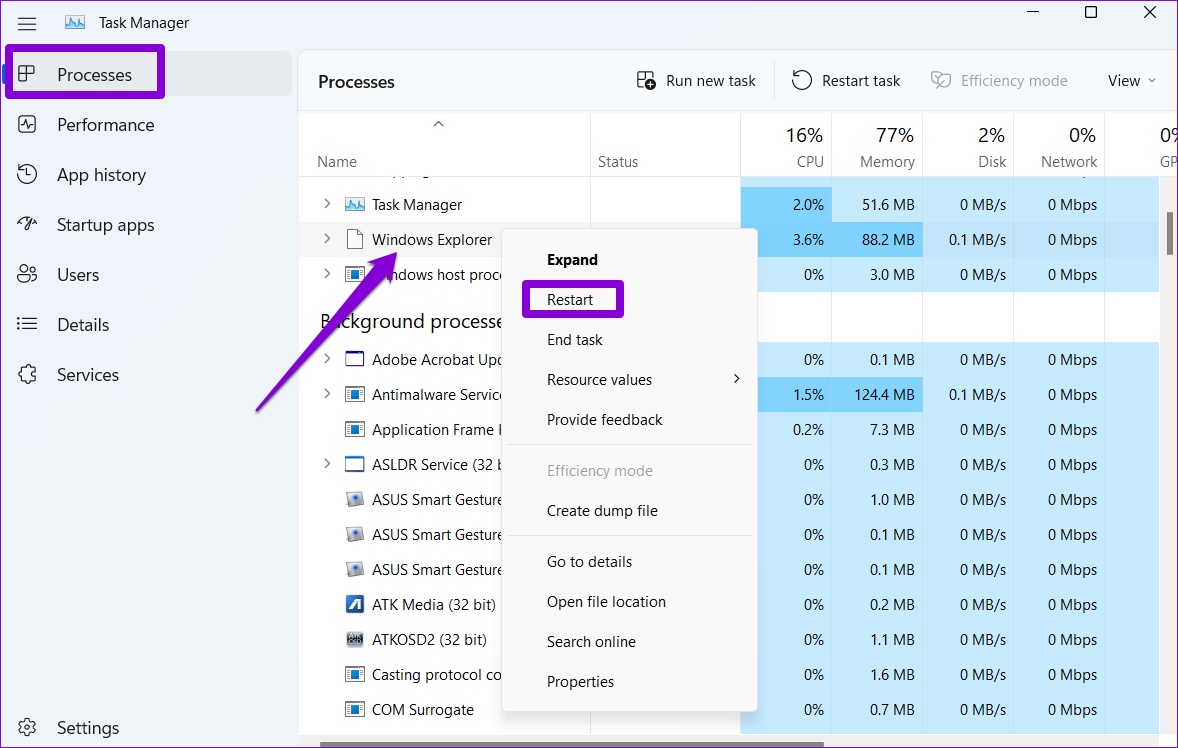
Wait for Windows to restart the File Explorer and see if it’s working fine.
Fix 2: Clear File Explorer Cache
The existing File Explorer cache data may be interfering with its processes and causing problems. You can try removing it and see if that helps.
Step 1: Click the search icon in the taskbar, type in File Explorer options, and press Enter.

Step 2: In the File Explorer Options window that opens, switch to the General tab. Navigate to the Privacy section and click the Clear button.

Fix 3: Run SFC and DISM Scan
File Explorer may malfunction on Windows if some of the system files on your PC are damaged. Running the SFC (System File Checker) and DISM (Deployment Image Servicing and Management) scans can help you repair those files. Here’s how to do it.
Step 1: Right-click on the Start icon and select Terminal (Admin) from the resulting menu.
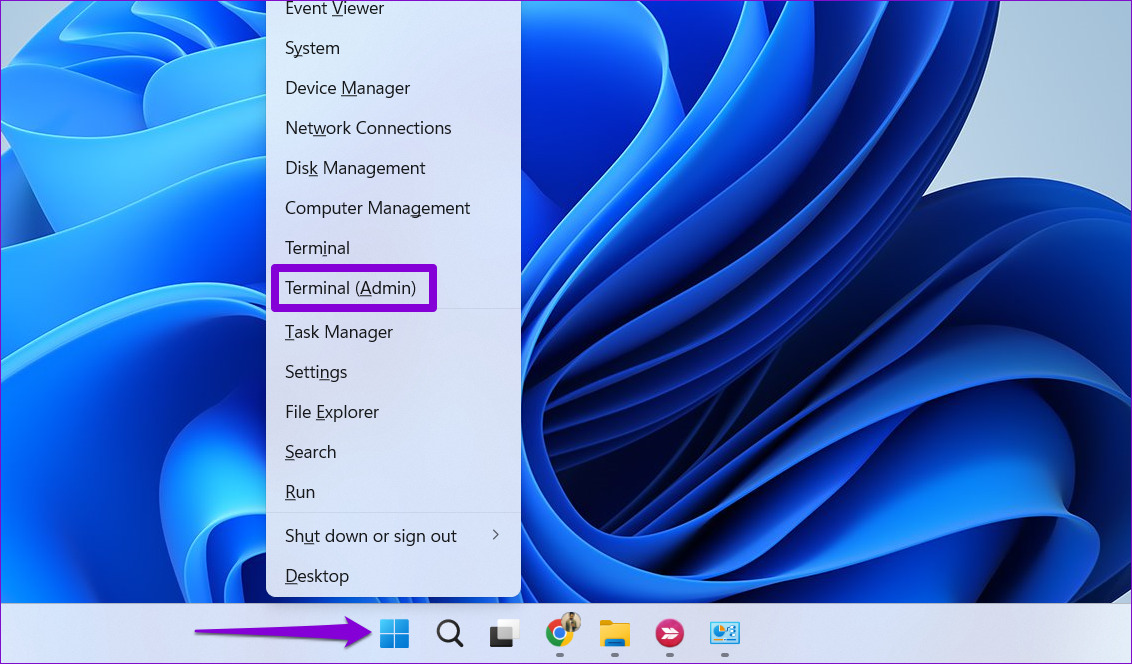
Step 2: Type the command mentioned below and press Enter.
SFC /scannow

Step 3: Run the following commands one by one to execute the DISM scan:
DISM /Online /Cleanup-Image /CheckHealth
DISM /Online /Cleanup-Image /ScanHealth
DISM /Online /Cleanup-Image /RestoreHealth

Once done, restart your PC and try to use the File Explorer again.
Fix 4: Rebuild the Windows Search Index
Issues with the search index library on your PC can also cause such anomalies. If that’s the case, you can try rebuilding the index from scratch.
Step 1: Press the Windows key + S to open the search menu, type in indexing options, and press Enter.

Step 2: Click Advanced.

Step 3: Hit the Rebuild button under Troubleshooting.

Wait for Windows to complete the indexing process. Again, this may take a while, but you can continue using your PC.
Was this helpful?
Last updated on 21 June, 2024
3 Comments
Leave a Reply
Read Next
 5 Ways to Fix File Explorer Search Not Working on Windows 11
Basic Fixes Perform a clean boot: An installed PC software may conflict with the File Explorer app, causing the search issue.
5 Ways to Fix File Explorer Search Not Working on Windows 11
Basic Fixes Perform a clean boot: An installed PC software may conflict with the File Explorer app, causing the search issue.
 8 Ways to Fix File Explorer Search Not Working on Windows 11
Before you begin, try restarting the File Explorer app and fixing corrupted files using an SFC scan.
8 Ways to Fix File Explorer Search Not Working on Windows 11
Before you begin, try restarting the File Explorer app and fixing corrupted files using an SFC scan.
 Top 8 Ways to Fix File Explorer Not Opening on Windows 10
File Explorer is an integral part of Windows 10 OS.
Top 8 Ways to Fix File Explorer Not Opening on Windows 10
File Explorer is an integral part of Windows 10 OS.
 3 Ways to Fix File Explorer Tabs Not Showing in Windows 11
Try Basic Fixes Install Windows updates: File Explorer tabs are only available on computers running Windows 11 22H2 or later.
3 Ways to Fix File Explorer Tabs Not Showing in Windows 11
Try Basic Fixes Install Windows updates: File Explorer tabs are only available on computers running Windows 11 22H2 or later.
 4 Fixes When the Windows File Explorer Stuck at ‘Working on It’
Basic Fixes: Update Windows: It's nice to start with a Windows Update since this will fix minor glitches that may trigger the problem.
4 Fixes When the Windows File Explorer Stuck at ‘Working on It’
Basic Fixes: Update Windows: It's nice to start with a Windows Update since this will fix minor glitches that may trigger the problem.
 4 Ways to Select Multiple Files on Windows File Explorer
Method 1: Select All Files Using CTRL + A Once a folder is open and you press the CTRL + A key combination, all the files will be selected.
4 Ways to Select Multiple Files on Windows File Explorer
Method 1: Select All Files Using CTRL + A Once a folder is open and you press the CTRL + A key combination, all the files will be selected.
 3 Ways to Fix iPhone Not Showing Up in File Explorer on Windows 11
Basic Fixes Install iTunes: Install iTunes from Microsoft Store to access and sync your iPhone on your PC.
3 Ways to Fix iPhone Not Showing Up in File Explorer on Windows 11
Basic Fixes Install iTunes: Install iTunes from Microsoft Store to access and sync your iPhone on your PC.
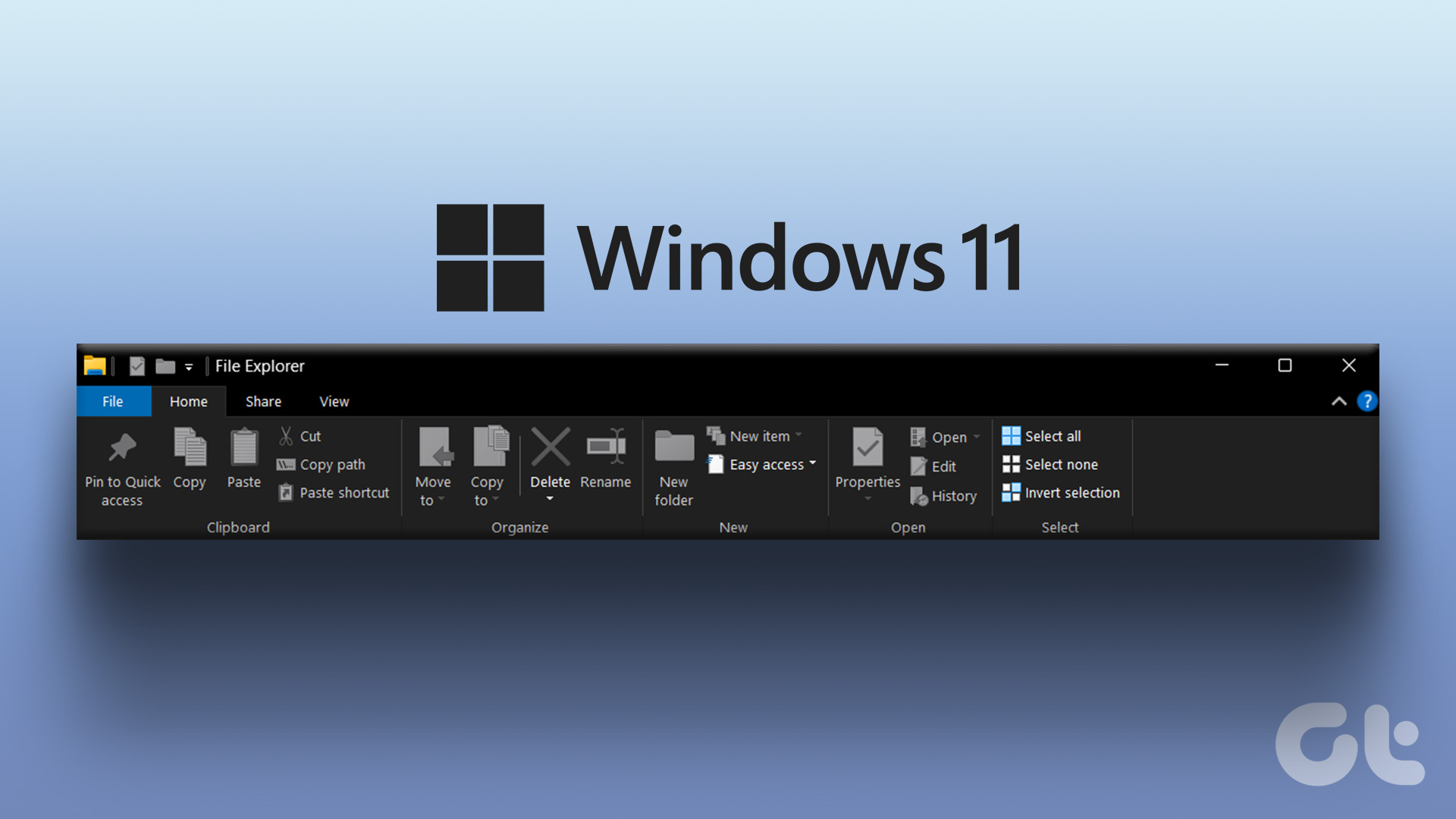 How to Restore the Classic File Explorer Ribbon in Windows 11
Method 1: Using Control Panel This method temporarily restores the old classic ribbon in File Explorer.
How to Restore the Classic File Explorer Ribbon in Windows 11
Method 1: Using Control Panel This method temporarily restores the old classic ribbon in File Explorer.
The article above may contain affiliate links which help support Guiding Tech. The content remains unbiased and authentic and will never affect our editorial integrity.

Thank you Mr Shah… great comprehensive article.
I must have a REALLY serious Windows 11 problem ’cause NONE of these methods had any effect.
File Explorer WILL NOT RUN.
Sames happening for me 🙁
My file explorer has a super slow response rate. I select pictures and always has to process. I disabled onesync and followed these steps without success. My PC is built for gaming 48GB ram and i7, with gtx680. I’m wondering if it is the Home edition. After updates seems to get slower. My edge browser is slow too after updates. What’s going on? I have cleaned up the registry and junk files.