Try Basic Fixes
- Check the volume level on phone: If the volume level on your phone is too low, you may have trouble hearing your Messenger voice messages. Press the volume up button on the side of your phone to increase the volume level. Additionally, ensure that your phone is not connected to a Bluetooth audio device.
- Free up storage space: The Messenger app might struggle to download or play voice messages if your Android or iPhone is running low on storage space. It’s a good idea to check your phone’s storage status to see if it’s full. You can free up storage space by clearing unused apps or transferring some of your data to the cloud.
- Check Messenger’s server status: Services like Facebook Messenger can also experience server outages at times. When this happens, Messenger may not play your voice messages or allow you to send them. You can visit a website like Downdetector to see if others are facing similar issues.
Fix 1: Check App Permissions
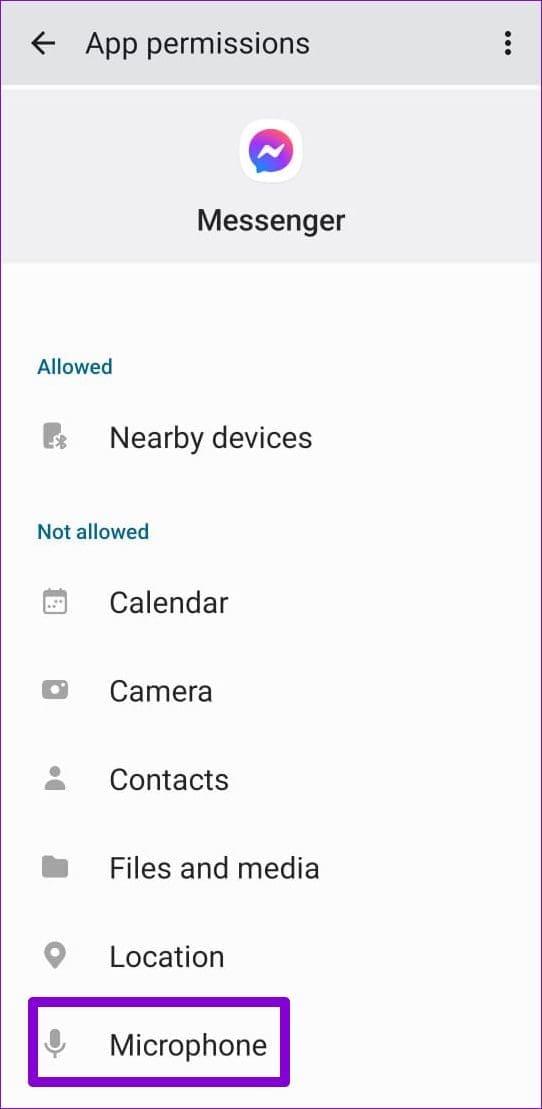
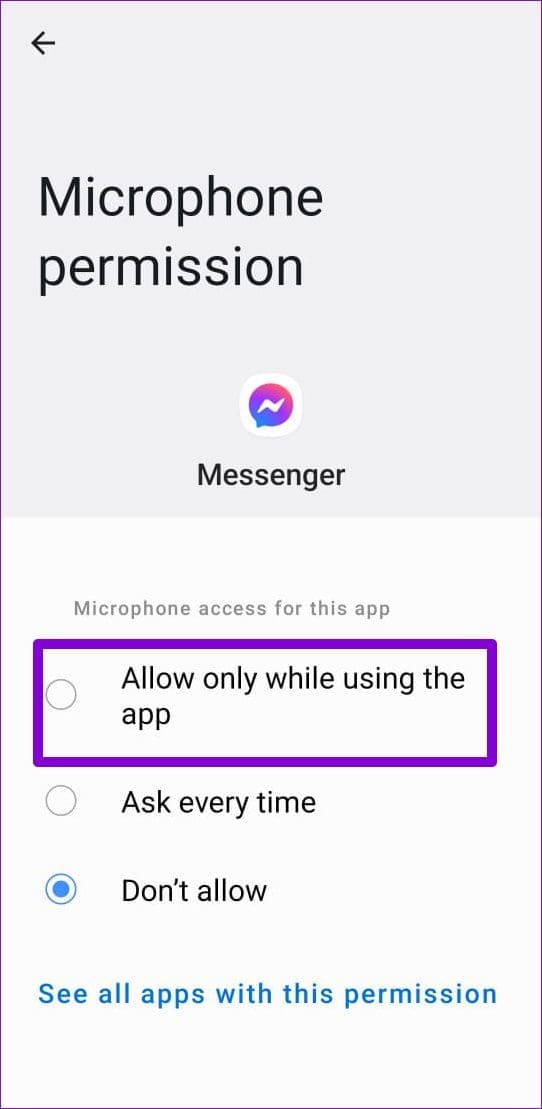
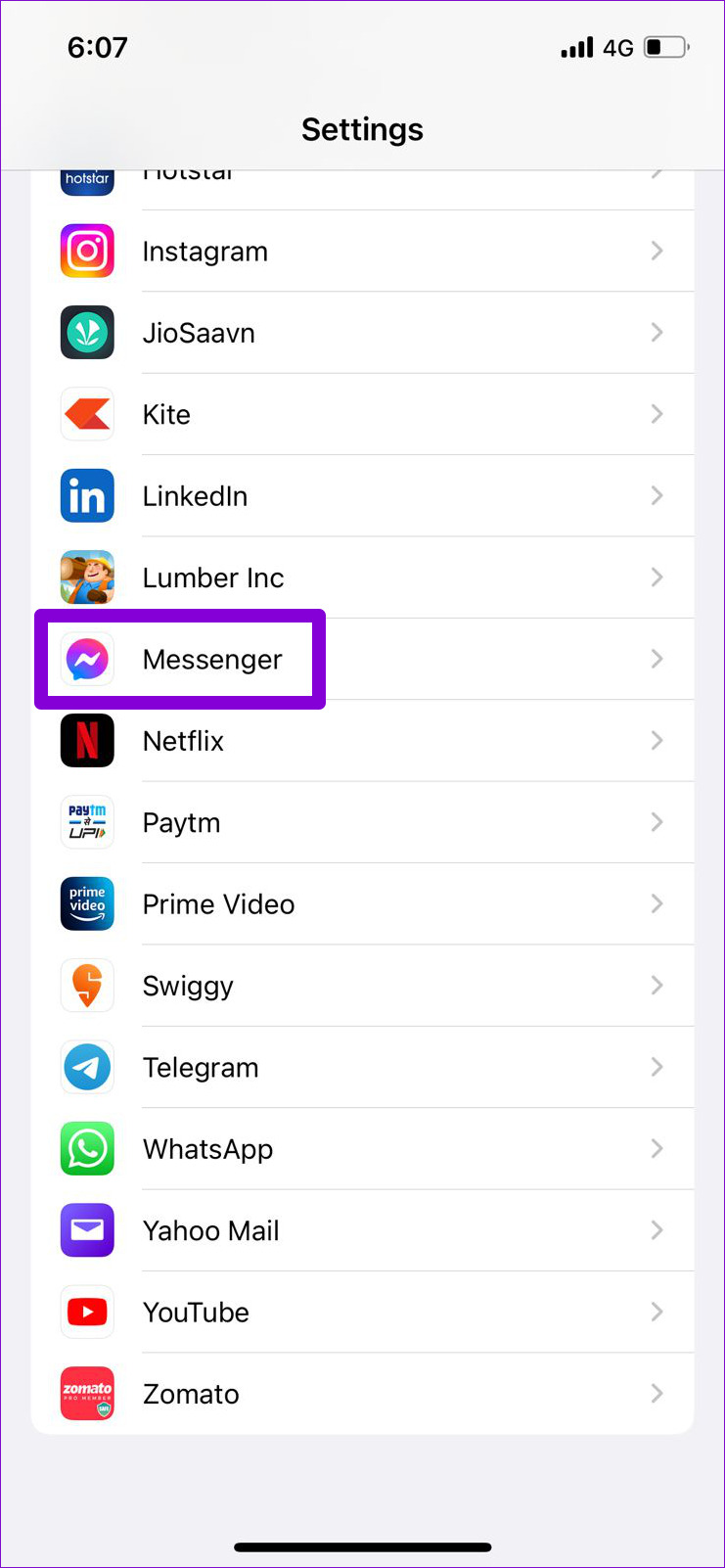
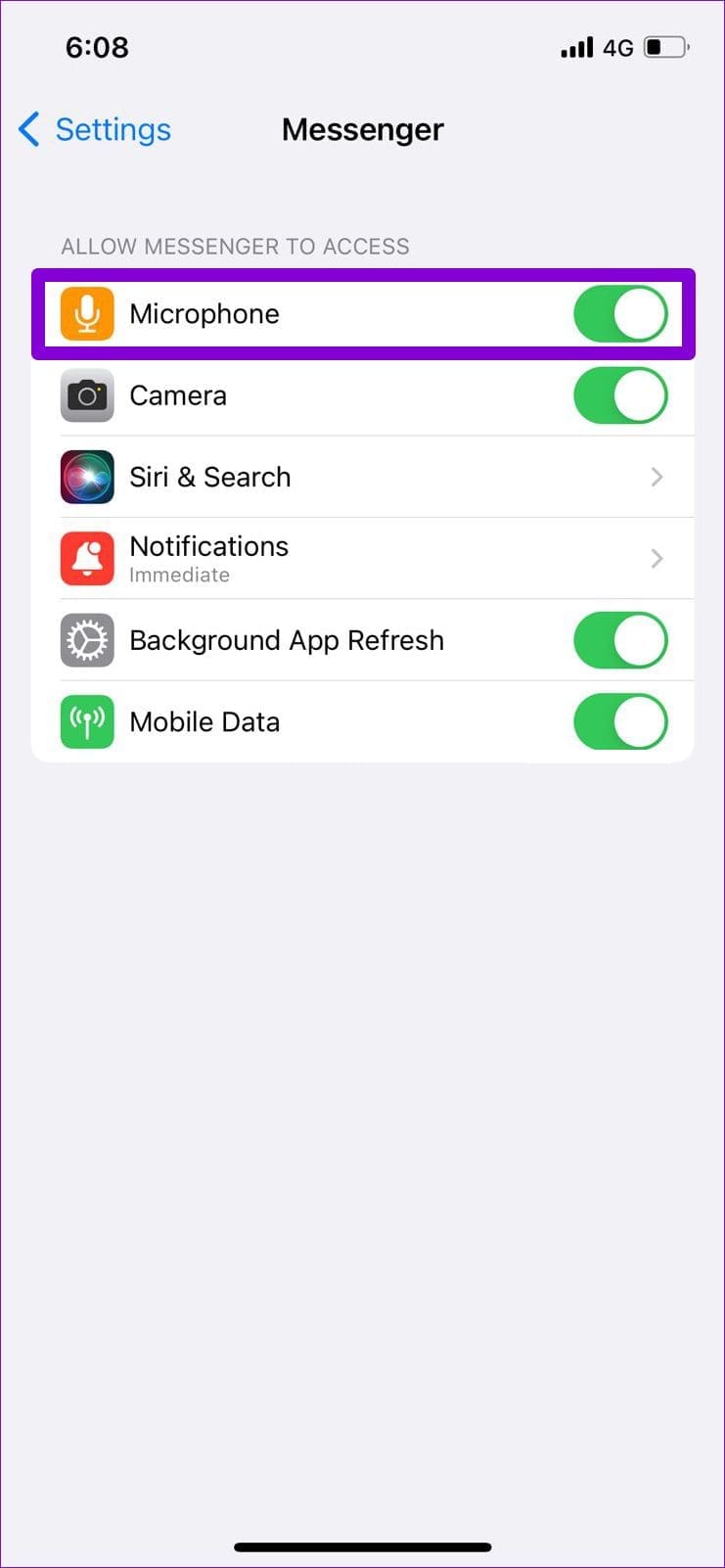
A common reason for Messenger to fail to record or send voice messages is if the app lacks the necessary permission to access your phone’s microphone. Here’s how you can fix that.
Android
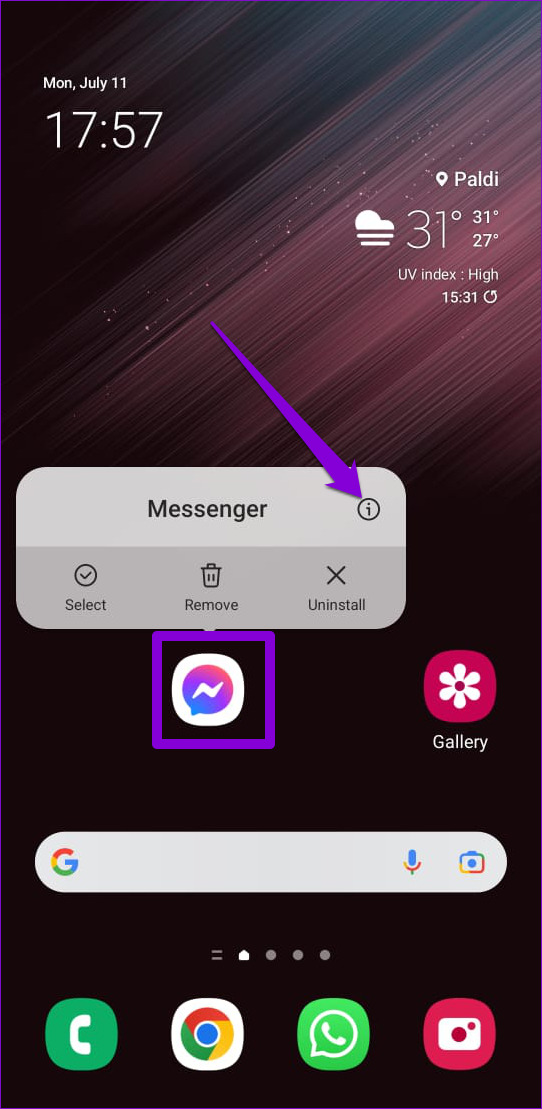
Step 1: Long-press on the Messenger app icon and tap the info icon from the menu that appears. Then, tap Permissions.
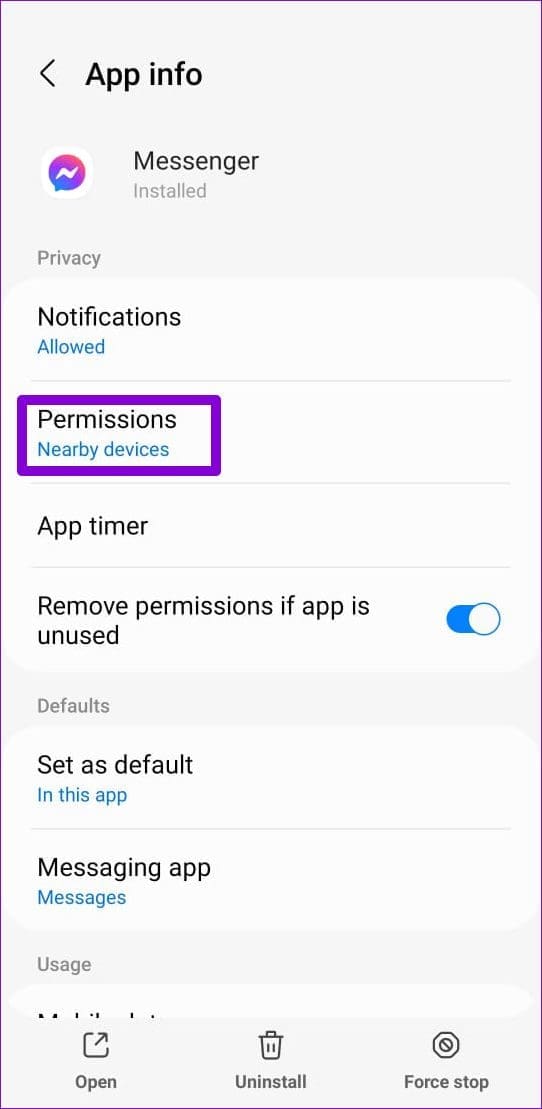
Step 3: Tap on Microphone and select Allow only while using the app.
iPhone
Step 1: Launch the Settings app on your iPhone and scroll down to tap on Messenger.
Step 2: Turn on the toggle next to Microphone.
Fix 2: Enable Microphone Access From the Privacy Menu (Android)
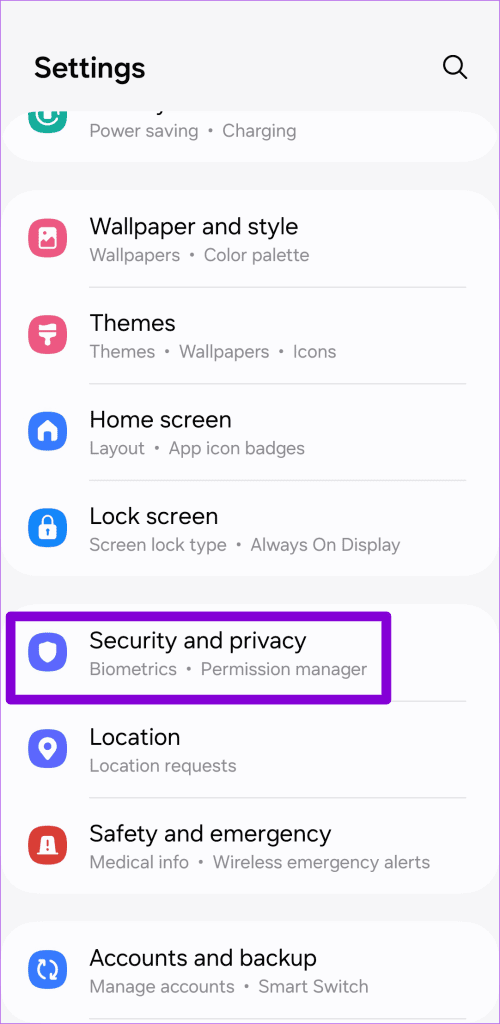
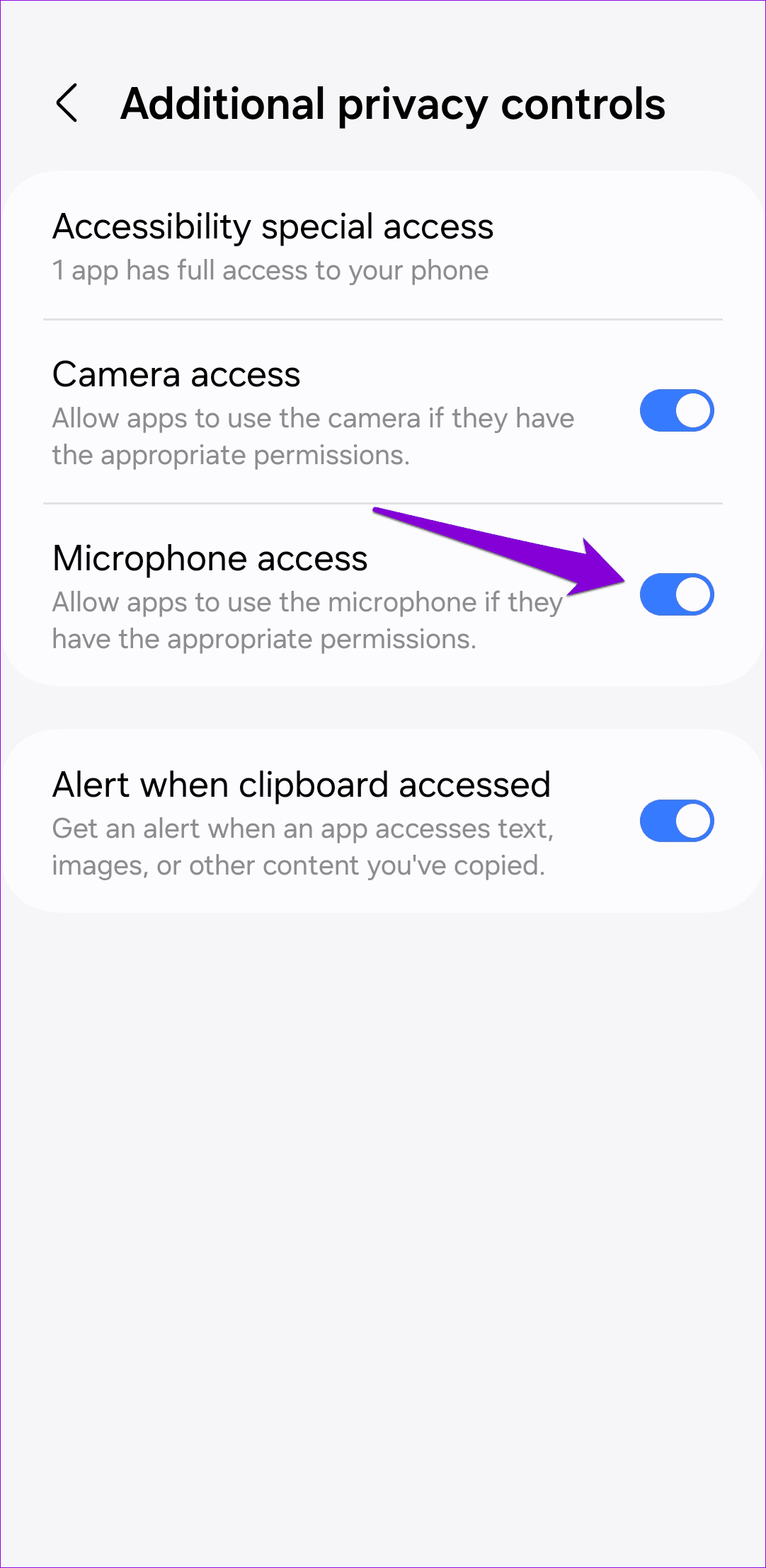
If your phone runs Android 12, you can control the camera and microphone permissions for all apps from the Privacy menu. If you’ve accidentally disabled microphone access on your phone, Facebook Messenger won’t record your voice messages. Here’s how you can change that.
Step 1: Open the Settings app on your phone and navigate to Security and privacy.
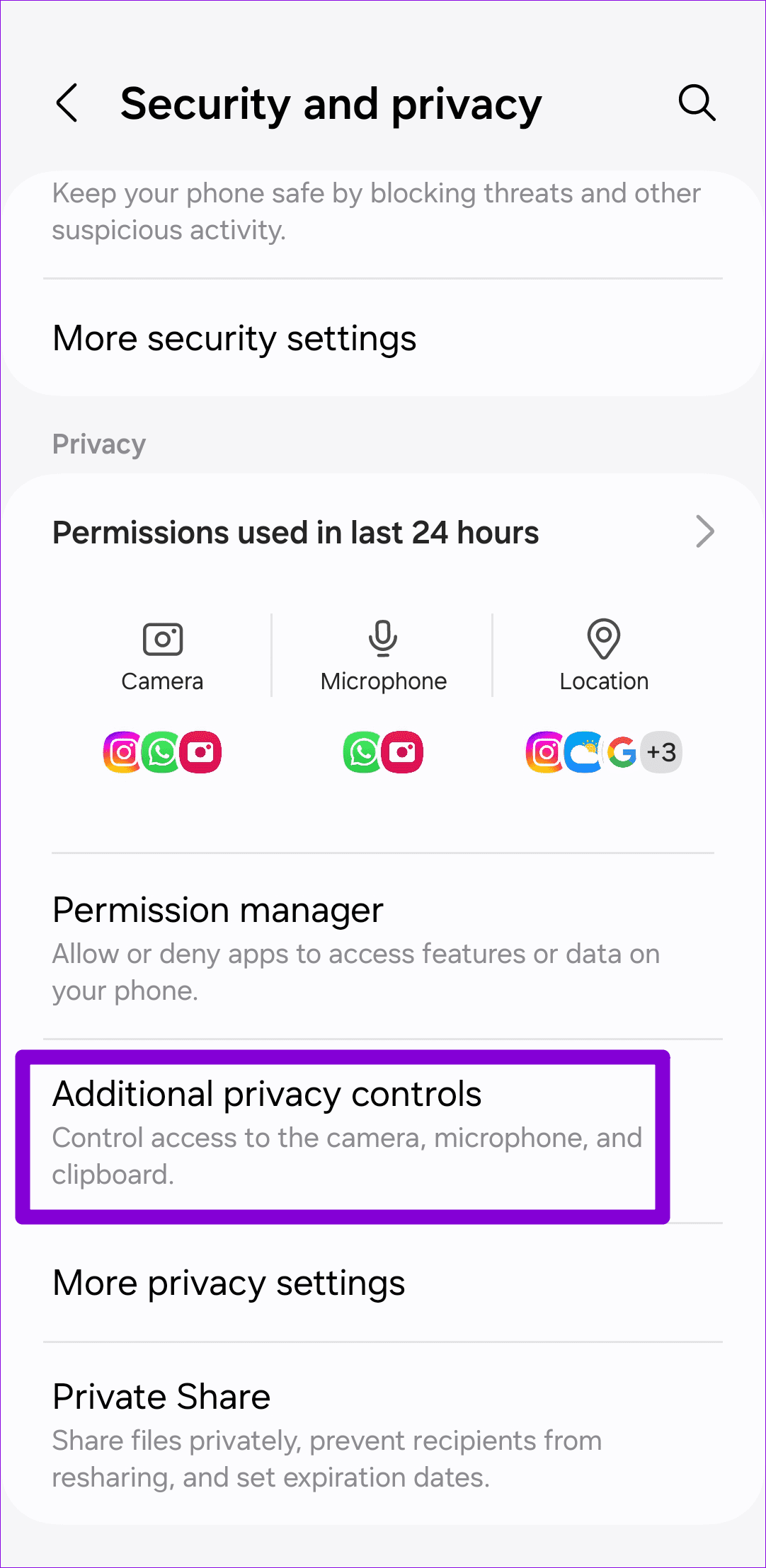
Step 2: Tap on More privacy controls and enable the toggle next to Microphone access.
Fix 3: Clear App Cache (Android)
Like most apps, Messenger also collects cache data on your phone to improve app performance. However, if that data becomes corrupt or inaccessible, certain features, such as voice messages, may not work correctly. To fix this, you can clear Messenger’s cache data by following the steps below.
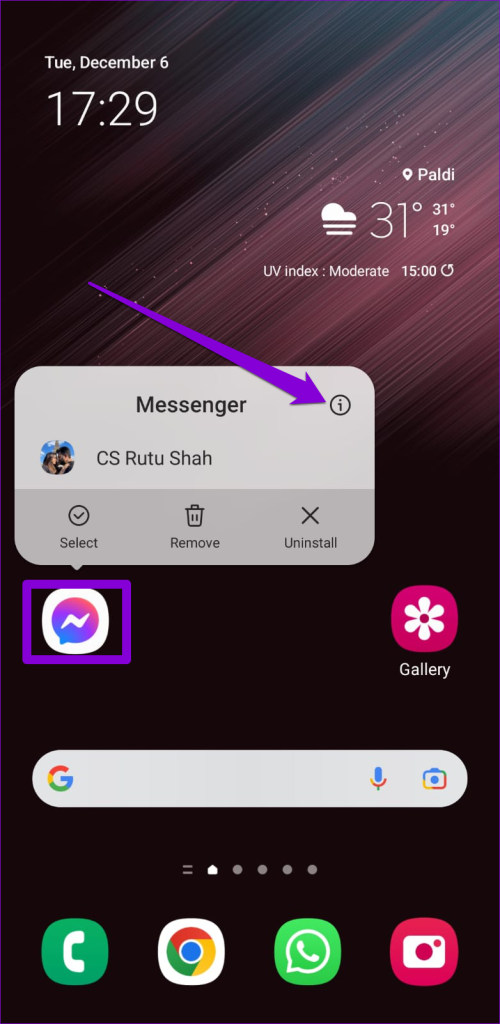
Step 1: Long-press on the Facebook Messenger app icon and tap the info icon from the menu that pops open.
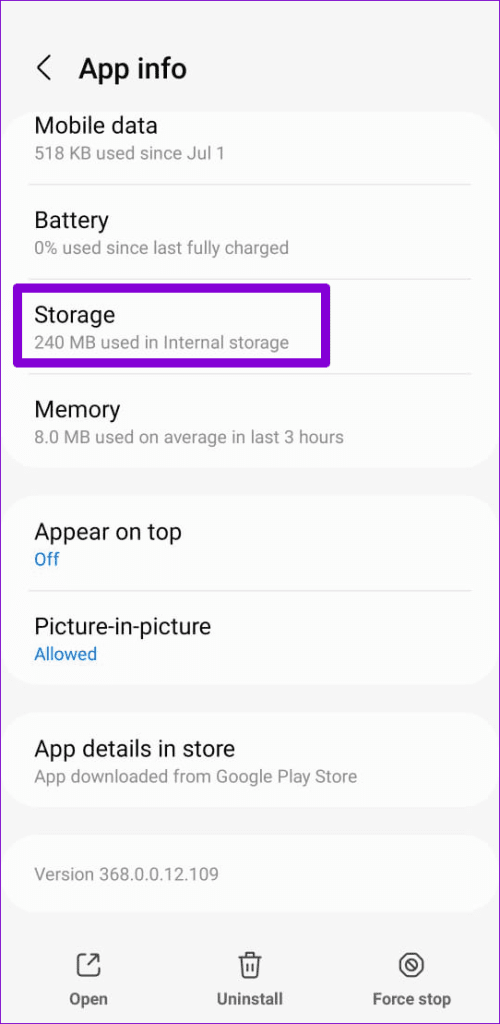
Step 2: Go to Storage and tap the Clear cache option at the bottom right corner.

Fix 4: Update or Reinstall the App
App updates usually bring all kinds of new features and bug fixes to an app. If the voice message not working issue is caused by a buggy Messenger build, updating the app from the Play Store (Android) or App Store (iPhone) should help.
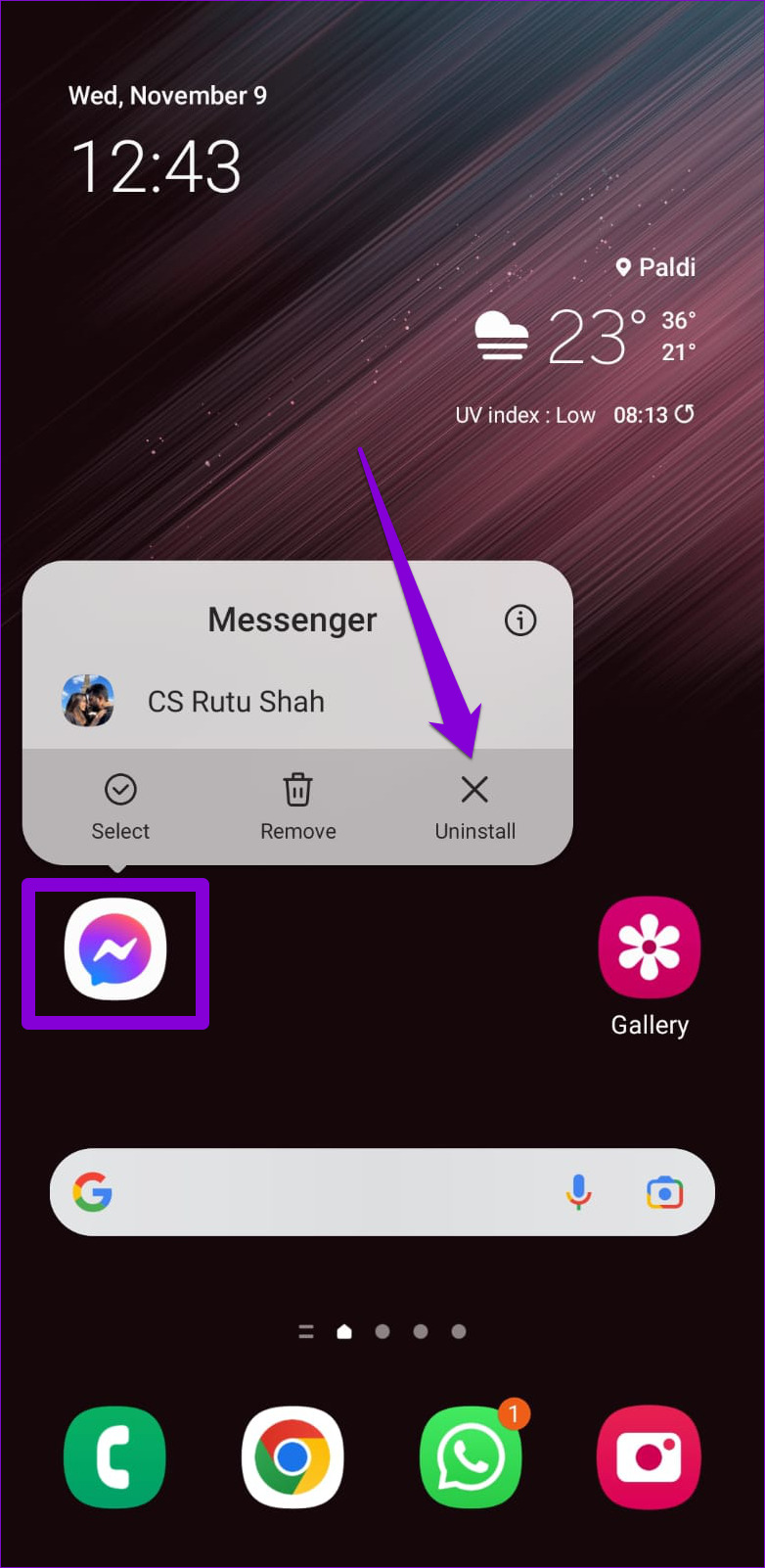
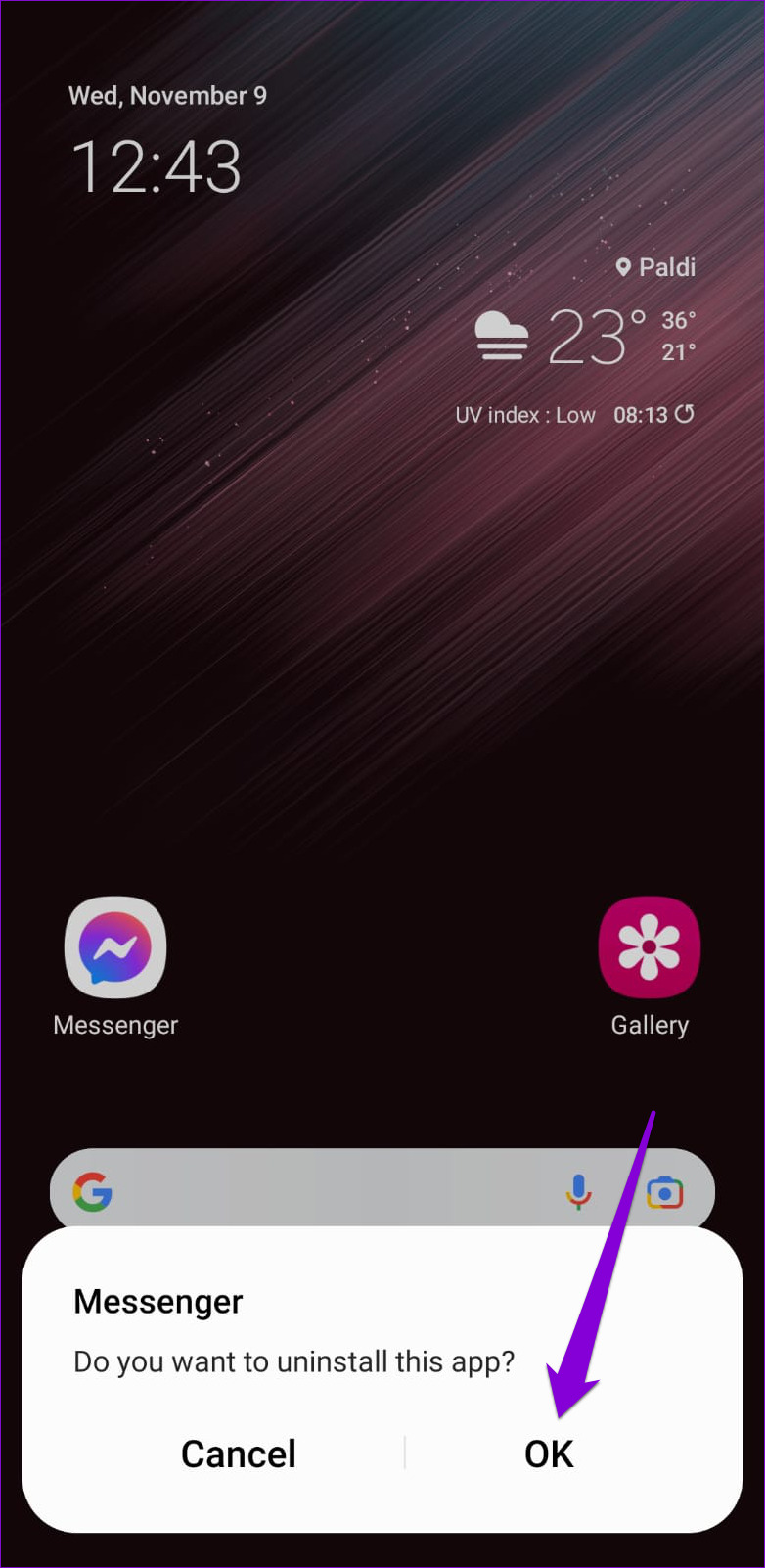
If you still can’t send or receive voice messages on Messenger, you can try uninstalling and reinstalling the app. If you have an Android, long-press the Messenger app icon and tap Uninstall. Then, hit OK.
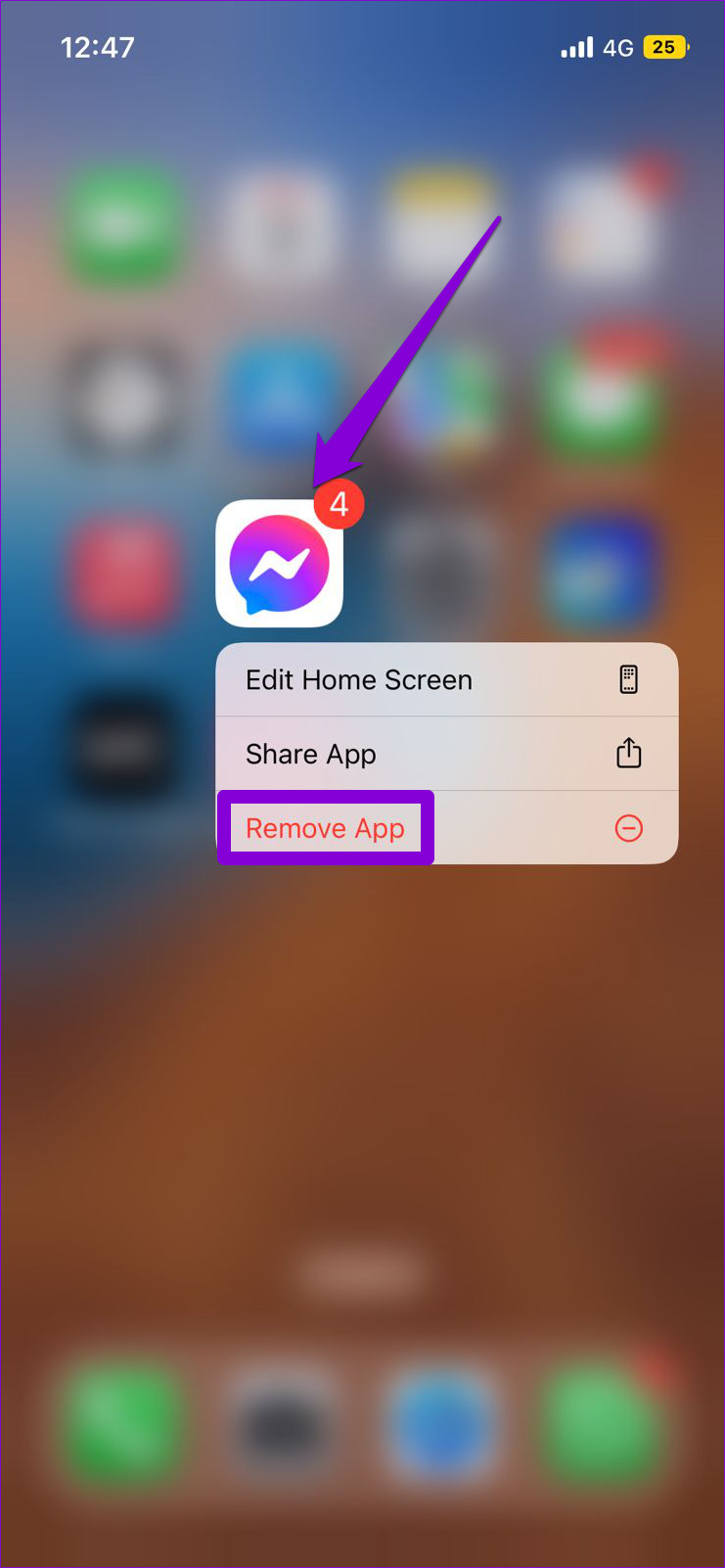
On an iPhone, long press the Messenger app icon and select Remove App. Select Delete App to confirm.
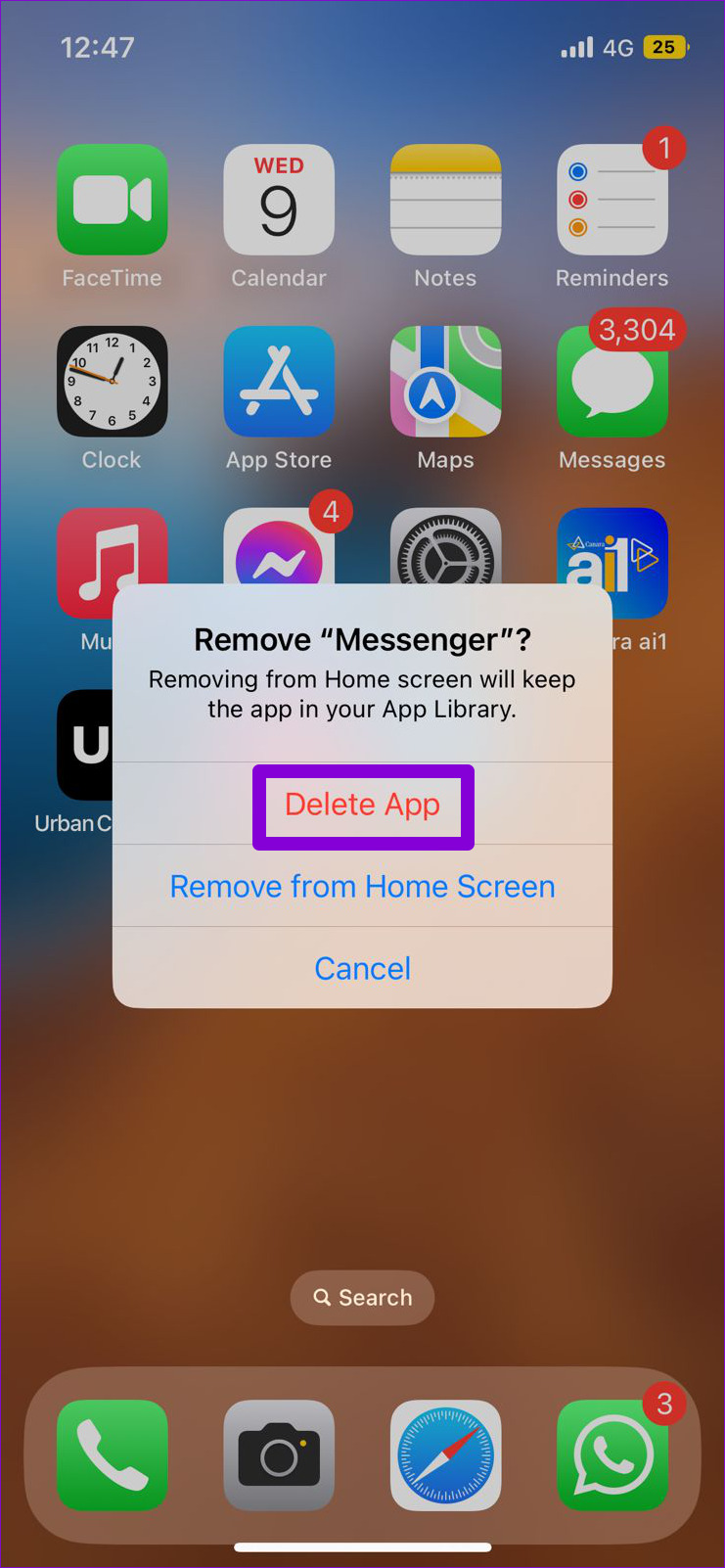
Once removed, download and install the Messenger app and try to send or play voice messages again.
Was this helpful?
Last updated on 05 July, 2024
Read Next
 4 Ways to Fix WhatsApp Voice Messages Not Working
Try These Basic Fixes First Check the phone's volume: If you can't hear a voice message, check whether the speaker volume is high enough.
4 Ways to Fix WhatsApp Voice Messages Not Working
Try These Basic Fixes First Check the phone's volume: If you can't hear a voice message, check whether the speaker volume is high enough.
 Top 4 Ways to Fix Facebook Messenger Not Showing Messages
Preliminary Fixes Check Messages Requests in Hidden Inbox: Sometimes, messages from people who are not on your friends list may not appear in your main inbox.
Top 4 Ways to Fix Facebook Messenger Not Showing Messages
Preliminary Fixes Check Messages Requests in Hidden Inbox: Sometimes, messages from people who are not on your friends list may not appear in your main inbox.
 4 Ways to Fix Facebook Marketplace Messages Not Showing up in Messenger
Basic Fixes Check your network connection: Ensure your device has a good internet connection.
4 Ways to Fix Facebook Marketplace Messages Not Showing up in Messenger
Basic Fixes Check your network connection: Ensure your device has a good internet connection.
 3 Ways to Fix Photos and Videos Not Loading on Facebook Messenger
Try Basic Fixes Update the Messenger app: Using an outdated version of the Facebook app on your Android or iPhone can trigger the "This media is no longer available" error
3 Ways to Fix Photos and Videos Not Loading on Facebook Messenger
Try Basic Fixes Update the Messenger app: Using an outdated version of the Facebook app on your Android or iPhone can trigger the "This media is no longer available" error
 6 Fixes for Facebook Messenger Not Sending Messages (iPhone and Android)
Preliminary Fixes Enable and Disable Airplane Mode: Network glitches can prevent Facebook Messenger from sending messages.
6 Fixes for Facebook Messenger Not Sending Messages (iPhone and Android)
Preliminary Fixes Enable and Disable Airplane Mode: Network glitches can prevent Facebook Messenger from sending messages.
 How to Send Disappearing Messages in Facebook Messenger
Send Disappearing Messages in Facebook Messenger Mobile App The process of sending disappearing messages on the mobile app is the same for Android and iOS devices.
How to Send Disappearing Messages in Facebook Messenger
Send Disappearing Messages in Facebook Messenger Mobile App The process of sending disappearing messages on the mobile app is the same for Android and iOS devices.
 5 Ways to Fix Snapchat Voice Notes Not Working
Fix 1: Check App Permissions Snapchat requires access to your phone's microphone to record Voice Notes.
5 Ways to Fix Snapchat Voice Notes Not Working
Fix 1: Check App Permissions Snapchat requires access to your phone's microphone to record Voice Notes.
 3 Ways to Fix Facebook Messenger Camera Not Working on Android and iPhone
Fix 1: Enable Camera Permission for Messenger Like any other app, Messenger needs permission to access your phone's camera.
3 Ways to Fix Facebook Messenger Camera Not Working on Android and iPhone
Fix 1: Enable Camera Permission for Messenger Like any other app, Messenger needs permission to access your phone's camera.
The article above may contain affiliate links which help support Guiding Tech. The content remains unbiased and authentic and will never affect our editorial integrity.