


Basic Fixes:
- Ensure facial recognition data is added properly: When capturing your face data, ensure you’re in a well-lit room. Additionally, add your face data from all the suggested angles.
- Try running the Diagnostic Tool: Use the Settings app to run the Diagnostic Tool on your Samsung Galaxy device. Select Facial Recognition from the options and let it run. This will help detect and resolve any device-related issues.
- Check for software updates: Software bugs can cause certain device functions, like facial recognition, not to work properly. In this case, check and install the latest software updates on your Samsung Galaxy device.
Fix 1: Remove and Re-Add Facial Recognition Data
If your face data wasn’t properly registered the first time, it might cause issues when using it. In this case, remove the current face data and add it again from scratch. Here’s how to do it on your Samsung Galaxy phone.
Step 1: Open the Settings app > tap on Security and privacy. Scroll down and tap on Biometrics.
Step 2: Here, tap on Face recognition. Enter your phone’s PIN or password for authentication.

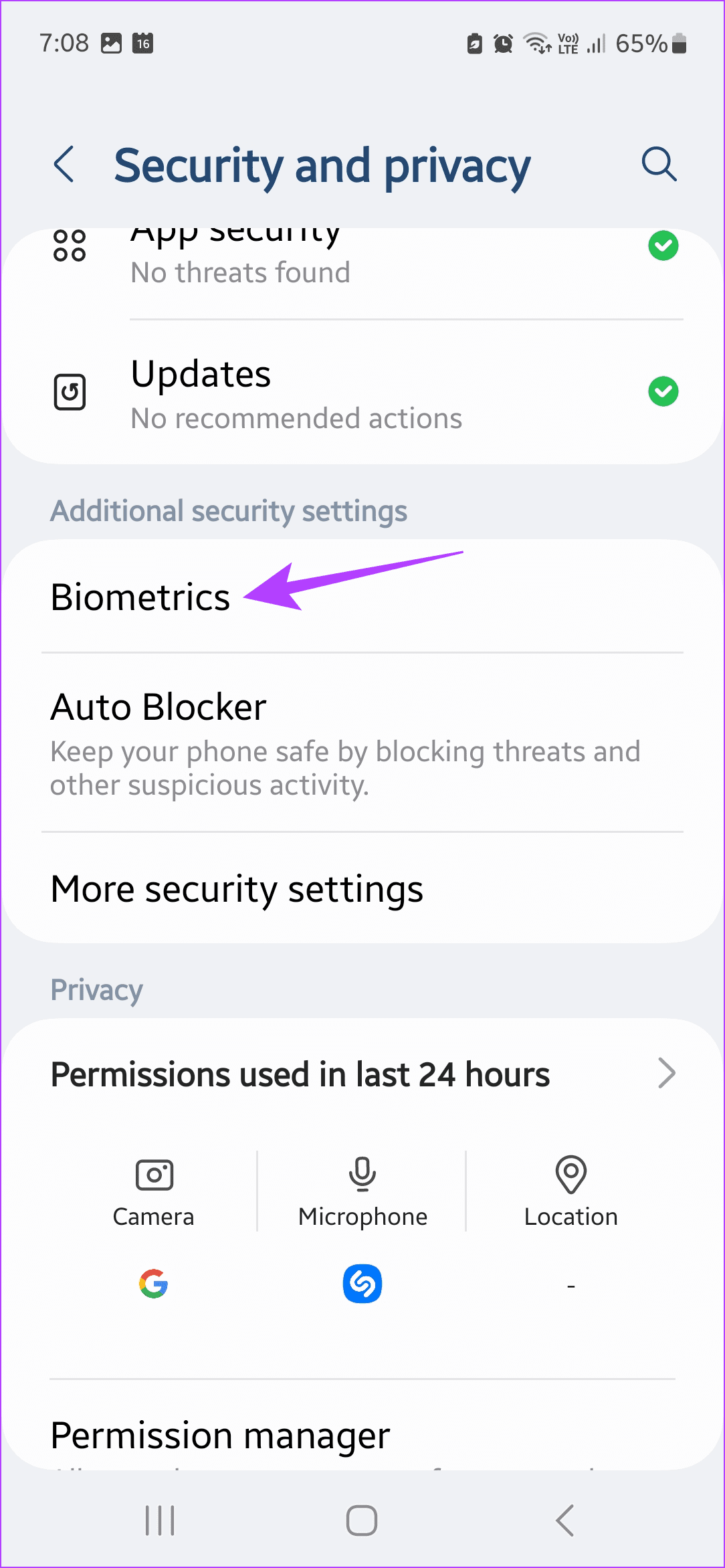

Step 3: Then, tap on Remove face data. When prompted, tap on Remove.


Once you see the Register Face option, tap on it, and follow the on-screen instructions to register your face data again.
Fix 2: Try Adding an Alternative Appearance
If you regularly wear glasses or occasionally keep a light beard, you can add an alternative appearance to improve the face recognition success ratio. This will ensure your Samsung device recognizes you despite the occasional change in appearance. Here’s how to do it.
Step 1: Open Settings > tap on Security and privacy > Biometrics.
Step 2: Then, tap on Face recognition > enter your phone’s PIN or password for authentication.
Step 3: Here, tap on Add alternative appearance to enhance recognition and follow the on-screen instructions to register the alternative appearance data.

Fix 3: Enable Brighten screen
Face recognition might not work well in low-light environments. To overcome this, you can make your Samsung phone’s screen brighter when using face recognition in a dark environment. Here’s how to enable it on your Samsung Galaxy device.
Step 1: Open Settings and access Biometrics settings using the abovementioned steps.
Step 2: Then, tap on Face recognition and enter your phone’s PIN or password. Once done, scroll down and turn on the toggle for Brighten screen.
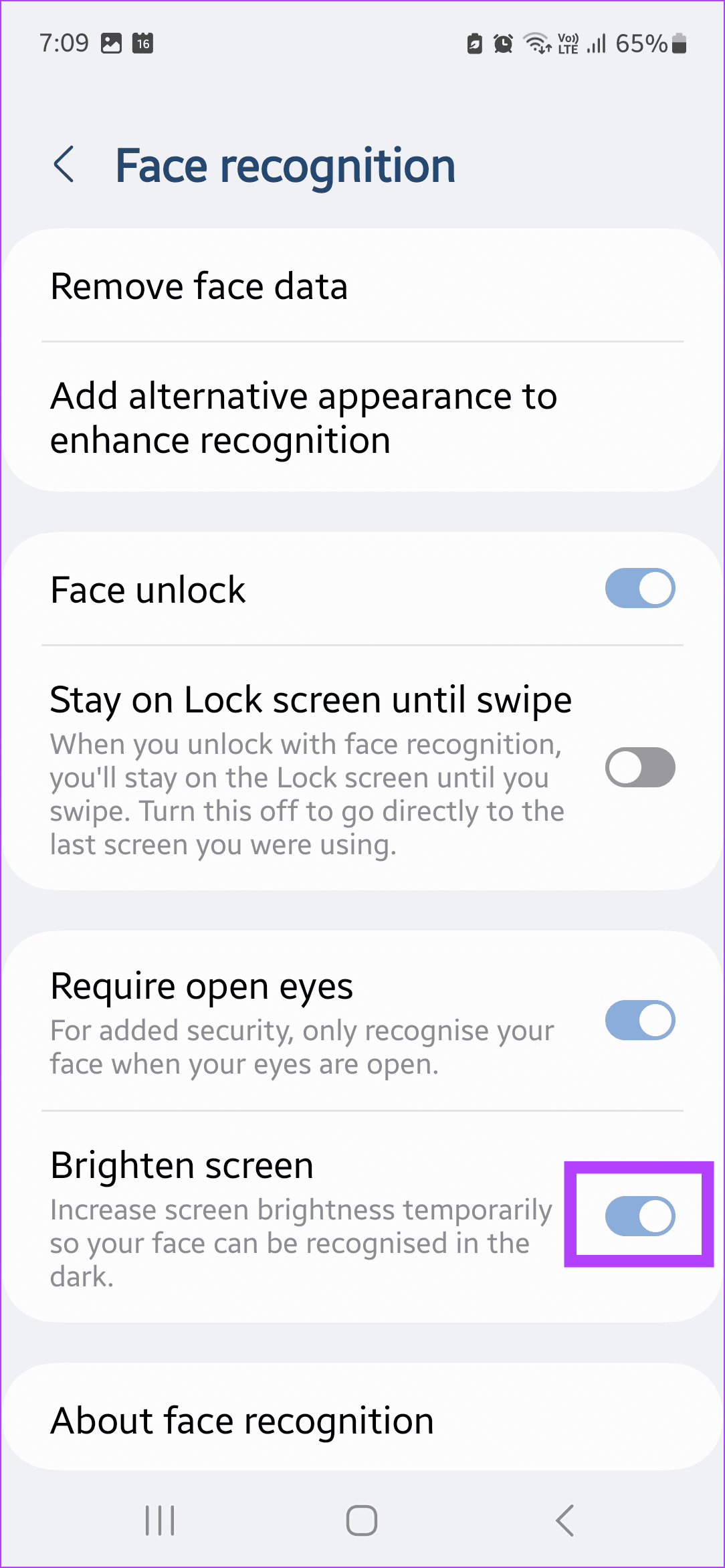
Fix 4: Disable Lock Screen Swipe and Require Open Eyes
Usually, facial recognition unlocks the lock screen but requires one more swipe to jump to the home screen. Additionally, you must always have your eyes open. So, if you want to open the home screen and aren’t too fussy about your eye’s appearance, disable these settings. Here’s how.
Note: While disabling Require open eyes settings ensures higher chances of success when using facial recognition, it might leave your device vulnerable.
Step 1: Open Settings and access Biometrics settings via Security and privacy settings.
Step 2: Here, tap on Face recognition and enter your phone’s PIN or password.
Step 3: Then, turn off the toggles for Stay on the Lock screen until swipe and Require open eyes.
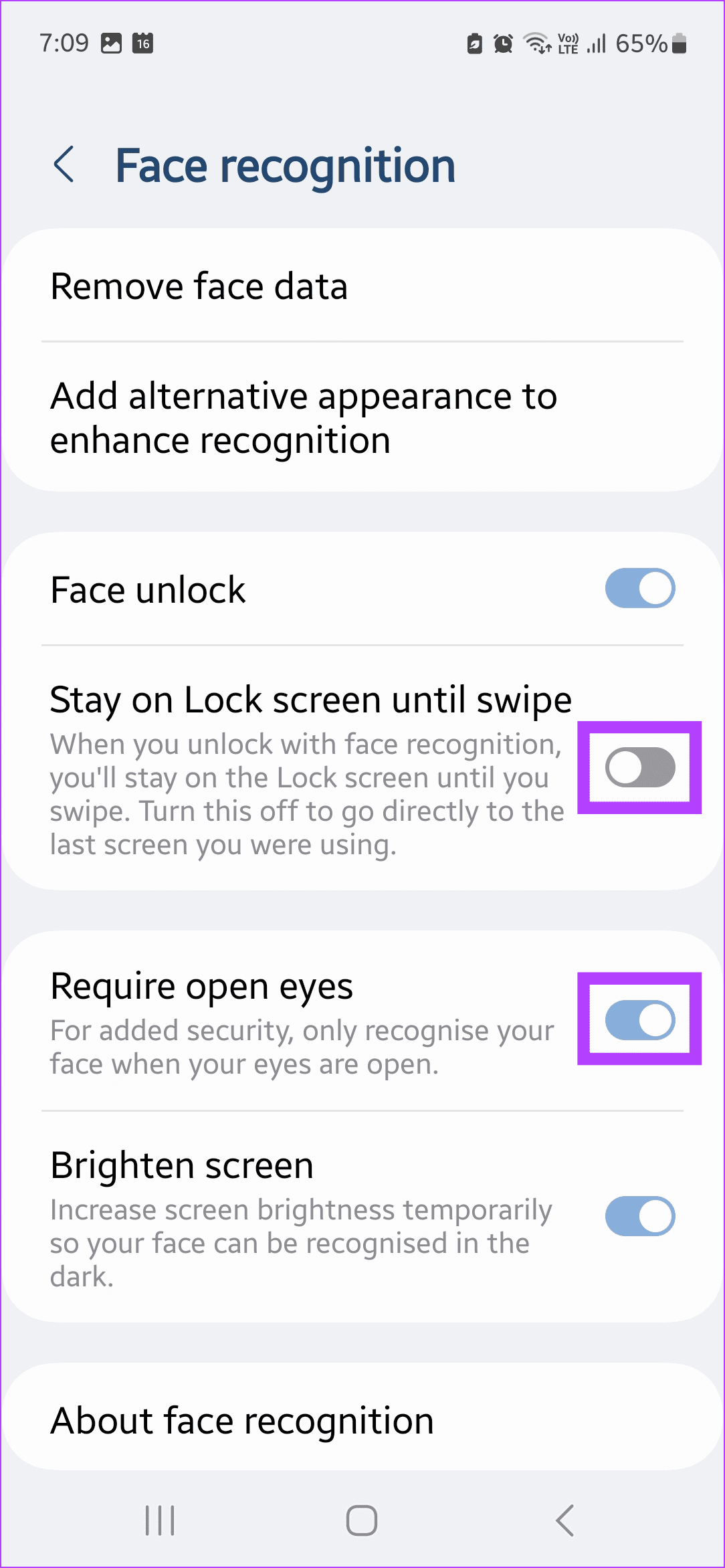
This should automatically unlock your phone once it opens. If you still face issues using facial recognition, consider resetting all device settings. Then, set up facial recognition data from scratch.
Was this helpful?
Last updated on 25 April, 2024
2 Comments
Leave a Reply
Read Next
 5 Ways to Fix Google Photos Face Recognition Not Working on Android and iPhone
https://youtu.be/UbhXaGftf4s Try Basic Fixes Update the app: Such issues with the facial recognition feature can occur due to a bug within the Photos app.
5 Ways to Fix Google Photos Face Recognition Not Working on Android and iPhone
https://youtu.be/UbhXaGftf4s Try Basic Fixes Update the app: Such issues with the facial recognition feature can occur due to a bug within the Photos app.
 6 Best Windows Hello Webcams for Face Recognition on Your PC
Entering a long password to log in to your PC can be cumbersome.
6 Best Windows Hello Webcams for Face Recognition on Your PC
Entering a long password to log in to your PC can be cumbersome.
 7 Best Ways to Fix S Pen Not Working on Samsung Galaxy Devices
Samsung's Galaxy Note series was one of the most popular smartphone lineups until Samsung killed it in 2021.
7 Best Ways to Fix S Pen Not Working on Samsung Galaxy Devices
Samsung's Galaxy Note series was one of the most popular smartphone lineups until Samsung killed it in 2021.
 How to Improve Facial Recognition in Google Photos
Method 1: Fix Results in the Google Photos App Google Photos app on mobile lets you remove inaccurate results, making it more intelligent to figure out the next time it
How to Improve Facial Recognition in Google Photos
Method 1: Fix Results in the Google Photos App Google Photos app on mobile lets you remove inaccurate results, making it more intelligent to figure out the next time it
 2 Ways to Fix Wrong Order of Messages on Samsung Galaxy Devices
https://youtu.be/NdwSN__cLQc Basic Fixes: Restart the Samsung Messages app: A temporary bug or glitch can cause the messages to appear out of order.
2 Ways to Fix Wrong Order of Messages on Samsung Galaxy Devices
https://youtu.be/NdwSN__cLQc Basic Fixes: Restart the Samsung Messages app: A temporary bug or glitch can cause the messages to appear out of order.
 How to Use Handwriting Recognition in Microsoft OneNote
How to Take Handwritten Notes in OneNote Step 1: On the OneNote app, click the Draw option > select your preferred pen or highlighter tool.
How to Use Handwriting Recognition in Microsoft OneNote
How to Take Handwritten Notes in OneNote Step 1: On the OneNote app, click the Draw option > select your preferred pen or highlighter tool.
 Top 10 Samsung My Files Tips and Tricks on Galaxy Devices
Native file management is one of the prime reasons to choose Android over iOS.
Top 10 Samsung My Files Tips and Tricks on Galaxy Devices
Native file management is one of the prime reasons to choose Android over iOS.
 Best Ways to Fix iPhone Face ID Not Working
A flagship feature since the iPhone X, Apple’s Face ID makes tasks like unlocking your iPhone, locking applications like WhatsApp, autofill passwords, and authorizing payments more convenient.
Best Ways to Fix iPhone Face ID Not Working
A flagship feature since the iPhone X, Apple’s Face ID makes tasks like unlocking your iPhone, locking applications like WhatsApp, autofill passwords, and authorizing payments more convenient.
The article above may contain affiliate links which help support Guiding Tech. The content remains unbiased and authentic and will never affect our editorial integrity.

Some apps enable fingerprint recognition instead of typing a password. Will they be able to use face recognition?
Face recognition in sunglasses still does not work even when all above suggested steps are taken.
Turn off eyes open
Brighten screen mode for recognition
Alternative look in sunglasses does not register when setting up face recognition?