

Try These Basic Fixes
- Check if Discord is down: If its server is having problems, Discord may encounter connection issues. You can visit Discord’s server status page to look for outage reports.
- Update Discord: Running an outdated or buggy version of the app can also cause such problems. Hence, update the Discord app from the Play Store or App Store.
- Temporarily disable your VPN: Discord may be facing connection issues due to problems with your VPN connection. To rule out this possibility, temporarily disable your VPN and use Discord again.
Fix 1: Sign Out and Sign Back In
Discord connection issues can also occur if it fails to authenticate your account. This usually happens after you change your password or enable two-factor authentication in Discord. If that’s the case, signing out of the Discord app and signing back in should help resolve the issue.
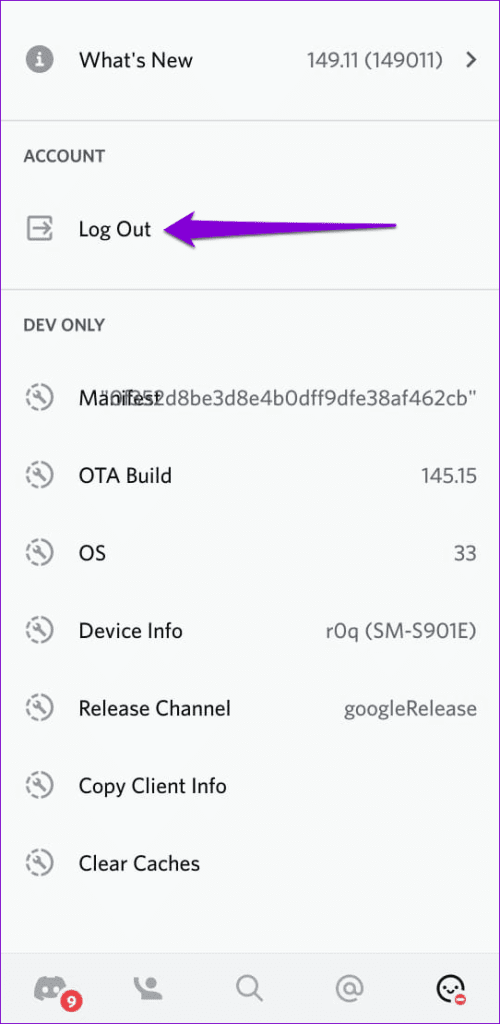
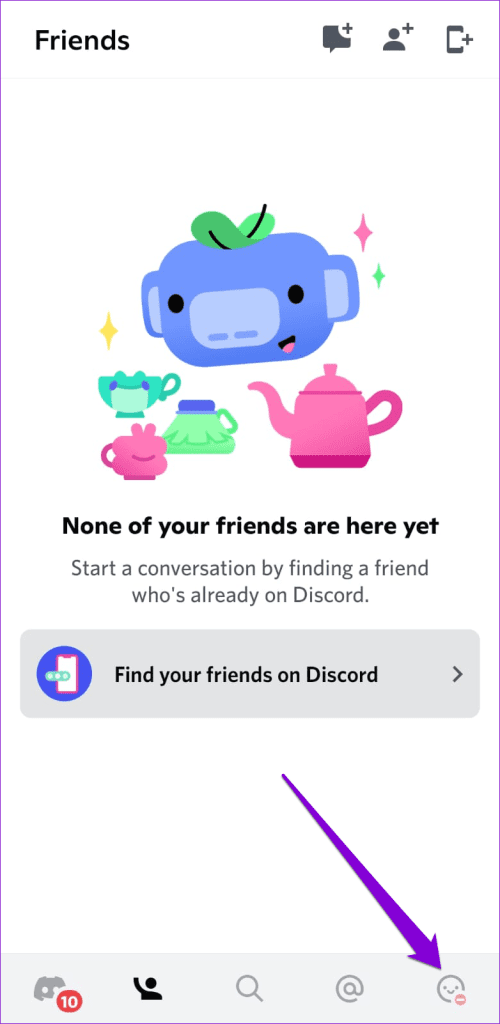
Step 1: Open the Discord app on your phone and tap the profile icon at the bottom right corner.
Step 2: Scroll down to the Account section and tap Log Out. Select Log Out again to confirm.

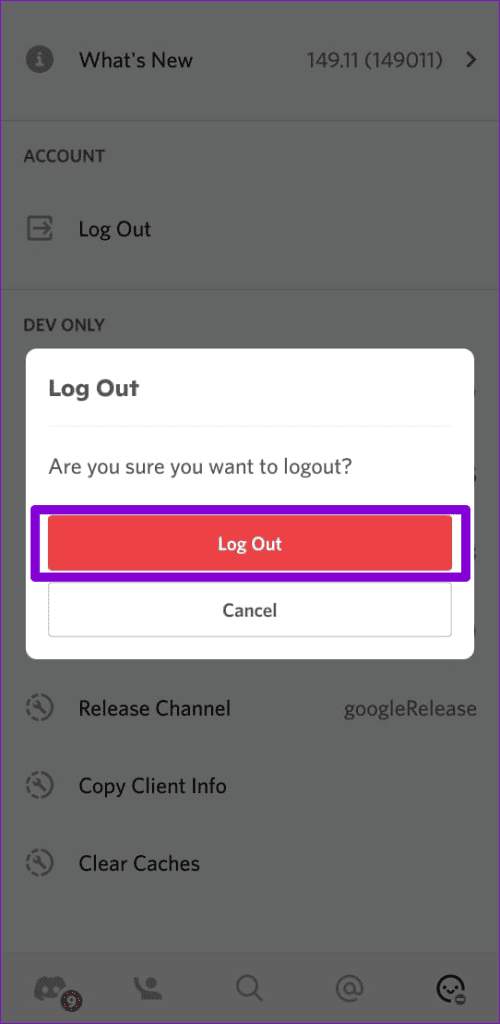
Sign back into your Discord account and see if the app runs into connection issues again.
Fix 2: Correct the Date and Time on Your Phone
Having your phone set to the wrong date or time may not seem like a big deal, but it can lead to many problems. Importantly, it can prevent apps from communicating with the server. One way to avoid such problems is to set your phone to the network-provided date and time.
On Android
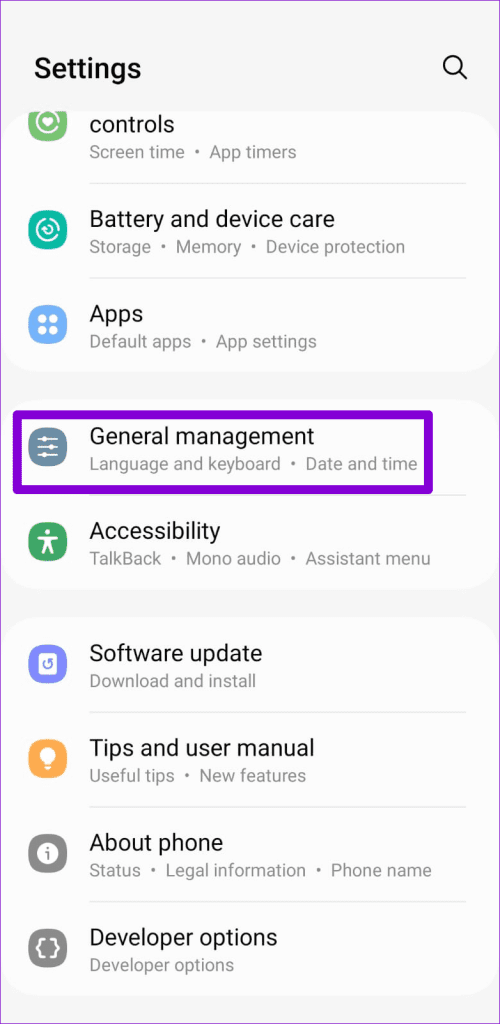
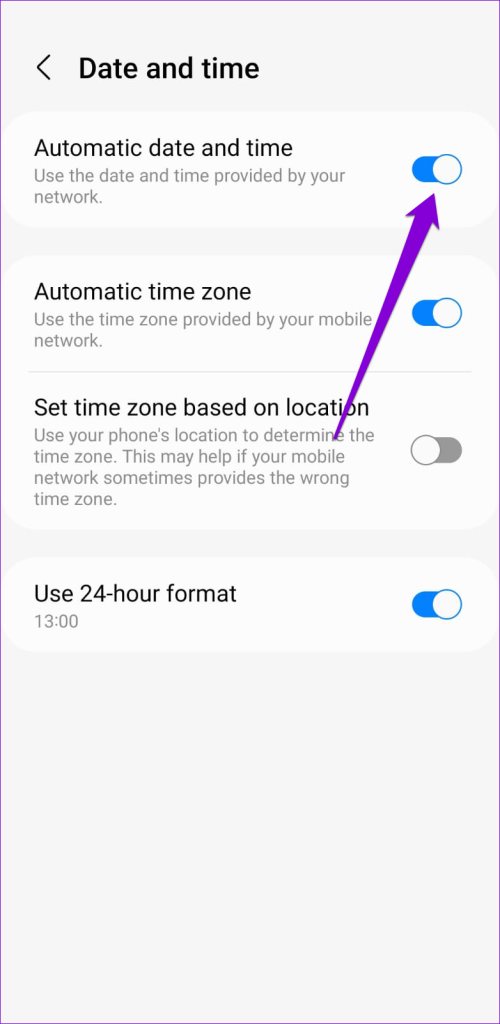
Step 1: Open the Settings app and navigate to General Management.
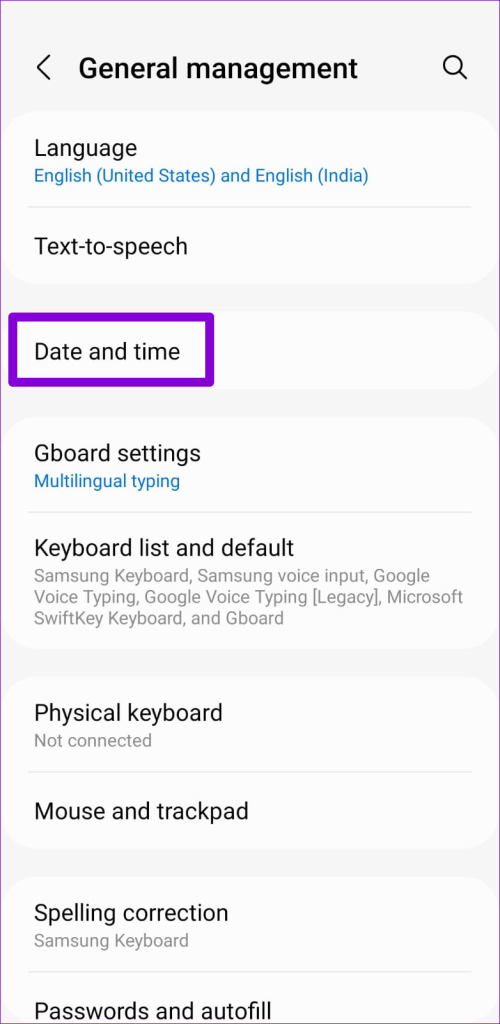
Step 2: Tap on Date and time. Then, enable the toggle for Automatic date and time.
On iPhone
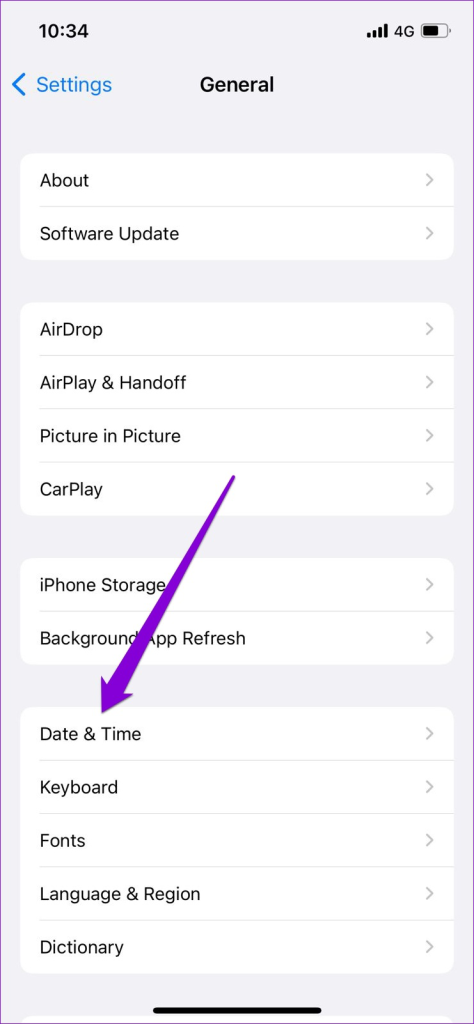
Step 1: Launch the Settings app on your iPhone and navigate to General.
Step 2: Tap on Date & Time. Toggle on Set Automatically.


Fix 3: Change DNS Server
By default, your phone uses the DNS server your ISP (Internet Service Provider) provides. Problems with those servers can also lead to various connection errors. Fortunately, plenty of free public DNS servers provide better reliability and internet browsing speeds. You can switch to another DNS server to see if that helps.
On Android
Step 1: Open the Settings app on your phone and navigate to Connections.
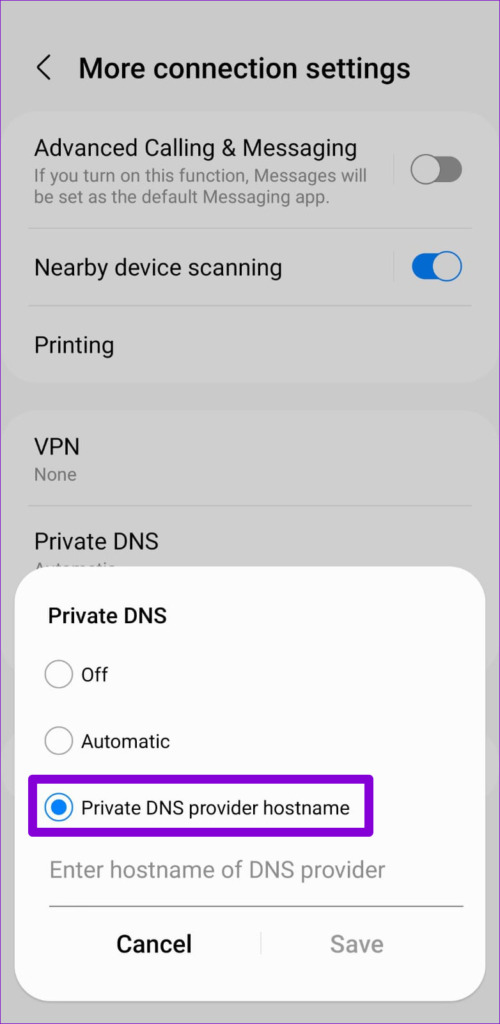
Step 2: Tap on More connection settings and select Private DNS from the following menu.


Step 3: Select the Private DNS provider hostname. In the text field, type dns.google and tap Save.

On iPhone
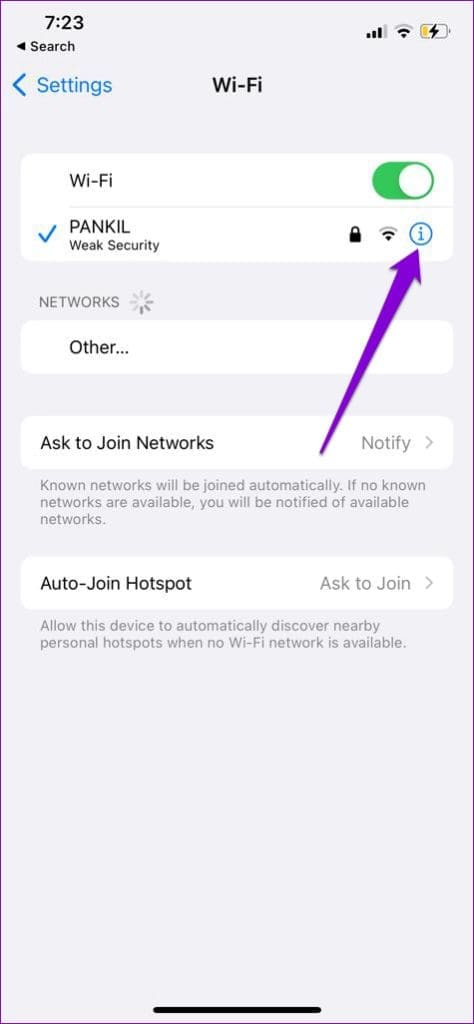
Step 1: Open the Settings on your iPhone and navigate to Wi-Fi. Tap the info icon next to your Wi-Fi network.
Step 2: Scroll down to tap on Configure DNS and select Manual from the following screen.


Step 3: Tap the minus icon to delete the prefilled entries under DNS servers.
Step 4: Tap Add Server and type 8.8.8.8 and 8.8.4.4 in the text box. Then, tap Save at the top-right corner.


Fix 4: Clear App Cache
Damaged or outdated cache data can degrade an app’s performance and prevent it from functioning properly. Clearing the app cache is safe as it does not affect any important app data.
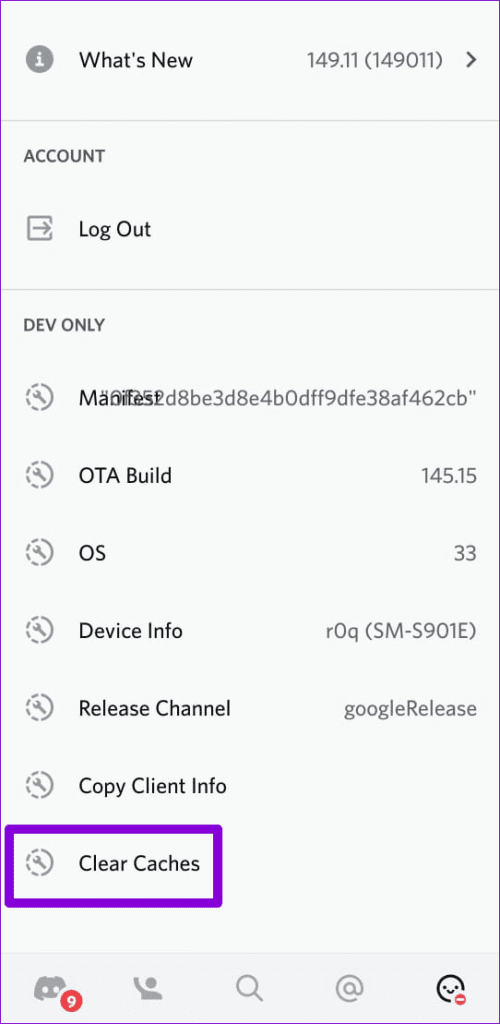
Step 1: In the Discord app, tap the profile icon at the bottom right corner.
Step 2: Scroll down to the Dev Only section and tap the Clear Caches option.
Was this helpful?
Last updated on 03 July, 2024
1 Comment
Leave a Reply
Read Next
 Top 8 Ways to Fix Windows 10 Network Connection Issues
The internet connection is crucial while working from home or enjoying web-based content.
Top 8 Ways to Fix Windows 10 Network Connection Issues
The internet connection is crucial while working from home or enjoying web-based content.
 3 Ways to Fix Microsoft Teams Connection Issues
Preliminary Fixes Check internet connection: Ensure that your laptop is connected to the internet.
3 Ways to Fix Microsoft Teams Connection Issues
Preliminary Fixes Check internet connection: Ensure that your laptop is connected to the internet.
 4 Best Ways to Fix WhatsApp Reconnecting Issues on iPhone
Basic Fixes Restart iPhone: Restart your iPhone to fix any temporary bugs and glitches.
4 Best Ways to Fix WhatsApp Reconnecting Issues on iPhone
Basic Fixes Restart iPhone: Restart your iPhone to fix any temporary bugs and glitches.
 5 Ways to Fix Google Docs Not Downloading Issues
Basic Fixes Disable Extension: There can be a few extensions in your browser that are actually preventing downloads from Google Docs.
5 Ways to Fix Google Docs Not Downloading Issues
Basic Fixes Disable Extension: There can be a few extensions in your browser that are actually preventing downloads from Google Docs.
 5 Ways to Fix Audio Issues in Zoom
Basic Fixes Join using computer audio: The Zoom app will offer a pop-up to let you join with Computer Audio when you tap on the New Meeting option.
5 Ways to Fix Audio Issues in Zoom
Basic Fixes Join using computer audio: The Zoom app will offer a pop-up to let you join with Computer Audio when you tap on the New Meeting option.
 6 Ways to Fix Sync Issues on Microsoft Edge
Fix 1: Ensure Sync Is Enabled Microsoft Edge may fail to sync your browsing data across devices if sync is disabled.
6 Ways to Fix Sync Issues on Microsoft Edge
Fix 1: Ensure Sync Is Enabled Microsoft Edge may fail to sync your browsing data across devices if sync is disabled.
 7 Ways to Fix Netflix Black Screen With Sound Issues on Mobile and Desktop
Fix 1: Disable Extensions (Windows and macOS) While third-party extensions can help you watch Netflix with friends or enhance your experience in many ways, they can also interfere with Netflix's
7 Ways to Fix Netflix Black Screen With Sound Issues on Mobile and Desktop
Fix 1: Disable Extensions (Windows and macOS) While third-party extensions can help you watch Netflix with friends or enhance your experience in many ways, they can also interfere with Netflix's
 8 Ways to Fix Microsoft Teams Black Screen Issues
Work productivity applications are indispensable in the post-COVID era.
8 Ways to Fix Microsoft Teams Black Screen Issues
Work productivity applications are indispensable in the post-COVID era.
The article above may contain affiliate links which help support Guiding Tech. The content remains unbiased and authentic and will never affect our editorial integrity.

Christ what a useless waste of time this article is. Are you even serious with this?