Common Fixes
- Disable Focus Mode: An active Focus mode suppresses real-time notifications to save you from distractions. Swipe down from the top right screen corner to open the Control Centre, and tap the Focus toggle to turn it off.
- Turn off the Low Power Mode: Open iPhone Settings, select Battery, and toggle off the Low Power Mode.
- Disable Low Data Mode: An active Low Data mode restricts background app activity to limit data usage, causing delayed notifications. Disable it from iPhone Settings > Wi-Fi > Network Name > Low Data Mode. For Cellular Data, head to iPhone Settings > Mobile Service > Mobile Data Options, and turn off the Low Data Mode.
- Update all apps: Open the App Store, tap your account profile at the top right, and select Update All under ‘Upcoming Automatic Updates’ to update all apps on your iPhone.
- Update iOS: Head to iPhone Settings > General, and tap Software Update. Select Update (if available) to update iOS to the latest version.
Fix 1: Disable and Enable App Notifications
An existing glitch in the app notification setting can cause its delay. Disable and enable it manually under iPhone settings to resolve the issue.
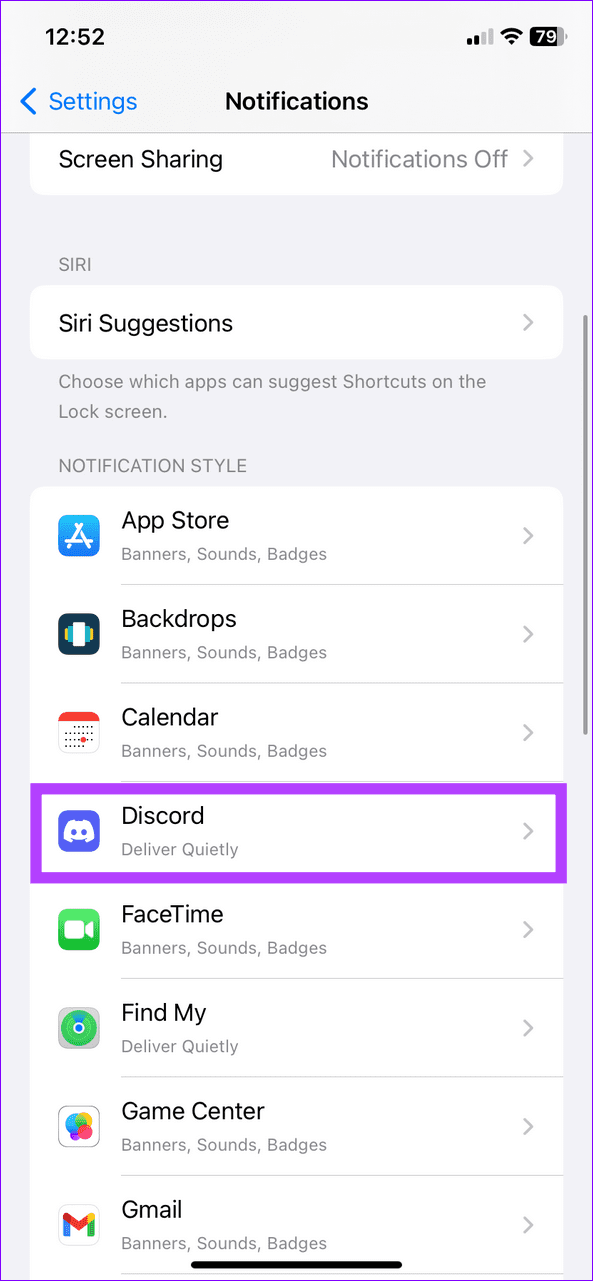
Step 1: Open the Settings app, tap Notifications, and select the app affected by the delayed notifications issue.
Step 2: Disable the Allow Notifications toggle, wait a few seconds, and turn it back on.


Fix 2: Enable Background App Refresh for Apps
Background App Refresh on iPhone lets apps update their content in the background. If disabled, apps may not refresh their feeds, resulting in delayed notifications. Head to iPhone Settings to turn it on.
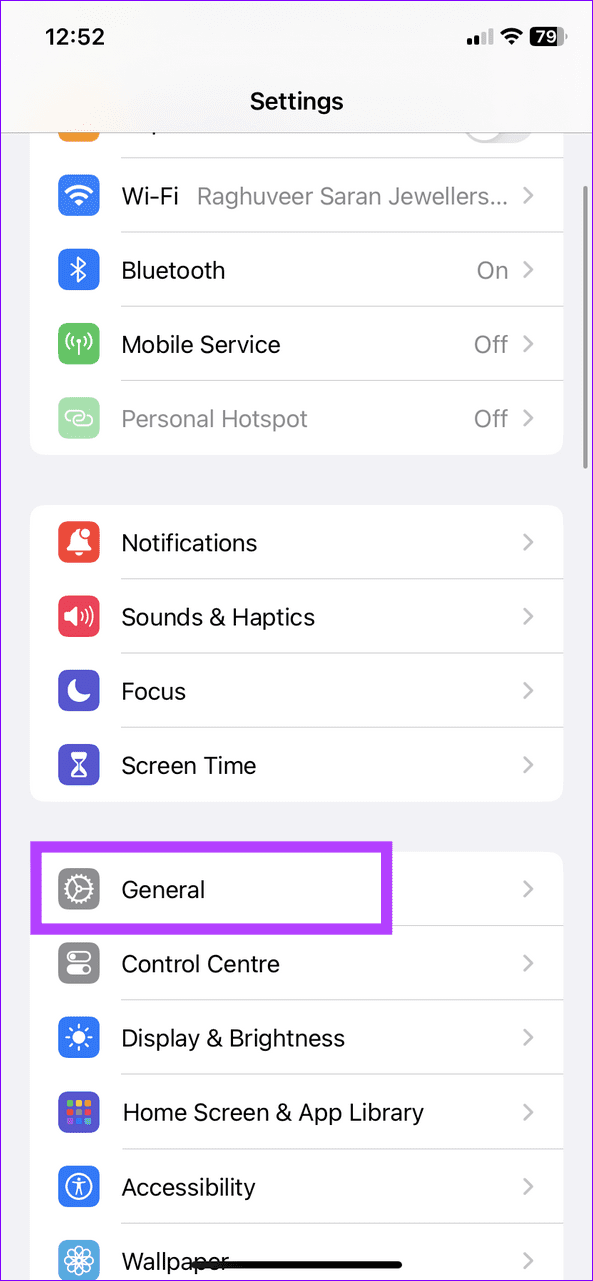
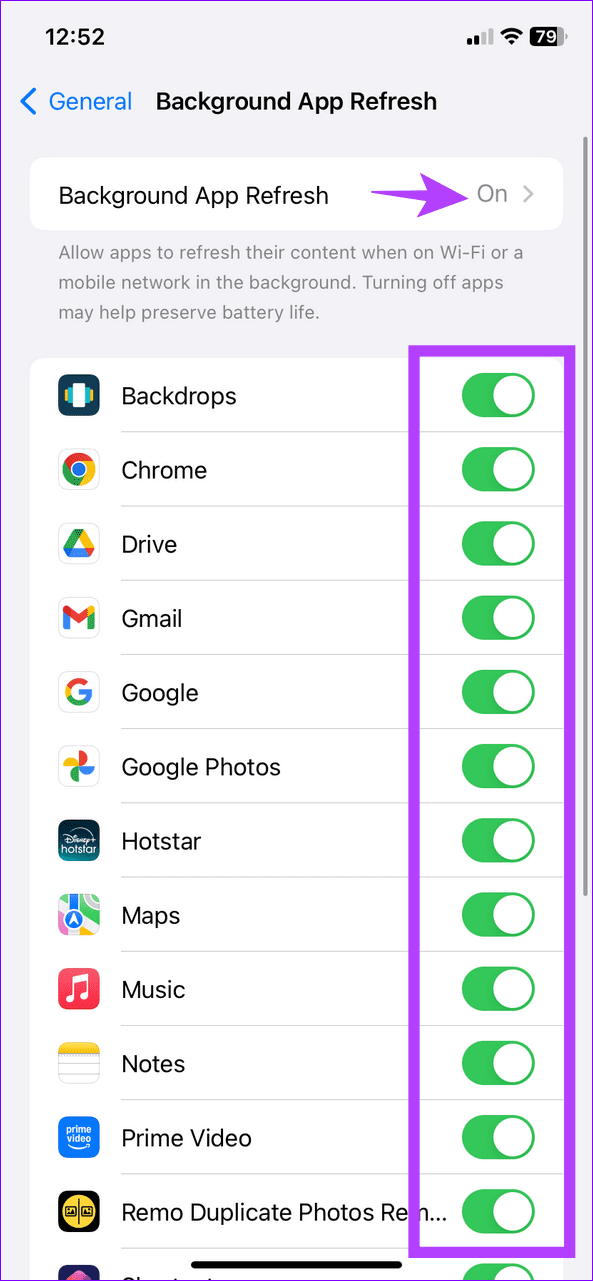
Step 1: Open iPhone Settings, select General, and tap Background App Refresh.
Step 2: Enable Background App Refresh from the top, and toggle it on for the app affected by delayed notifications on your iPhone.

Fix 3: Turn off Scheduled Summary
iOS’s Scheduled Summary bundles device notifications for delivery at a set time to reduce distractions caused by real-time alerts. Disable it entirely or turn it off for a specific app to avoid getting delayed notifications.
Step 1: Head to iPhone Settings, select Notifications, and tap Scheduled Summary.
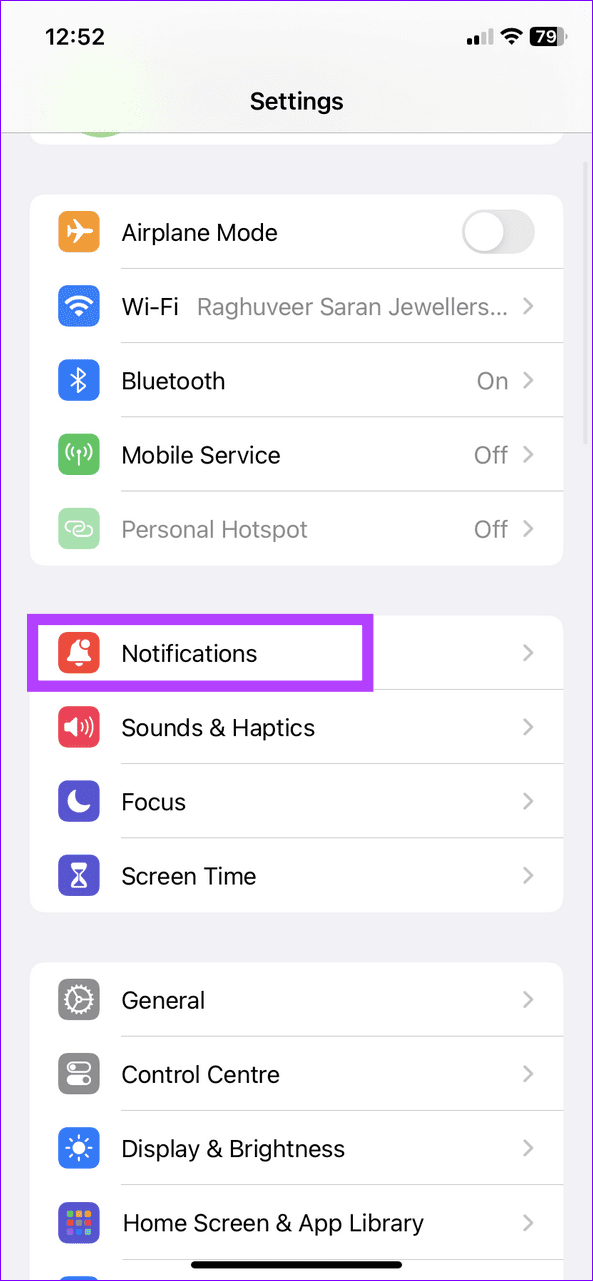

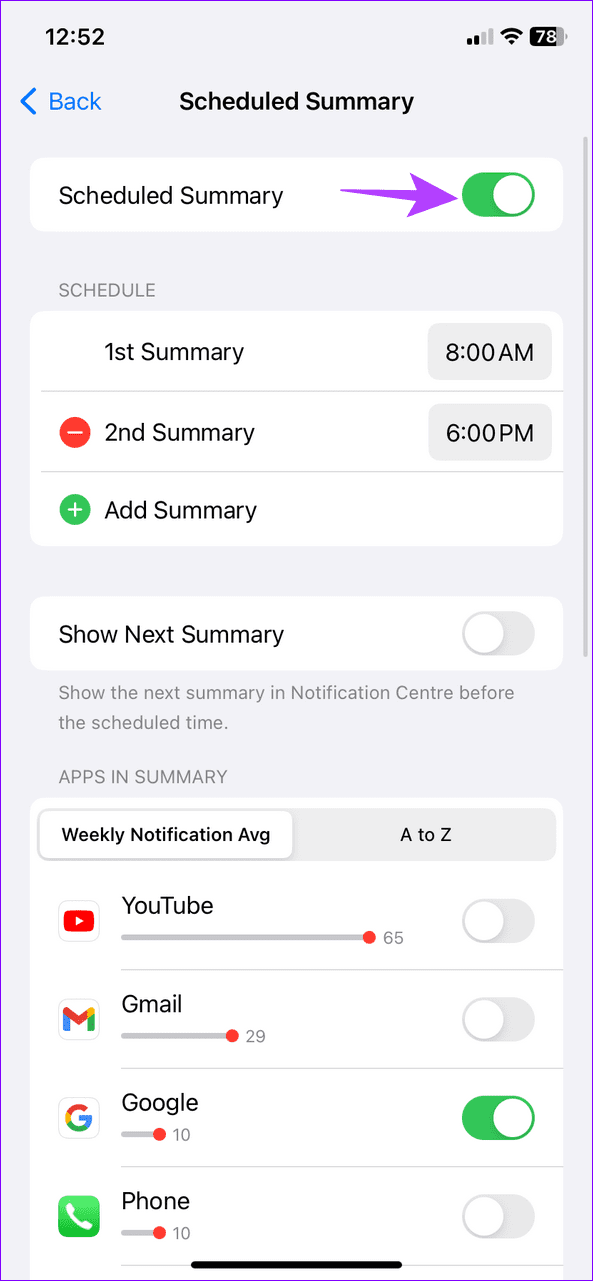
Step 2: Toggle off Scheduled Summary to disable it. Alternatively, scroll down and turn off the Scheduled Summary toggle for an app to exclude it.

Fix 4: Reset All Settings
Lastly, incorrect device settings can often suppress app notifications, causing their delay. Reset all settings on your iPhone to resume getting them on time.
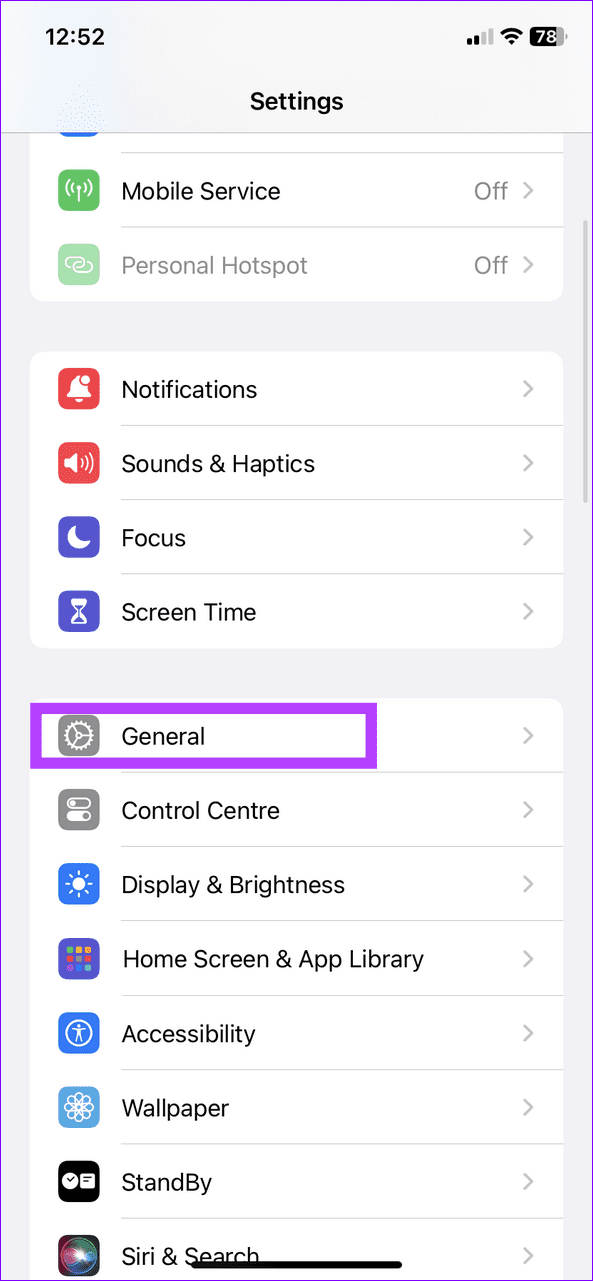
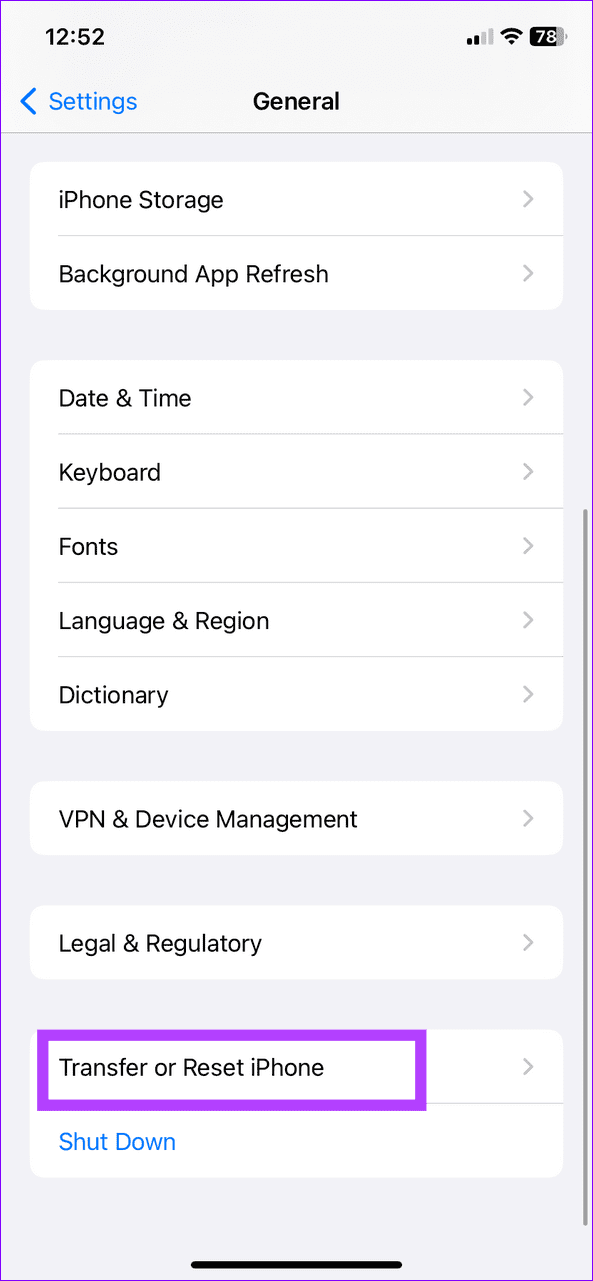
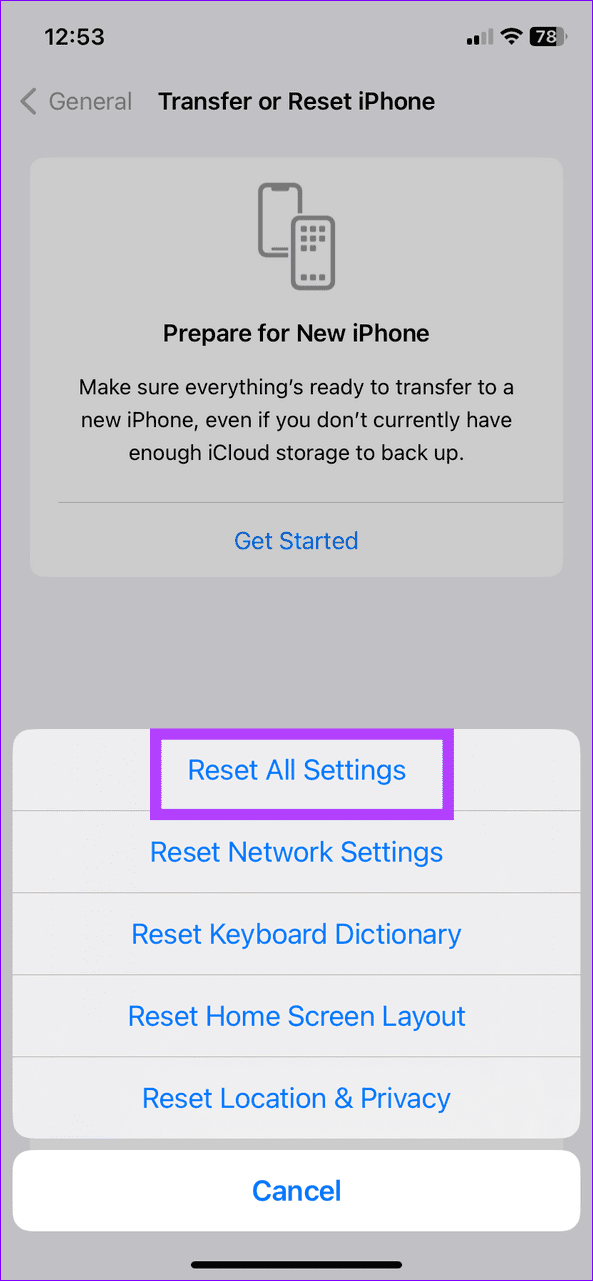
Step 1: Select General under iPhone Settings, and tap Transfer or Reset iPhone.
Step 2: Tap Reset and select Reset All Settings. Enter your device passcode when prompted to confirm it.

Was this helpful?
Last updated on 22 July, 2024
Read Next
 6 Ways to Fix Delayed WhatsApp Notifications on iPhone
Fix 1: Disable Low Data Mode While using a metered network connection or a mobile hotspot, your iPhone will automatically enable Low Data Mode.
6 Ways to Fix Delayed WhatsApp Notifications on iPhone
Fix 1: Disable Low Data Mode While using a metered network connection or a mobile hotspot, your iPhone will automatically enable Low Data Mode.
 3 Ways to Fix Delayed Telegram Message Notifications on iPhone
Try These Things First Disable Low Data Mode: The first thing to do is turn off Low Data Mode on your iPhone.
3 Ways to Fix Delayed Telegram Message Notifications on iPhone
Try These Things First Disable Low Data Mode: The first thing to do is turn off Low Data Mode on your iPhone.
 7 Ways to Fix Delayed Notifications in Facebook Messenger
Basic Troubleshooting Check your notification settings: Ensure that Messenger notifications are enabled in your device settings.
7 Ways to Fix Delayed Notifications in Facebook Messenger
Basic Troubleshooting Check your notification settings: Ensure that Messenger notifications are enabled in your device settings.
 6 Ways to Fix Delayed Instagram Notifications
Basic Fixes: Check Instagram status: When Instagram servers face an outage, you face delays in receiving real-time notifications.
6 Ways to Fix Delayed Instagram Notifications
Basic Fixes: Check Instagram status: When Instagram servers face an outage, you face delays in receiving real-time notifications.
 5 Ways to Fix Delayed Notifications on Samsung Galaxy Phones
Common Fixes Turn off Power saver - This mode disables background tasks, syncing, and other activities to save battery, creating notification delays.
5 Ways to Fix Delayed Notifications on Samsung Galaxy Phones
Common Fixes Turn off Power saver - This mode disables background tasks, syncing, and other activities to save battery, creating notification delays.
 4 Ways to Fix Delayed WhatsApp Notifications on Android
https://youtu.be/2HV0Hl2epgk Try Basic Fixes Update WhatsApp: Your WhatsApp notifications might not work as expected if you’re using an outdated or buggy version of the app.
4 Ways to Fix Delayed WhatsApp Notifications on Android
https://youtu.be/2HV0Hl2epgk Try Basic Fixes Update WhatsApp: Your WhatsApp notifications might not work as expected if you’re using an outdated or buggy version of the app.
 5 Ways to Fix Delayed Gmail Notifications on Android
Try Basic Fixes Check Do Not Disturb schedules: On Android, you can schedule Do Not Disturb mode to turn on automatically and pause notifications for specific time periods.
5 Ways to Fix Delayed Gmail Notifications on Android
Try Basic Fixes Check Do Not Disturb schedules: On Android, you can schedule Do Not Disturb mode to turn on automatically and pause notifications for specific time periods.
 5 Ways to Fix Delayed Emails in Mail App on iPhone
Common Fixes Enable Background App Refresh - Access General settings on iPhone, tap Background App Refresh, and enable the toggle for the Mail app.
5 Ways to Fix Delayed Emails in Mail App on iPhone
Common Fixes Enable Background App Refresh - Access General settings on iPhone, tap Background App Refresh, and enable the toggle for the Mail app.
The article above may contain affiliate links which help support Guiding Tech. The content remains unbiased and authentic and will never affect our editorial integrity.