

Fix 1: Run SFC and DISM Scans
Corrupted or missing system files can malfunction Command Prompt on Windows. If that’s the case, running the SFC (System File Checker) and DISM (Deployment Image Servicing and Management) scans should help.
Step 1: Right-click the Start icon and select Terminal (Admin) from the list.
Step 2: In the console, type the following command and press Enter.
SFC /scannow
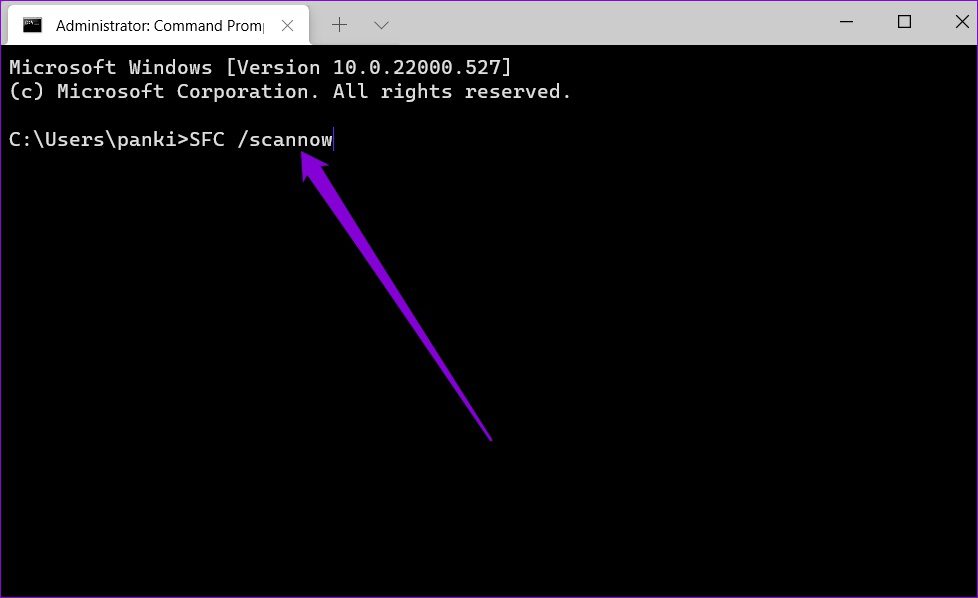
Step 3: Run the following commands one by one and press Enter after each one to run the DISM scan:
DISM /Online /Cleanup-Image /CheckHealth
DISM /Online /Cleanup-Image /ScanHealth
DISM /Online /Cleanup-Image /RestoreHealth

Restart your PC after the scan is complete, and check if the issue persists.
Fix 2: Update the System Environment Variables Path
Command Prompt might fail to run commands if there are issues with the environment variables path on your PC. To remedy that, create a new path by following the steps below.
Step 1: Press Windows key + R to launch the Run dialog box. Type sysdm.cpl in the box and press Enter.
Step 2: Switch to the Advanced tab and click Environment Variables.

Step 3: In the following window, select Path and click Edit.

Step 4: Click New and enter this path: C:\Windows\SysWow64\

Fix 3: Create a New User Account
If you still can’t use the Command Prompt, there might be an issue with your user account files. So, your best option is to create and switch to a new user account.
Step 1: Press the Windows key + I to launch the Settings app and head to Accounts > Other users.
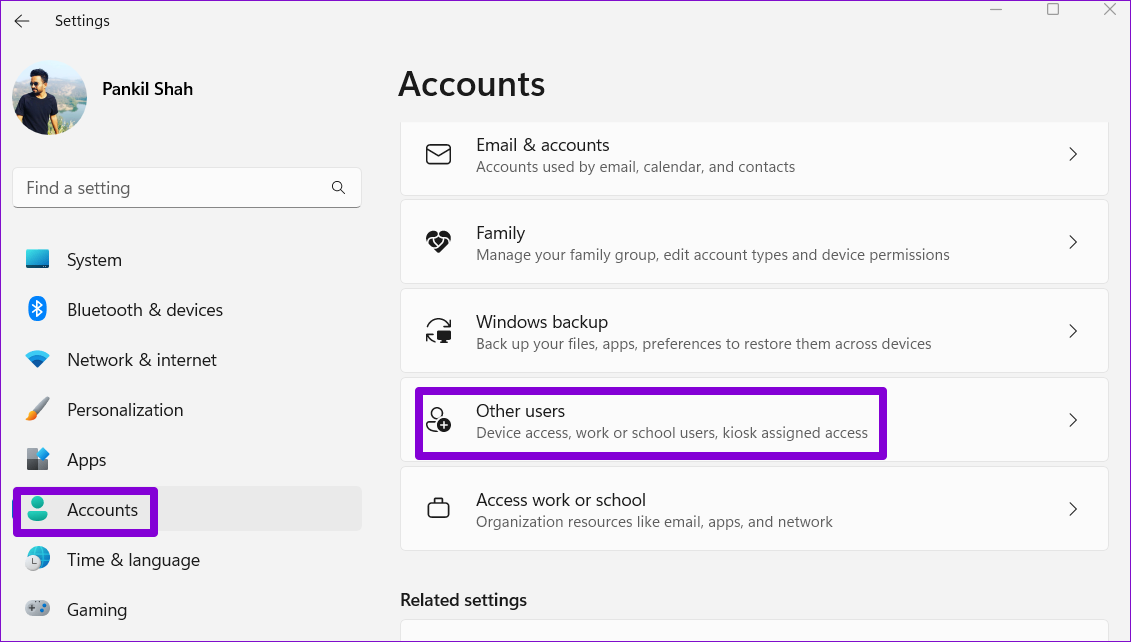
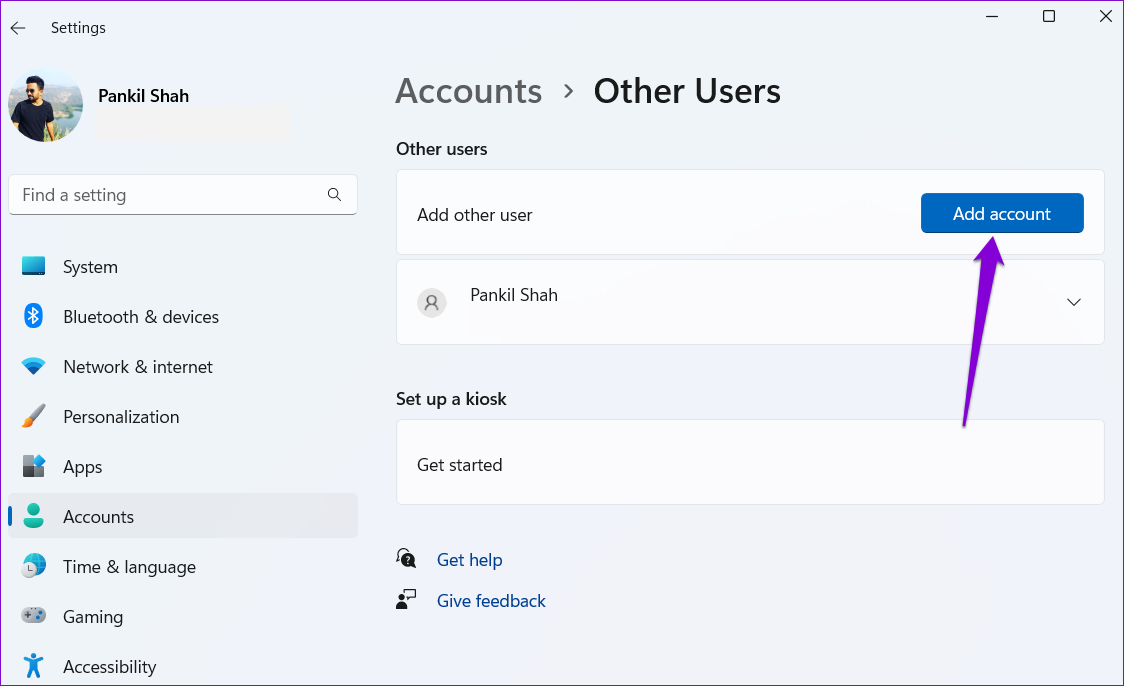
Step 2: Click Add account.
Step 3: Click the I don’t have this person’s sign-in information option and follow the on-screen prompts to create a new account.
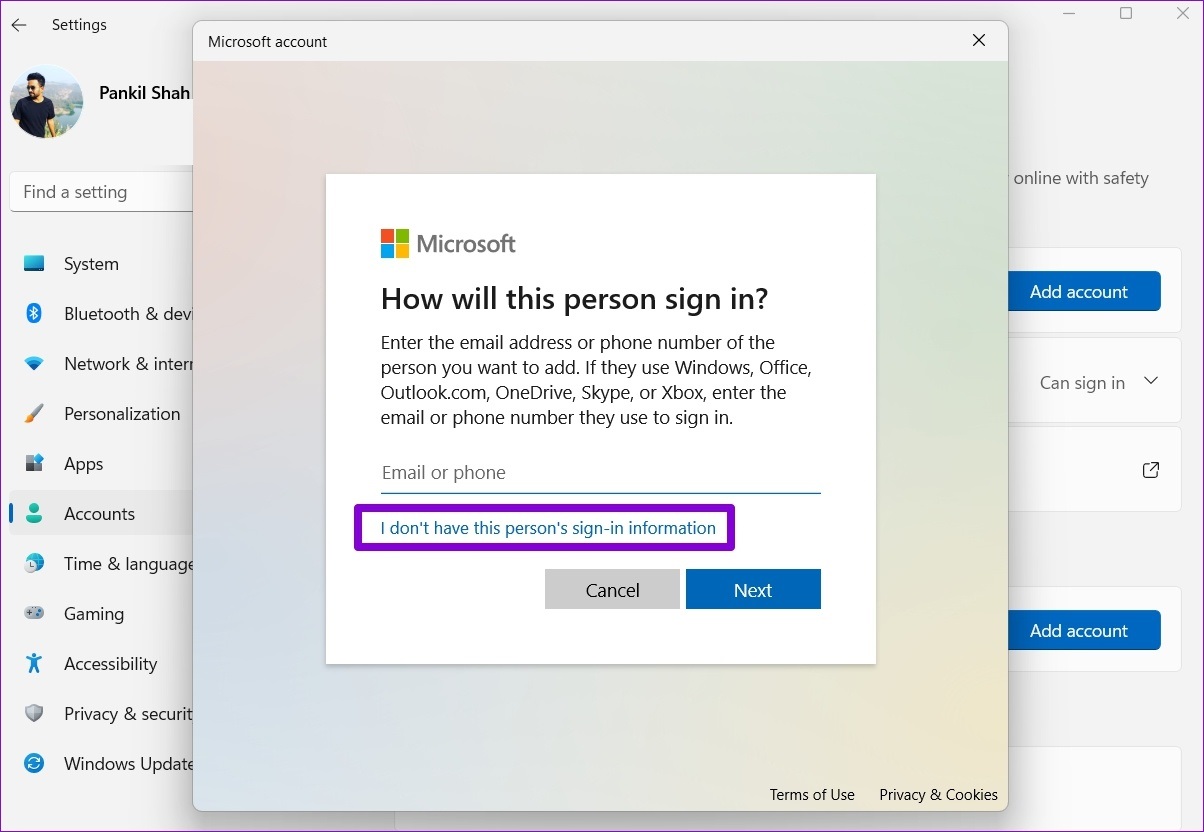
Switch to the newly created user account and see if the Command Prompt works fine.
Fix 4: Try Clean Boot Mode
Booting your PC in a clean boot state can help you determine whether Command Prompt is malfunctioning due to interference from a third-party app or service.
To boot Windows into a clean boot mode:
Step 1: Press the Windows + R keyboard shortcut to open the Run dialog box, type msconfig in the Open field, and press Enter.
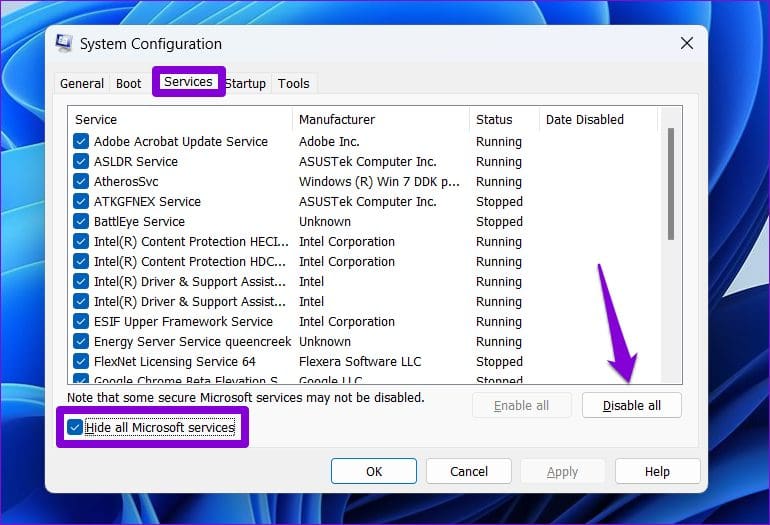
Step 2: Navigate to the Services tab > tick the box for Hide all Microsoft services > click Disable all.
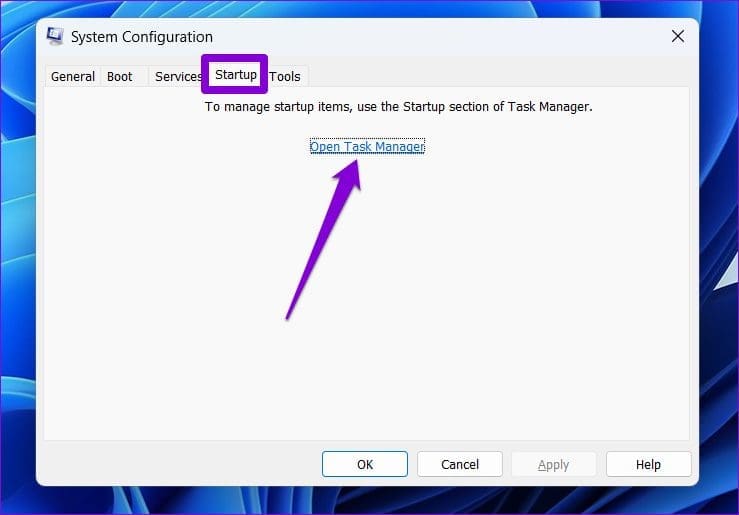
Step 3: Switch to the Startup tab > click on Open Task Manager.
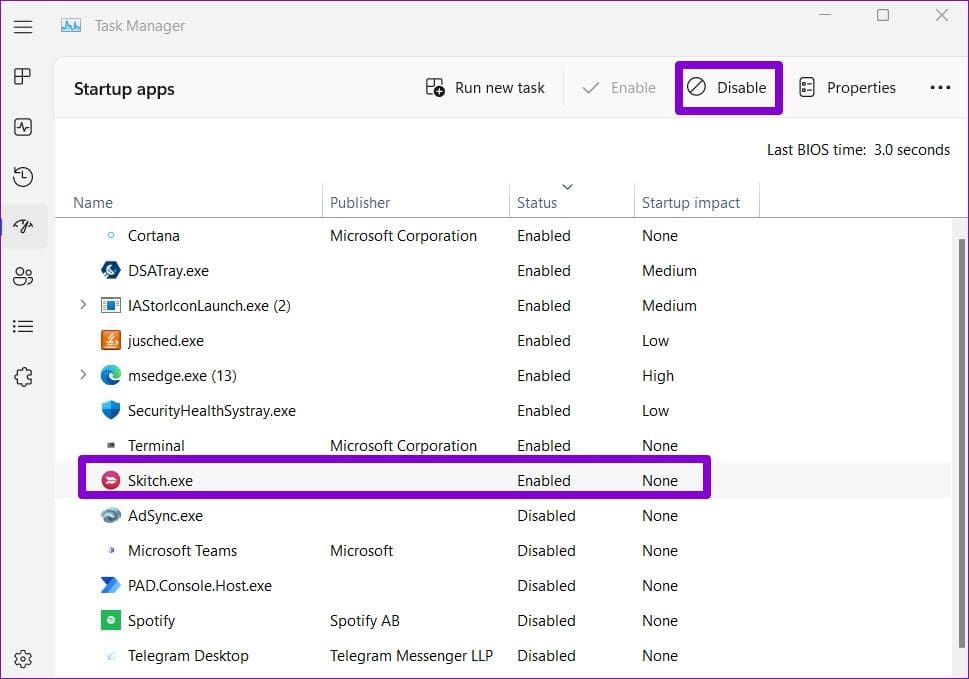
Step 4: Select a third-party app or program and click Disable. Repeat this step to disable all third-party apps and programs.
After completing the above steps, restart your PC and use Command Prompt again. If you don’t encounter any problems, one of your third-party apps or programs may be to blame. In that case, remove any recently installed apps and programs one by one to fix the problem.
Fix 5: Perform System Restore
The System Restore feature in Windows 11 periodically backs up your entire PC. You can use it to revert to the point when the Command Prompt was working fine. Here’s how:
Step 1: Click the search icon on the taskbar, type create a restore point, and press Enter.

Step 2: Under the System Protection tab, click System Restore.

Step 3: Select Recommended restore and click Next.

Step 4: Review all the details and hit Finish.

Was this helpful?
Last updated on 29 July, 2024
1 Comment
Leave a Reply
Read Next
 4 Ways to Fix Command Prompt Keeps Popping Up in Windows 11
Try Basic Fixes Scan for malware: Command Prompt's unusual behavior could be due to a malware or virus infection.
4 Ways to Fix Command Prompt Keeps Popping Up in Windows 11
Try Basic Fixes Scan for malware: Command Prompt's unusual behavior could be due to a malware or virus infection.
 How to Create a Folder or File from Windows Command Prompt
How to Create Folders From CMD in Windows Create a Single Folder Step 1: Press the Windows key on your keyboard, type Command Prompt, and click Open.
How to Create a Folder or File from Windows Command Prompt
How to Create Folders From CMD in Windows Create a Single Folder Step 1: Press the Windows key on your keyboard, type Command Prompt, and click Open.
 How to View Command Prompt (CMD) History on Windows
Method 1: Use a Keyboard Shortcut There is a keyboard shortcut to view the history on CMD quickly.
How to View Command Prompt (CMD) History on Windows
Method 1: Use a Keyboard Shortcut There is a keyboard shortcut to view the history on CMD quickly.
 15 Brilliant Command Prompt – CMD Tricks You Might Not Know About
Before we get started, here are a few things you need to keep in mind.
15 Brilliant Command Prompt – CMD Tricks You Might Not Know About
Before we get started, here are a few things you need to keep in mind.
 5 Ways to Fix Google 2FA Prompt Not Working on iPhone
Fix 1: Check if You’re Logged Into the Same Google Account At times, you may be trying to log in to a different account on your computer, while the same
5 Ways to Fix Google 2FA Prompt Not Working on iPhone
Fix 1: Check if You’re Logged Into the Same Google Account At times, you may be trying to log in to a different account on your computer, while the same
 3 Ways to Fix ‘Not Recognized as an Internal or External Command’ Error in Windows
Basic Fixes Run CMD in admin mode: Some commands require an elevated Command Prompt window to run properly.
3 Ways to Fix ‘Not Recognized as an Internal or External Command’ Error in Windows
Basic Fixes Run CMD in admin mode: Some commands require an elevated Command Prompt window to run properly.
 How to Turn off Windows Hello PIN and Setup Prompt Notification
To simplify the login process on Windows 10 computers, Microsoft came up with the Windows Hello sign-in.
How to Turn off Windows Hello PIN and Setup Prompt Notification
To simplify the login process on Windows 10 computers, Microsoft came up with the Windows Hello sign-in.
 How to Free Up RAM in Windows Using Command Line
How to Use Empty Standby List to Free Up Memory on Windows Empty Standby List is a small command-line application that lets you free up memory on Windows.
How to Free Up RAM in Windows Using Command Line
How to Use Empty Standby List to Free Up Memory on Windows Empty Standby List is a small command-line application that lets you free up memory on Windows.
The article above may contain affiliate links which help support Guiding Tech. The content remains unbiased and authentic and will never affect our editorial integrity.

Hi,
Thanks for these tips! #5 (Create a new user acct.) worked for me.
Now, I’m wondering: how do I figure out how I screwed up my old acct.?
Thanks,
-db