

Try Basic Fixes
- Install Windows updates: Windows is usually quick to respond when fixing known bugs and issues. If a faulty update caused the Bluetooth not working issue, it should not take long for Microsoft to fix the problem in subsequent updates. Install any pending Windows updates on your PC and see if that helps.
- Turn off airplane mode: Like your smartphone, Windows 11 also has an airplane mode, which effectively prevents the system from communicating with any networks or devices. If you have inadvertently enabled Airplane mode on your PC, Windows will turn off Wi-Fi and Bluetooth.
- Ensure your Bluetooth device is discoverable: This may seem basic, but it’s important to ensure that the Bluetooth device you are trying to connect to is discoverable and within range of your computer.
Fix 1: Disconnect Unwanted Bluetooth Devices
If multiple Bluetooth devices are connected to your PC, you may have trouble connecting with newer devices. To avoid this, disconnect unwanted devices by following the steps below.
Step 1: Press the Windows key + A to open the Quick Settings panel. Right-click the Bluetooth icon and select Go to Settings.

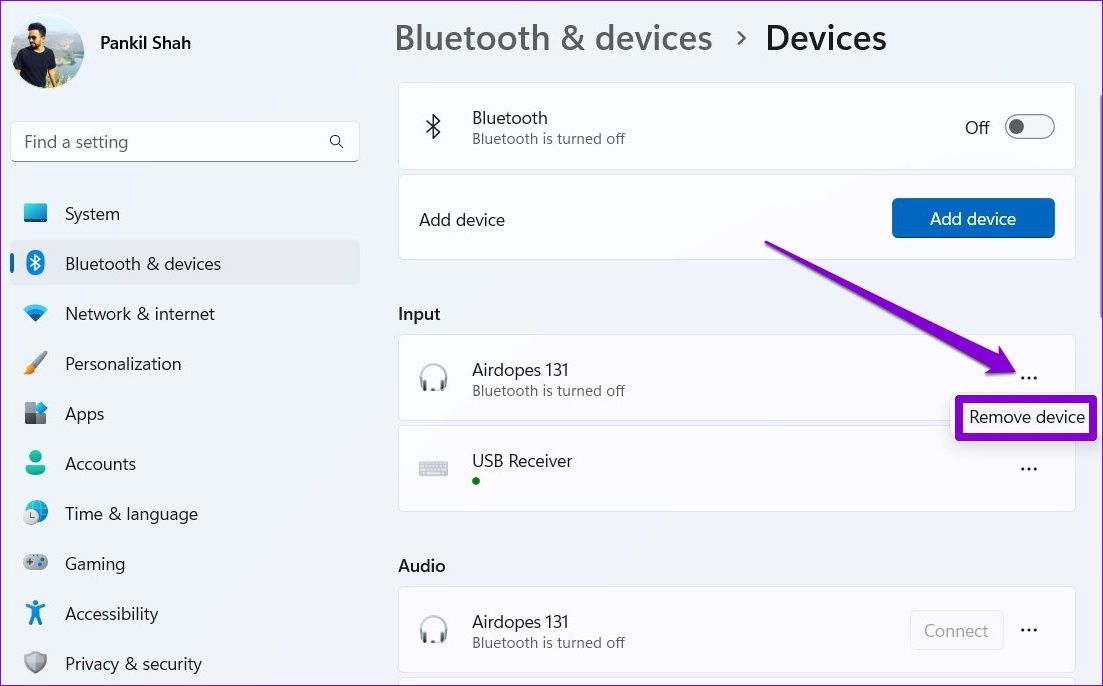
Step 2: Click the three-dot menu icon next to your device and select Remove device. Repeat this step to disconnect all the unwanted devices.
Fix 2: Run Bluetooth Troubleshooter
Your Windows PC comes with a few useful troubleshooters that can help you identify and fix such common issues on Windows. In this case, you can run the Bluetooth troubleshooter on Windows 11 to see if it can find and fix any issues. Here’s how.
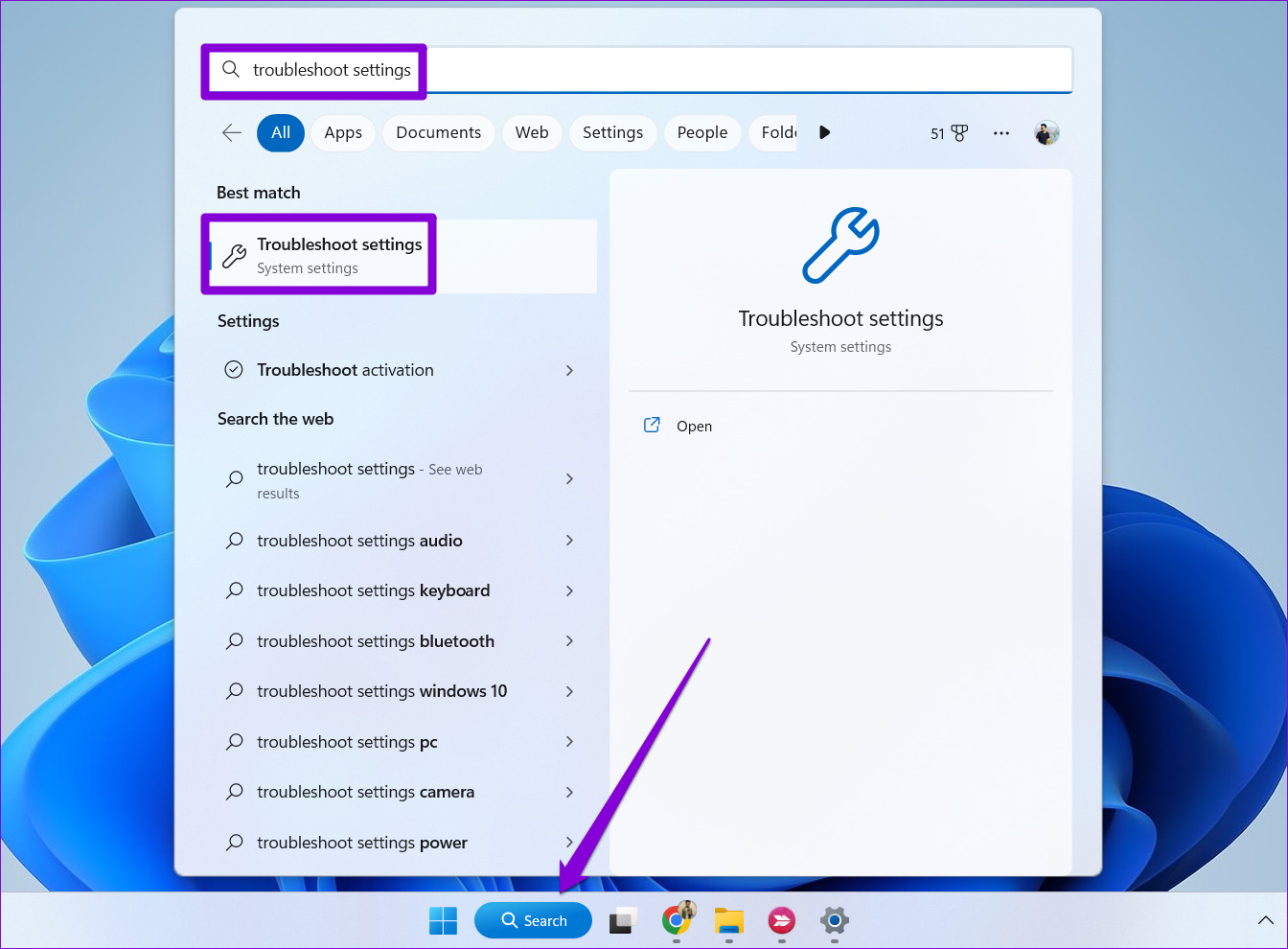
Step 1: Click the search icon on the taskbar, type troubleshoot settings, and press Enter.
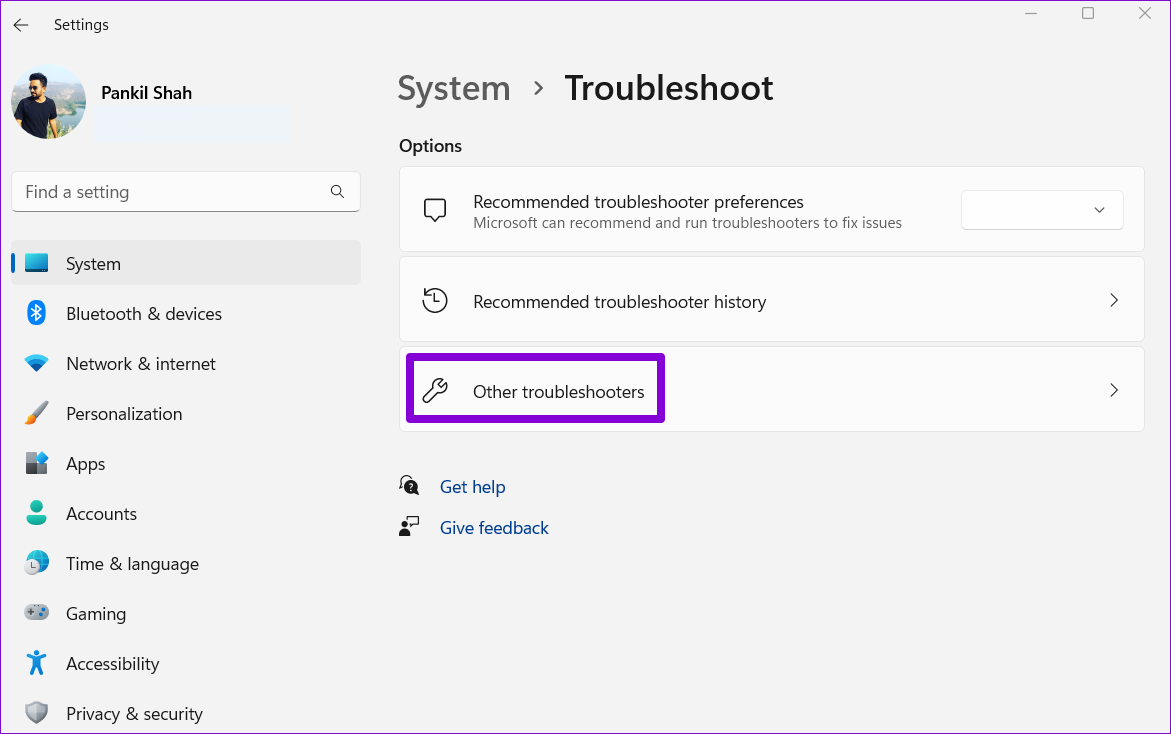
Step 2: Go to Other troubleshooters.
Step 3: Click the Run button next to Bluetooth and follow the on-screen instructions to run the troubleshooter.

Fix 3: Unpair the Bluetooth Device and Pair It Again
If you are experiencing Bluetooth issues only with a specific device, the device may not have been paired correctly. You can try to remove the device and pair it again to see if that helps.
Step 1: Press the Windows key + I to open the Settings app and head to Bluetooth & devices > Devices.

Step 2: Click the three-dot icon next to your device and select Remove device.
Step 3: Click the Add device button to pair your device again.

Fix 4: Restart Bluetooth Service
If any Bluetooth-related services are encountering problems, it could prevent Bluetooth from functioning properly on your PC. To resolve this, you can attempt to restart the Bluetooth services on your PC by following the steps below.
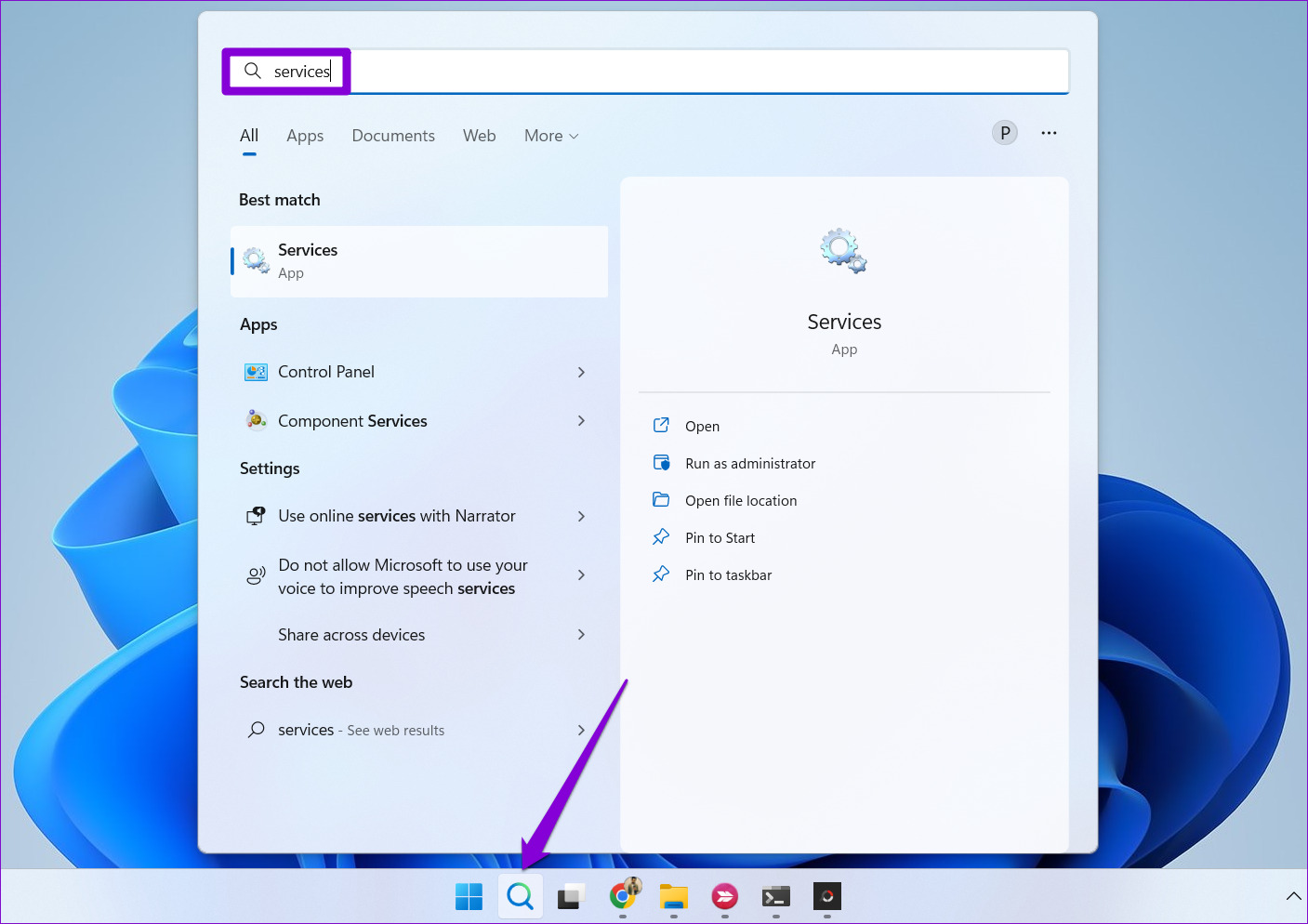
Step 1: Click the search icon on the taskbar, type services, and press Enter.
Step 2: In the Services window, scroll down to find the Bluetooth Support Service. Right-click on it and select Restart from the list.
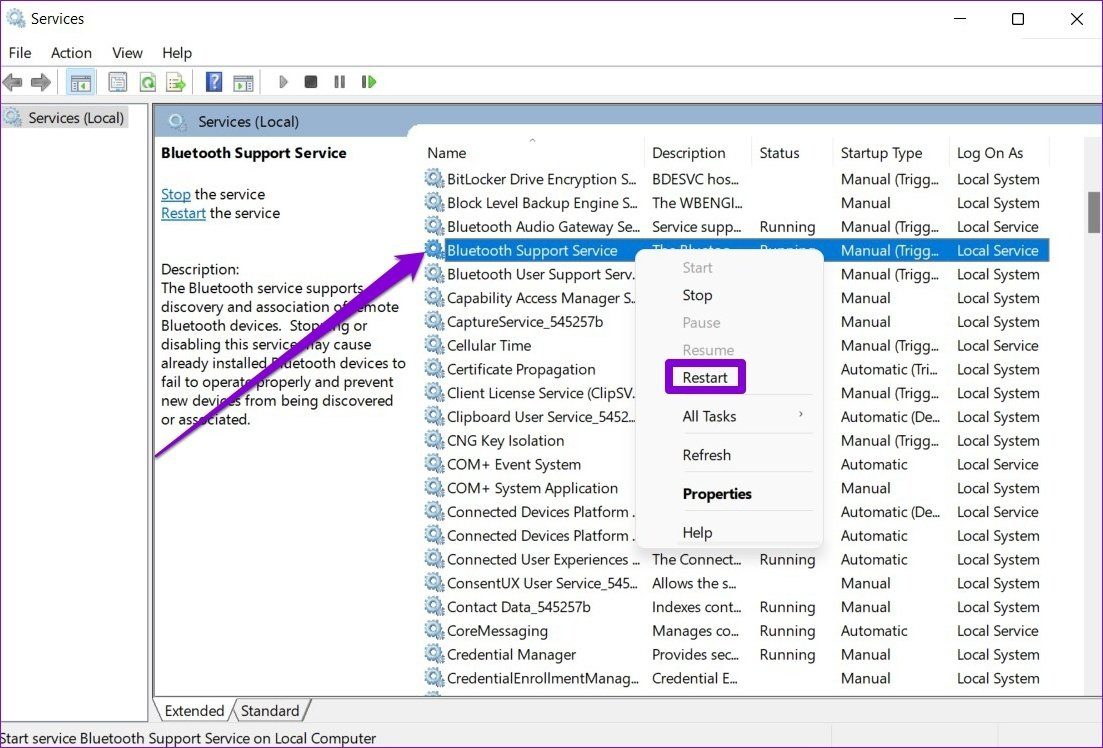
Similarly, restart the Bluetooth Audio Gateway Service as well. Then, check if the issue is resolved.

Fix 5: Update or Reinstall Bluetooth Drivers
The Bluetooth driver on your PC helps Windows interact and connect with your wireless devices. If the Bluetooth driver on your PC is outdated or incompatible, Bluetooth will not work as expected. In most cases, you can fix issues with the Bluetooth driver by updating it.
Step 1: Press the Windows key + S to open the search menu, type device manager, and select the first result.
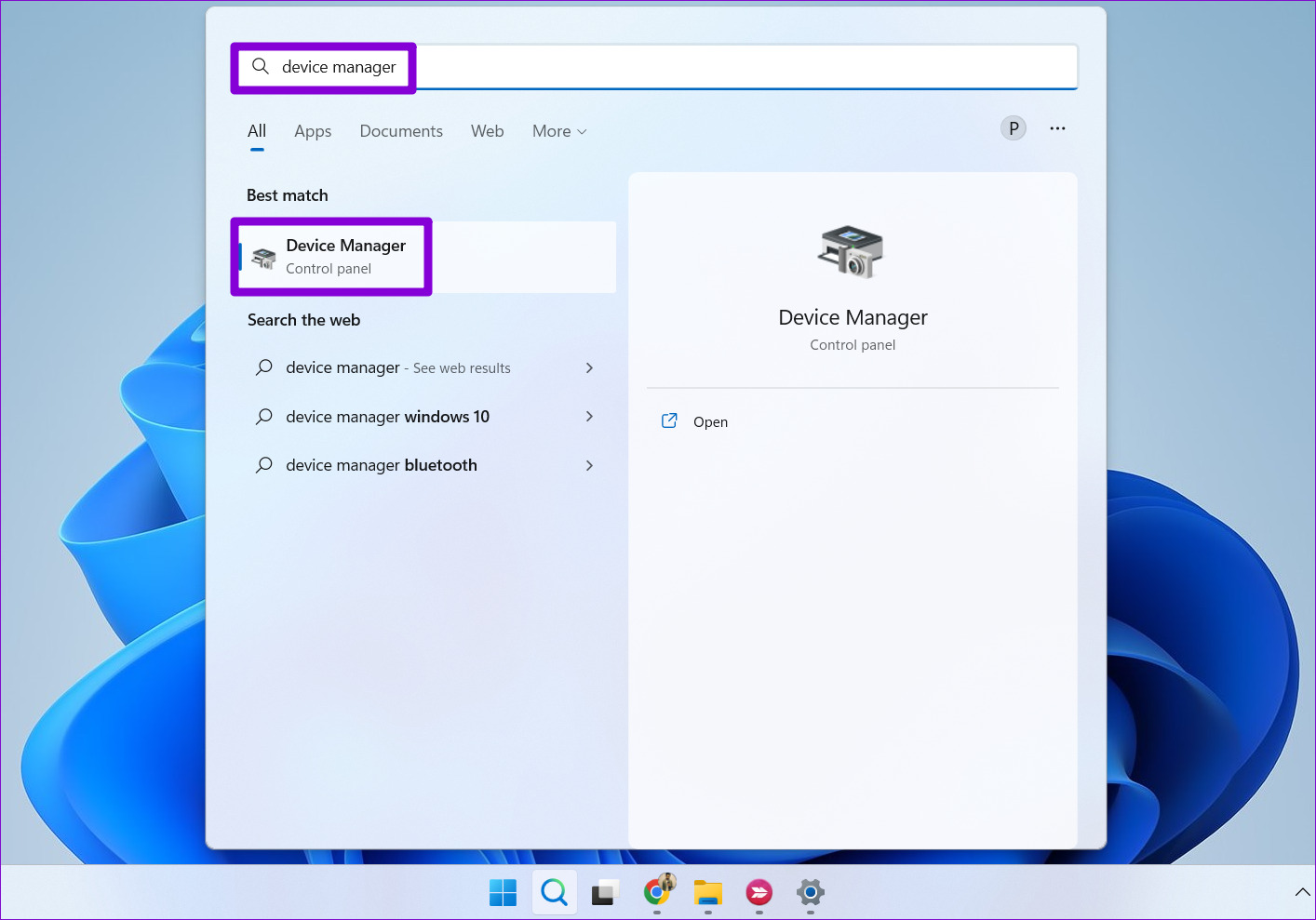
Step 2: Find and expand Bluetooth, right-click on your device, and select Update driver from the list.

Follow the on-screen instructions to finish updating the driver.
If no updates are available or if the problem persists, try uninstalling the problematic Bluetooth driver using Device Manager. After this, restart your PC, and Windows will automatically install the missing driver on the boot.

Was this helpful?
Last updated on 02 September, 2024
1 Comment
Leave a Reply
Read Next
 4 Ways to Fix Bluetooth Mouse Not Working with Windows 11
Basic Fixes: Ensure Bluetooth is turned on for both devices: A Bluetooth mouse has a physical switch to turn on or off the device.
4 Ways to Fix Bluetooth Mouse Not Working with Windows 11
Basic Fixes: Ensure Bluetooth is turned on for both devices: A Bluetooth mouse has a physical switch to turn on or off the device.
 Bluetooth 5.1 vs Bluetooth 4.2: The 4 Key Differences
Bluetooth is one of the most common means of wireless connectivity.
Bluetooth 5.1 vs Bluetooth 4.2: The 4 Key Differences
Bluetooth is one of the most common means of wireless connectivity.
 6 Best Ways to Fix Bluetooth Delay on Windows 10
Say you're watching a movie or playing a game on your Windows PC.
6 Best Ways to Fix Bluetooth Delay on Windows 10
Say you're watching a movie or playing a game on your Windows PC.
 Top 5 Ways to Fix Bluetooth Headphones Connected but No Sound on Windows 10
On a usual day, you'd hook your wireless Bluetooth headphones to your PC to listen to a song.
Top 5 Ways to Fix Bluetooth Headphones Connected but No Sound on Windows 10
On a usual day, you'd hook your wireless Bluetooth headphones to your PC to listen to a song.
 Top 7 Ways to Fix Bluetooth Missing From Action Center in Windows 10
In Windows 10, the Action Center offers a quick way to enable or disable Bluetooth.
Top 7 Ways to Fix Bluetooth Missing From Action Center in Windows 10
In Windows 10, the Action Center offers a quick way to enable or disable Bluetooth.
 5 Ways to Fix Unable to Remove Bluetooth Device on Windows 11
Fix 1: Try Removing Device in Airplane Mode To start, enable Airplane mode and remove the Bluetooth device again.
5 Ways to Fix Unable to Remove Bluetooth Device on Windows 11
Fix 1: Try Removing Device in Airplane Mode To start, enable Airplane mode and remove the Bluetooth device again.
 4 Ways to Fix Bluetooth Device Is Paired but Not Connected on Windows 11
Try Basic Fixes Toggle the airplane mode: Enabling and disabling the airplane mode is a quick way to refresh all wireless radios on your computer and resolve minor Wi-Fi, Bluetooth,
4 Ways to Fix Bluetooth Device Is Paired but Not Connected on Windows 11
Try Basic Fixes Toggle the airplane mode: Enabling and disabling the airplane mode is a quick way to refresh all wireless radios on your computer and resolve minor Wi-Fi, Bluetooth,
 6 Ways to Fix Bluetooth Keeps Turning Off on Windows 11
Fix 1: Toggle the Airplane Mode Toggling the airplane mode in Windows is a neat way to refresh your PC’s wireless connections, including Bluetooth.
6 Ways to Fix Bluetooth Keeps Turning Off on Windows 11
Fix 1: Toggle the Airplane Mode Toggling the airplane mode in Windows is a neat way to refresh your PC’s wireless connections, including Bluetooth.
The article above may contain affiliate links which help support Guiding Tech. The content remains unbiased and authentic and will never affect our editorial integrity.

You may wish to add one more. My PC behaved as if it did not have bluetooth installed, not even appearing in Device Manager. I disiabled fast startup and reebooted. Instant fix.