


Fix 1: Turn off Bluetooth Scanning
When you enable Bluetooth, your Android device continuously runs Bluetooth scanning in the background, leading to unnecessary battery drain. To fix this, disable its scanning process manually.
Note: Bluetooth settings might differ on your Android phone, and some devices may not allow you to turn off scanning.
Step 1: Open the Settings app > select Connections > tap on Bluetooth.
Step 2: Tap on the Stop button at the top right to halt Bluetooth scanning.


Fix 2: Restrict Location Services for Apps
An app requiring location services uses Bluetooth to approximate your location. Its frequent use will keep Bluetooth running in the background, draining your battery. Limiting the location permission on Android should resolve the issue.
Tip: I recommend turning off Bluetooth when it is not in use.
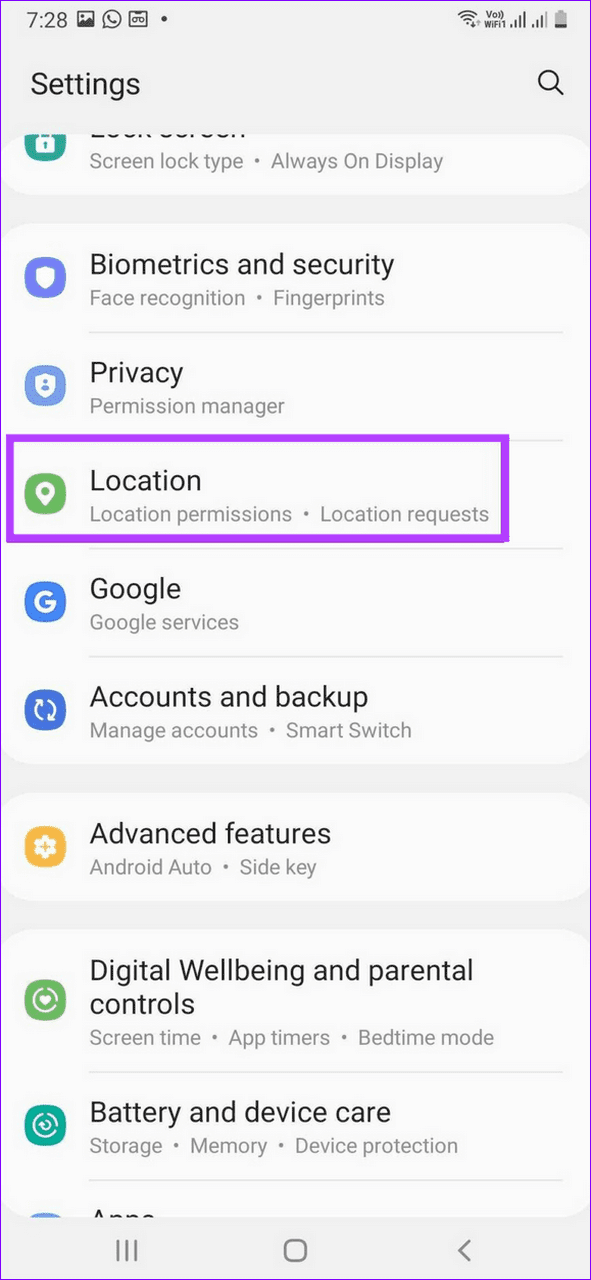
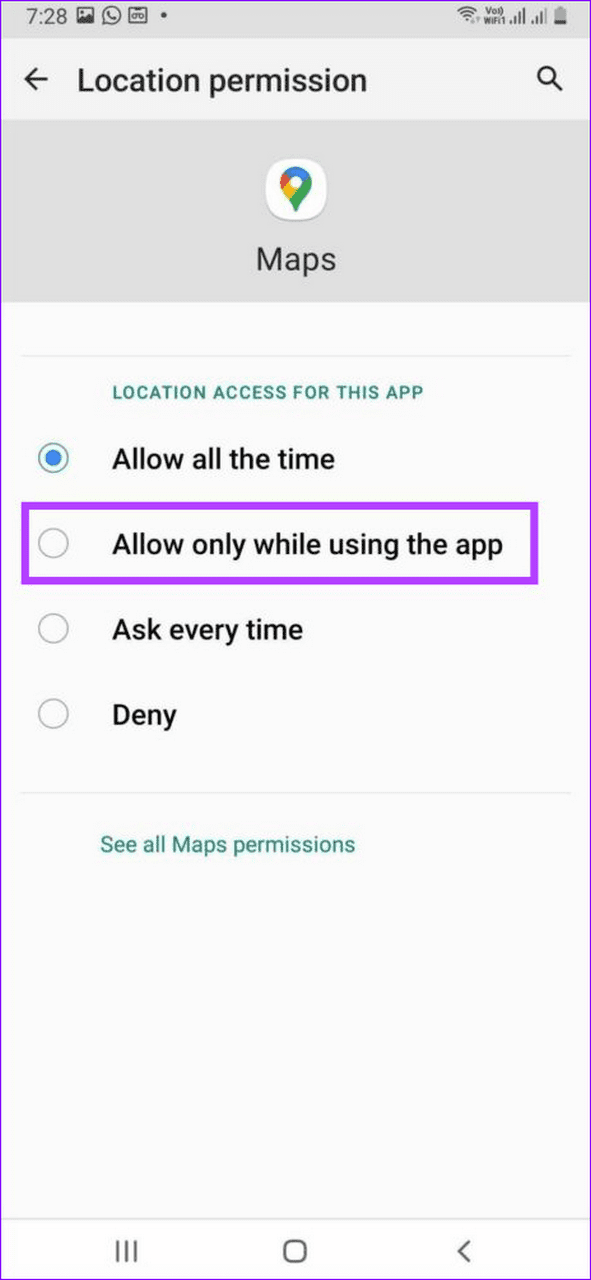
Step 1: Open the Settings app and tap Location.
Step 2: Select the apps with location access and set it to Allow only while using the app.

Fix 3: Reset Network Settings
Lastly, incorrect network settings are a common underlying culprit behind Bluetooth draining battery on Android. Reset existing network settings manually to restore normalcy.
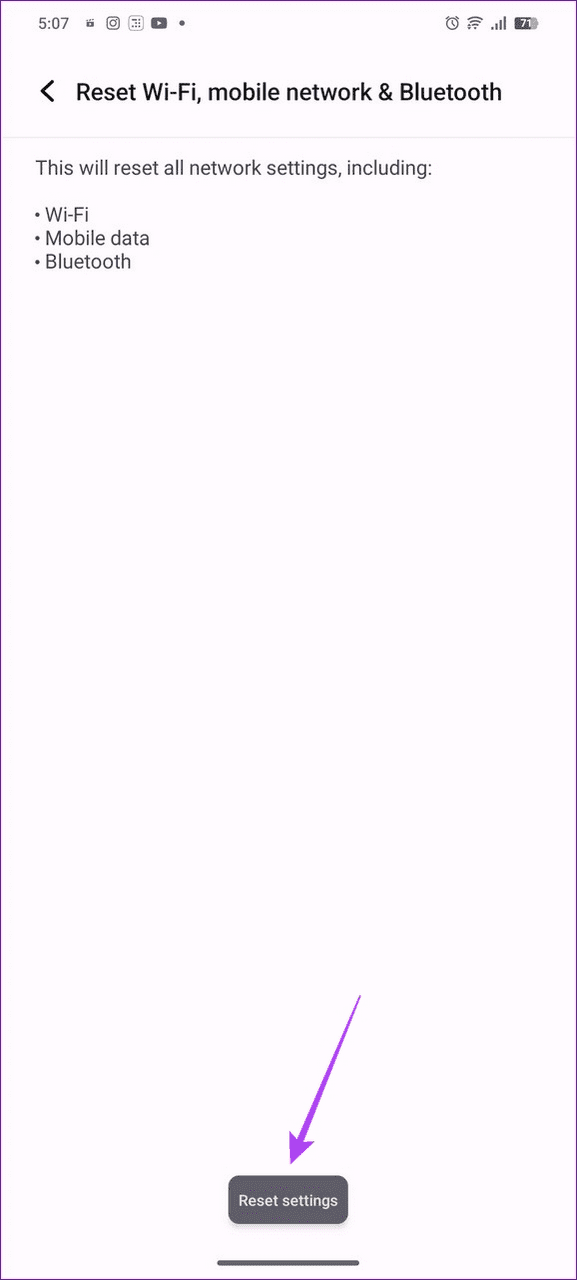
Step 1: Open the Settings app > search Reset > select Reset Wi-Fi, mobile network & Bluetooth.
Step 2: Select Reset network > tap on Reset settings to confirm.

Was this helpful?
Last updated on 11 July, 2024
Read Next
 4 Ways to Fix Google Play Services Draining Battery on Android
Basic Fixes Check recently installed apps: If you observed an increase in battery drain only recently, uninstall any newly downloaded apps.
4 Ways to Fix Google Play Services Draining Battery on Android
Basic Fixes Check recently installed apps: If you observed an increase in battery drain only recently, uninstall any newly downloaded apps.
 4 Ways to Fix Google Maps Draining Battery on Android and iPhone
https://youtu.be/HEEhE2uFRfw Try Basic Fixes Remove the Google Maps widget from home screen: If you use Google Maps' live traffic widget to get traffic information on your home screen, the app’s
4 Ways to Fix Google Maps Draining Battery on Android and iPhone
https://youtu.be/HEEhE2uFRfw Try Basic Fixes Remove the Google Maps widget from home screen: If you use Google Maps' live traffic widget to get traffic information on your home screen, the app’s
 5 Ways to Fix Android Phone Draining Battery While Charging
Why Is Your Phone Losing Battery While Charging Your Android phone may quickly lose battery while charging due to software or hardware issues, such as: You're charging your phone with
5 Ways to Fix Android Phone Draining Battery While Charging
Why Is Your Phone Losing Battery While Charging Your Android phone may quickly lose battery while charging due to software or hardware issues, such as: You're charging your phone with
 6 Ways to Fix iPhone Battery Draining While Charging
https://youtu.be/Eotj1OWfuME Fix 1: Use MFi-Certified Cables and Adapters It’s advisable to use Apple’s original accessories that ship with the phone.
6 Ways to Fix iPhone Battery Draining While Charging
https://youtu.be/Eotj1OWfuME Fix 1: Use MFi-Certified Cables and Adapters It’s advisable to use Apple’s original accessories that ship with the phone.
 4 Ways to Fix MacBook Draining Battery When Closed
https://youtu.be/fkXYhA950FQ Preliminary Fixes Disable the background process: If you are downloading a large file or installing an app from the Mac App Store, pause the process first and close the
4 Ways to Fix MacBook Draining Battery When Closed
https://youtu.be/fkXYhA950FQ Preliminary Fixes Disable the background process: If you are downloading a large file or installing an app from the Mac App Store, pause the process first and close the
 10 Tips to Fix Kindle Battery Draining Fast
1.
10 Tips to Fix Kindle Battery Draining Fast
1.
 How to Stop Chrome From Draining the Battery on iPhone and iPad
Basic Fixes Close Unwanted Tabs: If Chrome is open with multiple tabs, your battery will drain faster.
How to Stop Chrome From Draining the Battery on iPhone and iPad
Basic Fixes Close Unwanted Tabs: If Chrome is open with multiple tabs, your battery will drain faster.
 Bluetooth 5.1 vs Bluetooth 4.2: The 4 Key Differences
Bluetooth is one of the most common means of wireless connectivity.
Bluetooth 5.1 vs Bluetooth 4.2: The 4 Key Differences
Bluetooth is one of the most common means of wireless connectivity.
The article above may contain affiliate links which help support Guiding Tech. The content remains unbiased and authentic and will never affect our editorial integrity.

