Basic Fixes
- Unmute yourself on Discord: Ensure you haven’t accidentally muted yourself on Discord. To do that, look for the mic and headset icon next to your avatar. Ensure that the mic or headset icon does not have a slash across it.
- Check system volume level and default audio device: Check the system volume on your PC to ensure that the sound isn’t muted from there. While you are at it, select the correct output and input devices.
Fix 1: Check the Input and Output Device
In addition to setting the correct audio devices on your PC, verify the input and output devices set in the Discord app. Here are the steps for the latter.
Step 1: Open the Discord app on your PC and click the gear icon in the bottom left corner.

Step 2: Switch to the Voice & Video tab on your left. Use the drop-down menus under Input and Output device to select your preferred device. Then, use the corresponding sliders underneath them to adjust their volume.

Fix 2: Verify App Permissions
Discord might be unable to access your PC’s microphone if it doesn’t have the necessary permissions. Here’s how to fix that.
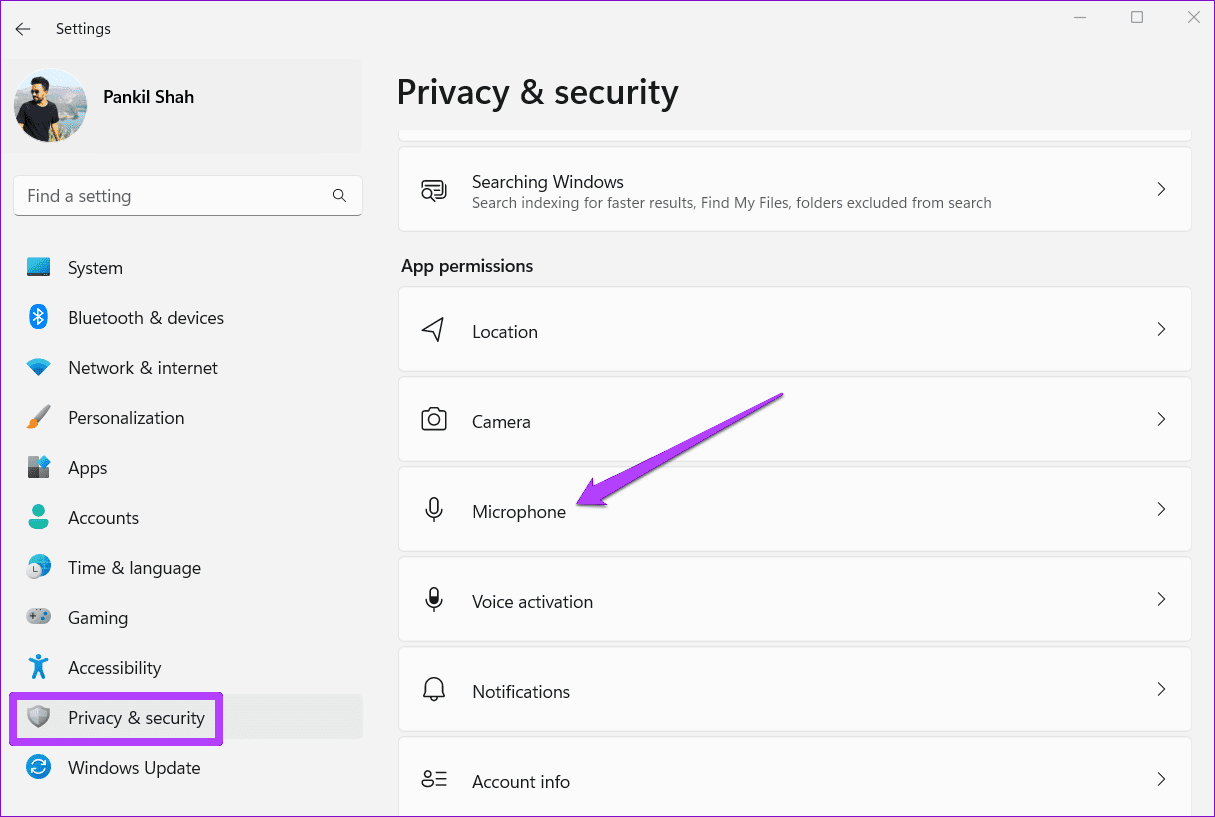
Step 1: Press the Windows key + I to open the Settings app. Navigate to Privacy & security tab and scroll down to click Microphone.
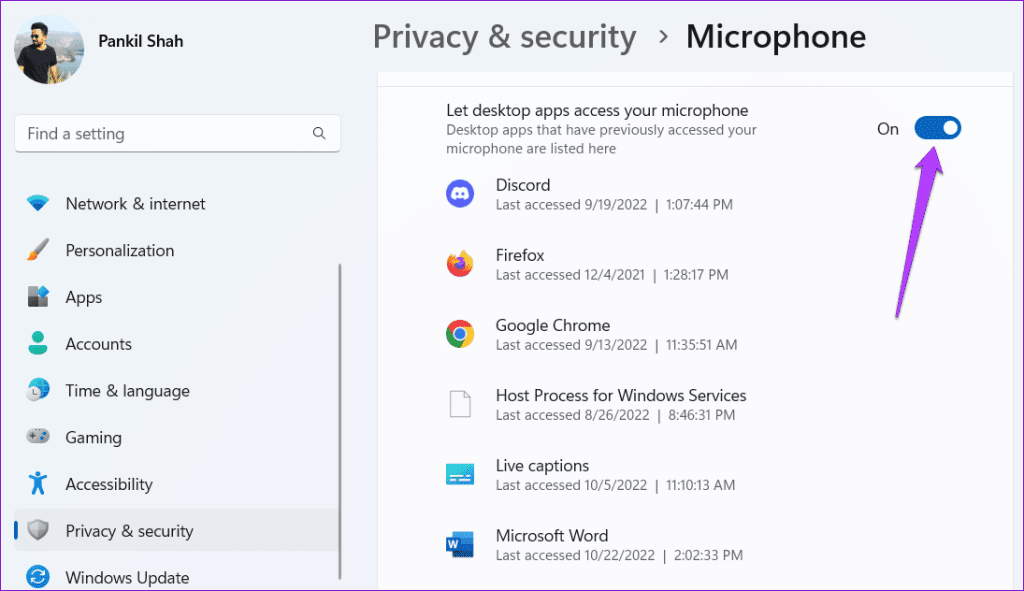
Step 2: Scroll down and enable the toggle for Let desktop apps access your microphone.
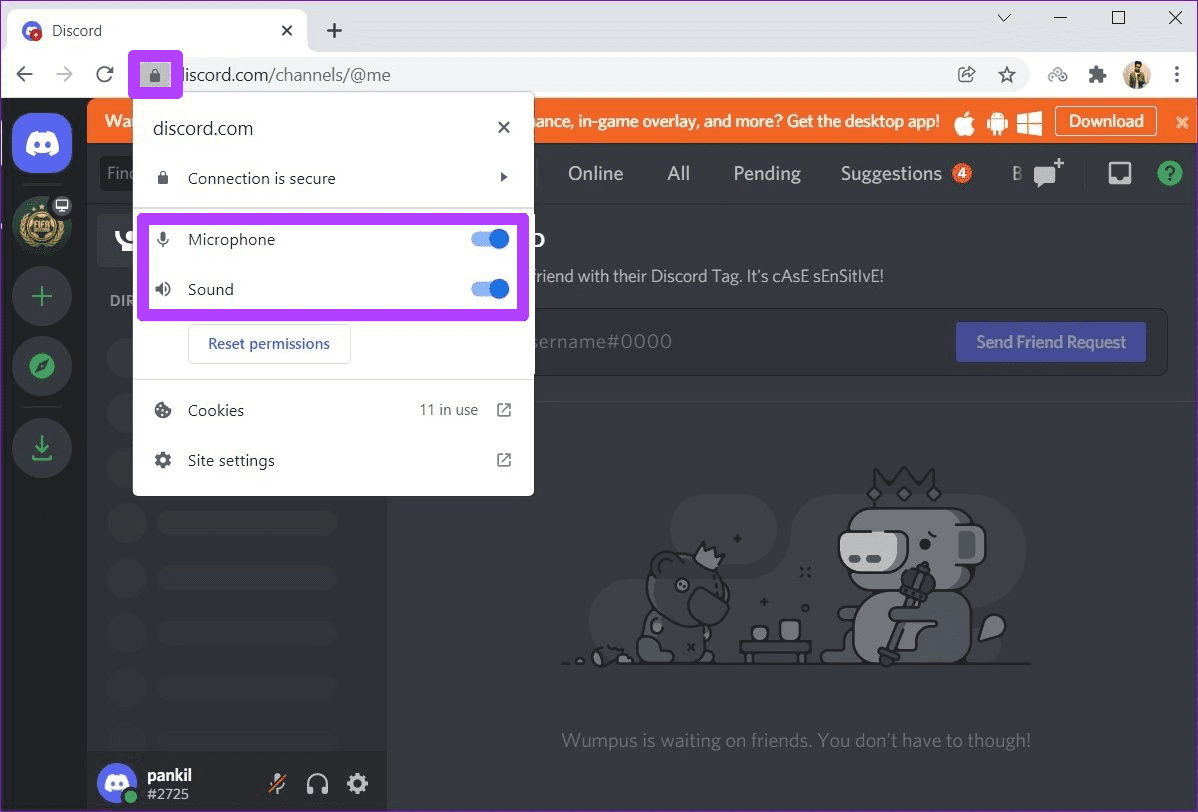
Similarly, if you’re using Discord in Chrome or any other web browser, see if Discord is allowed to use a microphone and speaker. Click the padlock icon on the left of the URL bar and ensure Discord is allowed access to both Microphone and Sound.
Fix 3: Enable Legacy Audio Subsystem
Another reason Discord audio may stop working is if your PC or headset’s hardware is incompatible with Discord’s latest audio subsystem. Fortunately, Discord provides an option to use the “Legacy Audio Subsystem” instead. Here’s how to enable it.
Step 1: In the Discord app, click the gear icon to open Settings.
Step 2: Switch to the Voice & Video tab and scroll down to Audio Subsystem. Use the drop-down menu to change it to Legacy.

Fix 4: Disable Audio Enhancement
Windows 11 ships with audio enhancement packages that help you achieve the best possible sound output. But if you face audio problems, you should turn them off entirely.
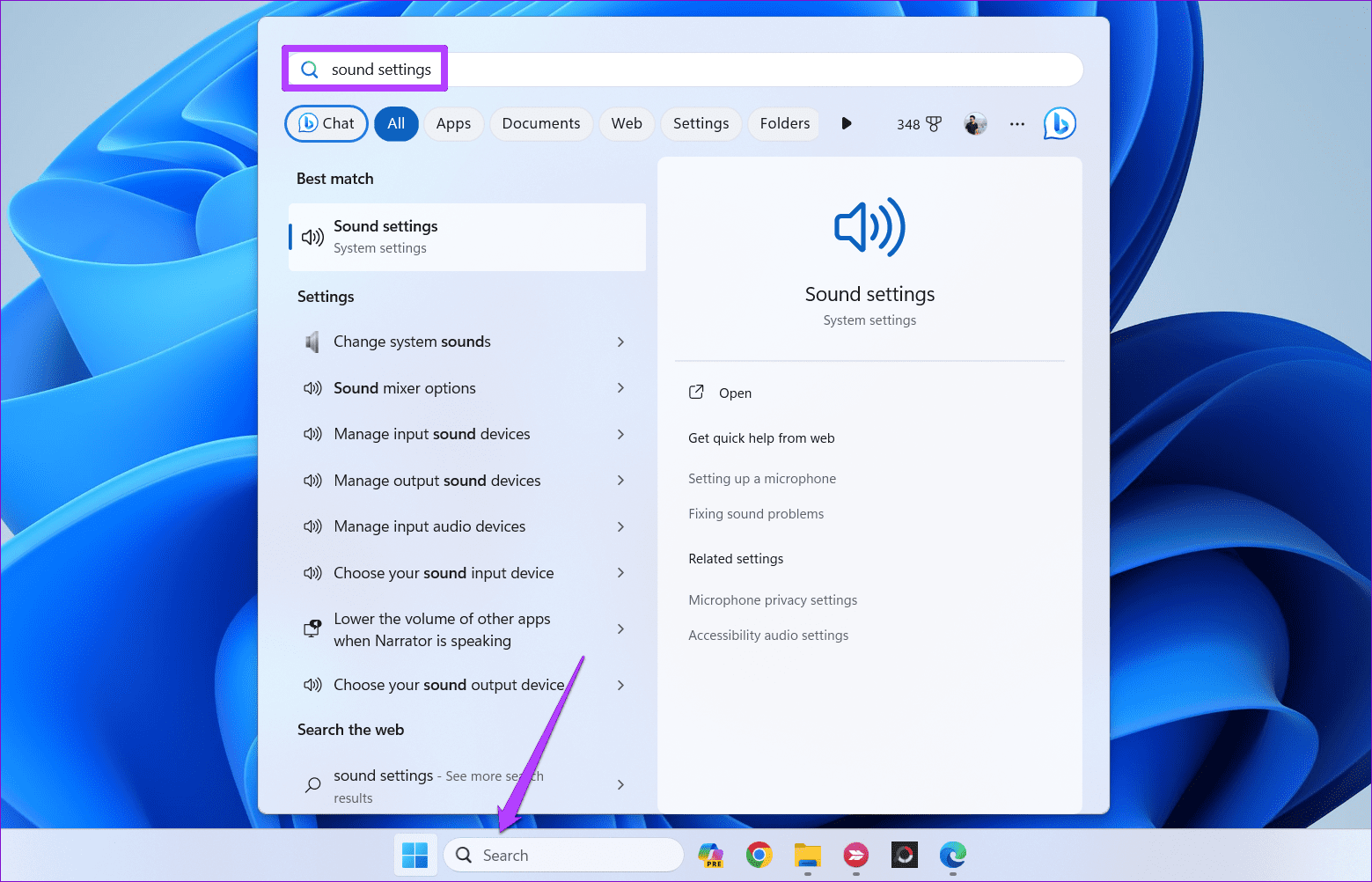
Step 1: Click the search icon on the taskbar, type sound settings, and press Enter.
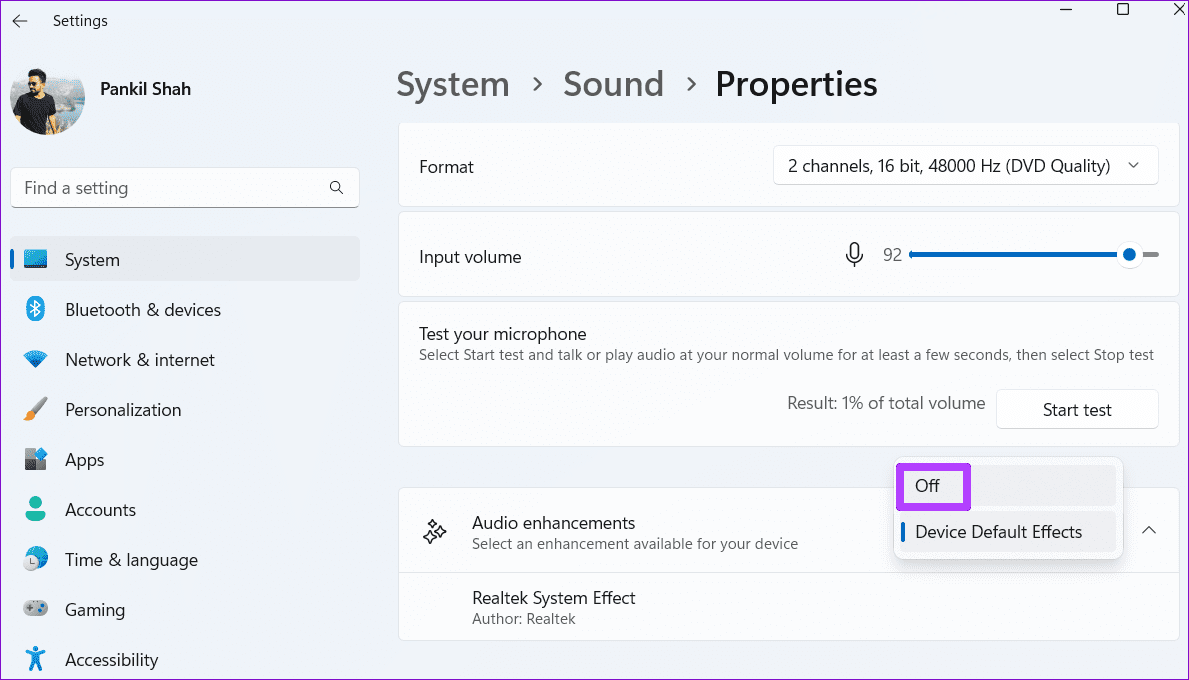
Step 2: Select the problematic device.

Step 3: Click the drop-down menu next to Audio enhancements and select Off.
Fix 5: Reset Voice Settings
Incorrect settings in Discord can also cause the audio to stop working. Instead of going through each voice setting one by one, consider resetting them all and starting over.
Step 1: Launch the Discord app and click the gear icon at the bottom left corner to open Settings.
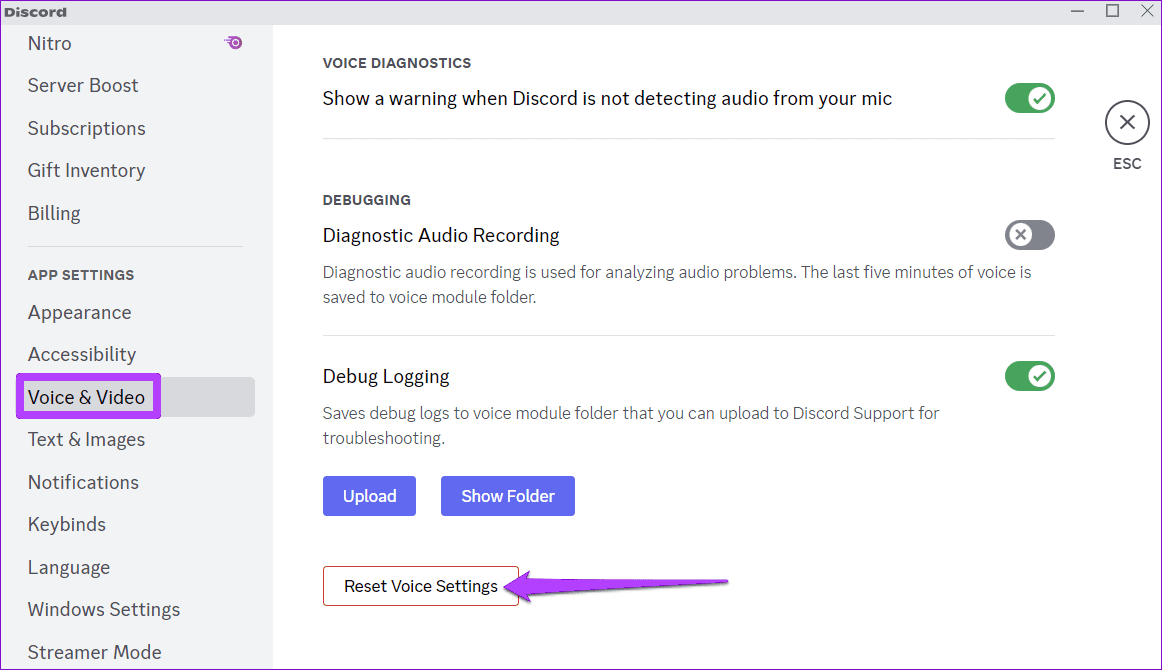
Step 2: Use the left pane to switch to Voice & Video. Scroll down and click on the Reset Voice Settings button. Click on Okay to confirm.
Was this helpful?
Last updated on 08 May, 2024
Read Next
 7 Ways to Fix Discord Audio Not Coming Through Headset
Fix 1: Check the Default Audio Output Device on Your System To start, check the default audio output device on your Windows or Mac computer and ensure that audio is
7 Ways to Fix Discord Audio Not Coming Through Headset
Fix 1: Check the Default Audio Output Device on Your System To start, check the default audio output device on your Windows or Mac computer and ensure that audio is
 How to Play Discord Games Using Discord Activities
What Are Discord Games?
How to Play Discord Games Using Discord Activities
What Are Discord Games?
 5 Fixes When Discord Is Picking Up Game Audio in Windows 11
Before going into the fixes, ensure the USB connector is connected to the motherboard USB port.
5 Fixes When Discord Is Picking Up Game Audio in Windows 11
Before going into the fixes, ensure the USB connector is connected to the motherboard USB port.
 Top 7 Ways to Fix Google Meet Audio Not Working
Major IT companies, such as Twitter and Spotify, are encouraging employees to work from home.
Top 7 Ways to Fix Google Meet Audio Not Working
Major IT companies, such as Twitter and Spotify, are encouraging employees to work from home.
 6 Ways to Fix Discord Notifications Not Working on Android and iPhone
Close the Discord app on your PC: If you have Discord open on your computer, notifications may appear there first instead of on your phone.
6 Ways to Fix Discord Notifications Not Working on Android and iPhone
Close the Discord app on your PC: If you have Discord open on your computer, notifications may appear there first instead of on your phone.
 4 Ways to Fix Screen Share Not Working on Discord
Try Basic Fixes Switch to windowed mode: It's important to know that Discord only supports screen sharing for apps and games that are windowed.
4 Ways to Fix Screen Share Not Working on Discord
Try Basic Fixes Switch to windowed mode: It's important to know that Discord only supports screen sharing for apps and games that are windowed.
 5 Ways to Fix Discord Mic Not Working on Android and iPhone
https://youtu.be/24cdhNs1yIU Try Basic Fixes Disconnect any Bluetooth devices: Make sure your phone isn't connected to any Bluetooth devices.
5 Ways to Fix Discord Mic Not Working on Android and iPhone
https://youtu.be/24cdhNs1yIU Try Basic Fixes Disconnect any Bluetooth devices: Make sure your phone isn't connected to any Bluetooth devices.
 2 Ways to Fix Discord Not Working on Wi-Fi
Basic Fixes: Restart the Router and Try Again: Try power cycling the router by turning it off, unplugging it, waiting a few minutes, plugging it back in, and attempting to
2 Ways to Fix Discord Not Working on Wi-Fi
Basic Fixes: Restart the Router and Try Again: Try power cycling the router by turning it off, unplugging it, waiting a few minutes, plugging it back in, and attempting to
The article above may contain affiliate links which help support Guiding Tech. The content remains unbiased and authentic and will never affect our editorial integrity.