Try Basic Fixes
- Install Windows and app updates: Windows updates bring all kinds of bug fixes and stability improvements to your PC. Hence, it’s best to install them. While you are at it, you should also update your apps from the Microsoft Store.
- Scan for malware: Your apps could misbehave and crash abruptly if your Windows PC is infected by malware or viruses. To check for this possibility, you can run a full system scan using Windows Defender or a third-party antivirus program.
Fix 1: Run SFC and DISM Scans
Damaged or missing system files can disrupt Windows processes and prevent apps from opening. In such cases, running the SFC (System File Checker) and DISM (Deployment Image Servicing and Management) scans can help.
Step 1: Right-click on the Start icon and select Terminal (Admin) from the resulting menu.

Step 2: Type the command mentioned below and press Enter.
SFC /scannow
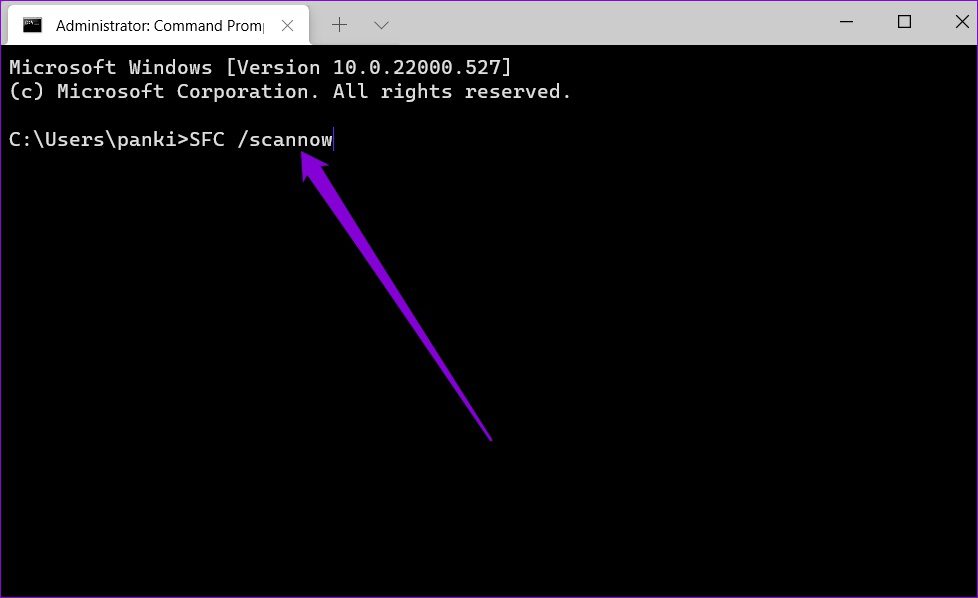
Step 3: Run the following commands one by one to run the DISM scan.
DISM /Online /Cleanup-Image /CheckHealth

DISM /Online /Cleanup-Image /ScanHealth

DISM /Online /Cleanup-Image /RestoreHealth

Wait for the process to complete and then restart your PC to see if the apps are running fine now.
Fix 2: Reset the Problematic App
If you are experiencing crashes with only a specific app on your PC, you can try resetting it. Doing so will get rid of any problematic app data that may be causing the problem.
Step 1: Press the Windows key + I to open the Settings app and head to Apps > Installed apps.
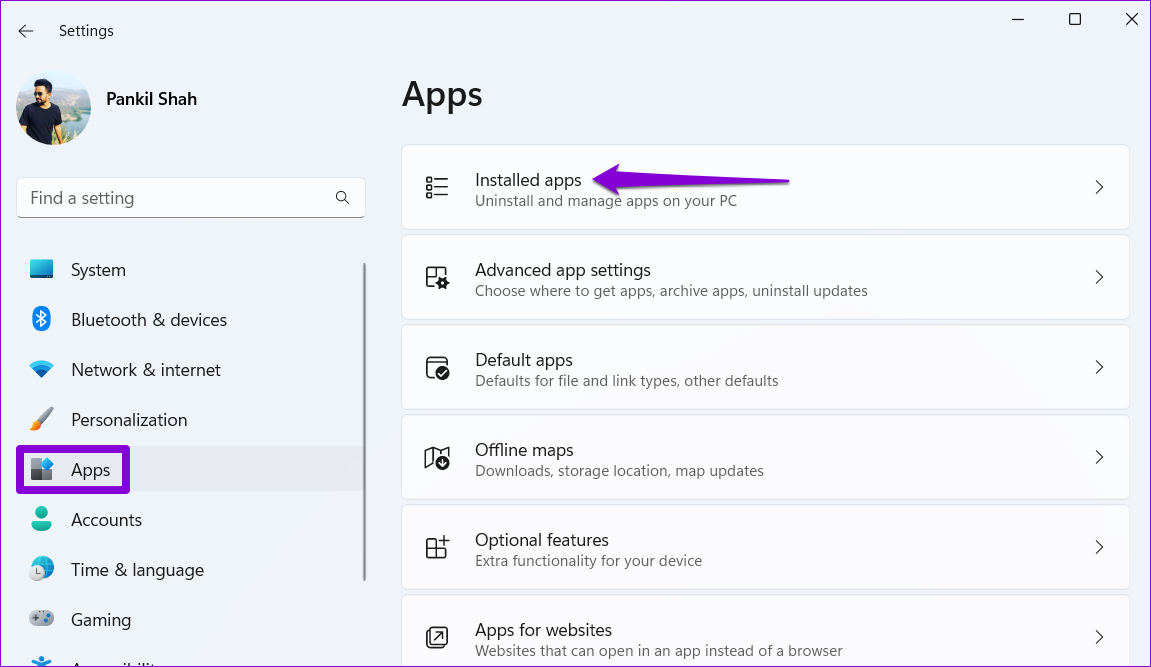
Step 2: Locate the problematic app on the list. Click the three-dot menu icon next to it and select Advanced options.

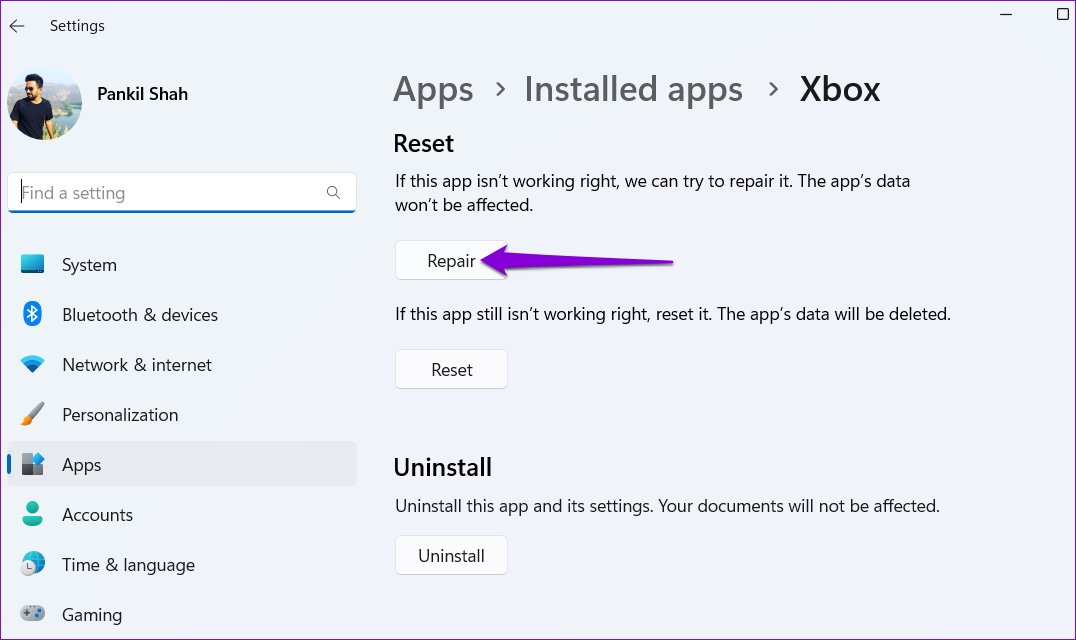
Step 3: Scroll down to the Reset section and click the Repair button.
Fix 3: Re-Register Windows Apps
Re-registering Microsoft Store apps on your system is an effective way to fix issues with them. Don’t worry, the process is not as intimidating as it might sound.
Step 1: Click the search icon on the taskbar, type in Windows PowerShell, and select Run as Administrator.

Step 2: In the console, type the command given below and press Enter.
Get-AppXPackage -AllUsers | Foreach {Add-AppxPackage -DisableDevelopmentMode -Register “$($_.InstallLocation)AppXManifest.xml"}

Fix 4: Try Clean Boot Mode
It’s possible that a third-party program running in the background is interfering with Windows and causing your apps to crash. You can verify this possibility by booting your PC in a clean boot state. Here’s how.
Step 1: Press the Windows key + R to open the Run dialog. Type msconfig in the box and press Enter.
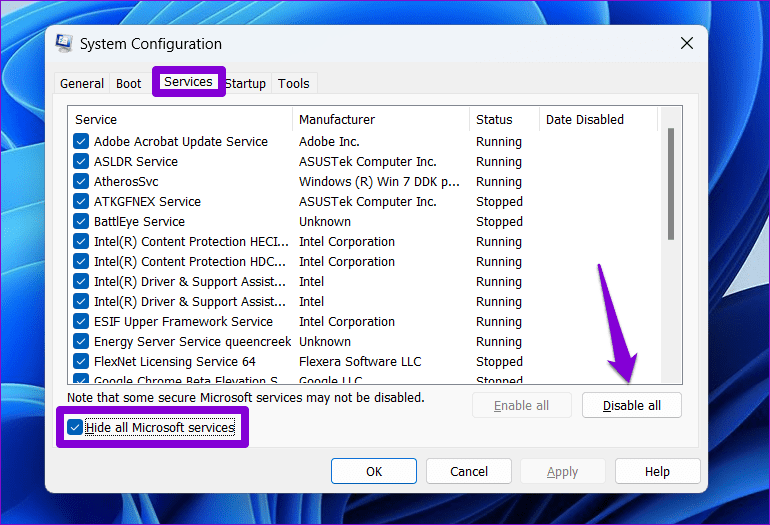
Step 2: Under the Services tab, check the box that reads Hide all Microsoft services box. Then, click the Disable all button.
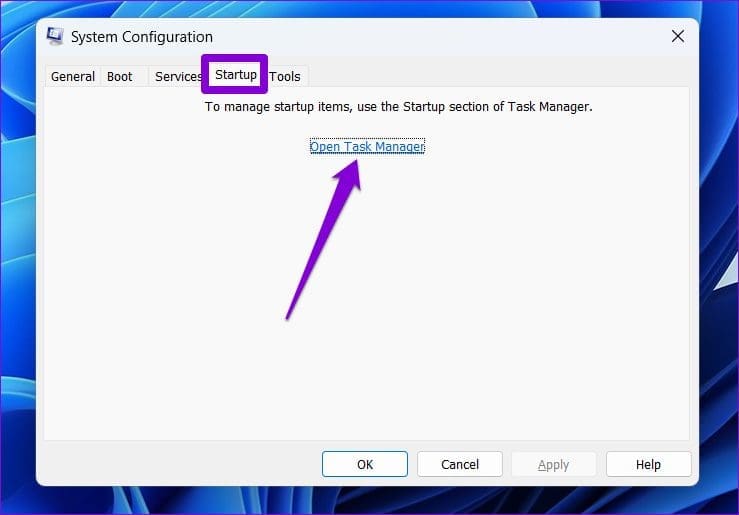
Step 3: Switch to the Startup tab and click on Open Task Manager.
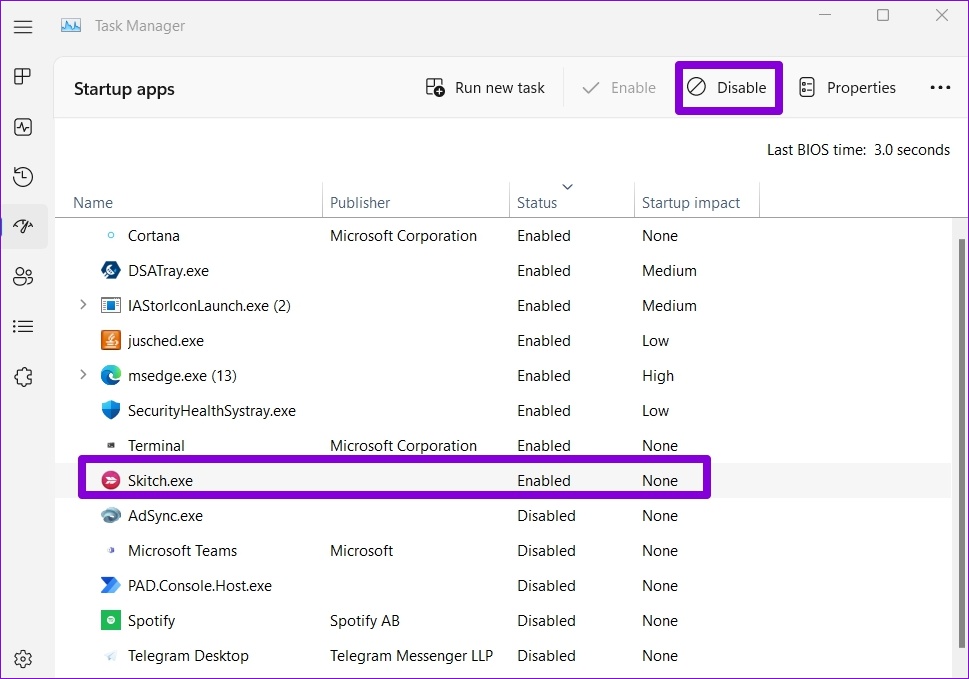
Step 4: In the Startup tab, select a third-party app and click on Disable at the top. Similarly, disable all the other third-party programs.
Restart your PC after this and try using your apps again. If they don’t crash, one of the third-party apps or programs is to blame. You’ll need to remove any recently installed apps and programs one at a time to fix the issue.
Was this helpful?
Last updated on 15 May, 2024
Read Next
 6 Ways to Fix Google Chrome Crashes When Downloading Files on Windows
Fix 1.
6 Ways to Fix Google Chrome Crashes When Downloading Files on Windows
Fix 1.
 6 Ways to Fix Google Chrome Crashes or Freezes When Uploading Files
Common Fixes Close other tabs and background applications: It will free up system resources, saving Google Chrome from a potential crash.
6 Ways to Fix Google Chrome Crashes or Freezes When Uploading Files
Common Fixes Close other tabs and background applications: It will free up system resources, saving Google Chrome from a potential crash.
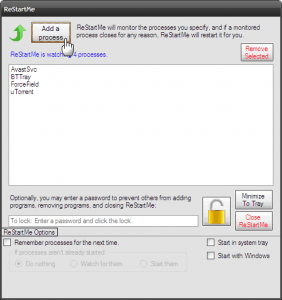 Quickly Auto-Restart a Windows Process or Program that Crashes
No one’s ever been killed in a Windows crash, so the Microsoft jokes don’t die down.
Quickly Auto-Restart a Windows Process or Program that Crashes
No one’s ever been killed in a Windows crash, so the Microsoft jokes don’t die down.
 7 Best Ways to Fix App Icons Not Showing in Taskbar on Windows 10
Don't you just love loading up your Windows 10 PC with all the amazing apps?
7 Best Ways to Fix App Icons Not Showing in Taskbar on Windows 10
Don't you just love loading up your Windows 10 PC with all the amazing apps?
 7 Best Ways to Fix Kindle for PC Desktop App Won’t Open on Windows
Many users prefer the Kindle app on their desktop for reading eBooks.
7 Best Ways to Fix Kindle for PC Desktop App Won’t Open on Windows
Many users prefer the Kindle app on their desktop for reading eBooks.
 5 Ways to Fix Phone Link App Not Working on Windows 11
Fix 1: Enable Phone Link Features The Phone Link app allows you to enable or disable specific features for your linked devices.
5 Ways to Fix Phone Link App Not Working on Windows 11
Fix 1: Enable Phone Link Features The Phone Link app allows you to enable or disable specific features for your linked devices.
 6 Ways to Fix WhatsApp Desktop App Not Showing Notifications on Windows 11
Fix 1: Verify In-App Notification Settings The first thing you should do is check WhatsApp’s in-app settings to ensure that notifications are not disabled.
6 Ways to Fix WhatsApp Desktop App Not Showing Notifications on Windows 11
Fix 1: Verify In-App Notification Settings The first thing you should do is check WhatsApp’s in-app settings to ensure that notifications are not disabled.
 3 Ways to Fix ‘You’ll Need a New App to Open This Windowsdefender Link’ Error in Windows 11
Fix 1: Repair and Reset the Windows Security App Step 1: Press the Windows + I keyboard shortcut to open the Settings app.
3 Ways to Fix ‘You’ll Need a New App to Open This Windowsdefender Link’ Error in Windows 11
Fix 1: Repair and Reset the Windows Security App Step 1: Press the Windows + I keyboard shortcut to open the Settings app.
The article above may contain affiliate links which help support Guiding Tech. The content remains unbiased and authentic and will never affect our editorial integrity.