

Fix 1: Check the Storage on Your Android TV
Most Android TVs come with 8GB of internal storage. Out of which, only 5GB is usable out of the box. If there is less storage on your Android TV, you will face issues with app installation. Here’s how you can check storage space on your Android TV.
Step 1: Open the Android TV home screen and select the Settings gear at the top-right corner.

Step 2: Scroll to the Device Preferences menu.

Step 3: Select Storage from the following menu.

Step 4: Click on Internal shared storage.

Step 5: Scroll down and check available space on your Android TV.
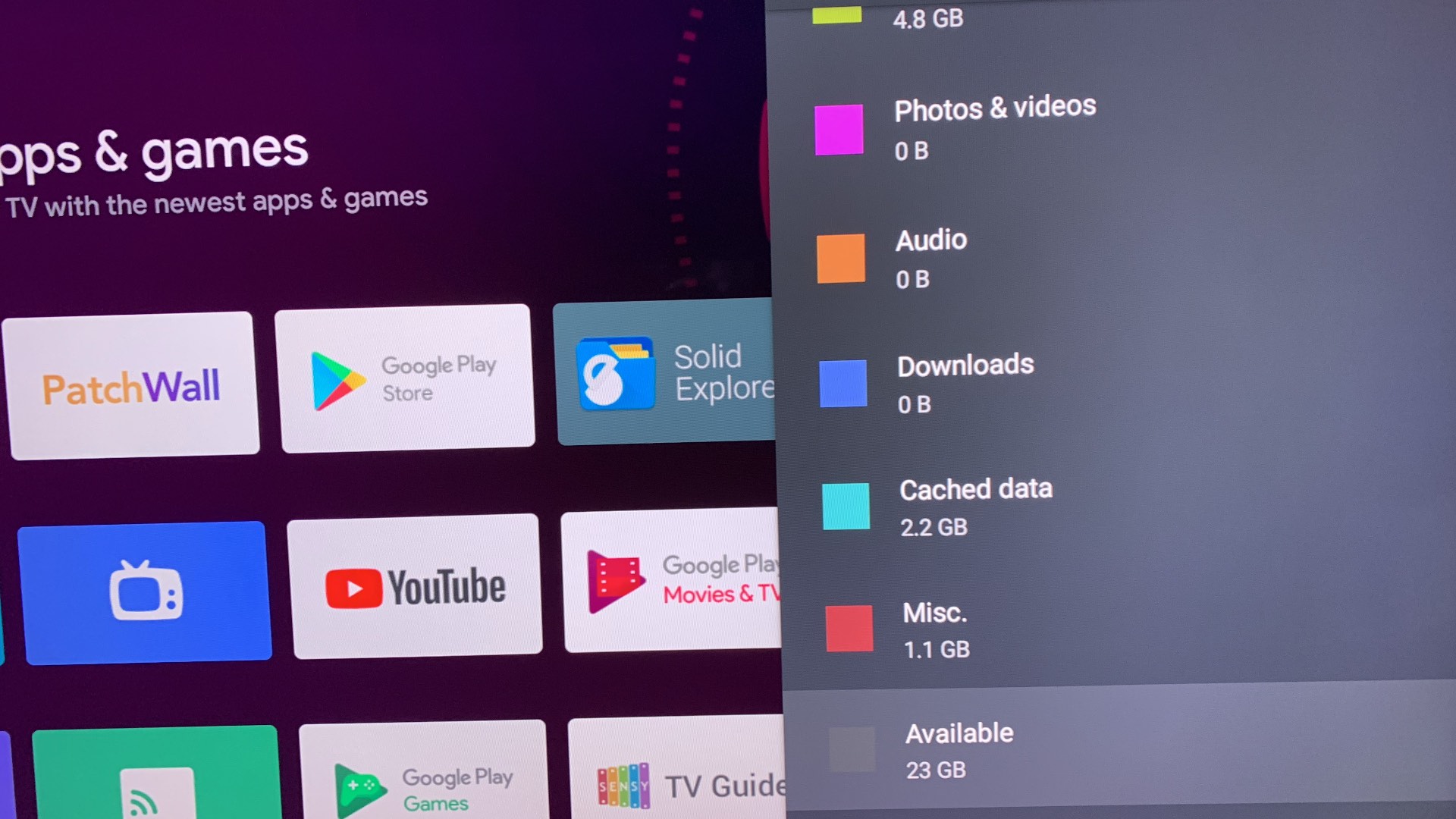
If you have only a few MBs of storage space left, go to the Cached data section from the same menu. Hit OK and clear cache data for all apps on your Android TV.

Also Read: 4 fixes for Google TV or Android TC not connecting to Wi-Fi
Fix 2: Disable and Enable the Google Play Store
You can temporarily disable the Google Play Store and enable it again to resume the app downloading process without a glitch. Here’s how.
Step 1: Open the Android TV Settings menu (refer to the steps above).
Step 2: Scroll to the Apps section.

Step 3: Select See all apps.

Step 4: Scroll to Google Play Store.
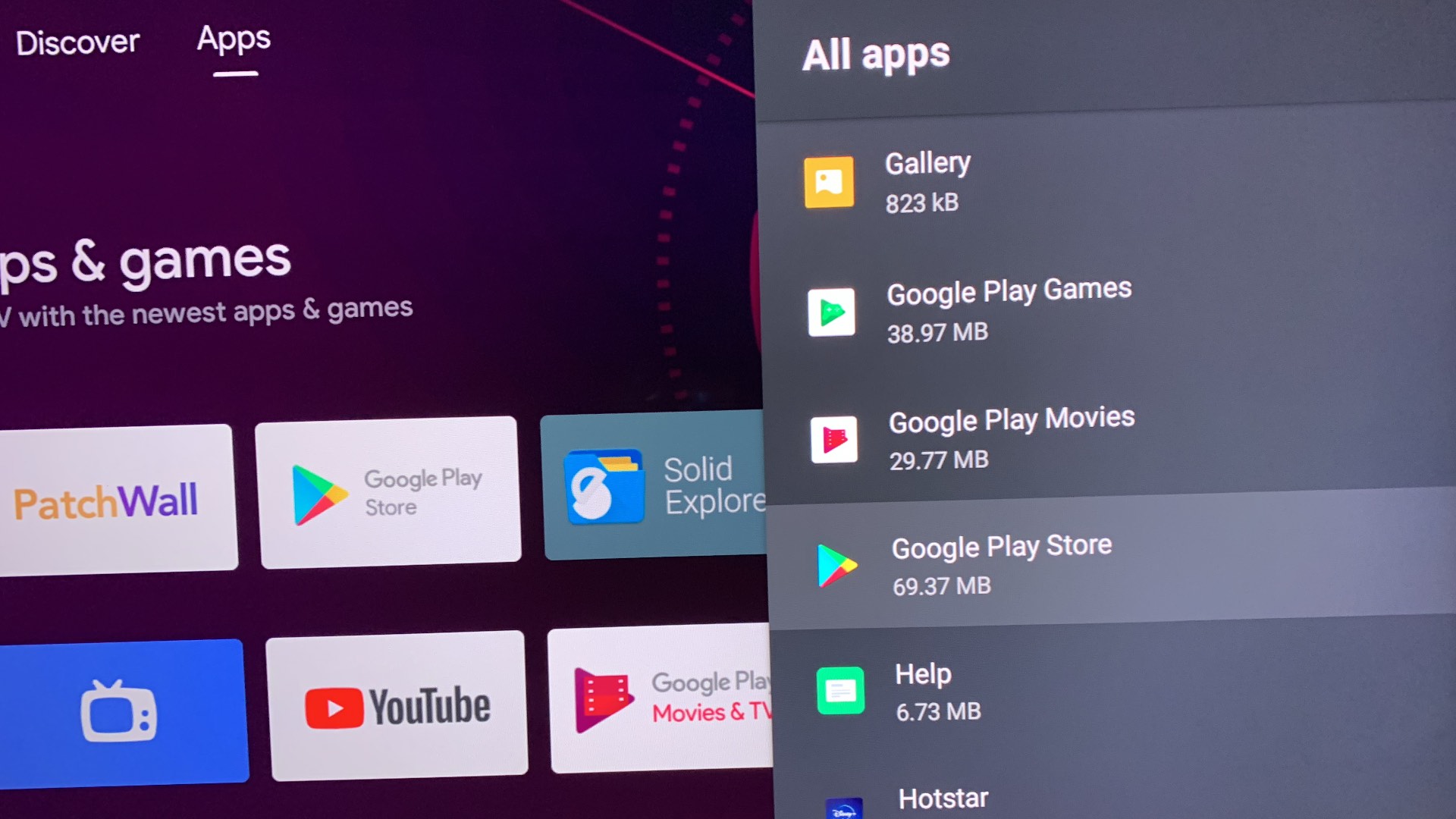
Step 5: It will open the Play Store app’s info menu. Select Disable and wait for a minute or two. Enable Play Store again and try downloading apps.
Fix 3: Uninstall Play Store Updates
Google Play Store automatically updates itself in the background. A recent update might have messed up app functions on your smart TV. It’s time to uninstall updates and revert to the stable version.
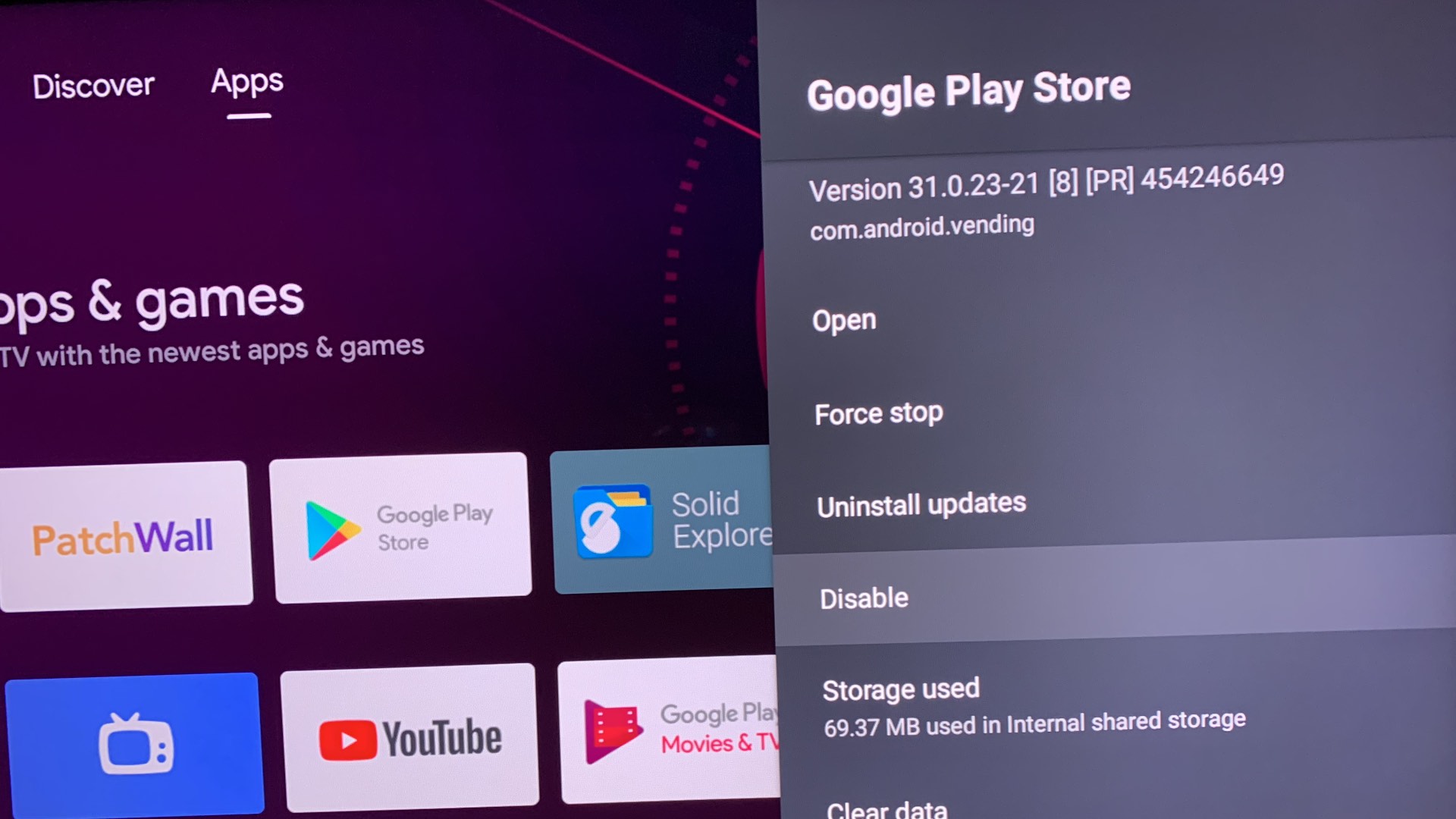
Step 1: Open the Google Play Store app info menu on your Android TV (refer to the steps above).
Step 2: Select Uninstall updates and confirm your decision.

Fix 4: Clear Google Play Store App Cache
Google Play Store collects cache data in the background to remember your personal information and search history. A corrupt Play Store cache can leave you with issues on Android TV. You can clear the Play Store cache on Android TV and try downloading apps again.
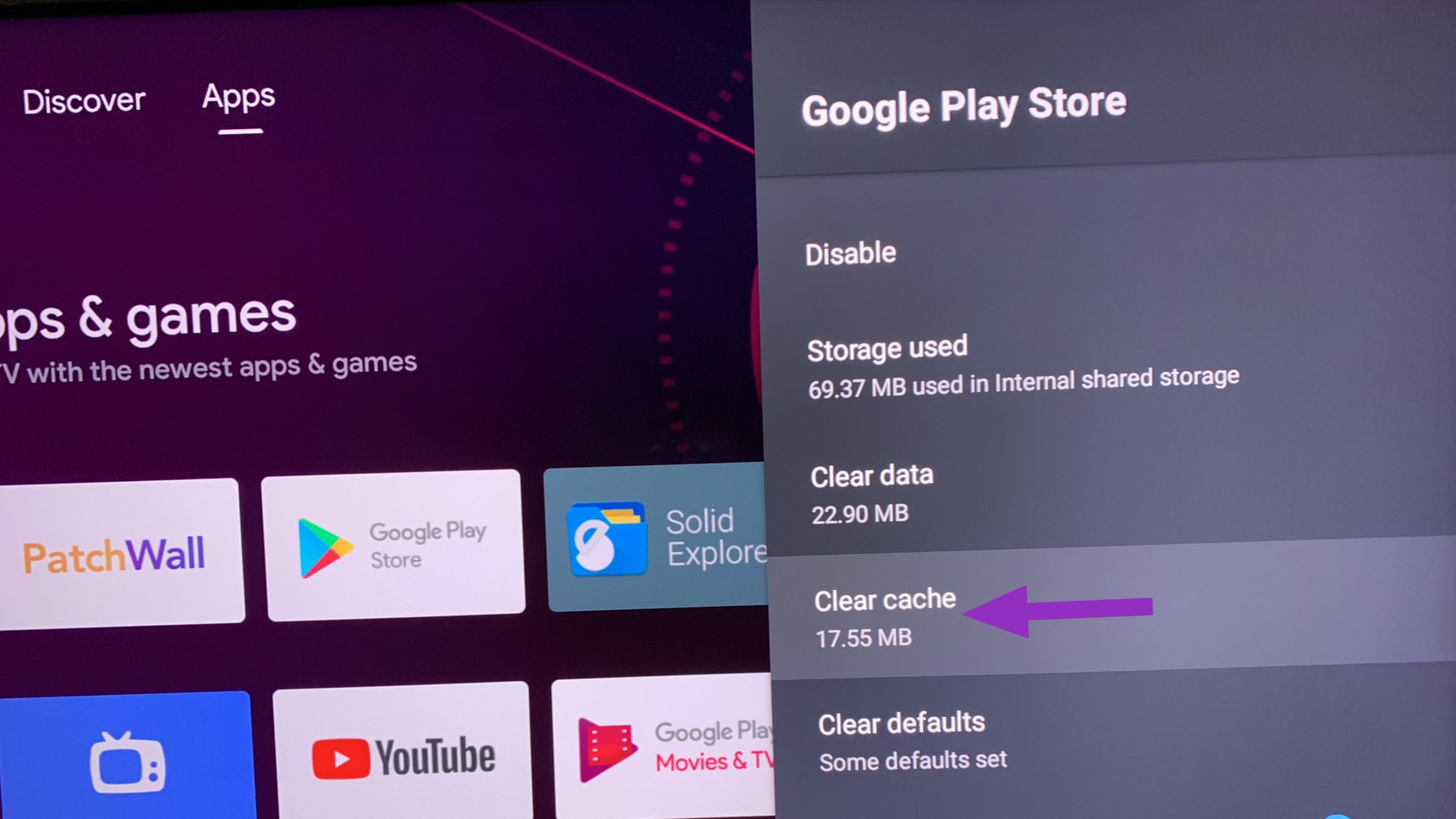
Step 1: Launch the Google Play Store app info menu (refer to the steps above).
Step 2: Check cache data and click on Clear cache.
Fix 5: Install Apps Using Your Android Phone
If you are still facing issues with Play Store on Android TV, you have an option to install apps using your Android phone too. First, you must ensure you use the same Google account on the Android TV and Android phone. When an app is compatible with an Android TV, you will find an option to install the same on your TV.
Step 1: Open the Google Play Store on your Android phone. Search for an app you want to install on Android TV.
Step 2: Tap on the down arrow button beside Install. Enable a checkmark beside your Android TV. Then, tap on Install.


Was this helpful?
Last updated on 30 July, 2024
4 Comments
Leave a Reply
Read Next
 Top 5 Ways to Fix Samsung TV Not Downloading Apps
Preliminary Fixes Check the Network Connection: Ensure your Samsung TV is connected to a stable Wi-Fi network.
Top 5 Ways to Fix Samsung TV Not Downloading Apps
Preliminary Fixes Check the Network Connection: Ensure your Samsung TV is connected to a stable Wi-Fi network.
 7 Ways to Fix Microsoft Store Not Downloading Apps or Games
Fix 1: Restart Microsoft Store Shutting down the app can kill any bugs, and it is unlikely to appear once you open the Microsoft Store again.
7 Ways to Fix Microsoft Store Not Downloading Apps or Games
Fix 1: Restart Microsoft Store Shutting down the app can kill any bugs, and it is unlikely to appear once you open the Microsoft Store again.
 4 Ways to Fix Apple TV Not Downloading Apps
Basic Fixes: Restart Apple TV: You can use the System menu on your Apple TV remote to restart your Apple TV device.
4 Ways to Fix Apple TV Not Downloading Apps
Basic Fixes: Restart Apple TV: You can use the System menu on your Apple TV remote to restart your Apple TV device.
 3 Ways to Fix Spotify Not Downloading Songs on Android and iPhone
Try Basic Fixes Free up storage space: If your phone is running low on storage, you might have a hard time downloading new content.
3 Ways to Fix Spotify Not Downloading Songs on Android and iPhone
Try Basic Fixes Free up storage space: If your phone is running low on storage, you might have a hard time downloading new content.
 5 Fixes for Google Messages Not Downloading MMS
Basic Fixes Switch to Wi-Fi: Some MMS files might require fast internet speeds because of their file size.
5 Fixes for Google Messages Not Downloading MMS
Basic Fixes Switch to Wi-Fi: Some MMS files might require fast internet speeds because of their file size.
 3 Ways to Fix Google Drive Not Downloading Files on Android and iPhone
Try Basic Fixes Ask the file owner to enable download access: If you can't download a file shared with you, the file owner may have restricted your access with the
3 Ways to Fix Google Drive Not Downloading Files on Android and iPhone
Try Basic Fixes Ask the file owner to enable download access: If you can't download a file shared with you, the file owner may have restricted your access with the
 How to Stop iPhone From Automatically Downloading Apps
Why Is iPhone Downloading Apps Automatically?
How to Stop iPhone From Automatically Downloading Apps
Why Is iPhone Downloading Apps Automatically?
 4 Fixes for Samsung Galaxy Store Not Downloading Apps
https://youtu.be/fOETHrOCh5M Basic Fixes Switch to Wi-Fi: Starting with internet speeds, we suggest switching from mobile data to Wi-Fi.
4 Fixes for Samsung Galaxy Store Not Downloading Apps
https://youtu.be/fOETHrOCh5M Basic Fixes Switch to Wi-Fi: Starting with internet speeds, we suggest switching from mobile data to Wi-Fi.
The article above may contain affiliate links which help support Guiding Tech. The content remains unbiased and authentic and will never affect our editorial integrity.
i don’t really know if it will work on my sony tv or not, but thank you for your help.
I was having this problem on my chromecast with Google TV. It is the Google play store clear storage that’s taking up most of the free space. When you clear it it eventually does it again. I’m even using a flash drive with data migrated to it.
Tried all kinds of things. eventually uninstalled updates and that worked. THANK YOU !
Thank you!!! I could not download any apps so I followed everything you said including uninstalling updates and it works!!! Thank you so much!