Try Basic Fixes
- Enable Wi-Fi and Bluetooth: AirDrop uses Bluetooth on your iPhone to search for nearby devices and subsequently utilizes Wi-Fi to send or receive files. So, ensure both Bluetooth and Wi-Fi are enabled on your iPhone.
- Disable Focus mode: Although you can use AirDrop to send files while the Focus mode is active, you won’t receive any notifications for incoming files. This might give you the impression that AirDrop notifications are not functioning correctly on your iPhone.
- Temporarily disable VPN: Oddly enough, several users on the Apple forums reported experiencing issues using AirDrop while connected to a VPN network. To avoid any conflicts, temporarily disable VPN on the sending and receiving devices and see if that gets things moving again.
- Install iOS Updates: Sometimes, software updates can also go wrong. If the AirDrop not working issue only occurs due to a bug, installing pending iOS updates on your iPhone should help.
Fix 1: Turn off Personal Hotspot
Another reason you might be unable to send or receive files via AirDrop is if either of the iPhones has Personal Hotspot enabled. Here’s how to turn it off.
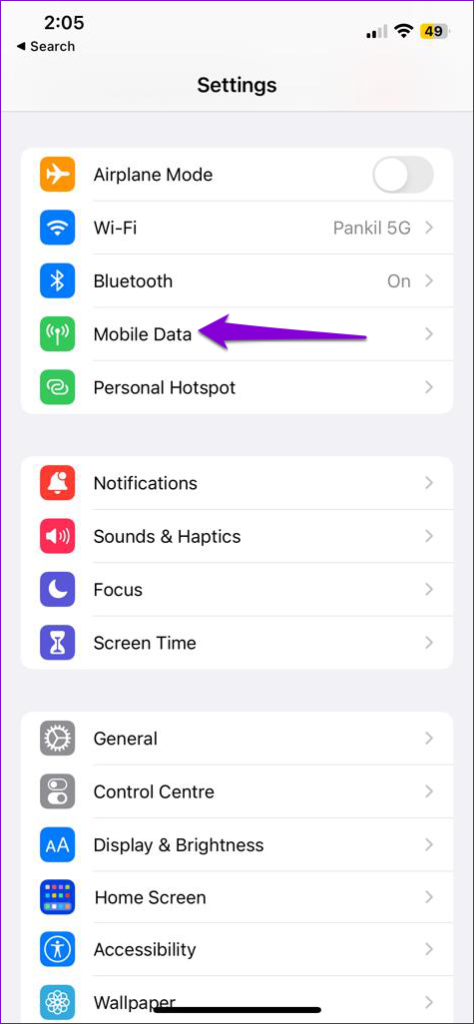
Step 1: Open the Settings app and go to Mobile Data.
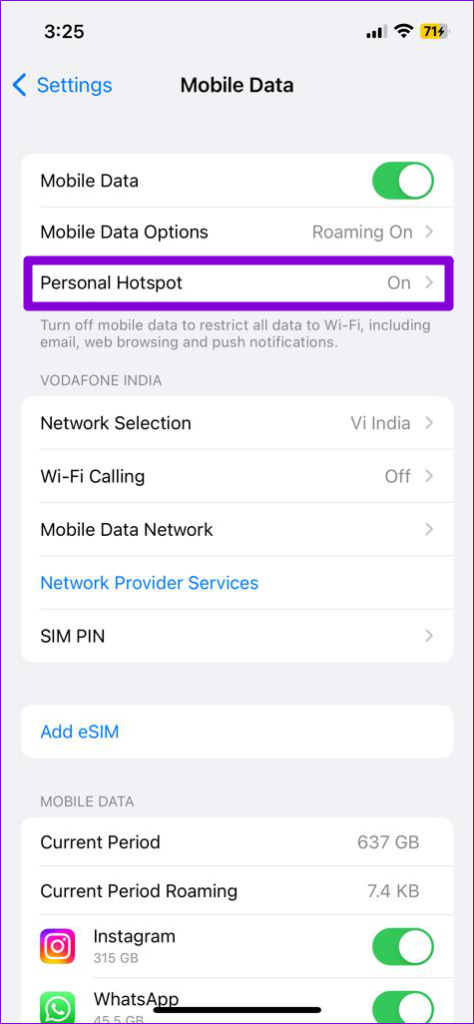
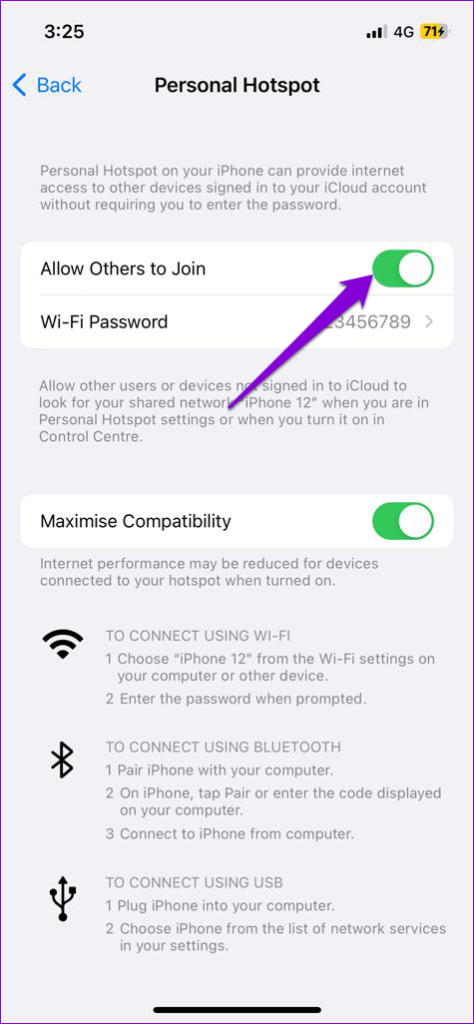
Step 2: Tap Personal Hotspot and turn off the toggle for Allow Others to Join.
Fix 2: Turn off AirDrop Restrictions
Is the AirDrop option grayed out on your iPhone? That could happen if you have set up Screen Time restrictions for it. Here’s how to turn them off and get AirDrop working on your iPhone.
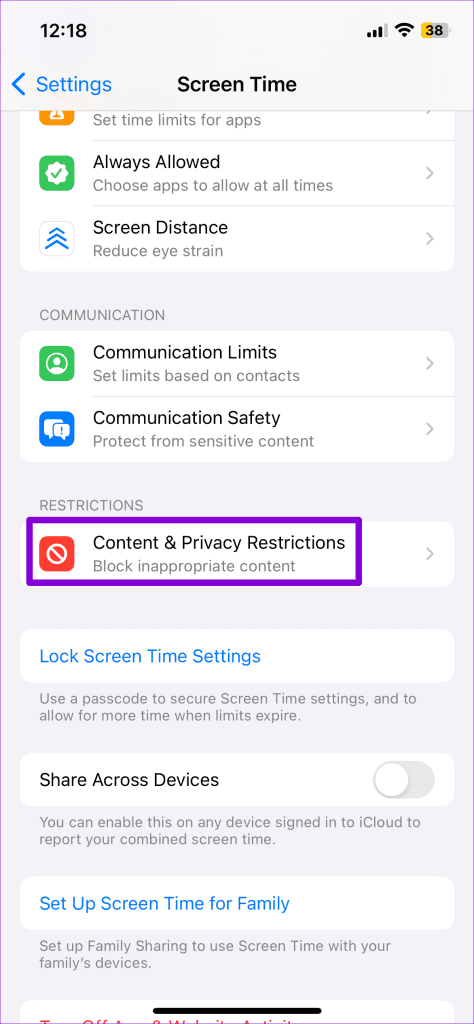
Step 1: Open the Settings app and head to Screen Time > Content & Privacy Restrictions.
Step 2: Tap on Allowed Apps and turn on the toggle for AirDrop.


Fix 3: Reset Network Settings
If you still can’t send or receive files via AirDrop, it’s likely that the network configurations on your iPhone are to blame. In that case, your best option is to reset all the network settings and start over.
Step 1: Open the Settings menu on your iPhone and navigate to General > Transfer or Reset iPhone.
Step 2: Tap Reset at the bottom and choose Reset Network Settings.


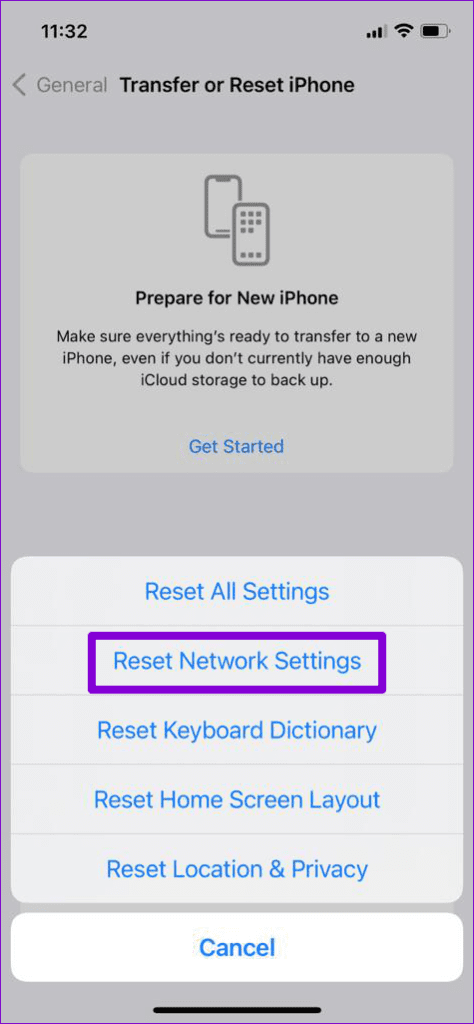
Enter your device passcode for verification and follow the on-screen prompts to finish resetting the network settings.
Was this helpful?
Last updated on 04 July, 2024
Read Next
 4 Ways to Fix Airdrop Failed to Save Item Error on iPhone
Basic Fixes: Ensure AirDrop is enabled: If the relevant AirDrop settings haven’t been enabled, it can cause issues like the AirDrop keeps failing error.
4 Ways to Fix Airdrop Failed to Save Item Error on iPhone
Basic Fixes: Ensure AirDrop is enabled: If the relevant AirDrop settings haven’t been enabled, it can cause issues like the AirDrop keeps failing error.
 Top 8 Ways to Fix MacBook Not Showing on AirDrop
AirDrop remains one of the best ways to transfer large files from iPhone or iPad to Mac and vice versa.
Top 8 Ways to Fix MacBook Not Showing on AirDrop
AirDrop remains one of the best ways to transfer large files from iPhone or iPad to Mac and vice versa.
 Top 6 Ways to Fix Gmail Notifications Not Working on iPhone
Gmail is so popular that even iPhone users prefer it.
Top 6 Ways to Fix Gmail Notifications Not Working on iPhone
Gmail is so popular that even iPhone users prefer it.
 2 Ways to Fix Auto Rotate Not Working on iPhone
https://youtu.be/S_vIJ_3hn1s Try Basic Fixes Turn off the screen rotation lock: Ensure that the rotation lock is turned off on your iPhone: swipe down from the top right > tap the
2 Ways to Fix Auto Rotate Not Working on iPhone
https://youtu.be/S_vIJ_3hn1s Try Basic Fixes Turn off the screen rotation lock: Ensure that the rotation lock is turned off on your iPhone: swipe down from the top right > tap the
 3 Ways to Fix Screenshots Not Working on iPhone
Basic Fixes Check for Software Updates: Make sure your iPhone is running the latest software version.
3 Ways to Fix Screenshots Not Working on iPhone
Basic Fixes Check for Software Updates: Make sure your iPhone is running the latest software version.
 8 Ways to Fix Location Services Not Working on iPhone
Try Basic Fixes Force restart your iPhone: Several users on an Apple Community post reported fixing location issues on their iPhones by performing a force reboot.
8 Ways to Fix Location Services Not Working on iPhone
Try Basic Fixes Force restart your iPhone: Several users on an Apple Community post reported fixing location issues on their iPhones by performing a force reboot.
 7 Ways to Fix Touchscreen Not Working On iPhone
While the iPhone is known for its robust design and quality, it doesn't mean it's free from problems.
7 Ways to Fix Touchscreen Not Working On iPhone
While the iPhone is known for its robust design and quality, it doesn't mean it's free from problems.
 4 Ways to Fix VPN Not Working on iPhone or iPad
Basic Fixes: Check app server status: When your preferred VPN provider faces an outage, you may face issues when using their services.
4 Ways to Fix VPN Not Working on iPhone or iPad
Basic Fixes: Check app server status: When your preferred VPN provider faces an outage, you may face issues when using their services.
The article above may contain affiliate links which help support Guiding Tech. The content remains unbiased and authentic and will never affect our editorial integrity.