


Method 1: Use Outlook Android App
Step 1: Download the Outlook app and sign in using your Microsoft account details.
Step 2: When the app syncs your email, tap the Home icon at the top-left corner and go to Settings.
Step 3: Select Outlook under your mail accounts and turn on the toggle for Sync contacts.
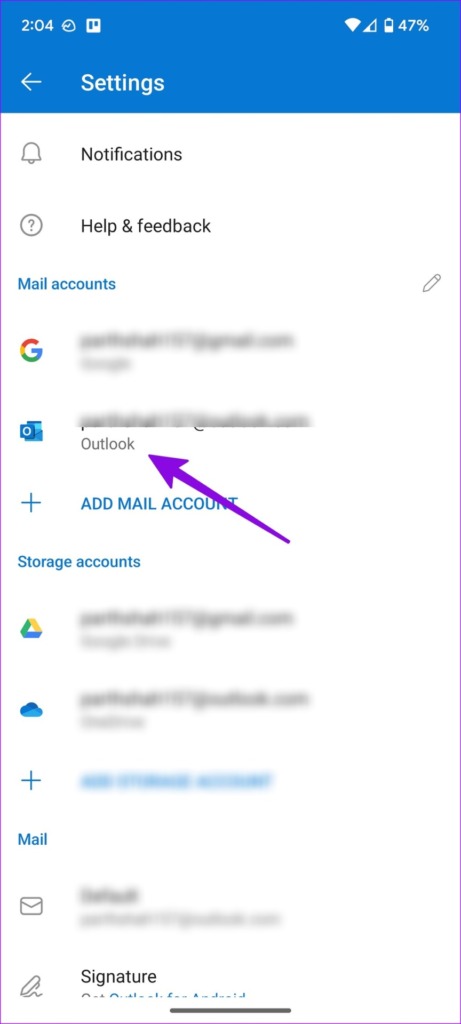

Return to the Home screen and open the Contacts app. The Outlook contacts will start to appear there.
Method 2: Use the Settings Menu
If the trick above doesn’t work, use the default Settings menu to sync Outlook contacts on Android.
Step 1: Set up the Outlook email app on Android.
Step 2: Open Settings on your Android phone and go to Password and accounts.
Step 3: Select Outlook from the following menu and tap on Account Sync. Then, enable the Contacts toggle from the following menu.


Method 3: Use the Google Contacts App
First, create a .VCF file from Outlook contacts and sync them with your Android phone using the Contacts app. We will use Outlook for web to generate a .CSV file and convert it to .VCF format.
Step 1: Visit Outlook on the desktop and move to the People tab.
Step 2: Enable the checkmark beside All contacts and open Manage Contacts at the top.

Step 3: Select Export Contacts and Outlook will save a file in .CSV format.
Step 4: Use online tools like Anyconv to convert your .CSV file to a .VCF format (since the default Contacts app on Android can’t read and import numbers from a .CSVfile).
When you have an Outlook contacts file in .VCF format, move it to your phone, and use the default Contacts app to import it.
Step 5: Launch the Contacts app on your phone and go to the Fix & manage menu.
Step 6: Select Import from file > select email account or device to save imported contacts.


Step 7: It will open the default file manager menu. Find your .vcf file to import on Android.
Was this helpful?
Last updated on 06 June, 2024
1 Comment
Leave a Reply
Read Next
 Google Contacts vs Samsung Contacts: Which App Is Best for Saving and Managing Contacts
Apart from phones running Stock Android, all other Android phones have their own set of basic apps.
Google Contacts vs Samsung Contacts: Which App Is Best for Saving and Managing Contacts
Apart from phones running Stock Android, all other Android phones have their own set of basic apps.
 iCloud Contacts vs Google Contacts: Where Should You Save Contacts on Your iPhone
When you are using an Android phone, one prefers using Google Contacts to store and manage contacts.
iCloud Contacts vs Google Contacts: Where Should You Save Contacts on Your iPhone
When you are using an Android phone, one prefers using Google Contacts to store and manage contacts.
 How to Sync Outlook Contacts and Calendars on iPhone
Add Outlook Account in Settings To easily sync contacts and calendar entries to your iPhone, you'll need to add your Microsoft Outlook account first.
How to Sync Outlook Contacts and Calendars on iPhone
Add Outlook Account in Settings To easily sync contacts and calendar entries to your iPhone, you'll need to add your Microsoft Outlook account first.
 How to Use Google Contacts Instead of Samsung Contacts
Samsung Galaxy phones carry a lot of pre-loaded apps, and some of them you'll rarely use.
How to Use Google Contacts Instead of Samsung Contacts
Samsung Galaxy phones carry a lot of pre-loaded apps, and some of them you'll rarely use.
 5 Ways to Fix Sync Is Currently Experiencing Problems on Android
Basic Fixes: Check Google server status: If Google is experiencing issues in the backend, it might affect sync on your Android phone.
5 Ways to Fix Sync Is Currently Experiencing Problems on Android
Basic Fixes: Check Google server status: If Google is experiencing issues in the backend, it might affect sync on your Android phone.
 3 Fixes for Outlook Contacts Not Syncing on iPhone and Mac
Basic Fixes Check internet speed: Check if you are getting good internet speeds on your mobile network or Wi-Fi.
3 Fixes for Outlook Contacts Not Syncing on iPhone and Mac
Basic Fixes Check internet speed: Check if you are getting good internet speeds on your mobile network or Wi-Fi.
 Top 4 Ways to Change New Outlook Back to Old (Classic View) Outlook on Windows and Mac
The new Outlook app for desktop boasts a modern and simplified design, aligning it more closely with the web version of Microsoft Outlook.
Top 4 Ways to Change New Outlook Back to Old (Classic View) Outlook on Windows and Mac
The new Outlook app for desktop boasts a modern and simplified design, aligning it more closely with the web version of Microsoft Outlook.
 3 Ways to Block All Calls Except Contacts on Android and iPhone
Method 1: Block Unknown Numbers From Calling You You can block calls from unidentified callers on Android.
3 Ways to Block All Calls Except Contacts on Android and iPhone
Method 1: Block Unknown Numbers From Calling You You can block calls from unidentified callers on Android.
The article above may contain affiliate links which help support Guiding Tech. The content remains unbiased and authentic and will never affect our editorial integrity.
Method 1 is outdated and does not work as described
as of Android 14 on a Pixel 6 Pro.
Step 2 in method 1 requires a screen shot. It is not clear if you are referring to a theoretical “Home Icon” in the outlook app, or a theoretical icon in Android. In my case with the latest office365 outlook app and android 14, there is no such icon in the upper left corner.