1. Feed Settings
A feed opens when you swipe towards the right from your home screen. The default page is Microsoft Copilot, and the other two are Glance and News. Glance has everything, from your calendar to your to-do list (both powered by Microsoft), sticky notes, frequently used apps, documents, screen time, recent activities, and Microsoft rewards. The news section is comprised of, you guessed right, news.


In the glance section, you can remove existing or add new widgets from the apps on your smartphone. For the Copilot, you can log in to your account, change region and language, and control what it has access to. Finally, in the News section, you can modify interests and markets for the news.
2. Theme And Wallpaper Settings
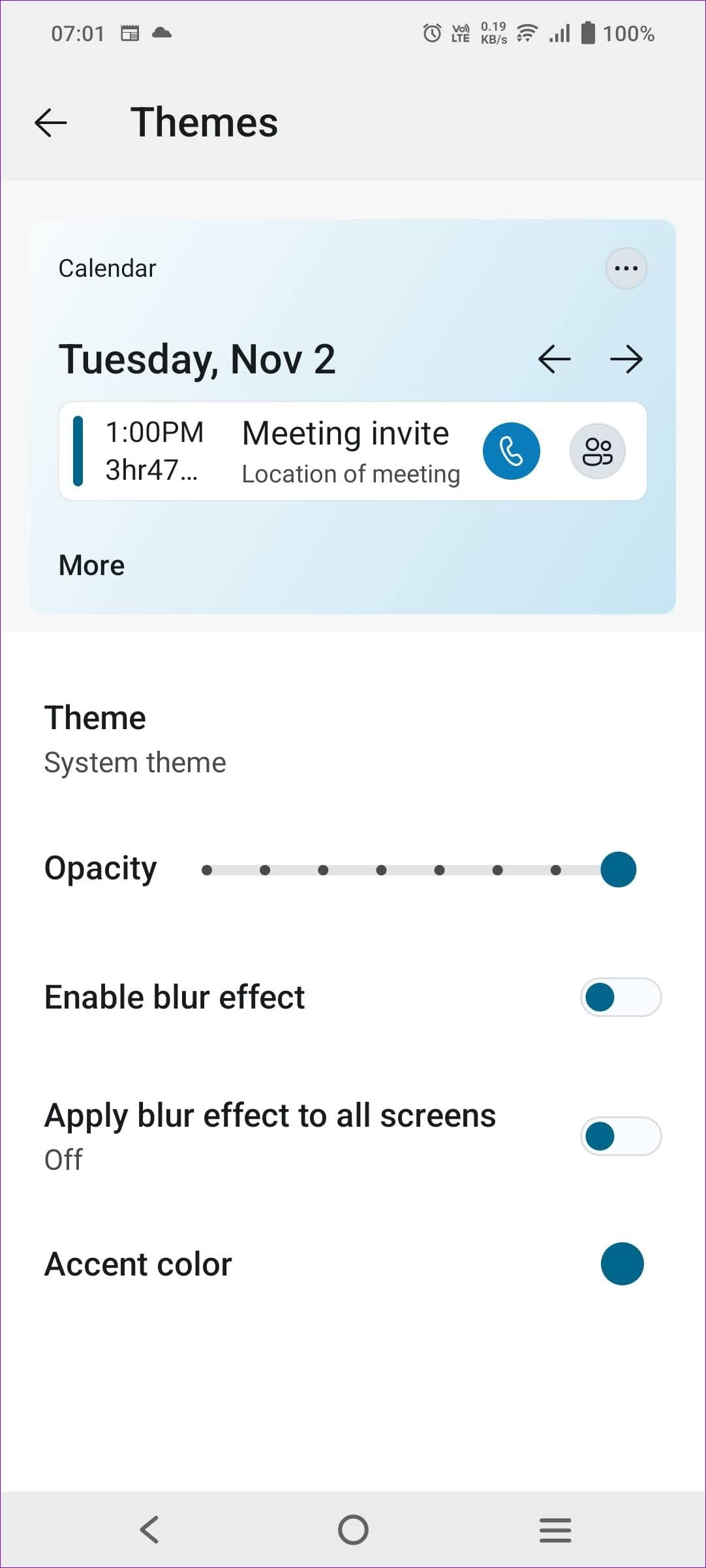
In Theme and Wallpaper settings, you can greatly modify the overall look of your launcher. You can select from different wallpapers, such as Bing, Launcher Live Wallpaper, and Device Photos. You can customize the theme accents, opacity, blur effects, and dark and light modes in the Theme Settings.

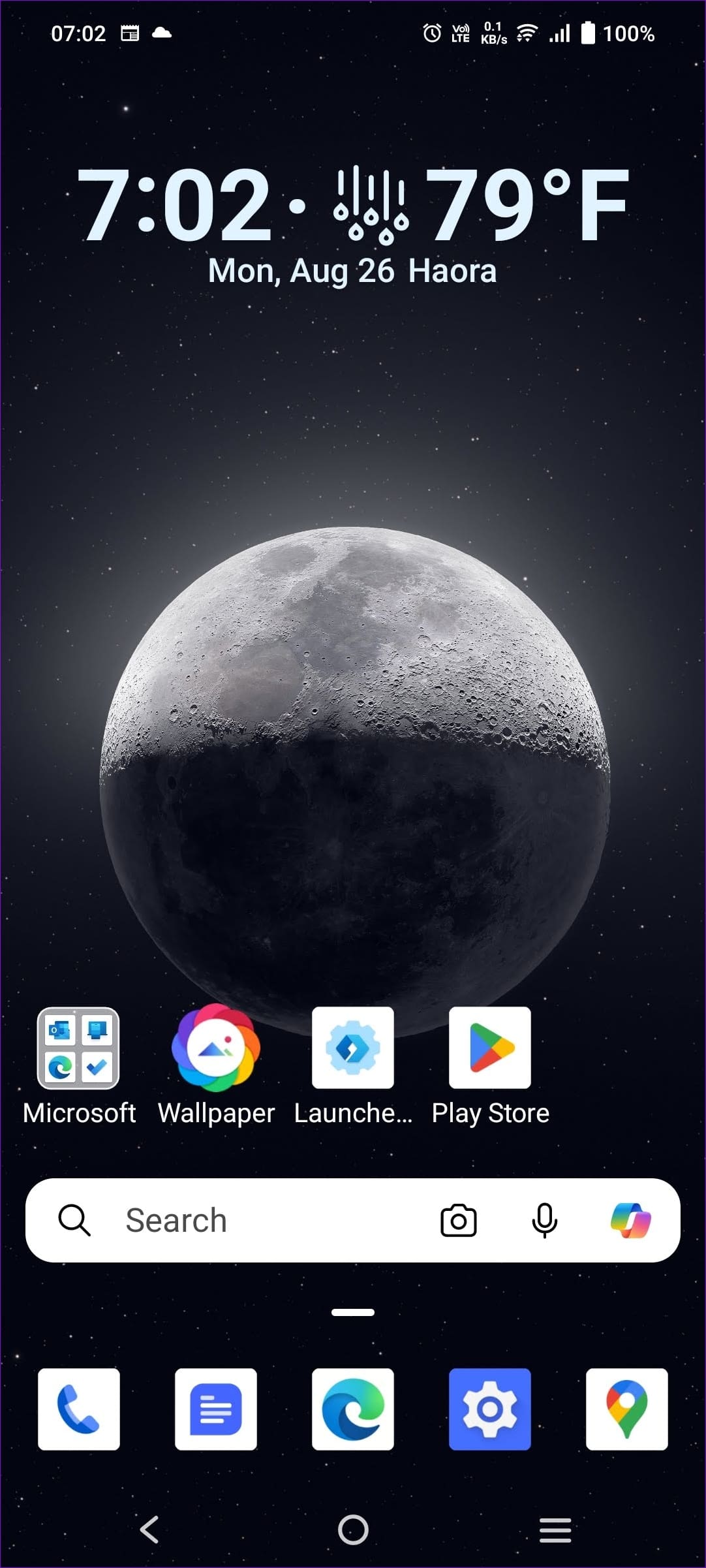
One standout feature in the Wallpaper settings is that when you have the Bing Wallpapers selected as the default, you can click on the Wallpaper Gear icon on the home screen, which refreshes the wallpaper and gives you a new one every time.
3. Homescreen Settings
Homescreen Settings allow you to customize almost everything about its appearance and features. You can customize the Icon layout and size, Icon appearance, Folder appearance, and Notification badges. There is also a Hidden apps feature, allowing you to hide app icons and view them only through gestures.
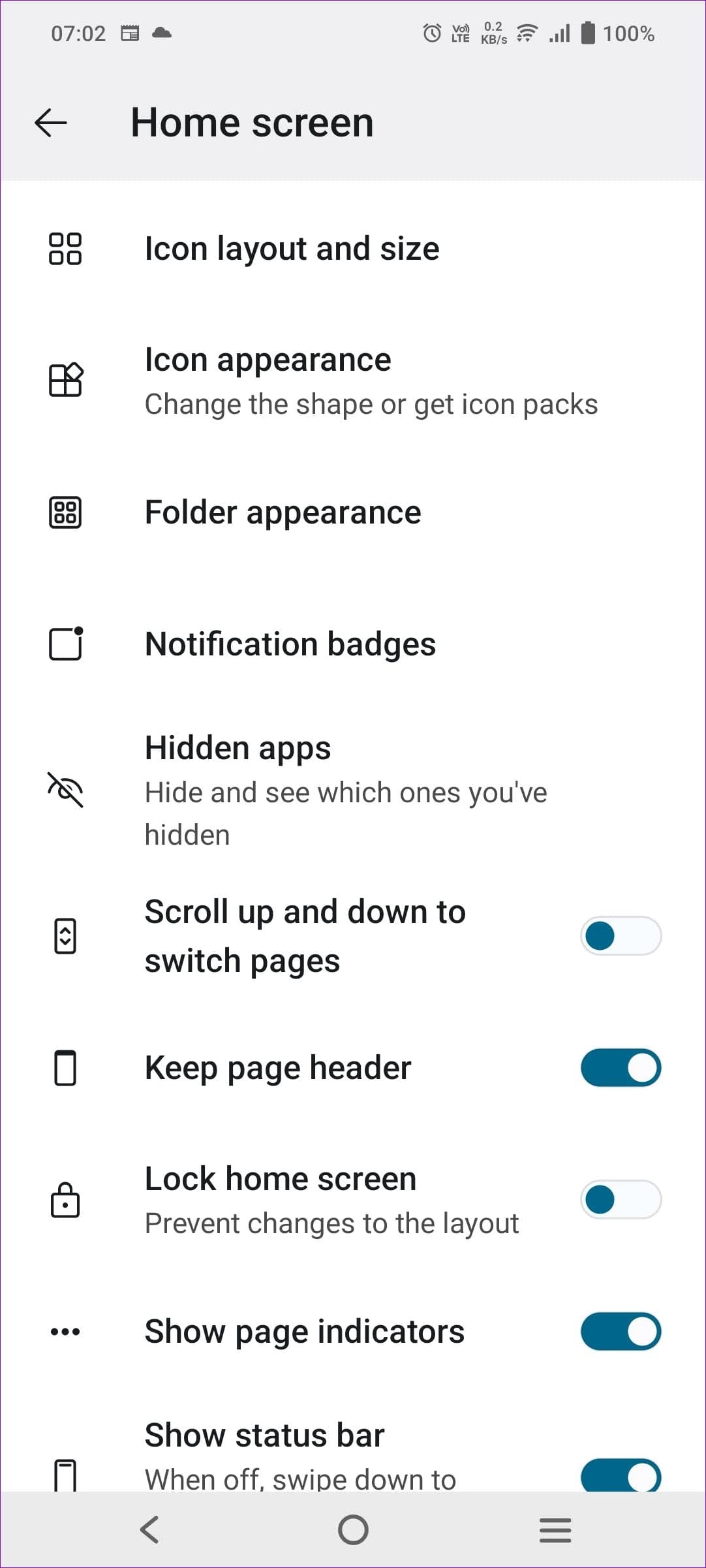
Additionally, you can enable or disable options such as: Scroll up and down to switch pages, Keep page header, Lock home screen, Show page indicators, Show status bar, Add new apps to home screen, Allow Home screen rotation, Allow sub grid.
4. Gestures Settings
In the Gestures settings, you will find ten gestures, each allowing you to perform a pre-defined action quickly and easily. These gestures include:
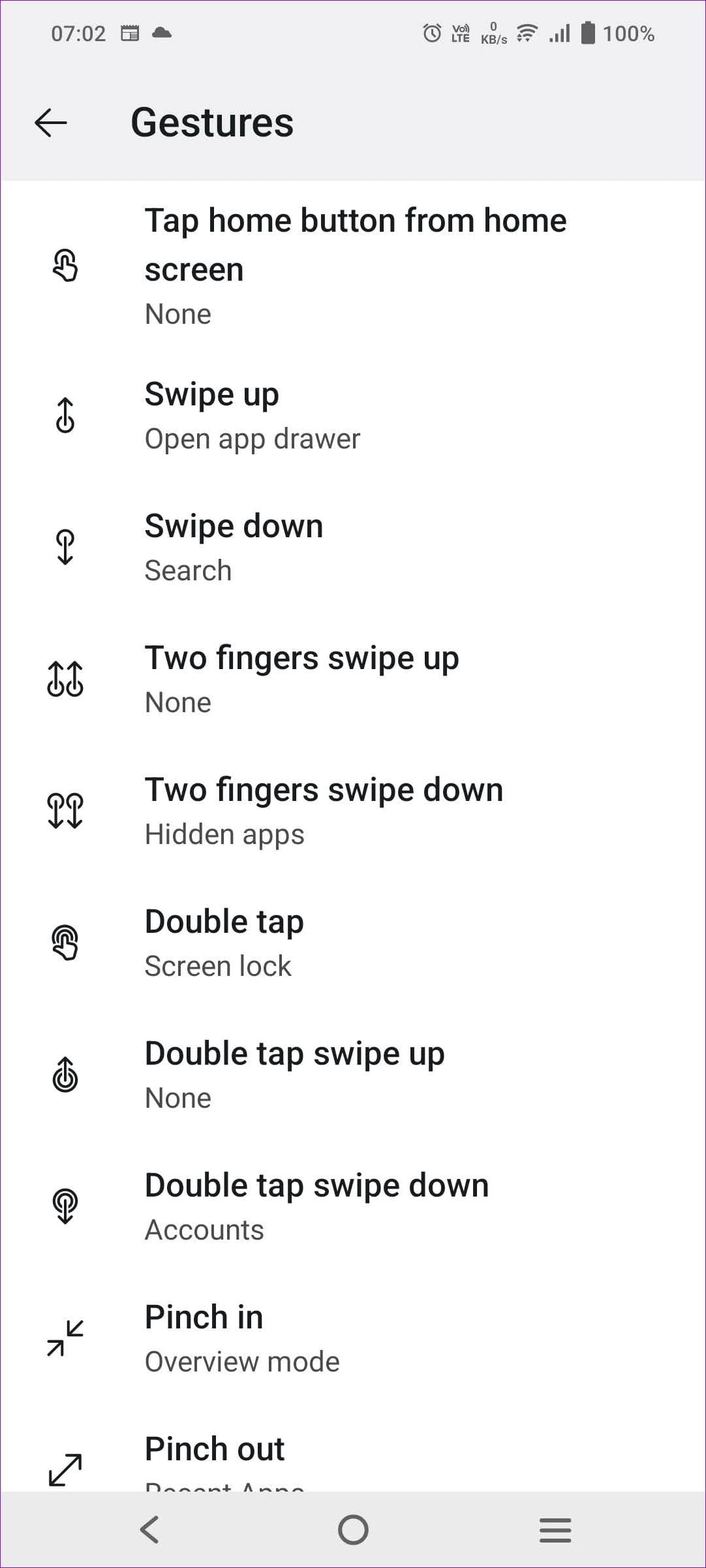
- Tap the home button from the home screen
- Swipe up
- Swipe down
- Two fingers swipe up
- Two fingers swipe down
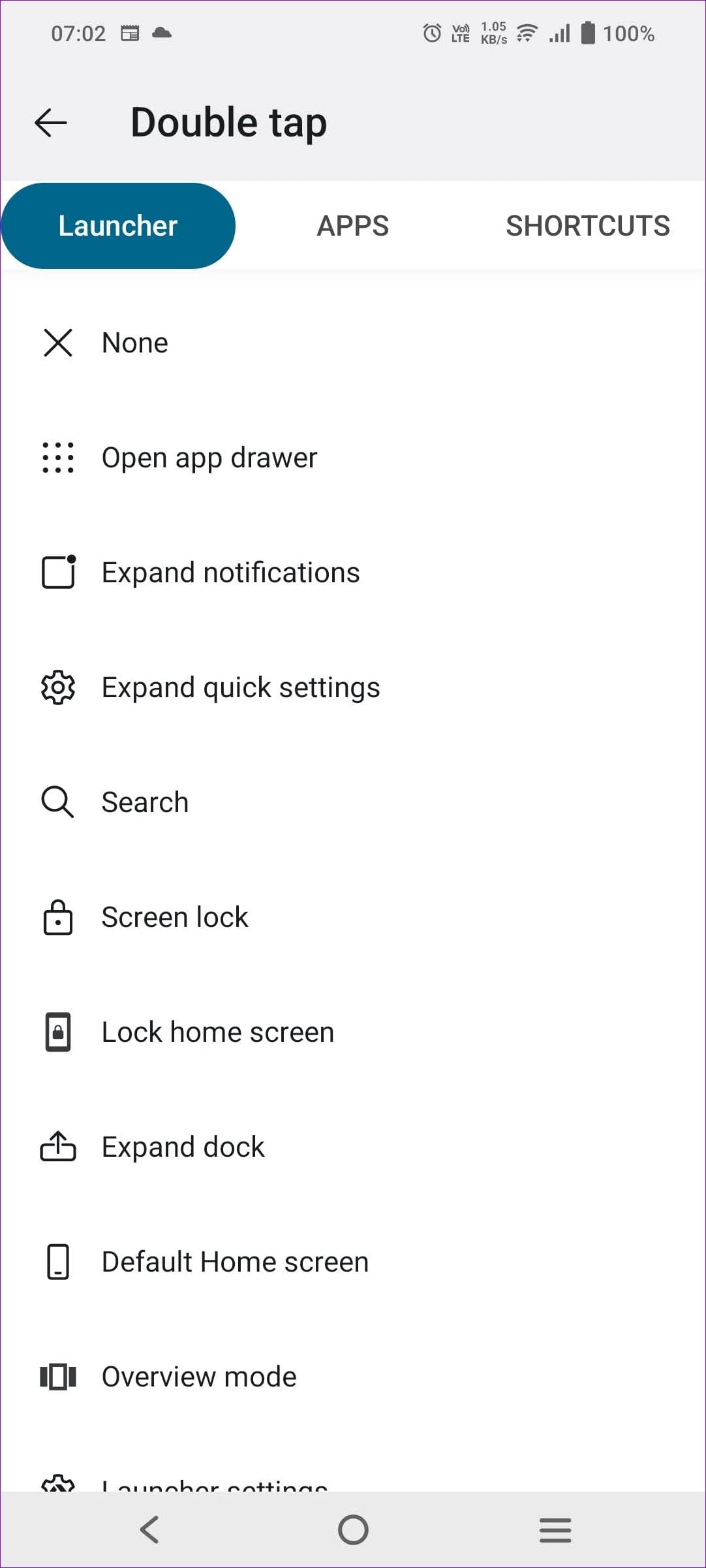
- Double tap
- Double tap, swipe up
- Double tap swipe down
- Pinch in
- Pinch out
You can customize these actions to perform different tasks, such as opening an app or a shortcut.
5. App Drawer And Dock Settings
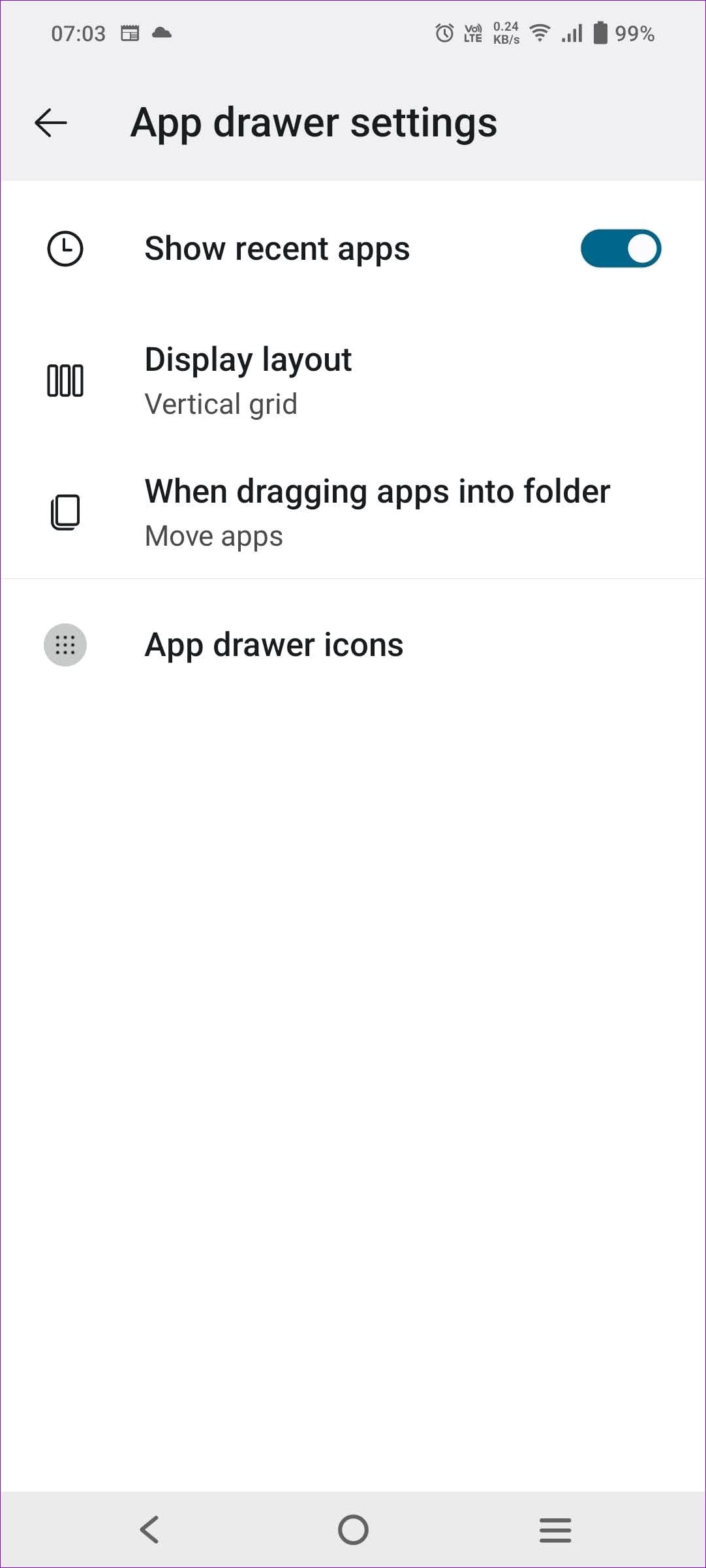
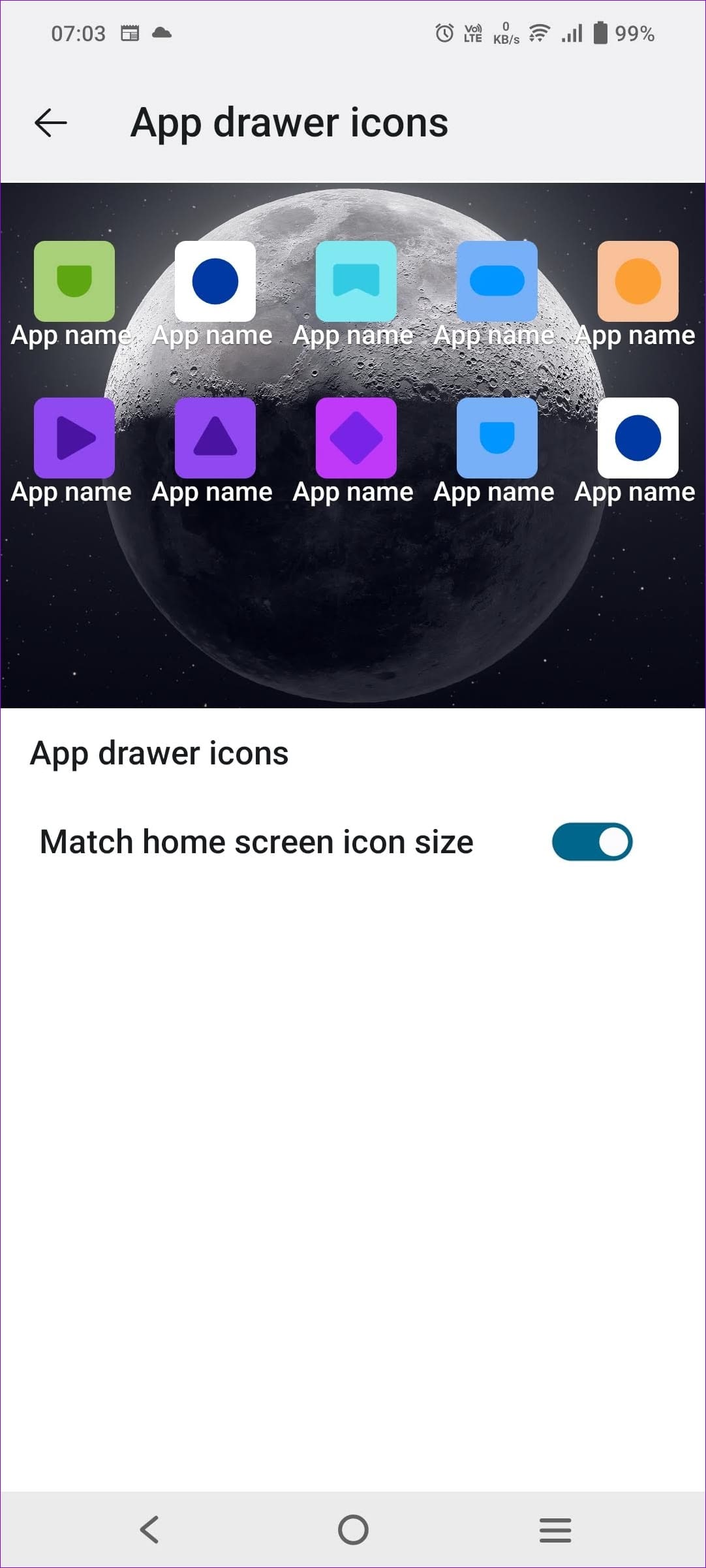
The App Drawer and Dock settings allow you to modify the appearance and some features of the App Drawer and Dock on the home screen. In the App Drawer settings, you can customize four settings: Show recent apps, Display layout, when dragging apps into a folder, and App drawer icons. While in the Dock settings, you can customize seven, which are: Dock mode, Bottom row of the dock, Number of columns in the dock; you can also enable or disable, Swipe up to expand dock, Show background, Show app, and folder names, Use home screen icon size.
FAQs
How Do You Activate Copilot AI in Microsoft Launcher?
Microsoft Launcher has recently embedded the functionality of Bing AI in the Microsoft Launcher; here’s how you can Activate it:
Step 1. Swipe right from the home screen to go to the Your Feed section. The default screen there is Copilot AI.
Step 2. Now, if you are signed in with a Microsoft account, you can log into that account or sign in with another account.
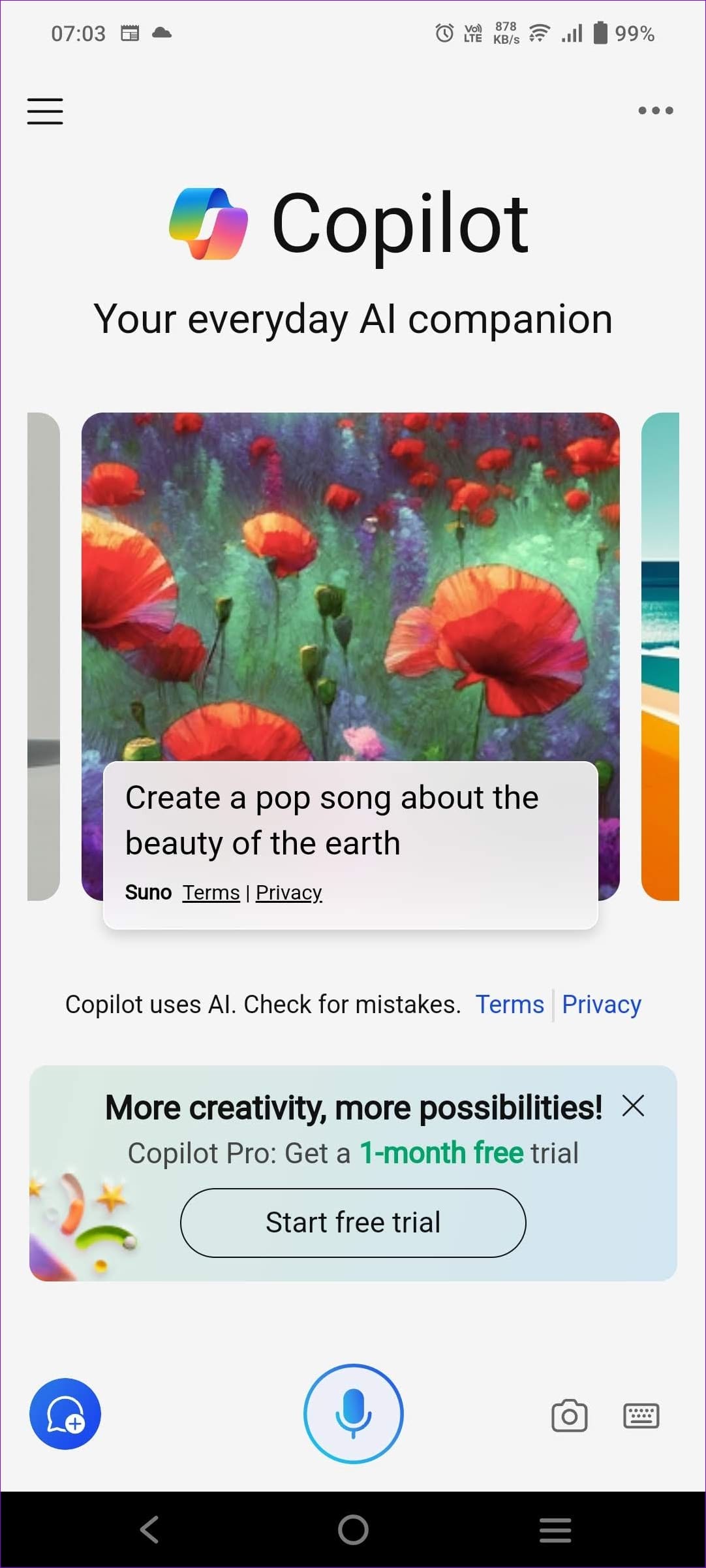
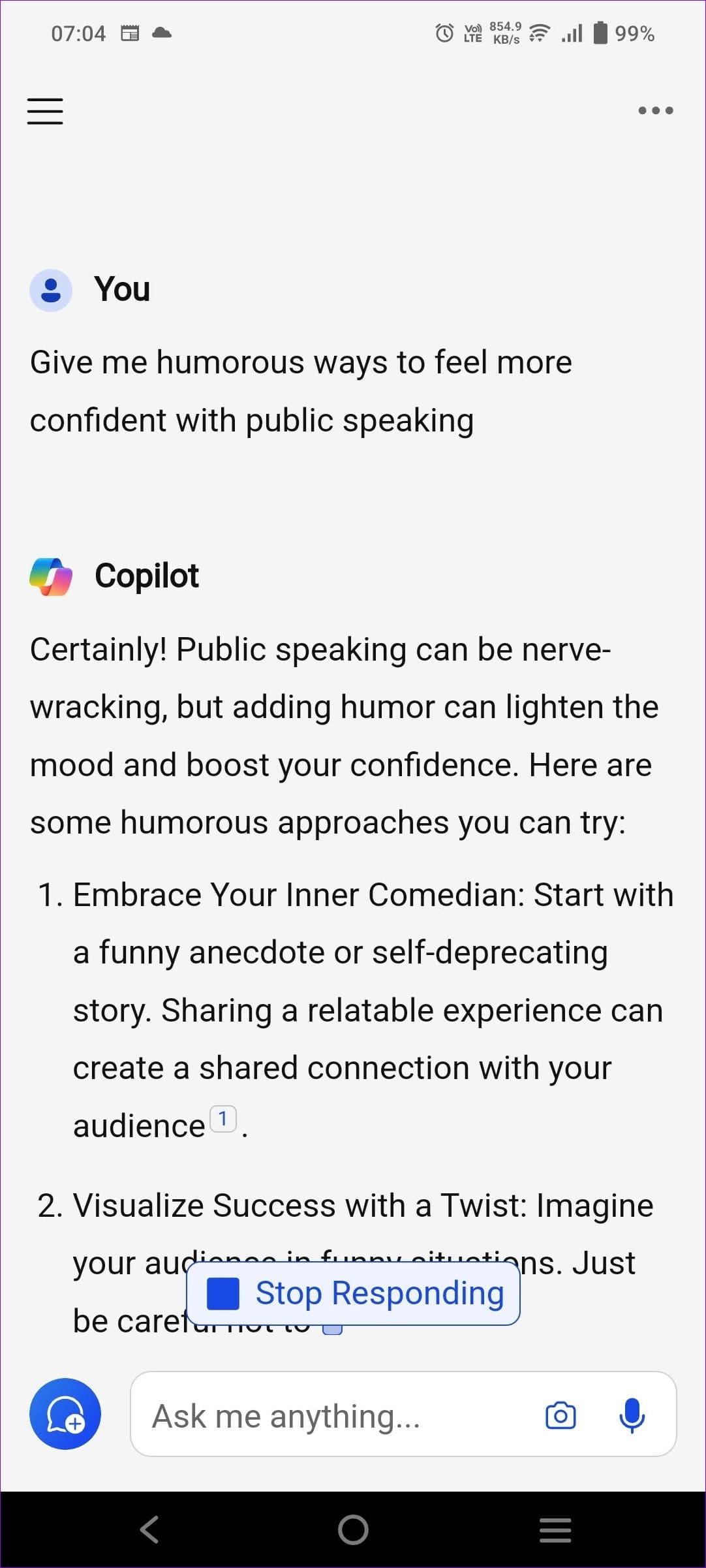
Step 3. Upon completing the sign-in, Copilot AI is activated.
How to Set Microsoft Launcher as Default?
For a seamless experience, it is essential to set Microsoft Launcher as your default launcher, as it will prevent your device from automatically going back to your system launcher when the memory is cleared; here’s how to do it:
Step 1. If the Microsoft Launcher is not yet set as the default, you will automatically receive a pop-up to set it as the default home app.
Step 2. Click Set as default from the pop-up and select Microsoft Launcher as your default home app.

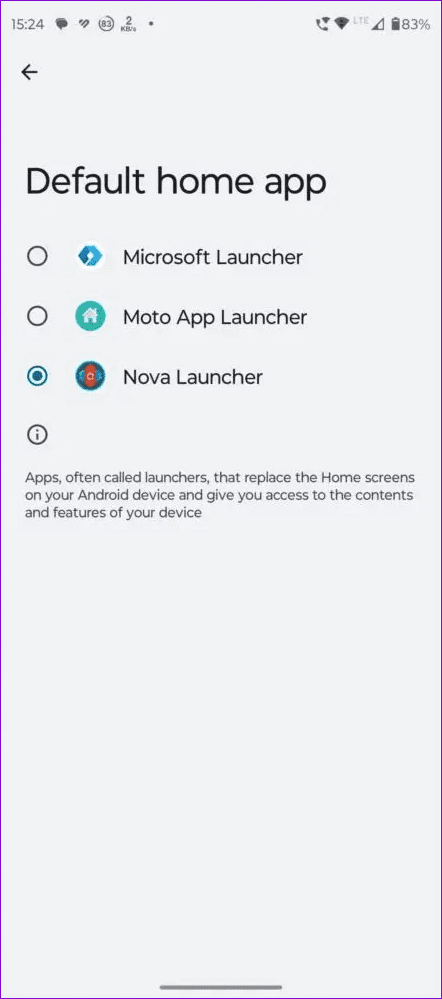
Step 3. If you haven’t received or missed the pop-up, open Settings > Apps > Default Apps > Home App.
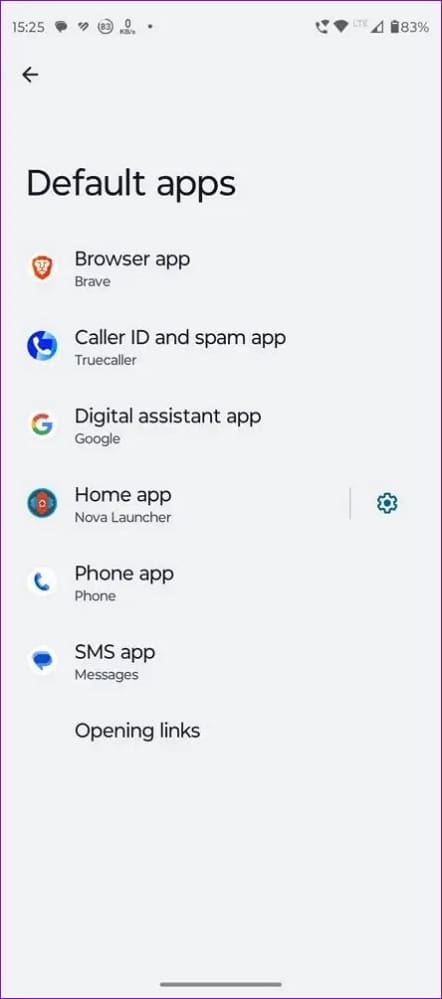
Step 4. In the Home App, you can then select Microsoft Launcher as default.
Was this helpful?
Last updated on 26 August, 2024
Read Next
 Microsoft Launcher vs Samsung One UI: Which Launcher Is Better for You
Both Samsung and Microsoft have been chasing the productivity space with their offerings.
Microsoft Launcher vs Samsung One UI: Which Launcher Is Better for You
Both Samsung and Microsoft have been chasing the productivity space with their offerings.
 Nova Launcher Prime vs Nova Launcher: What’s the Difference?
If you are an Android user and have never tried Nova Launcher even once, you don't know what you've been missing.
Nova Launcher Prime vs Nova Launcher: What’s the Difference?
If you are an Android user and have never tried Nova Launcher even once, you don't know what you've been missing.
 12 Top Microsoft Launcher Tips & Tricks That You Should Know
Microsoft Launcher can be considered as one of the best alternatives to Google's own launcher.
12 Top Microsoft Launcher Tips & Tricks That You Should Know
Microsoft Launcher can be considered as one of the best alternatives to Google's own launcher.
 Top 20 POCO Launcher Tips and Tricks to Increase Your Productivity
A launcher plays an important role in Android phones.
Top 20 POCO Launcher Tips and Tricks to Increase Your Productivity
A launcher plays an important role in Android phones.
 How to Disable Gaming Hub (Game Launcher) on Samsung Galaxy Phones
Note: Game Launcher is labeled as Gaming Hub on Samsung phones running One UI 6.0 or above.
How to Disable Gaming Hub (Game Launcher) on Samsung Galaxy Phones
Note: Game Launcher is labeled as Gaming Hub on Samsung phones running One UI 6.0 or above.
 Top 11 Samsung One UI Home Launcher Tips and Tricks
When we think of pre-installed Android launchers, the lack of customization options bothers us.
Top 11 Samsung One UI Home Launcher Tips and Tricks
When we think of pre-installed Android launchers, the lack of customization options bothers us.
 4 Ways to Fix Slow Download Speed in Epic Games Launcher on Windows 11
https://youtu.be/w8E4d-rCMUQ Basic Fixes: Check the Epic Server Status: Epic Games Launcher also relies on multiple servers to operate, and It’s possible that a server might be out of order or
4 Ways to Fix Slow Download Speed in Epic Games Launcher on Windows 11
https://youtu.be/w8E4d-rCMUQ Basic Fixes: Check the Epic Server Status: Epic Games Launcher also relies on multiple servers to operate, and It’s possible that a server might be out of order or
 How to Uninstall Epic Games Launcher and Its Games
Things to Consider Before Uninstalling Games or Epic Games Launcher Before uninstalling Epic Games Launcher or the games in it, consider the following things: Backup game files: If you have
How to Uninstall Epic Games Launcher and Its Games
Things to Consider Before Uninstalling Games or Epic Games Launcher Before uninstalling Epic Games Launcher or the games in it, consider the following things: Backup game files: If you have
The article above may contain affiliate links which help support Guiding Tech. The content remains unbiased and authentic and will never affect our editorial integrity.