


Fix 1. Check for Keyboard-Related Issues
First, check whether there’s any issue with your keyboard. To check whether it’s a malfunctioning keyboard or a software-related issue, connect the keyboard to another PC and inspect if it works as expected. If the keyboard doesn’t work, refer to our guide on fixing the keyboard not working on Windows 11.
Alternatively, almost all Windows-compatible keyboards come with two sets of Alt keys—one on the right and one on the left. Test both Alt keys to check which one functions to narrow down the faulty one.
Fix 2. Check if Alt + Tab Is Properly Configured in Settings
Step 1: Press the Windows + I Keys on your keyboard to open the Settings app. Then, scroll down and click on Multitasking.

Step 2: On the Multitasking page, expand Desktops.
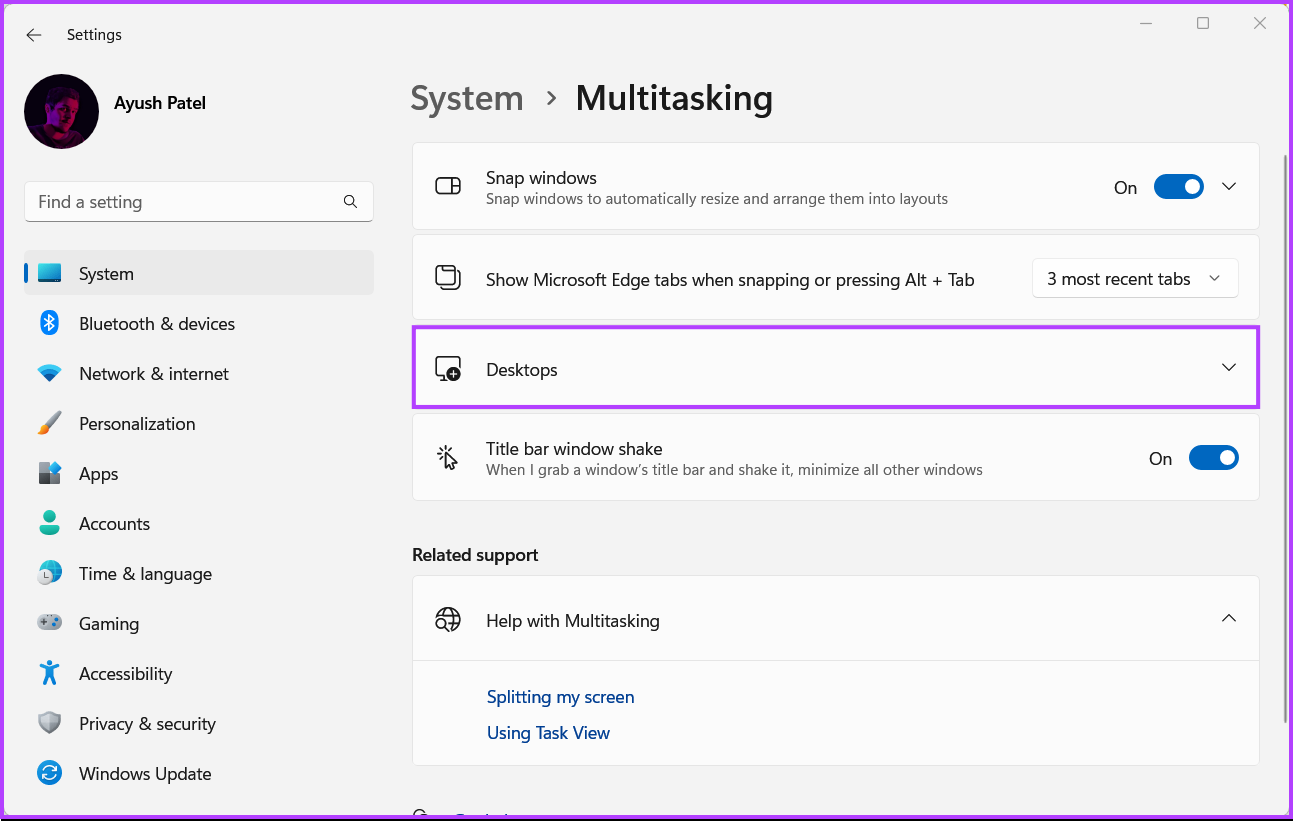
Step 3: Under the Desktops section, click on the drop-down beside Show all open windows when I press Aft + Tab and select On all desktops.

Fix 3. Restart the Windows Explorer or File Explorer
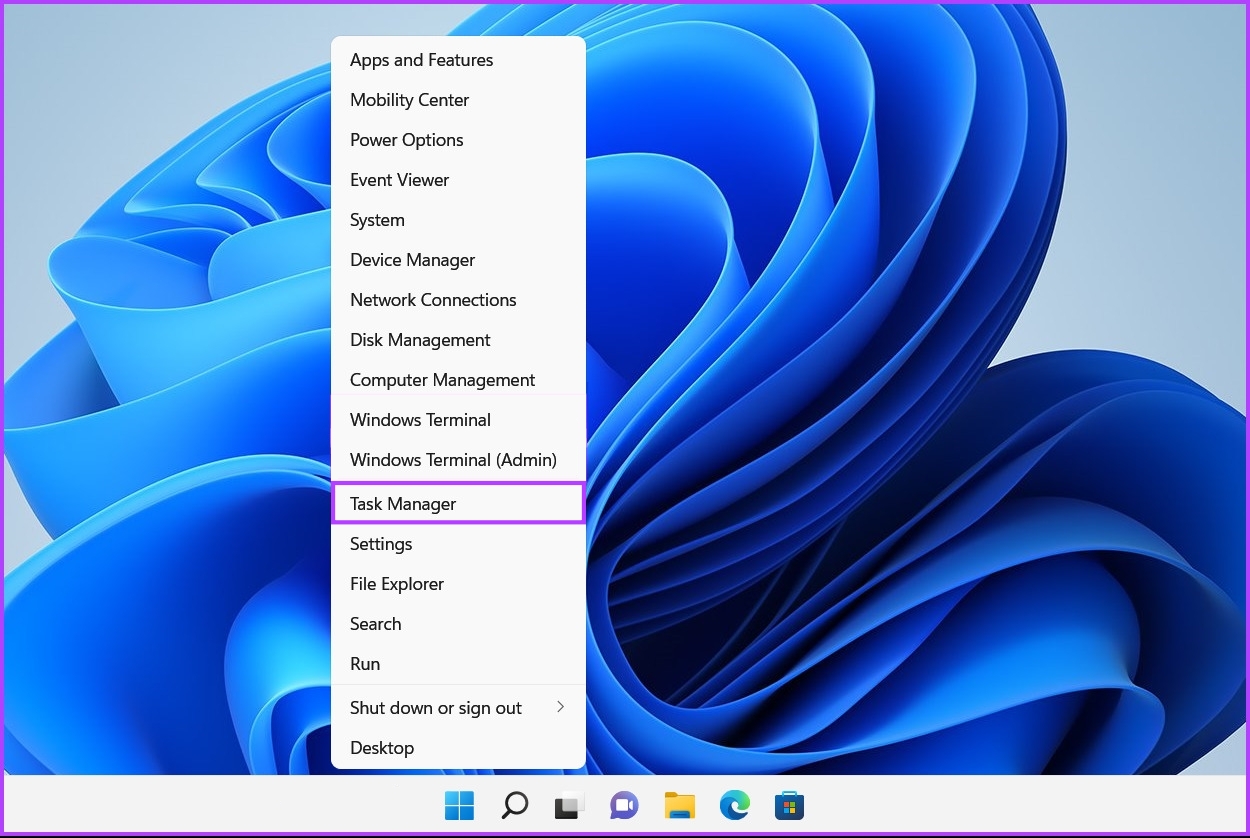
Step 1: Press the Windows + X keys to open the Power User menu and select Task Manager.
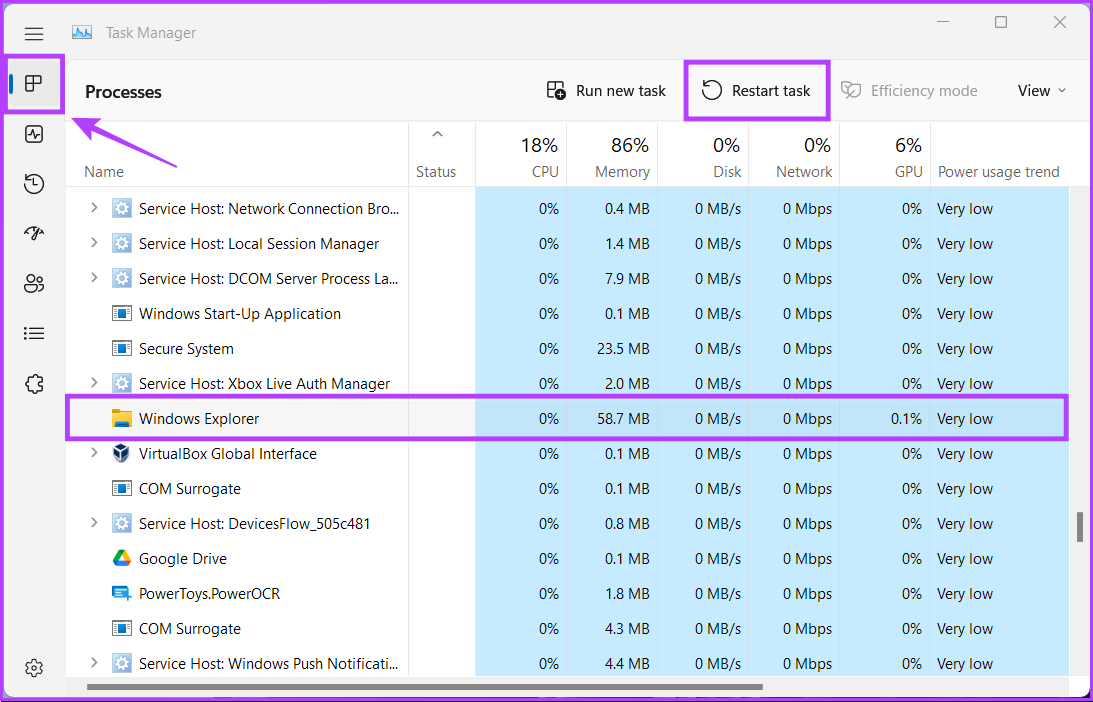
Step 2: Head to the Processes tab and select the Windows Explorer process in the Task Manager window. Then, click on Restart task at the top.
If you see multiple processes related to Windows Explorer, select the one with more memory usage.
Fix 4. Enable Peek at Desktop
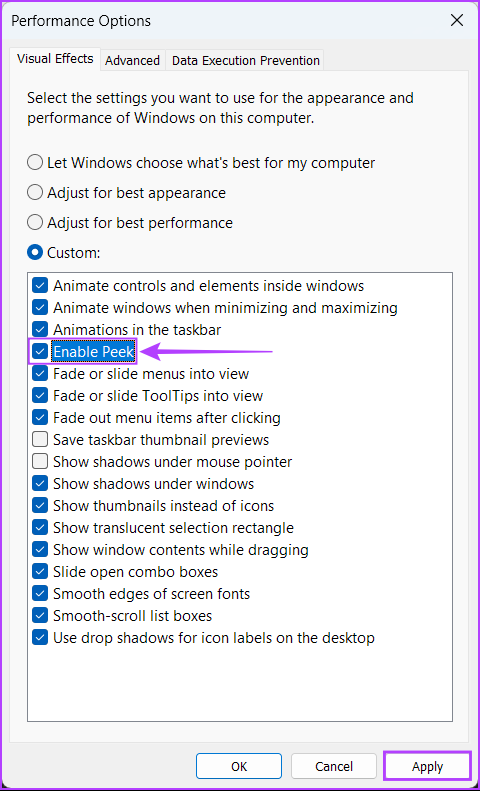
The Peek feature in Windows lets you hover on the right-hand corner of the Taskbar or use the Ctrl + , (Comma) shortcut to peek at the desktop. Further, the Alt + Tab shortcut also relies on Peek to work correctly. If the peek feature is not on your PC, the Alt + Tab shortcut might not work as expected.
Step 1: Press the Windows + R keys to open the Run tool and type sysdm.cpl. Then, press Enter.
Step 2: In the System Properties window, select the Advanced tab. Then, click on Settings under the Performance section.

Step 3: When the Performance Options dialog box appears, check the box for Enable Peek if it isn’t already enabled. Then, click Apply.
Fix 5. Check if Windows Hotkeys Are Enabled
Step 1: Type Edit group policy in the Start menu search. When it appears in the search results, click on Open.
Step 2: Navigate to the following path:
User Configuration > Administrative Templates > Windows Components > File Explorer

Step 3: Open the Turn off Windows Key hotkeys policy and double-click on it.
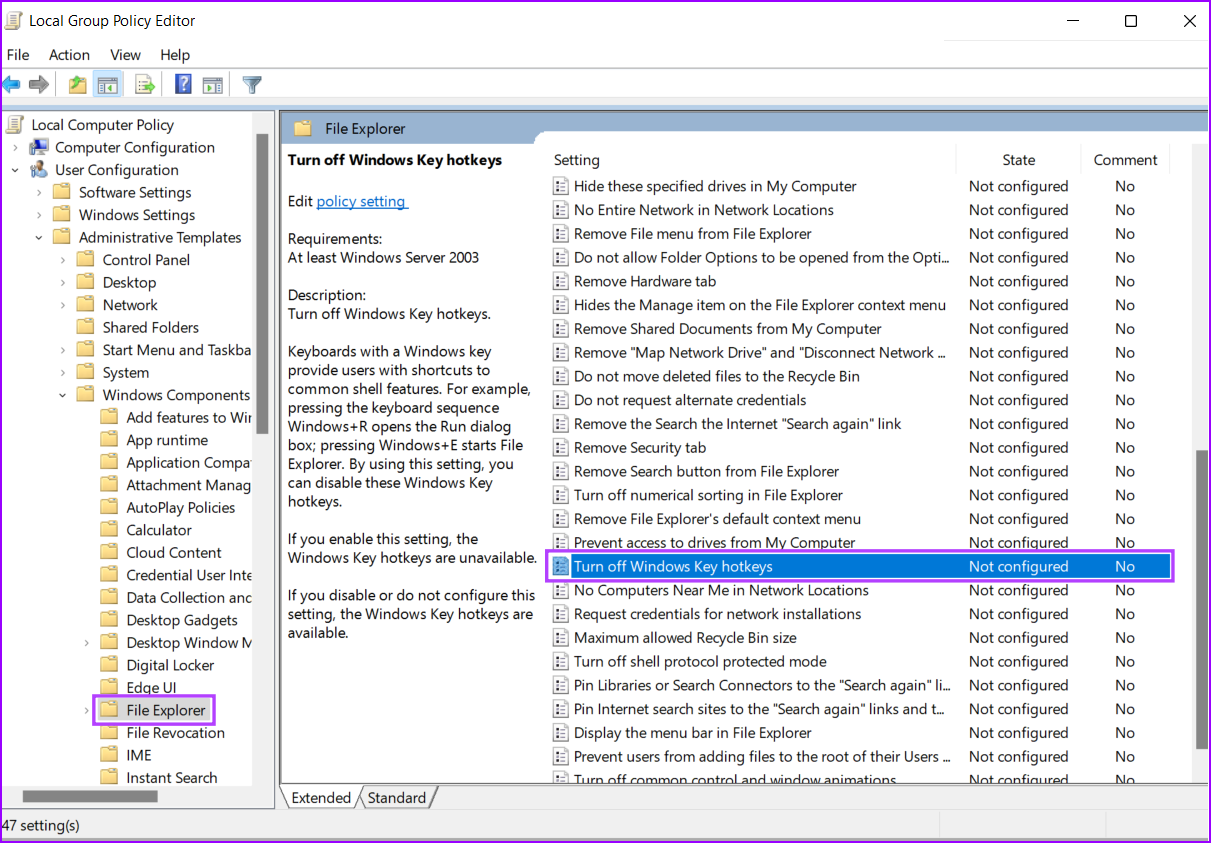
Step 4: In the Turn off Windows Key hotkeys dialog box window, check whether the policy is not enabled and is set to Not Configured or Disabled.
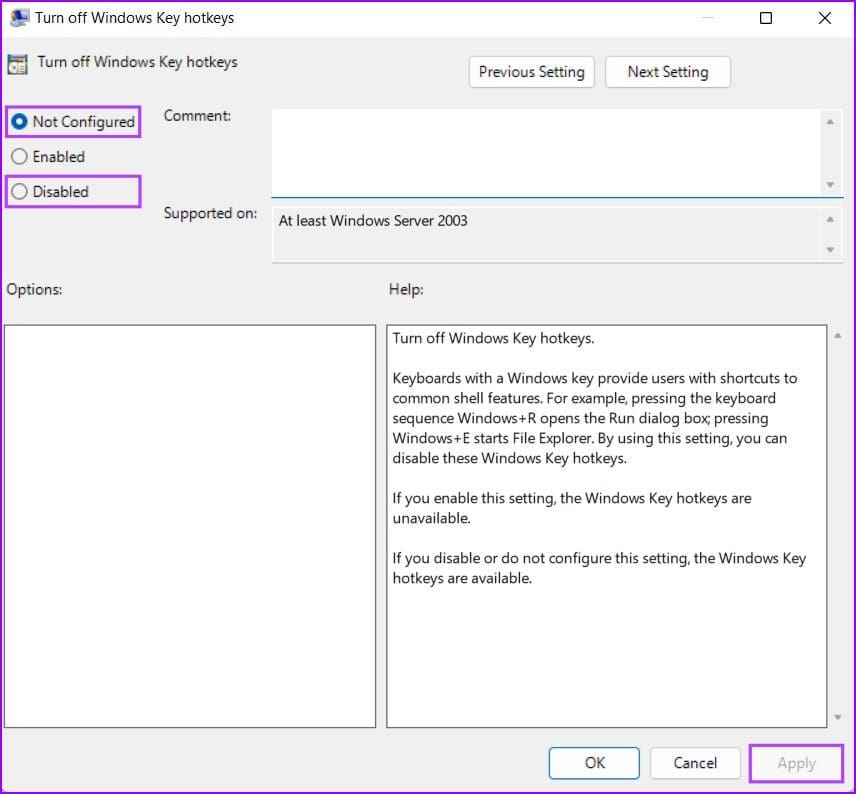
Step 5: If this policy is enabled, click Not Configured, followed by Apply. Then, restart your PC and check if it fixes the Alt + Tab shortcut.
Fix 6. Switch to the Legacy Alt + Tab Viewer
Step 1: Press the Windows key + R keys to open the Run dialog. In the text field, type regedit and press Enter.
Step 2: Copy and paste the following location into the Navigation bar:
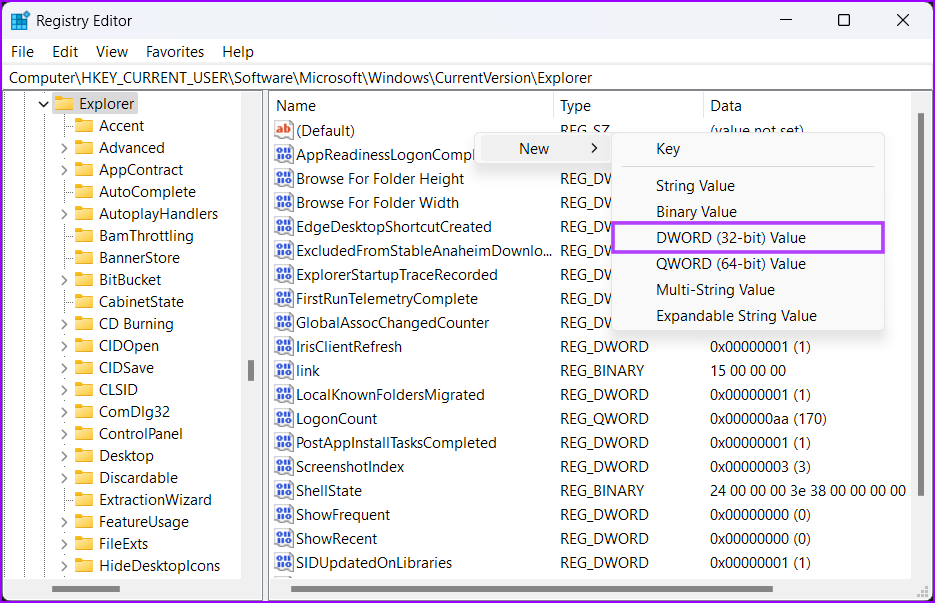
HKEY_CURRENT_USER\Software\Microsoft\Windows\CurrentVersion\Explorer

Step 3: Right-click anywhere in the right pane and select DWORD (32-bit) Value.
Step 4: Type AltTabSettings and press Enter to create the DWORD (32-bit) Value.
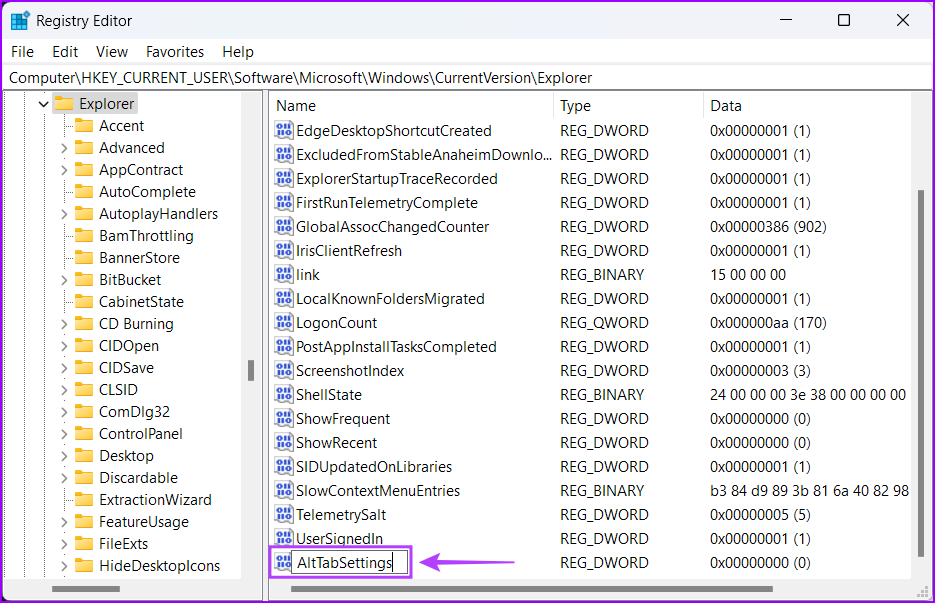
Step 5: Double-click the newly created AltTabSettings entry and set its Value data to 1. Then, click on OK to save the changes.
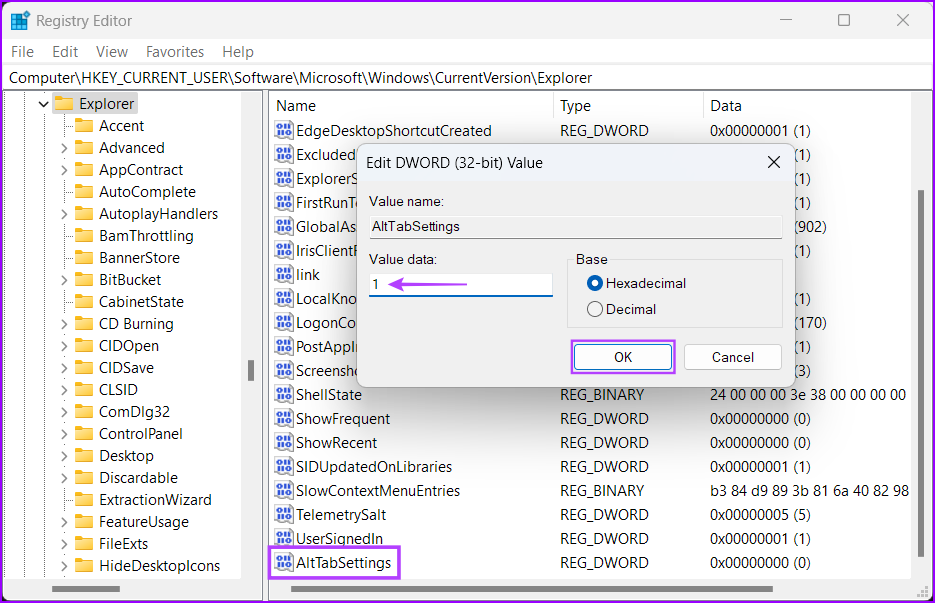
Step 6: Restart your computer to apply the registry changes and check if pressing the Alt + Tab shortcut opens the app switcher.
Was this helpful?
Last updated on 23 August, 2024
3 Comments
Leave a Reply
Read Next
 6 Ways to Fix Black Screen on Pressing Alt + Tab on Windows
Fix 1: Change the Display Mode of the Application (Game) The black screen issue usually appears when tabbing out of a full-screen game.
6 Ways to Fix Black Screen on Pressing Alt + Tab on Windows
Fix 1: Change the Display Mode of the Application (Game) The black screen issue usually appears when tabbing out of a full-screen game.
 How to Fix Windows Alt and F4 Keys Not Working Error on Windows 10
What do most people do when a computer peripheral or an accessory stops working suddenly?
How to Fix Windows Alt and F4 Keys Not Working Error on Windows 10
What do most people do when a computer peripheral or an accessory stops working suddenly?
 3 Ways to Fix Ctrl + Alt + Delete Not Working on Windows 11
Basic Fixes Ensure keyboard keys are intact: Ensure that Ctrl, Alt, and Delete keys aren't damaged on your keyboard and are functioning properly.
3 Ways to Fix Ctrl + Alt + Delete Not Working on Windows 11
Basic Fixes Ensure keyboard keys are intact: Ensure that Ctrl, Alt, and Delete keys aren't damaged on your keyboard and are functioning properly.
 How to Ctrl + Alt + Del in Remote Desktop on Windows
Method 1: Use Ctrl + Alt + End on the Keyboard It's simple - you can use the Ctrl + Alt + End on your Windows Remote Desktop session instead
How to Ctrl + Alt + Del in Remote Desktop on Windows
Method 1: Use Ctrl + Alt + End on the Keyboard It's simple - you can use the Ctrl + Alt + End on your Windows Remote Desktop session instead
 4 Ways to Fix Snipping Tool Keyboard Shortcut Not Working
Basic Fixes: Check your keyboard for damages: Any physical damage to keyboard keys might prevent them from working as expected.
4 Ways to Fix Snipping Tool Keyboard Shortcut Not Working
Basic Fixes: Check your keyboard for damages: Any physical damage to keyboard keys might prevent them from working as expected.
 4 Ways to Fix Tab Key Not Working on Windows 11
Try These Fixes First Restart your computer: The Issue can occur due to a temporary bug or glitch on your computer.
4 Ways to Fix Tab Key Not Working on Windows 11
Try These Fixes First Restart your computer: The Issue can occur due to a temporary bug or glitch on your computer.
 How to Create Incognito Mode Shortcut on Windows Desktop
Create a Shortcut to Open Incognito Tab on Desktop Nearly all browsers offer Incognito/Private mode, but the feature is named differently on every browser.
How to Create Incognito Mode Shortcut on Windows Desktop
Create a Shortcut to Open Incognito Tab on Desktop Nearly all browsers offer Incognito/Private mode, but the feature is named differently on every browser.
 3 Ways to Remove Shortcut Arrows in Windows
Method 1: Remove Shortcut Arrows by Manually Editing the Registry The Windows Registry is a database that stores configuration settings for your computer.
3 Ways to Remove Shortcut Arrows in Windows
Method 1: Remove Shortcut Arrows by Manually Editing the Registry The Windows Registry is a database that stores configuration settings for your computer.
The article above may contain affiliate links which help support Guiding Tech. The content remains unbiased and authentic and will never affect our editorial integrity.

Restarting the File Explorer using Win+X and clicking on Restart it helped! Thanks.
It is all the time running fine but on edge and chrome it is unable to perform switches after selecting other app from task view. I have to minimize all apps and select another app to switch.
Thank you so much, that setting in multitasking, did the trick for me.
Thank you so much.