Try Basic Fixes
- Install Windows updates: File Explorer tabs are only available on computers running Windows 11 22H2 or later. If your system is running an older version, head to Settings > Windows Update to install pending updates.
- Restart the Windows Explorer process: Windows Explorer is a system process that manages the Graphical User Interface (GUI) for File Explorer. If this process is not running correctly, File Explorer may fail to display tabs on your computer. You can try restarting the Windows Explorer process to fix any issues with it.
- Run a malware scan: It’s a good idea to run a full system scan with Windows Defender to check if your PC is infected by malware. You can also use a reliable third-party antivirus program for this.
Fix 1: Clear File Explorer History
Windows File Explorer keeps a record of your previous activities and searches in order to serve you better. If Windows is having trouble accessing this data for some reason, File Explorer might malfunction. You can try clearing the existing File Explorer history and see if that helps.
Step 1: Click the search icon on the taskbar, type in file explorer options, and press Enter.

Step 2: In the General tab, click the Clear button next to Clear File Explorer History.

Fix 2: Run the System Maintenance Troubleshooter
Your Windows computer runs the System Maintenance Troubleshooter on a regular basis to clean up unused files, desktop shortcuts, and perform other maintenance tasks. This tool can help fix any irregularities with File Explorer and restore the missing tabs. Here’s how to run it.
Step 1: Press the Windows + S keys to open the search menu, type in control panel and press Enter.

Step 2: In the Control Panel window, use the drop-down menu at the top-right corner to select Large icons. Then, select Troubleshooting.

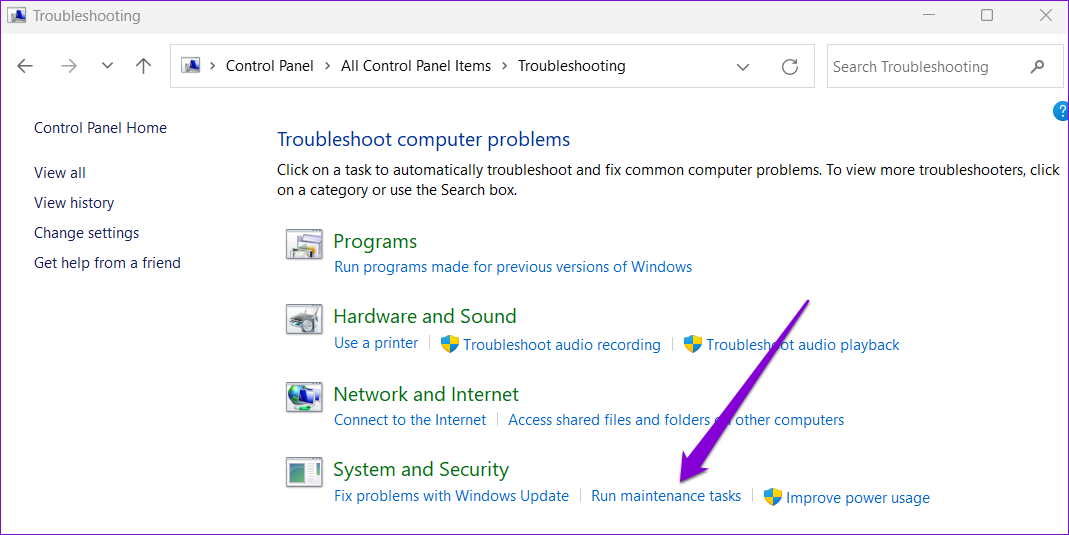
Step 3: Under the System and Security section, select the Run maintenance tasks option.
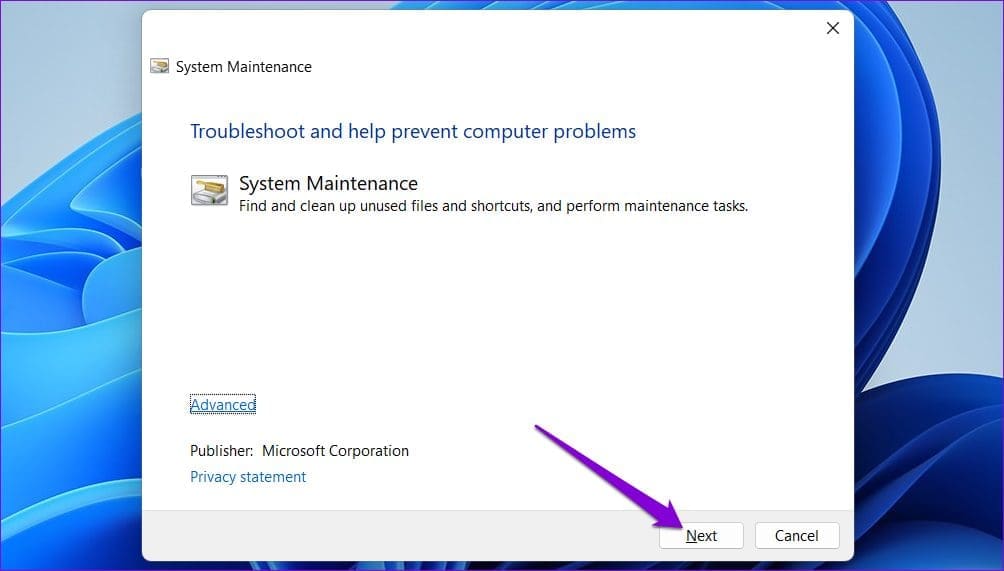
Step 4: Click Next and follow the on-screen instructions to run the troubleshooter. After that, check if the issue is still there.
Fix 3: Check for Corrupt System Files
Another reason File Explorer might not show tabs is if some of the system files on your PC are corrupt or missing. SFC (System File Checker) and DISM (Deployment Image Servicing and Management) are two Windows tools that can help detect and repair any damaged system files. Here’s how to run them.
Step 1: Right-click on the Start icon and select Terminal (Admin) from the list.

Step 2: In the console, type the following command and press Enter.
SFC /scannow
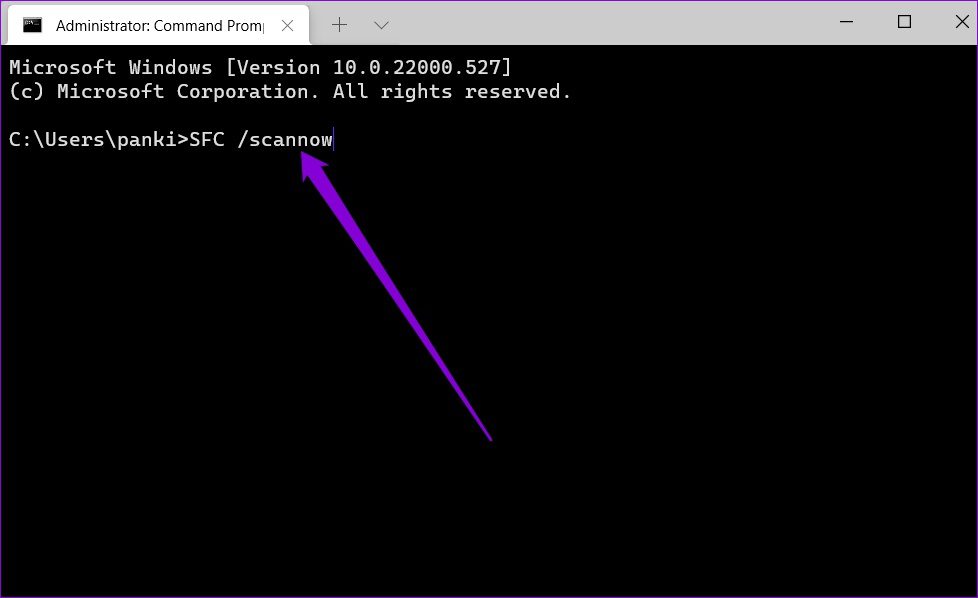
After the scan is complete, you’ll see a message indicating whether or not it found any errors. You’ll also get instructions to fix the error if there is a problem.
Next, run the DISM (Deployment Image Servicing and Management) scan by typing the following commands, and pressing Enter after each of them:
DISM /Online /Cleanup-Image /CheckHealth
DISM /Online /Cleanup-Image /ScanHealth
DISM /Online /Cleanup-Image /RestoreHealth
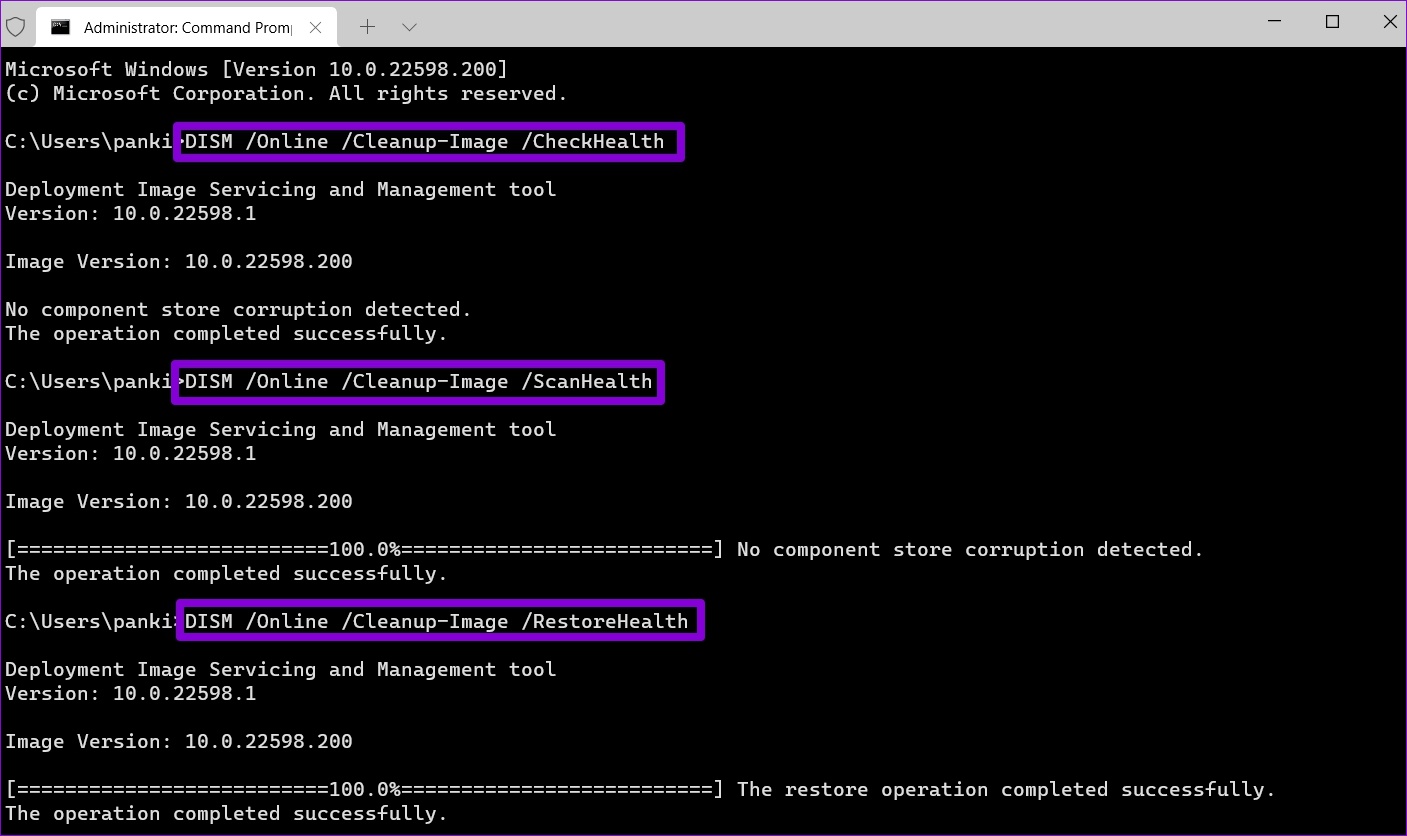
Restart your PC after the scan is complete and check if File Explorer shows tabs.
Was this helpful?
Last updated on 09 August, 2024
Read Next
 3 Ways to Fix iPhone Not Showing Up in File Explorer on Windows 11
Basic Fixes Install iTunes: Install iTunes from Microsoft Store to access and sync your iPhone on your PC.
3 Ways to Fix iPhone Not Showing Up in File Explorer on Windows 11
Basic Fixes Install iTunes: Install iTunes from Microsoft Store to access and sync your iPhone on your PC.
 4 Fixes for OneDrive Not Showing Up in File Explorer on Windows
Fix 1: Restart Windows Explorer Windows Explorer is a system process that handles the graphical user interface for File Explorer.
4 Fixes for OneDrive Not Showing Up in File Explorer on Windows
Fix 1: Restart Windows Explorer Windows Explorer is a system process that handles the graphical user interface for File Explorer.
 Top 8 Ways to Fix File Explorer Not Opening on Windows 10
File Explorer is an integral part of Windows 10 OS.
Top 8 Ways to Fix File Explorer Not Opening on Windows 10
File Explorer is an integral part of Windows 10 OS.
 5 Ways to Fix File Explorer Search Not Working on Windows 11
Basic Fixes Perform a clean boot: An installed PC software may conflict with the File Explorer app, causing the search issue.
5 Ways to Fix File Explorer Search Not Working on Windows 11
Basic Fixes Perform a clean boot: An installed PC software may conflict with the File Explorer app, causing the search issue.
 4 Ways to Fix File Explorer Not Working on Windows 11
Try Basic Fixes Scan for malware: It's possible that a malicious virus has affected your PC, disrupting regular operations on Windows 11.
4 Ways to Fix File Explorer Not Working on Windows 11
Try Basic Fixes Scan for malware: It's possible that a malicious virus has affected your PC, disrupting regular operations on Windows 11.
 8 Ways to Fix File Explorer Search Not Working on Windows 11
Before you begin, try restarting the File Explorer app and fixing corrupted files using an SFC scan.
8 Ways to Fix File Explorer Search Not Working on Windows 11
Before you begin, try restarting the File Explorer app and fixing corrupted files using an SFC scan.
 4 Ways to Select Multiple Files on Windows File Explorer
Method 1: Select All Files Using CTRL + A Once a folder is open and you press the CTRL + A key combination, all the files will be selected.
4 Ways to Select Multiple Files on Windows File Explorer
Method 1: Select All Files Using CTRL + A Once a folder is open and you press the CTRL + A key combination, all the files will be selected.
 4 Fixes When the Windows File Explorer Stuck at ‘Working on It’
Basic Fixes: Update Windows: It's nice to start with a Windows Update since this will fix minor glitches that may trigger the problem.
4 Fixes When the Windows File Explorer Stuck at ‘Working on It’
Basic Fixes: Update Windows: It's nice to start with a Windows Update since this will fix minor glitches that may trigger the problem.
The article above may contain affiliate links which help support Guiding Tech. The content remains unbiased and authentic and will never affect our editorial integrity.