

Try Basic Fixes
- Perform a force reboot: In most cases, performing a force reboot should resolve any temporary glitches with your OnePlus, Samsung, Motorola, or any other phone, allowing it to boot normally. To do that, press and hold the power button and let go of it once your phone turns off. Leave your phone idle for a minute or two, and then turn it back on.
- Remove external accessories and SD card: A faulty or incompatible accessory can also cause such issues, causing your phone to become stuck on the “Android is starting” or “Phone is starting” screen. To avoid any interference, try removing all the accessories, such as headphones, USB devices, and chargers. If your phone has an SD card inserted, try removing it too.
- Charge your phone: Another reason why your Android phone or tablet may become stuck on the startup screen is due to a low battery. Connect your device to a power outlet, wait for some time, and then perform a force reboot.
Fix 1: Boot Your Phone Into Download Mode (Samsung Phones Only)
Those using a Samsung Galaxy phone can also try booting into Download Mode and then exiting it to fix the issue. This will allow you to bypass the regular boot and avoid any issues that may be causing your Samsung Galaxy phone to become stuck.
Step 1: Turn off your phone by pressing and holding the power button. Then, plug your phone’s USB cable into your computer.
Step 2: Press and hold the volume up and volume down buttons on your phone. While holding the volume keys, connect your phone to the computer using the USB cable.
Step 3: Once you see the warning page, release the volume buttons.
Step 4: Press and hold the volume down and power button for seven seconds to exit Download Mode. Your phone should restart automatically and boot normally after that.

Fix 2: Try Safe Mode
Booting your Android phone into safe mode can help troubleshoot various issues, including the one you’re currently experiencing.
To boot your Android phone into Safe Mode using the physical buttons:
Step 1: Turn off your phone completely. Then, press and hold the power button until the logo appears.
Step 2: Once you see the logo, press and hold the volume down button until your phone boots into safe mode.
If your phone boots up normally in safe mode, it’s likely that a third-party app on your phone is causing the issue. Try uninstalling recently installed apps or games, and then restart your phone to exit Safe Mode.
Fix 3: Wipe Cache Partition
As you use your Android phone daily, it tends to accumulate cache data. While this data is intended to help your device run smoothly, it can also become corrupted over time. You can try wiping the cache partition to eliminate any problematic data and see if that resolves the issue.
Step 1: Power off your phone by holding the power button.
Step 2: Press and hold the power button and the volume down button at the same time to enter recovery mode.
Note: The correct key combination to access recovery mode may vary based on the brand and model of your Android phone. If the provided key combination doesn’t work or triggers the No Command error, visit the manufacturer’s website to find the precise key combination for your specific model.
Step 3: Once you’re in recovery mode, use the volume down button to navigate to the Wipe Cache Partition option. Then, press the power button to wipe the cache.
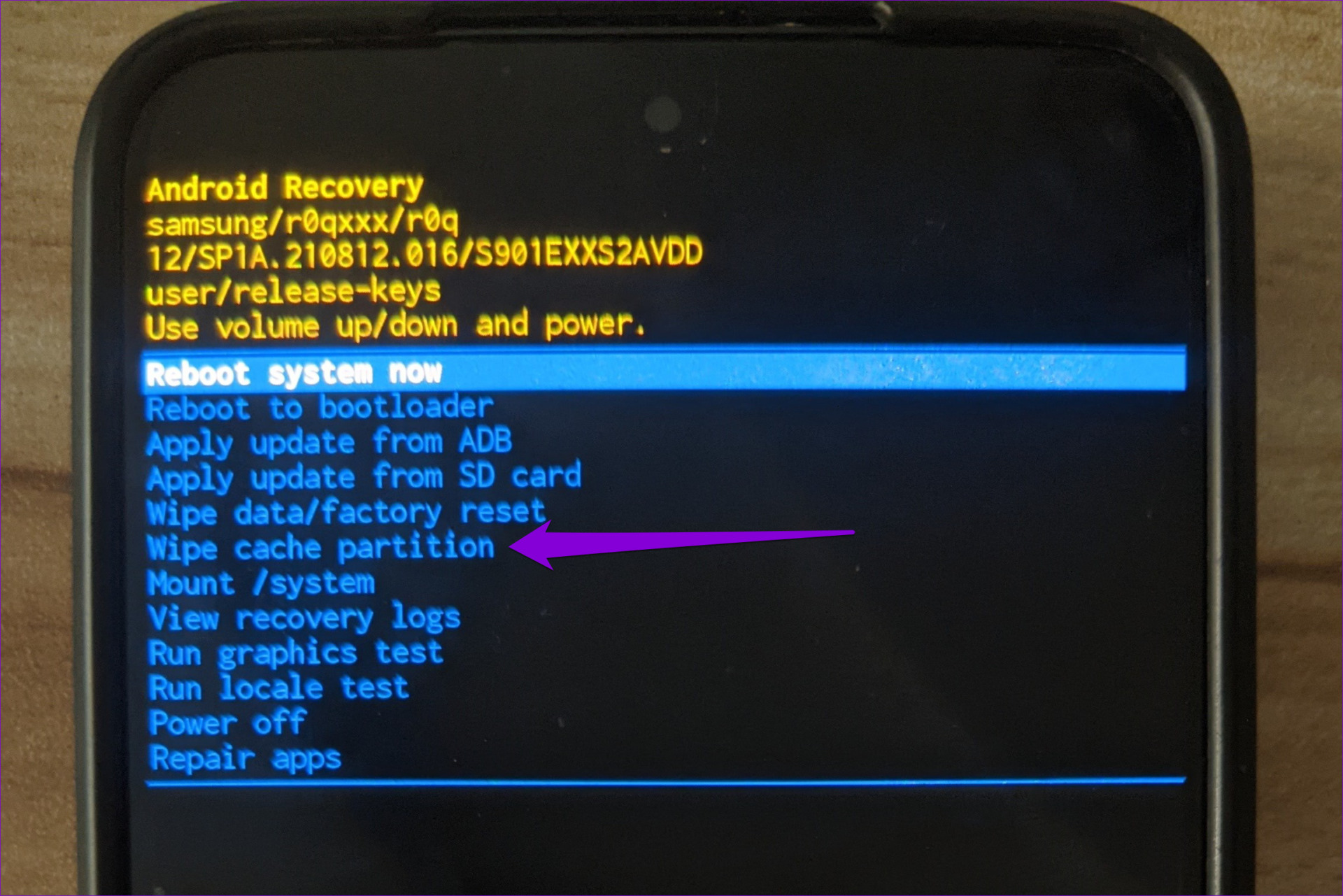
Step 4: After clearing the cache, select the Power off option from the recovery menu. Then, try to turn on your phone again.
Fix 4: Perform a Factory Reset
If all else fails, performing a factory reset may well be your last option. Doing so will erase everything on your phone, including apps, contacts, photos, and more. There are a couple of ways you can go about resetting your Android. Here are the steps for both.
Reset Your Android via Safe Mode
Step 1: Turn off your phone completely. Then, press and hold the power button until the logo appears.
Step 2: Once you see the logo, press and hold the volume down button until your phone boots into safe mode.
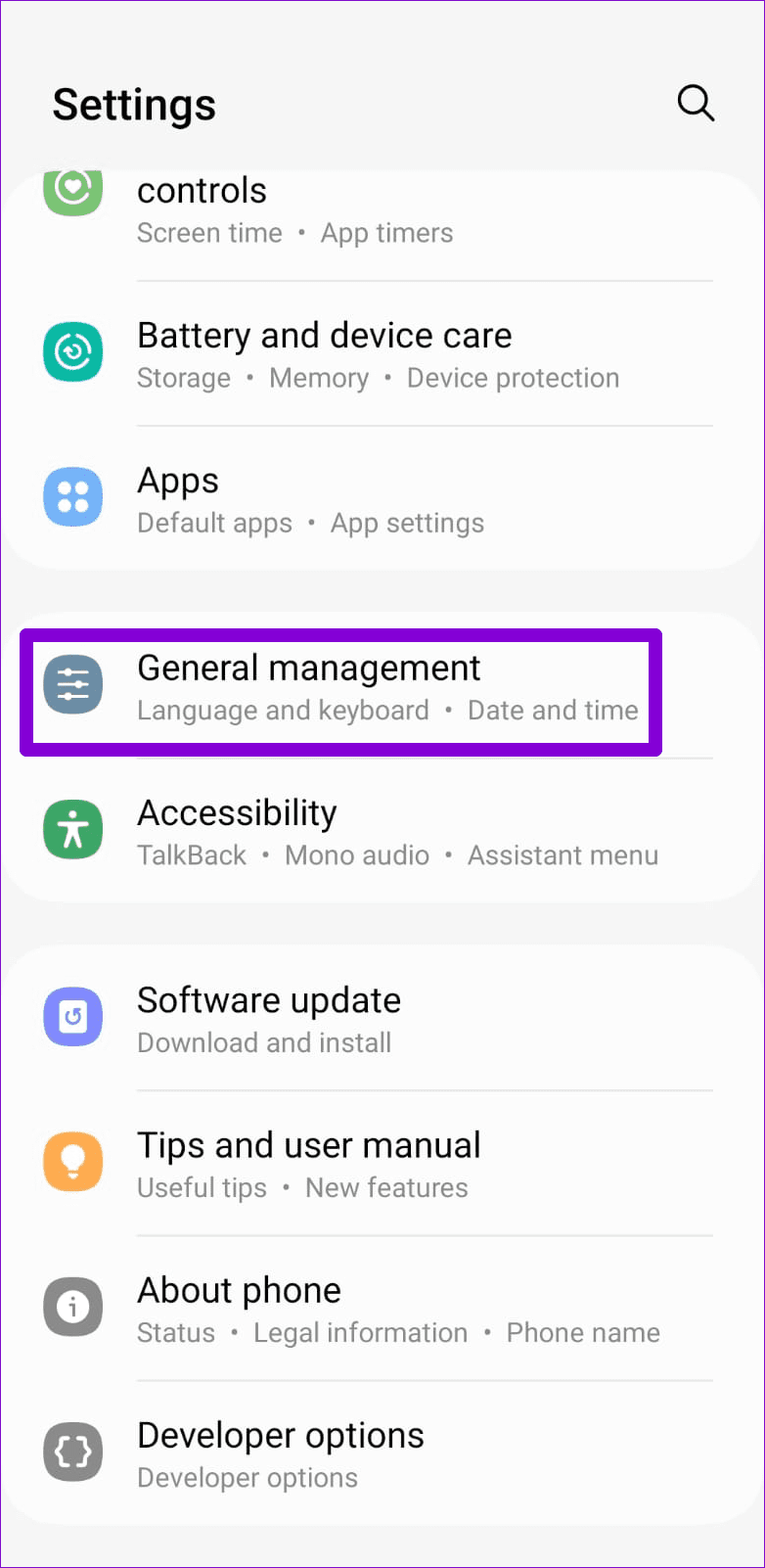
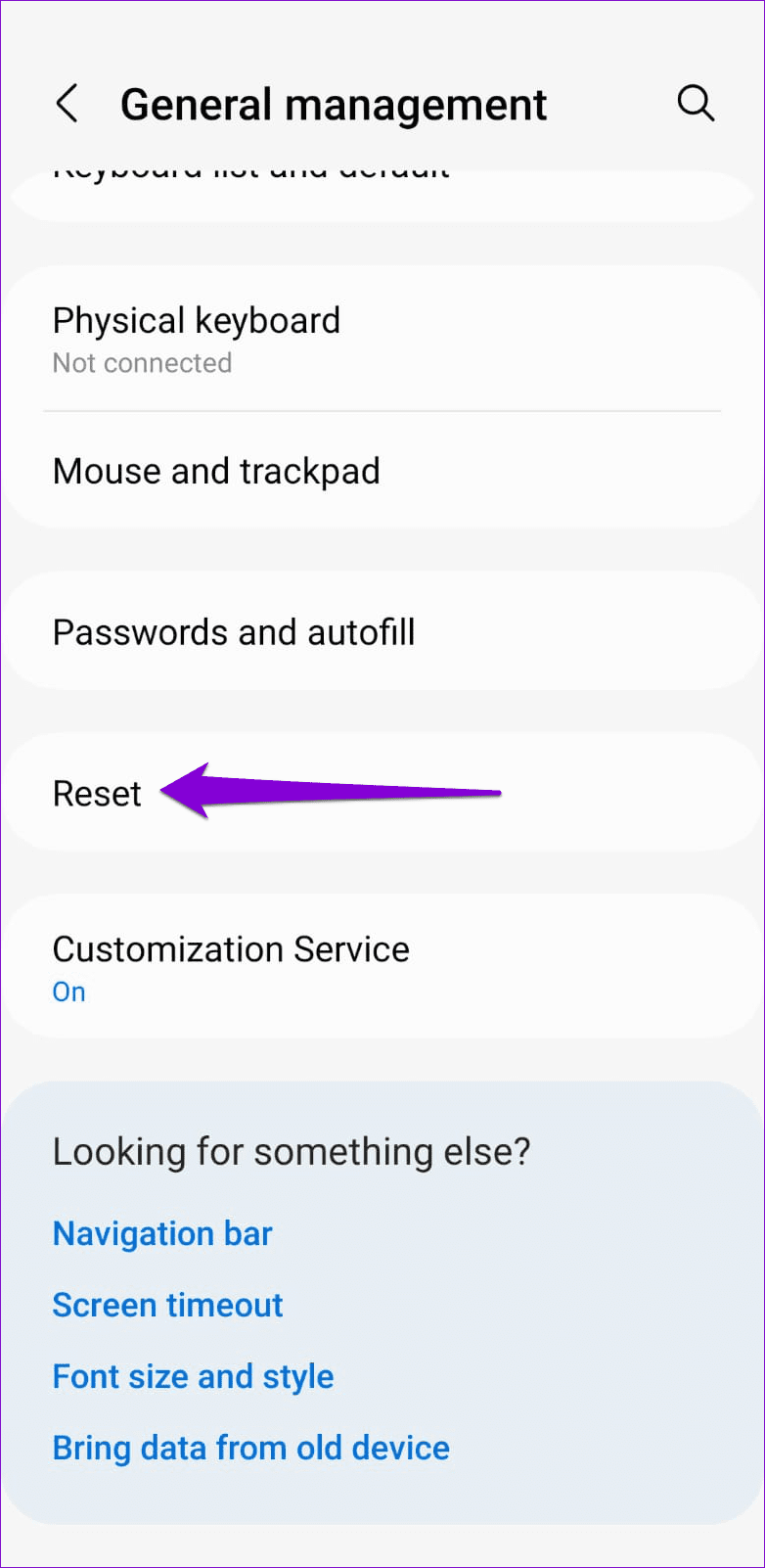
Step 3: Open the Settings app on your phone and head to General management > Reset.
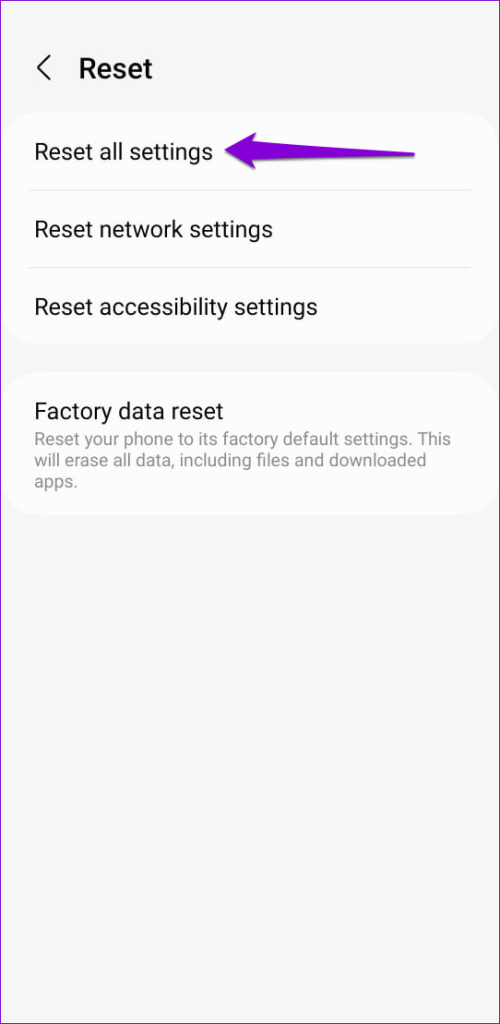
Step 4: Select Reset all settings and tap the Reset settings button to confirm.
Reset Your Android Using Recovery Mode
Step 1: Turn off your phone, and enter recovery mode by pressing and holding the power button and volume down button at the same time.
Step 2: Once your device is in recovery mode, use the volume buttons to scroll through the menu, and highlight Wipe data/factory reset. Then, press the power button to begin the factory reset.

Was this helpful?
Last updated on 05 July, 2024
3 Comments
Leave a Reply
Read Next
 5 Ways to Fix Dual Boot Option Not Showing on Windows 11
Fix 1: Enable Dual Boot Option Using Command Prompt Sometimes, the dual boot option goes missing when upgrading the operating system.
5 Ways to Fix Dual Boot Option Not Showing on Windows 11
Fix 1: Enable Dual Boot Option Using Command Prompt Sometimes, the dual boot option goes missing when upgrading the operating system.
 7 Ways to Fix Android TV Stuck on Loading Screen
Fix 1: Replace the HDMI Cable Are you using an Android TV box/stick with your TV?
7 Ways to Fix Android TV Stuck on Loading Screen
Fix 1: Replace the HDMI Cable Are you using an Android TV box/stick with your TV?
 5 Fixes for Android Phone Stuck in Safe Mode
Try Basic Fixes Restart your phone: Restarting your Android is the most straightforward method for disabling Safe Mode.
5 Fixes for Android Phone Stuck in Safe Mode
Try Basic Fixes Restart your phone: Restarting your Android is the most straightforward method for disabling Safe Mode.
 How to Perform a Clean Boot in Windows and Why It Matters
What Is Clean Boot on a Windows PC A clean boot in Windows is a troubleshooting technique that helps you identify software conflicts causing issues with your computer.
How to Perform a Clean Boot in Windows and Why It Matters
What Is Clean Boot on a Windows PC A clean boot in Windows is a troubleshooting technique that helps you identify software conflicts causing issues with your computer.
 3 Ways to Fix Fire TV Stick Stuck on Amazon Logo Screen
Basic Fixes Use the official accessories: Your Fire TV Stick comes with official accessories that help ensure your device gets sufficient power and can work properly.
3 Ways to Fix Fire TV Stick Stuck on Amazon Logo Screen
Basic Fixes Use the official accessories: Your Fire TV Stick comes with official accessories that help ensure your device gets sufficient power and can work properly.
 Top 5 Ways to Fix Windows 10 Stuck on Welcome Screen
It’s common for Windows computers to get stuck during usage or on either end of the power spectrum—startup and shutdown.
Top 5 Ways to Fix Windows 10 Stuck on Welcome Screen
It’s common for Windows computers to get stuck during usage or on either end of the power spectrum—startup and shutdown.
 4 Ways to Fix Windows 11 Stuck on Shutting Down Screen
Try These Things First Try to force shutdown: Sometimes the problem can occur due to a temporary bug or glitch.
4 Ways to Fix Windows 11 Stuck on Shutting Down Screen
Try These Things First Try to force shutdown: Sometimes the problem can occur due to a temporary bug or glitch.
 3 Ways to Fix iPhone Gets Stuck on Search Screen
Try Basic Fixes Force restart your iPhone: Press and quickly release the volume up button.
3 Ways to Fix iPhone Gets Stuck on Search Screen
Try Basic Fixes Force restart your iPhone: Press and quickly release the volume up button.
The article above may contain affiliate links which help support Guiding Tech. The content remains unbiased and authentic and will never affect our editorial integrity.

Thanks. My screen was stuck and you fixed it.
My phone hunged and stuck on anroid logo hence opens and locks countinously how can I resolved it
Thanks It helped.