

Fix 1: Enable OneDrive as a Startup App
Windows 11 provides several options for running apps at startup. So, if OneDrive fails to launch whenever Windows boots, you can enable it as a startup app by following the steps below.
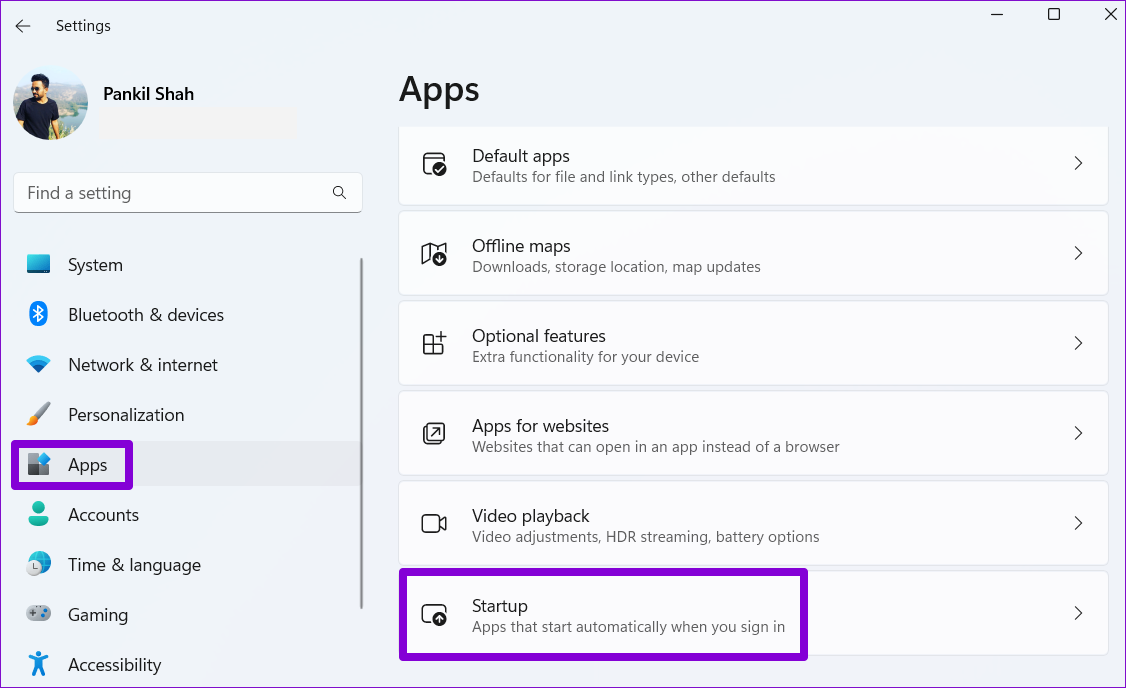
Step 1: Press the Windows key + I to launch the Settings app. Then, go to Apps > Startup.
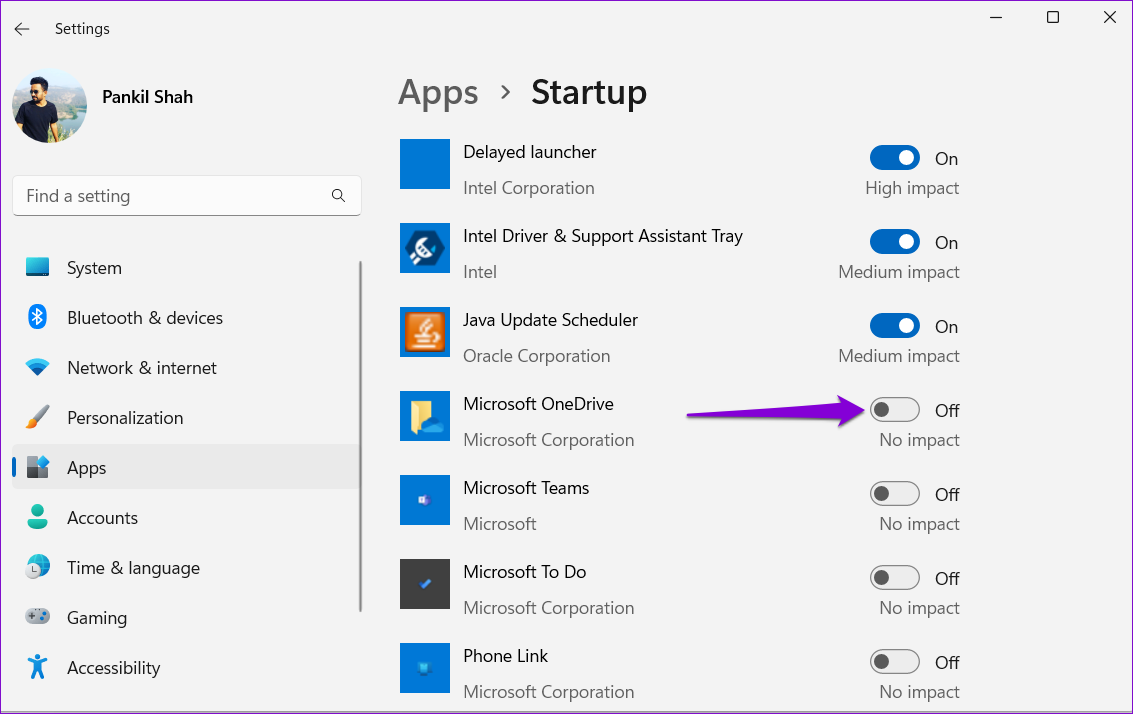
Step 2: Locate Microsoft OneDrive on the list and enable the toggle next to it.
Fix 2: Check Group Policy
The Group Policy Editor in Windows enables you to make various administrative-level changes to your system. Among its options, there’s a specific policy that can prevent OneDrive from functioning on Windows. You must ensure this particular policy is not enabled on your PC.
Note: Group Policy Editor is exclusive to Windows 11 Professional, Enterprise, and Education editions. So, if you’re using the Home edition of Windows 11, skip to the next method.
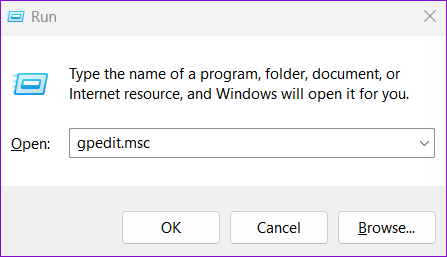
Step 1: Press the Windows key + R to open the Run dialog > type gpedit.msc > press Enter.
Step 2: In the Local Group Policy Editor window, use the left pane to navigate to the following folder:
Computer Configuration\Administrative Templates\Windows Components\OneDrive
Step 3: Double-click the Prevent the usage of OneDrive for file storage policy on your right.

Step 4: Select the Disabled or Not Configured option. Then, hit Apply, followed by OK.

Fix 3: Tweak Registry Files
When you configure an app to run at startup, Windows creates a registry entry. If a recent Windows update or a system change has altered that entry, OneDrive may fail to run on startup. Here’s what you can do to fix it.
Step 1: Click the search icon on the taskbar, type registry editor, and select Run as administrator.

Step 2: Select Yes when the UAC prompt appears.

Step 3: In the Registry Editor window, paste the following path in the address bar at the top and press Enter.
HKEY_CURRENT_USER\Software\Microsoft\Windows\CurrentVersion\Run

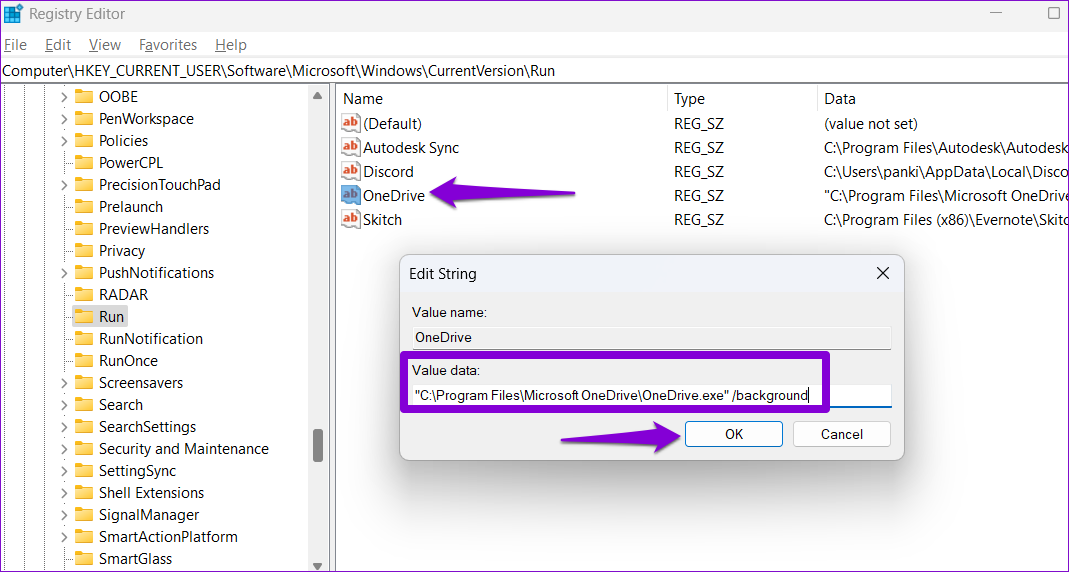
Step 4: Within the Run key, locate a string value named OneDrive. If you can’t find it, right-click on an empty spot in the right pane > go to New > select String Value. Name it OneDrive.

Step 5: Double-click on the OneDrive string value. Paste the following path in the Value Data field > click OK.
"C:\Program Files\Microsoft OneDrive\OneDrive.exe" /background
Restart your PC to apply these changes. After that, OneDrive will run at startup.
Fix 4: Reset OneDrive
Lastly, if none of the above solutions work, there could be a problem with OneDrive itself. You can try resetting it to see if that works.
Step 1: Open the Start menu, type OneDrive, and click on Open file location.

Step 2: In the File Explorer window, right-click on the OneDrive app, and select Copy as path.

Step 3: Press the Windows key + R to open the Run dialog. In the Open field, paste the file path of the OneDrive executable file, followed by /reset, and hit OK.

After resetting the OneDrive app, configure it to run on startup one more time. You shouldn’t encounter any issues after that.
Was this helpful?
Last updated on 24 April, 2024
3 Comments
Leave a Reply
Read Next
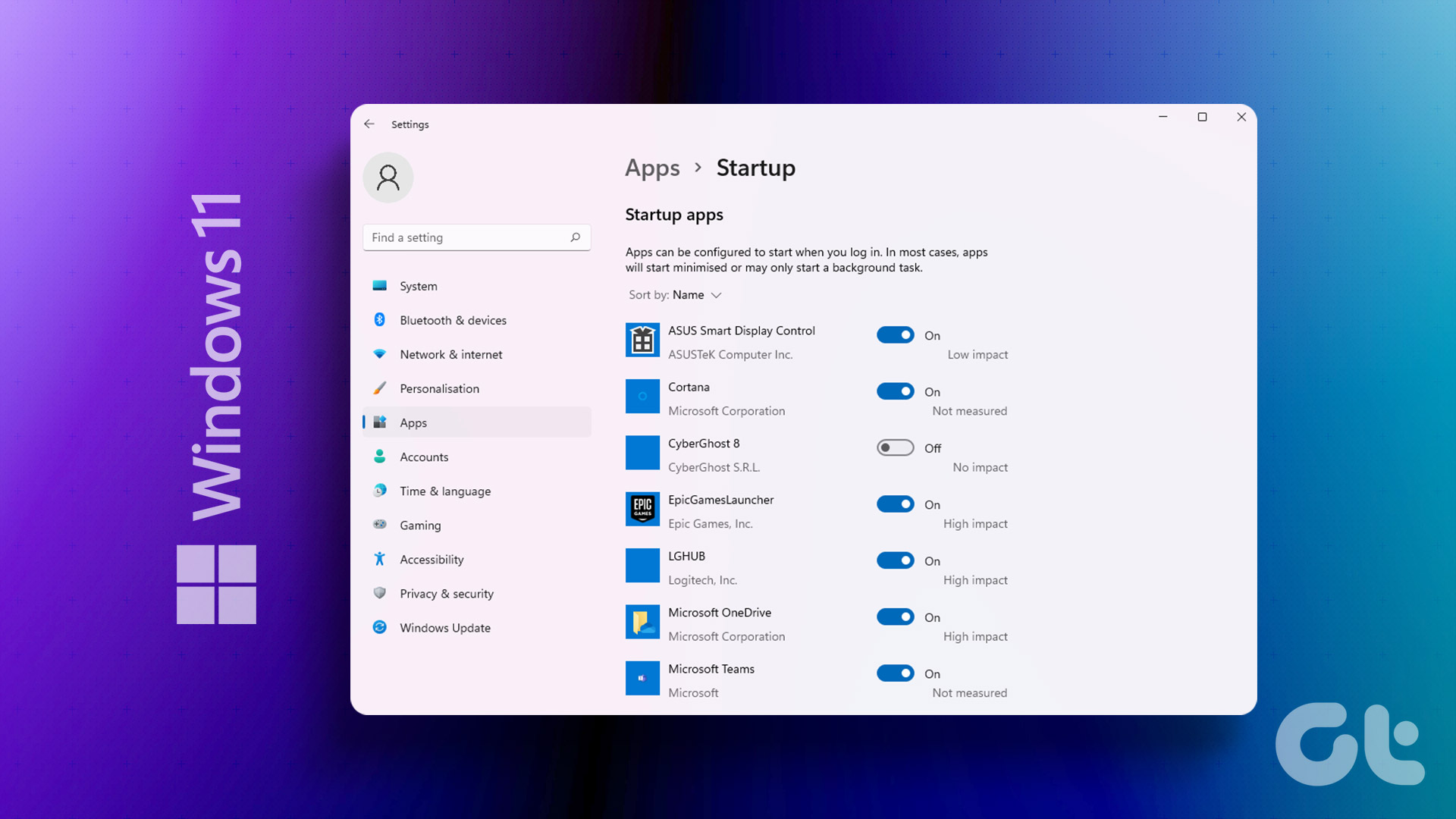 4 Ways to Stop Apps From Opening at Startup in Windows 11
Method 1: Remove Startup Programs via Windows Settings Probably the easiest way to disable or manage startup apps in Windows 11 is via the Settings app.
4 Ways to Stop Apps From Opening at Startup in Windows 11
Method 1: Remove Startup Programs via Windows Settings Probably the easiest way to disable or manage startup apps in Windows 11 is via the Settings app.
 How to Stop Facebook Messenger From Opening at Startup on Windows
Method 1: Modify In-App Settings to Prevent Messenger From Opening Automatically Like most apps, Facebook Messenger lets you customize its startup behavior from its in-app settings menu.
How to Stop Facebook Messenger From Opening at Startup on Windows
Method 1: Modify In-App Settings to Prevent Messenger From Opening Automatically Like most apps, Facebook Messenger lets you customize its startup behavior from its in-app settings menu.
 How to Stop Teams From Opening on Startup (or Uninstall It)
Method 1: Disable Microsoft Teams From Its Settings If you want to keep Teams installed on your PC but prefer to launch it manually when necessary, follow the steps below.
How to Stop Teams From Opening on Startup (or Uninstall It)
Method 1: Disable Microsoft Teams From Its Settings If you want to keep Teams installed on your PC but prefer to launch it manually when necessary, follow the steps below.
 How to Stop Chrome From Opening Old Tabs at Startup
Basic Fixes: Disable third-party tools: Some third-party tools can interfere with Chrome tabs.
How to Stop Chrome From Opening Old Tabs at Startup
Basic Fixes: Disable third-party tools: Some third-party tools can interfere with Chrome tabs.
 5 Ways to Fix Startup Programs Not Launching on Windows 10 or 11
Try Basic Fixes Install Windows updates: A buggy or outdated Windows build could cause such issues.
5 Ways to Fix Startup Programs Not Launching on Windows 10 or 11
Try Basic Fixes Install Windows updates: A buggy or outdated Windows build could cause such issues.
 5 Ways to Fix Slow Startup Times on Windows 10 and 11
Basic Fixes Install Windows Updates: Microsoft regularly releases updates that bring security patches, new features, and performance improvements to your Windows PC.
5 Ways to Fix Slow Startup Times on Windows 10 and 11
Basic Fixes Install Windows Updates: Microsoft regularly releases updates that bring security patches, new features, and performance improvements to your Windows PC.
 2 Ways to Fix Discord Black Screen at Startup on Windows 11
Basic Fixes Check the Discord server: Head to the Discord Status page to check an active service outage.
2 Ways to Fix Discord Black Screen at Startup on Windows 11
Basic Fixes Check the Discord server: Head to the Discord Status page to check an active service outage.
 4 Ways to Enable or Disable Num Lock at Windows Startup
Method 1: Disable Fast Startup Step 1: Click the search icon on the taskbar, type control panel, and press Enter.
4 Ways to Enable or Disable Num Lock at Windows Startup
Method 1: Disable Fast Startup Step 1: Click the search icon on the taskbar, type control panel, and press Enter.
The article above may contain affiliate links which help support Guiding Tech. The content remains unbiased and authentic and will never affect our editorial integrity.
Hi! Thank you for helping. I tried all the options, but it still doesn’t work:
* OneDrive is turned on to start with Windows in Startup apps, in OneDrive settings, and in Startup in Task Manager.
* The Group Police for OneDrive was set for Disable. But. after restarting the computer, it went back to Not Configured.
* The Registry Editor for OneDrive is correctly set.
* OneDrive was reset.
Is there anything else I can do?
Option for work for me, but I had to put it in a different path, the CURRENT USER route would not.
I use the same path, but under Computer\HKEY_LOCAL_MACHINE\SOFTWARE\Microsoft\Windows\CurrentVersion\Run
????
Thanks Brother
very helpful for me (Win 11)