

Try Basic Fixes
- Disable any third-party antivirus program: Third-party antivirus programs can sometimes interfere with Windows processes and cause problems. To avoid any conflicts, temporarily disable your third-party antivirus program and see if that helps.
- Install Windows updates: Windows updates often carry important bug fixes and improvements to your PC. If the issue is only occurring due to a bug, installing pending updates should help.
Fix 1: Modify Permissions for the Drive
Another thing you can try is to change the permissions for the drive where the folder is stored. Here’s how to do it.
Step 1: Press the Windows key + E to open File Explorer and navigate to This PC. Right-click on the drive where the folder is located and select Properties.
Step 2: Navigate to the Security tab and click the Advanced button.

Step 3: Click the Change permissions button.

Step 4: Select your user account and click Edit.

Step 5: Click the drop-down menu next to “Applies to” and select This folder, subfolders, and files.
Step 6: Under Basic permissions, check the Full control box. Then, click OK.

After you complete the above steps, you can change the folder attribute without problems. However, if there are multiple user accounts on the system, you’ll have to enable the inheritance option to ensure consistency of permissions across all objects.
Step 1: Open File Explorer again and navigate to the following folder:
C:\Users
Step 2: Locate the folder with your username. Right-click on it and select Properties.

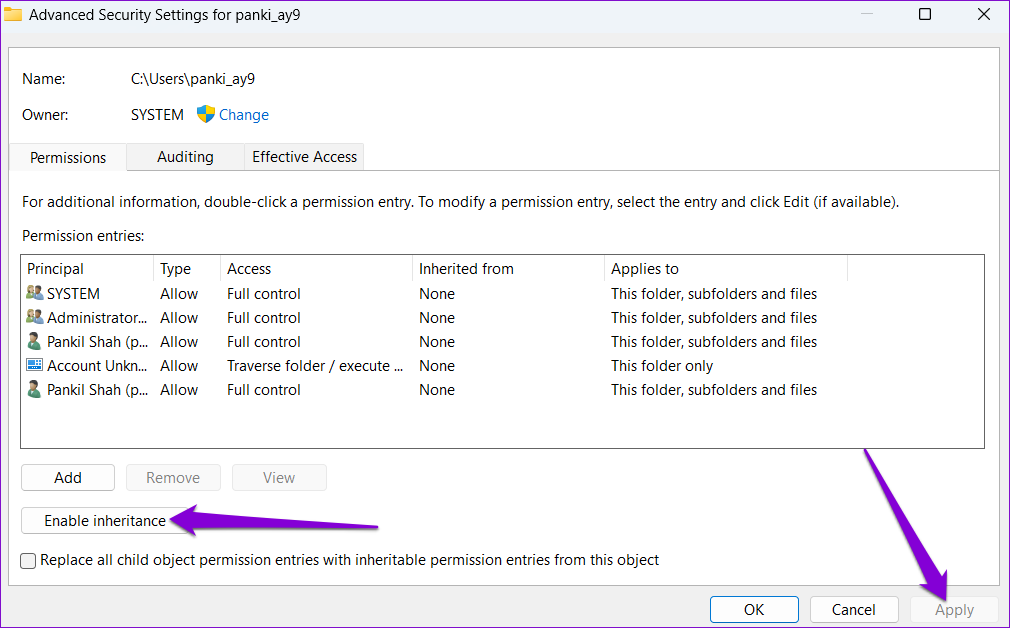
Step 3: Switch to the Security tab and click on Advanced.

Step 4: Click the Enable inheritance button and then hit Apply.
Fix 2: Change the Read-Only Attribute Using Command Prompt
Windows provides several methods for changing the read-only attribute of a folder. So, if you’re having trouble changing the read-only attribute via folder properties, you can use Command Prompt to implement the change. Here’s how:
Step 1: Right-click on the folder you want to change the read-only attribute and select Copy as path.

Step 2: Right-click on the Start icon and select Terminal (Admin) from the list.

Step 3: Paste the following command in the console and press Enter.
attrib -r +s "FolderPath"
Replace FolderPath in the above command with the path copied in the first step.

Fix 3: Disable Controlled Folder Access
Controlled folder access is a security feature in Windows that protects your files and folders from unauthorized changes. This feature can also restrict you from changing the folder attribute on Windows 11. Here’s how you can disable it.
Step 1: Click the search icon on the taskbar, type in windows security and press Enter.

Step 2: Navigate to the Virus & threat protection tab and click on Manage ransomware protection.

Step 3: Toggle off the switch for Controlled folder access.

Fix 4: Run SFC and DISM Scans
Corrupt or damaged system files can also disrupt Windows operations and cause such problems. To check for this possibility, you can run the SFC (or System File Checker) and DISM (Deployment Image Servicing and Management) scans on your PC by following the steps below.
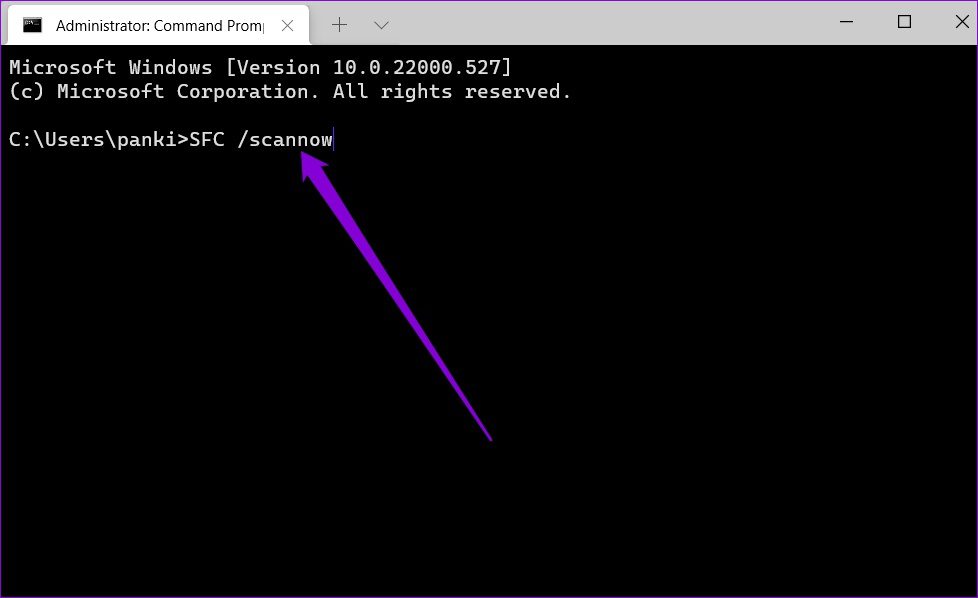
Step 1: Press the Windows key + S to open the search menu and type terminal in the box. Right-click on the first result and select Run as administrator.

Step 2: Type the following command in the console and press Enter.
SFC /scannow
Step 3: Type the following commands one by one and press Enter after each one.
DISM /Online /Cleanup-Image /CheckHealth
DISM /Online /Cleanup-Image /ScanHealth
DISM /Online /Cleanup-Image /RestoreHealth

Restart your PC after the scan is complete and try changing the folder attribute again.
Was this helpful?
Last updated on 22 July, 2024
3 Comments
Leave a Reply
Read Next
 Does Bumble Have Read Receipts and How to Tell if Someone Read Your Message
Does Bumble Show Read Receipts?
Does Bumble Have Read Receipts and How to Tell if Someone Read Your Message
Does Bumble Show Read Receipts?
 6 Ways to Fix Microsoft Word Opens Files in Read-Only Mode in Windows 10 or 11
Fix 1: Modify File Properties If the issue in question is limited to a select few Word documents, the read-only file attribute may be enabled for those files.
6 Ways to Fix Microsoft Word Opens Files in Read-Only Mode in Windows 10 or 11
Fix 1: Modify File Properties If the issue in question is limited to a select few Word documents, the read-only file attribute may be enabled for those files.
 Top 7 Ways to Fix OneNote Read-Only Status
Microsoft OneNote is one of the oldest and feature-rich note-taking apps out there.
Top 7 Ways to Fix OneNote Read-Only Status
Microsoft OneNote is one of the oldest and feature-rich note-taking apps out there.
 How to Make Windows 11 Read Text Out Loud With Narrator
How to Enable Narrator on Windows 11 To get started, you must first enable the Narrator tool on your Windows 11 PC.
How to Make Windows 11 Read Text Out Loud With Narrator
How to Enable Narrator on Windows 11 To get started, you must first enable the Narrator tool on your Windows 11 PC.
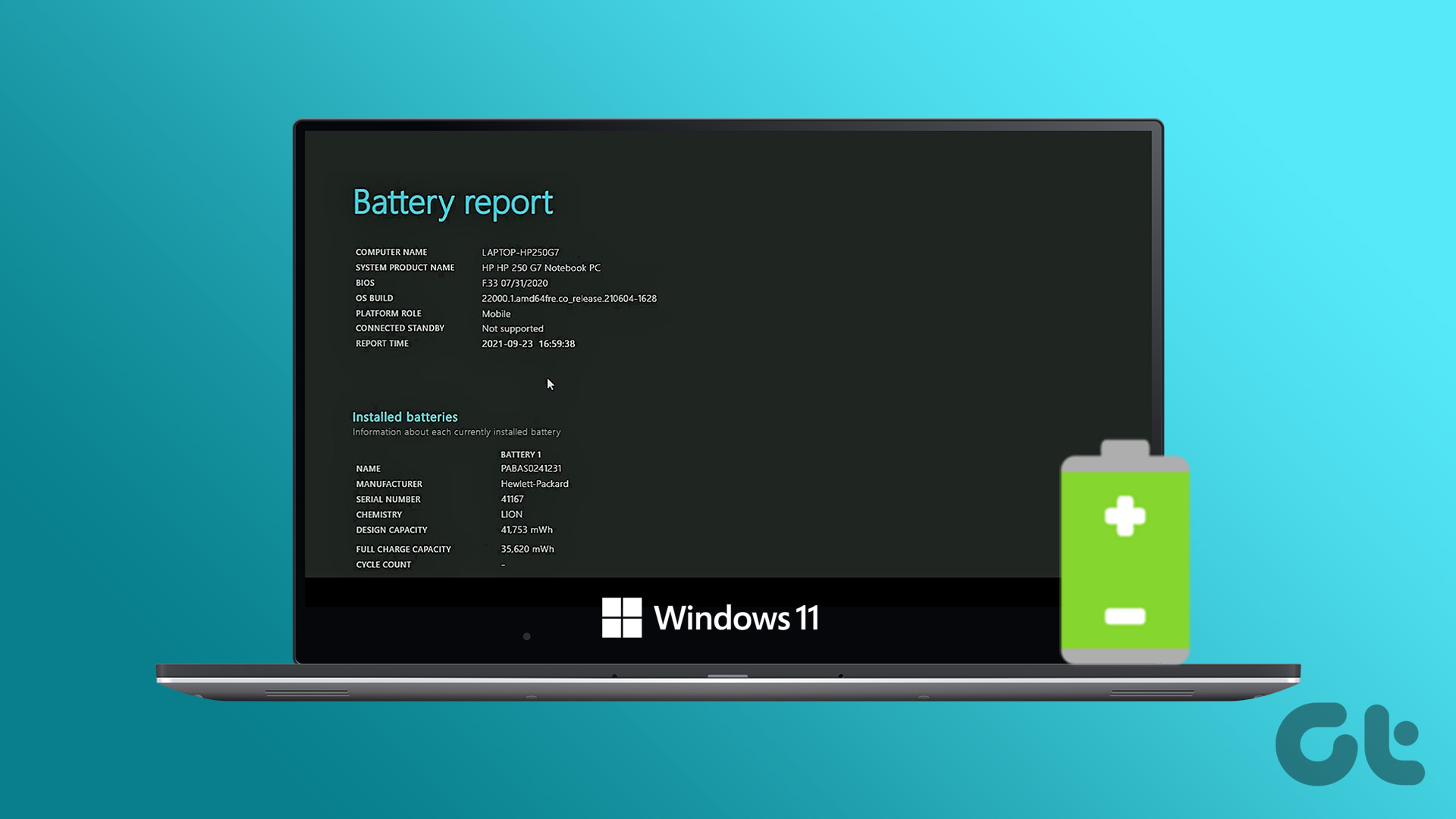 How to Generate and Read a Battery Report on Windows 11
Lithium-ion batteries have been immensely useful in making devices super portable.
How to Generate and Read a Battery Report on Windows 11
Lithium-ion batteries have been immensely useful in making devices super portable.
 5 Fixes When Read Aloud Is Not Working in Microsoft Word for Windows
Fix 1: Add the Read Aloud Option Is the Read Aloud option missing from Microsoft Word?
5 Fixes When Read Aloud Is Not Working in Microsoft Word for Windows
Fix 1: Add the Read Aloud Option Is the Read Aloud option missing from Microsoft Word?
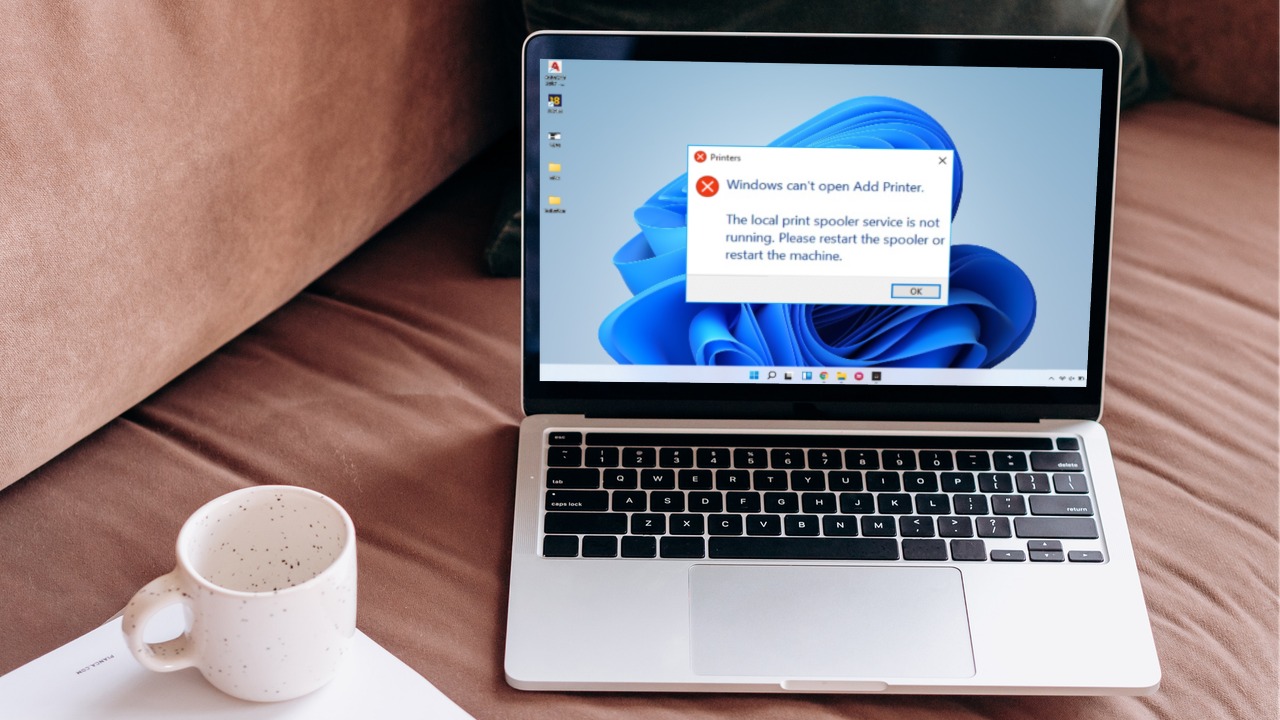 6 Ways to Fix Print Spooler Keeps Stopping on Windows 10 and Windows 11
Fix 1: Run Printer Troubleshooter Windows comes with a dedicated printer troubleshooter that can automatically diagnose and fix any printing issues on your PC.
6 Ways to Fix Print Spooler Keeps Stopping on Windows 10 and Windows 11
Fix 1: Run Printer Troubleshooter Windows comes with a dedicated printer troubleshooter that can automatically diagnose and fix any printing issues on your PC.
 3 Ways to Fix Mouse Keeps Scrolling Automatically Windows 10 and Windows 11
https://youtu.be/1UZ3PWNr-lE Try Basic Fixes Disconnect and reconnect the mouse: Unplug your mouse cable or wireless adapter from your computer and reconnect it to a different port.
3 Ways to Fix Mouse Keeps Scrolling Automatically Windows 10 and Windows 11
https://youtu.be/1UZ3PWNr-lE Try Basic Fixes Disconnect and reconnect the mouse: Unplug your mouse cable or wireless adapter from your computer and reconnect it to a different port.
The article above may contain affiliate links which help support Guiding Tech. The content remains unbiased and authentic and will never affect our editorial integrity.

your article was published November 1, 2022. Today, April 24, 2023, I can say that I have tried every single technique suggested in yourarticle but the problem persists. That means you haven’t really found the culprit. You need to do more research; I am not the only person with this problem but Microsoft never, ever lets on about the real fix. Good luck.
Agree with Michael Spencer.
It is now 21st Sep 2023 – still no solution.
I have tried everything I could find on the Internet. Nothing works. I mean, EVERYTHING.
Just exactly what is going on here?
This is just so stupid, Microsoft.
The worst part is Windows *acting* like you’ve been able to fix the problem, but …. nope!