Has your Windows Taskbar suddenly become hard to find and is usually found lurking behind other open windows on your desktop? Well, this “shyness” is a pretty common problem for many users. Thankfully, it can be easily fixed with a number of solutions, which this article will cover.
Let’s get your Taskbar back out of hiding.
What to Do When the Taskbar Hides Behind Programs
There are a few causes behind a taskbar hiding, from system settings to system errors. We’ll start with some simple solutions and build up from there:
Restart
This probably goes without saying, but a PC that’s been running for a while can run into more errors. Restart your machine before trying any other fixes to see if the problem is resolved.
Check Your Taskbar Settings
Your first stop should be the Taskbar Settings. Here’s what to do:
Step 1. Right-click your Taskbar and select “Taskbar Settings” from the context menu.

Step 2. In the Taskbar submenu, ensure that all the options to automatically hide the taskbar are set to off, primarily “Automatically hide the taskbar in desktop mode.”

Toggle Fullscreen
Another super-easy fix is to toggle the Fullscreen mode of the app that’s causing your Taskbar to disappear. Doing this is as easy as pressing the F11 key. In fact, you might have hit the F11 key by mistake that caused the Taskbar to be hidden in the first place. If it doesn’t work the first time, press the F11 key a few more times to be sure.
Press the Windows Key
This isn’t a full solution, but if you need to call up the Taskbar to fix the problem, simply press the Win key to do so. At the very least, the Taskbar will pop up while you use other applications.
Pin a New Item to the Taskbar

Some users report success in keeping the Taskbar visible by adding a new shortcut to it. Doing this is very easy:
Step 1. Right-click any “.exe” file in File Explorer or on your Desktop.
Step 2. Select “Pin to taskbar” in the context menu that pops up.
Step 3. See if this addition solves the problem.
Disable NVIDIA In-Game Overlay
Some NVIDIA users report that it’s the In-Game Overlay feature that allows capture of footage and screenshots in-game, which is also the culprit behind a hidden taskbar. Thankfully, this is pretty easily disabled:
Step 1. Open the NVIDIA app and click on the “Settings” option in the sidebar.
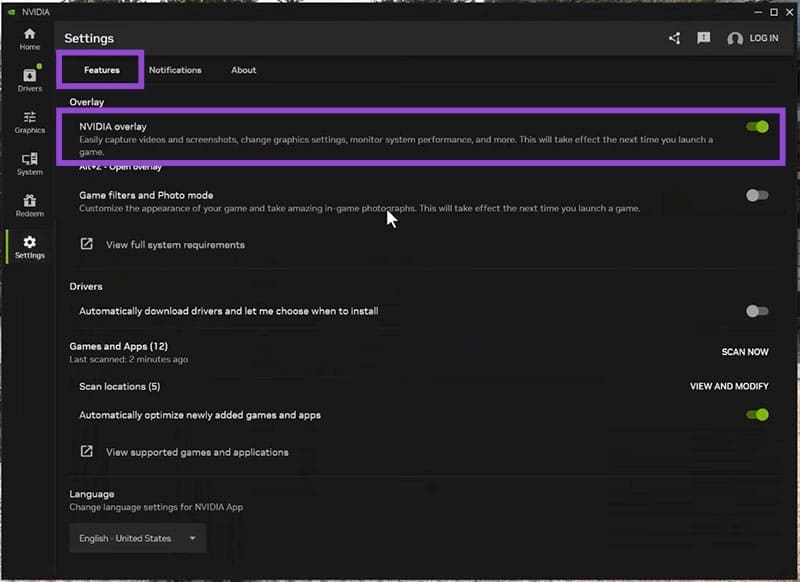
Step 2. Under the “Features” tab, you’ll see the “NVIDIA overlay” option. Drag the slider to “Off” and see if this resolves the issue.
Restart Explorer

If the problem persists, ending the Windows Explorer process and restarting it via Task Manager can prove useful. Here’s how to do this:
Step 1. Open Task Manager (Ctrl + Shift + Esc) and navigate to the “Windows Explorer” process.
Step 2. Click the process and then the “Restart” button at the bottom of the window.
Step 3. File Explorer will then restart. Check to see if the problem is resolved.
Was this helpful?
Last updated on 01 August, 2025
Read Next
 How to Hide Files and Folders Behind a Shortcut
In most cases, the best way to protect your files is to lock them behind a password.
How to Hide Files and Folders Behind a Shortcut
In most cases, the best way to protect your files is to lock them behind a password.
 Top 3 Ways to Fix Your Clock Is Ahead/Behind Error in Google Chrome
https://youtu.be/YigbNABjAaw Preliminary Fixes Restart Chrome: A simple restart can sometimes resolve the issue if it's related to temporary glitches.
Top 3 Ways to Fix Your Clock Is Ahead/Behind Error in Google Chrome
https://youtu.be/YigbNABjAaw Preliminary Fixes Restart Chrome: A simple restart can sometimes resolve the issue if it's related to temporary glitches.
 Top 9 Ways to Fix Unable to Change Default Programs in Windows 10
The apps offered by Microsoft are great.
Top 9 Ways to Fix Unable to Change Default Programs in Windows 10
The apps offered by Microsoft are great.
 5 Ways to Fix Startup Programs Not Launching on Windows 10 or 11
Try Basic Fixes Install Windows updates: A buggy or outdated Windows build could cause such issues.
5 Ways to Fix Startup Programs Not Launching on Windows 10 or 11
Try Basic Fixes Install Windows updates: A buggy or outdated Windows build could cause such issues.
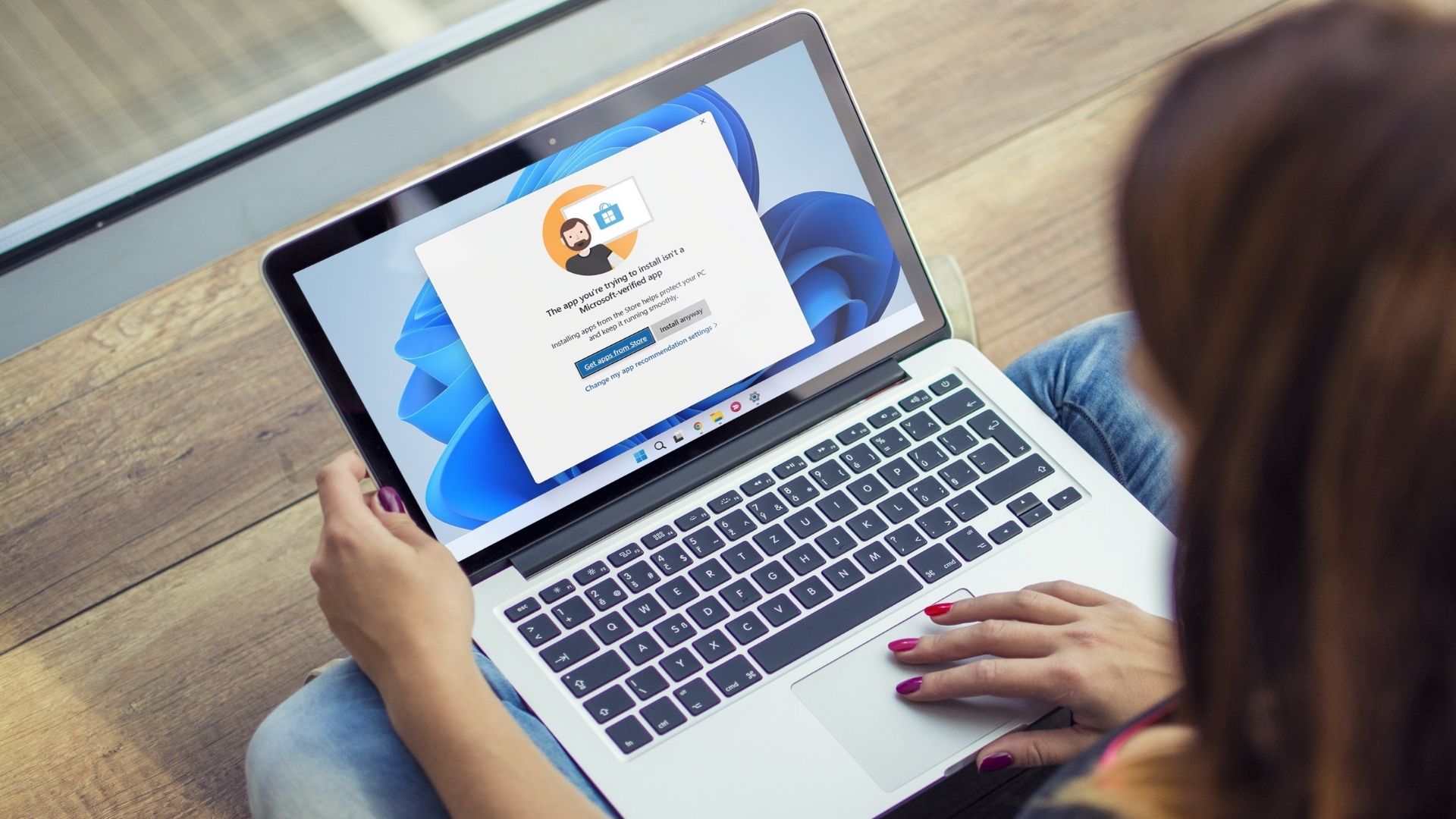 4 Ways to Fix Unable to Install Programs or Software on Windows 11
Try Basic Fixes Check program compatibility: Programs and games that worked perfectly on Windows 10 may not necessarily be compatible with Windows 11.
4 Ways to Fix Unable to Install Programs or Software on Windows 11
Try Basic Fixes Check program compatibility: Programs and games that worked perfectly on Windows 10 may not necessarily be compatible with Windows 11.
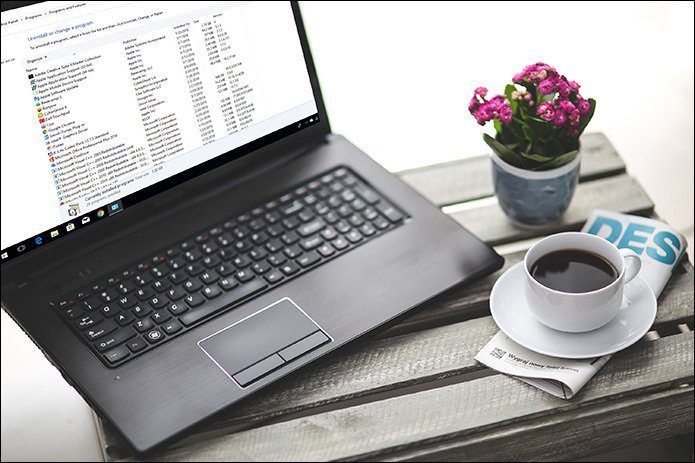 How to Access the Old Add or Remove Programs Panel and Other Classic Features in Windows 10
Windows 10 is a dramatic improvement over its predecessors in terms of both speed and stability.
How to Access the Old Add or Remove Programs Panel and Other Classic Features in Windows 10
Windows 10 is a dramatic improvement over its predecessors in terms of both speed and stability.
 3 Ways to Run Old Programs in Compatibility Mode on Windows 11
Method 1: Modify Program Properties You can configure a program to run in compatibility mode by modifying its properties.
3 Ways to Run Old Programs in Compatibility Mode on Windows 11
Method 1: Modify Program Properties You can configure a program to run in compatibility mode by modifying its properties.
 How to Prevent Users From Running Certain Programs on Windows 11
Method 1: Prevent Users From Running Certain Programs via the Group Policy Editor The Local Group Policy Editor on Windows makes it easy to apply system-wide changes on a computer.
How to Prevent Users From Running Certain Programs on Windows 11
Method 1: Prevent Users From Running Certain Programs via the Group Policy Editor The Local Group Policy Editor on Windows makes it easy to apply system-wide changes on a computer.
The article above may contain affiliate links which help support Guiding Tech. The content remains unbiased and authentic and will never affect our editorial integrity.