


How to Take Screenshots in Chrome Incognito Mode
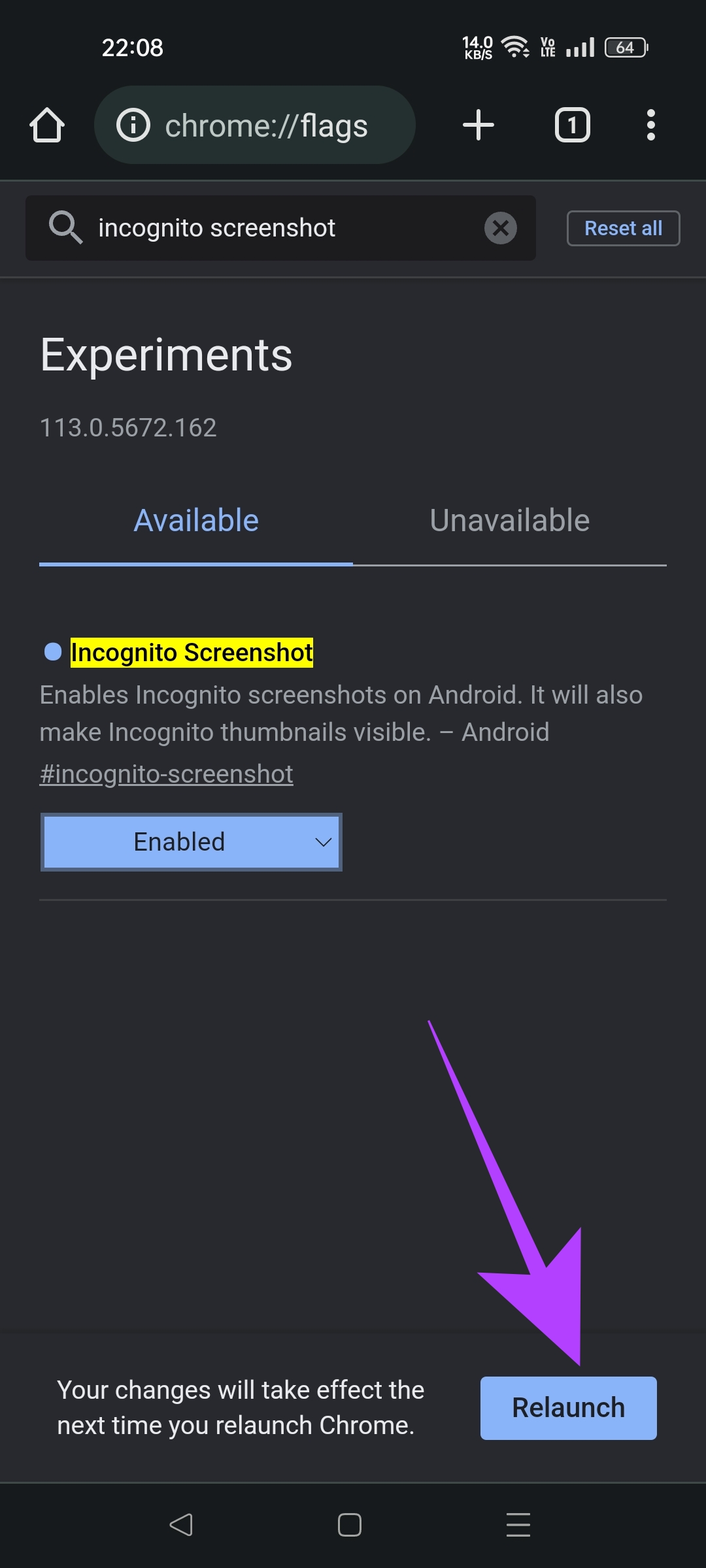
Step 1: Open the Google Chrome browser on your Android phone. In the address bar, type chrome://flags and open the page.
Step 2: In the Search Flags section, enter Incognito Screenshot.
Step 3: Tap on the drop-down menu and select Enabled.


Step 4: Tap on the Relaunch button in the prompt that the Google Chrome browser shows. If you do not get this prompt, you can manually close and re-open Chrome on your phone.

You will now be able to take screenshots in any incognito tab in Chrome on your Android phone.
Also Read: How to enable the pop-up blocker on Chrome
How to Allow Screenshots in Firefox Private Mode on Android
Follow these steps to enable taking screenshots in Private Mode in Firefox browser for Android.
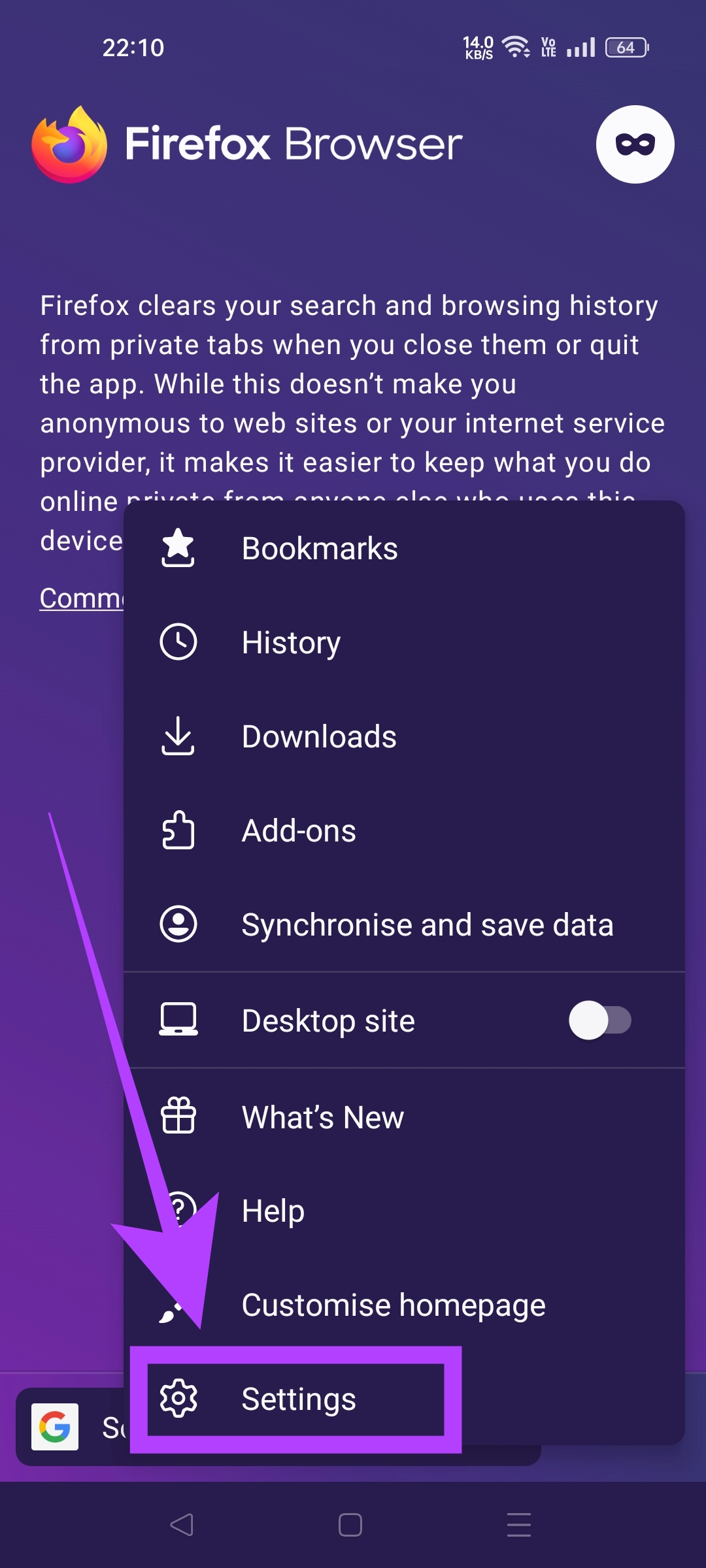
Step 1: Open Firefox, tap on the three dots, and select Settings.
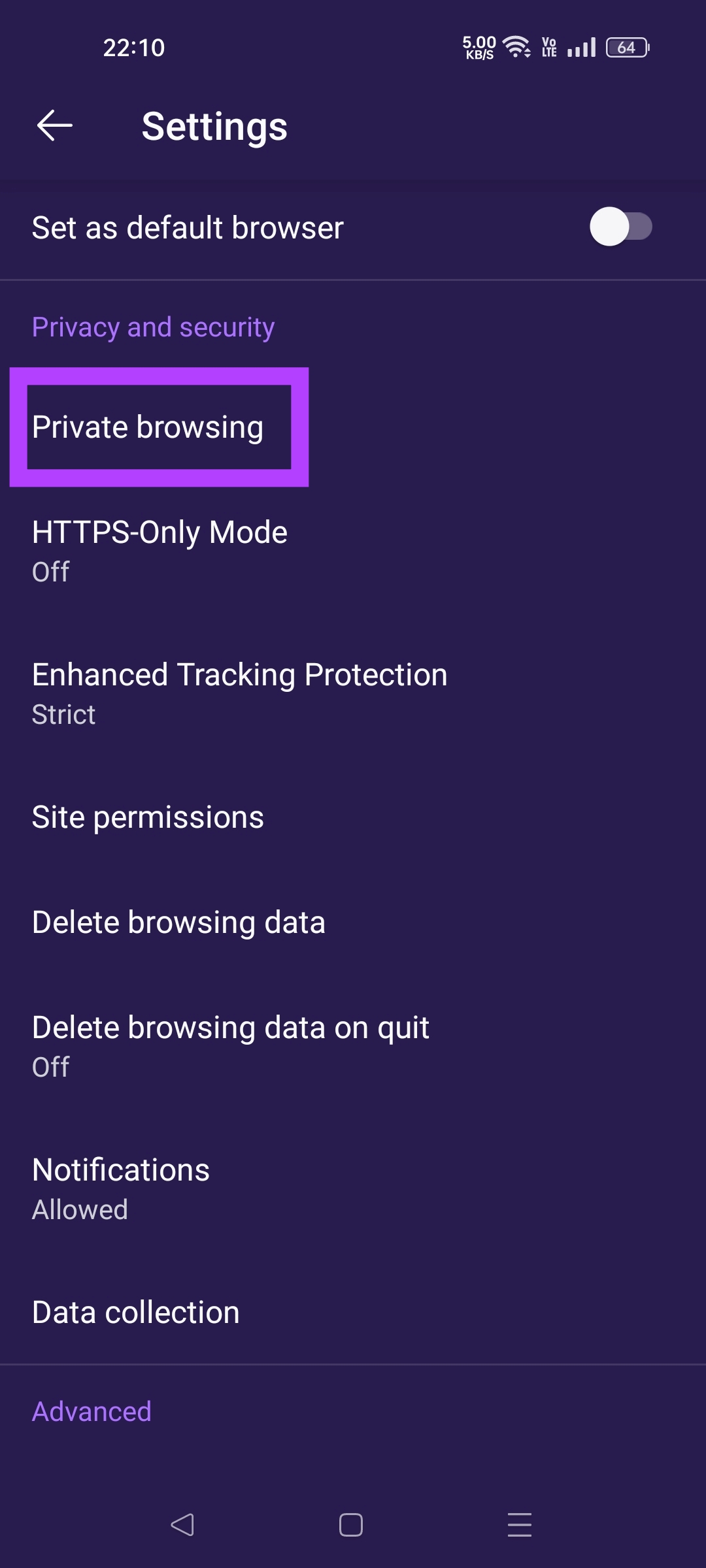
Step 2: Scroll down to the Privacy and Security section. Tap on Private browsing.
Step 3: Enable the toggle named Allow screenshots in private browsing.
You can take screenshots in Firefox Private Mode tabs instantly. There is no need to restart the browser.

Also Read: Firefox has enabled Ad Tracking for all users (Here’s What to Do About It).
How to Take Screenshots in Edge InPrivate Mode on Android
The Microsoft Edge browser on Android does not have a setting that you can toggle and start taking screenshots in its InPrivate Mode. Instead, Microsoft offers an alternative method for the same.
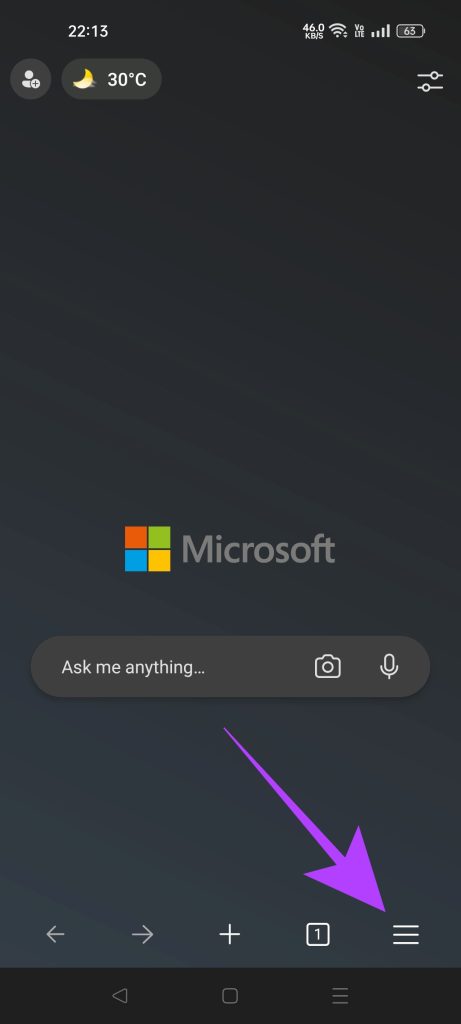
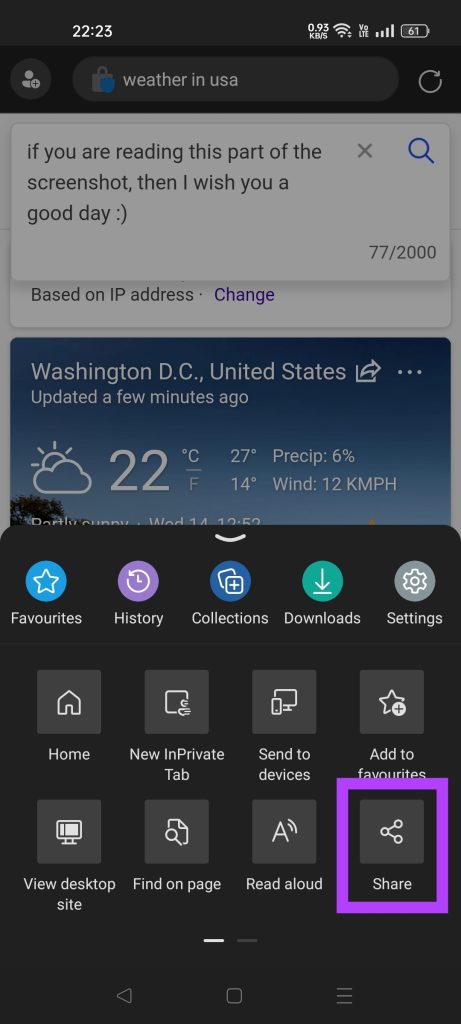
Step 1: Open an InPrivate tab on your Edge browser. Tap on the three bars icon.
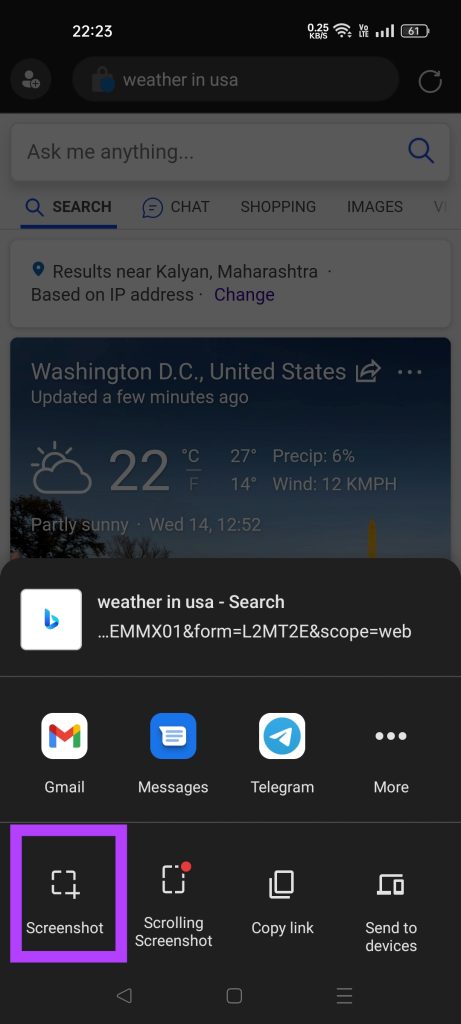
Step 2: Now tap on the Share button. Select Screenshot.
Step 3: The Edge browser will now show you a preview of the screenshot. You can choose to save it, delete it, or directly share it to any other app without saving the screenshot on your phone.
Also Read: Samsung Internet vs Microsoft Edge: Which browser is better on Android.
Was this helpful?
Last updated on 28 July, 2024
1 Comment
Leave a Reply
Read Next
 How to Disable Chrome Incognito Mode on Windows, macOS, and Android
Disable Chrome Incognito Mode on Windows If you have Windows Pro and above, you can use Group Policy; else, use the Command prompt to update the Windows Registry.
How to Disable Chrome Incognito Mode on Windows, macOS, and Android
Disable Chrome Incognito Mode on Windows If you have Windows Pro and above, you can use Group Policy; else, use the Command prompt to update the Windows Registry.
 How to Create Incognito Mode Shortcut on Windows Desktop
Create a Shortcut to Open Incognito Tab on Desktop Nearly all browsers offer Incognito/Private mode, but the feature is named differently on every browser.
How to Create Incognito Mode Shortcut on Windows Desktop
Create a Shortcut to Open Incognito Tab on Desktop Nearly all browsers offer Incognito/Private mode, but the feature is named differently on every browser.
 5 Ways to Take Screenshots Without Power Button on Android
Method 1: Use Gestures You can use Gestures to capture a screenshot - on Xiaomi devices, go to Settings > Additional Settings > Gestures > enable the Slide 3 fingers
5 Ways to Take Screenshots Without Power Button on Android
Method 1: Use Gestures You can use Gestures to capture a screenshot - on Xiaomi devices, go to Settings > Additional Settings > Gestures > enable the Slide 3 fingers
 How to Take Scrolling (Long) Screenshots on Android
How to Take a Long Screenshot on Samsung Devices Step 1: Press the power button and volume down together.
How to Take Scrolling (Long) Screenshots on Android
How to Take a Long Screenshot on Samsung Devices Step 1: Press the power button and volume down together.
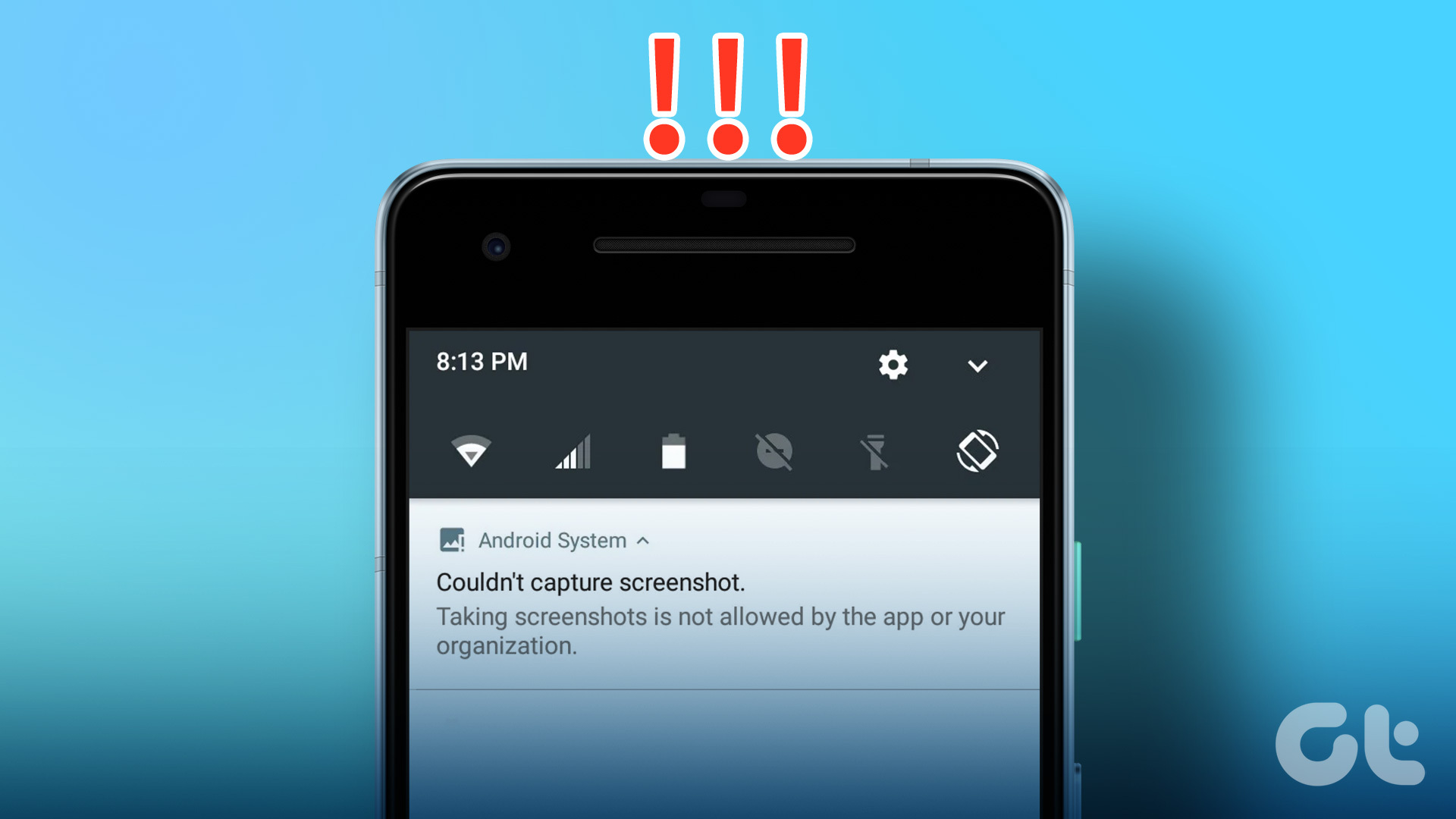 3 Ways to Fix Unable to Capture Screenshots on Android
Why Certain Apps Don’t Allow You to Take Screenshots on Android Some Android apps may prevent you from taking screenshots for security reasons.
3 Ways to Fix Unable to Capture Screenshots on Android
Why Certain Apps Don’t Allow You to Take Screenshots on Android Some Android apps may prevent you from taking screenshots for security reasons.
 4 Ways to Take Screenshots on Android TV
Method 1: Using Your Android TV Remote On the screen that you want to capture, press and hold the power and volume down buttons together of your remote.
4 Ways to Take Screenshots on Android TV
Method 1: Using Your Android TV Remote On the screen that you want to capture, press and hold the power and volume down buttons together of your remote.
 4 Ways to Fix Windows Not Taking Screenshots
Fix 1: Close Interfering Apps We often install multiple screenshot software, each taking over the Print screen shortcuts.
4 Ways to Fix Windows Not Taking Screenshots
Fix 1: Close Interfering Apps We often install multiple screenshot software, each taking over the Print screen shortcuts.
 Where to Find Screenshots on Windows 11 and 10
Where Does Snipping Tool Save Screenshots?
Where to Find Screenshots on Windows 11 and 10
Where Does Snipping Tool Save Screenshots?
The article above may contain affiliate links which help support Guiding Tech. The content remains unbiased and authentic and will never affect our editorial integrity.

Не надо мучиться, вне зависимости в каком браузерем пользуетесь, просто сохраните ее на телефон как файл*.pdf у каждого телефона есть вкладка сохранить как? Укажите что вы хотите видеть данный файл как pdf, всё 🙃 не надо придумывать большие схемы