Basic Fixes:
- Check if the problem is video-specific: You should confirm it is widespread. If it only affects one video, the title may have been originally written in the language it displays.
- Disable VPN: If your computer has a VPN, you should temporarily disable it to fix the problem.
Fix 1: Change Language in Google Account Settings
Your YouTube language is tied to your Google account language setting. Hence, you may have to start changing this setting. Follow the link to the language settings page and continue with the steps below.
Step 1: Click the edit icon on the Preferred Language.

Step 2: Choose a language from the list.
Now, close the page and see if it fixes the problem.
Fix 2: Change Your YouTube Language
Did you recently clear your computer’s browser cache? That might have changed YouTube’s language. To fix it, follow the steps below.
Step 1: Open the YouTube website > click on your picture icon at the top > select Language.

Step 2: Set a language that you understand. When you change it, the entire site’s content language will change.
Note: You don’t get a language option on YouTube mobile apps (Android and iOS). That’s because the app relies on the language set on your phone. So, you must change it, as shown in the next section.
Fix 3: Set Your YouTube Default Location
YouTube provides native settings for changing the default country. The country setting isn’t tied to your Google account. If you have set the United States on the computer, it might be different on your phone. So, check it on all the devices. To do so, follow these steps:
Change YouTube Country on Computer
Step 1: Launch the YouTube website and log in to your account.
Step 2: Click on the profile picture icon at the top > select Location from the menu.
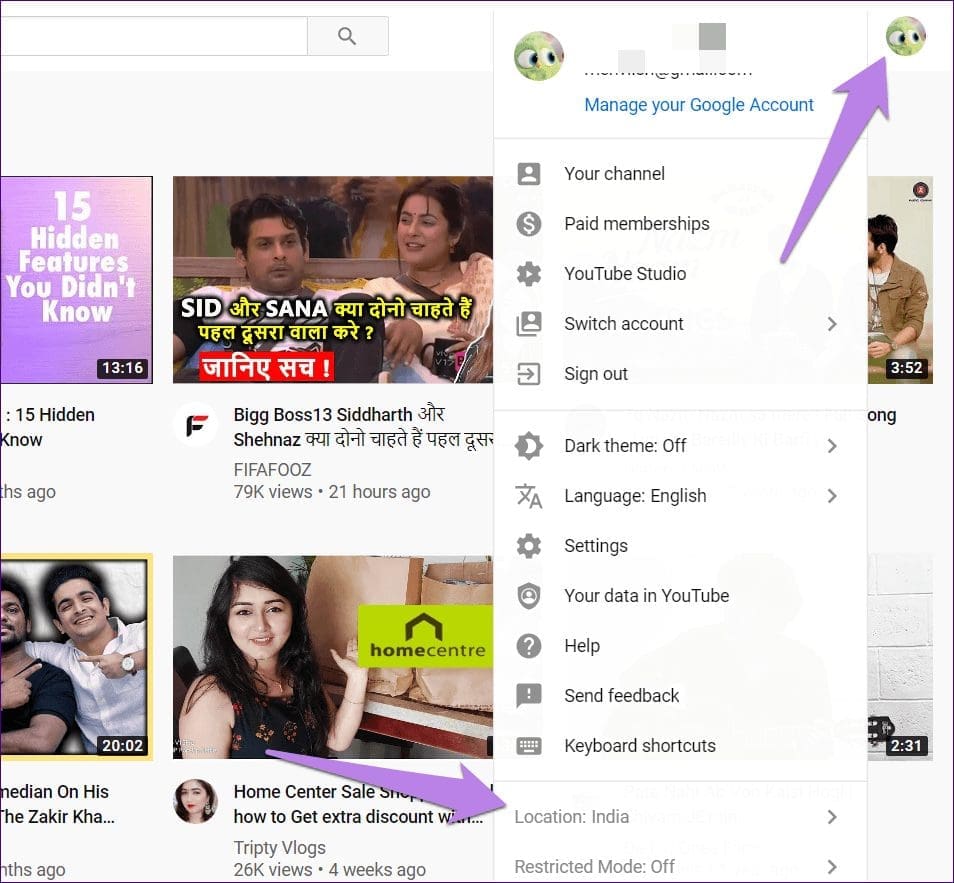
Step 3: Choose the United States, Britain, or a country whose language you understand well.
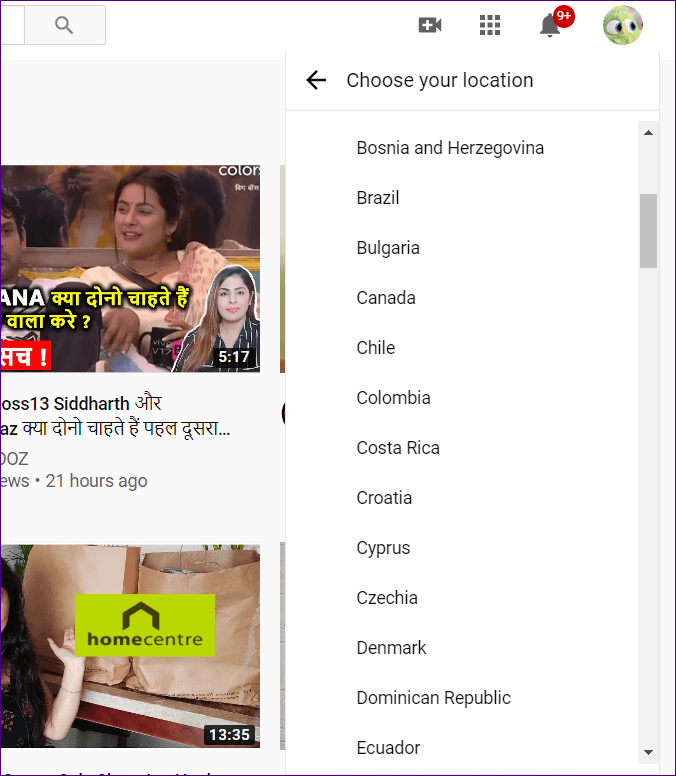
Step 4: Close your browser and then open it. Hopefully, titles will appear in their original language.
Change YouTube Country on Mobile App
Step 1: Open the app > tap the profile picture icon > tap the Settings icon.
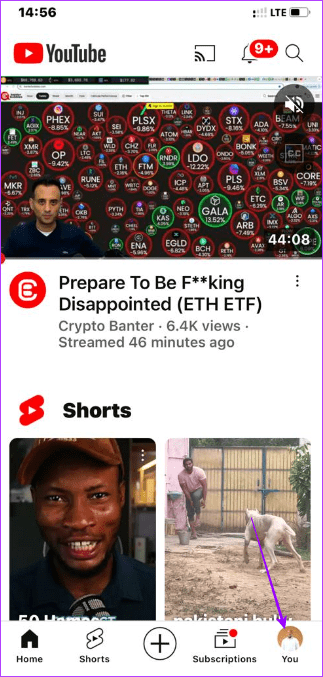
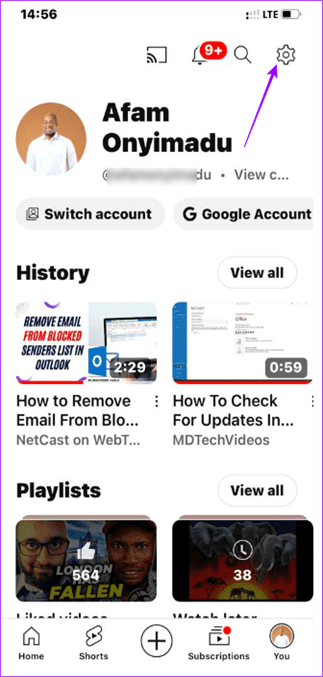
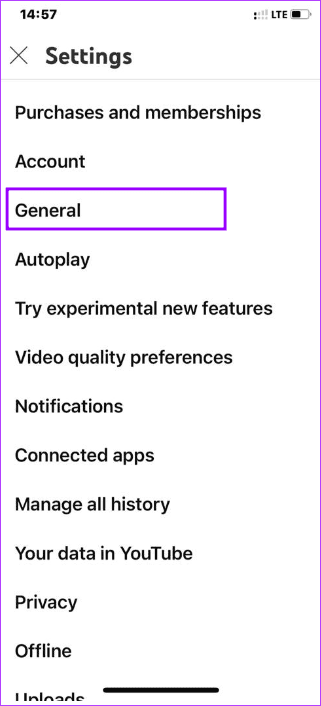
Step 3: Tap on General > select Location.

Was this helpful?
Last updated on 28 May, 2024
Read Next
 How to Stop YouTube From Pausing and Asking if You Want to “Continue Watching”
If you’re watching a YouTube playlist or listening to it in the background, you may occasionally find the video automatically paused.
How to Stop YouTube From Pausing and Asking if You Want to “Continue Watching”
If you’re watching a YouTube playlist or listening to it in the background, you may occasionally find the video automatically paused.
 5 Ways to Fix Video Unavailable in Amazon Prime Video
Basic Fixes Check network connection: Playing Prime without any problems requires an optimum internet speed.
5 Ways to Fix Video Unavailable in Amazon Prime Video
Basic Fixes Check network connection: Playing Prime without any problems requires an optimum internet speed.
 4 Cool Sites to Watch YouTube Videos Without YouTube
1.
4 Cool Sites to Watch YouTube Videos Without YouTube
1.
 How to Convert Slow Motion Video to Normal Video on iPhone
Recording a video in slow motion can add an artistic flair to your content and make it visually appealing.
How to Convert Slow Motion Video to Normal Video on iPhone
Recording a video in slow motion can add an artistic flair to your content and make it visually appealing.
 YouTube and Jasmine: iPhone YouTube Apps Compared
As you surely know, YouTube is by far the most popular video sharing website out there, with its popularity only increasing even more with the arrival of mobile devices like
YouTube and Jasmine: iPhone YouTube Apps Compared
As you surely know, YouTube is by far the most popular video sharing website out there, with its popularity only increasing even more with the arrival of mobile devices like
 How to Stop Discord From Lowering App Volume on Windows
Use Attenuation to Stop Discord from Lowering Volume Step 1: Open Discord on Windows.
How to Stop Discord From Lowering App Volume on Windows
Use Attenuation to Stop Discord from Lowering Volume Step 1: Open Discord on Windows.
 How to Stop Auto Download Media on WhatsApp
Disable Auto Download Media in WhatsApp on Phone Disabling automatic media downloads in WhatsApp conserves your phone storage while significantly reducing your cellular data consumption.
How to Stop Auto Download Media on WhatsApp
Disable Auto Download Media in WhatsApp on Phone Disabling automatic media downloads in WhatsApp conserves your phone storage while significantly reducing your cellular data consumption.
 How to Stop Someone From Calling You Without Blocking
Maintaining separate phones for business and personal use is becoming common.
How to Stop Someone From Calling You Without Blocking
Maintaining separate phones for business and personal use is becoming common.
The article above may contain affiliate links which help support Guiding Tech. The content remains unbiased and authentic and will never affect our editorial integrity.