


Stop Telegram From Auto-Saving on Android
Telegram lets you share high-quality photos and videos. You can also send data up to 2GB in size. With Telegram Premium, that bumps up to 4GB. But you might not have enough storage in your Android phone after extended usage. So, here’s how to stop the app from auto-saving files.
Step 1: Open Telegram > go to Settings > Data and Storage > Automatic media download.

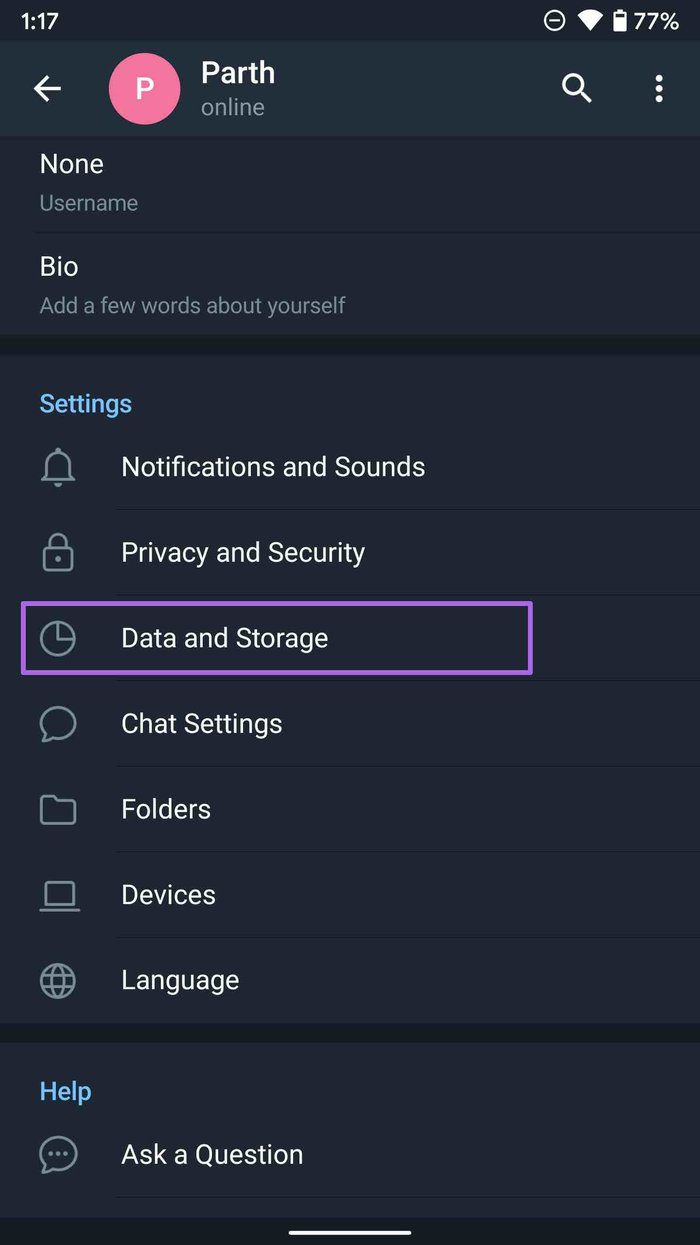
Step 2: Here, you have two options. First, you can define rules for auto-media download for the mobile data and Wi-Fi connection. Secondly, for a tight mobile data plan, you can disable automatic media download by disabling When using mobile data.


You can also customize which type of media files you want to keep on auto-download using mobile data. Those using Telegram on an unlimited Wi-Fi plan can keep the automatic media download toggle on.
Stop Telegram From Auto-Saving Photos on Android
The above options only talk about automatic media download on mobile data and Wi-Fi. What about stopping those downloaded photos and videos in the phone gallery? For that, follow the steps below.
Step 1: Open Telegram on your Android phone and go to Settings.
Step 2: Go to Chat Settings and scroll to the bottom to tap on Save to Gallery for disabling it.

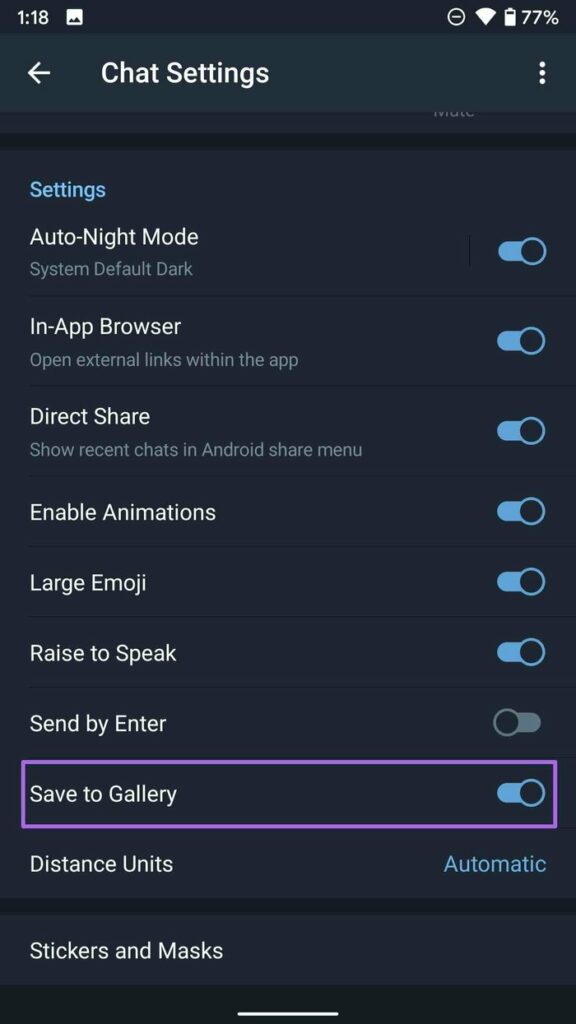
That’s it. From now on, you won’t see downloaded media files saving themselves in the gallery app automatically.
Stop Telegram From Auto-Saving on iPhone
Telegram’s iPhone app is also feature-rich. Some of the options are placed in different menus than the Android counterpart. Let’s disable auto-download on Cellular and Wi-Fi connections in the Telegram app.
Step 1: Open the Telegram app on the iPhone and go to Settings.
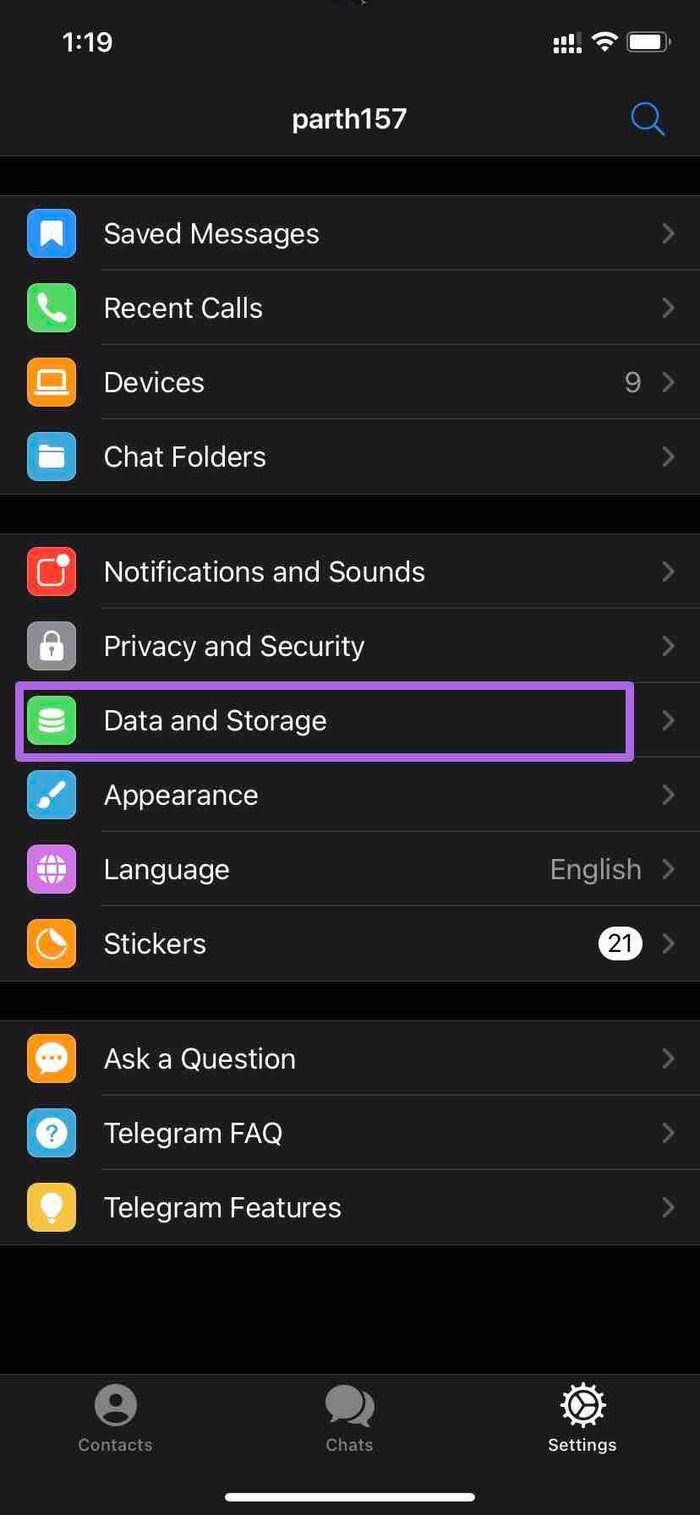
Step 2: Open Data and Storage and make necessary changes in the Auto-Download Media menu.
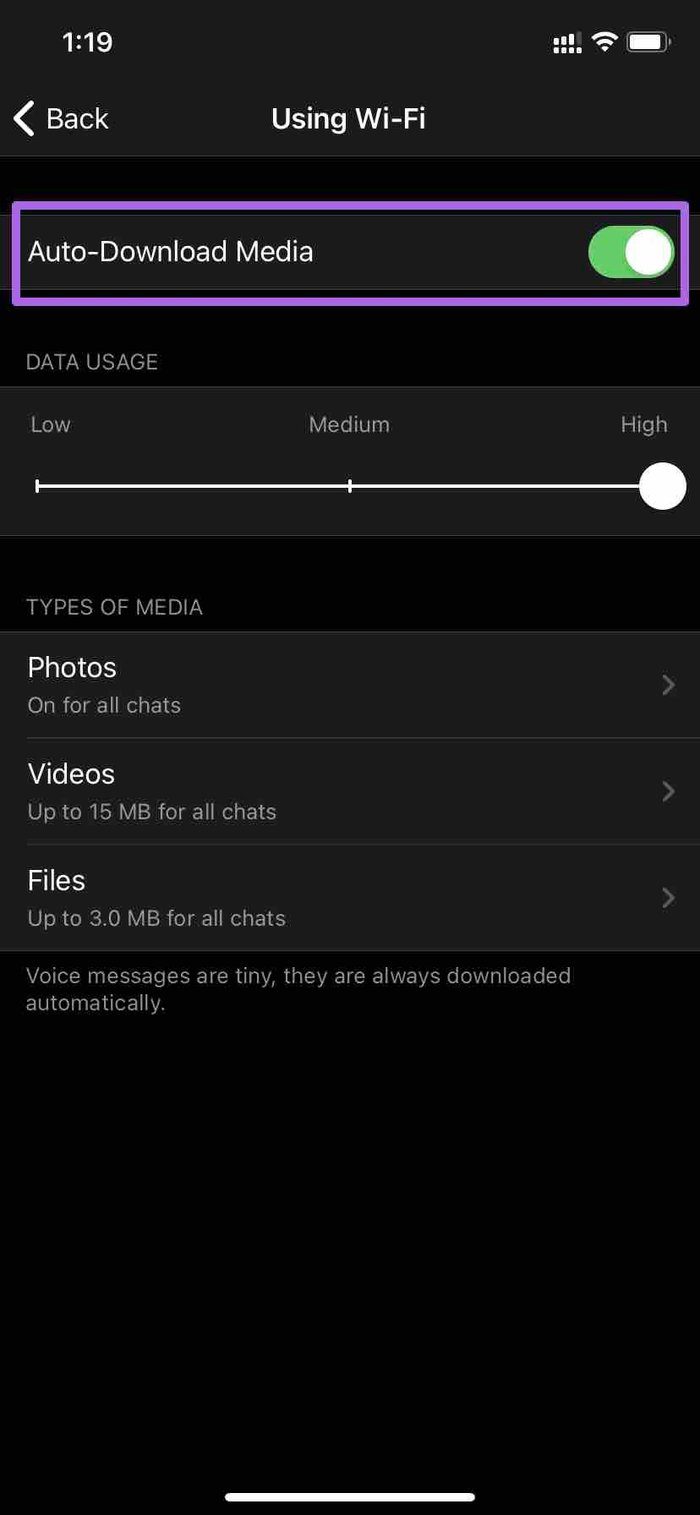
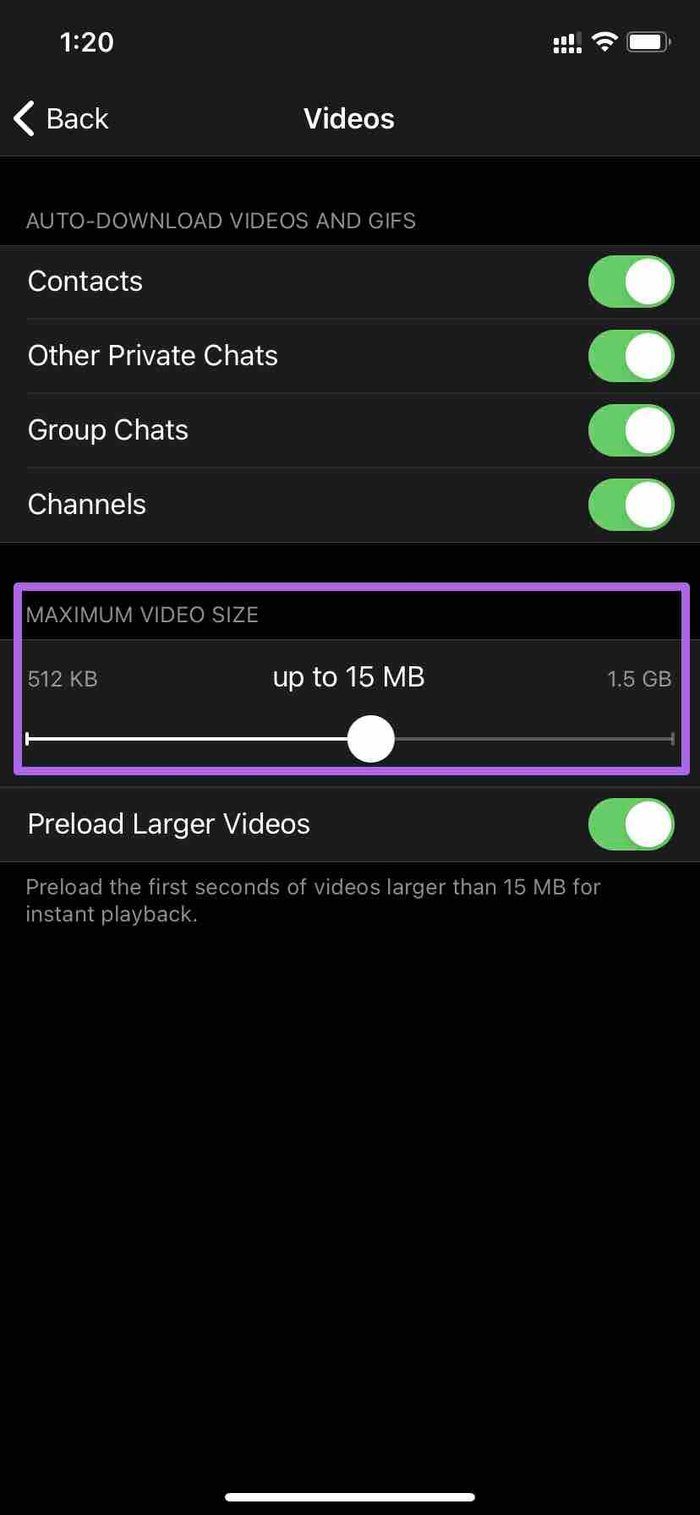
Tip: Telegram allows you to send up to 2GB of video or file in the chat. Just because someone has sent you 2GB of a file, you shouldn’t download the whole file/video automatically in the background. From the Auto-Download Media menu, you can limit the maximum video and file size to be automatically downloaded in the background.
Stop Telegram From Auto-saving Photos on iPhone
You can stop saving incoming photos from certain chats, groups, and channels on the Telegram iPhone app. Here’s how.
Step 1: Open the Telegram iPhone app and go to Settings.
Step 2: Navigate to Data and Storage > Other > Save Incoming Photos.
Step 3: Disable Save Incoming Photos from Contacts, Other Private Chats, Group Chats, and Channels.


The background downloading in the Telegram iPhone app works slightly differently from Android. When the app isn’t in use, it won’t continue to download large video files in the background. To overcome the limit, toggle on Background Download from the Settings menu.
Open Telegram Settings and go to Data and Storage > Other > Background Download and keep it on. The app will continue downloading media files for a limited time.
Was this helpful?
Last updated on 16 July, 2024
1 Comment
Leave a Reply
Read Next
 How to Stop Photos and Videos From Auto-Downloading on WhatsApp
Disable Media Auto-Download on WhatsApp By default, WhatsApp automatically downloads all photos, videos, and other files shared in a WhatsApp chat or group.
How to Stop Photos and Videos From Auto-Downloading on WhatsApp
Disable Media Auto-Download on WhatsApp By default, WhatsApp automatically downloads all photos, videos, and other files shared in a WhatsApp chat or group.
 How to Stop Photos From Messages Saving to iPhone’s Camera Roll
Do your friends spam you with their vacation photos on iMessage?
How to Stop Photos From Messages Saving to iPhone’s Camera Roll
Do your friends spam you with their vacation photos on iMessage?
 3 Ways to Fix TikTok Not Saving Videos
Basic Fixes: Check storage permission on Android: TikTok needs storage access to save videos.
3 Ways to Fix TikTok Not Saving Videos
Basic Fixes: Check storage permission on Android: TikTok needs storage access to save videos.
 2 Fixes When Google Docs Auto Saving Is Not Working
Basic Fixes: Confirm you have a stable internet: Before exploring further fixes, confirm your internet connection is stable and strong.
2 Fixes When Google Docs Auto Saving Is Not Working
Basic Fixes: Confirm you have a stable internet: Before exploring further fixes, confirm your internet connection is stable and strong.
 Top 4 Ways to Stop Windows 10 From Saving Files to OneDrive
Microsoft's OneDrive is a cloud storage service that comes baked into Windows.
Top 4 Ways to Stop Windows 10 From Saving Files to OneDrive
Microsoft's OneDrive is a cloud storage service that comes baked into Windows.
 4 Fixes for iPhone Not Saving Photos
Basic Fixes Verify app permissions: You can go to Settings > Photos and then check the app access to your photos.
4 Fixes for iPhone Not Saving Photos
Basic Fixes Verify app permissions: You can go to Settings > Photos and then check the app access to your photos.
 6 Ways to Fix Microsoft Edge Not Saving Passwords
Fix 1: Ensure Edge Is Allowed to Save Passwords If Edge is failing to show the "Save password" prompt on websites, you should first ensure that Edge is allowed to
6 Ways to Fix Microsoft Edge Not Saving Passwords
Fix 1: Ensure Edge Is Allowed to Save Passwords If Edge is failing to show the "Save password" prompt on websites, you should first ensure that Edge is allowed to
 How to Fix Discord Profile Theme and Other Changes Not Saving
Basic Fixes Check your network connection: Ensure your device has a good internet connection.
How to Fix Discord Profile Theme and Other Changes Not Saving
Basic Fixes Check your network connection: Ensure your device has a good internet connection.
The article above may contain affiliate links which help support Guiding Tech. The content remains unbiased and authentic and will never affect our editorial integrity.

At “Stop Telegram from Saving Photos on Android”, there is no “Save to Gallery ” option…
Any other chance stopping this?