Fix 1. Disable Auto-Join Hotspot
Do you have an iPad (or a secondary iPhone) without its own cellular data plan? If you use the same Apple ID across your devices, the iPad (or iPhone) can automatically activate your primary iPhone’s Personal Hotspot when there are no nearby Wi-Fi hotspots to join.
That ensures constant online connectivity, but you may not want that. Strangely, you can’t disable Personal Hotspot for devices that use the same Apple ID — it’s always available by design. However, you can stop other devices from automatically joining your iPhone by diving into each device’s Settings app.
Step 1: Open the Settings app of the device (iPhone or iPad) that you want to prevent from connecting to your iPhone.
Step 2: Next, tap Wi-Fi > select Auto-Join Hotspot from the options.

Step 3: On the following screen, choose between Never or Ask to Join.

Select Never if you want to completely stop the device from activating Personal Hotspot on your iPhone. Alternatively, select Ask to Join if you want the device to ask for your permission to connect to your iPhone.
Note: Since Personal Hotspot is available on your iPhone, you can still connect other devices manually via Settings > Wi-Fi.
Fix 3. Modify the Family Sharing Settings
Do you have Family Sharing enabled? If so, your family members can activate your iPhone’s Personal Hotspot from their iOS or iPadOS devices and start consuming cellular data. Yes, without asking you for permission.
Thankfully, you don’t have to disable Family Sharing to put a stop to that. Briefly diving into the Personal Hotspot settings screen should suffice.
Step 1: Open the Settings app → Personal Hotspot.
Step 2: Here, tap Family Sharing.

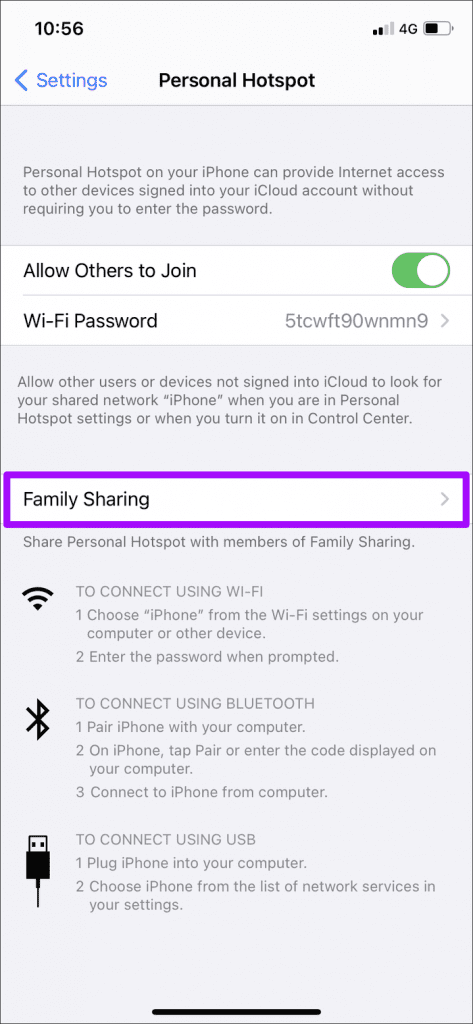
Note: You can also access your Personal Hotspot settings via Settings > Cellular > Personal Hotspot.
Step 3: Here, you can then manage how each family member connects to your iPhone. Switch from Automatic to Ask for Your Approval.
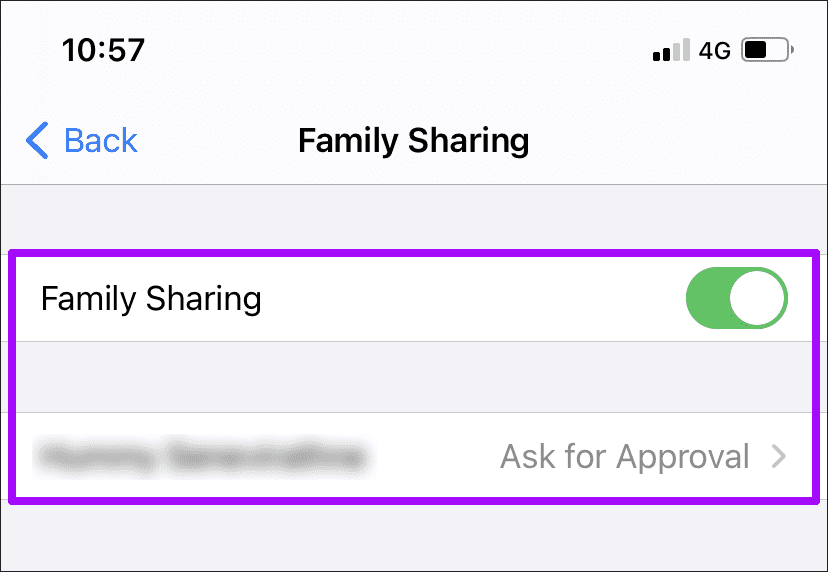
Don’t want to play favorites? Disable Personal Hotspot for all family members by turning off the toggle for Family Sharing.
Fix 4. Disable Personal Hotspot for Other Devices
Have you allowed other people to connect to the Personal Hotspot on your iPhone? If so, they can connect to it again without your permission.
That isn’t as prevalent an issue as with your own devices or family members since the iPhone must be actively broadcasting the Personal Hotspot for that to happen. If you don’t want to take chances, here’s what you must do to stop that.
Open the Settings app → Personal Hotspot. Turn off the toggle for Allow Others to Join. That should stop others from connecting to your iPhone.

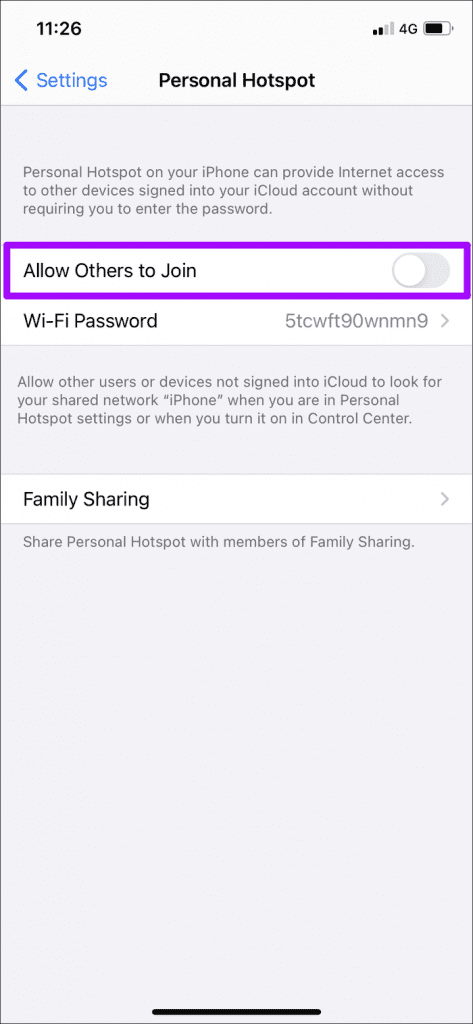
However, this will also prevent your own non-Apple devices from detecting the Personal Hotspot if you must connect to it. In that case, head back and re-enable the Allow Others to Join option.
Was this helpful?
Last updated on 29 July, 2024
Read Next
 How to Stop iPhone From Turning Off, Sleeping, or Locking Automatically
Basic Fixes Restart Device: You can try restarting your device to see if it fixes the problem.
How to Stop iPhone From Turning Off, Sleeping, or Locking Automatically
Basic Fixes Restart Device: You can try restarting your device to see if it fixes the problem.
 4 Ways to Stop Bluetooth From Turning on Automatically on iPhone
Why Does My iPhone’s Bluetooth Keep Turning On?
4 Ways to Stop Bluetooth From Turning on Automatically on iPhone
Why Does My iPhone’s Bluetooth Keep Turning On?
 3 Ways to Stop iPhone Wi-Fi From Turning on Automatically
Fix 1: Turn Off Wi-Fi in Settings When you toggle off Wi-Fi from the Control Center, it only turns it off temporarily.
3 Ways to Stop iPhone Wi-Fi From Turning on Automatically
Fix 1: Turn Off Wi-Fi in Settings When you toggle off Wi-Fi from the Control Center, it only turns it off temporarily.
 5 Ways to Restore the Missing Personal Hotspot on iPhone
Try Basic Fixes Check with your carrier: It's important to note that not all cellphone carriers or cellular plans support the Personal Hotspot feature on the iPhone.
5 Ways to Restore the Missing Personal Hotspot on iPhone
Try Basic Fixes Check with your carrier: It's important to note that not all cellphone carriers or cellular plans support the Personal Hotspot feature on the iPhone.
 3 Ways to Fix Android Hotspot Keeps Turning Off
Basic Fixes Disable Wi-Fi: The personal hotspot on your Android device will not work when Wi-Fi is enabled.
3 Ways to Fix Android Hotspot Keeps Turning Off
Basic Fixes Disable Wi-Fi: The personal hotspot on your Android device will not work when Wi-Fi is enabled.
 4 Ways to Fix Windows Mobile Hotspot Keeps Turning off
Fix 1: Disable Mobile Hotspot Power Saving Disable the power saving feature to prevent Windows from automatically turning off the hotspot when not in use.
4 Ways to Fix Windows Mobile Hotspot Keeps Turning off
Fix 1: Disable Mobile Hotspot Power Saving Disable the power saving feature to prevent Windows from automatically turning off the hotspot when not in use.
 4 Ways to Fix Do Not Disturb Turning on Automatically on iPhone
Fix 1.
4 Ways to Fix Do Not Disturb Turning on Automatically on iPhone
Fix 1.
 5 Ways to Fix Android Phone Automatically Turning Down Volume
https://youtu.be/c3evW3GIp5w Basic Fixes Restart device: Restart your Android device to get rid of temporary bugs and glitches.
5 Ways to Fix Android Phone Automatically Turning Down Volume
https://youtu.be/c3evW3GIp5w Basic Fixes Restart device: Restart your Android device to get rid of temporary bugs and glitches.
The article above may contain affiliate links which help support Guiding Tech. The content remains unbiased and authentic and will never affect our editorial integrity.