Disable Auto Download Media in WhatsApp on Phone
Disabling automatic media downloads in WhatsApp conserves your phone storage while significantly reducing your cellular data consumption.
On Android
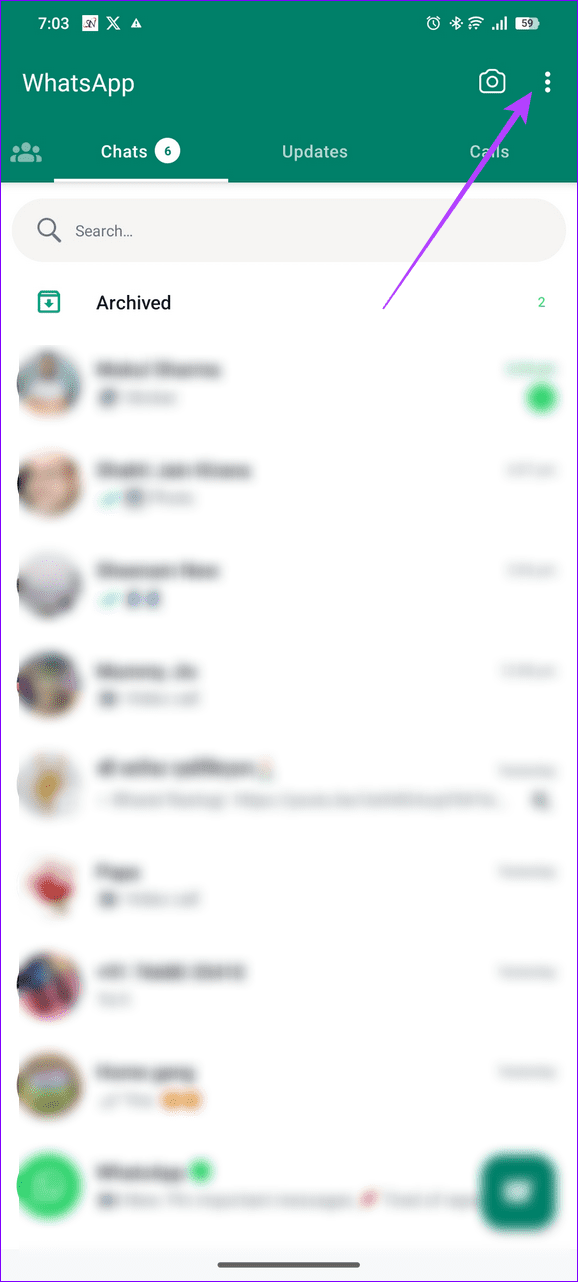
Step 1: Open WhatsApp > tap the vertical three-dot icon at the top right > open Settings.
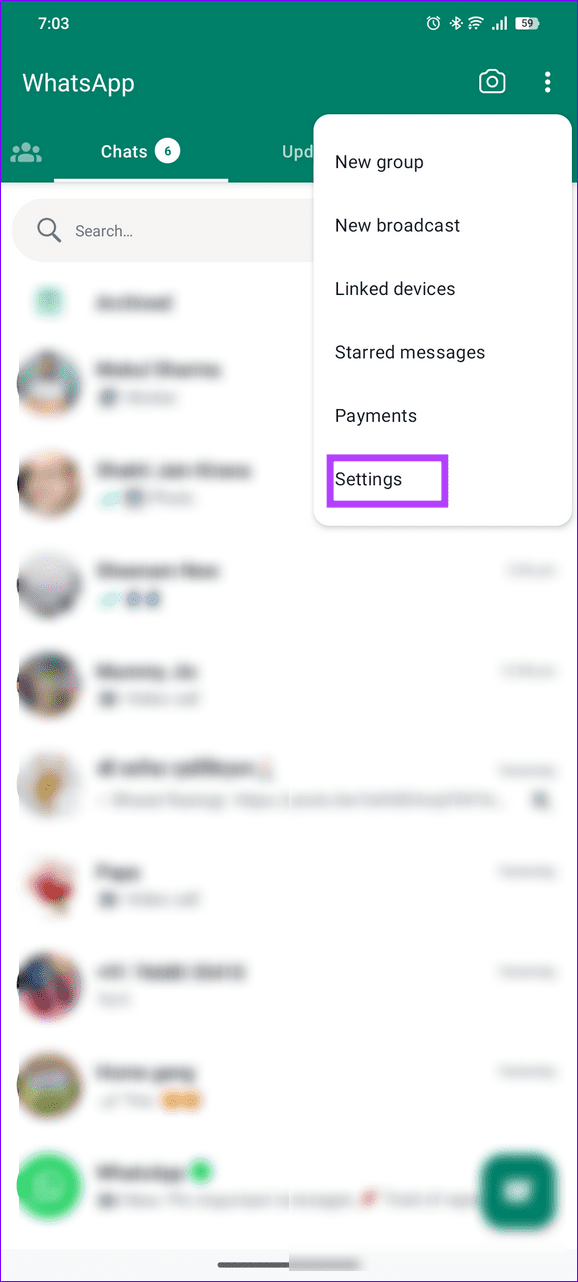
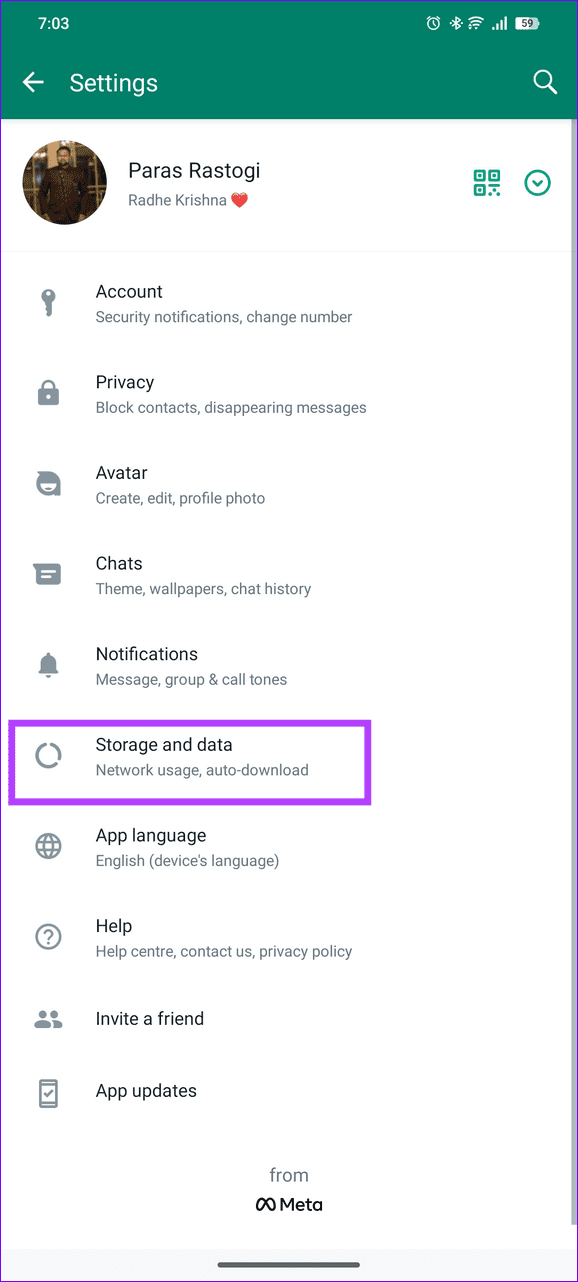
Step 2: Select Storage and data to configure options under Media auto-download.
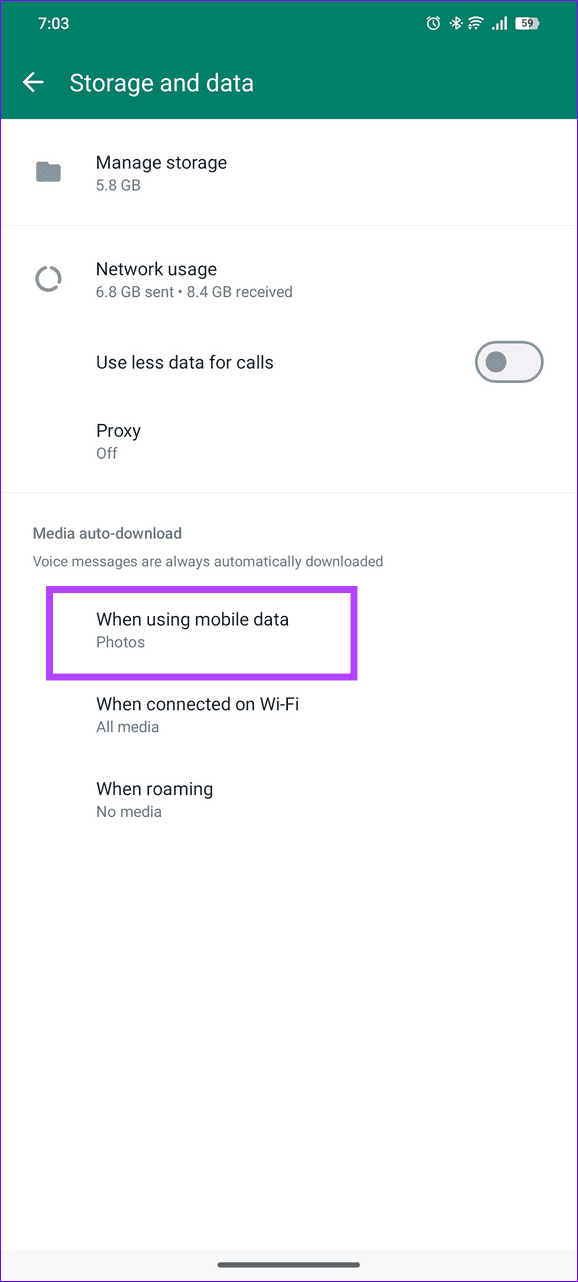
Step 3: Select When using mobile data, uncheck all media types, and tap OK to stop automatic media downloads with your cellular data.
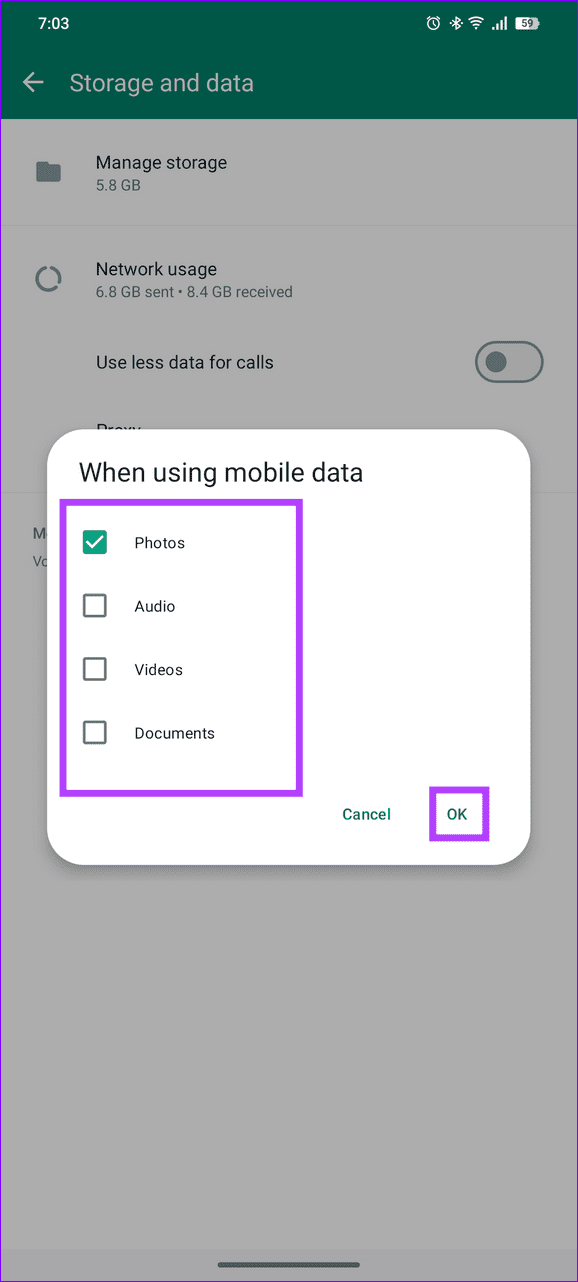
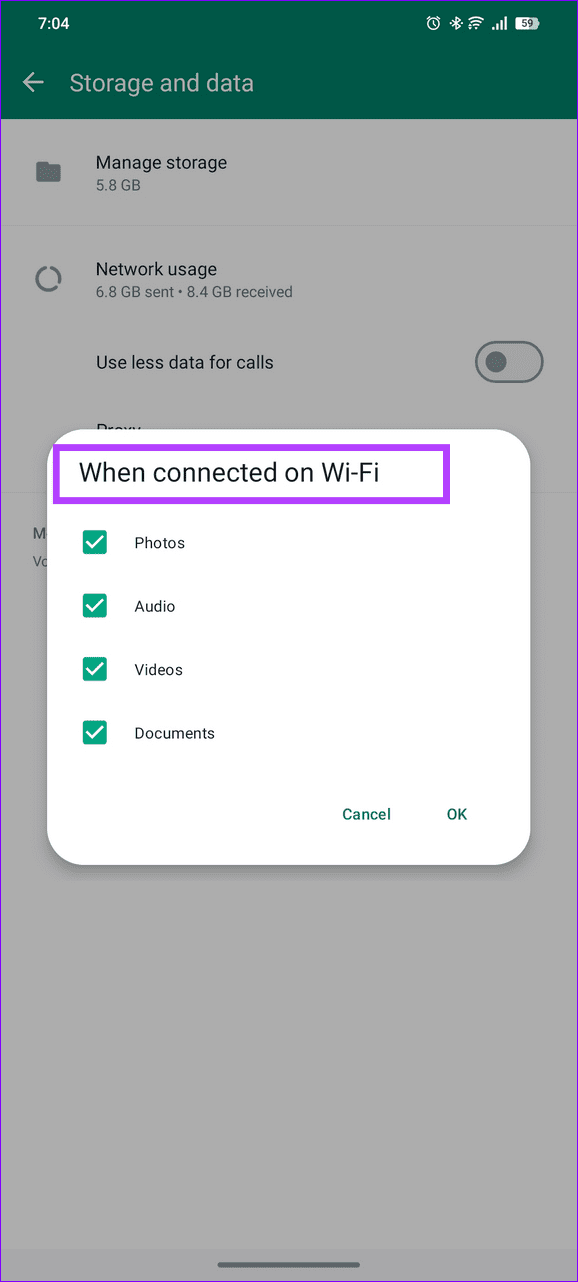
Step 4: Repeat the same for When connected on Wi-Fi and When roaming to disable automatic downloads on Wi-Fi and roaming networks, respectively.

iOS
Step 1: Open WhatsApp > tap the Settings (gear icon) at the bottom right > select Storage and Data.
Step 2: Tap Photos under Media Auto-Download > set it to Never.
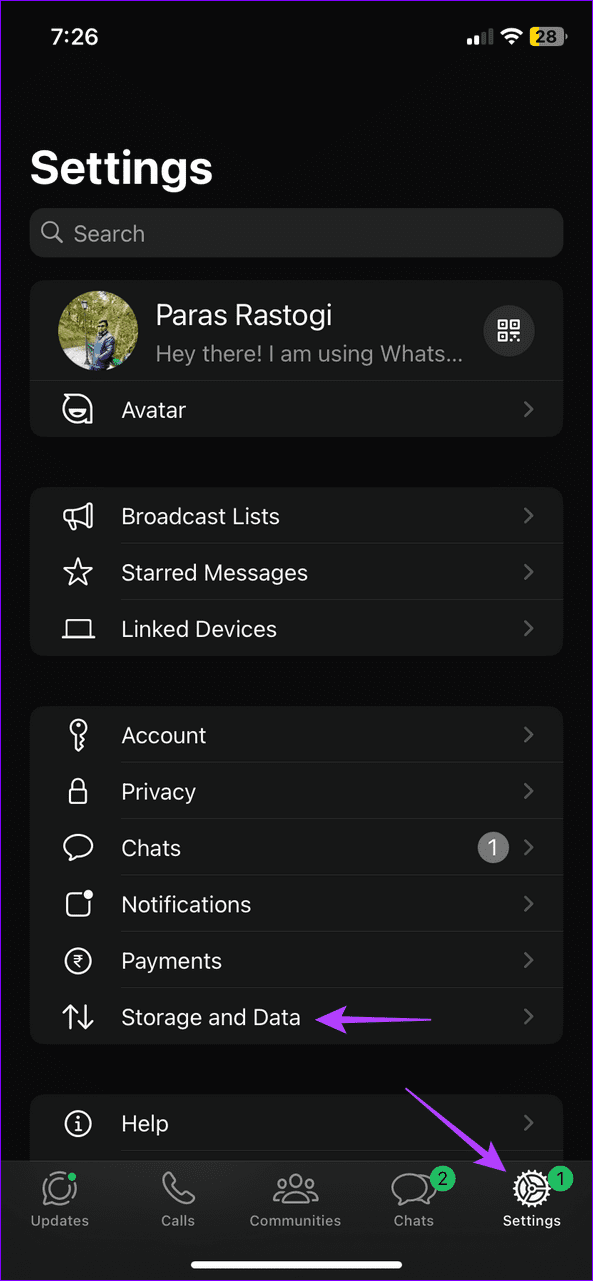
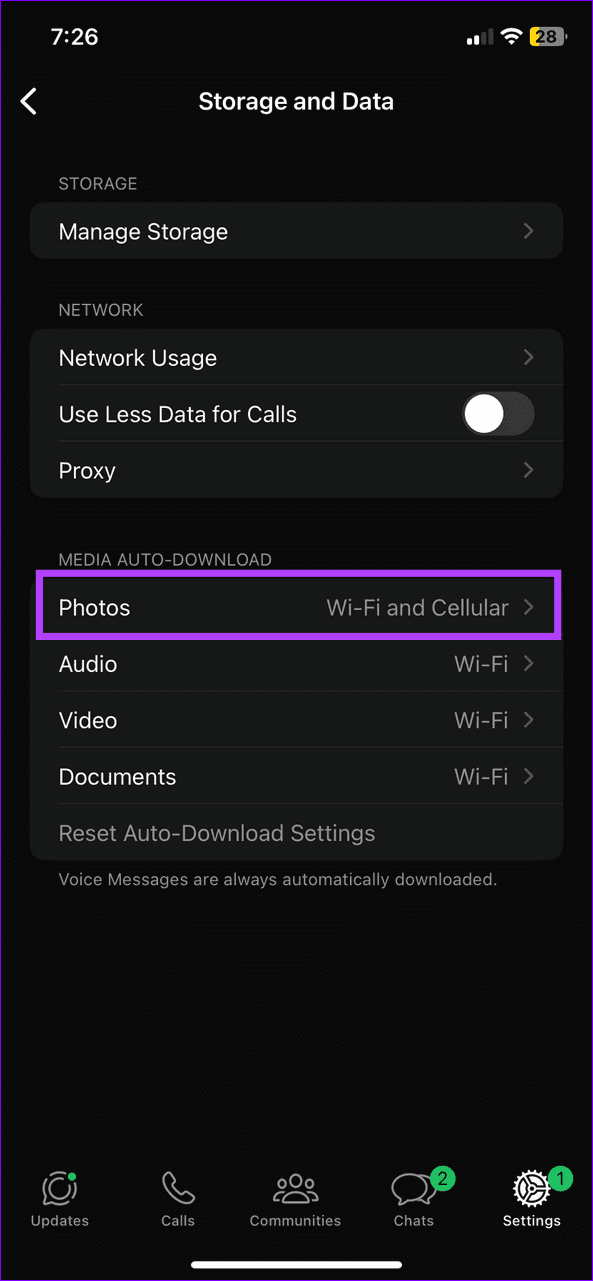

Step 3: Repeat the same for Audio, Video, and Documents.
Stop Auto Download Media in WhatsApp on the Desktop
Unlike smartphones, WhatsApp saves auto-downloaded media on desktops in the browser directory or local system folder, gradually eating up significant storage. Head to WhatsApp web or app settings to disable it.
On WhatsApp Web
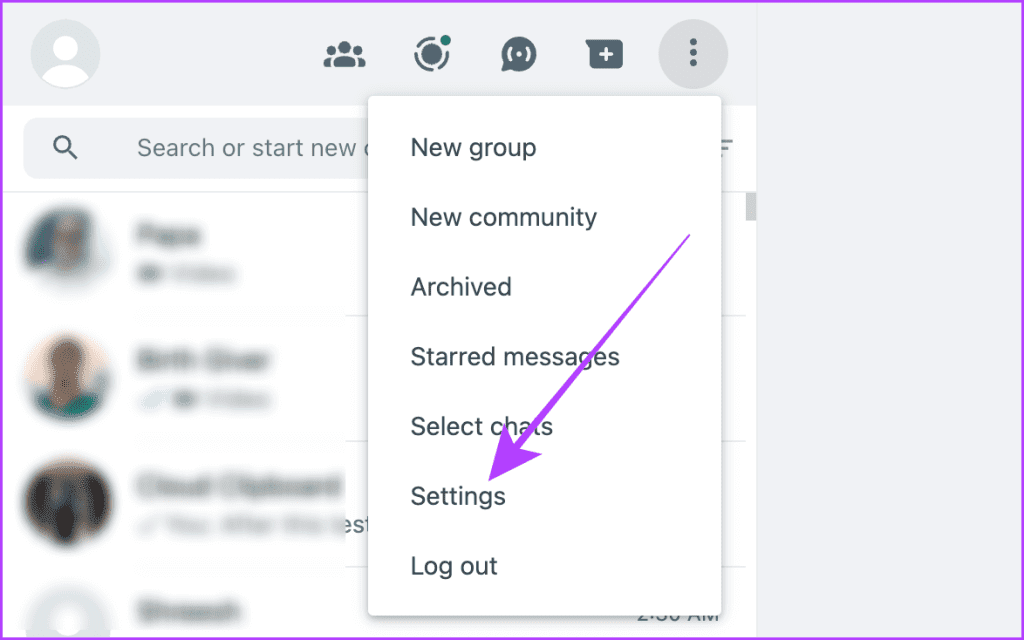
Step 1: Open WhatsApp Web > click the three-dot menu at the top right > select Settings.
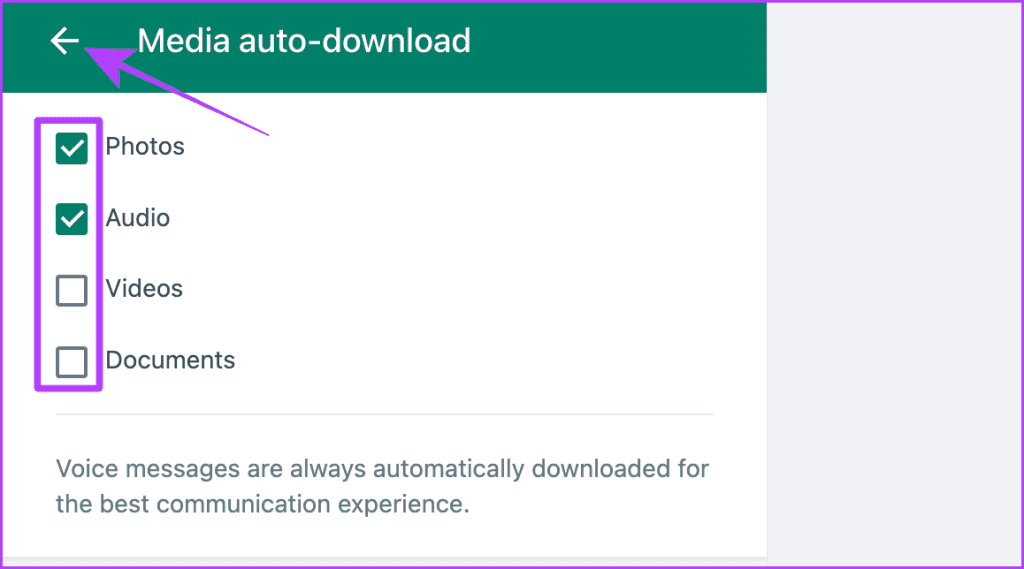
Step 2: Select Media auto-download.
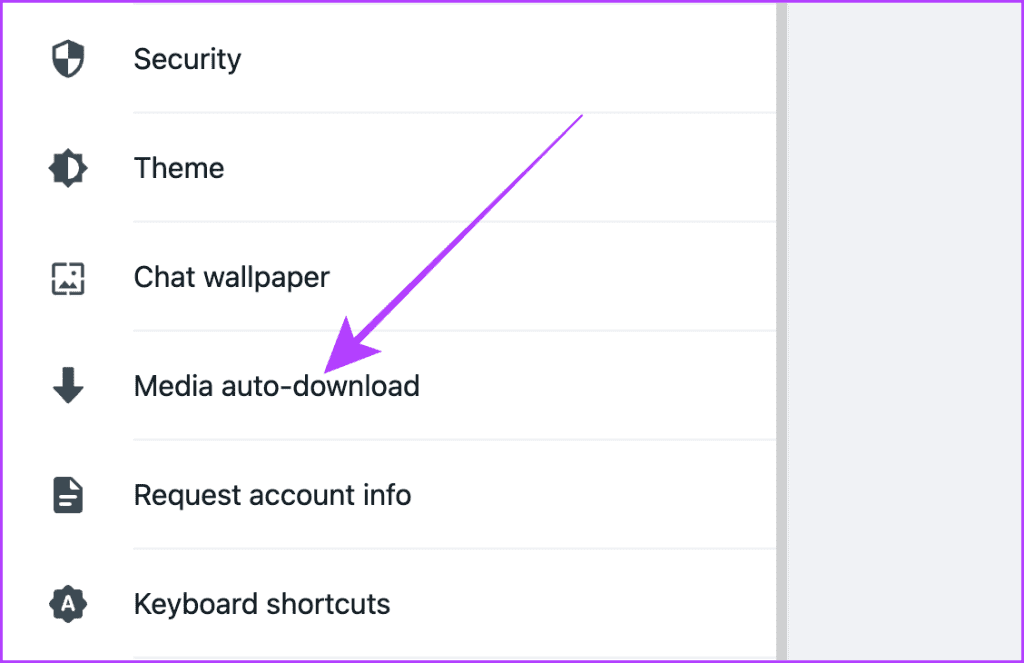
Step 3: Uncheck all media types to stop their automatic download.
On WhatsApp Windows App
Step 1: Open the WhatsApp PC app, click the gear icon at the bottom left, and select Storage.
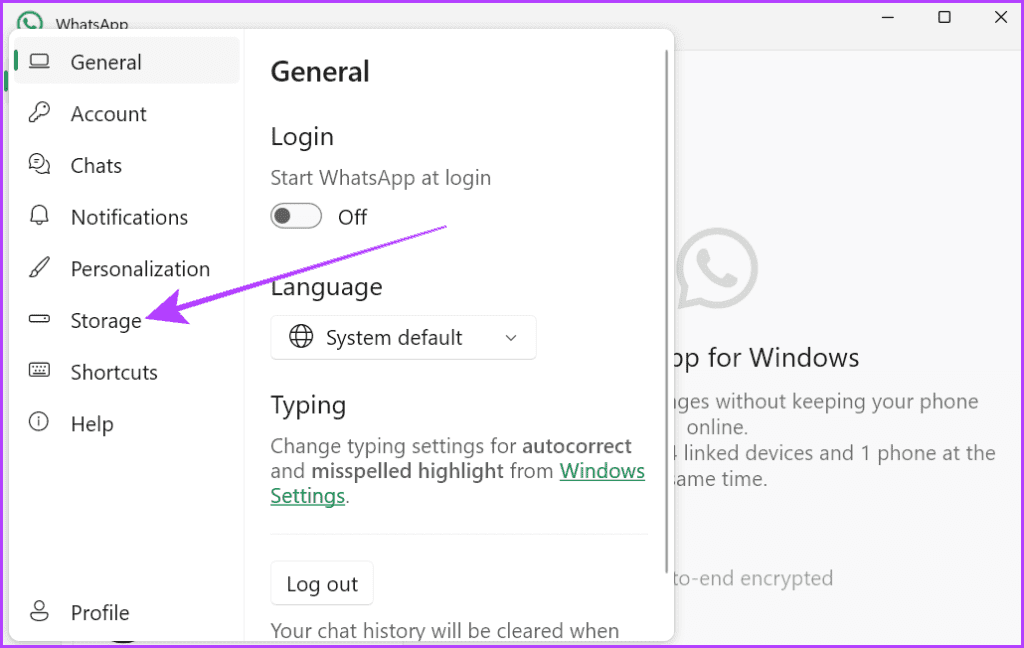
Step 2: Uncheck all media types under Automatic downloads.

On WhatsApp Mac App
Step 1: Launch WhatsApp on your Mac and click the down arrow at the top right to open Settings.
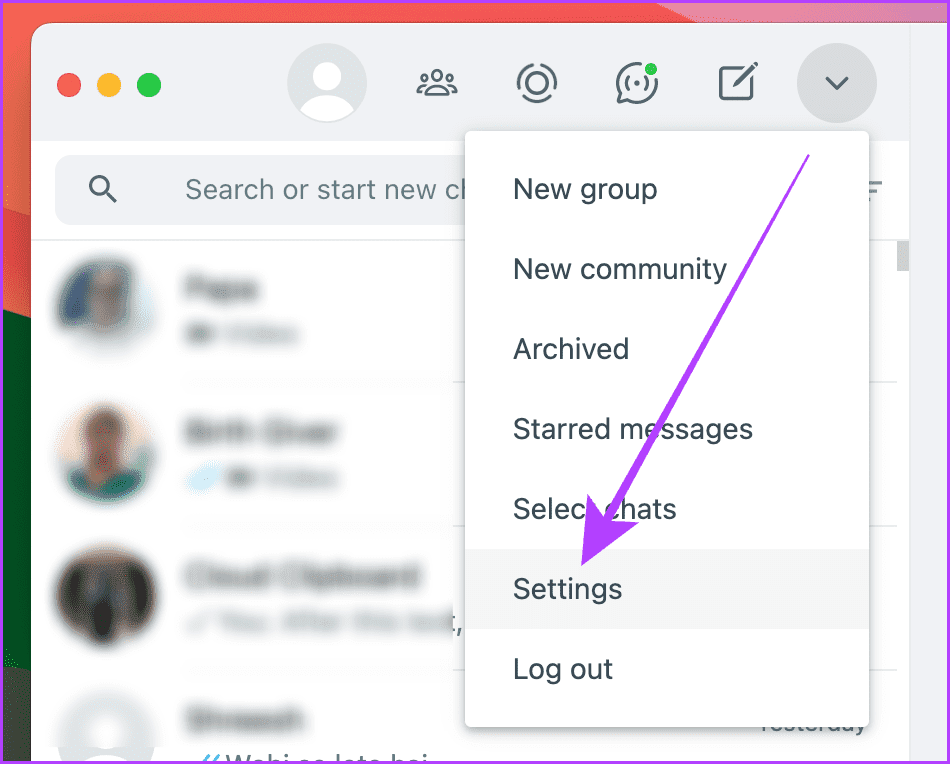
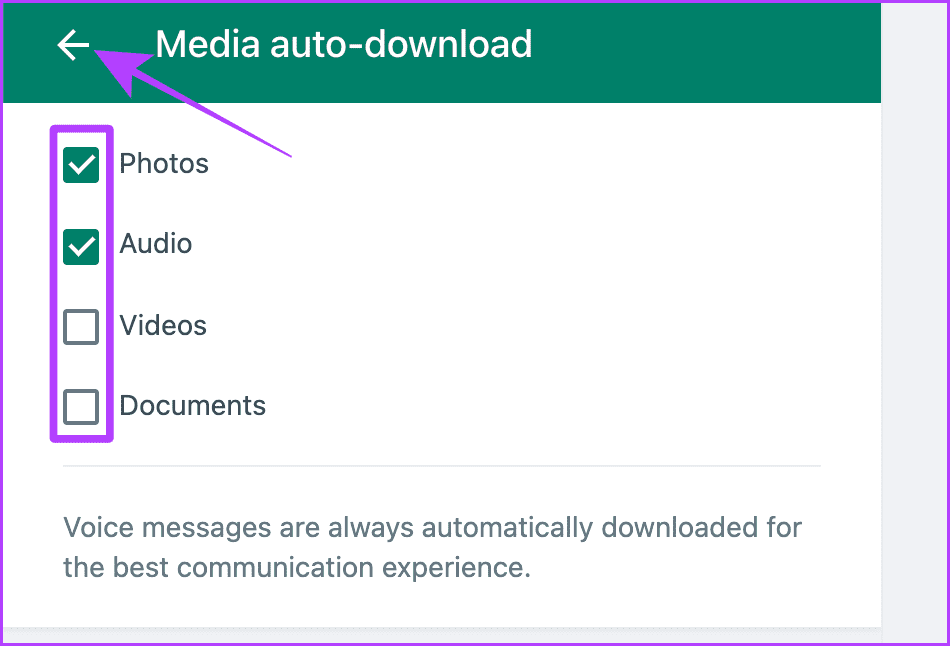
Step 2: Select Media auto-download and uncheck all media types.
Was this helpful?
Last updated on 21 May, 2024
Read Next
 6 Ways to Fix WhatsApp Media Download Failed Error on Phone
Basic Fixes: Use a strong network connection: Large media files require a stable and strong network connection for a smooth download process in WhatsApp.
6 Ways to Fix WhatsApp Media Download Failed Error on Phone
Basic Fixes: Use a strong network connection: Large media files require a stable and strong network connection for a smooth download process in WhatsApp.
 How to Stop Photos and Videos From Auto-Downloading on WhatsApp
Disable Media Auto-Download on WhatsApp By default, WhatsApp automatically downloads all photos, videos, and other files shared in a WhatsApp chat or group.
How to Stop Photos and Videos From Auto-Downloading on WhatsApp
Disable Media Auto-Download on WhatsApp By default, WhatsApp automatically downloads all photos, videos, and other files shared in a WhatsApp chat or group.
 10 Ways to Fix WhatsApp Stuck on Restoring Media
WhatsApp has made it simple to switch phones.
10 Ways to Fix WhatsApp Stuck on Restoring Media
WhatsApp has made it simple to switch phones.
 How to Stop Telegram From Auto-Saving Photos and Videos
Stop Telegram From Auto-Saving on Android Telegram lets you share high-quality photos and videos.
How to Stop Telegram From Auto-Saving Photos and Videos
Stop Telegram From Auto-Saving on Android Telegram lets you share high-quality photos and videos.
 3 Ways to Stop Receiving WhatsApp Messages Without Blocking
https://youtu.be/8PzB-2WkB8Q WhatsApp doesn’t have a privacy setting to stop messages from contacts unless blocked (which they might know about).
3 Ways to Stop Receiving WhatsApp Messages Without Blocking
https://youtu.be/8PzB-2WkB8Q WhatsApp doesn’t have a privacy setting to stop messages from contacts unless blocked (which they might know about).
 How to Stop Music From Automatically Playing in Apple CarPlay and Android Auto
How to Stop Apple CarPlay From Automatically Playing Music Unfortunately, there’s no toggle or option by default to stop Apple Music auto-play on iPhone.
How to Stop Music From Automatically Playing in Apple CarPlay and Android Auto
How to Stop Apple CarPlay From Automatically Playing Music Unfortunately, there’s no toggle or option by default to stop Apple Music auto-play on iPhone.
 4 Ways to Fix Telegram Not Downloading Media on iPhone and Android
Why Does Telegram Download Stop?
4 Ways to Fix Telegram Not Downloading Media on iPhone and Android
Why Does Telegram Download Stop?
 3 Fixes for Cast Media to Device Not Working in Microsoft Edge
Basic Fixes Check device support: The first thing you need to be sure of is that your smart TV or streaming device supports Miracast or is certified by the DLNA
3 Fixes for Cast Media to Device Not Working in Microsoft Edge
Basic Fixes Check device support: The first thing you need to be sure of is that your smart TV or streaming device supports Miracast or is certified by the DLNA
The article above may contain affiliate links which help support Guiding Tech. The content remains unbiased and authentic and will never affect our editorial integrity.