If you’re an active user of LinkedIn, you’ll likely receive many messages from other users, brands, and people in your network. The “Focused Inbox” feature is designed to prevent you from feeling overwhelmed when that happens – it uses AI to sort and separate the messages that seem more important from the rest.
However, this feature doesn’t always work perfectly or may not be well-suited to you, so you might prefer to turn it off. Here’s how to turn off Focused Inbox LinkedIn in a few simple steps.
How to Turn Off Focused Inbox LinkedIn on Desktop
First, here’s the process if you’re visiting the LinkedIn site on your computer:
Step 1. On the home page of LinkedIn, click on your profile picture at the top of the screen (the “Me” button) and find “Settings & Privacy” in the drop-down menu.

Step 2. Click on “Data Privacy” in the menu on the left.

Step 3. Scroll down to find “Focused Inbox” and select it. Then, all you have to do is toggle the “Focused Inbox” feature “Off.” That’s it! You can then return to your LinkedIn feed and check the “Messaging” section; instead of having “Focused” and “Other” inboxes, all your messages will now appear together.

How to Turn Off Focused Inbox LinkedIn on Mobile
Here’s the same process to turn off focused inbox on LinkedIn, but on the mobile app version:
Step 1. Tap on your profile picture to access the menu and look for the “Settings” button at the bottom.

Step 2. In the “Settings” menu, find and select “Data Privacy.”

Step 3. Scroll down the “Data Privacy” settings until you see the part about the “Focused Inbox.”

Step 4. Toggle the “Focused Inbox” to the “Off” position. You should then see an instant change in your LinkedIn messages, as they will no longer be separated into “Focused” and “Other” tabs, but will all appear together instead.
Why Would You Want to Turn Off Focused Inbox on LinkedIn?
Before turning off “Focused Inbox,” it’s worth weighing up whether or not it’s the right move. There are advantages to leaving it on. It’s designed to help users, after all. If you leave it on, less important messages won’t keep popping up between the more important ones, and you should be able to find important conversions and connect with your contacts more easily.
However, there are still reasons to turn it off, like:
- Not Working as Intended: Sometimes, this feature just doesn’t work the way it should and might send a message that you feel is important to the “Other” tab instead of the “Focused” folder.
- You’ve Missed Important Messages in the “Other” Tab: Because of how “Focused Inbox” works, you might struggle to keep track of conversations with people who aren’t in your contact list because they all get sent to “Other.”
- You Prefer to Sort Messages Yourself: Some people prefer to be in control of their inbox and don’t want AI sorting it for them.
Was this helpful?
Last updated on 09 November, 2024
Read Next
 How to Turn Off Focused Inbox in Outlook on Web, Desktop, or Mobile
Not too long ago, Outlook introduced a Focused Inbox feature that automatically sorts your incoming email into two tabs.
How to Turn Off Focused Inbox in Outlook on Web, Desktop, or Mobile
Not too long ago, Outlook introduced a Focused Inbox feature that automatically sorts your incoming email into two tabs.
 5 Privacy-Focused Browsers for iPhone and iPad
1.
5 Privacy-Focused Browsers for iPhone and iPad
1.
 How to Turn off LinkedIn Job Alerts on Mobile and PC
Method 1.
How to Turn off LinkedIn Job Alerts on Mobile and PC
Method 1.
 Declutter Your Inbox: How to Filter Unread Emails in Gmail
Method 1: Using a Query in the Search Field Like Google Search, there are various tips and tricks for using Gmail Search to get the desired results.
Declutter Your Inbox: How to Filter Unread Emails in Gmail
Method 1: Using a Query in the Search Field Like Google Search, there are various tips and tricks for using Gmail Search to get the desired results.
 4 Ways to Fix Microsoft Outlook Stuck on Updating Inbox on Windows
Fix 1: Disable Cached Exchange Mode Cached Exchange Mode (CEM) is a feature available in Microsoft Outlook that allows you to keep a copy of your Exchange mailbox on your
4 Ways to Fix Microsoft Outlook Stuck on Updating Inbox on Windows
Fix 1: Disable Cached Exchange Mode Cached Exchange Mode (CEM) is a feature available in Microsoft Outlook that allows you to keep a copy of your Exchange mailbox on your
 How to Show Steps on an Apple Watch Face
While you can see steps on your Apple Watch, there's no native way to display the metric on any watch face.
How to Show Steps on an Apple Watch Face
While you can see steps on your Apple Watch, there's no native way to display the metric on any watch face.
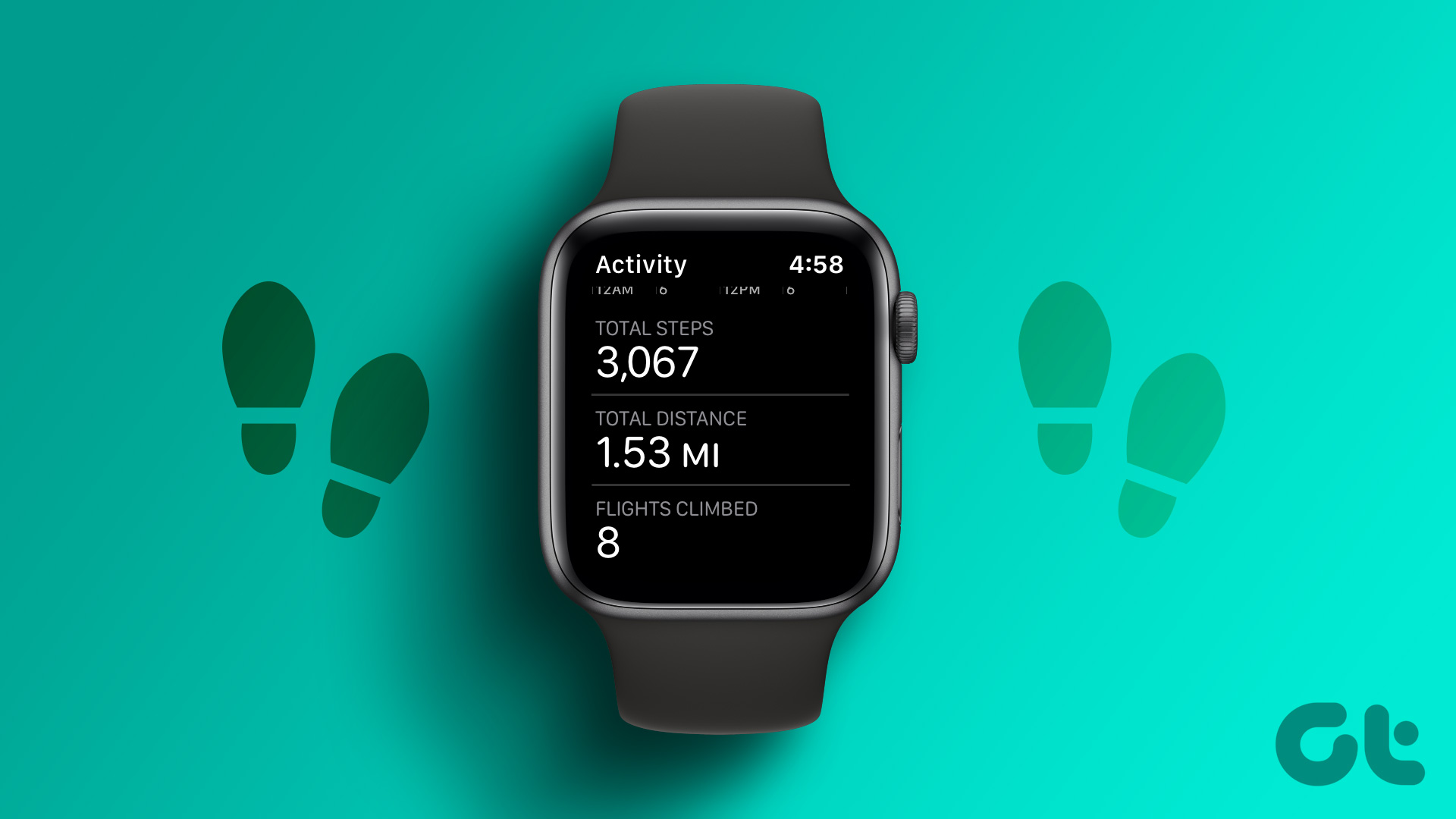 6 Ways to See Steps on Apple Watch
View Daily Steps on Apple Watch or iPhone Method 1: Use the Activity App on Apple Watch Step 1: Press the Digital Crown on your Apple Watch to open the
6 Ways to See Steps on Apple Watch
View Daily Steps on Apple Watch or iPhone Method 1: Use the Activity App on Apple Watch Step 1: Press the Digital Crown on your Apple Watch to open the
 5 Fixes for Samsung Health App Not Tracking Steps
Basic Fixes Ensure that step counter is enabled: Open the Health app > Tap on Steps > Three dots in the top-right corner > Check and ensure that the step
5 Fixes for Samsung Health App Not Tracking Steps
Basic Fixes Ensure that step counter is enabled: Open the Health app > Tap on Steps > Three dots in the top-right corner > Check and ensure that the step
The article above may contain affiliate links which help support Guiding Tech. The content remains unbiased and authentic and will never affect our editorial integrity.