If you have a Steam game not showing on the app, trying to open it manually might not actually do anything if the client doesn’t recognize the application. This can be a tricky problem to solve since it can stem from a few different issues, but most of them are relatively easy fixes.
Fix 1: Steam Game Not Showing in the App Due to Being Hidden
While somewhat unused, Steam has a “hide” feature for games that makes them not show up in the regular Game Library. This can be easily checked.
Step 1. Open the Steam client (app).
Step 2. Click on the “View” tab and select “Hidden Games.”
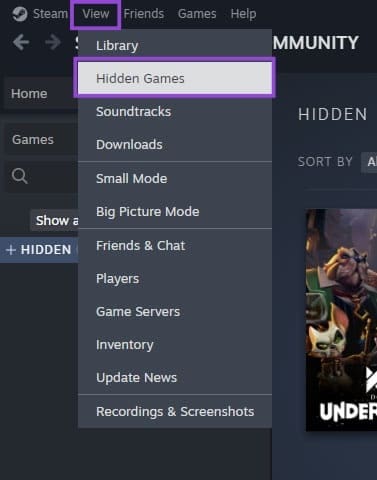
Alternatively, you can search for a game via the search bar in the left panel of the Library. If the game exists on the account, it will show up even if it’s hidden.
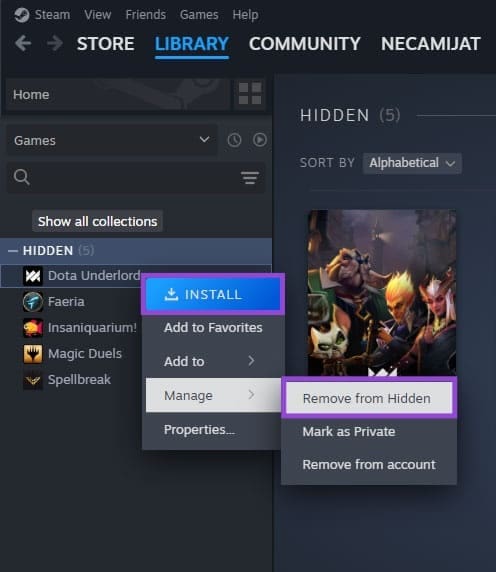
Step 3. If the game is hidden, you can right-click on it and select “Manage,” then hit “Remove from Hidden.” This will make it show up in the “regular” Library.
Fix 2: Steam Game Not Showing in the App Due to Being Installed Under Another User
While uncommon, if you’ve let someone else log into your Steam app and download a game, their game can remain on your PC but still be registered under their account. Trying to start the game from your account will result in an error.
Step 1. In the Steam Library, remove all filtering options, then click on the “Games” dropdown and check the box “Group by Library.” This sorts the games according to which account was used to buy them.
Step 2. Check the library and note if the game appears under any other tab than the “Uncategorized” or “Owned games.” If so, note the account name.
Step 3. Log into the other account. You should be able to open the game from it.
Fix 3: Recheck Local Files
If the game has been moved or Steam has been redownloaded, the client might just need to search the local files for the proper cache and executable to link them. The best way to fix Steam game not showing in the app is to retry the installation or recheck the files.
Step 1. Right-click on the game and select “Properties.”
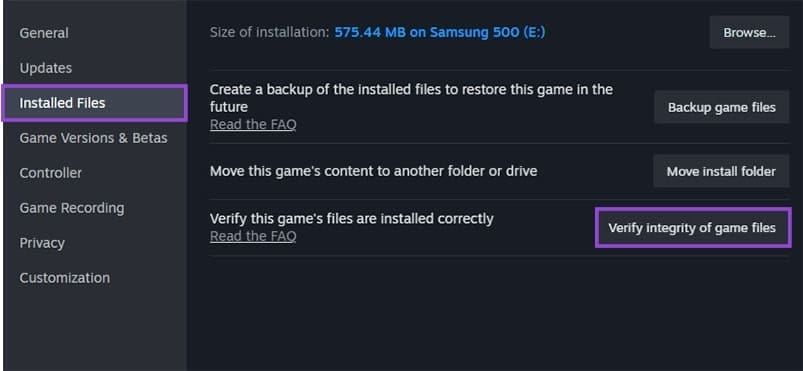
Step 2. In the menu, select “Installed Files” on the left and click on “Verify integrity of game files.”
Step 3. Wait for the process to complete.
Step 4. If this doesn’t work and the game is listed as being available for installation (rather than the usual “Play” button), click on it. Steam can run the pre-install check which includes existing file checking.
Step 5. Pause the download.
Step 6. Exit Steam entirely (you can use the “File” tab for the option).
Step 7. Go to the default Steam library folder. In most cases, it’s C:\Program Files (x86)\Steam\steamapps\
Step 8. Find the .acf file for your game. Each game is listed not by name but by code, and you can refer to this link for a list of codes.
Step 9. Move the file out of the folder, then restart Steam.
Step 10. Open Steam again, and the game should be listed as uninstalled. Exit Steam.
Step 11. Return the .acf file to the folder, then restart Steam again and resume the download.
Was this helpful?
Last updated on 05 February, 2026
Read Next
 5 Fixes When Xbox App Is Not Showing Installed Games on Windows
Fix 1: Flush DNS and Reset TCP/IP Several users on the Microsoft forums reported fixing this specific issue by flushing the DNS cache and resetting the TCP/IP (Transmission Control Protocol/Internet
5 Fixes When Xbox App Is Not Showing Installed Games on Windows
Fix 1: Flush DNS and Reset TCP/IP Several users on the Microsoft forums reported fixing this specific issue by flushing the DNS cache and resetting the TCP/IP (Transmission Control Protocol/Internet
 3 Ways to Fix “Steam Must be Running to Play This Game” Error
Basic Fixes: Ensure Steam is installed on your computer: If you play Steam games, ensure the client is installed on your computer.
3 Ways to Fix “Steam Must be Running to Play This Game” Error
Basic Fixes: Ensure Steam is installed on your computer: If you play Steam games, ensure the client is installed on your computer.
 7 Ways to Fix Google Play Store Not Showing Installed Apps
Fix 1: Turn Off Parental Controls on Play Store Parental control on Play Store allows you to prevent unauthorized transactions and hide inappropriate apps on Play Store.
7 Ways to Fix Google Play Store Not Showing Installed Apps
Fix 1: Turn Off Parental Controls on Play Store Parental control on Play Store allows you to prevent unauthorized transactions and hide inappropriate apps on Play Store.
 How to Fix Windows 10’s This Action Is Only Valid for Products That Are Currently Installed Error
Windows 10 users usually face the error 'This action is only valid for products that are currently installed' when working with a version of Office suite of apps.
How to Fix Windows 10’s This Action Is Only Valid for Products That Are Currently Installed Error
Windows 10 users usually face the error 'This action is only valid for products that are currently installed' when working with a version of Office suite of apps.
 5 Ways to Fix No Audio Device Is Installed Error on Windows 11
Fix 1: Enable Your Audio Device on Windows The first thing to do is ensure that you haven’t accidentally disabled the audio device on Windows.
5 Ways to Fix No Audio Device Is Installed Error on Windows 11
Fix 1: Enable Your Audio Device on Windows The first thing to do is ensure that you haven’t accidentally disabled the audio device on Windows.
 5 Ways to Fix Xbox Game Bar Not Working on Windows 11
Fix 1: Enable Xbox Game Bar in Windows Settings If you can't launch the Xbox Game Bar from your connected game controller on Windows 11, head to Windows Settings to
5 Ways to Fix Xbox Game Bar Not Working on Windows 11
Fix 1: Enable Xbox Game Bar in Windows Settings If you can't launch the Xbox Game Bar from your connected game controller on Windows 11, head to Windows Settings to
 3 Ways to Disable Xbox Game Bar on Windows 11
Method 1: Using PowerShell Step 1: Press the Windows key, type PowerShell, and click Run as Administrator.
3 Ways to Disable Xbox Game Bar on Windows 11
Method 1: Using PowerShell Step 1: Press the Windows key, type PowerShell, and click Run as Administrator.
 How to Uninstall Xbox Game Bar (Windows 11)
While the Xbox Game Bar has some undeniably cool capabilities, such as real-time recording, performance monitoring, advanced screen capture, and even in-game browsers, it’s still one more process that runs
How to Uninstall Xbox Game Bar (Windows 11)
While the Xbox Game Bar has some undeniably cool capabilities, such as real-time recording, performance monitoring, advanced screen capture, and even in-game browsers, it’s still one more process that runs
The article above may contain affiliate links which help support Guiding Tech. The content remains unbiased and authentic and will never affect our editorial integrity.