What Does Snooze Mean in Gmail?
Snooze means to postpone a received email, just like you snooze your alarm. You will be notified about the same email again at the specified time.
You can postpone the email to any date and time you like—be it later today, tomorrow, a week later, a month later, or two months later. The choice is yours. Gmail’s only responsibility is to remind you at the set time or, more practically, to bring the email back to your inbox.
What Happens When You Snooze or Unsnooze Emails in Gmail?
When you snooze an email, you may expect the following:
- The snoozed email is removed temporarily from your inbox and taken to a special folder known as Snoozed.
- Snoozed emails will have a time stamp showing when the snooze ends.
- If the email has multiple messages or threads, all of them are taken to the snoozed folder.
- Once the snooze ends, you will get an email notification similar to new emails.
- Email notifications for snoozed emails whose snooze times have elapsed will carry a Snoozed label.
- If you receive a new email from the person whose email you have snoozed, you will be notified since Snooze does not mute emails.
- You will also get notifications if you receive a new thread on a snoozed email, and snooze will be removed from the earlier email.
How to Snooze Emails on Gmail
On Desktop
Step 1: Launch the Gmail website and open the email you want to snooze.
Step 2: Click the three dots icon > Snooze.
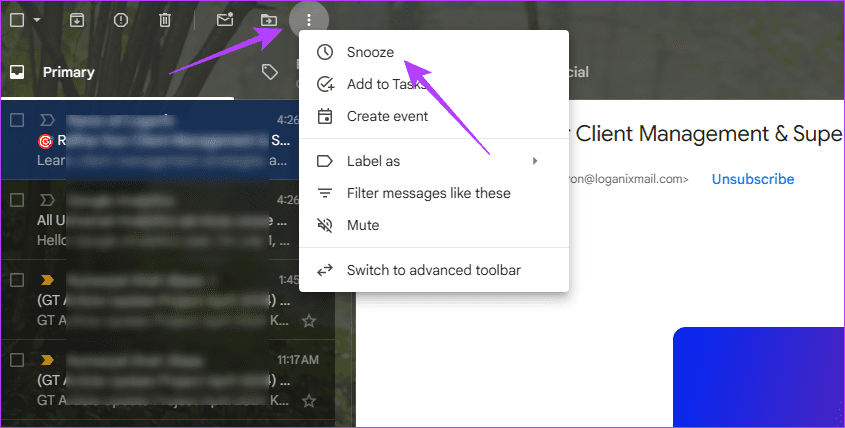
Step 3: Select the time until which you want to snooze the email. Now, this will remove the email from the inbox and take it to the Snoozed folder.

If you want to snooze multiple emails, select them on the main screen > hit the three-dot icon > click Snooze.
On Android and iOS
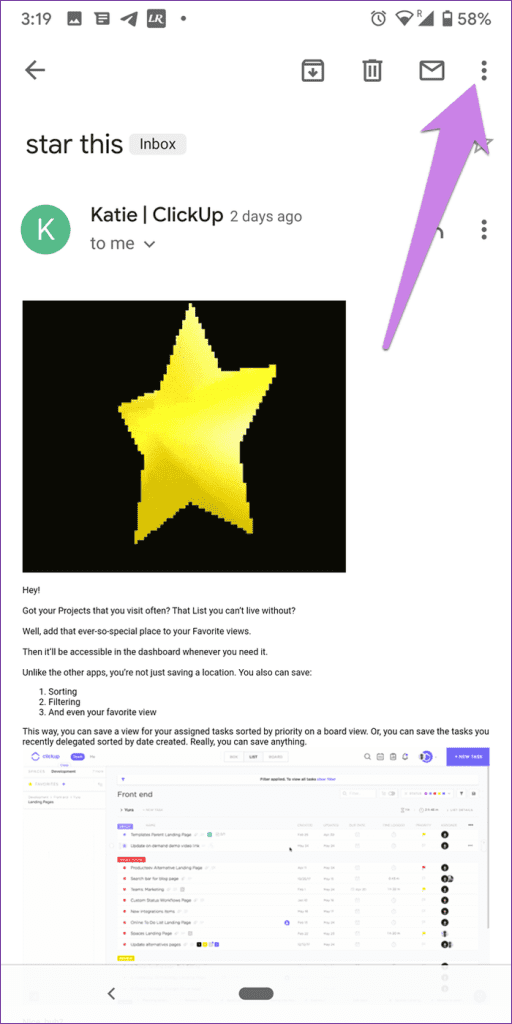
Step 1: Launch the Gmail app and open the email.
Step 2: Tap on the three-dot icon at the top right > select Snooze.
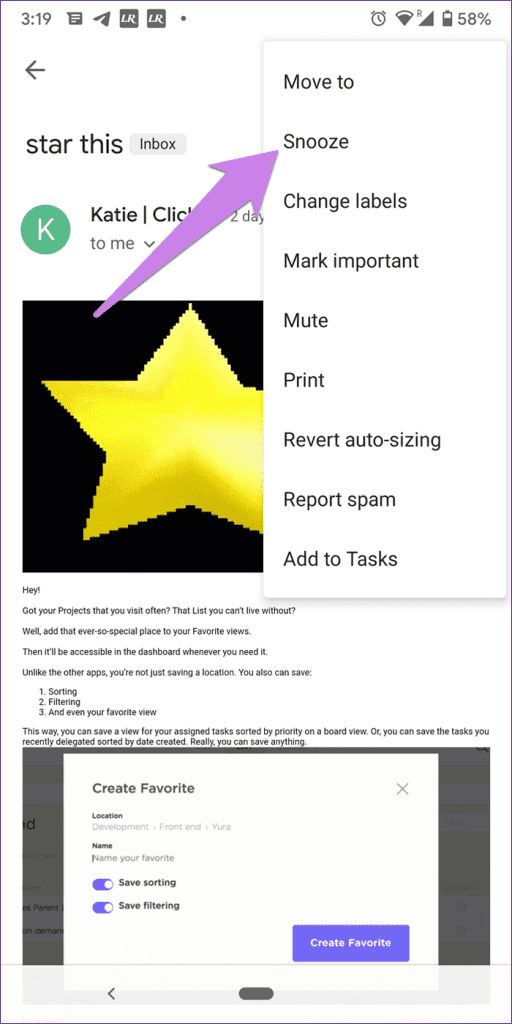
Step 3: Lastly, select a snooze time from the provided options for the email.
How to Unsnooze Emails on Gmail
To disable snooze on an email, you must access it first. We will show you the process below.
On PC
Step 1: Launch Gmail in your preferred browser.
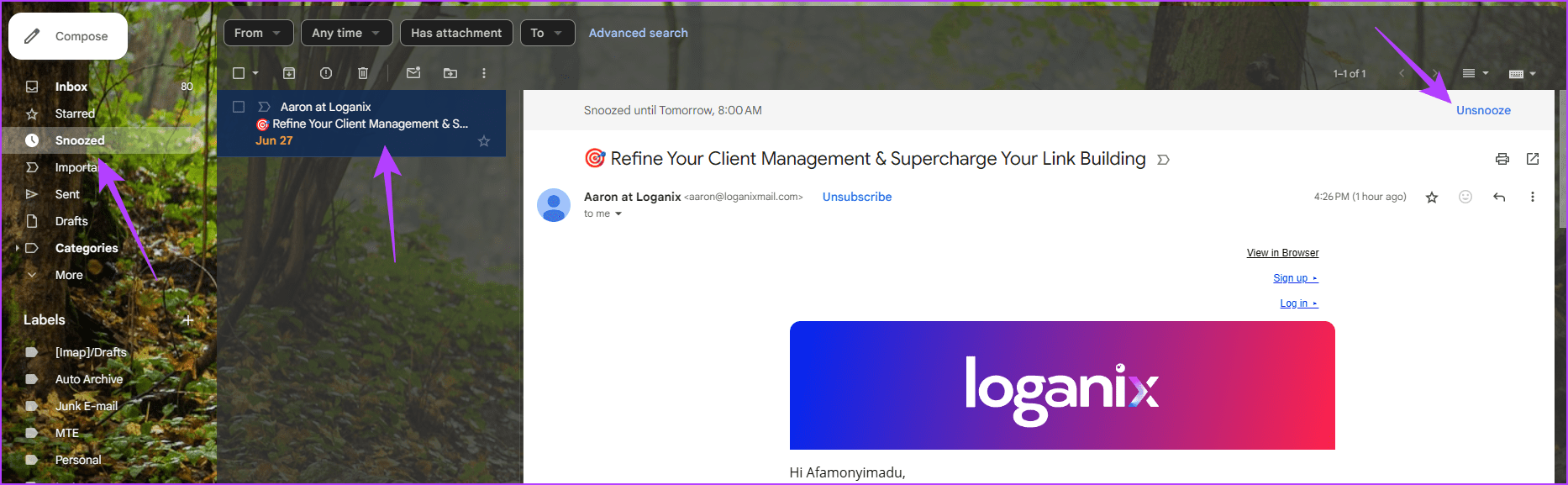
Step 2: To access snoozed emails, click the Snoozed folder in the left pane > email > click the Unsnooze label on the right.
On the Mobile App
Step 1: Launch your Gmail app.
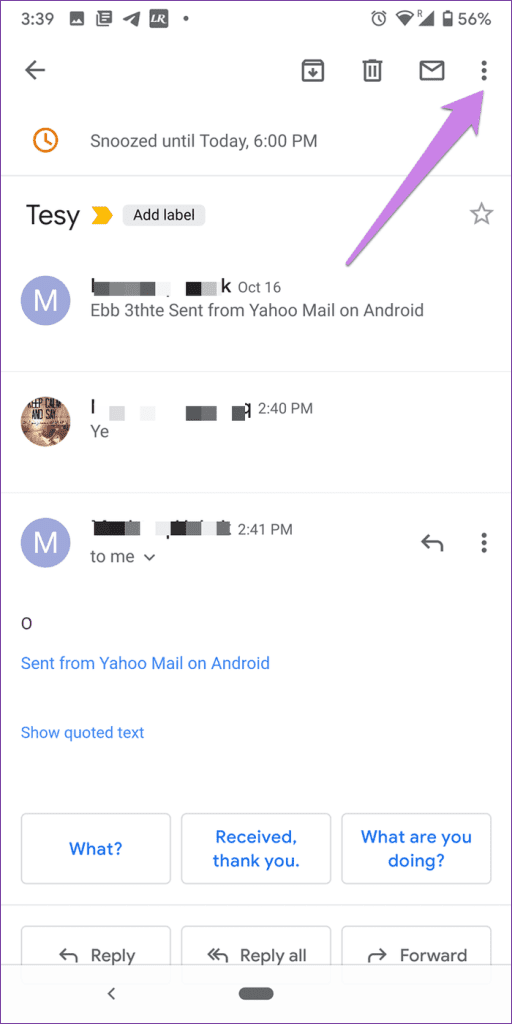
Step 2: Swipe right > tap the Snooze folder > tap the email.


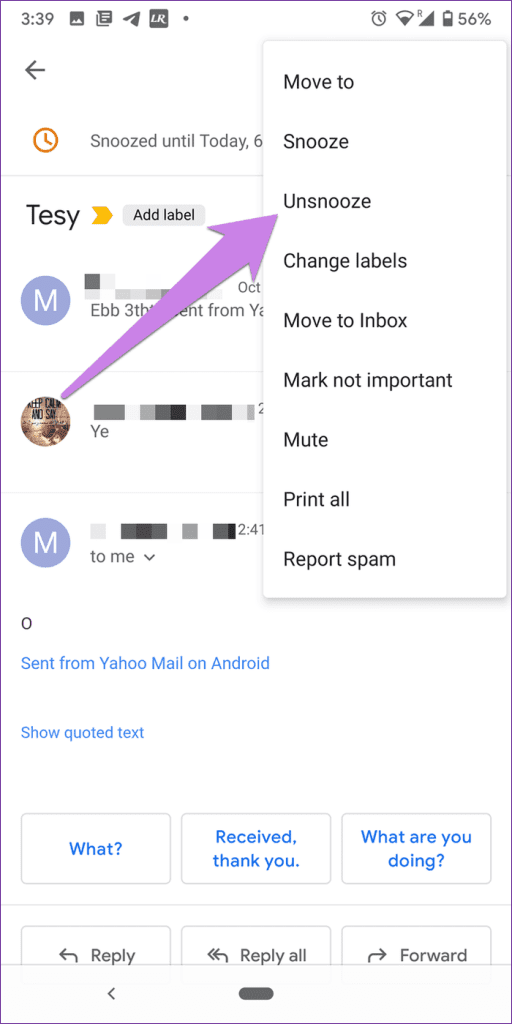
Step 3: Tap the three-dot icon at the top > select Unsnooze from the menu.
Was this helpful?
Last updated on 27 August, 2024
Read Next
 Gmail Mute vs Snooze vs Archive: What’s the Difference?
What Happens When You Archive?
Gmail Mute vs Snooze vs Archive: What’s the Difference?
What Happens When You Archive?
 Top 11 Things to Know About Snooze Feature on Facebook
Sometimes, I feel people get married to post their pictures on Facebook.
Top 11 Things to Know About Snooze Feature on Facebook
Sometimes, I feel people get married to post their pictures on Facebook.
 13 Gmail Labels Tips and Tricks to Organize and Manage Them
Tip 1: Create Labels in Gmail There are two ways to create a label from the Gmail website.
13 Gmail Labels Tips and Tricks to Organize and Manage Them
Tip 1: Create Labels in Gmail There are two ways to create a label from the Gmail website.
 What Happens if You Delete Gmail App From Phone
What Happens to Emails After Deleting Gmail App?
What Happens if You Delete Gmail App From Phone
What Happens to Emails After Deleting Gmail App?
 4 Ways to Fix Emails Stuck in Gmail Outbox
Try Basic Fixes Verify the recipient's email address: This may seem too obvious, but if you have misspelled the email address, Gmail won’t be able to send the message.
4 Ways to Fix Emails Stuck in Gmail Outbox
Try Basic Fixes Verify the recipient's email address: This may seem too obvious, but if you have misspelled the email address, Gmail won’t be able to send the message.
 5 Ways to Fix Gmail Not Working in Google Chrome
Fix 1: Disable Browser Extensions Third-party extensions in Chrome can sometimes prevent Gmail from loading properly.
5 Ways to Fix Gmail Not Working in Google Chrome
Fix 1: Disable Browser Extensions Third-party extensions in Chrome can sometimes prevent Gmail from loading properly.
 5 Ways to Fix Spell Check Not Working in Gmail
Fix 1: Make Sure Spell Check Is Enabled This may seem obvious, but it's worth double-checking that you haven't accidentally turned off the spell check feature in Gmail.
5 Ways to Fix Spell Check Not Working in Gmail
Fix 1: Make Sure Spell Check Is Enabled This may seem obvious, but it's worth double-checking that you haven't accidentally turned off the spell check feature in Gmail.
 3 Fixes for “Something Went Wrong” Error in Gmail
Try Basic Fixes Switch to a different network connection: If your network connection is faulty, you may encounter the "Something went wrong" error in Gmail.
3 Fixes for “Something Went Wrong” Error in Gmail
Try Basic Fixes Switch to a different network connection: If your network connection is faulty, you may encounter the "Something went wrong" error in Gmail.
The article above may contain affiliate links which help support Guiding Tech. The content remains unbiased and authentic and will never affect our editorial integrity.