How to Share Screen (Present) on Google Meet
On Google Meet, you may share a window for a particular open app, your entire screen, or a single tab on your browser. We show you how to do it below.
Present Entire Window
When you present your window, you share an instance of a specific open application. Below is how to share the screen.
Step 1: Enter your Google Meet meeting.
Step 2: Click the Share icon at the bottom of the screen; on the top display, click Window, click your preferred window, then click the Share button.

Note that this option does not allow you to share audio. The share audio feature only works when you are sharing a single tab.
Present Entire Screen
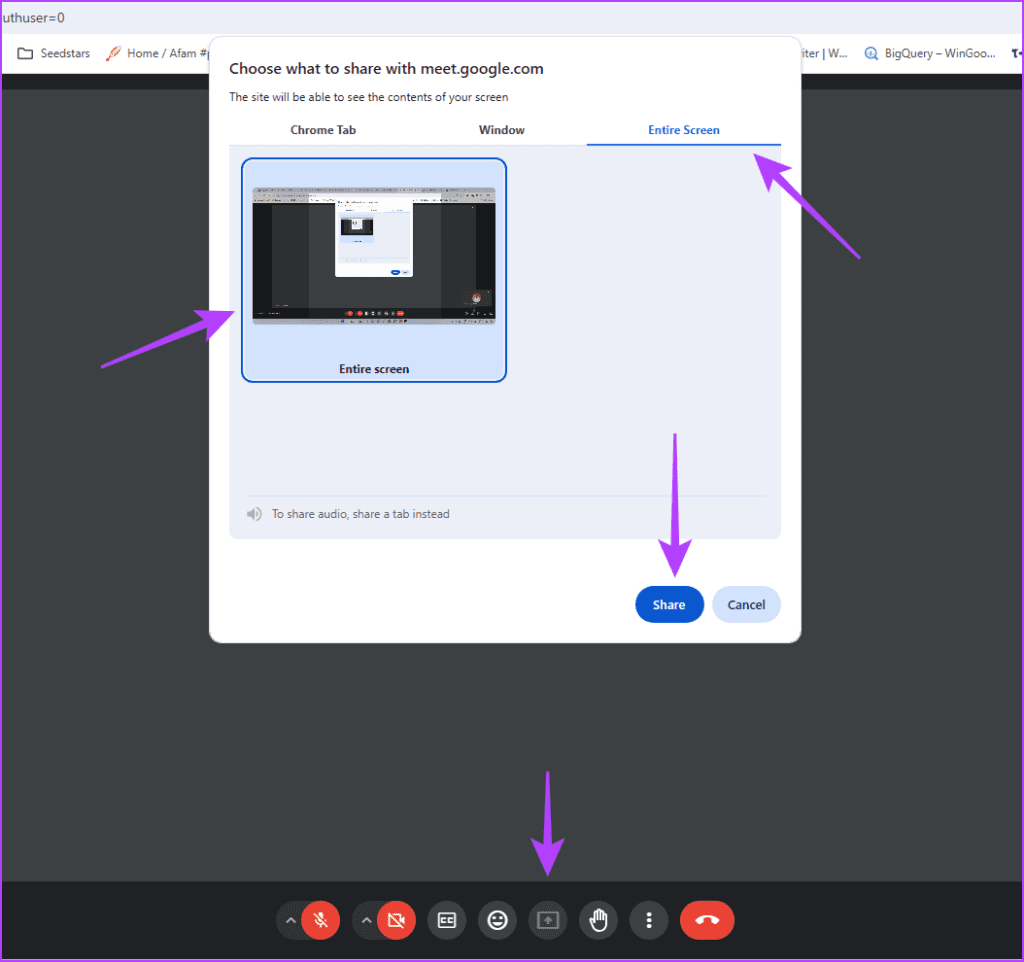
When you present your entire screen, it includes all apps on the screen. Even if you open new apps, they become part of the presentation. Also, when you share the screen, you do not have to share a Whiteboard separately. Below is how to share the screen.
Step 1: Enter your Google Meet meeting.
Step 2: Click the Share icon at the bottom; on the top display, click Entire Screen, click your preferred screen, then click the Share button.
Present a Single Tab
When you use Google Meet on your browser, you can present a single tab. The name of this option may be Chroe Tab, Edge Tab, Brave Tab, etc. It is usually named after the browser you are using. Here are the steps to share a single tab.
Step 1: Enter your Google Meet meeting.
Step 2: Click the Share icon at the bottom. On the top display, click Chrome Tab, click your preferred tab, and then click the Share button.

Step 3: Optionally, you may enable the Also share tab audio option. This way, if an audio or video is playing on the tab, it will be transmitted to attendees.
Add a Whiteboard to the Presentation
When you share a single browser tab on Google Meet, you cannot present a Whiteboard simultaneously. To share a Whiteboard, follow the steps below.
Step 1: Click the more icon at the bottom of the Google Meet interface and click Whiteboard.

Step 2: Click the Start a new whiteboard option on the right pane.

Step 3: Click the Zoom icon at the top right and click Just present this tab.
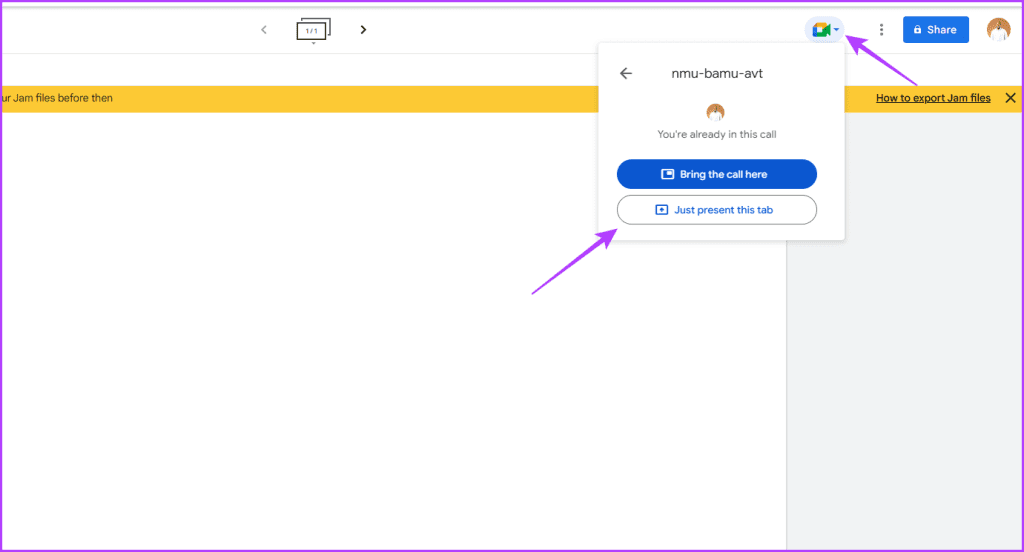
Step 4: Click the Share now button.

Step 5: Lastly, click Allow.

Was this helpful?
Last updated on 04 July, 2024
Read Next
 How to Share Your Screen in Google Meet on iPhone and iPad
How to Share Screen on Google Meet You can begin sharing your screen before you enter the meeting - use the Share screen option.
How to Share Your Screen in Google Meet on iPhone and iPad
How to Share Screen on Google Meet You can begin sharing your screen before you enter the meeting - use the Share screen option.
 How to Share Video With Sound on Zoom, Microsoft Teams, and Google Meet
How to Share Video With Audio in Microsoft Teams The feature to share your screen containing the video and its sound in Microsoft Teams is limited to the Windows app
How to Share Video With Sound on Zoom, Microsoft Teams, and Google Meet
How to Share Video With Audio in Microsoft Teams The feature to share your screen containing the video and its sound in Microsoft Teams is limited to the Windows app
 Top 7 Ways to Fix Google Meet Audio Not Working
Major IT companies, such as Twitter and Spotify, are encouraging employees to work from home.
Top 7 Ways to Fix Google Meet Audio Not Working
Major IT companies, such as Twitter and Spotify, are encouraging employees to work from home.
 4 Fixes When Google Meet Background Blur Is Not Working
Basic Fix: Use Google Chrome: Because not all browsers meet the requirements for blur, Google Chrome is the safest choice.
4 Fixes When Google Meet Background Blur Is Not Working
Basic Fix: Use Google Chrome: Because not all browsers meet the requirements for blur, Google Chrome is the safest choice.
 6 Google Meet Extensions to Increase Your Productivity
1.
6 Google Meet Extensions to Increase Your Productivity
1.
 How to Change Name and Picture in Google Meet
How to Change Name and Picture on Google Meet on Mobile Devices Your Google Meet account is linked to your Google account, so you must change the name (and profile
How to Change Name and Picture in Google Meet
How to Change Name and Picture on Google Meet on Mobile Devices Your Google Meet account is linked to your Google account, so you must change the name (and profile
 How to Hide and Unhide Yourself on Google Meet (PC and Mobile)
Note: When you hide your camera feed, you can still see others, depending on their camera privacy setting.
How to Hide and Unhide Yourself on Google Meet (PC and Mobile)
Note: When you hide your camera feed, you can still see others, depending on their camera privacy setting.
 How to Disable Google Chat and Meet in Gmail
Disable Google Chat and Meet in Gmail If you don't use Google Chat or Google Meet services in Gmail, turning it off becomes reasonable to remove extra tabs cluttering your
How to Disable Google Chat and Meet in Gmail
Disable Google Chat and Meet in Gmail If you don't use Google Chat or Google Meet services in Gmail, turning it off becomes reasonable to remove extra tabs cluttering your
The article above may contain affiliate links which help support Guiding Tech. The content remains unbiased and authentic and will never affect our editorial integrity.