

Can You Link Instagram to Snapchat
No, you cannot directly connect Instagram to Snapchat. Instagram and Snapchat are separate social media platforms with distinct features and functionalities. While both platforms focus on visual content sharing, they operate independently and do not offer a built-in integration, unlike linking Facebook and Instagram.
However, if you wish to share content from your Instagram account to your Snapchat account, you need to manually save or capture the content from Instagram and then upload it to Snapchat, which we will discuss further in the article.
Note: Respect the privacy and content ownership rights of others when sharing their content between platforms.
Also Read: How to remove saved Snapchat account
Add Your Instagram Post to Snapchat Story
Step 1: Launch Instagram. Then, go to your profile in the bottom right corner.
Step 2: Navigate to the post you want to share on Snapchat and open it.
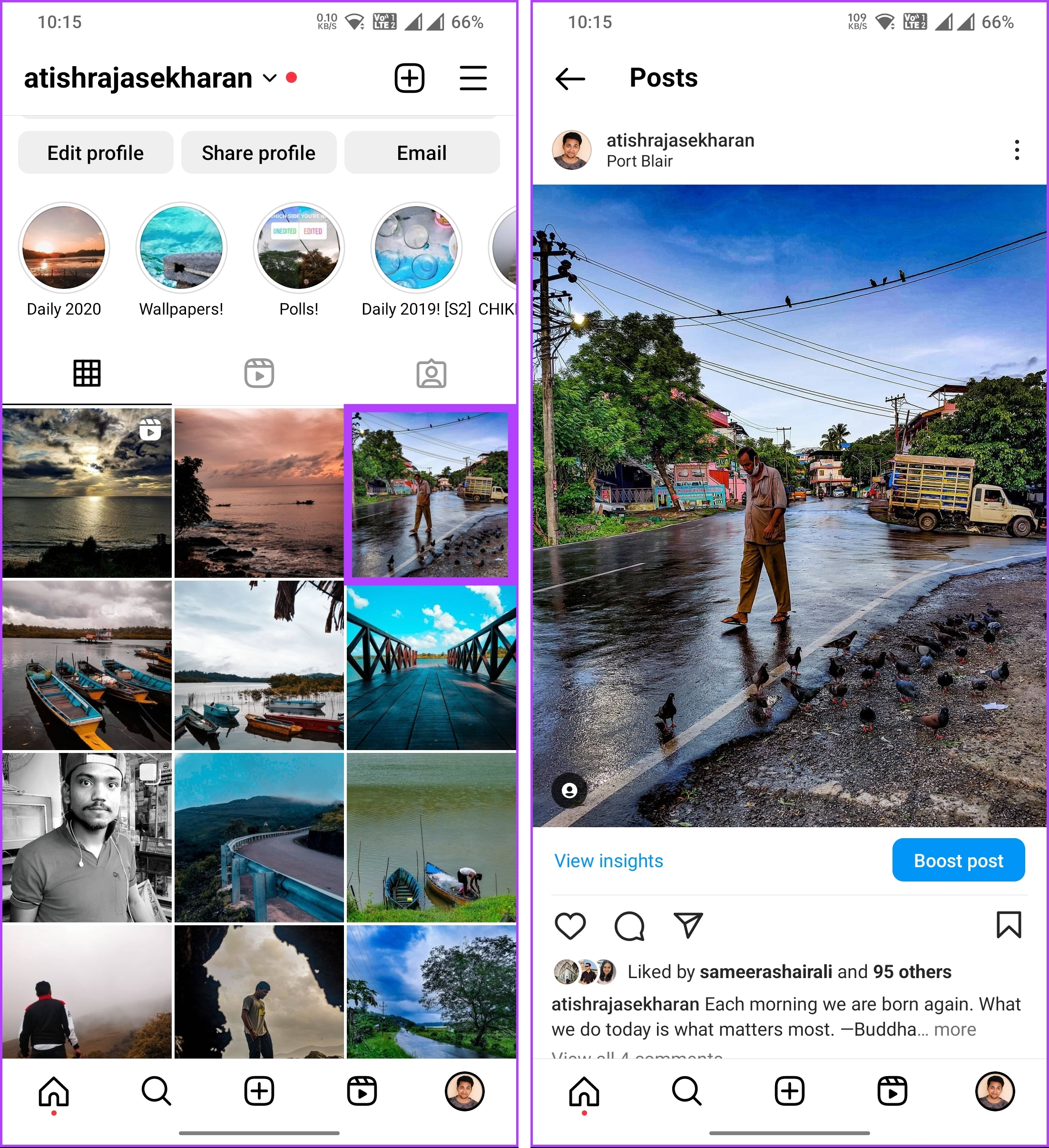
Step 3: Tap on the Share button, and from the bottom sheet, tap on Copy link.
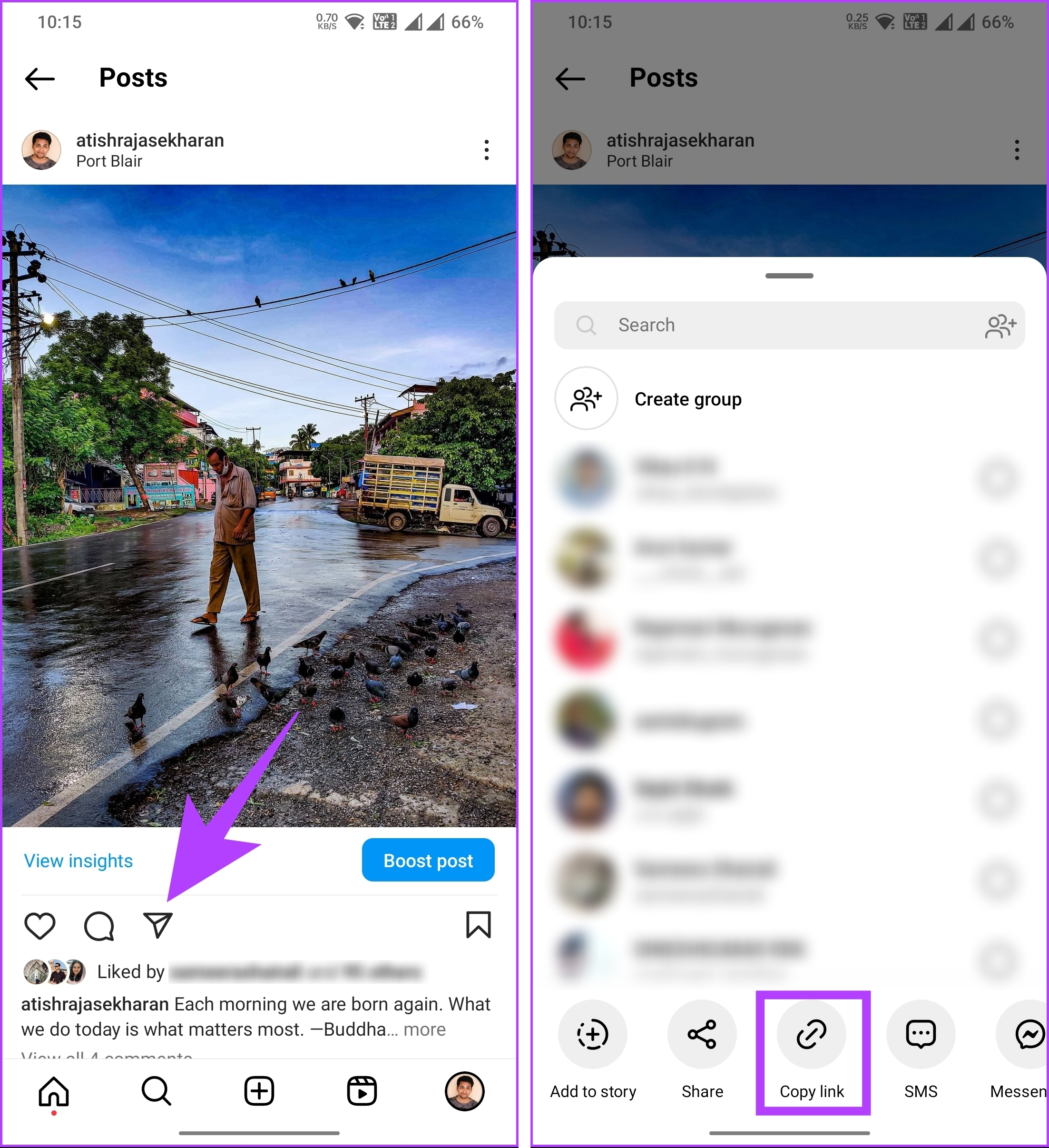
The link will get copied to the clipboard.
Step 4: Now, launch Snapchat and take a snap or select one from your Camera Roll.
Step 5: From the Edit menu, tap the attach-link symbol (clip icon).

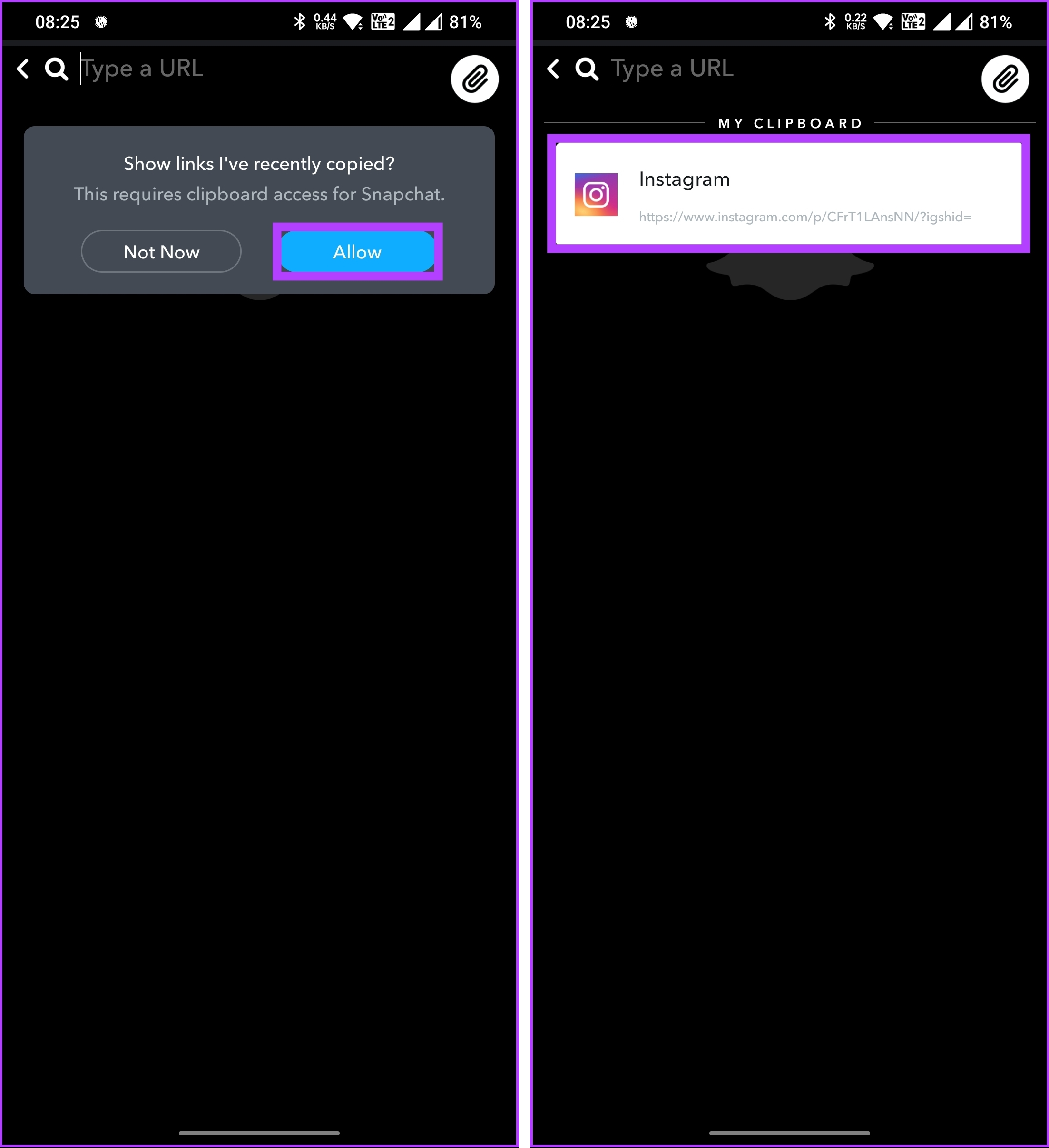
You will be taken to a screen where you can type a URL.
Step 6: You will see a pop-up that says, Tap Allow.
Step 7: From the My Clipboard section, tap the link you recently copied.
Step 8: Snapchat will load the link for you; all you have to do is tap Attach to Snap.
The link is attached to the image you took or brought from Camera Roll.
Step 9: Finally, tap on the Story button next to Save.
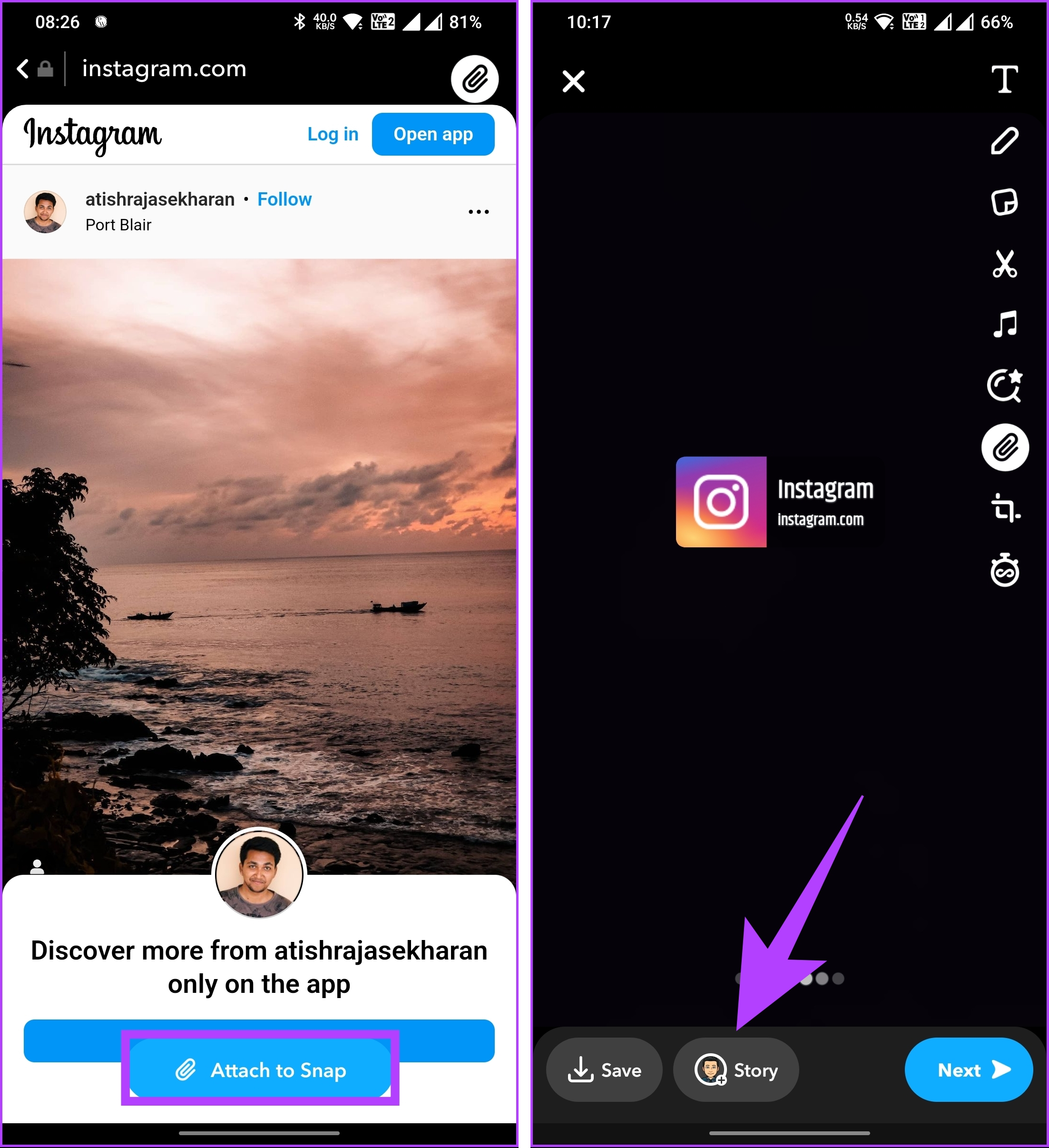
There you go. You have successfully shared an Instagram post to the Snapchat story with ease. Viewers must tap the link to see what you shared on Instagram. If you want the post to appear on your Snapchat story as it does on Instagram, continue reading.
Also Read: How to rearrange Instagram posts without deleting them
How to Manually Share an Instagram Post on Snapchat Story
To manually share an Instagram post on your Snapchat story, you’ll need to save the Instagram post and then upload it to Snapchat as a new story.
Note: The steps are the same on Android and iOS. However, for demonstration, we are opting to go with Android. Follow the below-mentioned steps.
Step 1: Launch Instagram and go to your profile in the bottom right corner.
Step 2: Navigate to the post you want to share on Snapchat and open it.
Step 3: Take a screenshot of your post, edit it to cut out non-image parts, and save it.
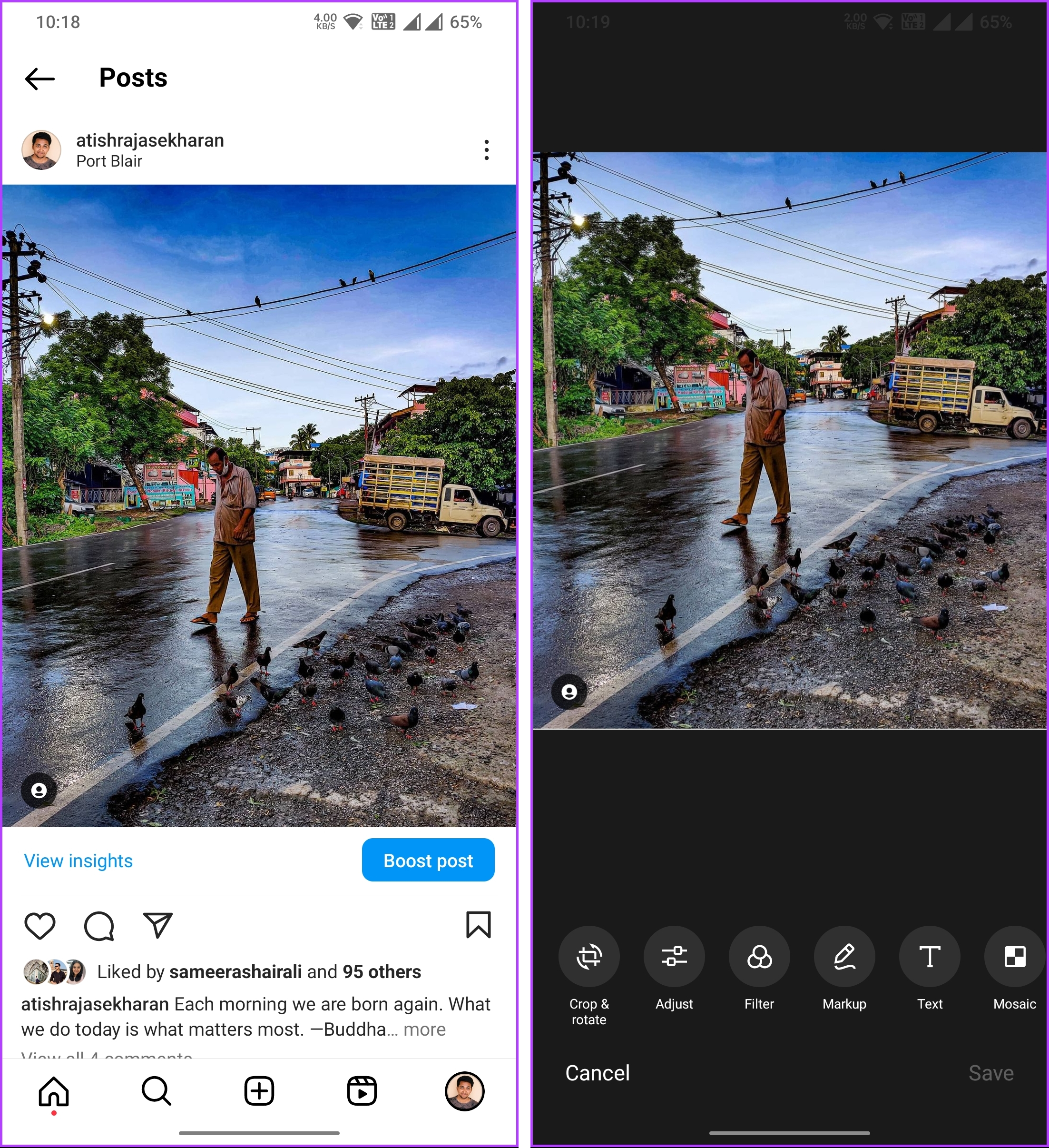
Step 4: Now, open Snapchat and tap the Memories button next to the shutter button.

Step 5: Go to Camera Roll and select the edited screenshot image. Finally, tap the Send To button at the bottom right corner.
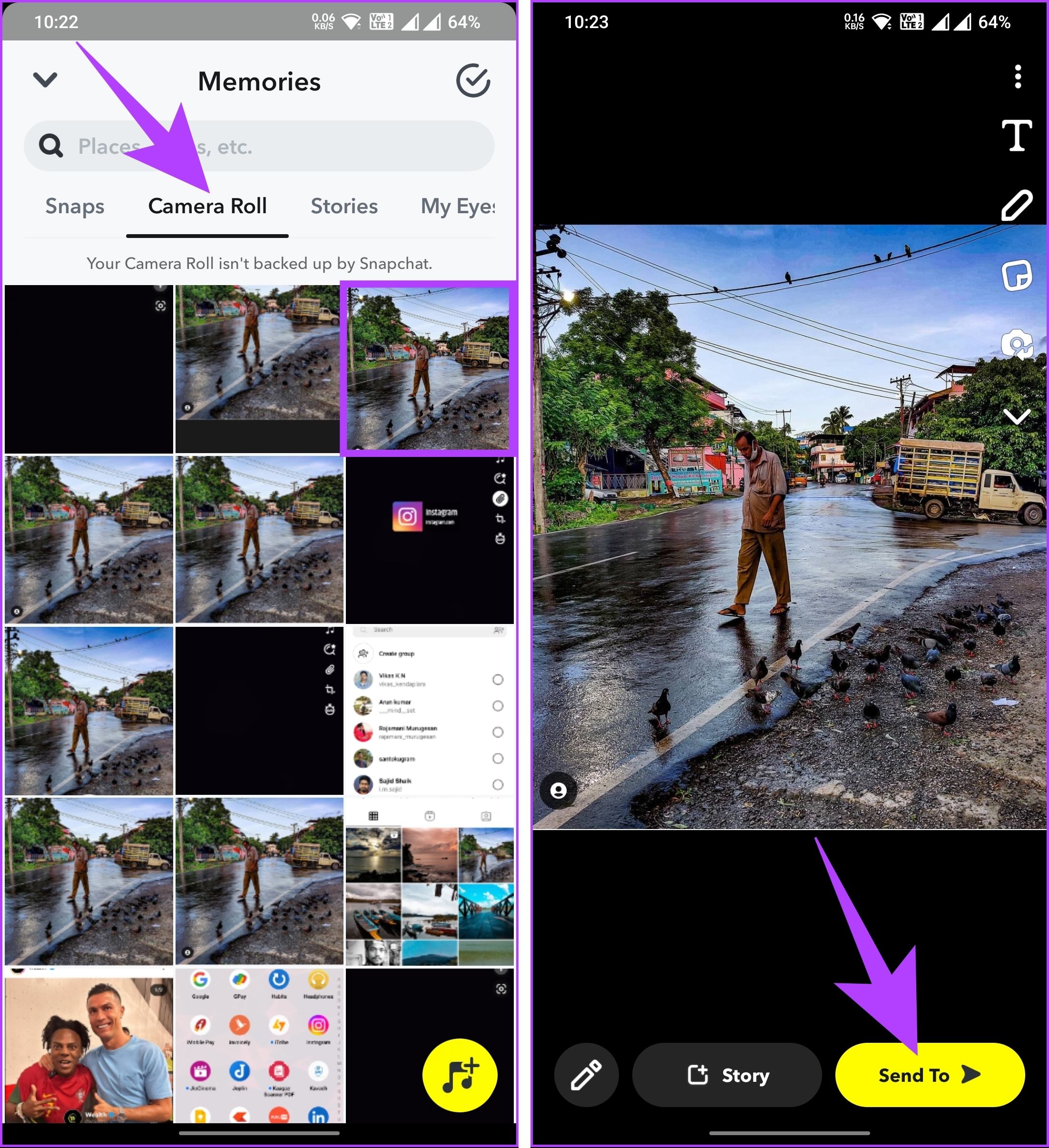
Step 6: On the next screen, select My Story and tap the arrow to post it as a Snapchat story.

With this, you have posted a photo as it appears on Instagram alongside a link, which, when clicked, will take your viewer to the Instagram post. If it is not the post you want to share with your Snapchat audience but the Instagram Story, continue reading.
Also Read: How to share someone else’s Story on Instagram
How to Share Instagram Story to Snapchat Story
Whether on Android or iOS, you can follow the steps and share your Instagram Story with Snapchat.
Step 1: Launch the Instagram app and navigate to the Story you want to share on Snapchat.
Step 2: Tap on the Share icon at the bottom, and select Share.
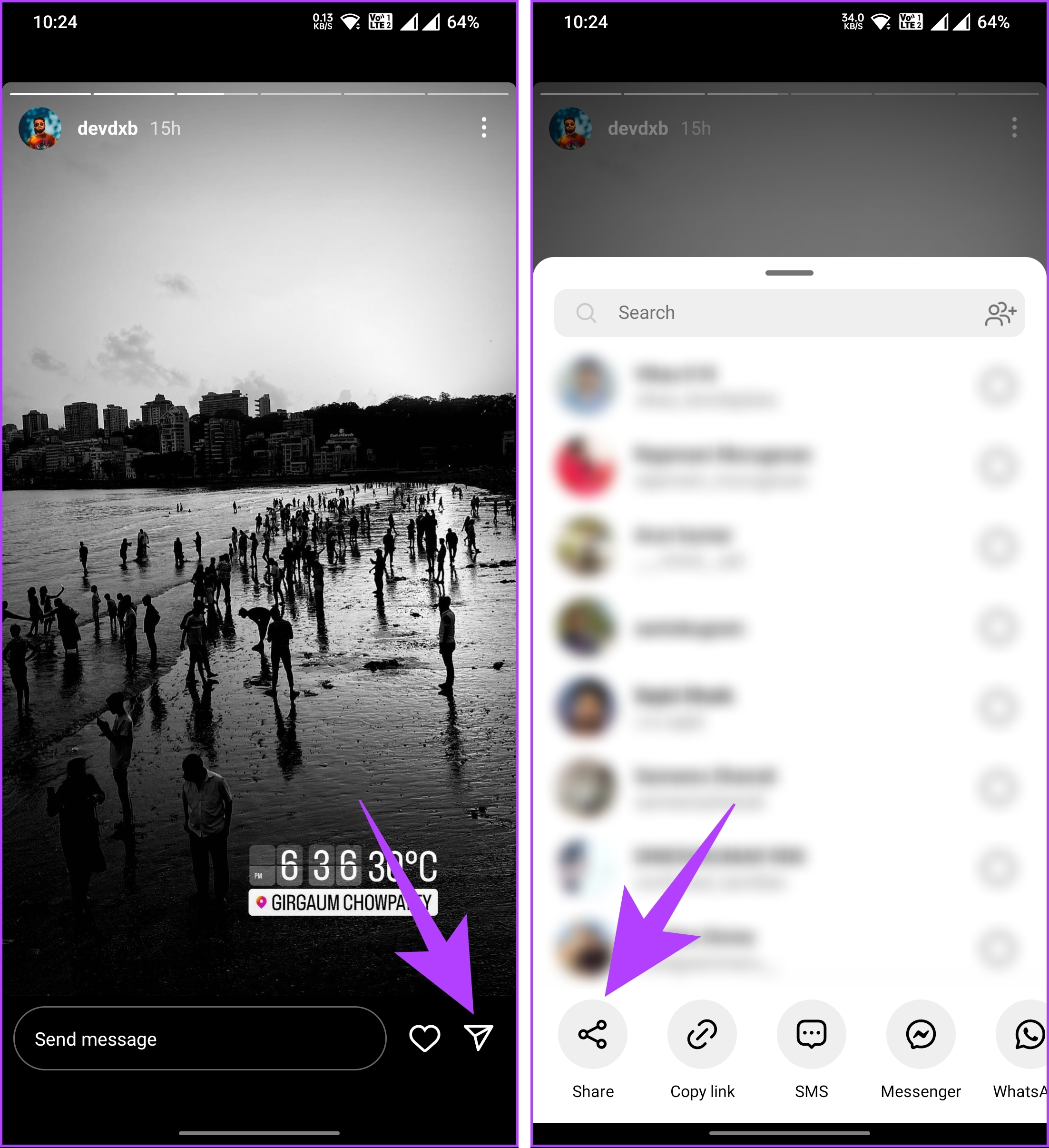
Step 3: From the Share screen, select Snapchat.
You will be taken to the Snapchat Send To screen. Select from the friend list you want to share and tap the arrow at the bottom right corner.
Step 4: Select the Your Story option on the next screen and tap Send to post it as a Snapchat story.
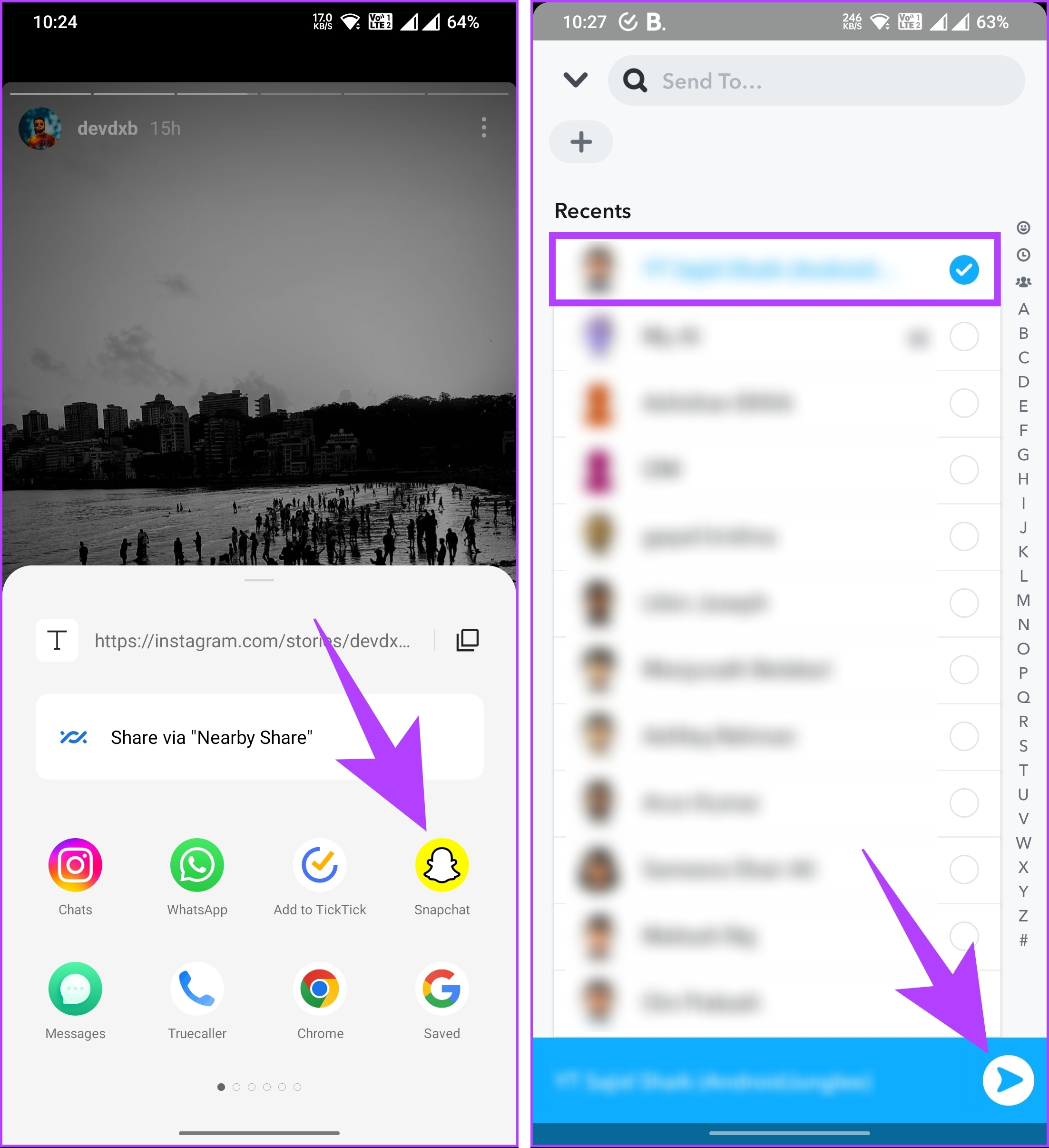
There you go. You have posted an Instagram story to a Snapchat story hassle-free. If you cannot repost or share an Instagram post to Snapchat My Story, continue reading.
Also Read: How to share a Facebook post to Instagram automatically
Why Can’t I Share an Instagram Post to My Story
If you’re encountering issues while trying to share an Instagram post to your story, checking the post’s privacy settings and ensuring it allows sharing is recommended. Additionally, confirm that the post type is compatible with story sharing. If nothing works, try contacting Instagram support to rectify the issue. That said, if you have any queries, check out the FAQ section below.
FAQs on Sharing Instagram Post to Snap Story
If you’re having trouble sharing an Instagram post to your story, there are a few potential reasons for this. One possible reason is related to privacy settings. If the person who originally posted the content has their account set to private, only approved followers can view their posts.
Another factor to consider is if you have a new account or have previously violated community guidelines, certain features, including sharing posts to your story, may be restricted. Additionally, If the user has disabled the option to share his/her story, you won’t be able to share it with your story. You may also want to read how to fix Instagram story not uploading.
There’s no automated way to sync or share your Snapchat Stories to Instagram. While both platforms allow you to share photos and videos, the content is typically kept within the respective platform’s ecosystem. However, simple workaround methods exist to share Snapchat Stories and upload them to Instagram and vice-versa.
Now that you know how to share Instagram posts to Snapchat stories, you can effortlessly bridge the gap between two of your favorite social media platforms and share your memorable moments with a broader audience.
Was this helpful?
Last updated on 26 August, 2024
1 Comment
Leave a Reply
Read Next
 How to Share a Facebook Post to Instagram Automatically or Manually
How to Automatically Post From Facebook to Instagram Before you can post content from Facebook to Instagram, there’s one prerequisite - link your Instagram and Facebook account/page.
How to Share a Facebook Post to Instagram Automatically or Manually
How to Automatically Post From Facebook to Instagram Before you can post content from Facebook to Instagram, there’s one prerequisite - link your Instagram and Facebook account/page.
 Why Can’t I Share My Facebook Post to Instagram
Preliminary Checks Before Troubleshooting Is the post private or restricted?
Why Can’t I Share My Facebook Post to Instagram
Preliminary Checks Before Troubleshooting Is the post private or restricted?
 Facebook News Feed vs Your Story: Where Should You Post Updates
News Feed vs.
Facebook News Feed vs Your Story: Where Should You Post Updates
News Feed vs.
 Why Can’t I Share Instagram Posts to My Story?
Why Can’t I Share Posts to Story on Instagram 1.
Why Can’t I Share Instagram Posts to My Story?
Why Can’t I Share Posts to Story on Instagram 1.
 How to Share (Repost) Someone Else’s Story on Instagram
Have you ever stumbled upon a captivating Instagram story you wished to share with your followers?
How to Share (Repost) Someone Else’s Story on Instagram
Have you ever stumbled upon a captivating Instagram story you wished to share with your followers?
 How to Share Comments on Instagram Story
Instagram stories are an easy way to share updates with your followers quickly.
How to Share Comments on Instagram Story
Instagram stories are an easy way to share updates with your followers quickly.
 Facebook Story vs Messenger Story: Similarities and Differences
Key Differences and Similarities FeatureFacebook StoriesMessenger StoriesCross-PostingFacebook Stories are visible to Messenger contacts.Messenger Stories are visible to Facebook friends.AvailabilityAvailable on mobile apps and the Facebook website.Available only on the mobile
Facebook Story vs Messenger Story: Similarities and Differences
Key Differences and Similarities FeatureFacebook StoriesMessenger StoriesCross-PostingFacebook Stories are visible to Messenger contacts.Messenger Stories are visible to Facebook friends.AvailabilityAvailable on mobile apps and the Facebook website.Available only on the mobile
 How to Hide a Story from Someone on Snapchat
Snapchat on iOS and Android uses a similar UI.
How to Hide a Story from Someone on Snapchat
Snapchat on iOS and Android uses a similar UI.
The article above may contain affiliate links which help support Guiding Tech. The content remains unbiased and authentic and will never affect our editorial integrity.

Great tutorial! Sharing Instagram posts to Snapchat Stories was always a bit of a mystery to me, but your step-by-step guide on Guiding Tech made it super easy to understand and execute. Now I can effortlessly cross-promote my content across both platforms, reaching a wider audience. Thanks for the valuable insights! 👍
Also, I recently discovered a helpful tool called storysnooper.com that allows you to view Instagram Stories anonymously. It’s been a game-changer for me to keep an eye on trends and stay updated with my favorite accounts without them knowing. This, combined with your guide, has truly elevated my social media game. Thanks for sharing such useful information! 🕵️♂️