Method 1: Set Up Reminders With Microsoft To Do
Let’s start with the easiest method. You can use the Microsoft To Do app, which comes pre-installed on Windows, to set up reminders on your PC. Here’s how:
Step 1: Open the Microsoft To Do app on your PC. If you can’t find it, download it from Microsoft Store.
Step 2: Sign in with your Microsoft account. In the My Day tab, click the Add a task button. Type your task details and press Enter.

Step 3: Click on your task and select Remind me from the menu on your right.
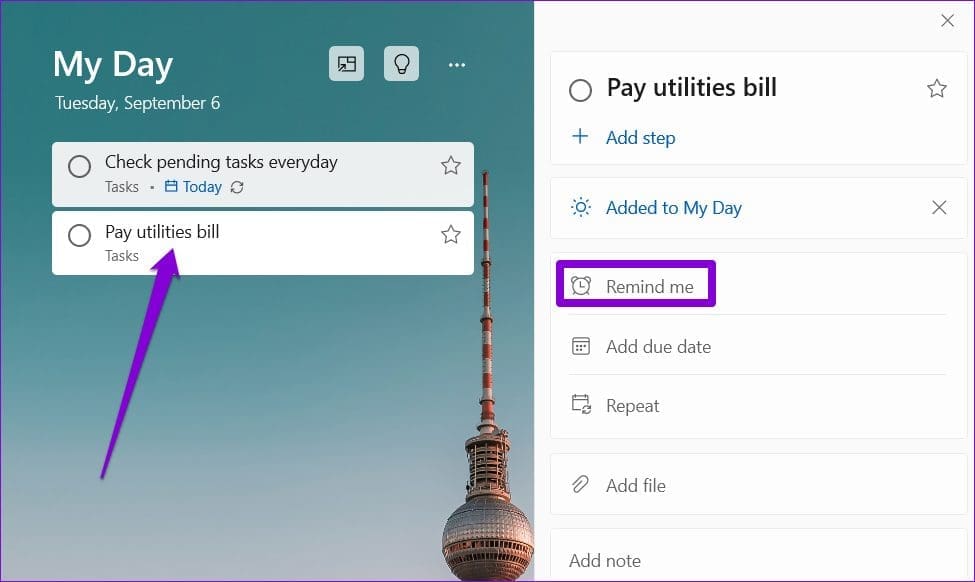
Step 4: Choose from the suggested options or set a date and time.

And that’s about it. Microsoft To Do will remind you about the task at the specified date and time. You can also set a recurring reminder for your task by using the Repeat option.
Method 2: Set Up Reminders Using the Calendar App
Another option for setting up reminders on Windows 11 is to use the built-in Calendar app. This can be useful if you have already synced your Google account with the Calendar app and want to view your tasks and reminders in a single app.
Step 1: Open the Calendar app on your PC and click the New event button.

Step 2: Enter your task details. Use the drop-down menu beside the Reminder to define when the app should remind you.

Step 3: Click on Repeat at the top to set up a recurring reminder and specify how frequently the app needs to remind you.
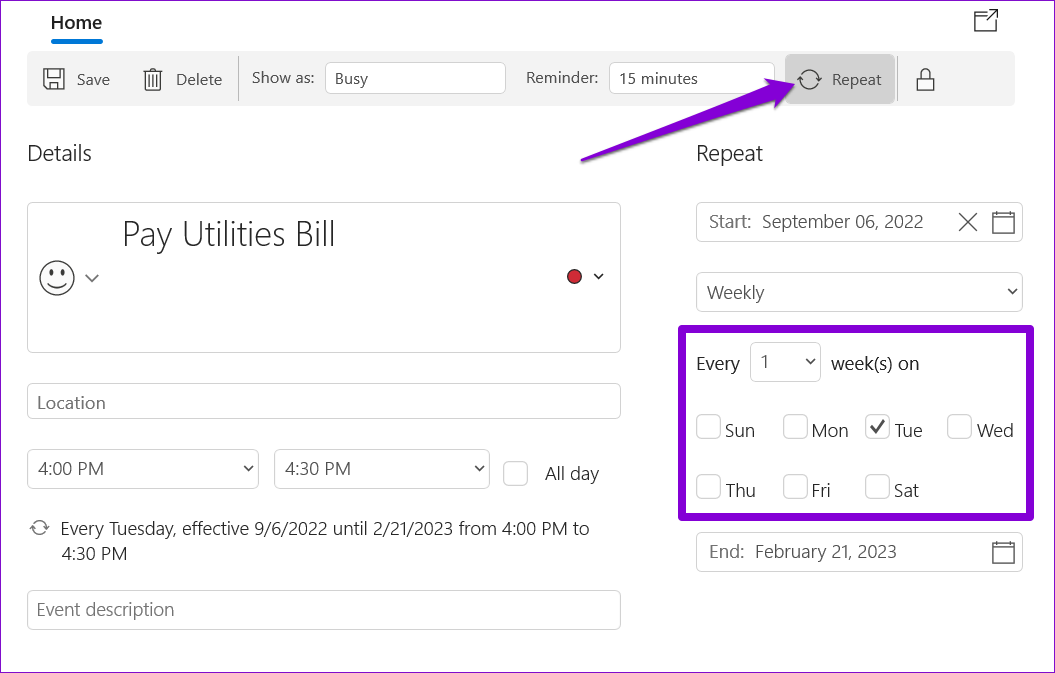
Step 4: Click Save.
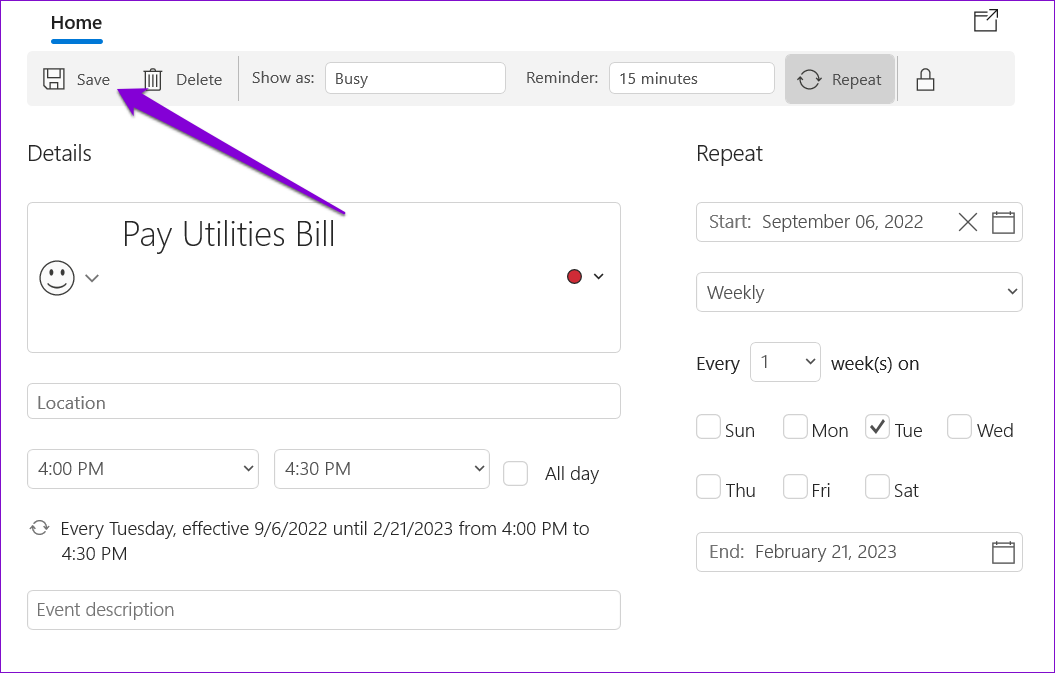
Once you complete the above steps, the reminder will appear on your Calendar app. It’s worth noting that the reminder notification will also appear on your other devices where you’ve signed in with your calendar account.
Method 3: Set Up Reminders Using Task Scheduler
Task Scheduler is a powerful utility for automating mundane Windows tasks and setting up reminders on your Windows 11 PC.
Step 1: Right-click on an empty spot on the Desktop and select New > Text Document.
Step 2: Type the reminder text in the following format:
@echo off
Title Reminder
Echo Task Details
pause
Replace Task Details in the above command with the actual reminder message.

Step 3: Press Ctrl + Shift + S keys to open the Save as dialog. Name your file and save it in the .CMD format.

Step 4: Open Task Scheduler using the search menu and select Create Task from the right pane.

Step 5: Enter your task’s name and use the drop-down menu at the bottom to select Windows 10.

Step 6: Switch to the Triggers tab and click New.

Step 7: Define when you want the computer to remind you. You can set up a one-time reminder or a recurring one. Then, click OK.

Step 8: Switch to the Actions tab and click New.

Step 9: Click on Browse and select the .CMD file you created earlier. Then, click Next.

Step 10: Click OK to save your reminder.
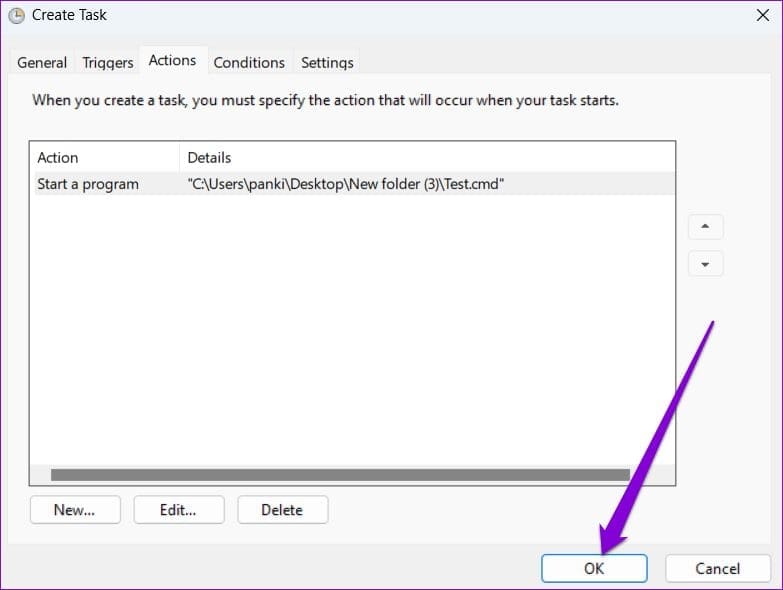
Windows 11 will remind you of your task by displaying your message in a Terminal window. To cancel a reminder, disable your scheduled task.
Was this helpful?
Last updated on 05 June, 2024
Read Next
 5 Ways to Fix Outlook Reminders Not Popping Up in Windows
Fix 1: Check Microsoft Outlook Reminder Settings The first thing you'll need to do is review the Outlook reminder settings to ensure they are configured correctly.
5 Ways to Fix Outlook Reminders Not Popping Up in Windows
Fix 1: Check Microsoft Outlook Reminder Settings The first thing you'll need to do is review the Outlook reminder settings to ensure they are configured correctly.
 How to Get Apple Reminders on Windows
Apple is infamous for keeping their users in a closed ecosystem.
How to Get Apple Reminders on Windows
Apple is infamous for keeping their users in a closed ecosystem.
 How to Add and Edit Outlook Calendar Reminders
Add Reminders to Outlook Calendar on Mobile The Outlook app on your iPhone and Android lets you quickly add reminders to your Outlook calendar on the go.
How to Add and Edit Outlook Calendar Reminders
Add Reminders to Outlook Calendar on Mobile The Outlook app on your iPhone and Android lets you quickly add reminders to your Outlook calendar on the go.
 7 Ways to Fix Reminders App Not Sending Notifications
Basic Fixes: Disable DND and Focus Mode: DND and Focus Mode can help block notifications to ensure you're not disturbed.
7 Ways to Fix Reminders App Not Sending Notifications
Basic Fixes: Disable DND and Focus Mode: DND and Focus Mode can help block notifications to ensure you're not disturbed.
 4 Ways to Set Reminders on Your Android Device
Method 1: How to Set Reminders Using the Google Calendar App The Google Calendar app makes it easy to set reminders on your Android and sync them with your Google
4 Ways to Set Reminders on Your Android Device
Method 1: How to Set Reminders Using the Google Calendar App The Google Calendar app makes it easy to set reminders on your Android and sync them with your Google
 6 Ways to Set Reminders With Alerts on iPhone
Note: Before proceeding with the steps, download the Reminders app on your iOS device if you have not already done so.
6 Ways to Set Reminders With Alerts on iPhone
Note: Before proceeding with the steps, download the Reminders app on your iOS device if you have not already done so.
 5 Ways to Fix iPhone Reminders Not Working in iOS 17
Basic Fixes: Restart the Reminders app: If the Reminders app runs into unexpected glitches or bugs, it might not work as expected on your iPhone.
5 Ways to Fix iPhone Reminders Not Working in iOS 17
Basic Fixes: Restart the Reminders app: If the Reminders app runs into unexpected glitches or bugs, it might not work as expected on your iPhone.
 How to Add Reminders for Instagram Posts and Stories on Mobile App
Who Can Create Reminders for Events on Instagram Reminders are a great way to ensure you remind your followers about any of your plans and events, and they are quite
How to Add Reminders for Instagram Posts and Stories on Mobile App
Who Can Create Reminders for Events on Instagram Reminders are a great way to ensure you remind your followers about any of your plans and events, and they are quite
The article above may contain affiliate links which help support Guiding Tech. The content remains unbiased and authentic and will never affect our editorial integrity.