Preliminary Fixes
- Toggle off VPN: The key icon on your Android phone often indicates that a VPN is active. Tap on the active VPN and select Disconnect or toggle off the VPN switch. The key icon should disappear immediately.
- Restart Your Android Device: Sometimes, the key icon might persist even after turning off the VPN due to a glitch or temporary system bug. Restarting your device can help clear the icon.
- Uninstall Apps From Malicious Sites: Some apps downloaded from untrusted sources might automatically activate a VPN or proxy, causing the key icon to appear. Removing these apps can resolve the issue.
- Update Your Phone: An outdated operating system might have bugs that cause icons like the key to stick around even when they shouldn’t. Updating your Android phone can fix these bugs.
1. Enable and Disable Airplane Mode
Even if you turn off the VPN, it might not remove the key icon from the status bar. So, let’s turn on Airplane (flight) mode on Android, as it will turn off all the networks, including VPN.
Step 1: Open the notification panel and tap Airplane mode.
Step 2: Wait for a few seconds and tap the Airplane mode button again to disable it.

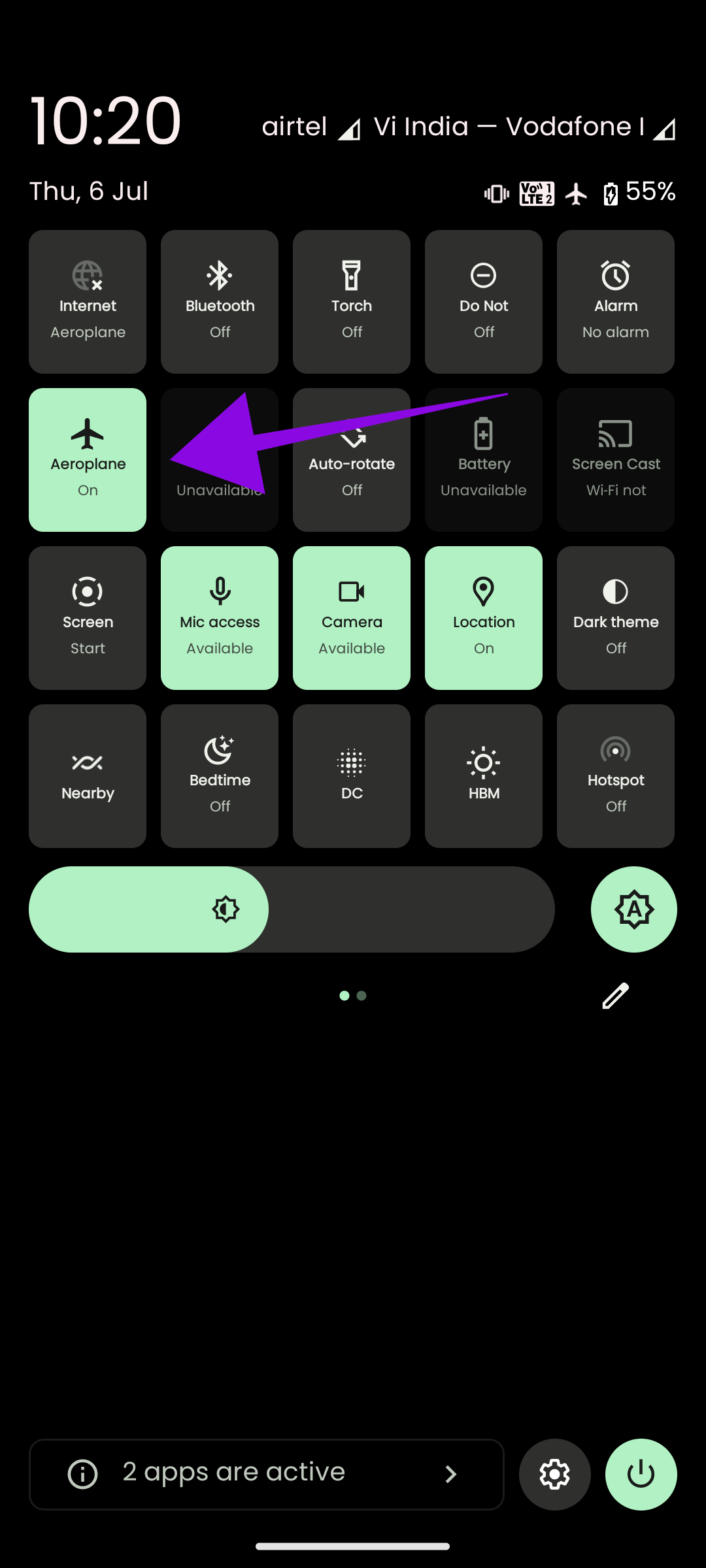
If you can’t find the Airplane mode icon, you can also enable Airplane mode from Settings.
Step 1: Open Settings and tap Network and Internet.
Step 2: Toggle on Airplane mode.
Step 3: Wait for a few seconds and toggle off Airplane mode.
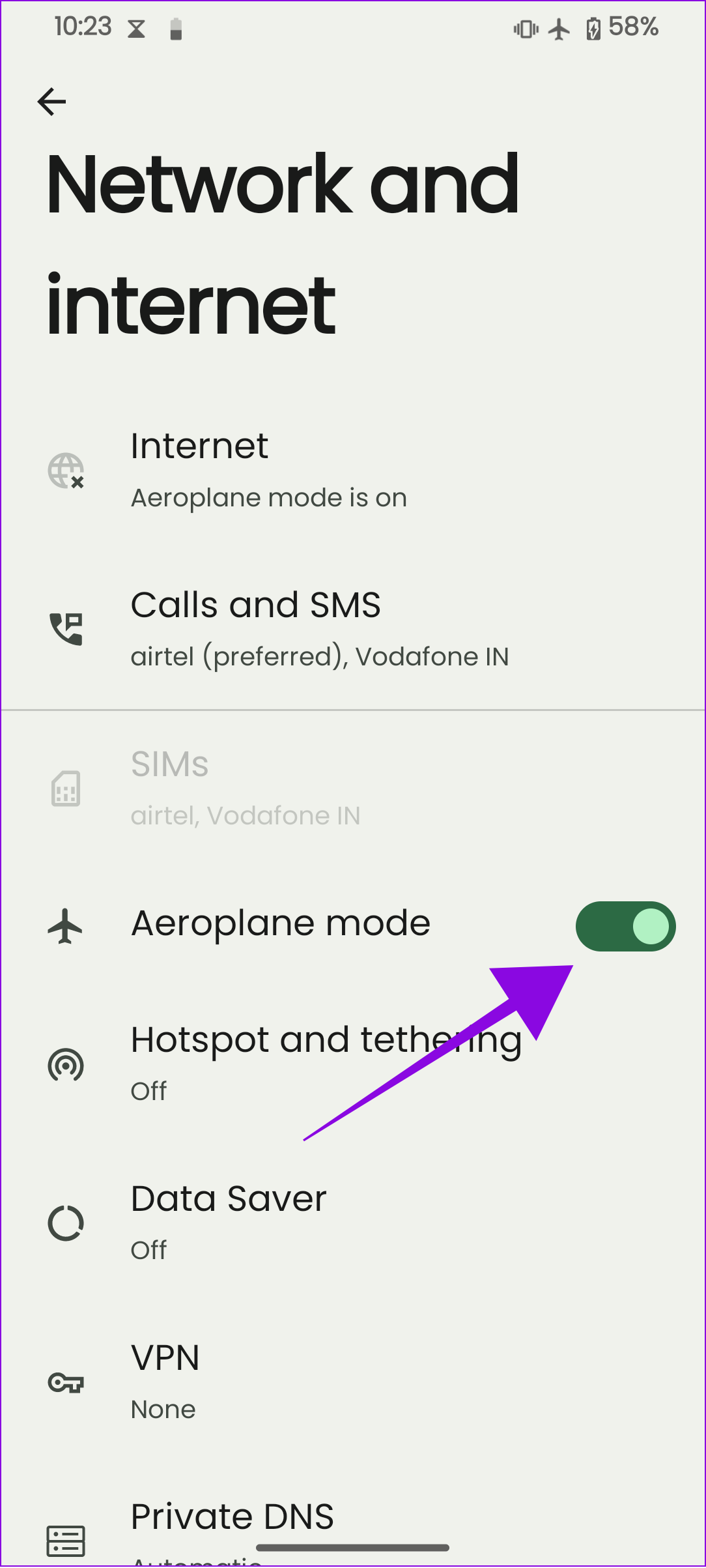

Depending on the Android OEMs, the steps might differ. Hence, you can use the search feature inside Settings to find Airplane mode.
2. Clear VPN App Cache
Cache files can help an app or service to work without any issues. However, over time, these files accumulate over the old ones and might affect the smooth operation of the app.
In that case, the best solution is to clear the VPN app cache to remove the key symbol bug on Samsung or other Android phones. You can also Force-stop the VPN app from the same page.
Also read: Clear cache in Samsung Galaxy phones
3. Remove VPN From Connections
Even after turning off the VPN, you might be unable to remove the key icon from the Android status bar. This might be because the service is still connected to the device connections. Hence, the solution is to remove it from establishing connections. Follow these steps:
Step 1: Open Settings > tap Network and Internet and choose VPN.
Step 2: Tap the settings button next to the VPN service you want to disable.

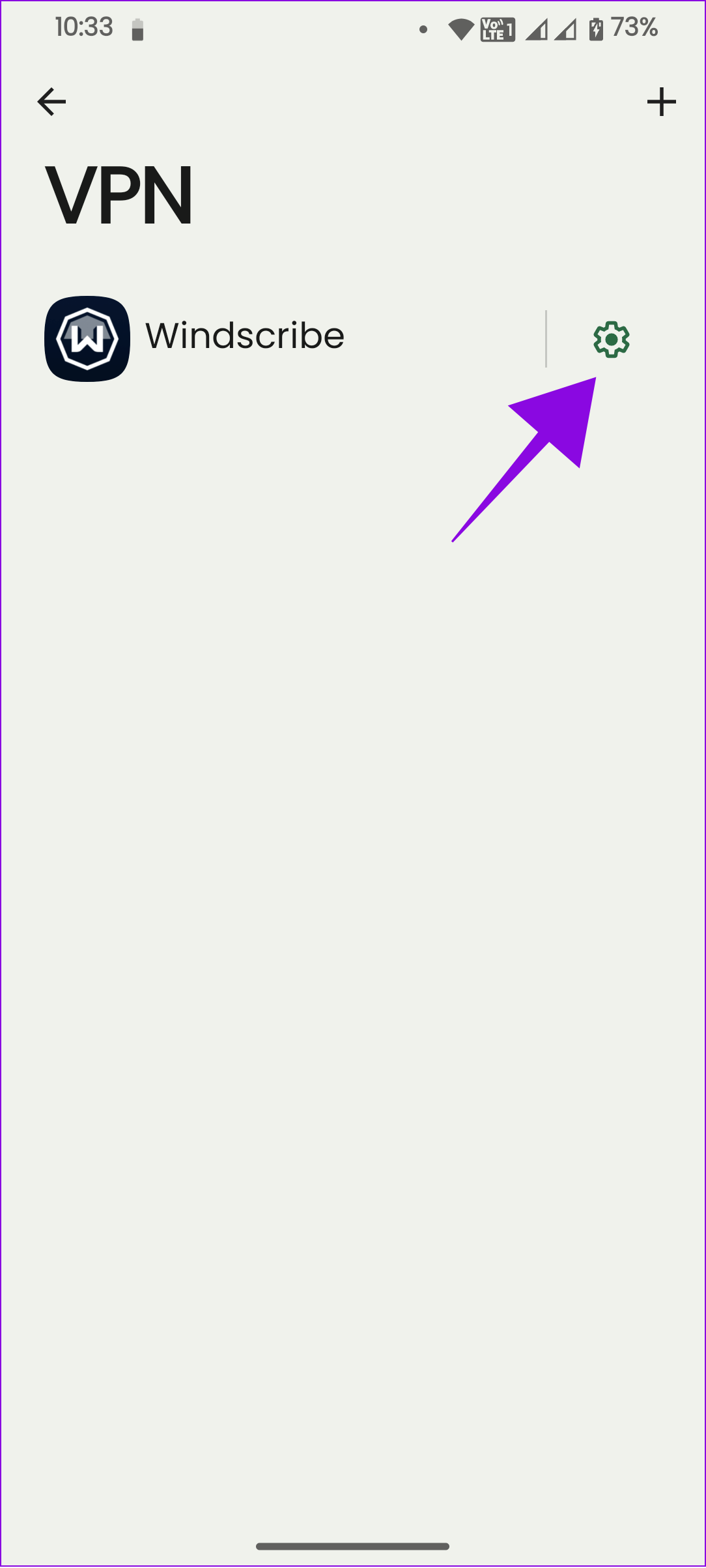
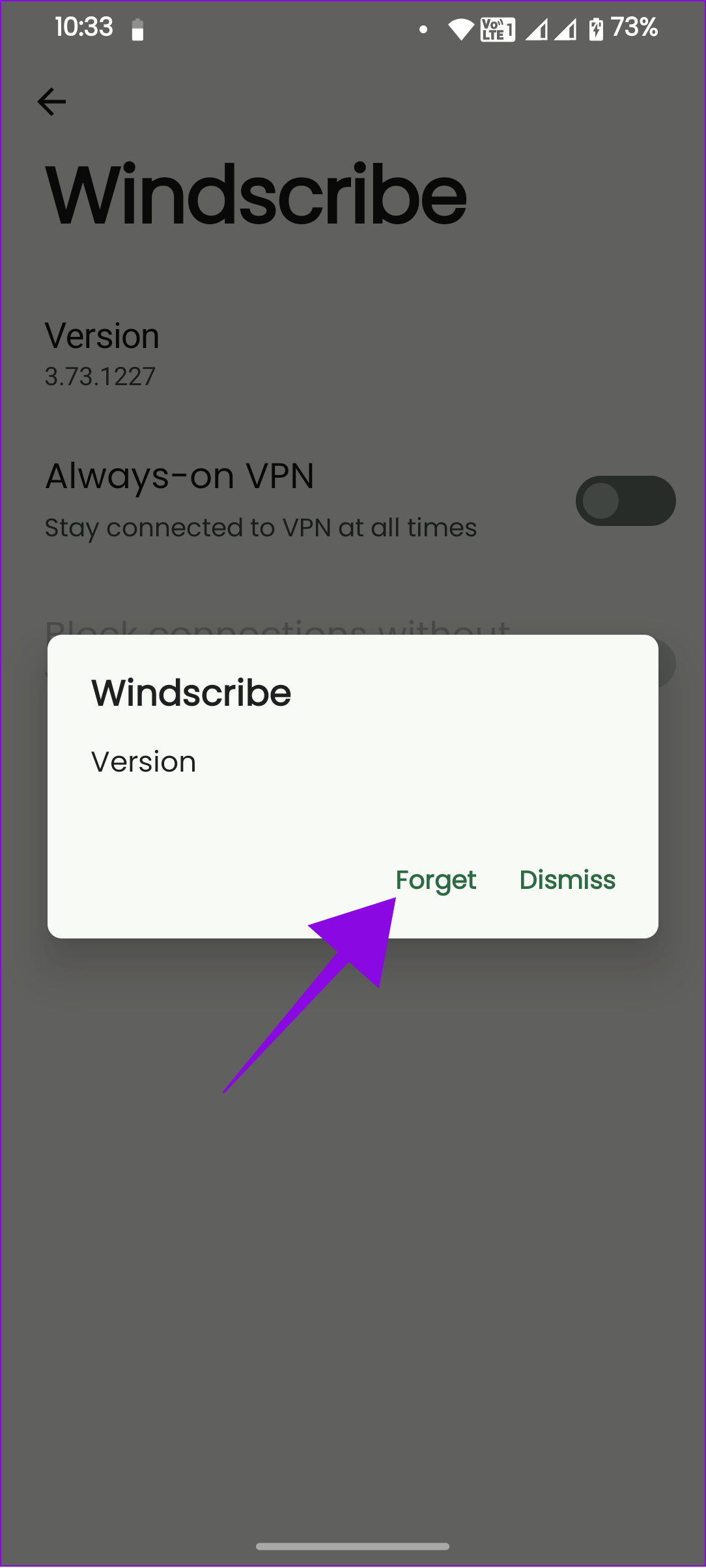
Step 3: Choose Forget VPN and tap Forget to confirm.

4. Reset Network Settings
Resetting network settings on Android includes restoring all the network-related settings to default. This includes Wi-Fi, Bluetooth, VPN, and cellular connections. However, it won’t delete any media files.
When you reset the network settings, it erases any customizations or changes you made to these settings and returns them to their default values. This might also help you remove the key icon (VPN symbol) from the Android status bar. So, try doing that.
5. Enable Demo Mode
Demo mode allows users to set the status bar to a fixed state, where you won’t see any notifications or other icons. This feature can help you remove key icons on your Android phone. To enable Demo mode on Android, you need first to enable Developer mode and then follow the below steps:
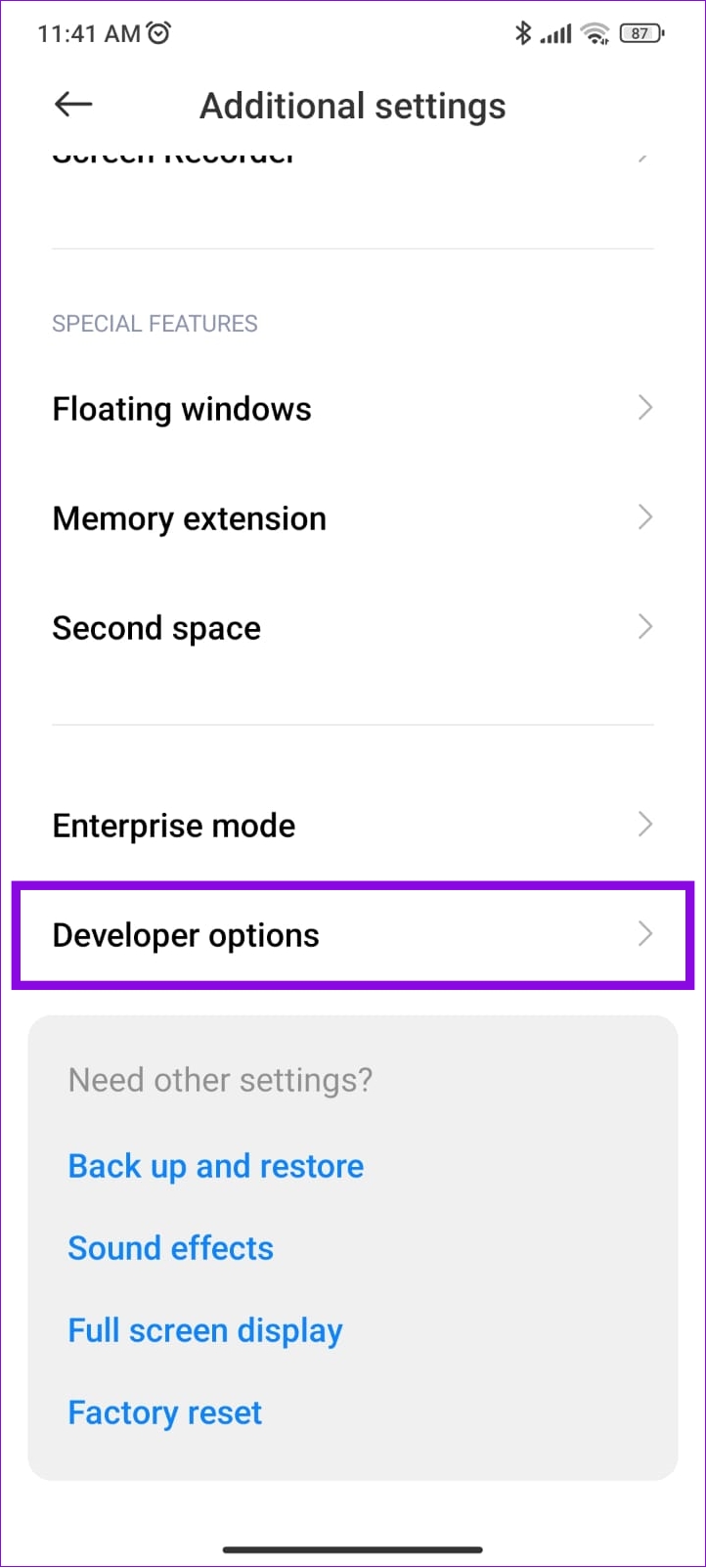
Step 1: Open Settings > tap Additional settings and choose Developer options.

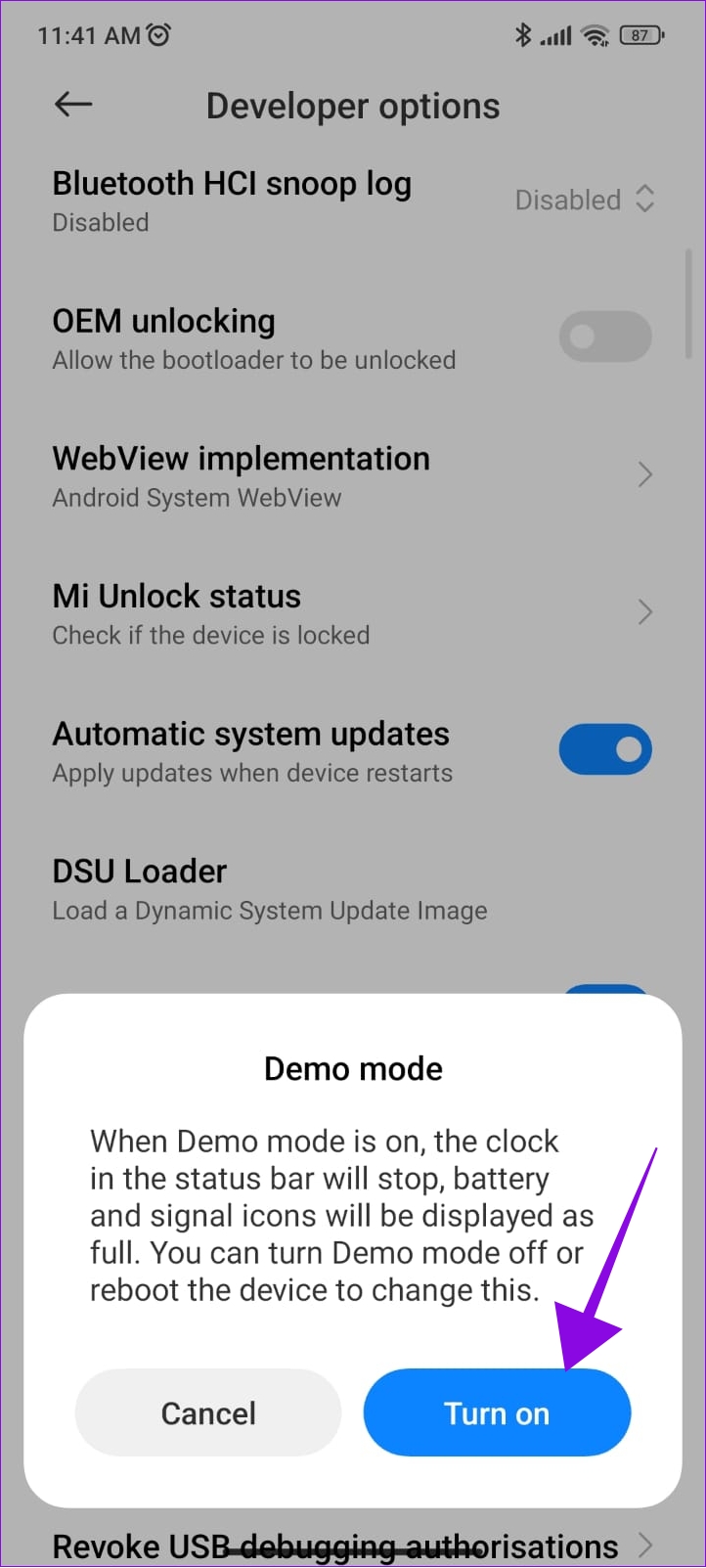
Step 2: Toggle on Demo mode and tap Turn on to confirm.

You can follow the same steps to turn it off and see if you still see the issue.
Note: Keep in mind you won’t see any new icons as well as the time will be constant.
FAQs on Removing Key Icon on Android
No. Unless you turn off the VPN, the function won’t be affected even if you remove the key icon on your Android phone.
Yes. Depending on your VPN service, your Internet connection will slow down.
You shouldn’t disable VPN unless necessary, as it protects your IP address and personal identity online. Besides, we recommend using a VPN when using public Wi-Fi. Also, it gives you access to certain geo-locked content.
Was this helpful?
Last updated on 13 August, 2024
Read Next
 7 Ways to Solve Safely Remove Hardware Icon Missing in Windows 10
Windows often advices to use the Safely Remove Hardware option before unplugging any USB device from a PC.
7 Ways to Solve Safely Remove Hardware Icon Missing in Windows 10
Windows often advices to use the Safely Remove Hardware option before unplugging any USB device from a PC.
 Top 7 Ways to Fix Windows Key Not Working on Windows 10
Windows 10 operating system is full of keyboard shortcuts.
Top 7 Ways to Fix Windows Key Not Working on Windows 10
Windows 10 operating system is full of keyboard shortcuts.
 7 Ways to Fix Windows Key Not Working in Windows 11
Basic Fixes Check for physical damage: There might be physical damage or dirt buildup on your keyboard.
7 Ways to Fix Windows Key Not Working in Windows 11
Basic Fixes Check for physical damage: There might be physical damage or dirt buildup on your keyboard.
 3 Quick Ways to Find Product Key on Windows 10 or Windows 11
1.
3 Quick Ways to Find Product Key on Windows 10 or Windows 11
1.
 4 Ways to Fix Tab Key Not Working on Windows 11
Try These Fixes First Restart your computer: The Issue can occur due to a temporary bug or glitch on your computer.
4 Ways to Fix Tab Key Not Working on Windows 11
Try These Fixes First Restart your computer: The Issue can occur due to a temporary bug or glitch on your computer.
 How to Add, Remove, and Delete Samsung Account From Your Android Phone
You don't need a Samsung account to use your Android phone the same way you need a Google account.
How to Add, Remove, and Delete Samsung Account From Your Android Phone
You don't need a Samsung account to use your Android phone the same way you need a Google account.
 How To Remove Ads That Appear After Unlocking Android Phone
I know.
How To Remove Ads That Appear After Unlocking Android Phone
I know.
 2 Ways to Remove Ads from Samsung Galaxy Phone Lock Screen
Method 1: Disable Lock Screen Services Lock screen services like Glance will display ads and even promote apps and games directly on the lock screen.
2 Ways to Remove Ads from Samsung Galaxy Phone Lock Screen
Method 1: Disable Lock Screen Services Lock screen services like Glance will display ads and even promote apps and games directly on the lock screen.
The article above may contain affiliate links which help support Guiding Tech. The content remains unbiased and authentic and will never affect our editorial integrity.