Method 1: Using the Task Manager
The Task Manager is used to monitor computer performance, background applications running, and system resource usage. However, you can also open built-in apps like the Services app.
Step 1: Press the Windows + R keys to open the Run tool, type taskmgr in the text field, and click OK.

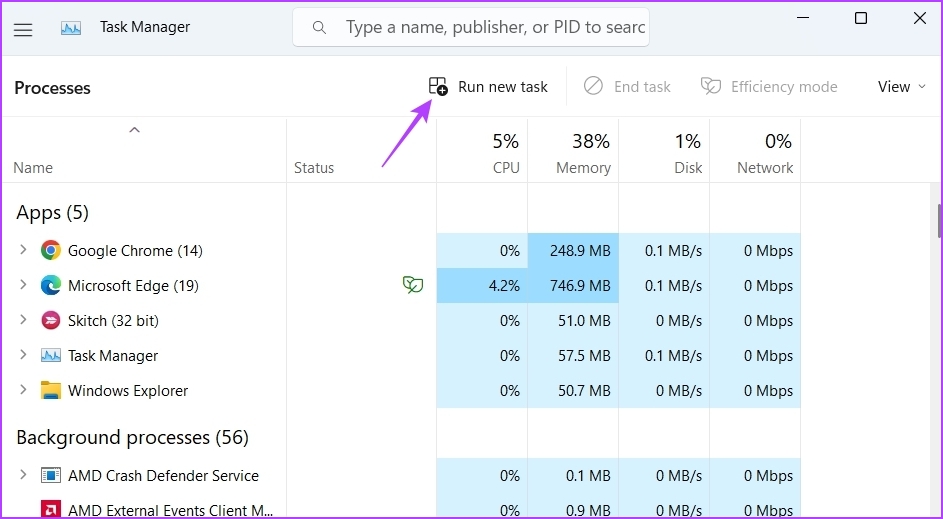
Step 2: Click the Run new task option in the Task Manager.
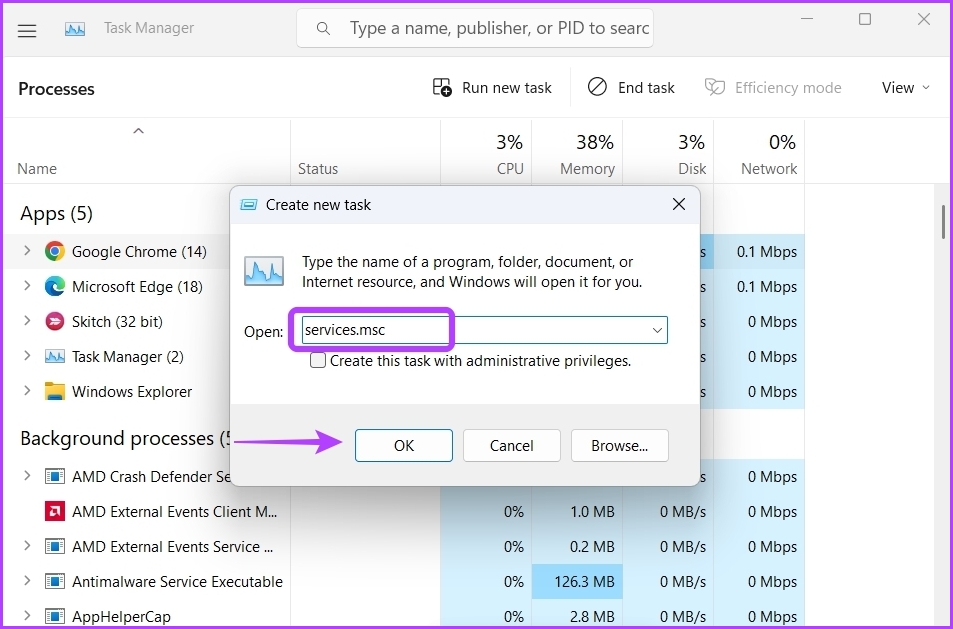
Step 3: Type services.msc in the text field and click OK to open Services.
Method 2: Using Command-Line Tools
Windows offers several command-line tools for performing different tasks. For example, you can use Command Prompt and Windows PowerShell to open services.
Step 1: Press the Windows + S keys to open Windows search, type Command Prompt in the text field, and click Open in the right pane.

Step 2: In the Command Prompt window, type services.msc and press Enter.

To access Services using the Windows PowerShell, follow the below instructions:
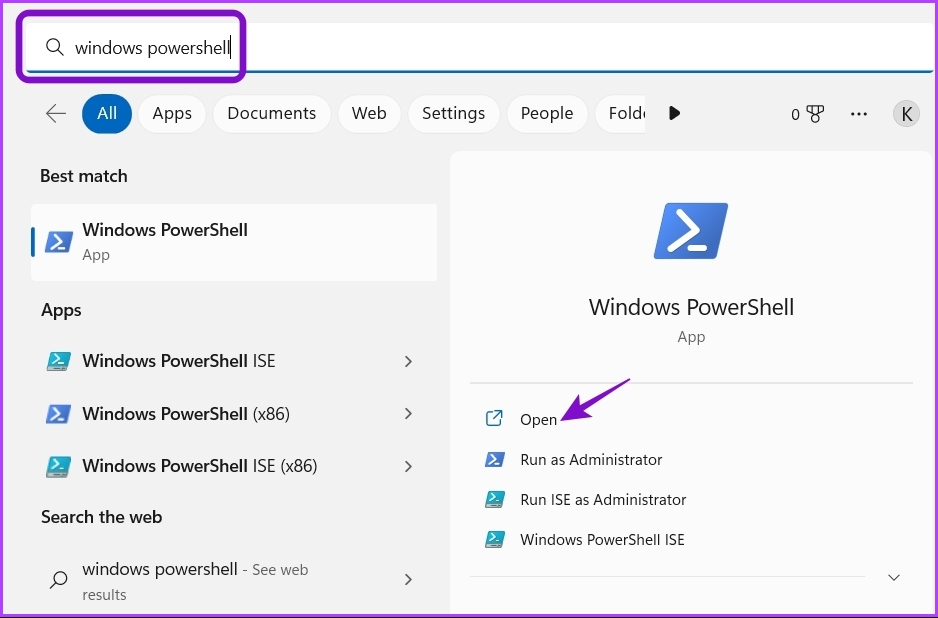
Step 1: Press the Windows + S keys to open Windows search, type Windows PowerShell in the search bar, and click Open.
Step 2: In the console, type services.msc and press Enter to access the Services app.
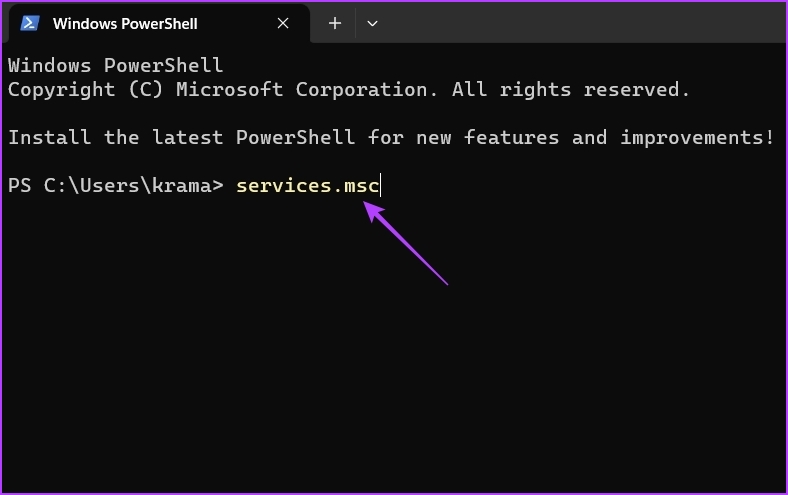
Method 3: Using the Control Panel
The Control Panel is the central hub of a Windows operating system. It’s the place to access and configure system settings. You can also use it to open the Services app. Here’s how:
Step 1: Launch Windows Search, type Control Panel in the search bar, and click Open.
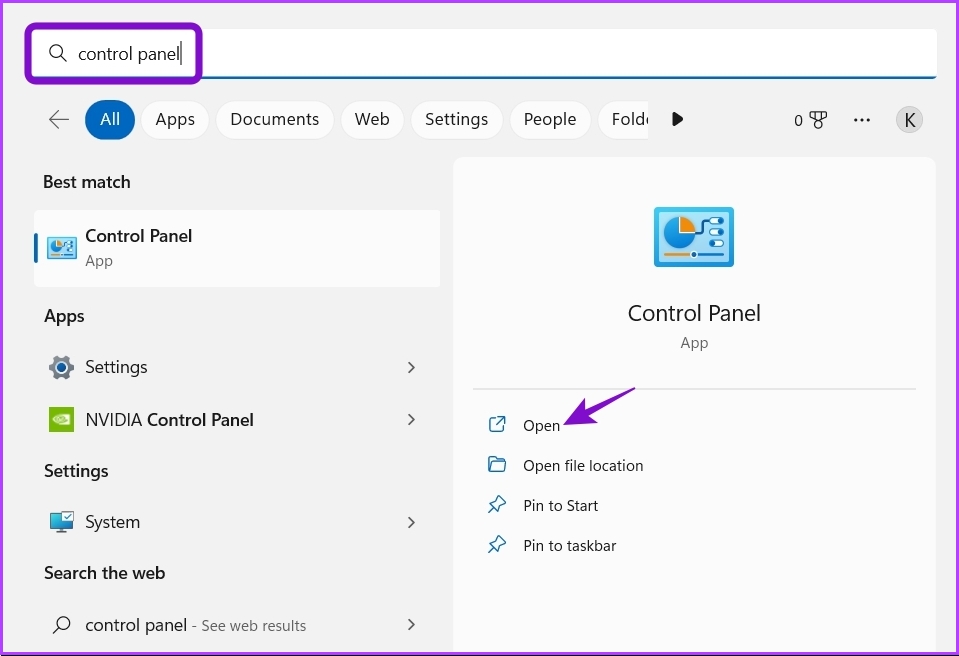
Step 2: Choose System and Security in the Control Panel.

Step 3: Select Windows Tools.
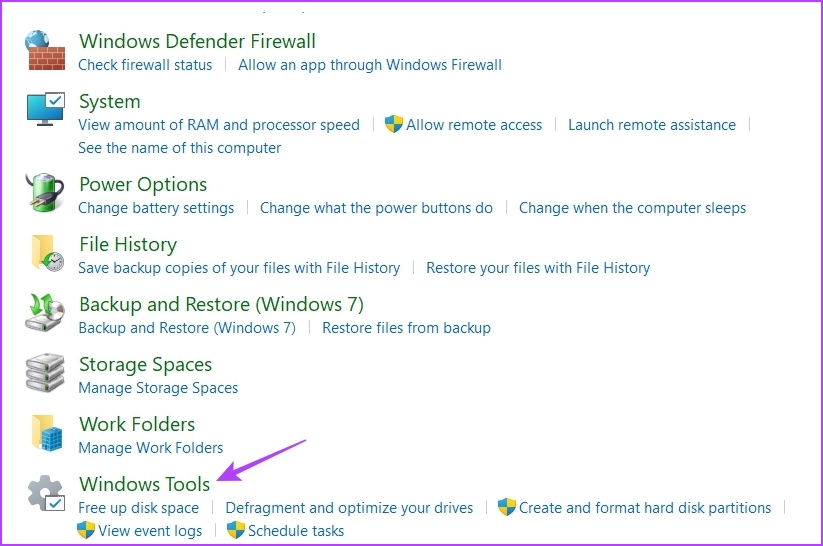
Step 4: Double-click on Services to open it.

Method 4: Using the Computer Management App
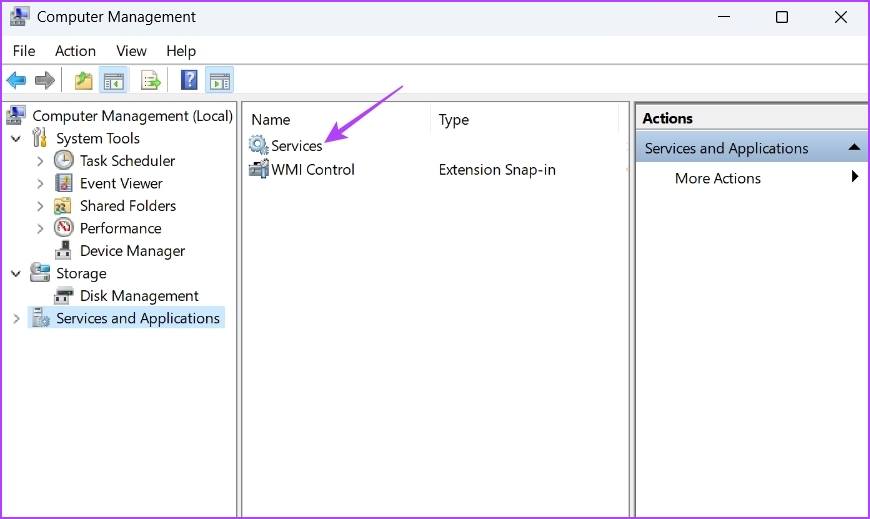
The Computer Management app is another Windows utility that lets you access important tools and features like Disk Management, Event Viewer, Services, Performance Monitor, and Device Manager. Here’s how to access Services using the Computer Management app:
Step 1: Open the Run tool by pressing Windows + R, type compmgmt.msc, and press Enter.

Step 2: Choose Services and Applications from the left sidebar.
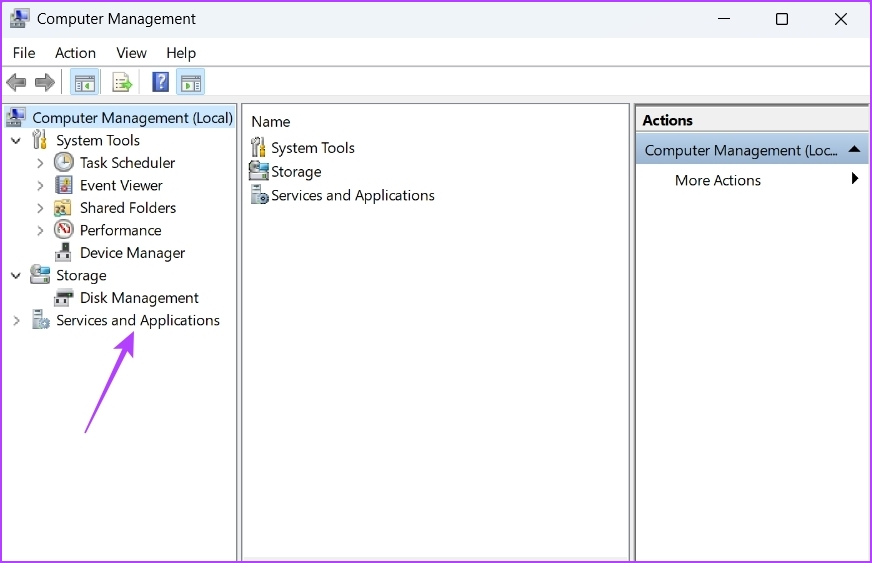
Step 3: Double-click the Services option in the right pane.
Method 5: Using the File Explorer
The File Explorer is the go-to place to view and open files and folders stored on your computer. It can also come in handy when accessing the Services app. You must ensure File Explorer opens properly before proceeding. Here’s how:
Step 1: Press the Windows + E key to open File Explorer.
Step 2: Open the drive in which you have installed the OS. Usually, it’s the C drive for most users.
Step 3: Search for the Windows folder and open it.

Step 4: Locate and double-click on the System32 folder to access its content.

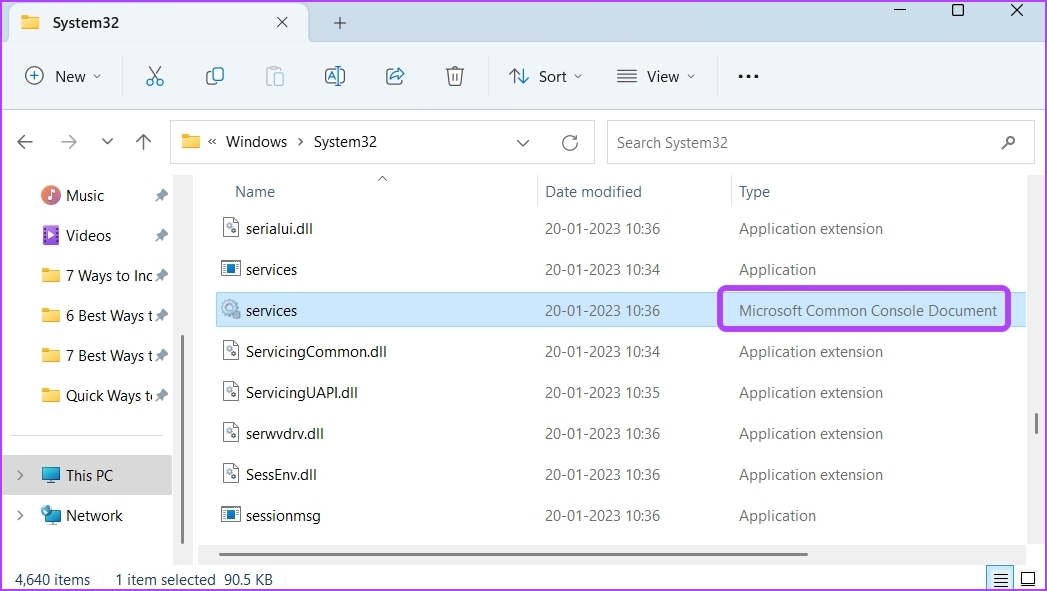
Step 5: In the System32 folder, search for and double-click on the services file to open the Services app.

Note that there might be two service files in the System32 folder. Ensure that you open the file with Microsoft Common Console Document written under the Type section.
However, if none of the above methods worked, check out our guide to fix Services if it’s not opening on Windows 11.
Was this helpful?
Last updated on 05 August, 2024
Read Next
 7 Quick Ways to Open Credential Manager in Windows 11
Are you looking for a password manager to save your login credentials securely?
7 Quick Ways to Open Credential Manager in Windows 11
Are you looking for a password manager to save your login credentials securely?
 7 Quick Ways to Open Remote Desktop Connection Tool in Windows 11
Method 1.
7 Quick Ways to Open Remote Desktop Connection Tool in Windows 11
Method 1.
 3 Quick Ways to Find Product Key on Windows 10 or Windows 11
1.
3 Quick Ways to Find Product Key on Windows 10 or Windows 11
1.
 4 Ways to Fix Location Services Grayed Out on Windows 11
Fix 1: Configure Geolocation Service Geolocation Service is a small program that needs to run in the background for the location services to work.
4 Ways to Fix Location Services Grayed Out on Windows 11
Fix 1: Configure Geolocation Service Geolocation Service is a small program that needs to run in the background for the location services to work.
 5 Ways to Fix Services Not Opening on Windows 11
Fix 1: Check Default File Association for MSC Files MSC (Microsoft Saved Console) files on your computer store information about various systems and third-party services.
5 Ways to Fix Services Not Opening on Windows 11
Fix 1: Check Default File Association for MSC Files MSC (Microsoft Saved Console) files on your computer store information about various systems and third-party services.
 4 Ways to Fix Gaming Services Won’t Update on Windows
Try Basic Fixes Close the Xbox app and try again: Since the Gaming Services app is tightly integrated with the Xbox app, you may have trouble installing or updating it
4 Ways to Fix Gaming Services Won’t Update on Windows
Try Basic Fixes Close the Xbox app and try again: Since the Gaming Services app is tightly integrated with the Xbox app, you may have trouble installing or updating it
 4 Ways to Disable Delivery Optimization in Windows 11
Method 1: Disable Delivery Optimization Using the Settings App The Settings app is the go-to option to configure important Windows settings like Delivery Optimization.
4 Ways to Disable Delivery Optimization in Windows 11
Method 1: Disable Delivery Optimization Using the Settings App The Settings app is the go-to option to configure important Windows settings like Delivery Optimization.
 4 Quick Ways to Check Hardware ID (HWID) of a Device in Windows 11
https://youtu.be/F2oYyUSnUy4 Method 1: Using Device Manager The easiest way to find the Hardware ID (HWID) is by using the Device Manager.
4 Quick Ways to Check Hardware ID (HWID) of a Device in Windows 11
https://youtu.be/F2oYyUSnUy4 Method 1: Using Device Manager The easiest way to find the Hardware ID (HWID) is by using the Device Manager.
The article above may contain affiliate links which help support Guiding Tech. The content remains unbiased and authentic and will never affect our editorial integrity.