Method 1: Use Labels to Group Notes
Google Keep lacks hierarchy, as it doesn’t support folders and subfolders. But it lets you organize your notes with labels. You can add multiple labels to a note. Labels are like tags that help you identify the note’s category. For instance, you can have work, personal, travel, etc., as labels on your notes.
Mobile
Step 1: Tap your label, tap its 3 dots at the bottom left, and select Labels.
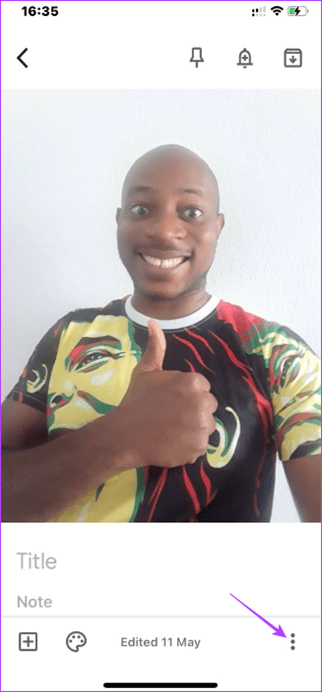
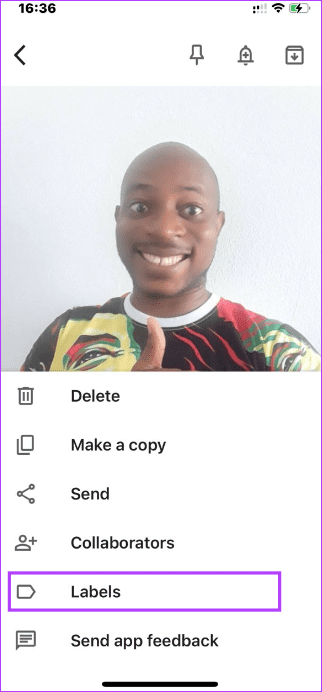
Step 2: Select the checkbox of the label you want to add it to.
Alternatively, if you already do not have created labels, follow the steps below:
Step 1: Launch your Keeps app.
Step 2: Tap the hamburger icon and select Create/Edit labels.


Step 3: Tab the Create new label option, give it a name, and tap the checkmark.
Desktop
Step 1: Navigate to Google Keeps on your browser.
Step 2: Open the Note, click its ellipses (three horizontal dots), click Label, and add your preferred label.

Step 3: Optionally, you may type in the name of a new label and click Create.
Method 2: Color Code Notes
Another way to find notes easily is by using the color scheme. All the notes are white by default, but Google Keep lets you change their color for easier identification. For instance, you can keep your lists yellow and all personal notes green. The steps are similar on mobile and desktop.
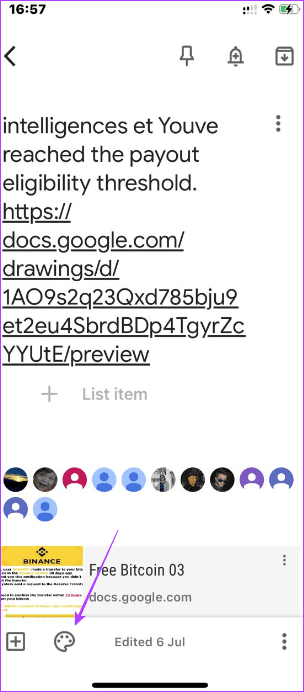
Step 1: Open a Note.
Step 2: Tap the color palette, then choose a color.

Method 3: Include Bulleted Lists in Notes
This is one of the hidden features of Google Keep. Google Keep doesn’t offer a dedicated button to create bullet points. To get a bullet list, type Asteriks (*) and hit Enter. Now, you will get a new bullet when you go to a new line.
Method 4: Add Reminders
Reminders on Keep work, as the name implies. They help you remember notes you have made. Creating a reminder on Google Keeps is similar for mobile and desktop.
Step 1: Open the note.
Step 2: Click the bell icon and configure the reminder date and time as you please.

Method 5: Include To-Do Lists (Checkboxes)
While Google recently launched a dedicated to-do app known as Google Tasks, to-do lists have been part of Google Keep for a long time. You can create a new to-do list by adding checkboxes. You may come back to cross them out when a task is completed. Follow these steps.
Mobile
Step 1: Open a Note.
Step 2: Tap the squared plus icon at the bottom left, then tab Checkboxes.


Step 3: Now, enter names for your checkboxes.
Desktop
Step 1: Open a Note.
Step 2: Click the more options dots, then click Show checkboxes.
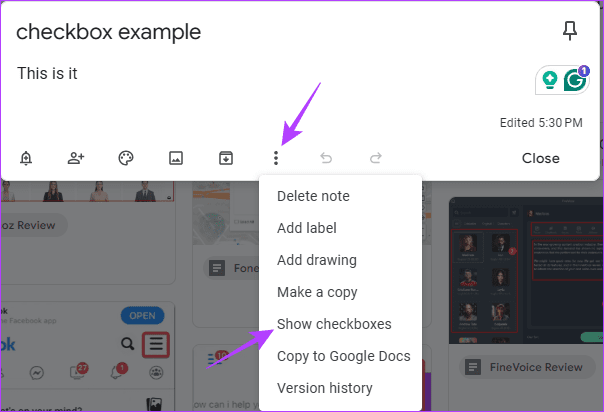
Step 3: Enter the names of the different tasks.
Method 6: Pin Important Notes
Now, if you have some important notes that should always be available on the top, you can do that by pinning them. Similar to the pin feature of other apps, the pinned notes will remain above others even if you add new ones. The steps are similar on the mobile and desktop apps.
Step 1: Open a note.
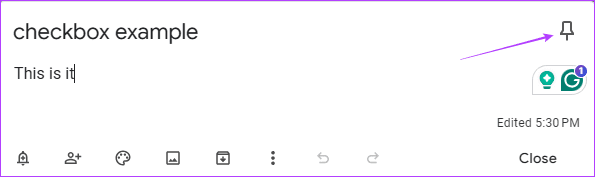
Step 2: Click the pin icon.
FAQs
Can you create folders in Google Keep?
Google Keeps does not support the creation of folders. You may use Labels in place of folders to organize your notes.
Is there a way to sort Google Keep notes?
Google Keeps has very limited options for sorting. The best you can do is manually reorder your notes or pin them to always appear on top.
Is Google discontinuing Google Keep notes?
While there have been some changes with Google Keep, like the end of support for the Chrome app, there is no indication that the service will be discontinued.
Was this helpful?
Last updated on 26 July, 2024
Read Next
 15 Best Ways to Organize Notes Effectively in Microsoft OneNote
Microsoft OneNote is a powerful note-taking tool if you know how to use it.
15 Best Ways to Organize Notes Effectively in Microsoft OneNote
Microsoft OneNote is a powerful note-taking tool if you know how to use it.
 Moving from Evernote to Google Keep Notes and Docs: My Experience
Last month, I wrote a detailed post explaining why I moved all my data and files from Dropbox to Google Drive.
Moving from Evernote to Google Keep Notes and Docs: My Experience
Last month, I wrote a detailed post explaining why I moved all my data and files from Dropbox to Google Drive.
 3 Ways to Access Google Keep Notes on Windows 11
Method 1: Access Google Keep Notes on the Web Google Keep lets you create, sync, and access notes across multiple devices.
3 Ways to Access Google Keep Notes on Windows 11
Method 1: Access Google Keep Notes on the Web Google Keep lets you create, sync, and access notes across multiple devices.
 How to Transfer Google Keep Notes to Another Account
Method 1: Send to Another Google Account On Google Keep's mobile apps, you get the option to share individual notes across different apps.
How to Transfer Google Keep Notes to Another Account
Method 1: Send to Another Google Account On Google Keep's mobile apps, you get the option to share individual notes across different apps.
 How to Transfer iPhone Notes to Google Keep
Method 1: Upload to Google Keep Manually This step is the simplest of all and you can easily transfer your notes to Google Keep.
How to Transfer iPhone Notes to Google Keep
Method 1: Upload to Google Keep Manually This step is the simplest of all and you can easily transfer your notes to Google Keep.
 How to Transfer Samsung Notes to Google Keep
There’s a constant battle going on between Samsung and Google apps.
How to Transfer Samsung Notes to Google Keep
There’s a constant battle going on between Samsung and Google apps.
 13 Gmail Labels Tips and Tricks to Organize and Manage Them
Tip 1: Create Labels in Gmail There are two ways to create a label from the Gmail website.
13 Gmail Labels Tips and Tricks to Organize and Manage Them
Tip 1: Create Labels in Gmail There are two ways to create a label from the Gmail website.
 How to Use Stars to Organize Your Emails in Gmail
Add Star to an Email on Web Step 1: Open Gmail and locate the essential email or the one you want to visit again.
How to Use Stars to Organize Your Emails in Gmail
Add Star to an Email on Web Step 1: Open Gmail and locate the essential email or the one you want to visit again.
The article above may contain affiliate links which help support Guiding Tech. The content remains unbiased and authentic and will never affect our editorial integrity.