

How to Open a File Using Command Prompt on Windows
Here’s how you can easily open Command Prompt on your PC and use it to access a file. However, you must know the file’s path on your PC before proceeding with the steps.
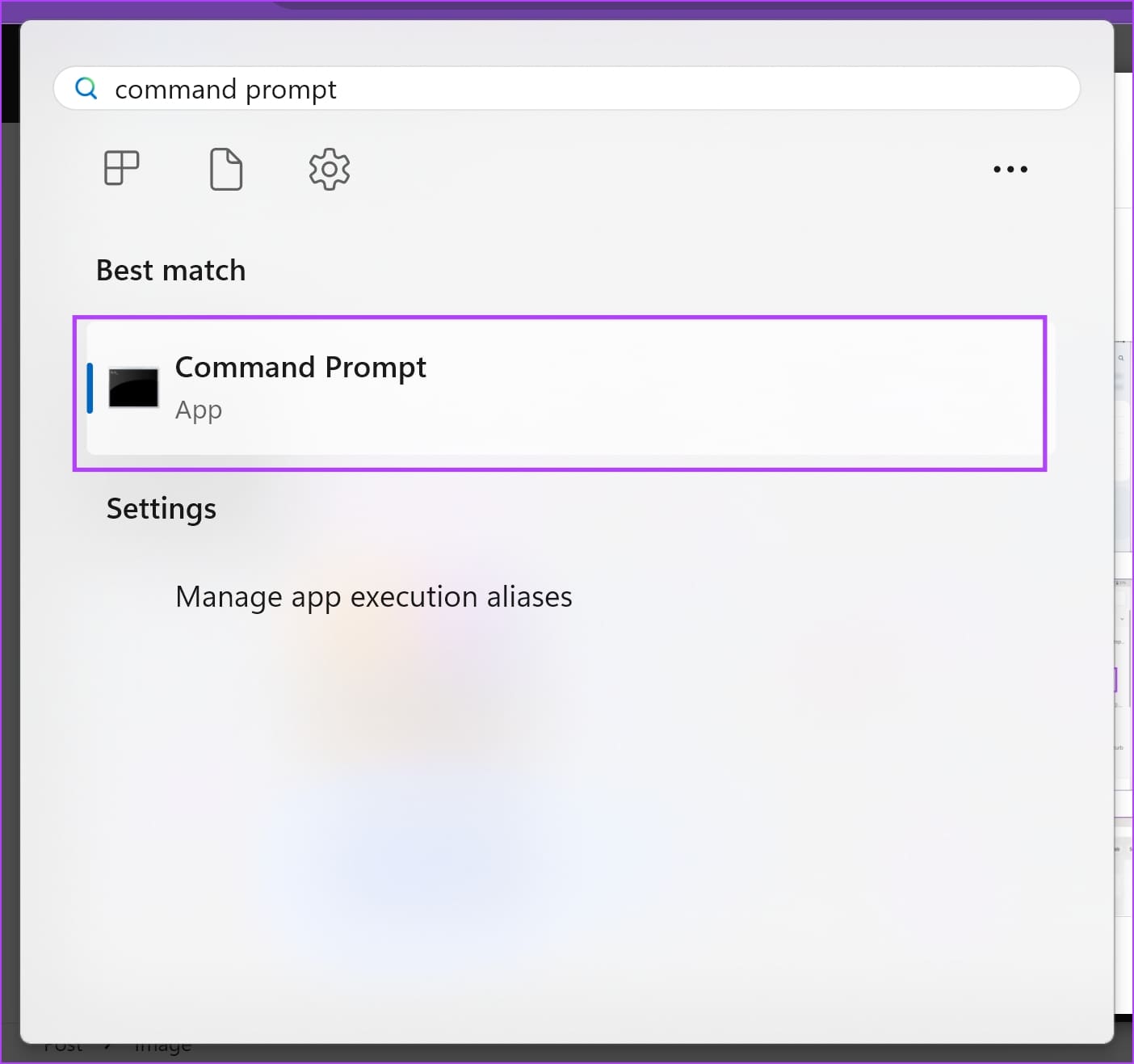
Step 1: Open the Command Prompt app from the start menu.
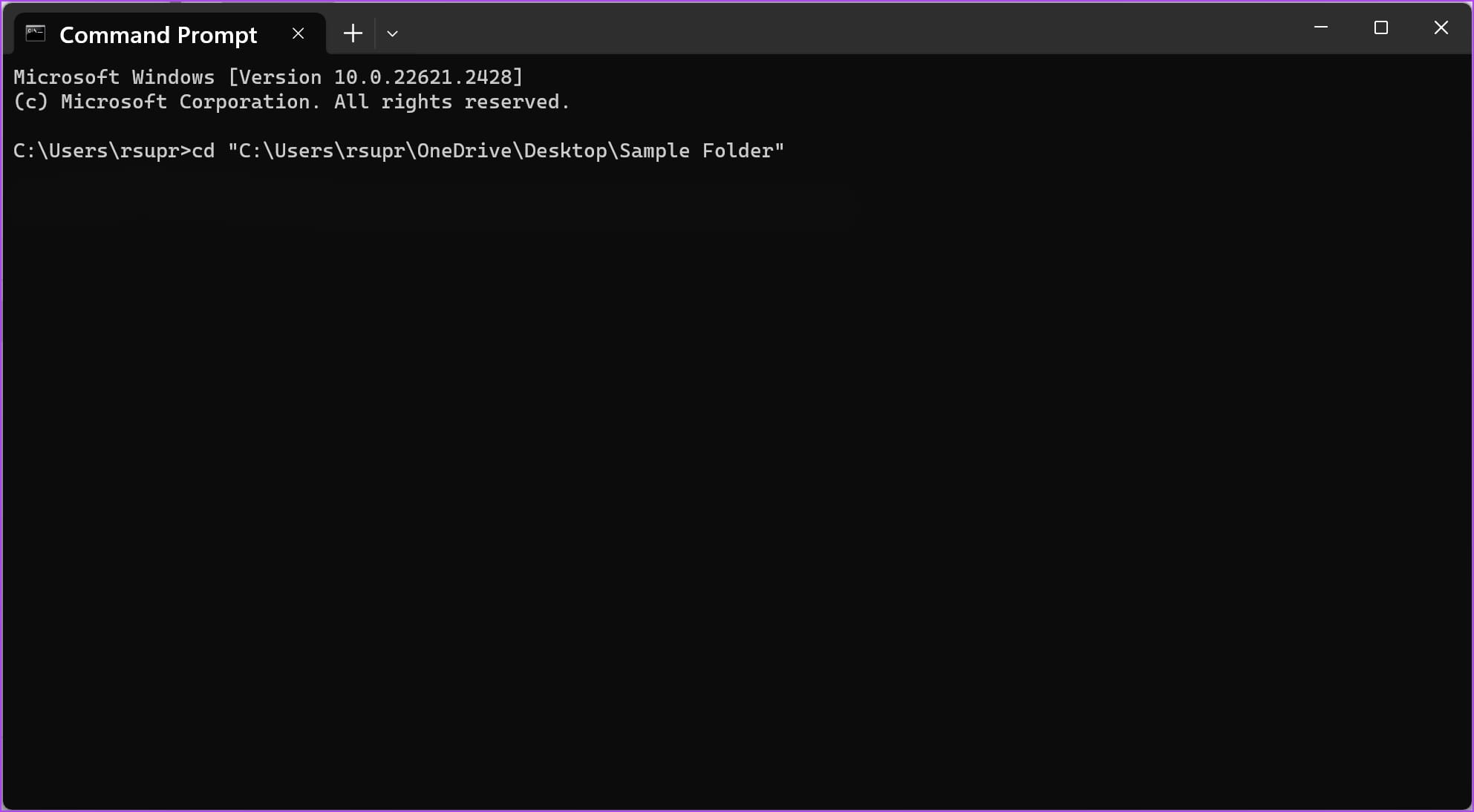
Step 2: Now, type cd, followed by folder path, and hit enter.
cd "folder_path"
To copy the path of any folder, right-click on the folder and click on ‘Copy as Path’. Our folder path here is “C:\Users\rsupr\OneDrive\Desktop\Sample Folder”.
Note: Ensure to enter all the paths within double quotes.
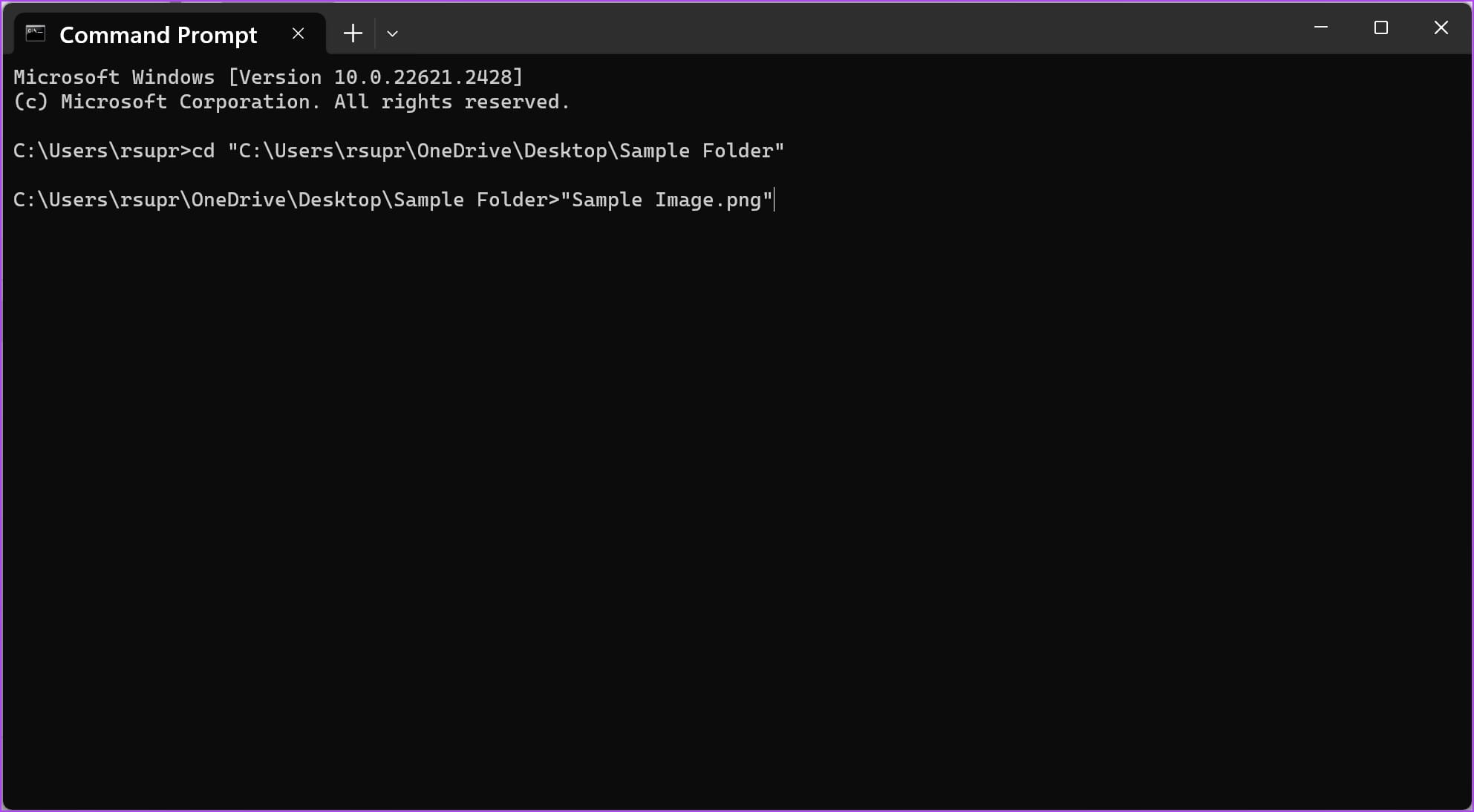
Step 3: Next, enter the file name and its extension in double-quotes.
The name of the file we are using is “Sample Image” and its extension is “.png”.
Step 4: Hit the enter key, and the file will open.
Also Read: Create a folder or file from Windows Command Prompt
How to Open a Folder Using Command Prompt
Step 1: Open the Command Prompt app from the start menu.
Step 2: Now, type cd and paste the path of the folder you want to open. Once done, hit enter.
cd "folder_path"
To copy the path of any folder, right-click on the folder and click on ‘Copy as Path’. Our folder path here is “C:\Users\rsupr\OneDrive\Desktop\Sample Folder”.
Note: Ensure to enter all the paths within double quotes.
Step 3: Next, enter the following command to open the folder on your PC. Hit the enter key.
start .

How to Delete Files Using CMD on Windows
You can also delete files using simple commands on CMD in Windows. However, this permanently deletes the file, so proceed with caution.
1. Delete Individual File
Step 1: Open the Command Prompt app from the start menu.
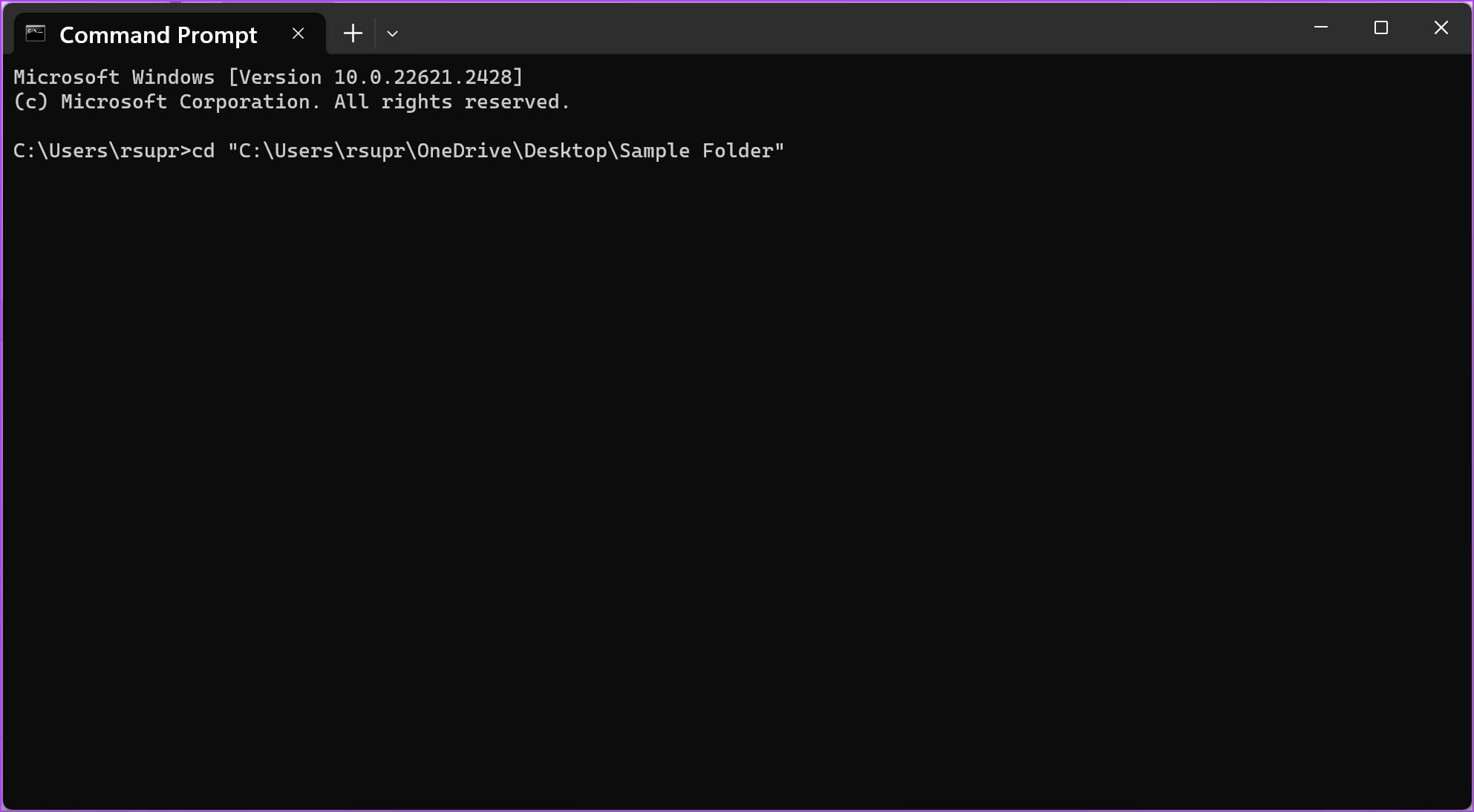
Step 2: Now, type cd, followed by the file’s path you want to delete. Hit the enter key.
cd "folder_path"
To copy the path of any folder, right-click on the folder and click on ‘Copy as Path’. Our folder path here is “C:\Users\rsupr\OneDrive\Desktop\Sample Folder”.
Note: Ensure to enter all the paths within double quotes.
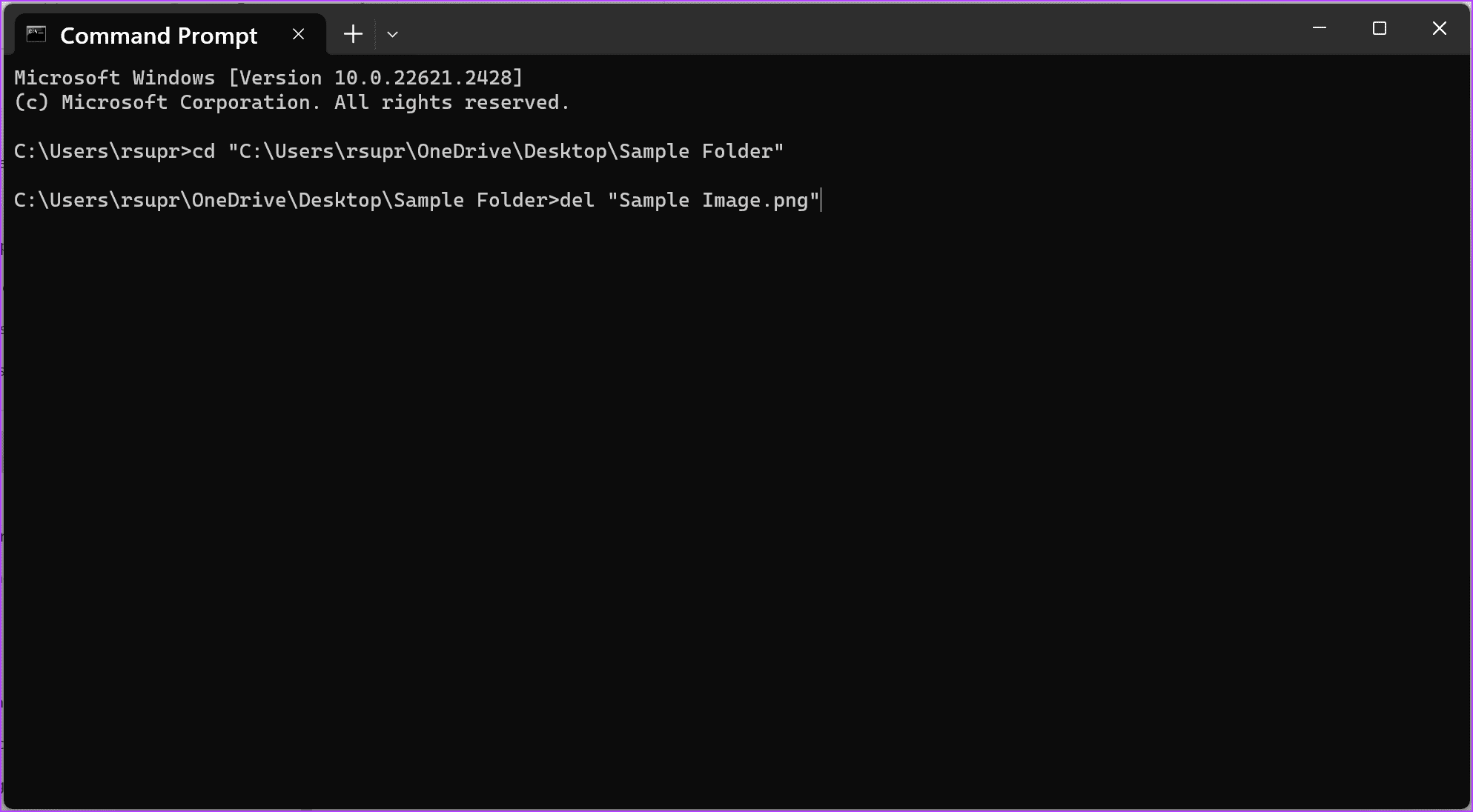
Step 3: Type del followed by the name of the file you want to delete. Hit the enter key.
Ensure to enter the filename and its extension within double quotes. The name and extension of the file we are using are “Sample Image” and “.png”.
2. Delete All Files Within a Folder
You can also permanently delete a folder’s contents at once using a single command. Here’s how:
Step 1: Open the Command Prompt app from the start menu.
Step 2: Now, type del and paste the path of the folder whose contents you want to delete. Hit the enter key.
del "folder_path"
To copy the path of any folder, right-click on the folder and click on ‘Copy as Path’. Our folder path here is “C:\Users\rsupr\OneDrive\Desktop\Sample Folder”.

Step 3: Type ‘Y’ to confirm your action or ‘N’ to abort the process and hit the enter key.

Also Read: How to view Command Prompt (CMD) history on Windows.
Bonus: Copy or Move Files to Different Locations Using CMD
You can also copy or move files from one destination to another on your Windows PC within CMD. Here’s how:
Step 1: Open Command Prompt from the start menu.
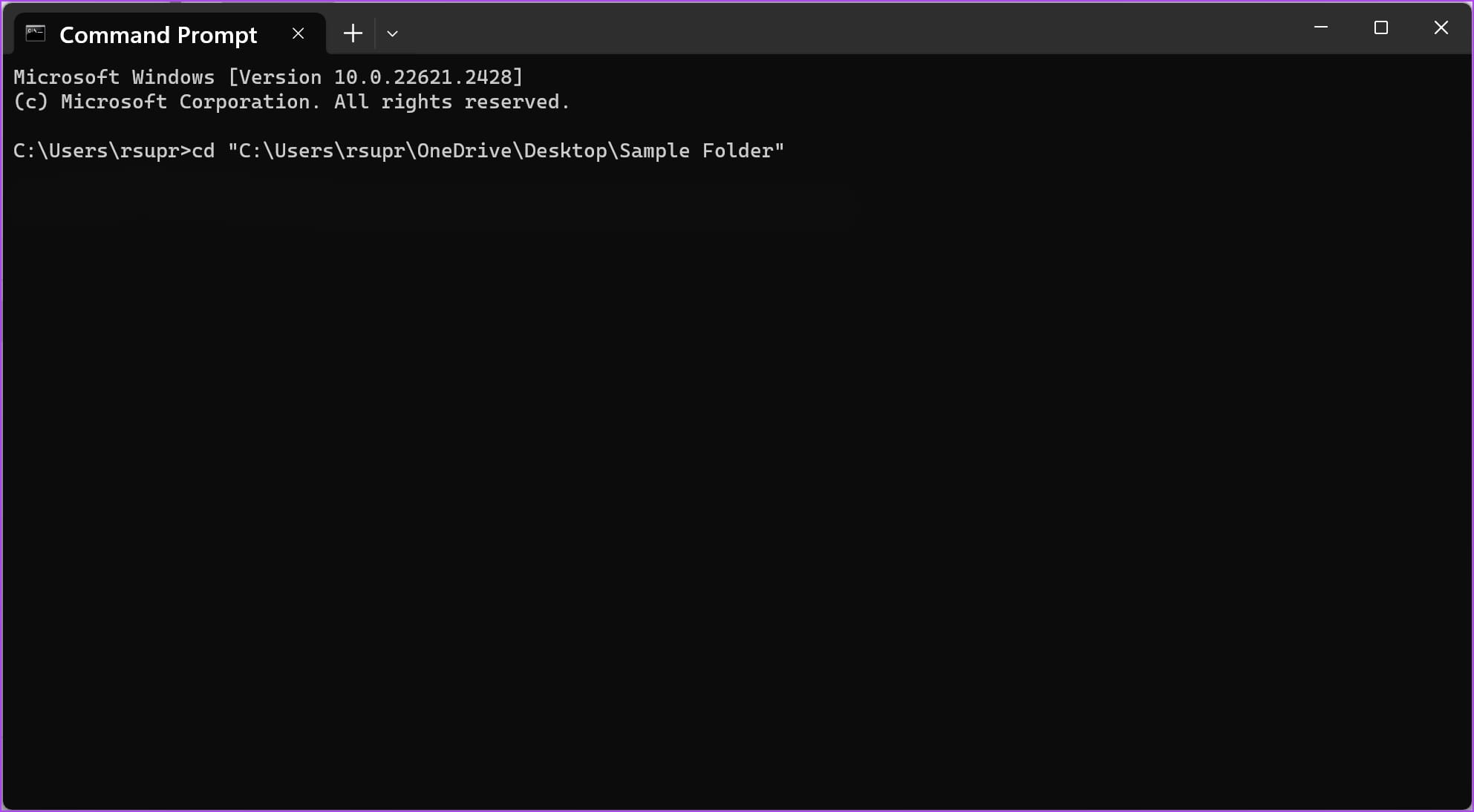
Step 2: Now, type cd and paste the path of the file you want to copy or move. Hit the enter key.
cd "folder_path"
To copy the path of any folder, right-click on the folder and click on ‘Copy as Path’. Our folder path here is “C:\Users\rsupr\OneDrive\Desktop\Sample Folder”.
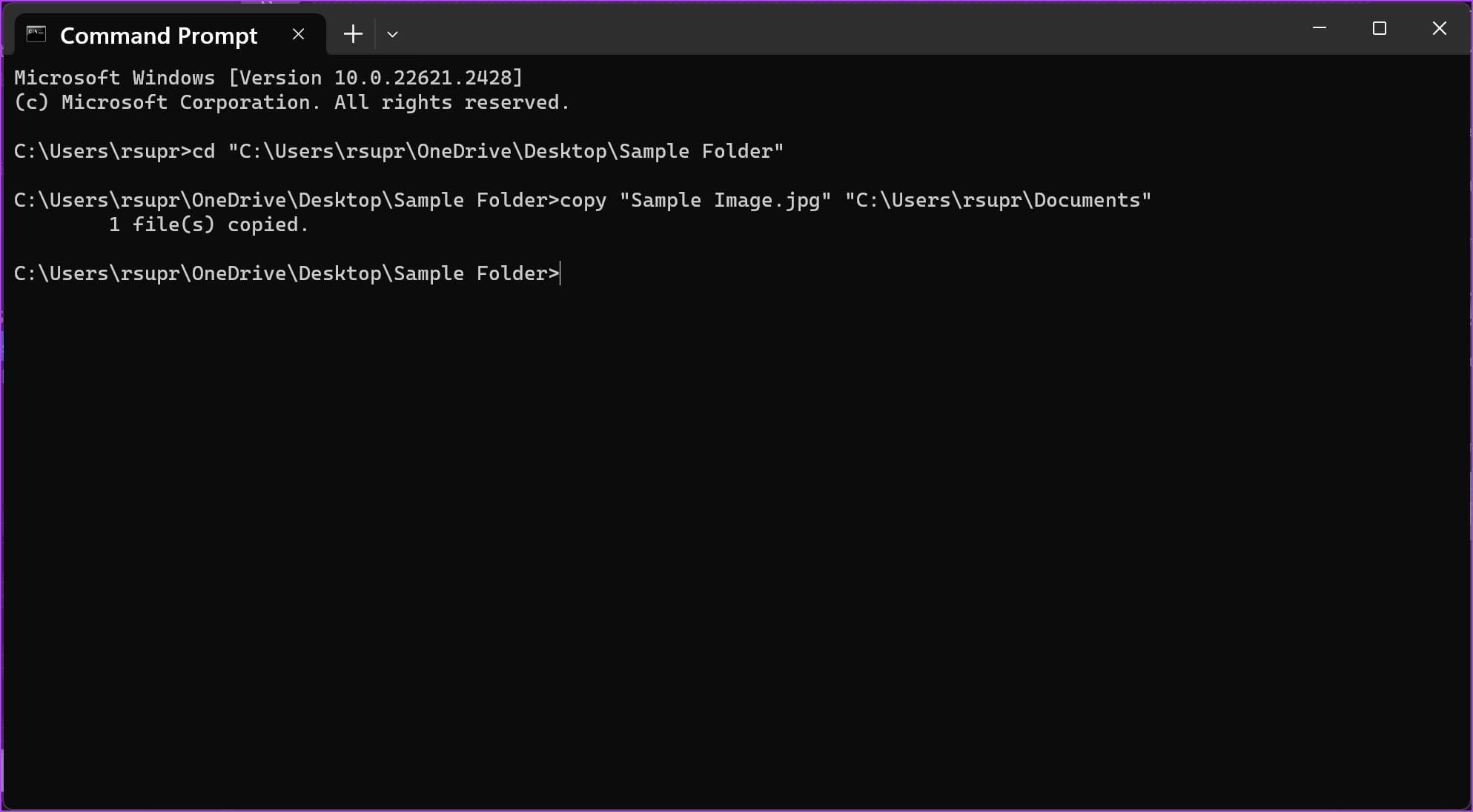
- To copy a file to a different location, type copy and the source file’s name and the destination folder’s path. Once done, press enter.
copy "filename.extension" "destination_path"
Our file is “Sample Image.png” and the destination path is “C:\Users\rsupr\OneDrive\Documents”.
Note: Ensure to enter all the paths, the filename, and its extension within double quotes.
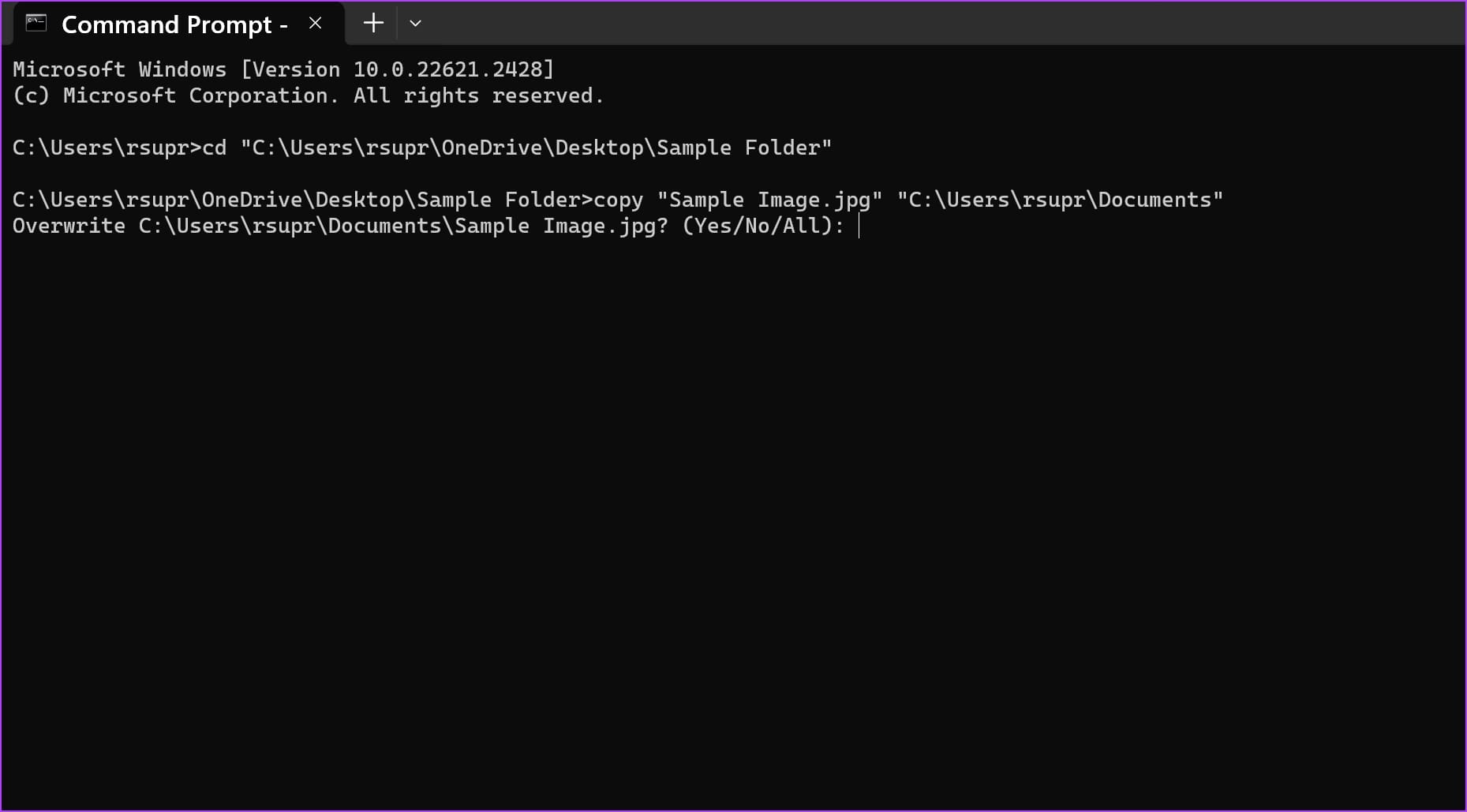
Note: If a file of the same name exists in the destination folder, you will receive a prompt whether you want to overwrite the file or abort the process. Type Y (yes) to overwrite or N (no) to abort, and hit enter.
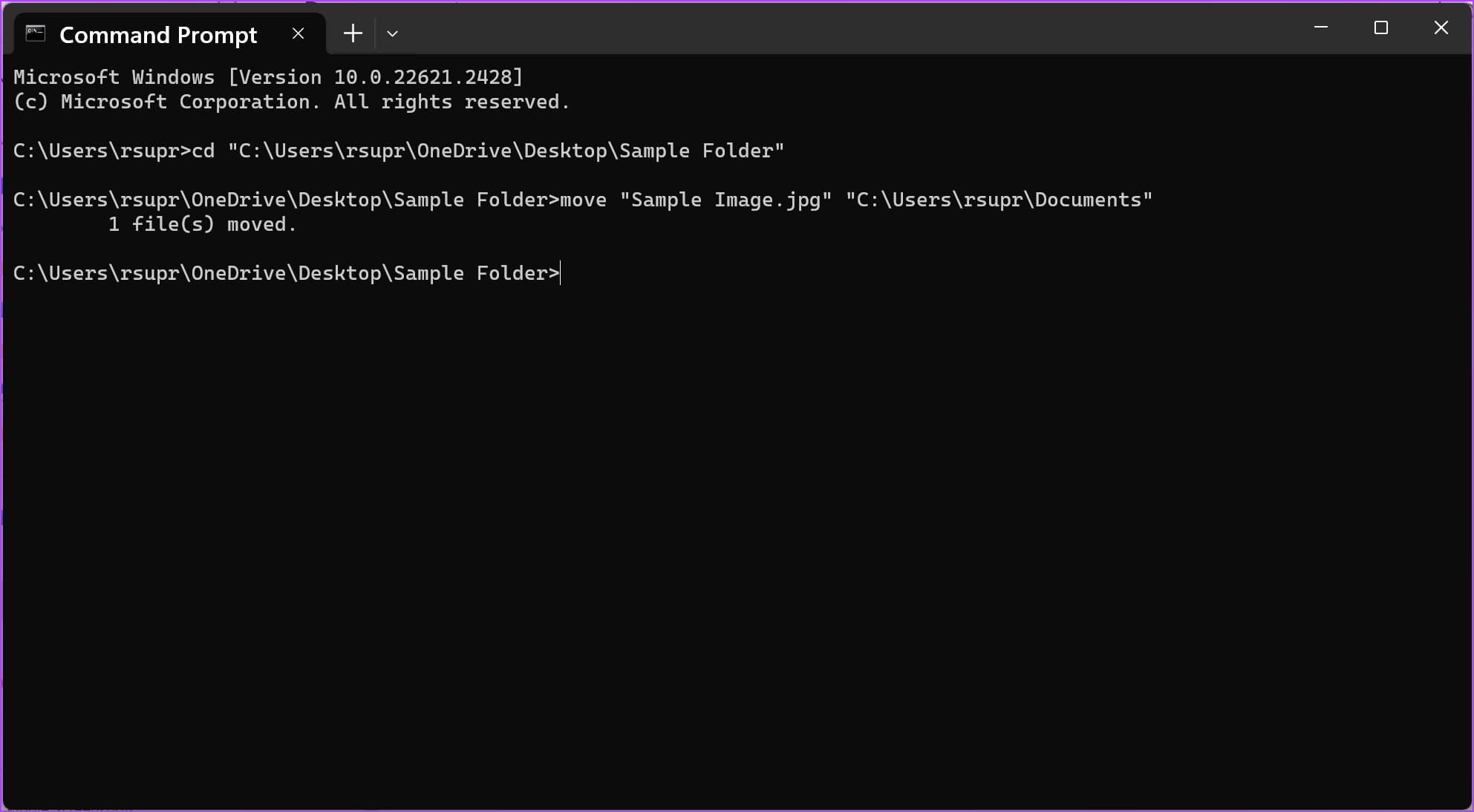
- To move a file to a different location, type move, followed by the source file’s name and the destination folder’s path. Now, hit enter.
move "filename.extension" "destination_path"
Our file is “Sample Image.png” and the destination path is “C:\Users\rsupr\OneDrive\Documents”.
Note: Ensure to enter all the paths, the filename, and its extension within double quotes
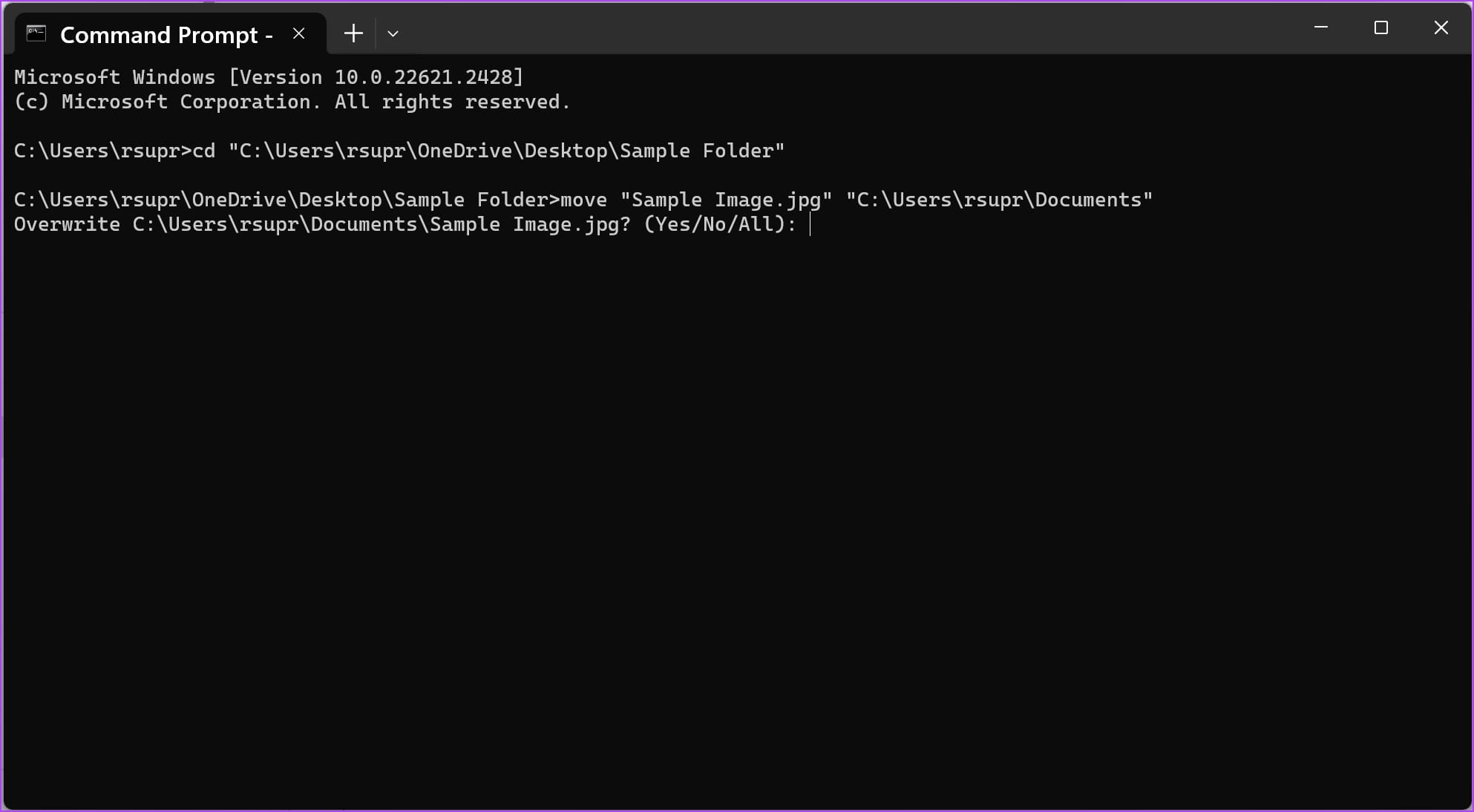
Note: If a file of the same name exists in the destination folder, you will receive a prompt whether you want to overwrite the file or abort the process. Type Y (yes) to overwrite or N (no) to abort and hit enter key.
That is everything you need to know on how to open files and folders using CMD on Windows. If you have any further questions, move to the following section.
FAQs on Opening Files Using Command Prompt
No, you do not need to open Command Prompt as an administrator to open, delete, move/copy files on your Windows PC.
Ensure you use the ‘cd’ command before entering a directory. Further, ensure that all paths and filenames are enclosed within double quotes. Make sure to include the extension of the filename as well.
All you need to do is to type ‘cd’ and enter the path of the folder in double quotes. This will open the folder to CMD, and you can type the file names present in the folder to open it.
Right-click on the filename, select properties, and select the General tab. You can see the file’s full name and its extension in the ‘Type of File’ section.
Was this helpful?
Last updated on 14 August, 2024
Read Next
 How to Control Integrity Level of Windows 10 Files, Folders
Ever had the problem of ‘Access is Denied’ while browsing through your own computer?
How to Control Integrity Level of Windows 10 Files, Folders
Ever had the problem of ‘Access is Denied’ while browsing through your own computer?
 How to Manage Files and Folders Efficiently on Windows 10
Files and folders tend to accumulate over time on our Windows computers.
How to Manage Files and Folders Efficiently on Windows 10
Files and folders tend to accumulate over time on our Windows computers.
 3 Ways to Fix USB Drive Not Showing Files and Folders on Windows 11
Try These Basic Fixes Configure File Explorer to show hidden items: If some of your files and folders are missing from the USB drive but the storage space is still
3 Ways to Fix USB Drive Not Showing Files and Folders on Windows 11
Try These Basic Fixes Configure File Explorer to show hidden items: If some of your files and folders are missing from the USB drive but the storage space is still
 5 Fixes for “Unspecified Error” When Copying Files or Folders in Windows
Fix 1: Check the Destination Drive Format Are you attempting to copy a file to an external drive that uses a non-NTFS format?
5 Fixes for “Unspecified Error” When Copying Files or Folders in Windows
Fix 1: Check the Destination Drive Format Are you attempting to copy a file to an external drive that uses a non-NTFS format?
 4 Best Ways to Compare Files in Two Folders on Windows 11
Method 1: Use the Properties Menu You can launch the File Explorer and right-click on a folder to open Properties.
4 Best Ways to Compare Files in Two Folders on Windows 11
Method 1: Use the Properties Menu You can launch the File Explorer and right-click on a folder to open Properties.
 5 Fixes for OneDrive Creating Duplicate Files and Folders on Windows
Fix 1: Remove OneDrive Cached Credentials A common reason why OneDrive may keep creating duplicate files with the computer name added to the filename is due to its cached credentials.
5 Fixes for OneDrive Creating Duplicate Files and Folders on Windows
Fix 1: Remove OneDrive Cached Credentials A common reason why OneDrive may keep creating duplicate files with the computer name added to the filename is due to its cached credentials.
 How to Show Hidden Files and Folders in Windows 11
Have you ever been in a situation where you hid some files on your Windows device while sharing them with friends or family and couldn't find them later?
How to Show Hidden Files and Folders in Windows 11
Have you ever been in a situation where you hid some files on your Windows device while sharing them with friends or family and couldn't find them later?
 How to View Command Prompt (CMD) History on Windows
Method 1: Use a Keyboard Shortcut There is a keyboard shortcut to view the history on CMD quickly.
How to View Command Prompt (CMD) History on Windows
Method 1: Use a Keyboard Shortcut There is a keyboard shortcut to view the history on CMD quickly.
The article above may contain affiliate links which help support Guiding Tech. The content remains unbiased and authentic and will never affect our editorial integrity.

