

OneDrive has become an indispensable part of many workflows the world over, being a handy way to upload, share, and access cloud-based files. If you’ve got an issue with a OneDrive upload blocked, then you’re likely looking for answers. We’ve got a few, and hopefully one will help you resolve things.
What Causes This Error?
OneDrive functioning correctly is dependent on quite a few factors. If one of them is off, the entire program won’t work. If you have an upload blocked, OneDrive might be suffering from:
- A faulty internet connection
- Not having the proper permissions
- Problems with your Microsoft account
- A file name that’s to long
- A corrupted OneDrive client
Fixing OneDrive Upload Blocked in a Few Ways
Now you know some of the major causes, let’s get to fixes. Try these troubleshooting tips below:
Check Your Internet Connection
A faulty or intermittent internet connection can cause syncing and upload issues with OneDrive. Reset your router or check if your connection is stable before attempting other fixes. While you’re at it, it’s probably a good idea to reset and fully update your PC too.
Reset the OneDrive Client
A quick solution to a corrupted client on your PC is to reset it, and so clear the app cache. Here’s what you need to do:
Step 1. Open the Run dialog (Win + R) and type “onedrive /reset” before hitting “Enter.”
Step 2. The client will reset. You can open it again from the Start Menu if need be.
Sign Out and In
If you suspect you have account issues causing the trouble, you should first check that you are signed in to the correct user account to upload. You can also sign out and back in on your PC. Here’s what to do:
Step 1. Open up your OneDrive in the System Tray.
Step 2. Click the Settings icon and navigate to the “Account” tab in the sidebar.
Step 3. Select the “Unlink this PC” text underneath the avatar.
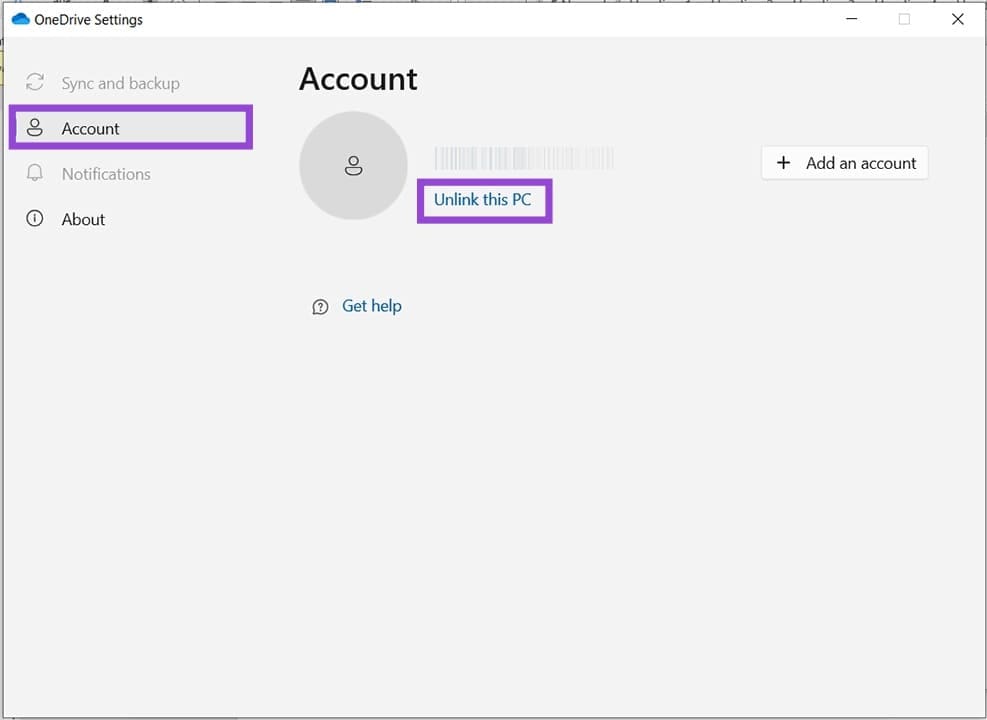
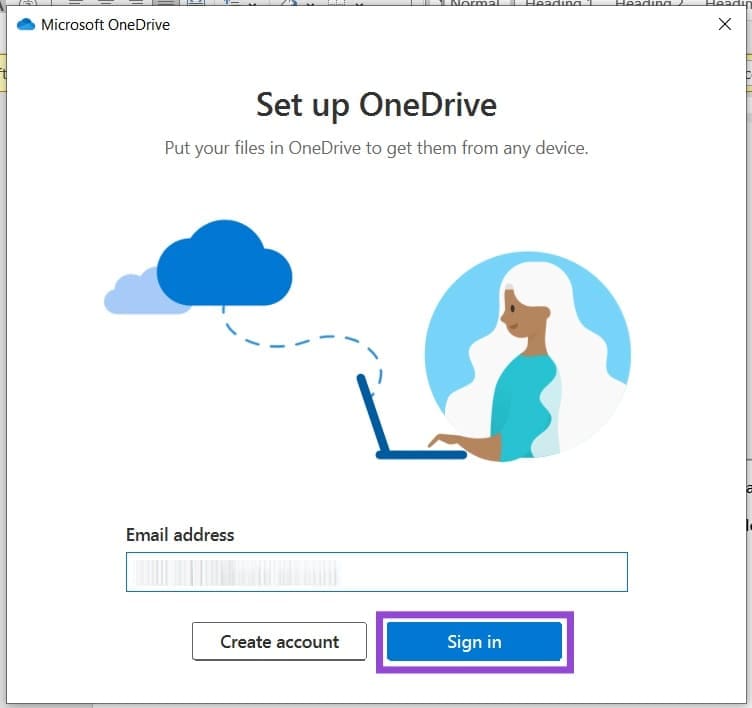
Step 4. Once unlinked, open up the OneDrive app again via the Search Bar.
Step 5. Enter your login details and sign in again.
Check Your Sign In
Another area that might block uploads is a conflicting user account on Microsoft Office. It’s important to check that the login credentials for OneDrive and Office are the same. This is especially important if you have multiple accounts.
Check Your Permissions
Often, uploads are blocked because your user account lacks the proper permissions to access or upload to a folder. In workplace settings, this is quite common and should be confirmed with either your IT technician or the person connected to the folder.
Rename Your File
Unlike Windows, OneDrive caps its file name lengths at 255 characters, in addition to the regular exclusion of symbols prohibited in file names (# % & * : < > ?, etc.). Keep in mind that OneDrive might not warn you in the same way as Windows either. Check your file name length and make sure it isn’t too long.
Was this helpful?
Last updated on 04 April, 2026
Read Next
 Fix OneDrive Stuck on Preparing to Upload
Sure, uploads always seem to take a little longer than downloads, but has your OneDrive been stuck on “Preparing to upload” for a while now?
Fix OneDrive Stuck on Preparing to Upload
Sure, uploads always seem to take a little longer than downloads, but has your OneDrive been stuck on “Preparing to upload” for a while now?
 5 Fixes for OneDrive Camera Upload Not Working on iPhone
Basic Fixes Connect Your iPhone to a Wi-Fi Network: Try connecting to a 5GHz Wi-Fi network if you have a dual-band router.
5 Fixes for OneDrive Camera Upload Not Working on iPhone
Basic Fixes Connect Your iPhone to a Wi-Fi Network: Try connecting to a 5GHz Wi-Fi network if you have a dual-band router.
 How to Know If Someone Has Blocked You on WhatsApp
WhatsApp lets you block a person to prevent any spam or barrage of messages.
How to Know If Someone Has Blocked You on WhatsApp
WhatsApp lets you block a person to prevent any spam or barrage of messages.
 How to Know If You Are Blocked on Facebook Messenger
Method 1: Send a Few Messages and Check the Delivery Status Step 1: Launch the Messenger app on your phone.
How to Know If You Are Blocked on Facebook Messenger
Method 1: Send a Few Messages and Check the Delivery Status Step 1: Launch the Messenger app on your phone.
 7 Ways to Know if Someone Blocked You on Telegram
https://youtu.be/mbIz-4608iA Method 1: Check if Messages Are Being Delivered to the Telegram Account If you see a single checkmark for sent messages, it means that the message has not been
7 Ways to Know if Someone Blocked You on Telegram
https://youtu.be/mbIz-4608iA Method 1: Check if Messages Are Being Delivered to the Telegram Account If you see a single checkmark for sent messages, it means that the message has not been
 How to Block Someone Who Blocked You on Facebook
Can You Block Someone Who Blocked You on Facebook Yes, but it’s a little more complex than blocking someone.
How to Block Someone Who Blocked You on Facebook
Can You Block Someone Who Blocked You on Facebook Yes, but it’s a little more complex than blocking someone.
 Why Am I Getting Messages From a Blocked Number
Basic Fixes Check spam numbers on Truecaller: You can check and block spam numbers on Truecaller.
Why Am I Getting Messages From a Blocked Number
Basic Fixes Check spam numbers on Truecaller: You can check and block spam numbers on Truecaller.
 7 Clues That Someone Blocked You on iMessage
Method 1: Check the Chat Bubble Color The green chat bubble is the first indication of you being blocked by someone on iMessage.
7 Clues That Someone Blocked You on iMessage
Method 1: Check the Chat Bubble Color The green chat bubble is the first indication of you being blocked by someone on iMessage.
The article above may contain affiliate links which help support Guiding Tech. The content remains unbiased and authentic and will never affect our editorial integrity.

