The Sticky Notes app has been changed to include more OneNote integrations right off the bat, as well as allowing you to copy both textual context and screenshots for easier tracking. Fortunately, if you’ve been using the old version, deciding between the new Sticky Notes vs. old won’t be necessary as they’re a strict upgrade in most cases. Here’s what you need to know.
New Sticky Notes vs. Old: User Interface Changes
The UI in the Sticky Notes app has been redesigned to work better with Windows 11’s toolbar-based system. Instead of the traditional windows for the main app, it now launches from the toolbar dock.
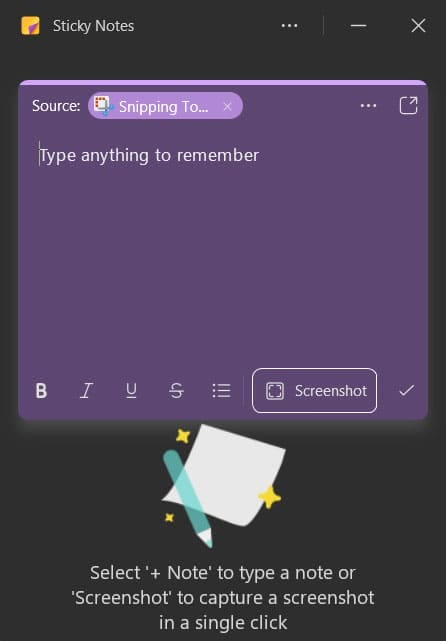
Furthermore, the app can be “docked” to the desktop’s right-hand side so all the notes are visible at all times.
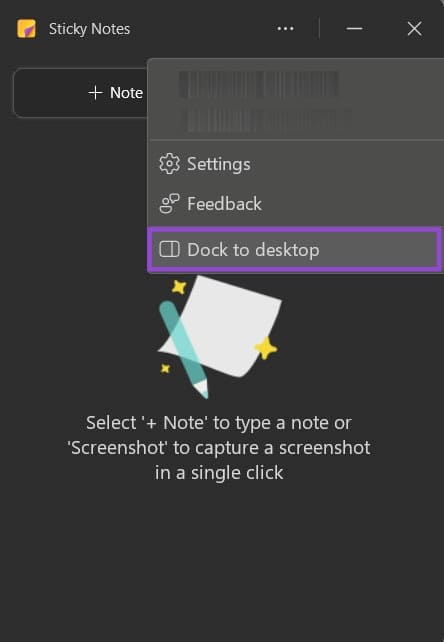
Notably, while the app suggests you can find it by using a shortcut key, this might not be possible on all devices. That can be due to a conflicting shortcut with the old Sticky Notes app. Therefore, you can more easily find the app simply by searching for it in the search bar, then pinning it to the taskbar for later use.
New Sticky Notes vs. Old: Usability
One of the biggest turn-offs of the “old” Sticky Notes version was just how tedious it was to cycle between notes or create new ones from scratch. Previously, when you opened the app, you’d just get the most recent note and had to use the shortcut or the button to create a new one. The full list of notes was hidden behind yet another button and in a separate window.
By contrast, new Sticky Notes are much more intuitive in how they work. Once you open the app, you’ll get a full list of the notes at your convenience.
Additionally, while both versions of the Sticky Notes could be “pinned” to the desktop, the new version has an additional function: going in front of or behind the active program.
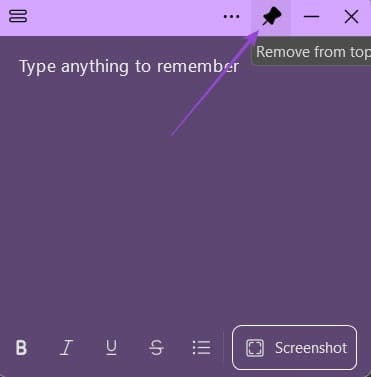
With the “Always on top” button, the note will persist while you cycle through the rest of your programs, allowing you to use it as a more interactive clipboard.
New Sticky Notes: Screenshot Integration
The new sticky notes have also been improved in what types of media they can support by directly allowing you to take screenshots and save them across devices.
You can either start a new note with a screenshot (by pressing the “Screenshot” button) or add a screenshot to an existing note. The image can then be saved or edited separately.
Additionally, the tool comes with the powerful OCR feature from OneNote, allowing it to automatically extract text from images. This can be useful for converting actual hand-written notes or small snippets of on-screen text. Do note, however, that doing this with a screenshot that’s a part of the screen will also “read” the menus and toolbars, putting a lot more text than expected.
New Sticky Notes: Searching
A completely new addition to the options is the ability to search through the notes. This allows you to match a word or phrase to any of the available notes in the app, which will be highlighted in the window.
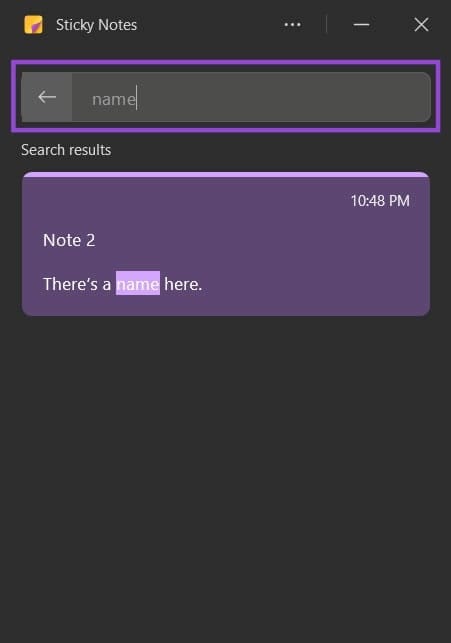
This can be great if you have a lot of notes to work with and is simply not something that was ever available in previous integrated note systems outside of OneNote itself.
Switching Between New Sticky Notes vs. Old
While the “Sticky Notes” app doesn’t seem to be going away any time soon, you can still use the old Sticky Notes version just like usual.
However, just in case you’re worried about your notes disappearing in a future update, you should launch the “Sticky Notes (new)” app and log in with the same Microsoft account. This will automatically sync the notes online and allow you to continue where you left off.
Microsoft will also only update the new app going forward (presumably with more AI-based features), so expect the old app to get removed sooner rather than later.
Was this helpful?
Last updated on 29 March, 2026
Read Next
 9 Best Sticky Notes Keyboard Shortcuts on Windows 10
Our beloved Sticky Notes on Windows has grown in a beautiful app over the years.
9 Best Sticky Notes Keyboard Shortcuts on Windows 10
Our beloved Sticky Notes on Windows has grown in a beautiful app over the years.
 Top 8 Ways to Fix Sticky Notes Not Working on Windows 10
Recently, Sticky Notes received a much-needed update for the Windows 10.
Top 8 Ways to Fix Sticky Notes Not Working on Windows 10
Recently, Sticky Notes received a much-needed update for the Windows 10.
 6 Ways to Recover Deleted Sticky Notes in Windows 10
Microsoft improved Sticky Notes with Windows 10 while retaining the simplicity of taking notes that came with the classic version.
6 Ways to Recover Deleted Sticky Notes in Windows 10
Microsoft improved Sticky Notes with Windows 10 while retaining the simplicity of taking notes that came with the classic version.
 How to Share Sticky Notes Between Computers
Gone are the days when you had to rely on Google Drive or simple copy-paste method to move your Sticky Notes from one computer to another.
How to Share Sticky Notes Between Computers
Gone are the days when you had to rely on Google Drive or simple copy-paste method to move your Sticky Notes from one computer to another.
 4 Best Ways to Put Sticky Notes on Desktop in Windows 10
Sticky Notes is one of the coolest apps ever created.
4 Best Ways to Put Sticky Notes on Desktop in Windows 10
Sticky Notes is one of the coolest apps ever created.
 3 Ways to Fix Sticky Notes App Not Working on Windows 11
Try Basic Fixes Update the Sticky Notes app: Using an outdated app version can cause problems.
3 Ways to Fix Sticky Notes App Not Working on Windows 11
Try Basic Fixes Update the Sticky Notes app: Using an outdated app version can cause problems.
 How to Access Sticky Notes on iPhone, Android, and Mac
Sticky Notes has been a part of the Windows operating system for years.
How to Access Sticky Notes on iPhone, Android, and Mac
Sticky Notes has been a part of the Windows operating system for years.
 11 Ways to Fix Sticky Keys Not Working on Windows 10 Error
Sticky Keys are helpful to prevent you from pressing multiple keys at the same time.
11 Ways to Fix Sticky Keys Not Working on Windows 10 Error
Sticky Keys are helpful to prevent you from pressing multiple keys at the same time.
The article above may contain affiliate links which help support Guiding Tech. The content remains unbiased and authentic and will never affect our editorial integrity.