How to Automatically Mute When Joining Zoom Meetings
In the above method, you need to tap on the disable audio option every time you join a meeting. What if every meeting you joined had your audio muted automatically? Check out the steps below to achieve the same.
Step 1: Open the Zoom app > More > Meetings.
Step 2: Turn on the toggle next to Mute My Microphone.


You can disable the toggle in order to keep yourself unmuted always while joining Zoom calls.
How to Mute or Unmute Yourself in Zoom Meetings
Zoom has made it quite easy to mute and unmute yourself during a meeting. For that, tap on your screen to show the available options. Then, tap on Mute to disable your audio and the microphone icon will turn red in the Zoom window. To unmute it, tap on the red microphone Unmute icon to turn on the audio again.
How to Mute and Unmute Audio for Others on Zoom Call
There are two ways to approach that – mute all participants and mute speaker audio.
Method 1: How to Mute All Participants on Zoom Call
If you are a host of a Zoom meeting, you have the power to mute and unmute the participants while being on a call. You can either mute all the participants or choose the specific participants manually whom you want to mute.
To do so, follow these steps on the Zoom app for Android and iPhone:
Step 1: Launch the Zoom app and then create a meeting.
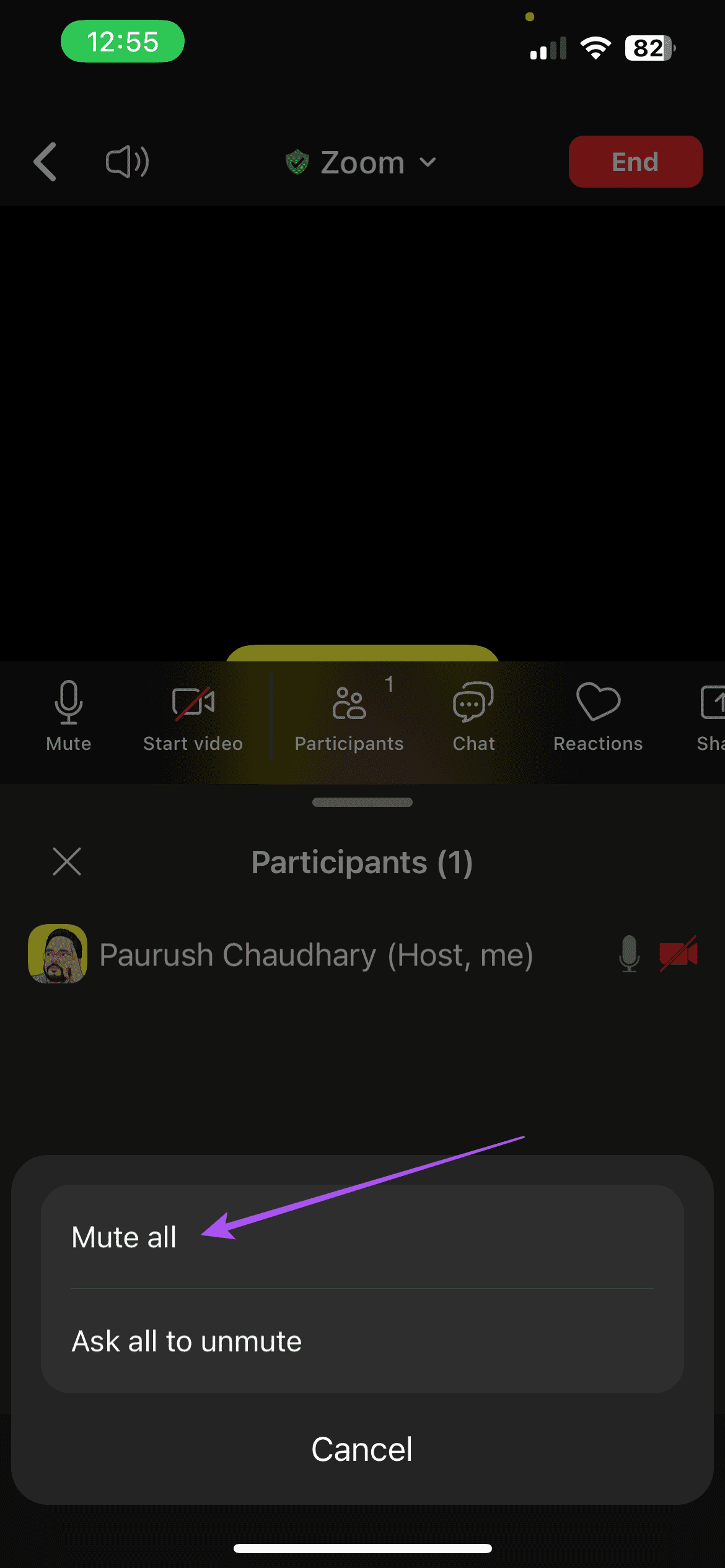
Step 2: Tap on the Participants tab at the bottom > Tap the three dots in the bottom-right corner.
Step 3: Tap on Mute all at the bottom and then the app will mute everyone. In case, you want to unmute everyone, tap on Unmute All. Confirm on the next screen.

If you don’t want particular participant to unmute themselves, uncheck the ‘Allow participants unmute themselves’ option. Only after that you can unmute participants, and they cannot do it themselves.
In case a particular participant accidentally hits on mute, and you unmute them. The participant will get a notification telling them that the host wants to unmute them. Only when they give permission, they will be muted.
Alternatively, if you want to mute new participants from the beginning of the meeting, here’s what you need to do.
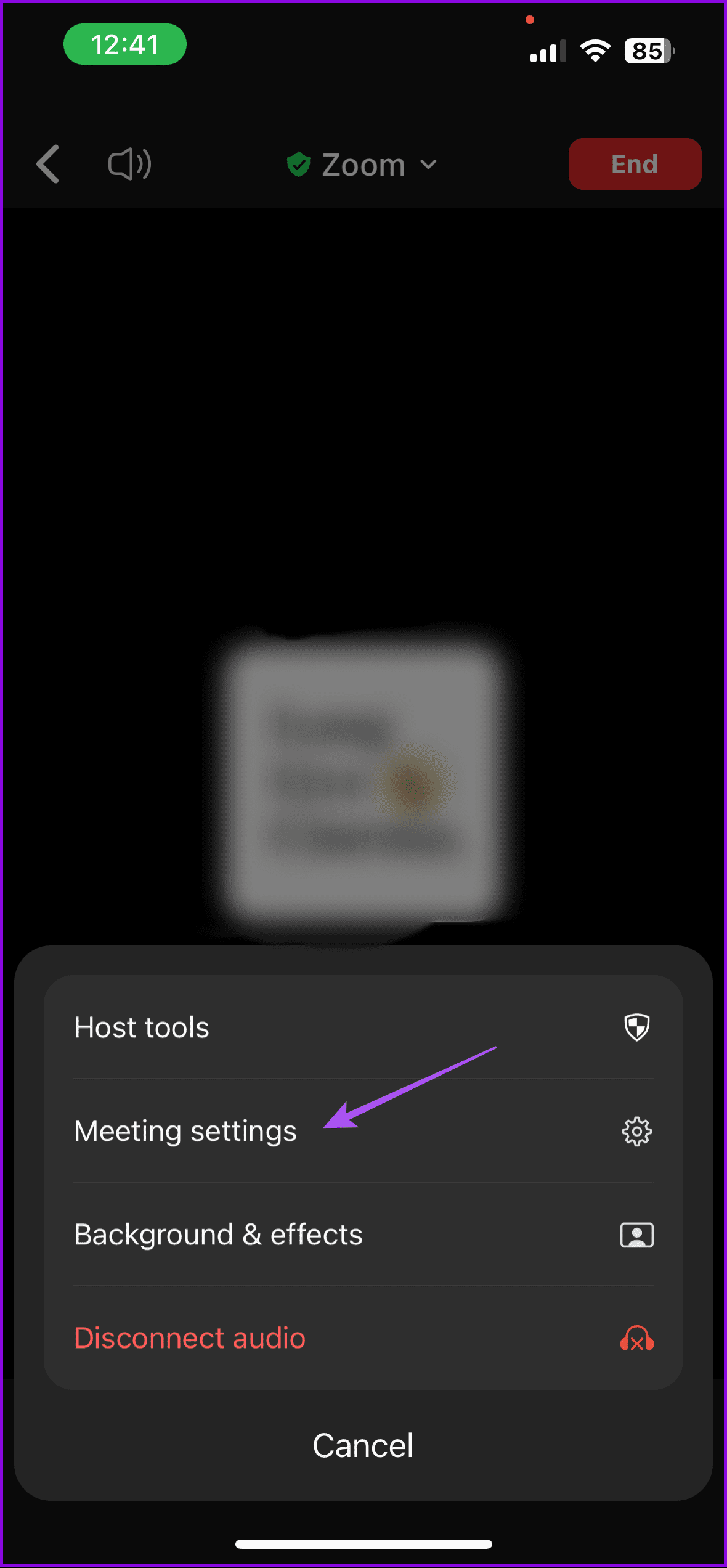
Step 1: Tap on the three-dot icon at the bottom of the meeting screen.
Step 2: Tap on Meeting Settings from the pop-up menu.
Step 3: Turn on the toggle next to Mute on Entry.

You can also set the participants to request your (host’s) permission to unmute themselves during a Zoom call. Follow the Zoom’s support guide to enable pre-approved consent from the account settings to let participants unmute themselves during a meeting. You can make this setting mandatory by applying a Lock after making those changes from the account settings.
Method 2: How to Mute Specific Participant on Zoom From Phone
If you are a participant in a meeting, you don’t have the right to mute others. However, if you are the host, you may mute a particular participant from the phone. Here’s what you need to do.
Step 1: Tap on the Participants in the bottom of the Zoom window.
Step 2: Tap the Mic icon next to the participant name to mute audio.

Was this helpful?
Last updated on 25 July, 2024
Read Next
 How to Mute and Unmute Participants in Microsoft Teams
How to Mute All and Individual Participants On Desktop Step 1: When on a call, click on the participants' icon at the bottom.
How to Mute and Unmute Participants in Microsoft Teams
How to Mute All and Individual Participants On Desktop Step 1: When on a call, click on the participants' icon at the bottom.
 How to Mute Whole WhatsApp Notifications on Android and iOS
Turn off All WhatsApp Notifications on Android Step 1: Open Settings on your phone > go to Apps & notifications / Installed apps / Apps.
How to Mute Whole WhatsApp Notifications on Android and iOS
Turn off All WhatsApp Notifications on Android Step 1: Open Settings on your phone > go to Apps & notifications / Installed apps / Apps.
 Facebook Messenger Mute vs Ignore: Know the Difference
If you go into the settings of a chat thread on Facebook (FB) Messenger, you will find a number of options there.
Facebook Messenger Mute vs Ignore: Know the Difference
If you go into the settings of a chat thread on Facebook (FB) Messenger, you will find a number of options there.
 How to Mute Someone on Instagram Using Mobile or Desktop
How to Mute Someone on Instagram From Profile Page Step 1: Open the Instagram app and go to the person’s profile.
How to Mute Someone on Instagram Using Mobile or Desktop
How to Mute Someone on Instagram From Profile Page Step 1: Open the Instagram app and go to the person’s profile.
 How to Mute WhatsApp Group Notifications Permanently
Note: WhatsApp syncs across devices.
How to Mute WhatsApp Group Notifications Permanently
Note: WhatsApp syncs across devices.
 X (Twitter) Block vs. Mute: Know the Difference
What Does Block Mean on X?
X (Twitter) Block vs. Mute: Know the Difference
What Does Block Mean on X?
 WhatsApp Mute vs. Block: Know the Difference
What Is Block on WhatsApp?
WhatsApp Mute vs. Block: Know the Difference
What Is Block on WhatsApp?
 How to Mute Yourself or Others on FaceTime
Mute Yourself on FaceTime (iPhone and iPad) You can take FaceTime calls using your iPhone or iPad while you are outside and don't have access to your Mac.
How to Mute Yourself or Others on FaceTime
Mute Yourself on FaceTime (iPhone and iPad) You can take FaceTime calls using your iPhone or iPad while you are outside and don't have access to your Mac.
The article above may contain affiliate links which help support Guiding Tech. The content remains unbiased and authentic and will never affect our editorial integrity.