Turn off All WhatsApp Notifications on Android
Step 1: Open Settings on your phone > go to Apps & notifications / Installed apps / Apps.
Step 2: Under All Apps, tap on WhatsApp.


Step 3: Tap on Notifications.
Step 4: Turn off the toggle for Show notifications. On some phones, you must uncheck the box for Allow notifications.

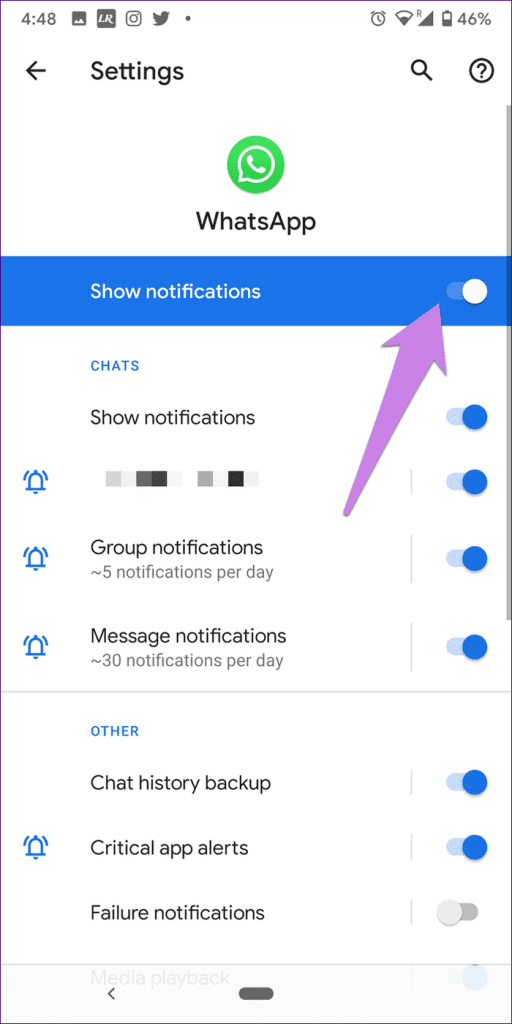
On Android phones running Android 7.1 Nougat and higher, tap and hold the WhatsApp icon on the home screen or in the app drawer > select App info from the menu. You will be directly taken to WhatsApp app settings > tap on Notifications > follow step 3 as shown above.
Turn off All WhatsApp Notifications on the iPhone
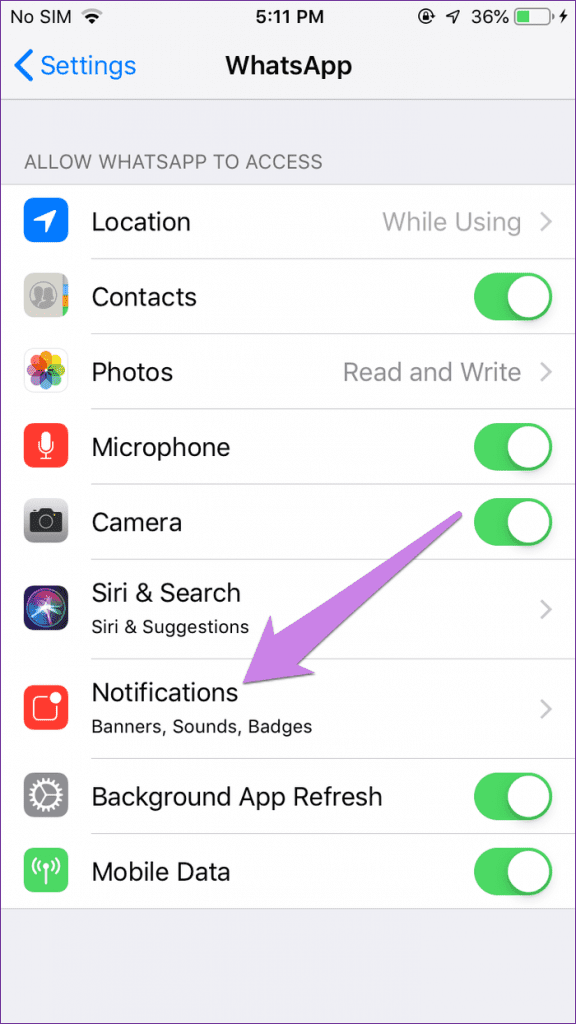
Step 1: Open Settings on your iPhone. Scroll down and tap on WhatsApp.
Step 2: Tap on Notifications > turn off the toggle for Allow Notifications.
Alternatively, go to Settings > Notifications > WhatsApp. Disable Allow Notifications.


Mute All WhatsApp Messages From Individual Chats
On Android
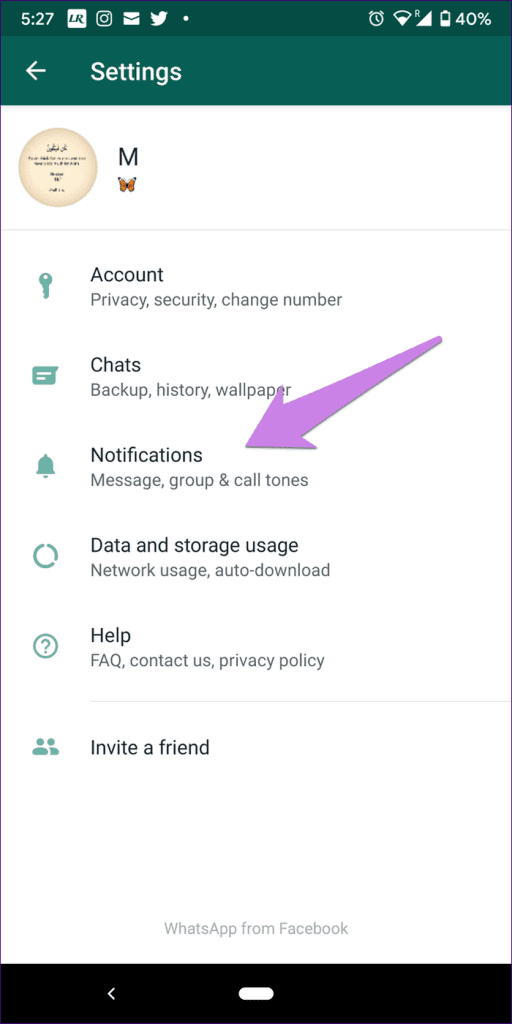
Step 1: Launch WhatsApp > tap on the three-dot icon at the top-right corner > select Settings.
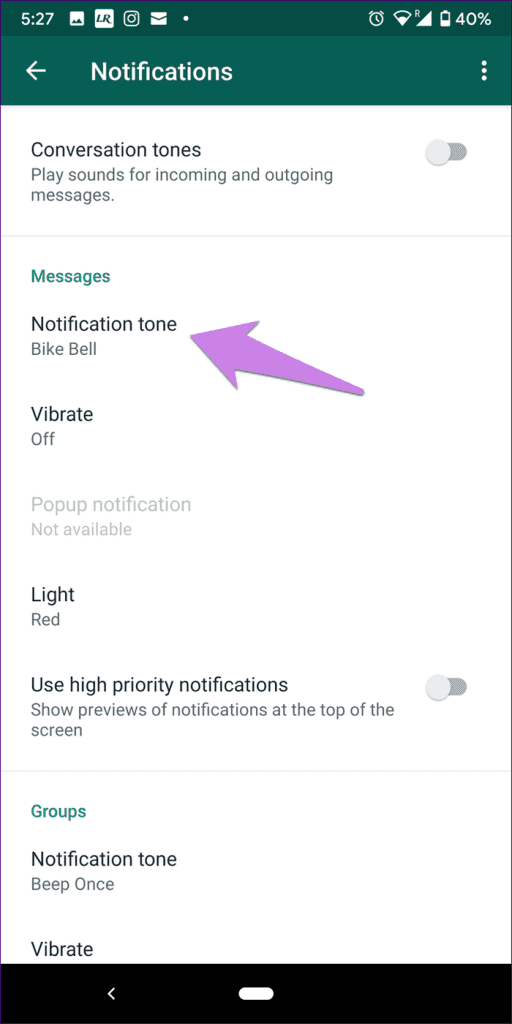
Step 2: Tap on Notifications > Notification tone under Messages.
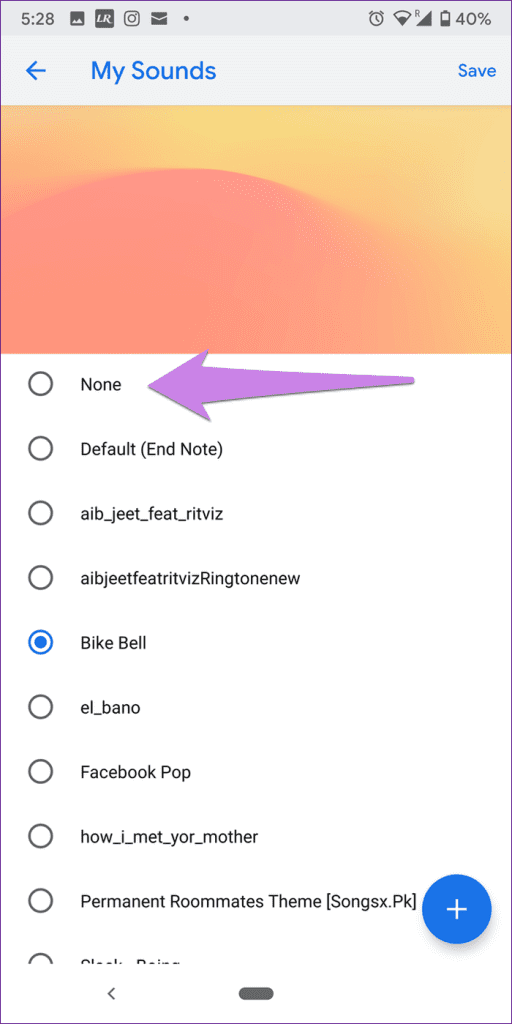
Step 3: Select None in the sound picker.
Step 4: Go back and turn off the vibration under Vibrate in Messages.

On iPhone
Step 1: On iPhone, open WhatsApp > tap on Settings.
Step 2: Tap on Notifications > turn off the toggle for Show Notifications under Message Notifications.
Step 3: In the bottom sheet, toggle off Show notifications under Turn on message notifications.


Was this helpful?
Last updated on 31 May, 2024
Read Next
 How to Mute WhatsApp Group Notifications Permanently
Note: WhatsApp syncs across devices.
How to Mute WhatsApp Group Notifications Permanently
Note: WhatsApp syncs across devices.
 WhatsApp Mute vs. Block: Know the Difference
What Is Block on WhatsApp?
WhatsApp Mute vs. Block: Know the Difference
What Is Block on WhatsApp?
 WhatsApp Mute vs. Archive: Understand the Differences
What Is Mute on WhatsApp Muting someone on WhatsApp stops message notifications from them.
WhatsApp Mute vs. Archive: Understand the Differences
What Is Mute on WhatsApp Muting someone on WhatsApp stops message notifications from them.
 3 Ways to Fix WhatsApp Checking for New Message Notifications on Android
Basic Fixes Connect your device to the internet: In most cases, the notification disappears as soon as the device connects to the Internet.
3 Ways to Fix WhatsApp Checking for New Message Notifications on Android
Basic Fixes Connect your device to the internet: In most cases, the notification disappears as soon as the device connects to the Internet.
 4 Ways to Fix Delayed WhatsApp Notifications on Android
https://youtu.be/2HV0Hl2epgk Try Basic Fixes Update WhatsApp: Your WhatsApp notifications might not work as expected if you’re using an outdated or buggy version of the app.
4 Ways to Fix Delayed WhatsApp Notifications on Android
https://youtu.be/2HV0Hl2epgk Try Basic Fixes Update WhatsApp: Your WhatsApp notifications might not work as expected if you’re using an outdated or buggy version of the app.
 How to Mute and Unmute on Zoom From Phone
How to Automatically Mute When Joining Zoom Meetings In the above method, you need to tap on the disable audio option every time you join a meeting.
How to Mute and Unmute on Zoom From Phone
How to Automatically Mute When Joining Zoom Meetings In the above method, you need to tap on the disable audio option every time you join a meeting.
 Fix: WhatsApp Not Showing Message Notifications Until Opened
Common Fixes Unmute the WhatsApp conversation: Long-tap the muted contact or group and select the Sound icon at the top right corner to unmute it.
Fix: WhatsApp Not Showing Message Notifications Until Opened
Common Fixes Unmute the WhatsApp conversation: Long-tap the muted contact or group and select the Sound icon at the top right corner to unmute it.
 5 Ways to Fix WhatsApp Group Notifications Not Working
Common Fixes Unmute WhatsApp group - Long-tap the muted WhatsApp group and tap the Sound icon at the top to unmute notifications.
5 Ways to Fix WhatsApp Group Notifications Not Working
Common Fixes Unmute WhatsApp group - Long-tap the muted WhatsApp group and tap the Sound icon at the top to unmute notifications.
The article above may contain affiliate links which help support Guiding Tech. The content remains unbiased and authentic and will never affect our editorial integrity.