If you encounter an error message notifying you that Word has insufficient memory when saving as PDF or trying to use a specific font, the issue might be temporary and solved by closing a few background items. However, if this persists, you may need to use additional fixes.
Fix 1: Reducing Background Memory Load to Prevent Word Has Insufficient Memory Issues
Generally, Word doesn’t have a large memory requirement, but other programs that you use alongside it might, with browsers being notorious for hogging RAM. But there are other, hidden processes that could be taking up precious memory, especially if you have an older PC.
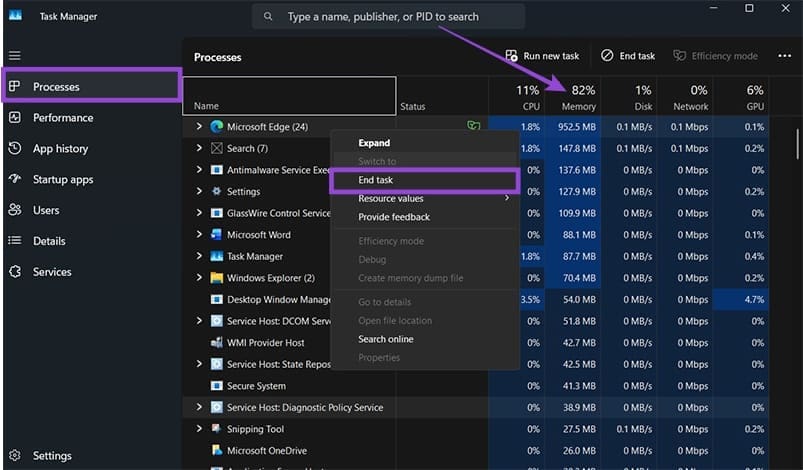
Step 1. Right-click on the Taskbar and select “Task Manager” (you can also find it by right-clicking on the Start icon).
Step 2. In the “Processes” tab, click to sort by Memory usage.
Step 3. Right-click on any application that is using a lot of RAM but that you don’t need, then click “End task.” Repeat the process as needed.
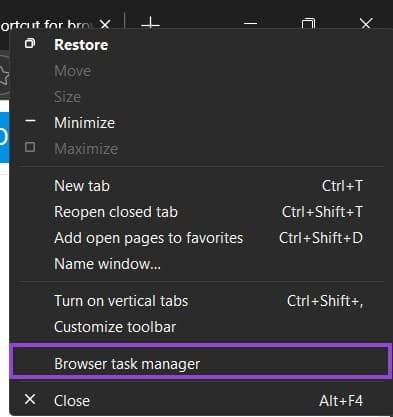
Step 3b. Browsers also have a separate Task Manager that allows you to close tabs that use a lot of memory. For Edge, this can be accessed by right-clicking the Edge tab bar and selecting “Browser task manager.”
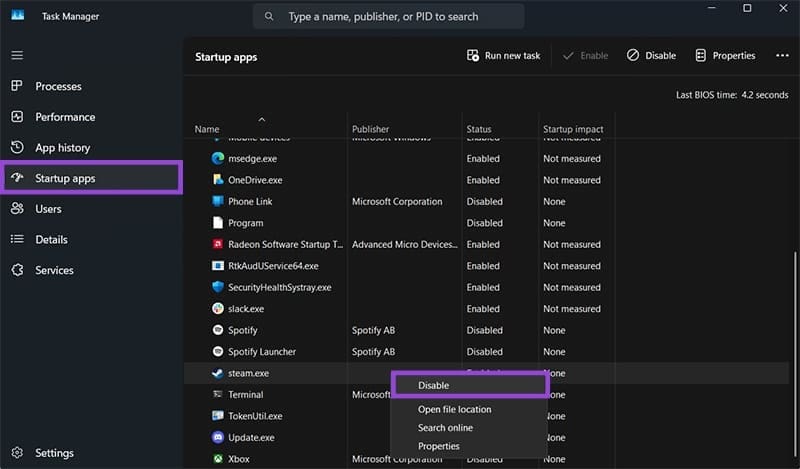
Step 4. If you want to reduce the background load, go back to the Windows Task Manager and click on the “Startup apps” tab. In there, right-click on any app that you installed but don’t want to use at all times, then click “Disable.”
Fix 2: Changing the Default Word Template
In some cases, a corrupted or wrongly-set basic template can cause “Word has insufficient memory” errors when trying to save as other file types. You can check this by creating a new basic template.
Step 1. Hit “Win + R” to go to the Run console, then enter the following:
%appdata%
Step 2. Go into the “Microsoft” folder and find “Template.”
Step 3. Cut the “Normal.dotm” file from the folder and move it elsewhere.
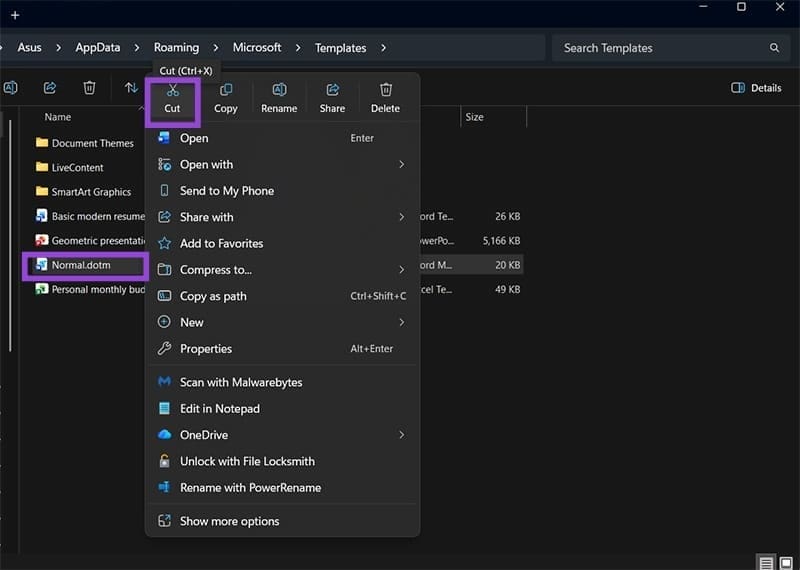
The next time you open Word, it will generate a blank template to use.
Fix 3: Disable Hardware Acceleration
Word can also use your graphics card to improve performance, but this has been known to cause issues. Note that this only applies to PCs that have a dedicated graphics card.
Step 1. Go to “File” then to “Options.”
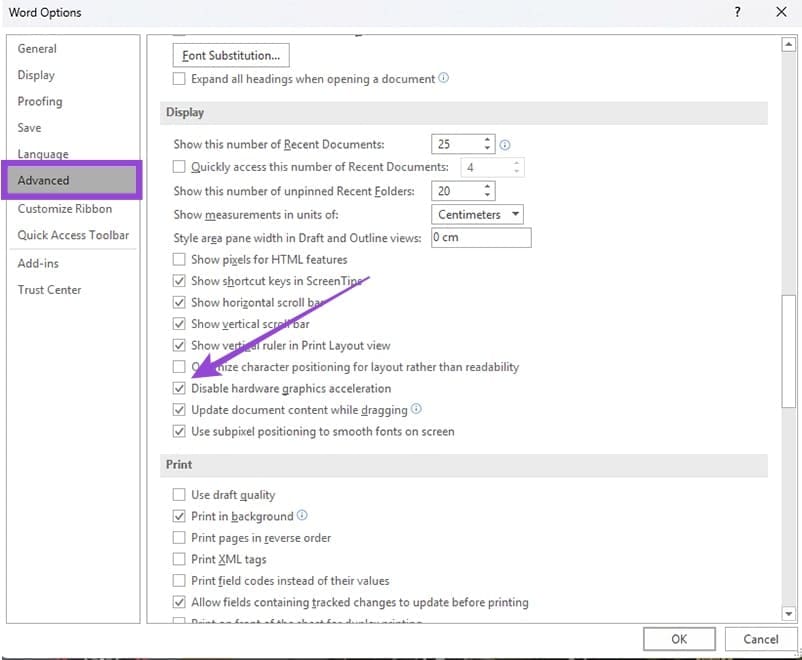
Step 2. Open the “Advanced” tab, then scroll down to the “Display” section and check “Disable hardware graphics acceleration.”
Step 3. Click on “OK.”
Step 4. Copy your file’s contents to Notepad, as you will need to restart Word (and if it can’t save the file you’ll lose it).
Fix 4: Remove Add-Ins or Repair Word
If you’ve modified your Word with a lot of add-ins, you might get a Word insufficient memory error due to a larger strain on the system. Remove add-ins one by one and restart Word until the issue is resolved, then make sure not to re-enable that add-in.
Alternatively, you can repair Word, which “reverts” it to factory settings.
Step 1. Search for “programs” in the search bar and select “Add or remove programs.”
Step 2. Find Microsoft Office, right-click on it, and select “Modify.” Notably, use the language version that you’re currently working in (as Office downloads more files for language packs).
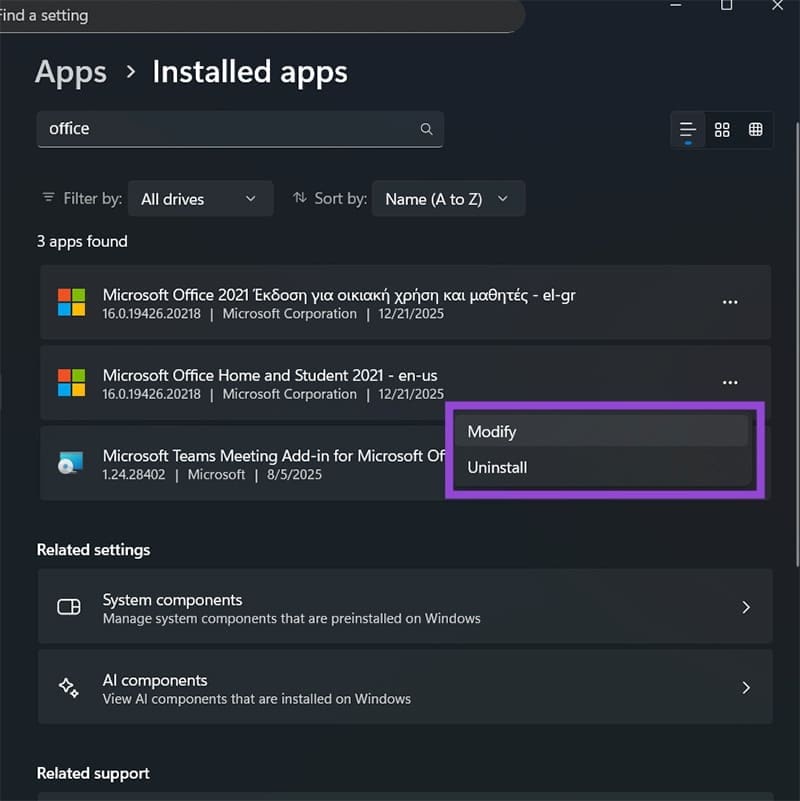
Step 3. Select “Quick Repair” and follow the instructions.
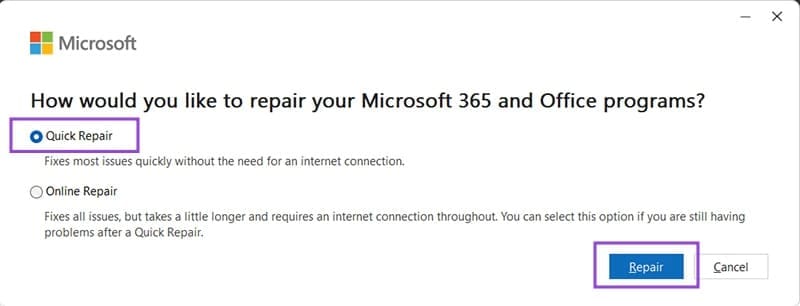
If this doesn’t work, try using the “Online Repair” option.
Was this helpful?
Last updated on 30 December, 2025
Read Next
 Top 7 Fixes for ‘Insufficient System Resources Exist’ Error on Windows 11
Application problems are not uncommon on client operating systems.
Top 7 Fixes for ‘Insufficient System Resources Exist’ Error on Windows 11
Application problems are not uncommon on client operating systems.
 4 Ways to Fix Microsoft Edge High Memory and CPU Usage
Basic Fixes Restart the Microsoft Edge browser - You should restart the browser as it may fix minor bugs and glitches that trigger the problem.
4 Ways to Fix Microsoft Edge High Memory and CPU Usage
Basic Fixes Restart the Microsoft Edge browser - You should restart the browser as it may fix minor bugs and glitches that trigger the problem.
 6 Ways to Reduce Microsoft Teams Memory Usage in Windows 10 or 11
Fix 1: Disable GPU Hardware Acceleration in Teams GPU hardware acceleration is enabled by default in Microsoft Teams for smooth performance.
6 Ways to Reduce Microsoft Teams Memory Usage in Windows 10 or 11
Fix 1: Disable GPU Hardware Acceleration in Teams GPU hardware acceleration is enabled by default in Microsoft Teams for smooth performance.
 5 Fixes for Microsoft Outlook Out of Memory or System Resources Error on Windows
Fix 1: Run the Inbox Repair Tool Damaged or corrupted PST or OST files can cause Outlook to run out of memory on your Windows computer.
5 Fixes for Microsoft Outlook Out of Memory or System Resources Error on Windows
Fix 1: Run the Inbox Repair Tool Damaged or corrupted PST or OST files can cause Outlook to run out of memory on your Windows computer.
 4 Fixes for “There Isn’t Enough Memory to Complete This Action” in Microsoft Excel
Try Basic Fixes Close background apps and programs: Running too many resource-intensive apps and programs on Windows can trigger the "There isn’t enough memory to complete this action" error in
4 Fixes for “There Isn’t Enough Memory to Complete This Action” in Microsoft Excel
Try Basic Fixes Close background apps and programs: Running too many resource-intensive apps and programs on Windows can trigger the "There isn’t enough memory to complete this action" error in
 Apple Pages vs Microsoft Word: Which Word Processing Software Is Better
Every major tech company out there is offering their version of the productivity suite.
Apple Pages vs Microsoft Word: Which Word Processing Software Is Better
Every major tech company out there is offering their version of the productivity suite.
 Google Docs vs. Microsoft Word Online: Which Word Processor Is Better
Google Docs vs.
Google Docs vs. Microsoft Word Online: Which Word Processor Is Better
Google Docs vs.
 9 Ways to Fix Memory Integrity Is Off Error on Windows 11/10
Fix 1: Review Incompatible Drivers Step 1: Press the Windows key, type Windows Security, and hit Enter.
9 Ways to Fix Memory Integrity Is Off Error on Windows 11/10
Fix 1: Review Incompatible Drivers Step 1: Press the Windows key, type Windows Security, and hit Enter.
The article above may contain affiliate links which help support Guiding Tech. The content remains unbiased and authentic and will never affect our editorial integrity.