Method 1. Create a Desktop Shortcut to Open a URL in a Specific Browser
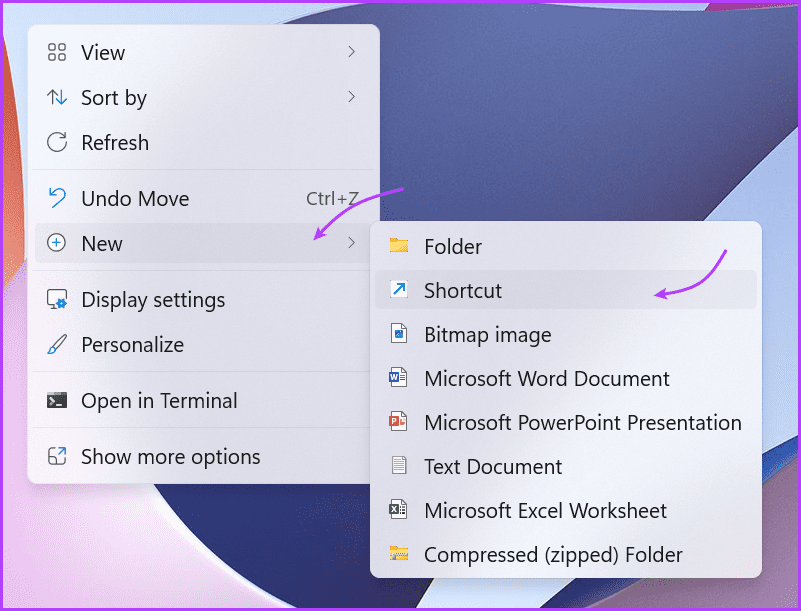
Step 1: Right-click a blank area of the desktop and select New → Shortcut.
Step 2: For the location, type the path to the browser you wish to use, followed by the URL you wish to open. Here’s an example,
- Chrome: C:\Program Files (x86)\Google\Chrome\Application\chrome.exe https://www.guidingtech.com/
- Edge: “%windir%\explorer.exe” microsoft-edge:https://www.guidingtech.com/
- Firefox: C:\Program Files (x86)\Mozilla Firefox\firefox.exe https://www.guidingtech.com/
Step 3: Click Next, enter the website name, and click Finish.

A benefit of using this method is that you can also customize the shortcut icon as well. Here’s how,
Step 1: Right-click the shortcut you’ve created and select Properties.
Step 2: Here, go to the Shortcut tab and select Change Icon.

Step 3: Select the photo.
Method 2. Force Shortcut to Open in Chrome
Step 1: Launch Chrome and open the website of your choice.
Step 2: Click the three-dot icon from the top-right corner. Select More Tools → Create shortcut.

Step 4: Here, rename the website and check open as window, if you want and then click Create.
Instantly a shortcut to the website will be placed on the desktop. You can click it and access the website anytime. Moreover, you can also drag and drop the shortcut on the Dock for easier access.
Method 3. Force Shortcut to Open in Microsoft Edge
Step 1: Launch Edge and open the website.
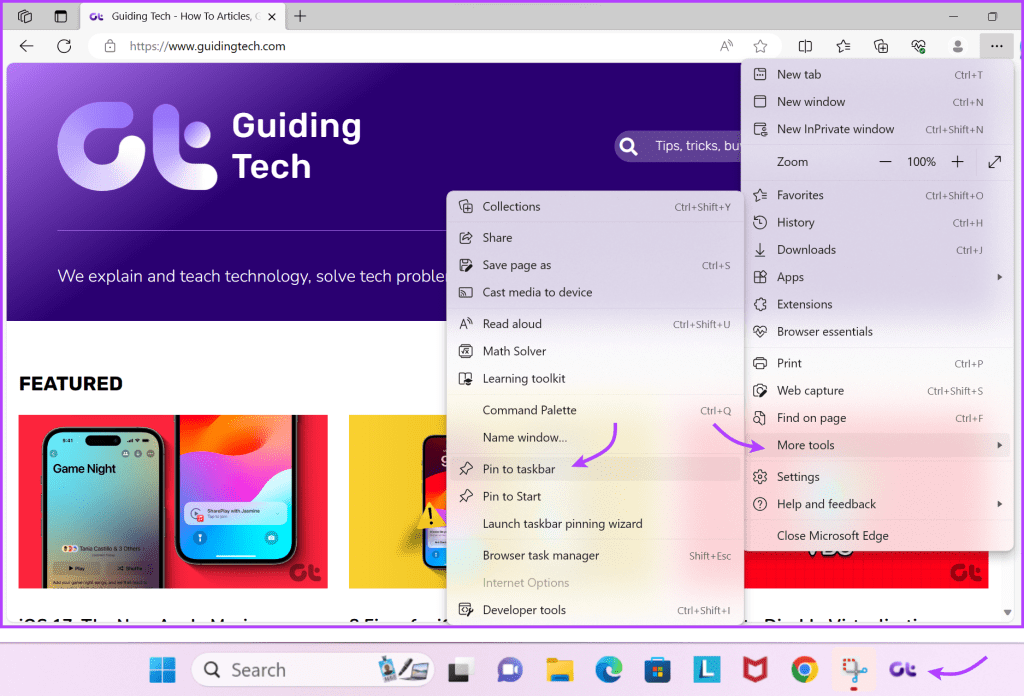
Step 2: Click the three-dot → More Tools → Pin to taskbar.
Method 4. Create a Website On Your Desktop
Step 1: Open the browser of your choice and the desired website.
Step 2: Once the website loads, hold and drag the lock icon next to the website address in the address bar.
Step 3: Next, drop it anywhere on the desktop.

You’ll now spot the website’s shortcut on your desktop. Whenever you click the shortcut, it will open in the default browser. Notably, if you change the Window’s default browser, it will also reflect the change.
Was this helpful?
Last updated on 25 July, 2024
Read Next
 Kiwi Browser vs Google Chrome: Which Android Browser Should You Use
The Google Play store is chock-full of browser apps, all of which boast of a single stand out feature that differentiates them from the rest.
Kiwi Browser vs Google Chrome: Which Android Browser Should You Use
The Google Play store is chock-full of browser apps, all of which boast of a single stand out feature that differentiates them from the rest.
 How to Hide Last Seen From Specific Contacts on WhatsApp
Thanks to WhatsApp’s new privacy tools, you no longer need to explain your latenight last seen to your friends or family members.
How to Hide Last Seen From Specific Contacts on WhatsApp
Thanks to WhatsApp’s new privacy tools, you no longer need to explain your latenight last seen to your friends or family members.
 Hide WhatsApp Online Status From One Person or Specific Contacts
 on iPhone Sometimes, you may not want certain people to know when you are online or using WhatsApp.
Hide WhatsApp Online Status From One Person or Specific Contacts
Hide WhatsApp Online Status From One Person or Specific Contacts on iPhone Sometimes, you may not want certain people to know when you are online or using WhatsApp.
 How to Set Up Auto Forward in Gmail for All or Specific Emails
Auto forwarding email is quite helpful when you move to a different mailbox but still want to receive all incoming emails sent to the older mail address.
How to Set Up Auto Forward in Gmail for All or Specific Emails
Auto forwarding email is quite helpful when you move to a different mailbox but still want to receive all incoming emails sent to the older mail address.
 How to Set Custom Notification Sound for Specific Contacts on WhatsApp
Set Specific Tones on WhatsApp iOS You can set different notification tones on WhatsApp for all contacts or groups and custom tones for individual contacts or groups.
How to Set Custom Notification Sound for Specific Contacts on WhatsApp
Set Specific Tones on WhatsApp iOS You can set different notification tones on WhatsApp for all contacts or groups and custom tones for individual contacts or groups.
 How to Identify Specific Color on an App or Website
Method 1.
How to Identify Specific Color on an App or Website
Method 1.
 3 Ways to Disable Task Manager for Specific Users in Windows
Method 1: Using Command Line or Powershell Step 1: Press the Windows key, type PowerShell or Command Prompt, and click on Run as administrator.
3 Ways to Disable Task Manager for Specific Users in Windows
Method 1: Using Command Line or Powershell Step 1: Press the Windows key, type PowerShell or Command Prompt, and click on Run as administrator.
 How to Stop a Specific Windows Update From Installing
Method 1: Hide a Windows Update Using the Show or Hide Updates Troubleshooter Microsoft's "Show or hide updates" tool makes it simple to stop a specific Windows Update from installing
How to Stop a Specific Windows Update From Installing
Method 1: Hide a Windows Update Using the Show or Hide Updates Troubleshooter Microsoft's "Show or hide updates" tool makes it simple to stop a specific Windows Update from installing
The article above may contain affiliate links which help support Guiding Tech. The content remains unbiased and authentic and will never affect our editorial integrity.