All apps installed on your PC store information and data in one form or another. It’s how your status on games, or settings on your editing software, is kept. And all these programs and apps have one common location they use to store this information on Windows: AppData.
Over time, the contents of the AppData folder can become quite large and unwieldy, which can create a host of issues. In this article, we’ll be looking at what to do if you find your Windows AppData folder too large.
when to get in there and clean up, why it’s a good idea, and how to do it.
A Growing Problem
AppData is a folder that exists in every user profile on Windows, be it 10 or 11. It’s a quick way for software to store important information, data, and settings for easy access. This folder is vital to the running of these apps and programs and, as such, can never be permanently deleted; if it is removed, Windows will simply recreate it.
AppData is divided into three folders:
- Local – All data relating to your machine is stored locally
- LocalLow – Where low-integrity apps (Office, web browsers) keep data separate from the other two folders
- Roaming – User information, especially related to profiles and ones on a network
The AppData folder’s contents increase over time as you add more programs to your machine. When a program is uninstalled, often the AppData folder will remain on your machine. Caches are also kept here, and temporary files are downloaded and added.
This can be a problem over time for the following reasons:
- It affects your PC’s performance.
- Newer versions of software may conflict with the old due to cached data.
- Windows updates that fail could have difficulty reinstalling.
- Data corruption may interfere with the running of other apps.
- Your hard disk storage will slowly be eaten up.
It’s a good idea, then to clean your App Data folder, especially if you’ve been using your machine a lot recently, or for a long time. But how?
Windows AppData Folder Too Large – Fixes to Try
If your AppData folder needs a good cleaning, we’ve got three methods to help. Before doing so, we must warn you to never delete your entire AppData folder. Not only will Windows recreate it, but all settings, information, and data will be lost. You’ll need to be selective in your approach.
Manually Delete Folders
If you’ve got apps or folders that you tried to uninstall long ago and you know for certain you no longer need, you can delete them manually in Windows Explorer. Here’s how:
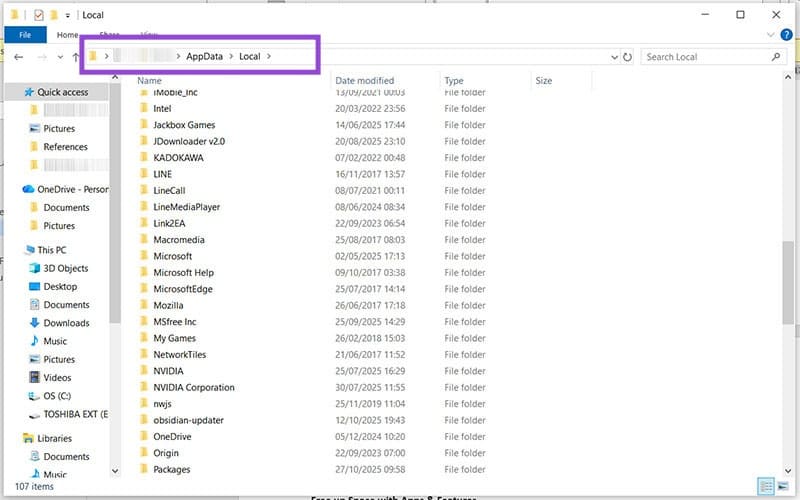
Step 1. Open the Run Dialog (Win + R) and type “%appdata%” into the box and press “OK.” For a specific folder, specify e.g. “%localappdata%” and press “OK.”
Step 2. An Explorer Window will open your AppData folder. Scroll through and see if any folders can be deleted. Press (Shift + Delete) to skip sending it to the Recycle Bin.
Use Disk Cleanup
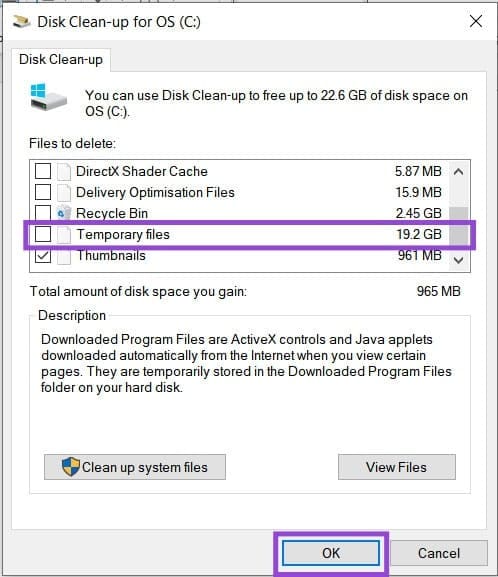
Temporary files are a big drain on disk space and are stored in App Data. To delete them, use Disk Clean-up:
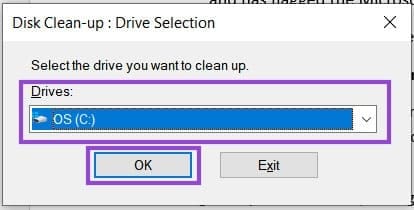
Step 1. Open Disk Clean-up via the search bar.
Step 2. Choose which drive you want to scan (your OS hard drive).
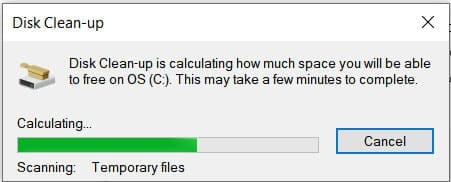
Step 3. Let the utility scan for space.
Step 4. A window will pop up with different areas to clean. Check the “Temporary files” box and press “OK” to clear. The utility will do the rest.
Storage Sense

Another way to keep App Data clean is to use Storage Sense, which you can find in Settings. By enabling it (drag the slider to “On”), your PC will regularly delete temporary files and other data you don’t need.
Was this helpful?
Last updated on 29 October, 2025
Read Next
 Why Is My iPhone Backup Size Too Large
How to Check iCloud Storage and Backup Apple iPhone takes a backup of the phone and stores it on iCloud, the company’s proprietary cloud service that uses Google servers.
Why Is My iPhone Backup Size Too Large
How to Check iCloud Storage and Backup Apple iPhone takes a backup of the phone and stores it on iCloud, the company’s proprietary cloud service that uses Google servers.
 3 Ways to Find Large Files on Windows 10 and 11
Method 1: Use File Explorer One of the simplest ways to find large files on your PC is by using File Explorer.
3 Ways to Find Large Files on Windows 10 and 11
Method 1: Use File Explorer One of the simplest ways to find large files on your PC is by using File Explorer.
 How to Split Large Files in Windows 11
Large files are often awkward to work with.
How to Split Large Files in Windows 11
Large files are often awkward to work with.
 How to Split a Large Excel File Into Multiple Files
Officially, a Microsoft Excel file can only be 1,048,576 rows by 16,384 columns.
How to Split a Large Excel File Into Multiple Files
Officially, a Microsoft Excel file can only be 1,048,576 rows by 16,384 columns.
 How and Why to Change Default File Explorer Folder
By default, the File Explorer will open to the “Home” folder, which contains a combination of recently-used folders and files.
How and Why to Change Default File Explorer Folder
By default, the File Explorer will open to the “Home” folder, which contains a combination of recently-used folders and files.
 5 Best Apps to Find Large Files on Android
You always tend to buy a new phone with more space than your previous one.
5 Best Apps to Find Large Files on Android
You always tend to buy a new phone with more space than your previous one.
 6 Best Table-Top TV Stands For Large TVs
A large-screen TV is one of the building pillars of a great entertainment room.
6 Best Table-Top TV Stands For Large TVs
A large-screen TV is one of the building pillars of a great entertainment room.
 How to Send Large Files With Gmail
Method 1: Compress and Send ZIP archive files work like a standard folder on your computer.
How to Send Large Files With Gmail
Method 1: Compress and Send ZIP archive files work like a standard folder on your computer.
The article above may contain affiliate links which help support Guiding Tech. The content remains unbiased and authentic and will never affect our editorial integrity.