Tip 1: Change Font Size and Style
You can change the font style and size. Instagram keeps adding new font styles to the app.
Step 1: Open Instagram Story mode for your profile, tap the Text icon, and type your text.
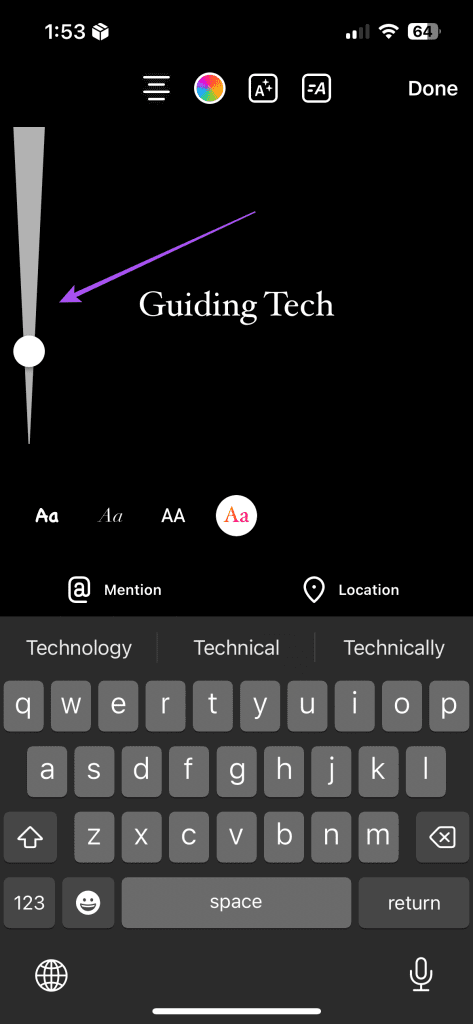
Step 2: After typing the text, use the slider on the left side to increase or decrease the text size.
Step 3: To change the text style, type your text and choose from a set of fonts that appear below.

Method 2: Change Text Alignment
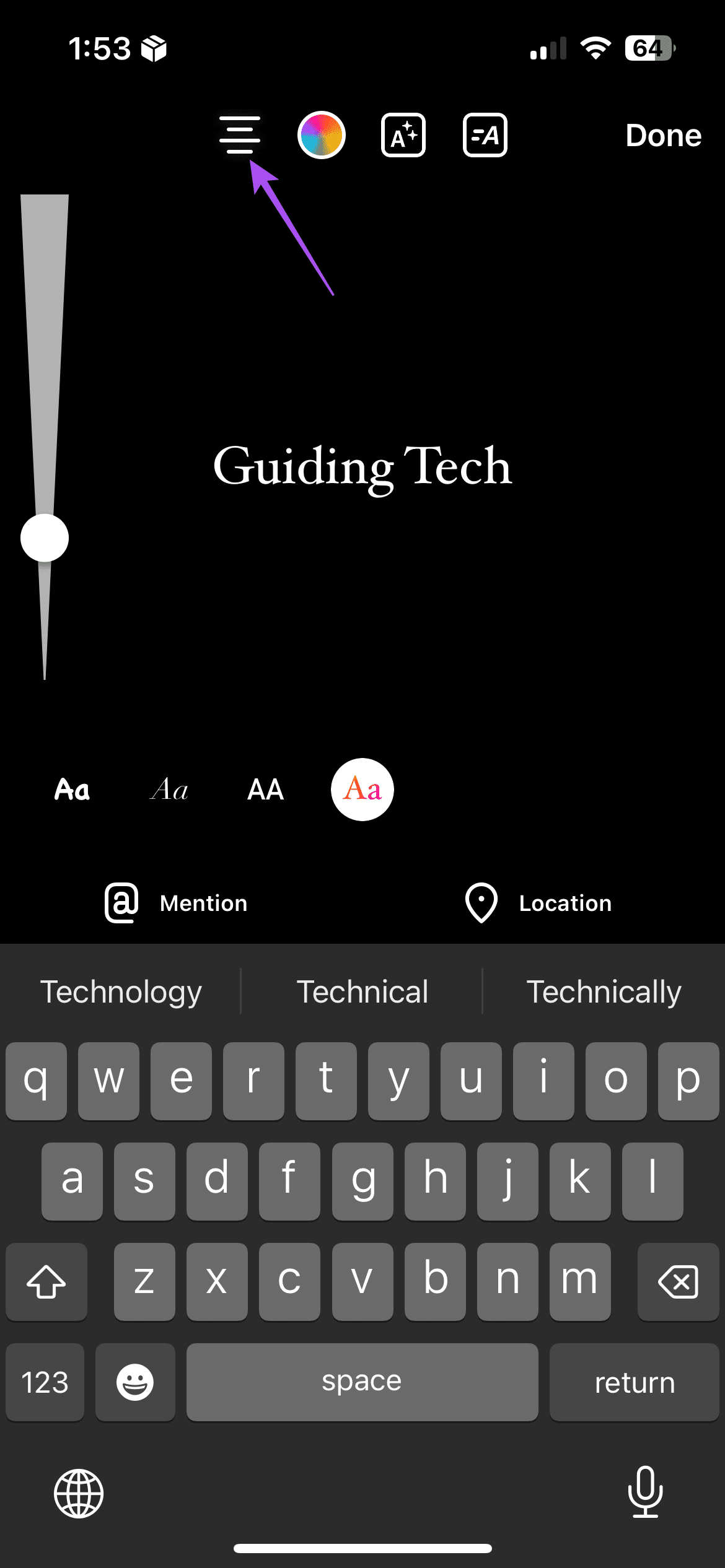
After selecting any of these font styles, tap on the alignment icon to adjust the text on the left, right, or center.

To write vertical text in your Instagram Story, rotate the text using two fingers.
Method 3: Add Text Effects
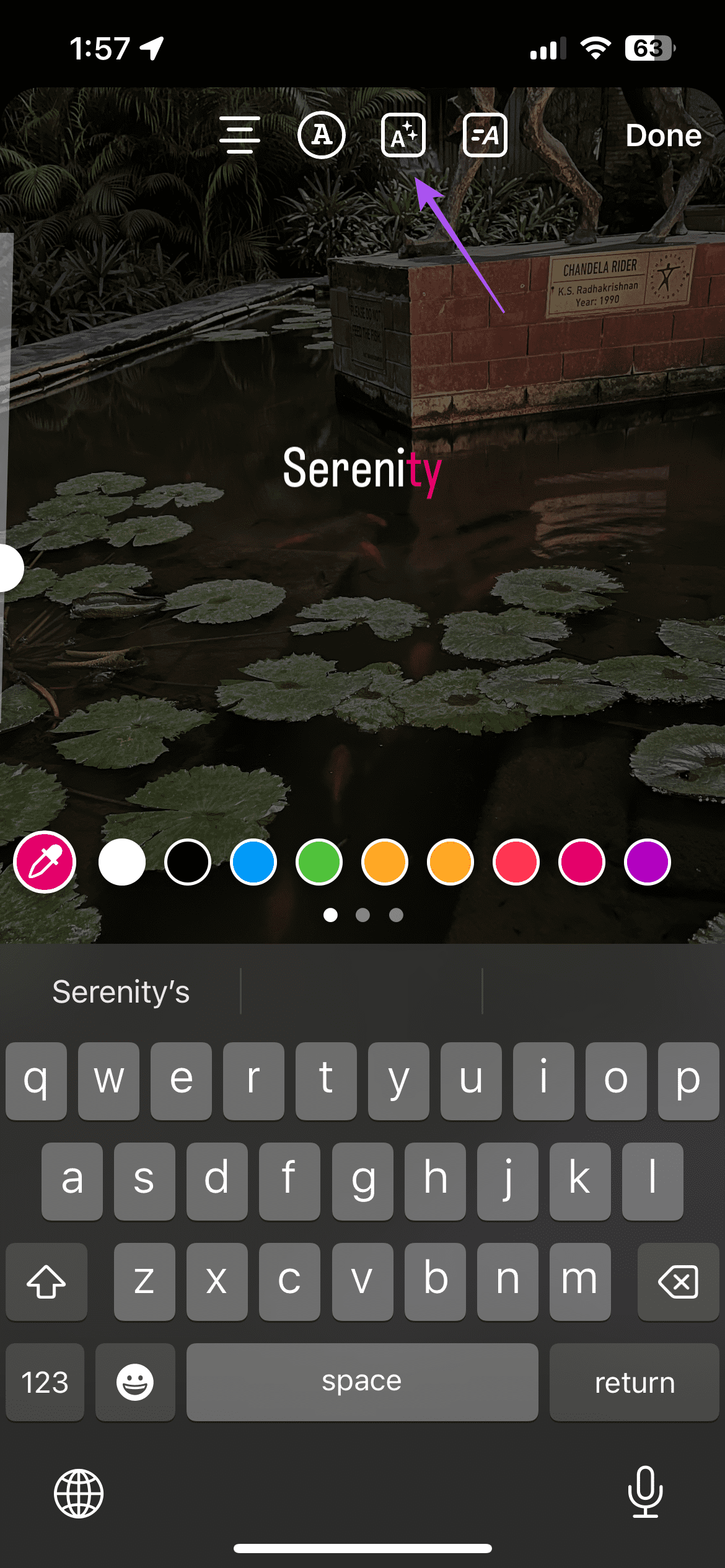
Type your text in the Instagram Story section and select the Text Effect icon at the top. Note that the effects will change based on the font you choose for your Story text.


Method 4: View All Text Colors
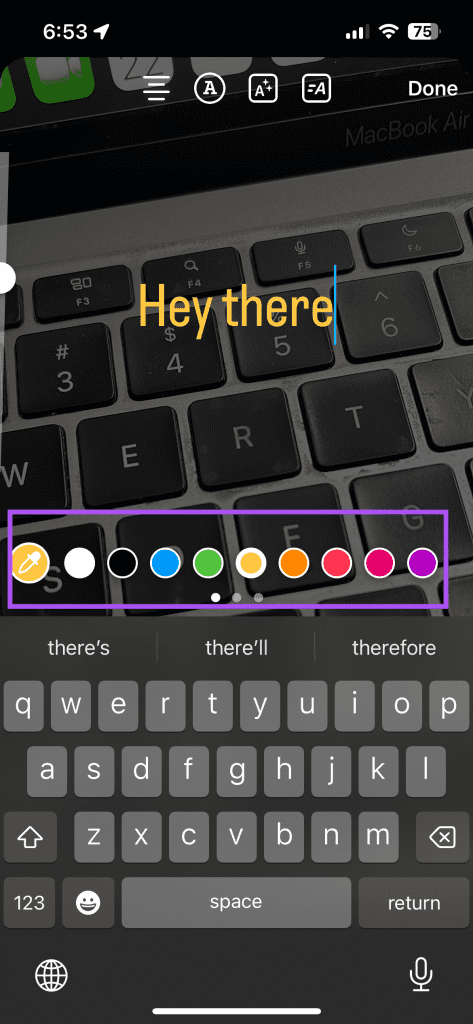
You can choose a different color for your text using the color palette feature for Instagram Story.
Step 1: After typing your text in the Instagram Story mode, select your text and tap the Color icon at the top.
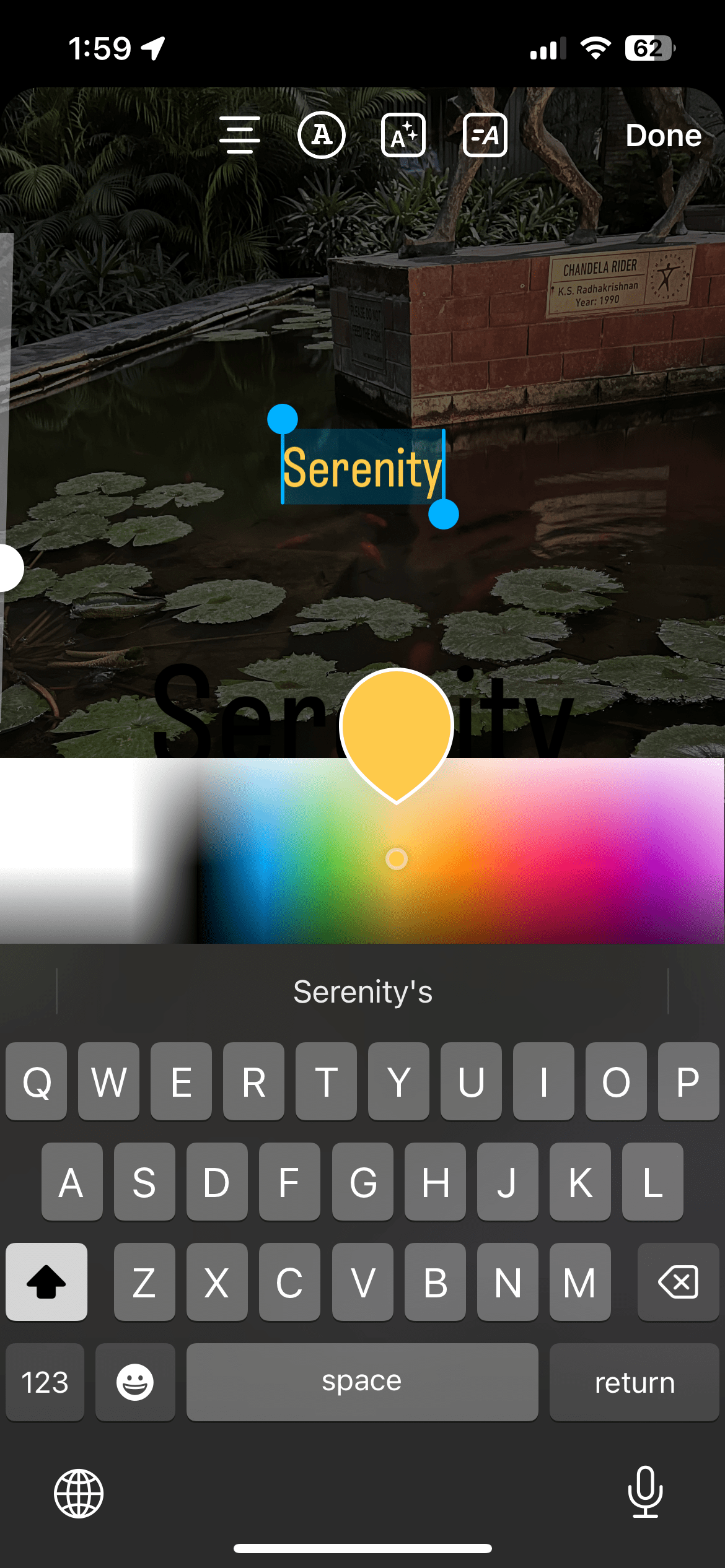
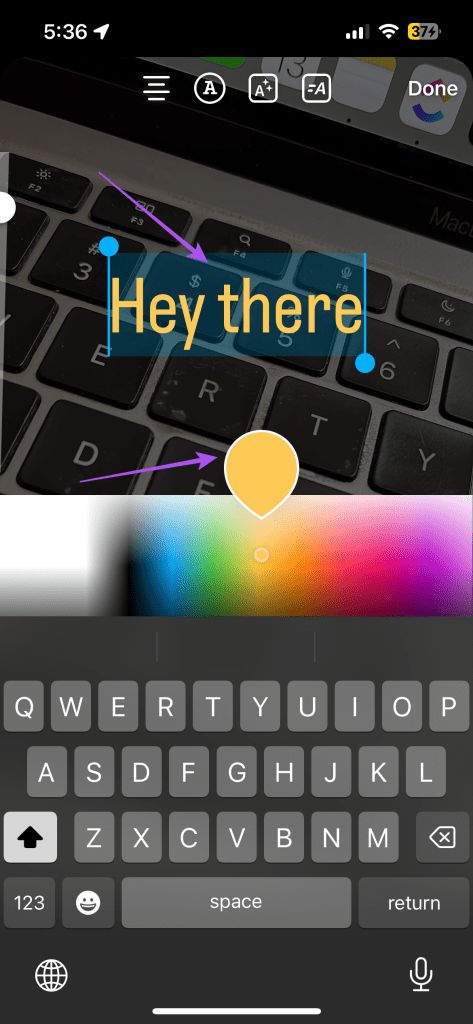
Step 2: You will see small color circles at the bottom of the screen. Hold down on any color, and you will get the color palette. Now, move your finger on the palette and choose any color.

Method 5: Use the Color Picker Tool
Step 1: Add the text to your story and tap on the color picker icon on the right.
Step 2: Move this tool to the desired color, and your text color will change automatically.


Method 6: Change Individual Word Color
Highlight the word (select the word) and tap on any color of your choice. Repeat this for all words.


Method 7: Change Text Background Color
Step 1: Type your text and tap the Font Mode icon at the top to add a background.
Step 2: Choose from the color options below to change the background color.

Method 8: Add Shadow to Text
This will add a 3D effect to your Instagram Story text.
Step 1: Open the Story mode, enter your text, and tap on Done at the top-right corner.
Step 2: Now, using the same font style, type the Text icon and enter the same text again but in a different color. Again, tap on Done.


Step 3: Drag this second text over the first one and increase or decrease its size so that the overall text looks like the shadow has been added to it.
Method 9: Add Rainbow Text
You need patience to use some finger tricks to add the colors of a rainbow to your Instagram Story text.
Step 1: Open the Story mode and write your text. Then, select or highlight all the text.
Step 2: Now that the text is selected, we must open the color spectrum. To do so, hold any color at the bottom. Once the color palette is visible, don’t lift your finger from the palette. While keeping your finger on the palette, take your second finger to the right side of the highlighted word. Ensure it’s highlighted.
Step 3: Now with both fingers on the screen, drag them slowly toward the left. You will see that it generates a gradient effect. To get a proper rainbow effect, start from the extreme right of the palette.
Method 10: Add Design Elements
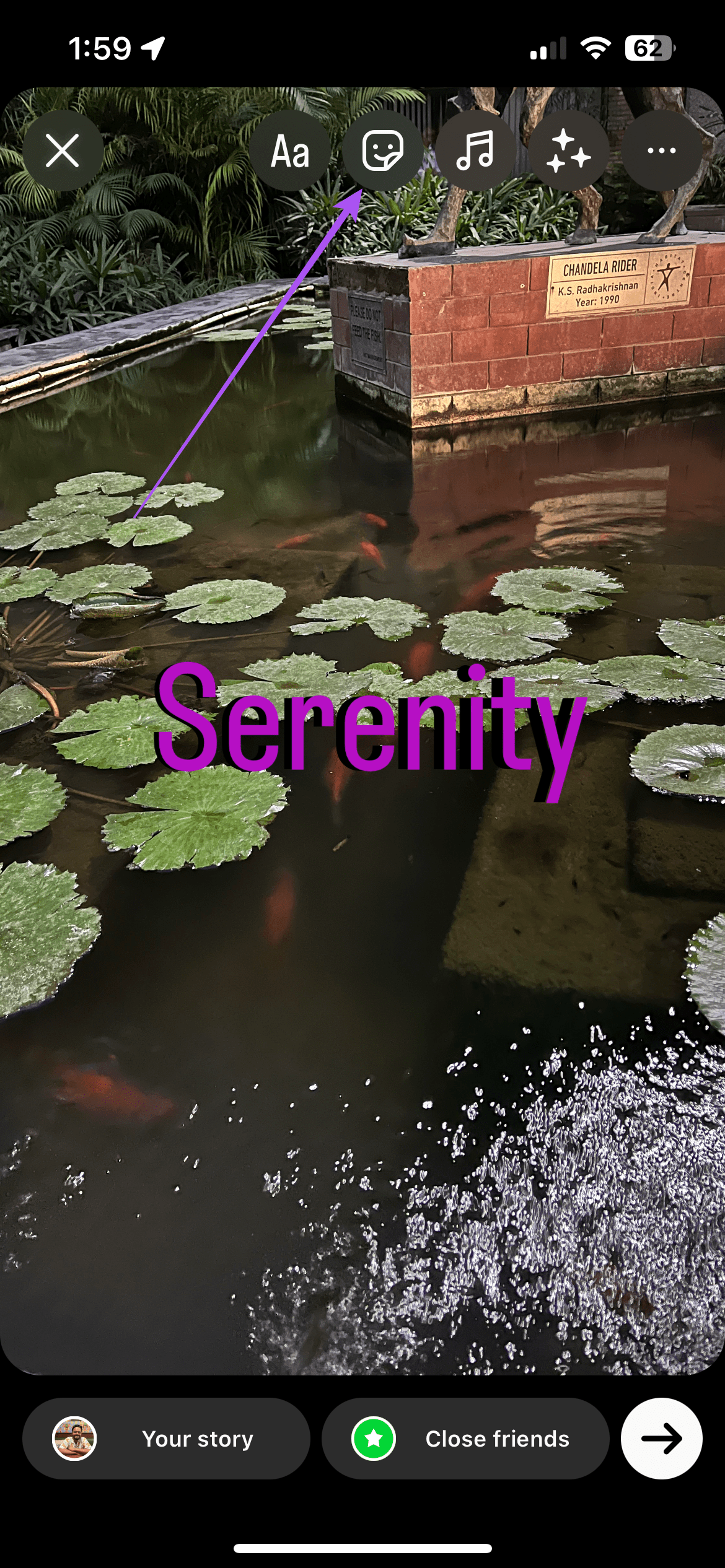
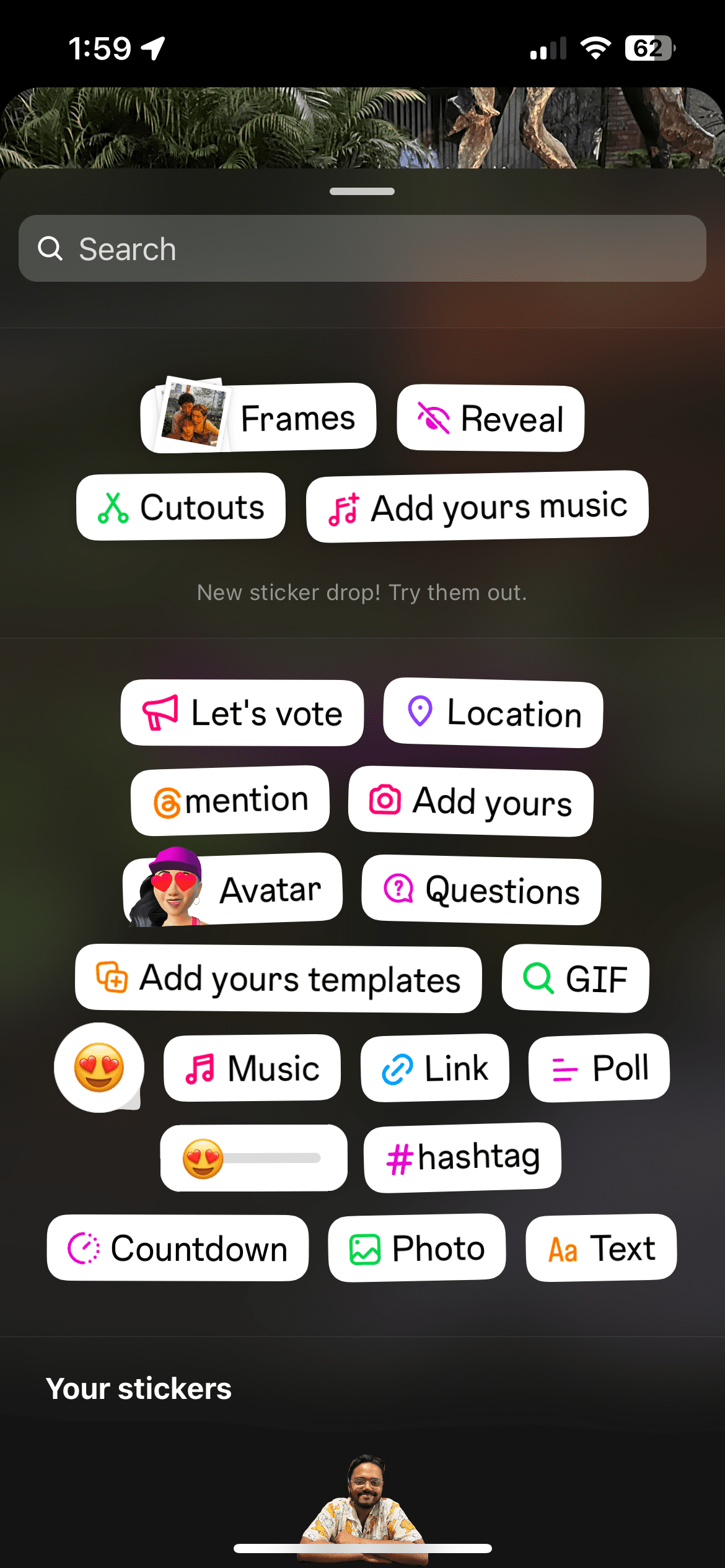
You can make your Instagram Story more appealing and interactive by adding more design elements like stickers, music, polls, links, etc. You can use the Add Yours sticker.
Step 1: After adding text to your Story, tap the Sticker icon at the top.
Step 2: You can now add stickers depending on the content of your story.
Method 11: Use More Fonts
If the built-in fonts of Instagram aren’t enough, try some different and unique fonts.
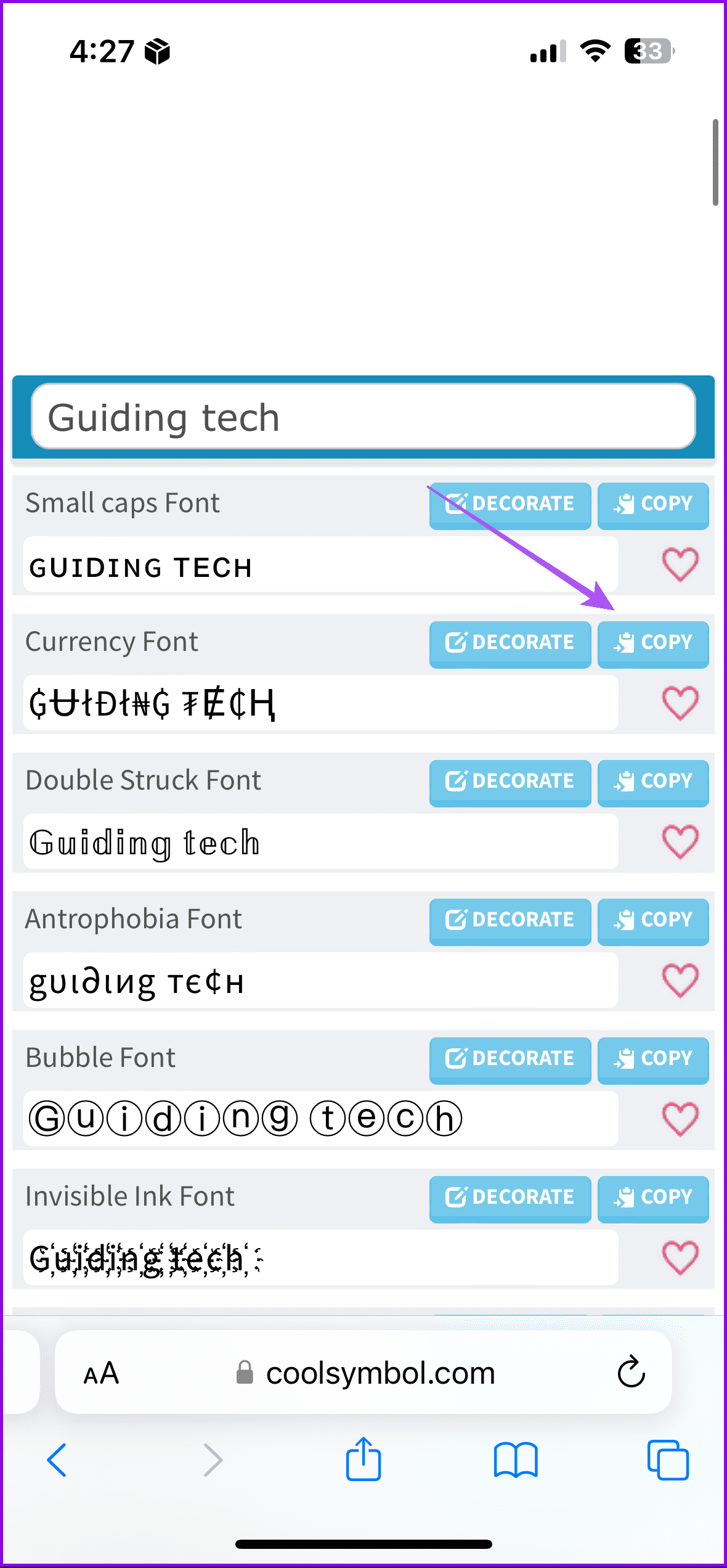
Step 1: Visit the Font Generator website and enter your text in the Input Text field.
Step 2: The site itself will display a preview of many new fonts. Tap the Copy button next to the font style that you like.
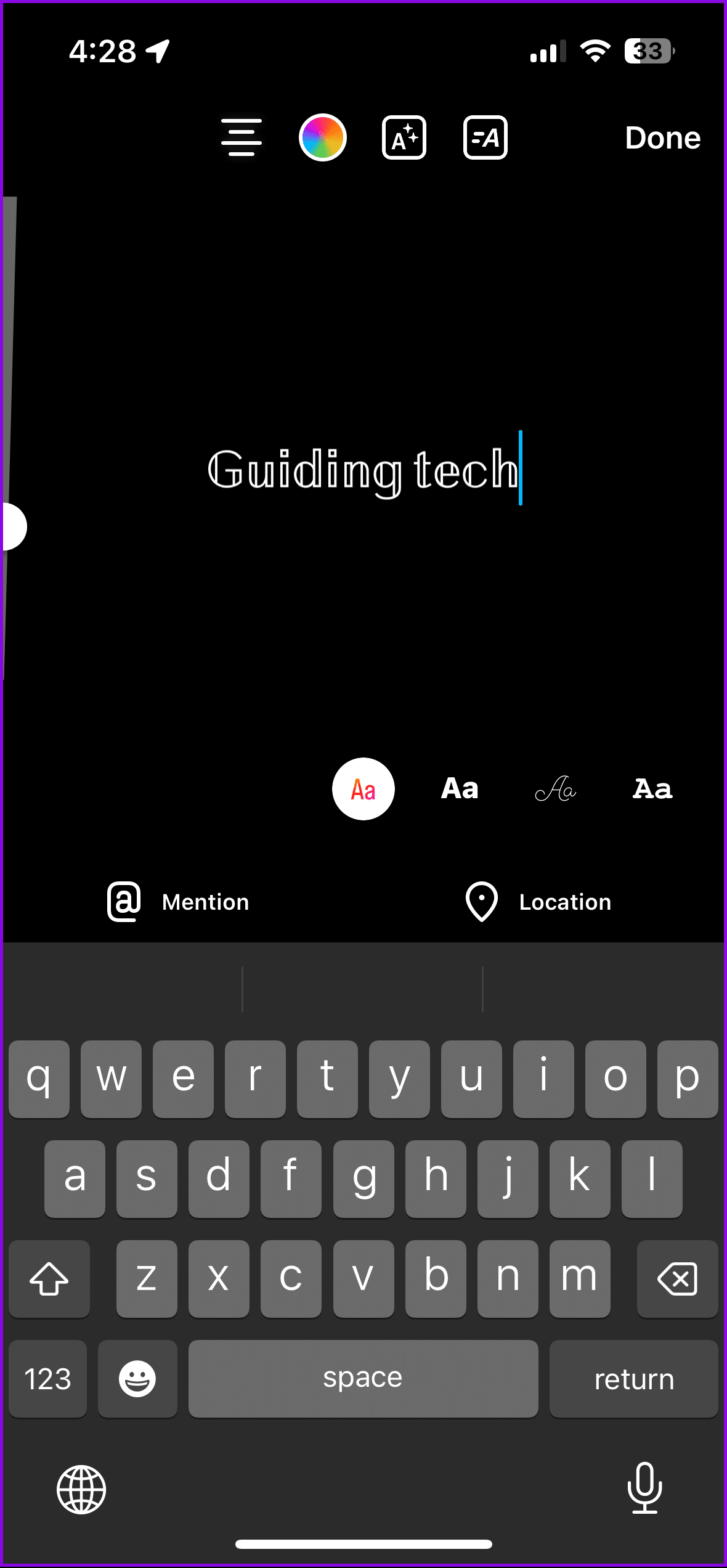
Step 3: Open your Instagram Story mode and paste the text. You can change its color, size, and other parameters as you would for normal text.
You can also refer to our post to share comments in Instagram Story.
Was this helpful?
Last updated on 10 June, 2024
Read Next
 Facebook Story vs Messenger Story: Similarities and Differences
Key Differences and Similarities FeatureFacebook StoriesMessenger StoriesCross-PostingFacebook Stories are visible to Messenger contacts.Messenger Stories are visible to Facebook friends.AvailabilityAvailable on mobile apps and the Facebook website.Available only on the mobile
Facebook Story vs Messenger Story: Similarities and Differences
Key Differences and Similarities FeatureFacebook StoriesMessenger StoriesCross-PostingFacebook Stories are visible to Messenger contacts.Messenger Stories are visible to Facebook friends.AvailabilityAvailable on mobile apps and the Facebook website.Available only on the mobile
 Top 14 Instagram Direct Messages (DM) Tricks and Tips
Instagram Direct Messages (DM) may seem simple at first.
Top 14 Instagram Direct Messages (DM) Tricks and Tips
Instagram Direct Messages (DM) may seem simple at first.
 How to Add a Link to Instagram Story and Posts
Are you looking for ways to drive more traffic to your website or promote your brand on Instagram?
How to Add a Link to Instagram Story and Posts
Are you looking for ways to drive more traffic to your website or promote your brand on Instagram?
 3 Ways to Fix Instagram Story Stuck at Posting
https://youtu.be/qYHxqdYAYzw Fix 1: Some Basic Solutions Restart your phone: A simple restart will reset all apps on your phone and should fix the issue.
3 Ways to Fix Instagram Story Stuck at Posting
https://youtu.be/qYHxqdYAYzw Fix 1: Some Basic Solutions Restart your phone: A simple restart will reset all apps on your phone and should fix the issue.
 How to Put Highlights on Instagram Without Story
How to Add Highlights in Instagram Without Story If you are looking for a direct way to add highlights without adding to the Story, there aren't any.
How to Put Highlights on Instagram Without Story
How to Add Highlights in Instagram Without Story If you are looking for a direct way to add highlights without adding to the Story, there aren't any.
 3 Ways to Fix Instagram Story Sound Not Working
Basic Troubleshooting Turn off silent mode or increase the volume - Instagram's sounds are automatically muted on silent mode.
3 Ways to Fix Instagram Story Sound Not Working
Basic Troubleshooting Turn off silent mode or increase the volume - Instagram's sounds are automatically muted on silent mode.
 How to Search for Filters on Instagram and Add to Your Story
Method 1: Search for Instagram Filters via the Browse Effects Option The simplest way to find a filter on IG is via the Effects Gallery.
How to Search for Filters on Instagram and Add to Your Story
Method 1: Search for Instagram Filters via the Browse Effects Option The simplest way to find a filter on IG is via the Effects Gallery.
 How to Tag/Mention Someone on Instagram Story Without It Showing
Instagram's tagging system is great for public shoutouts, but what about when you want to send a secret message to your friend?
How to Tag/Mention Someone on Instagram Story Without It Showing
Instagram's tagging system is great for public shoutouts, but what about when you want to send a secret message to your friend?
The article above may contain affiliate links which help support Guiding Tech. The content remains unbiased and authentic and will never affect our editorial integrity.