How to Add Highlights in Instagram Without Story
If you are looking for a direct way to add highlights without adding to the Story, there aren’t any. However, we have a workaround that gets you your desired outcome. Before we move into the steps, there are certain things you need to do. Follow the step-by-step guide below.
Note: The steps are the same for Android and iOS. However, for demonstration, we are going with Android. If you are on iOS, you can follow along.
1. Make Profile Private
Firstly, if you have a public profile, you would need to switch to a private profile for a short period of time, specifically for 24 hours. Here’s how.
Note: If you have a private profile already, jump to the next section.
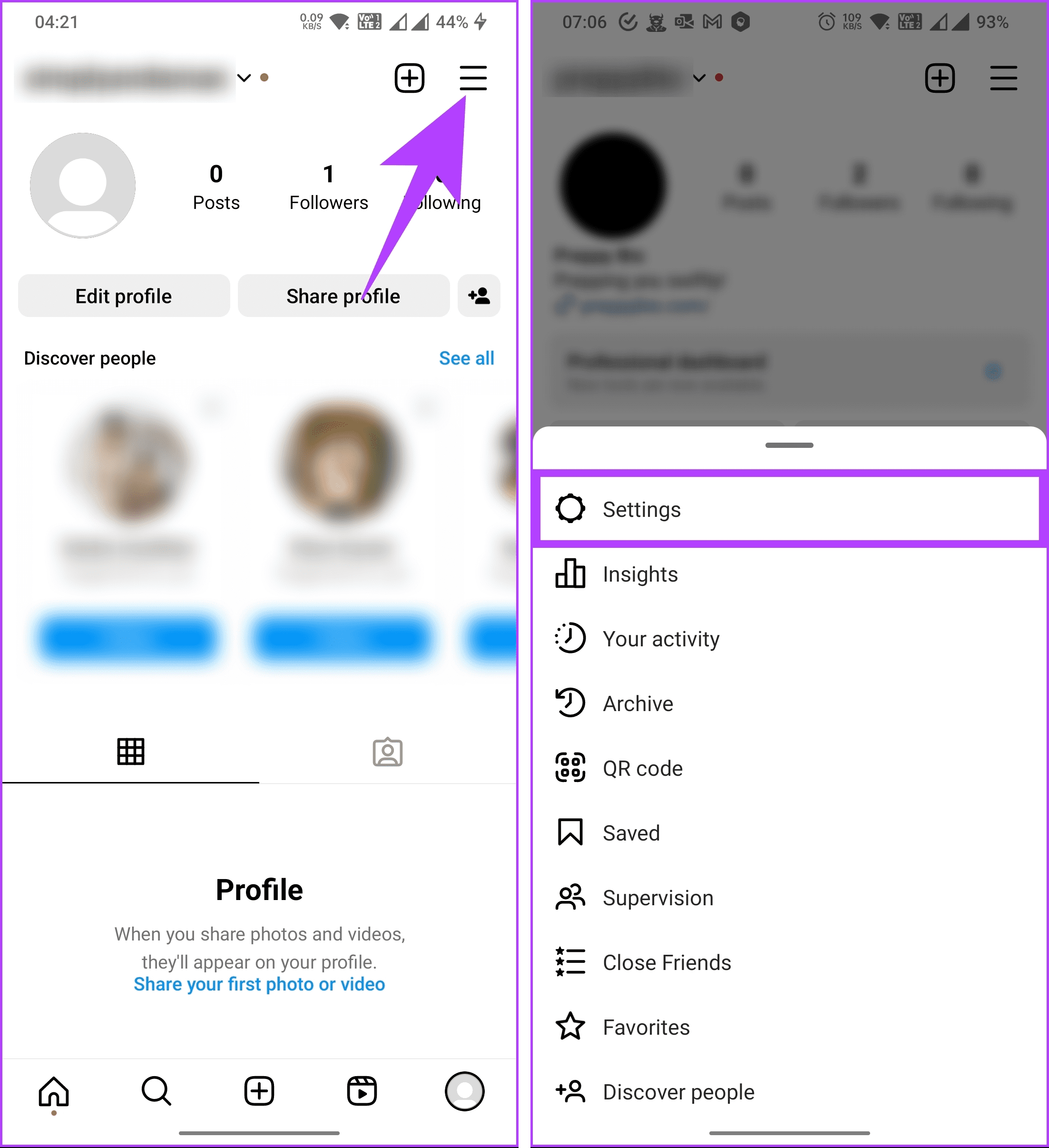
Step 1: Launch the Instagram app and navigate to your profile from the bottom navigation bar.
Step 2: Tap on the hamburger menu in the top-right corner, and choose the Settings option.
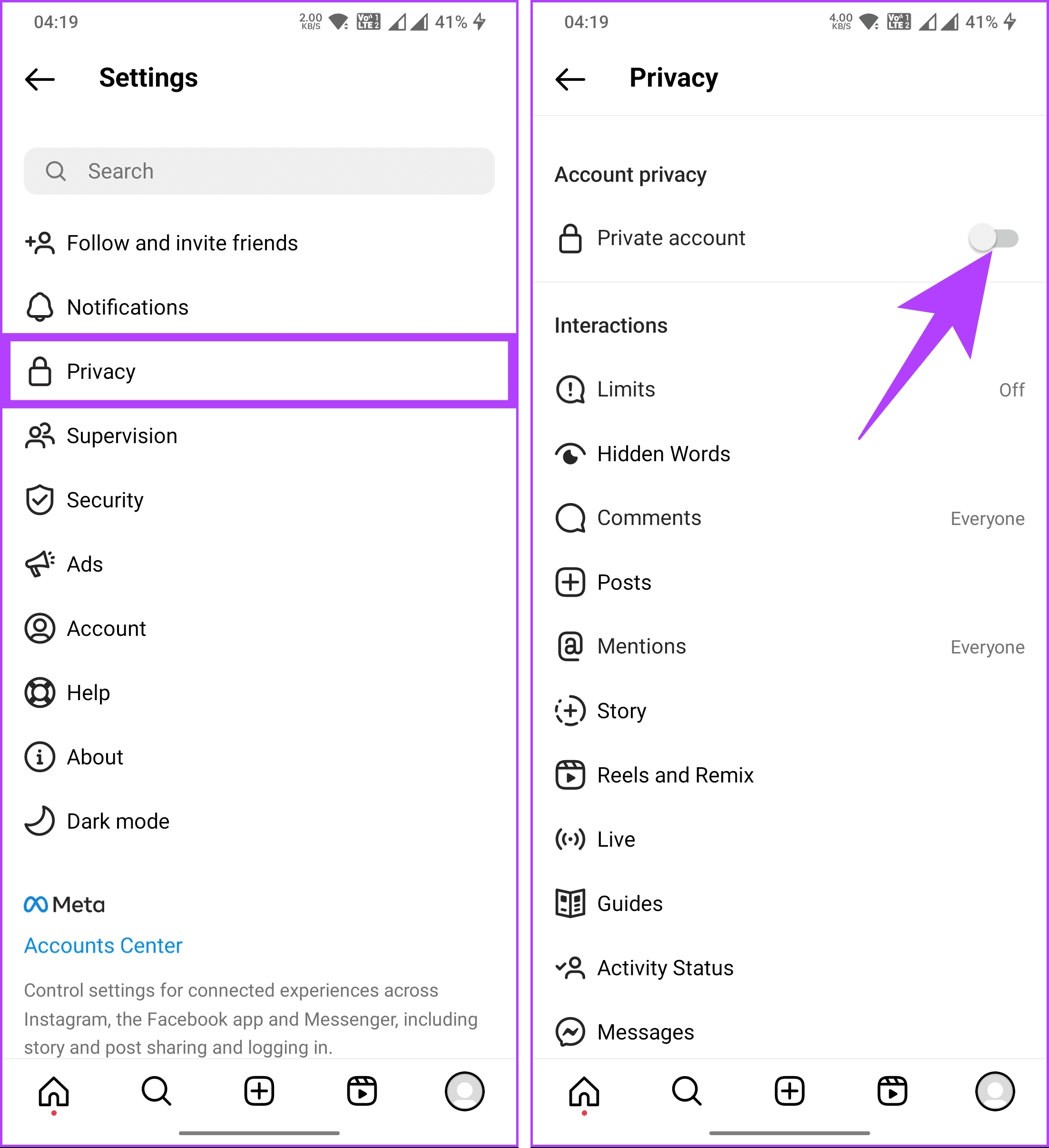
Step 3: Scroll down and choose Privacy. On the next screen, toggle on the Private account button.
Step 4: Tap the Switch to Private button in the bottom sheet confirmation.
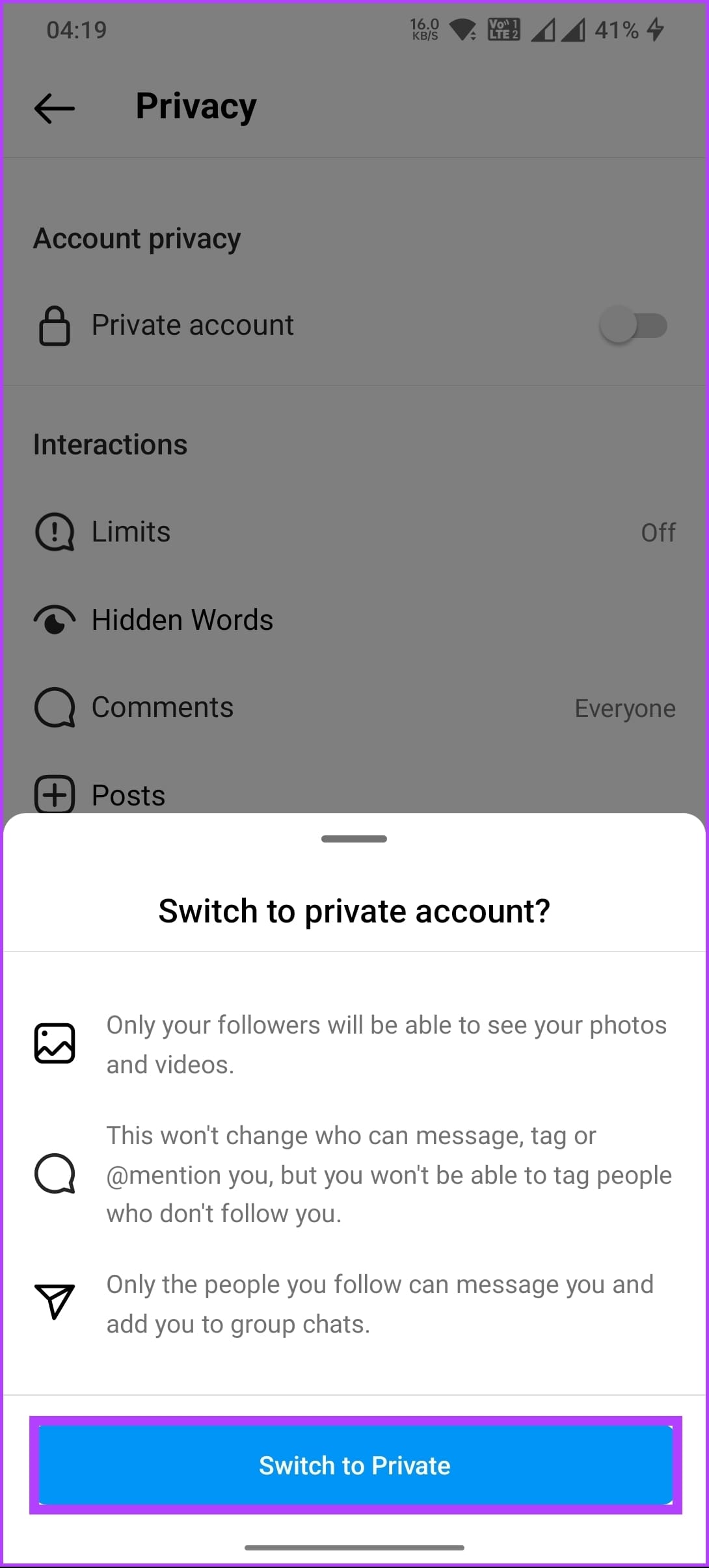
That’s it. Your account is set to private. You are one step closer to adding highlights on Instagram without a story; continue reading.
Also Read: How to save, access, or delete drafts on Instagram
2. Change Story Settings
Once you have a private profile, you need to change the privacy settings of the Story and hide it from all your followers manually. You can keep it visible to some close friends. Here’s how to hide Stories.
Step 1: Launch the Instagram app and navigate to your profile from the bottom navigation bar.
Step 2: Tap on the hamburger menu, and choose the Settings option.
Step 3: Under the Settings screen, scroll down and select the Story option.
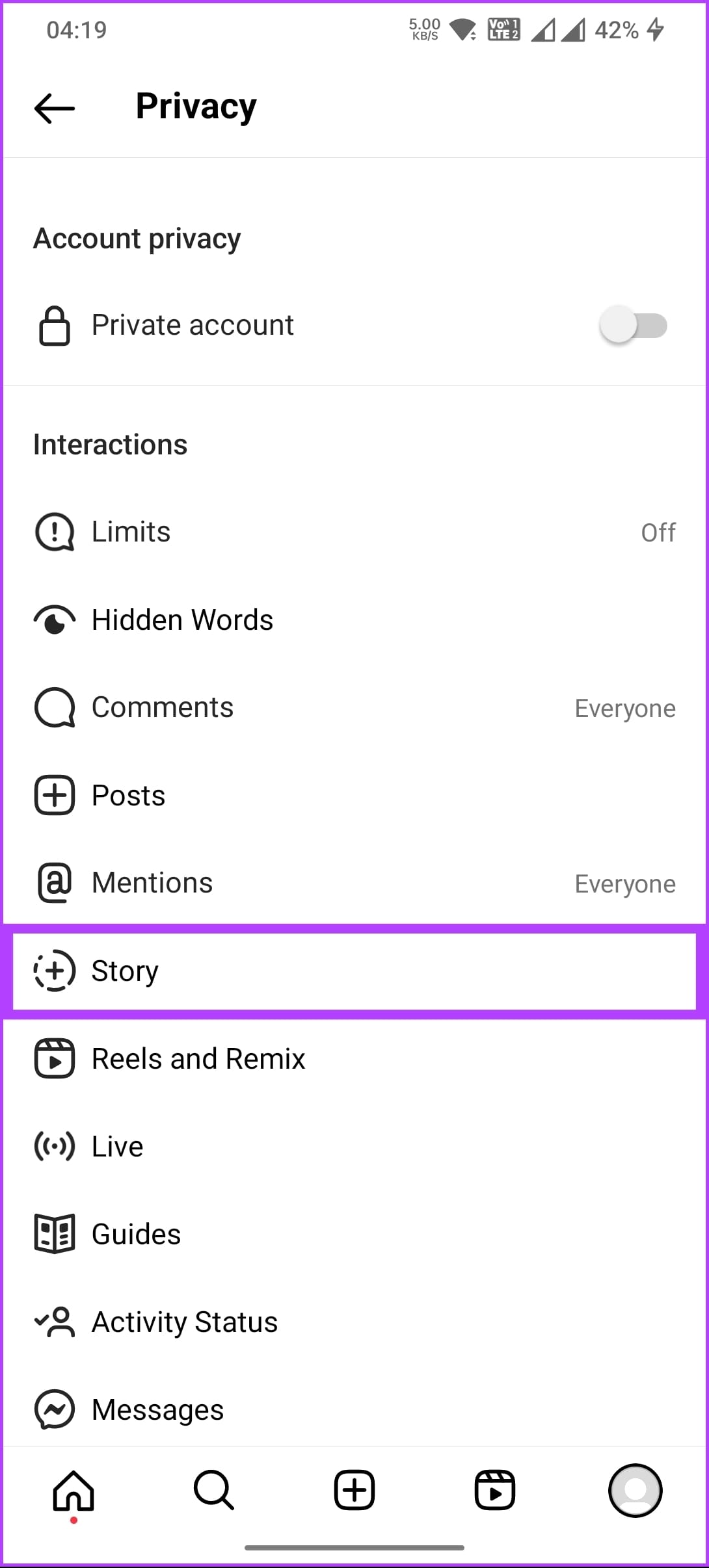
Step 4: Now, choose Hide story and live. Then, manually select all followers by tapping on the small bubble on the right side.
Step 5: Finally, tap the back arrow to save.
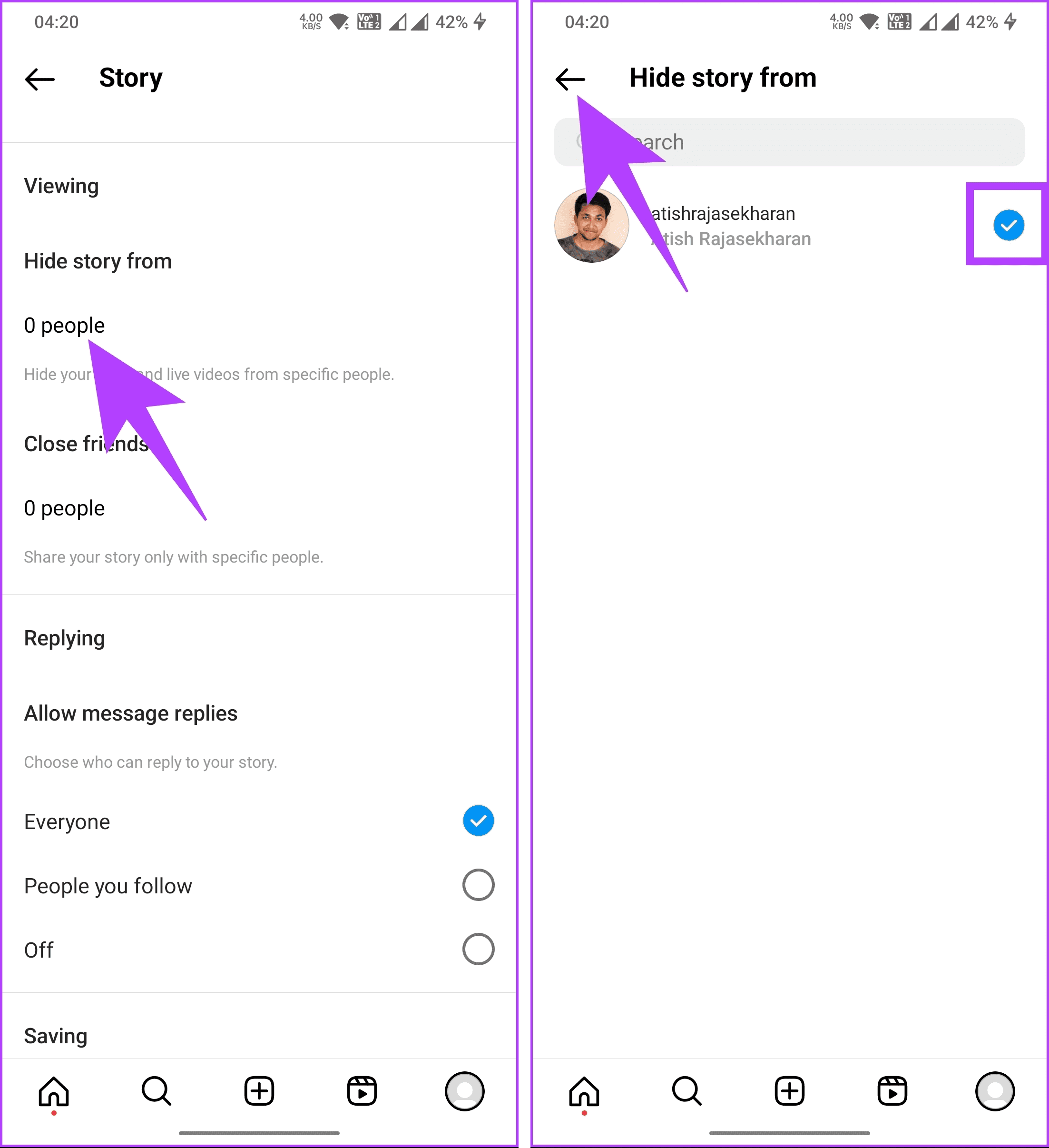
That’s about it. You have made your stories hidden from everyone. It is now the right time to upload the stories; keep reading.
3. Upload Stories
Now that you have set all the safety parameters, it is time to post a Story. Since you have hidden it from all your followers, no one will be able to see it.
4. Add to Highlights
Once published, you would need to add the Stories to the Highlights section. Follow the below steps;
Step 1: Open Instagram, and from the home page, tap on Your story in the top left corner.
Step 2: Once the story opens, tap on Highlight option. Give the highlight a name and select Add.
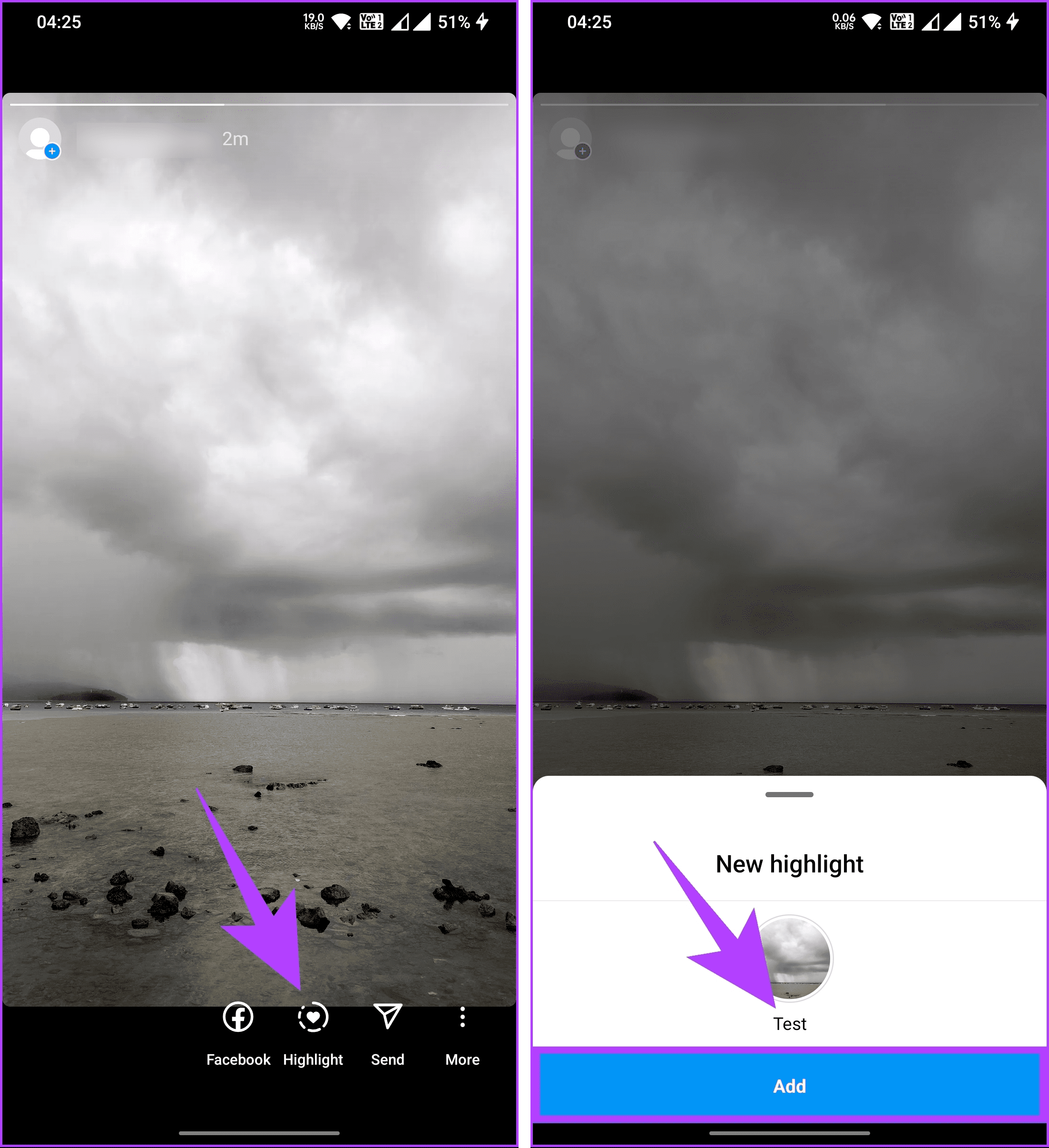
That’s about it. The story will be added to the highlights, which you can view by visiting your profile. Now that your highlight section is in place, move on to the next section.
Also Read: How to unlike or unsave all posts on Instagram at once
5. Unhide Everyone
After twenty-four hours, when the Story is automatically taken to the Archives, unhide everyone. You need to go to Instagram Settings > Privacy > Story > Hide story from. Deselect Everyone.
That’s how you can add Stories to Highlights without anyone seeing them. As mentioned before, the time period for this trick is twenty-four hours. So, you need to wait patiently.
How to Add Instagram Highlights Cover Without Adding to Story
Adding a cover to the Instagram Highlights is easy. Moreover, you don’t necessarily have to put them in your Stories to reflect them in the Highlights. You can, however, choose from your existing Stories, but that’s not mandatory, as you can also add pictures directly from your phone’s gallery.
Here’s how to go about it.
Step 1: Launch the Instagram app and go to your Instagram profile screen.
Step 2: Hold the Highlight whose cover picture you want to change and select Edit highlight.
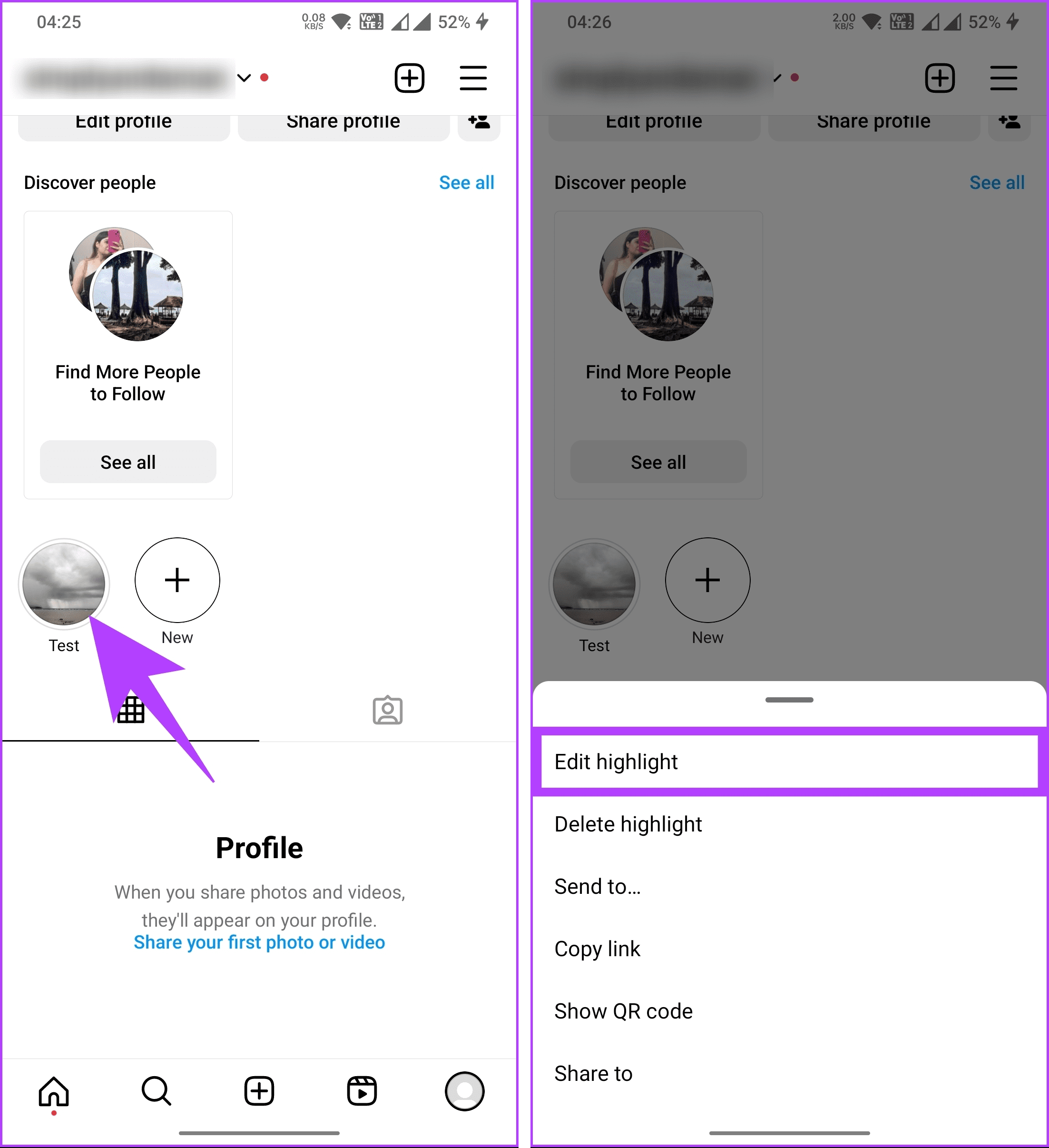
Step 3: On the Edit screen, tap on the Edit cover option.
Step 4: To use an existing Highlight as the cover photo, navigate to that image or video.
However, if you want to add highlights on Instagram from the gallery, tap on the small Gallery icon to the left of the image thumbnails.

Step 5: Select and adjust the image to fit the circle, then tap Next. You will be taken to the Edit screen. Hit the Done option.

That’s all you need to do to change the cover pictures. Easy, right? If you don’t want to rely on your gallery or Stories for Highlights cover, you can customize one for yourself; continue reading.
Also Read: Ways to check your Instagram Highlights viewers
How to Create Custom Covers for Instagram Highlights
If you want to customize your Instagram Highlights cover, you can also design cool covers for your Highlights using Canva and other available online graphic design tools.
Note: For this demonstration, we are going with the Canva app. If you don’t have the app already, download it from the Play Store or App Store accordingly, and follow along.
Step 1: Register yourself at the Canva site or using mobile apps.
Note: If you already have a Canva account, log in.
Step 2: Once logged in, scroll down on the home screen and tap on any image under the Logo section.
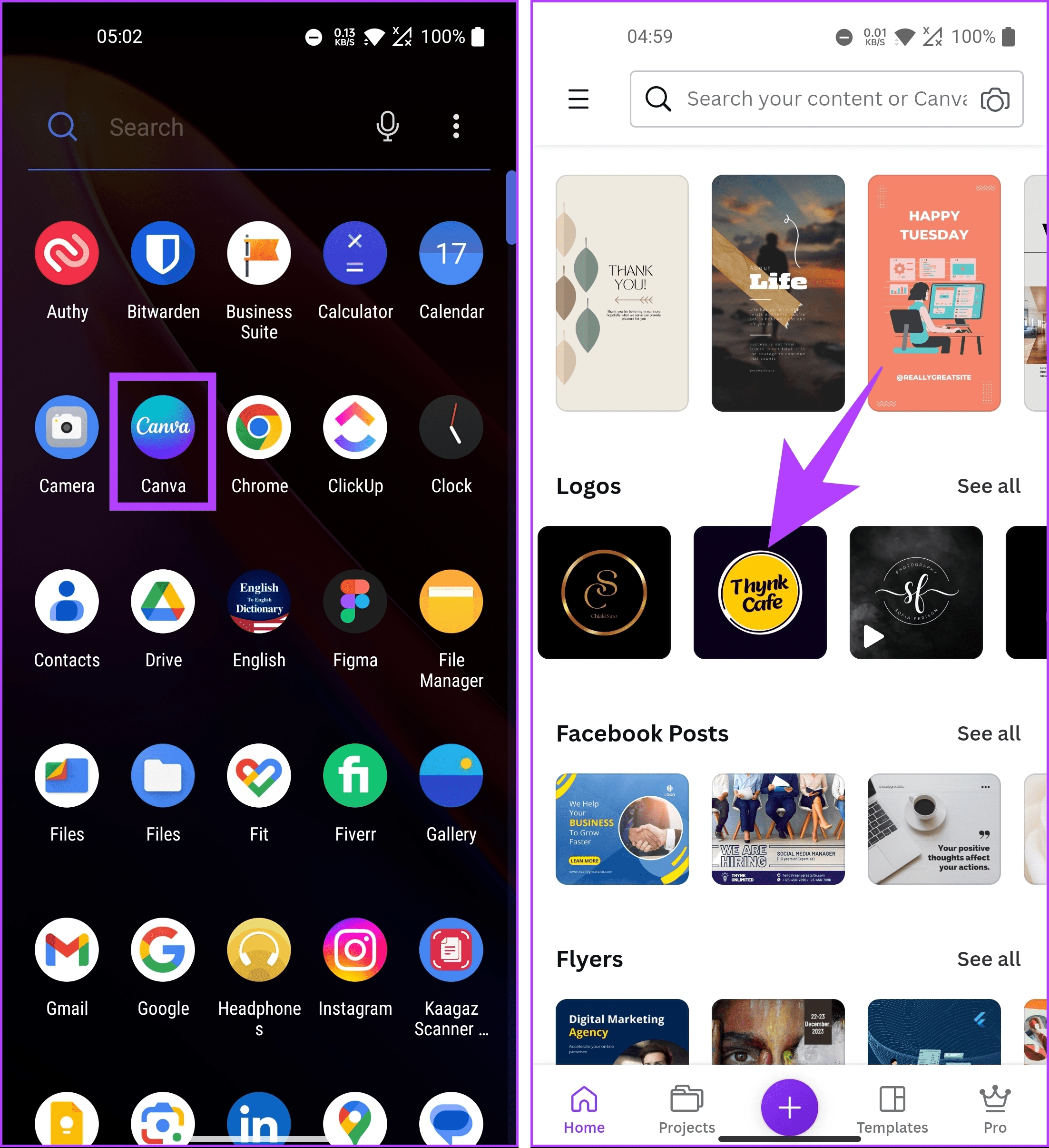
Step 3: Hold on to the elements that you want to change. You can delete all the existing elements and add new ones.
Step 4: Once you are done, tap on the download icon in the top right corner to save them on your device.
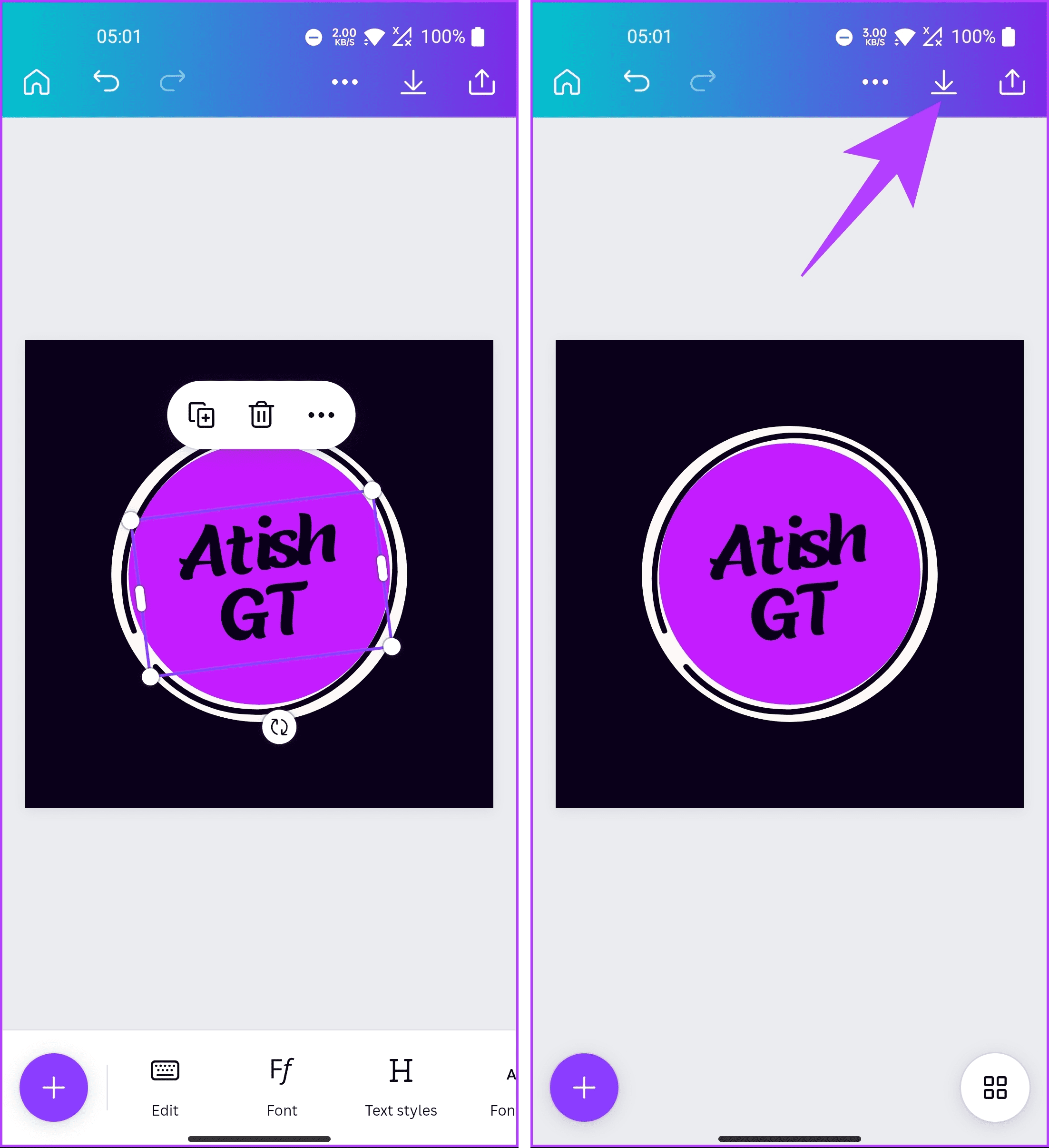
Now, navigate to your Instagram profile and use the steps from the previous section to add custom covers. That said, for whatever reason, you may want to remove the Highlights from your profile; keep reading.
How to Remove Highlights from Instagram Profile
Step 1: Launch the Instagram app and navigate to your profile from the bottom navigation bar.
Step 2: Long-press on the Highlight you want to delete and choose Delete Highlights.
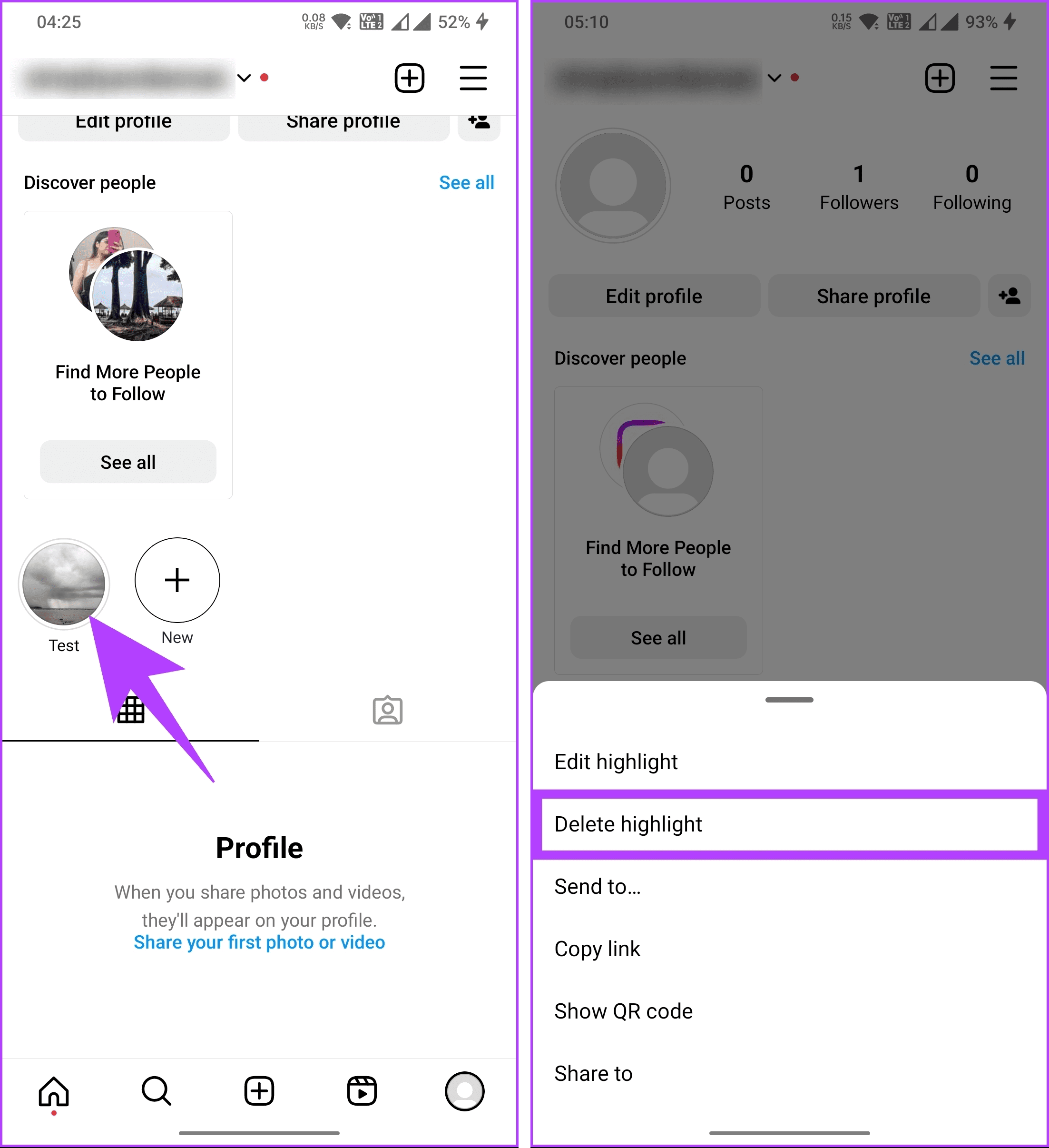
Step 3: In the Delete highlight pop-up, choose Delete.

There you go. You have successfully deleted the highlight from your Instagram account. If you have any queries, check out the FAQ section below.
FAQs on Adding Instagram Highlights Without Adding to Story
No, your followers won’t be notified when you add or update highlights on your profile. Highlights provide a way to organize and showcase content you want to highlight for longer.
There is no (official) specific limit to the number of highlights you can create on your Instagram profile. You can have an unlimited number of highlights on your profile.
When you create and add stories to your highlights, they are showcased on your profile for your followers to view whenever they visit your profile. So, no, non-followers cannot see your story highlights on Instagram.
Now that you know how to put highlights on Instagram without Story, you can use this workaround to add Story to highlights without posting until Instagram introduces a native method.
Was this helpful?
Last updated on 07 August, 2024
Read Next
 How to Add and Use Facebook Story Highlights: A Definitive Guide
What Are Facebook Story Highlights Highlights are like photo albums where you can sort stories in different folders according to their content.
How to Add and Use Facebook Story Highlights: A Definitive Guide
What Are Facebook Story Highlights Highlights are like photo albums where you can sort stories in different folders according to their content.
 How to Tag/Mention Someone on Instagram Story Without It Showing
Instagram's tagging system is great for public shoutouts, but what about when you want to send a secret message to your friend?
How to Tag/Mention Someone on Instagram Story Without It Showing
Instagram's tagging system is great for public shoutouts, but what about when you want to send a secret message to your friend?
 How to Download Instagram Highlights on Your Phone or PC
Download Your Instagram Story Highlights from Instagram App Earlier you could download Instagram Highlights directly from the Highlight’s insight section.
How to Download Instagram Highlights on Your Phone or PC
Download Your Instagram Story Highlights from Instagram App Earlier you could download Instagram Highlights directly from the Highlight’s insight section.
 How to Fix Instagram Highlights Not Loading or Showing
Why Can't I See Highlights on Instagram Internet connection issues - Slow or unstable internet or network connectivity issues can stop Instagram Highlights from loading or showing.
How to Fix Instagram Highlights Not Loading or Showing
Why Can't I See Highlights on Instagram Internet connection issues - Slow or unstable internet or network connectivity issues can stop Instagram Highlights from loading or showing.
 Facebook Story vs Messenger Story: Similarities and Differences
Key Differences and Similarities FeatureFacebook StoriesMessenger StoriesCross-PostingFacebook Stories are visible to Messenger contacts.Messenger Stories are visible to Facebook friends.AvailabilityAvailable on mobile apps and the Facebook website.Available only on the mobile
Facebook Story vs Messenger Story: Similarities and Differences
Key Differences and Similarities FeatureFacebook StoriesMessenger StoriesCross-PostingFacebook Stories are visible to Messenger contacts.Messenger Stories are visible to Facebook friends.AvailabilityAvailable on mobile apps and the Facebook website.Available only on the mobile
 3 Ways to Disable or Enable Search Highlights in Windows 10 and Windows 11
Method 1: Disable or Enable Search Highlights From the Settings App The Settings app on Windows allows you to control most things on your PC.
3 Ways to Disable or Enable Search Highlights in Windows 10 and Windows 11
Method 1: Disable or Enable Search Highlights From the Settings App The Settings app on Windows allows you to control most things on your PC.
 How to Add a Link to Instagram Story and Posts
Are you looking for ways to drive more traffic to your website or promote your brand on Instagram?
How to Add a Link to Instagram Story and Posts
Are you looking for ways to drive more traffic to your website or promote your brand on Instagram?
 3 Ways to Fix Instagram Story Stuck at Posting
https://youtu.be/qYHxqdYAYzw Fix 1: Some Basic Solutions Restart your phone: A simple restart will reset all apps on your phone and should fix the issue.
3 Ways to Fix Instagram Story Stuck at Posting
https://youtu.be/qYHxqdYAYzw Fix 1: Some Basic Solutions Restart your phone: A simple restart will reset all apps on your phone and should fix the issue.
The article above may contain affiliate links which help support Guiding Tech. The content remains unbiased and authentic and will never affect our editorial integrity.