Microsoft’s Copilot can be highly effective when it comes to analyzing data and delivering insights, but it doesn’t always work as intended. Some users have reported that Copilot insights don’t work all of a sudden, or Copilot doesn’t load properly while trying to generate insights. This guide looks at some simple ways to troubleshoot these issues.
Copilot Insights Don’t Work
Fix 1. Verify Your Connection
When dealing with any issues with Copilot, it’s best to start with the simplest, quickest possible fixes before moving on to anything more technical. Copilot will not function as intended if there’s any disruption in your internet connection, as it may not be able to access the relevant data and web servers to provide insights and responses.
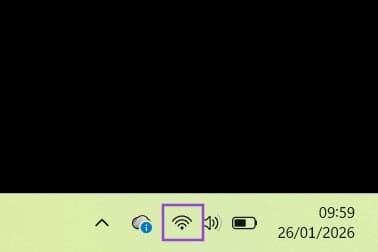
Step 1. Check the Wi-Fi icon in the bottom-right corner of your screen to ensure your connection is active. Hover over the icon for additional details, and if you have any issues, resolve those first by possibly rebooting your device or router/modem before reconnecting to Copilot.
Fix 2. Reboot
Another quick fix to attempt when you encounter Copilot problems is to simply reboot either the app itself or your entire computer. This helps to refresh the connection between your device and the Copilot servers to possibly resolve any related issues or minor bugs you might have encountered.
Fix 3. Try a Different Device or Account
Sometimes, certain Copilot features don’t work on specific accounts or devices due to corrupt files or compatibility issues. But the app may still work fine on a different device or with a different account signed in. As such, it’s worth trying Copilot’s insights on another account or computer, if possible, to work out if it’s an app issue or a problem with your account/device.
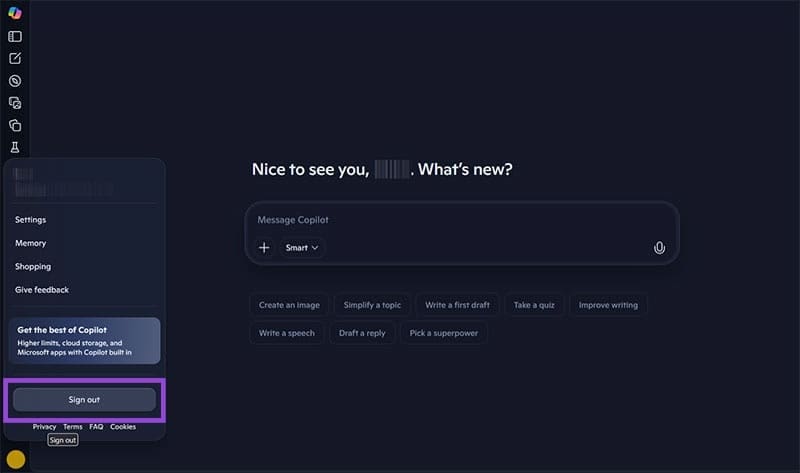
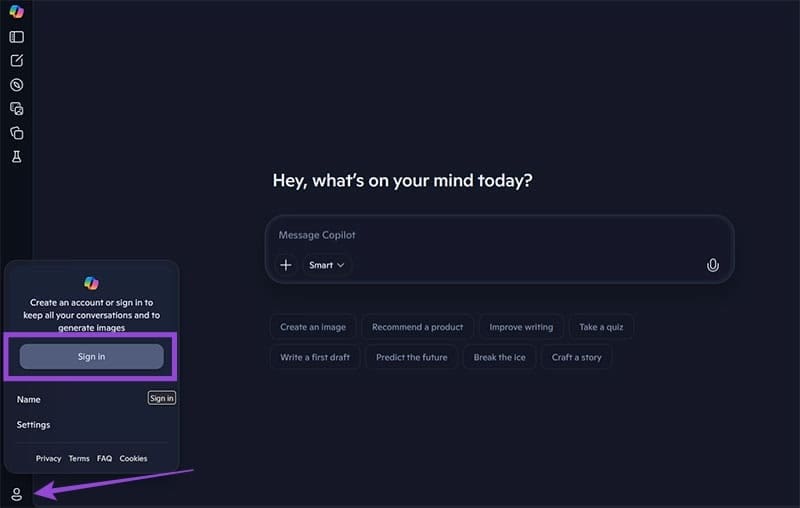
Step 1. Open Copilot and click your profile icon in the bottom left corner. Then select “Sign out.”
Step 2. Click the “Profile” button and then select “Sign in” to try using Copilot with a different account. You can also try logging in this way on another device.
Fix 4. Repair or Reset the App
An effective way to fix unexpected or recurring issues with Copilot, including problems when Copilot doesn’t load properly, is to repair or reset the app. You can do this via the App menu in your Windows Settings application.
Step 1. Press the “Windows” and “I” keys together to open the Settings.
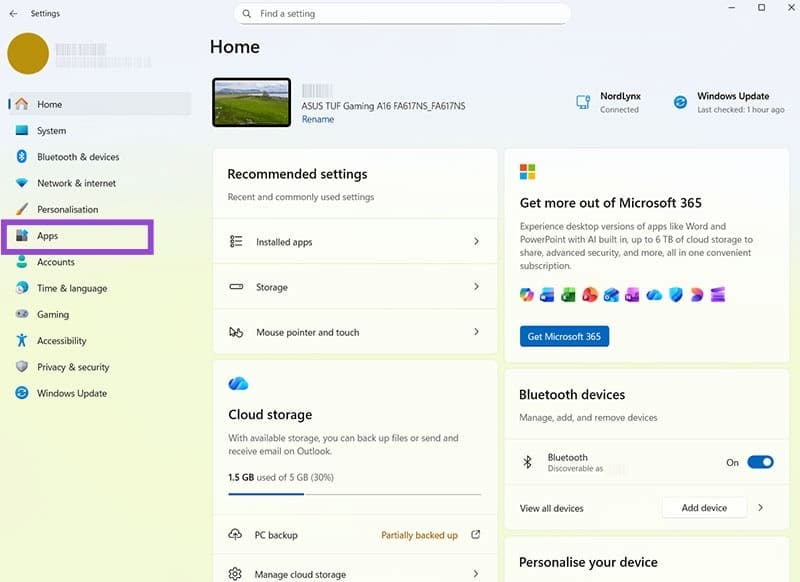
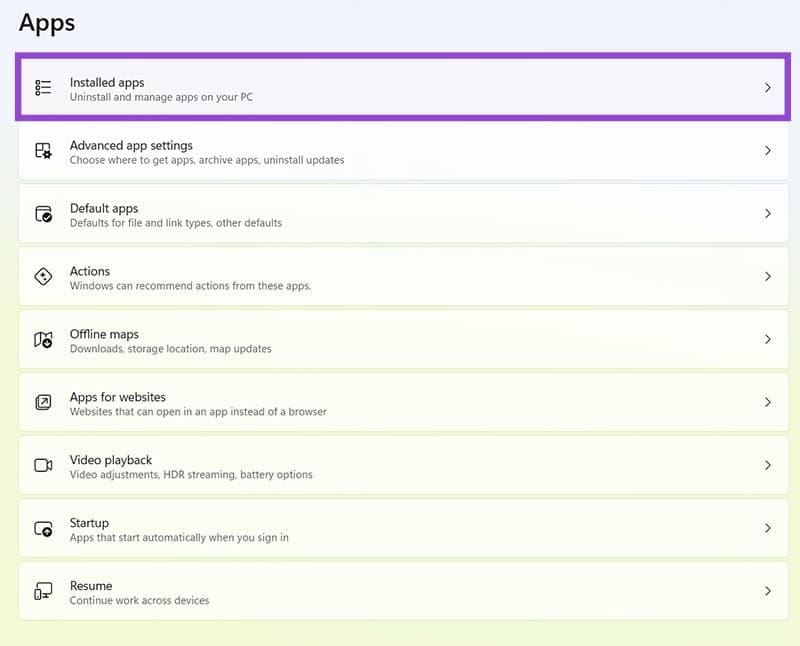
Step 2. Go to “Apps” and then “Installed apps.”
Step 3. Find “Copilot” in your list of installed apps and click the three dots icon beside it. Then select “Advanced options.”
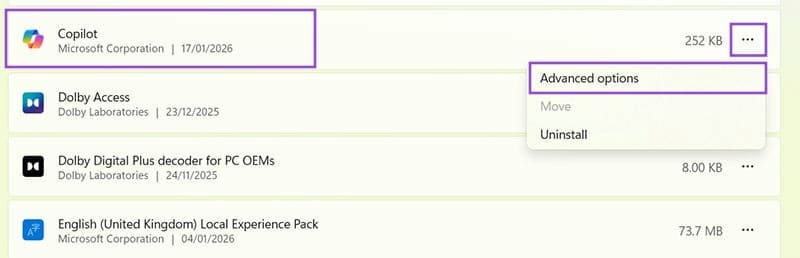
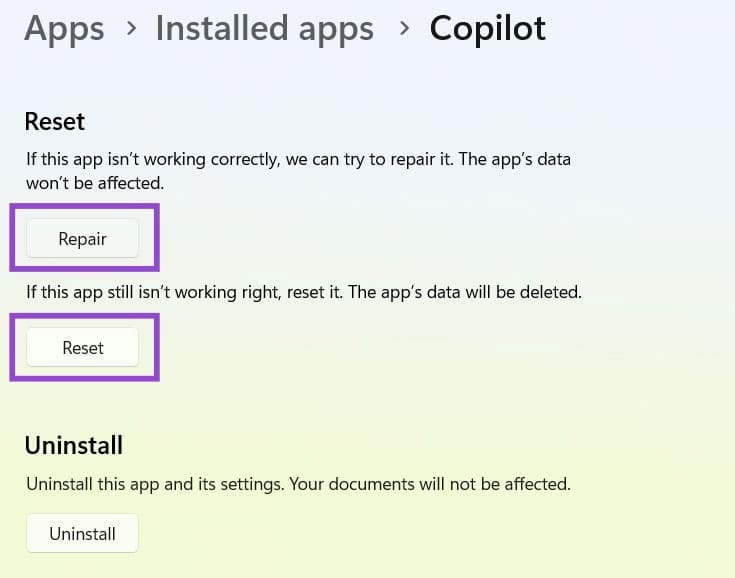
Step 4. Click the “Repair” option first to run a repair tool and fix any issues with the app automatically. If that fails, return to the menu and select “Reset” instead. Note that this will delete all app data.
Fix 5. Delete Local Data
One final and more advanced fix to try is to delete local app data on your device that could be corrupt in some way, and prevent Copilot from functioning as it should.
Step 1. Make sure you’re logged out of your Microsoft account in your browsers and Office applications, as well as Copilot itself. Then press the “Windows” and “R” keys to launch the “Run” utility.
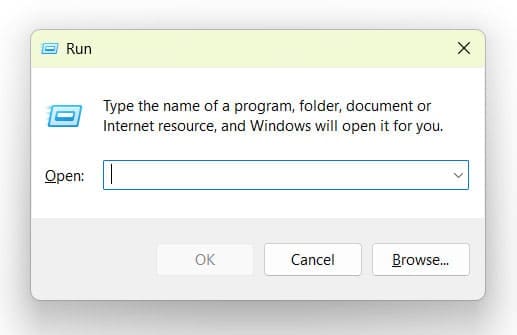
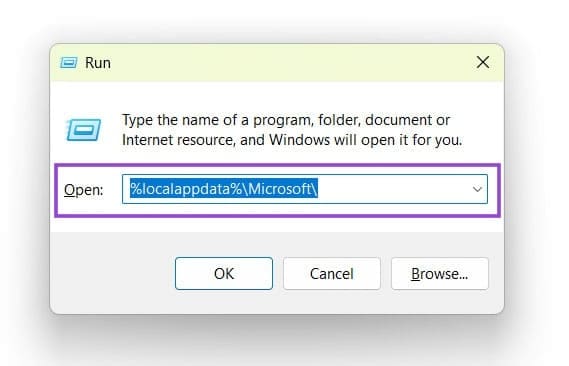
Step 2. Enter the following, then hit the “Enter” key: %localappdata%\Microsoft\
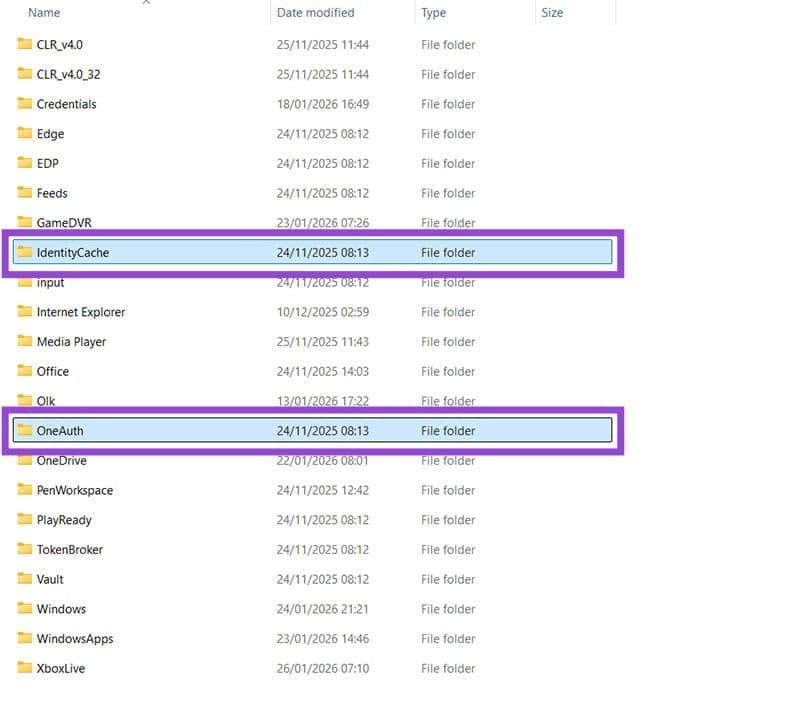
Step 3. Find and delete the folders labeled “Identity Cache” and “OneAuth,” then restart your computer.
Was this helpful?
Last updated on 31 January, 2026
Read Next
 How to Fix Instagram Insights Unavailable or Stopped Working
Basic Troubleshooting Clear Instagram cache: If Instagram collects a corrupt cache, it may fail to load the latest insights.
How to Fix Instagram Insights Unavailable or Stopped Working
Basic Troubleshooting Clear Instagram cache: If Instagram collects a corrupt cache, it may fail to load the latest insights.
 4 Fixes for Bad Module Info Has Stopped Working Error on Windows
Fix 1: Turn off Fullscreen Optimizations Full-screen optimizations in Windows can enhance the performance of your games and programs while they're in full-screen mode.
4 Fixes for Bad Module Info Has Stopped Working Error on Windows
Fix 1: Turn off Fullscreen Optimizations Full-screen optimizations in Windows can enhance the performance of your games and programs while they're in full-screen mode.
 Top 8 Ways to Fix Unfortunately Messenger Has Stopped Error on Android
Facebook Messenger app is an integral part of the millions of Facebook users.
Top 8 Ways to Fix Unfortunately Messenger Has Stopped Error on Android
Facebook Messenger app is an integral part of the millions of Facebook users.
 3 Methods to Know Who Stopped Following You on Instagram (With/Without App)
Do you ever wonder who quietly slips away from your Instagram circle?
3 Methods to Know Who Stopped Following You on Instagram (With/Without App)
Do you ever wonder who quietly slips away from your Instagram circle?
 Copilot Read Aloud Not Working – How to Fix
The Copilot Read Aloud feature is a fantastic accessibility feature and a handy way to consume a lot of information.
Copilot Read Aloud Not Working – How to Fix
The Copilot Read Aloud feature is a fantastic accessibility feature and a handy way to consume a lot of information.
 6 Ways to Fix System UI Has Stopped Error on Android
Basic Fixes Restart your device: Long-press the physical power button or pair it with the volume up key to open the Power menu and select Restart.
6 Ways to Fix System UI Has Stopped Error on Android
Basic Fixes Restart your device: Long-press the physical power button or pair it with the volume up key to open the Power menu and select Restart.
 4 Ways to Fix “Unfortunately, Settings Has Stopped” on Android
Basic Fixes Update Google Play Services: You install the latest version of Google Play Services on your Android phone and check if the problem is solved.
4 Ways to Fix “Unfortunately, Settings Has Stopped” on Android
Basic Fixes Update Google Play Services: You install the latest version of Google Play Services on your Android phone and check if the problem is solved.
 How to Fix “Unfortunately WhatsApp Has Stopped” Error on Android
Basic Fixes: Check for app updates: Regular updates help ensure your apps get the latest security updates and bug fixes.
How to Fix “Unfortunately WhatsApp Has Stopped” Error on Android
Basic Fixes: Check for app updates: Regular updates help ensure your apps get the latest security updates and bug fixes.
The article above may contain affiliate links which help support Guiding Tech. The content remains unbiased and authentic and will never affect our editorial integrity.