Method 1: Import Questions From Another Google Form
The easiest way to import questions into Google Forms is from another form. We show you the steps below.
Step 1: Open a new form. After deciding on the name and title and adding preliminary questions, tap on Import from the menu.

Step 2: Select an existing Form which you want to import the questions from.

Step 3: Next, choose the question you want to add to your current form and click the Import Questions button. If you want them all, the checkbox at the top will do the trick.

Step 4: Click the Change Form button to modify your form selection. Once you’ve done this, repeat the same procedure to add questions from another form.
Google Forms remembers the previous form selections, and that’s clever. So, if you pick a single form, you can find it right under the Previously Selected tab.
On the downside, you can’t select more than one form at a time. But it’s better than the old method of adding and selecting.
Perhaps one of the best things about the new Import feature is that the validations are also imported along with the questions.

Method 2: Import Questions From Google Docs and Word to Google Forms
Importing questions from previously created forms is not the only option. If you have a Microsoft Word document or Google Doc lying around with questions, you can use it to create a form. To do so, you will need the Form Builder for Docs add-on. For now, it’s free, and creating forms is also simple.
Step 1: Open a new document and navigate to the Extensions menu. Then, click Add-ons and Get Add-ons.

Step 2: Search for Form Builder for Docs and click on it.

Step 3: Click Install and give it access when required.
Step 4: On your Google doc with the questions, click the Extensions menu > Forms Builder for docs > Start.

Step 5: Click the Start menu on the right pane.

Step 6: Select Full Content > click Get or Selected Content > select the part of the document you want to convert > click Get.
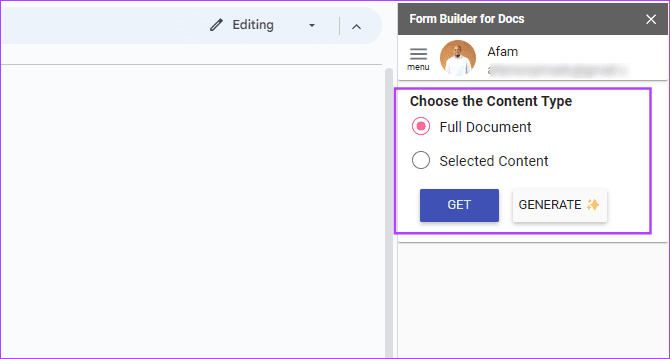
Step 7: Click on Import Now.

This method will also work if you have a Word document. However, you must convert the Docx file to Google Docs first. To convert them, follow the steps below:
Step 1: On your Google Drive homepage, click on the Settings icon at the upper-right corner and click Settings.

Step 2: Next, check the box for Convert uploaded files to Google Docs editor format.

After that, upload Word files without worrying about formatting issues.
Was this helpful?
Last updated on 05 August, 2024
Read Next
 2 Best Ways to Import Questions Into Google Forms From Google Sheets
Typically, when you create a Google Form, you need to perform several steps.
2 Best Ways to Import Questions Into Google Forms From Google Sheets
Typically, when you create a Google Form, you need to perform several steps.
 How to Convert Google Forms to PDF, Google Docs, or Word
How to Convert Google Forms to PDF Google Forms doesn’t have a native option to convert it into PDF.
How to Convert Google Forms to PDF, Google Docs, or Word
How to Convert Google Forms to PDF Google Forms doesn’t have a native option to convert it into PDF.
 How to Add Conditional Logic to Google Forms (And Cool Tricks)
It's true that the attention span of the new-age millennial is getting shorter by the day.
How to Add Conditional Logic to Google Forms (And Cool Tricks)
It's true that the attention span of the new-age millennial is getting shorter by the day.
 How to Create an RSVP Form Using Google Forms
Here's how to create an RSVP invite on Google Forms, share it with your guests, and collect their responses in a few steps.
How to Create an RSVP Form Using Google Forms
Here's how to create an RSVP invite on Google Forms, share it with your guests, and collect their responses in a few steps.
 A Guide to Editing Google Forms on Mobile and Desktop
How to Edit Google Forms Once Created On Desktop Step 1: Go to Google Forms and log in with the same Google account you used to create the form.
A Guide to Editing Google Forms on Mobile and Desktop
How to Edit Google Forms Once Created On Desktop Step 1: Go to Google Forms and log in with the same Google account you used to create the form.
 How to Add and Edit Images in Google Forms
How to Add Images in Google Forms on Desktop Method 1: Add an Image Before or After the Question Sometimes, you want to add an image describing what precedes or
How to Add and Edit Images in Google Forms
How to Add Images in Google Forms on Desktop Method 1: Add an Image Before or After the Question Sometimes, you want to add an image describing what precedes or
 How to Add Timer to a Quiz in Google Forms
Google Forms is a versatile tool for creating surveys and quizzes.
How to Add Timer to a Quiz in Google Forms
Google Forms is a versatile tool for creating surveys and quizzes.
 3 Ways to Share Google Forms With Others
Method 1: Share a Fillable Google Form via Email and Link This method will help you send your form so that others can fill it out.
3 Ways to Share Google Forms With Others
Method 1: Share a Fillable Google Form via Email and Link This method will help you send your form so that others can fill it out.
The article above may contain affiliate links which help support Guiding Tech. The content remains unbiased and authentic and will never affect our editorial integrity.