Use Telegram Download Manager on iPhone
It’s easy to use the Telegram download manager on iPhone. You need to switch to the Downloads tab to check the download status. Here’s how:
Step 1: Open the Telegram app on your iPhone and tap on search box at the top.
Step 2: Under the search box, swipe right on the tabs to the Downloads tab and check your downloaded files.


You can pause any download process and prioritize another file to complete first. You can also long-tap on a file and select increase speed to complete the download process quickly.
Telegram has a default video player to stream downloaded files. You can tap on a video to play it and check other options. For example, you can forward the file to another contact, delete it, or tap the three horizontal dots menu at the top and save it to your iPhone.


Use Telegram Download Manager on Android
Telegram uses a completely different user interface on Android. Once you start downloading a file on Telegram, you will see a download process at the top. Tap it to get all the details about the ongoing downloads and the files you have already downloaded.


Alternatively, you can tap the search icon at the top-right corner and move to the Downloads tab to check the downloads. You can also tap the speedometer at the top to increase the download speeds.
However, the option is limited to Telegram Premium subscribers only. It’s a paid tier from Telegram and costs $4.99 per month. You can check our dedicated post to learn more about Telegram Premium.


You can long-tap on any video and use options like forward, view, and delete at the top.
Use Telegram Download Manager on Desktop
Telegram’s robust download manager is available on the company’s desktop apps, too. Let’s check it in action.
Step 1: Launch Telegram on the desktop and start downloading any file. Then, click the hamburger icon at the top-left corner > choose Settings.
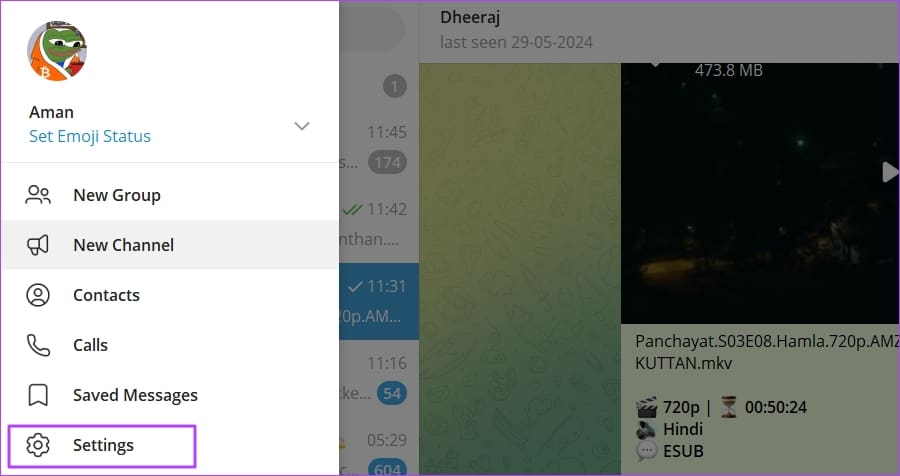
Step 3: Select Advanced > Downloads.

In the Downloads window, you’ll find all the files you’ve downloaded and those currently being downloaded. Right-click a file to access options like forward and delete.

Also Read: Cool things you can do with Telegram’s new Microsoft Copilot AI Bot
Was this helpful?
Last updated on 23 July, 2024
Read Next
 How to view and Manage Safari downloads on iPhone and iPad
Safari is usually easygoing, whether using Safari Tabs, Private browsing, or even changing the default search engine.
How to view and Manage Safari downloads on iPhone and iPad
Safari is usually easygoing, whether using Safari Tabs, Private browsing, or even changing the default search engine.
 How to Create and Manage Chat Folders in Telegram
In most messaging apps, managing chats has to be the most complicated task at hand.
How to Create and Manage Chat Folders in Telegram
In most messaging apps, managing chats has to be the most complicated task at hand.
 2 Ways to Stop Downloads From Opening Automatically in Chrome
Method 1: Uncheck Always Open This File Option Chrome lets you automatically launch certain file types as soon as they've finished downloading locally.
2 Ways to Stop Downloads From Opening Automatically in Chrome
Method 1: Uncheck Always Open This File Option Chrome lets you automatically launch certain file types as soon as they've finished downloading locally.
 4 Ways to Fix Chrome Downloads Keep Pausing on Android
Basic Fixes: Close and restart Chrome: You can open all background apps and close Chrome.
4 Ways to Fix Chrome Downloads Keep Pausing on Android
Basic Fixes: Close and restart Chrome: You can open all background apps and close Chrome.
 How to Find Google Chrome Downloads on Mobile and Desktop
Find Google Chrome Downloads on Mac Step 1: Open Google Chrome and wait for the download process to complete.
How to Find Google Chrome Downloads on Mobile and Desktop
Find Google Chrome Downloads on Mac Step 1: Open Google Chrome and wait for the download process to complete.
 How to Make Steam Downloads Faster in Windows 11
Try These Fixes First Close network hogging apps from the background: Unnecessary apps running in the background, especially those connected to the internet, can dramatically slow down your download speed
How to Make Steam Downloads Faster in Windows 11
Try These Fixes First Close network hogging apps from the background: Unnecessary apps running in the background, especially those connected to the internet, can dramatically slow down your download speed
 7 Ways to Fix Mozilla Firefox Downloads Failing on Windows 11
Basic Fixes: Pause and resume the download: After restarting a failed download, it can get stuck and fail again.
7 Ways to Fix Mozilla Firefox Downloads Failing on Windows 11
Basic Fixes: Pause and resume the download: After restarting a failed download, it can get stuck and fail again.
 Where to Find Downloads on Samsung Galaxy Phones
Where to Find Downloaded Files on Samsung Galaxy Phone If you're new to Samsung Galaxy phones, you may wonder where your downloaded files are.
Where to Find Downloads on Samsung Galaxy Phones
Where to Find Downloaded Files on Samsung Galaxy Phone If you're new to Samsung Galaxy phones, you may wonder where your downloaded files are.
The article above may contain affiliate links which help support Guiding Tech. The content remains unbiased and authentic and will never affect our editorial integrity.