


Basic fixes
- You can select a mode based on your current activity or location, and One UI changes device settings to match the situation.
- Samsung includes several built-in modes, such as Sleep, Driving, Exercise, Relax, and Work. You can also create custom ones based on your requirements.
Method 1: How to Use Default Modes on Samsung Galaxy Phones
First, we will show you how to use one of the built-in Modes and move to create custom ones. Let’s set up the Driving mode on your Samsung phone.
Step 1: Open the Settings app on your Galaxy phone. Select Modes and Routines. You can automatically turn on Driving mode when your phone connects to your car Bluetooth. Tap Next.
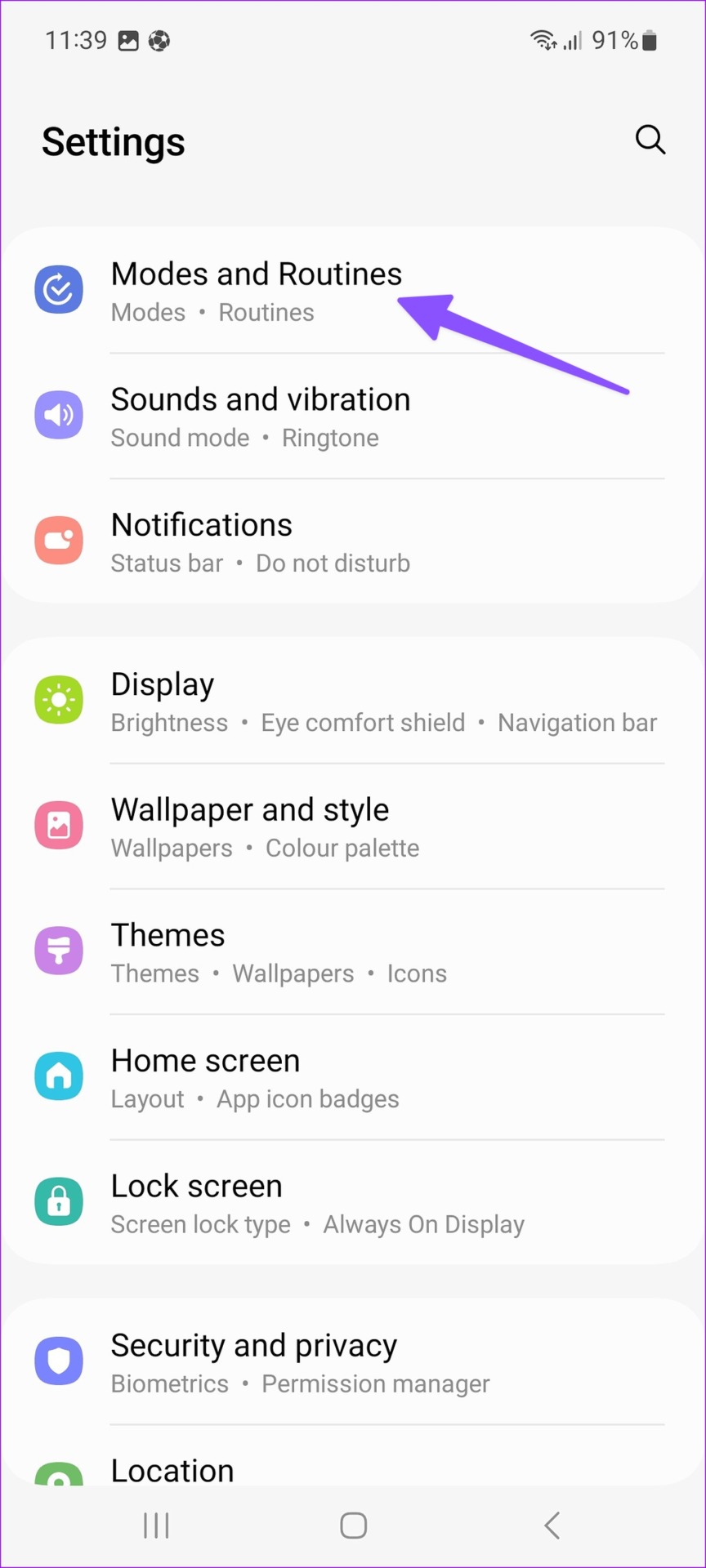
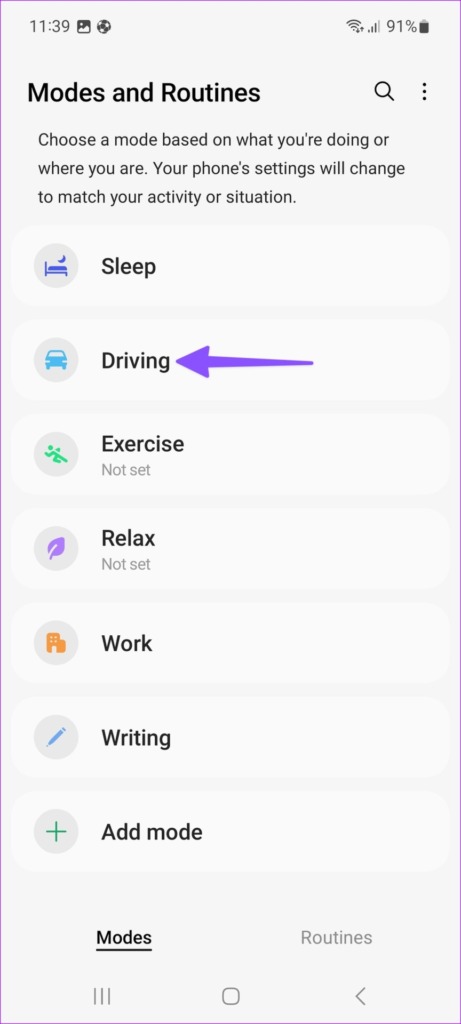
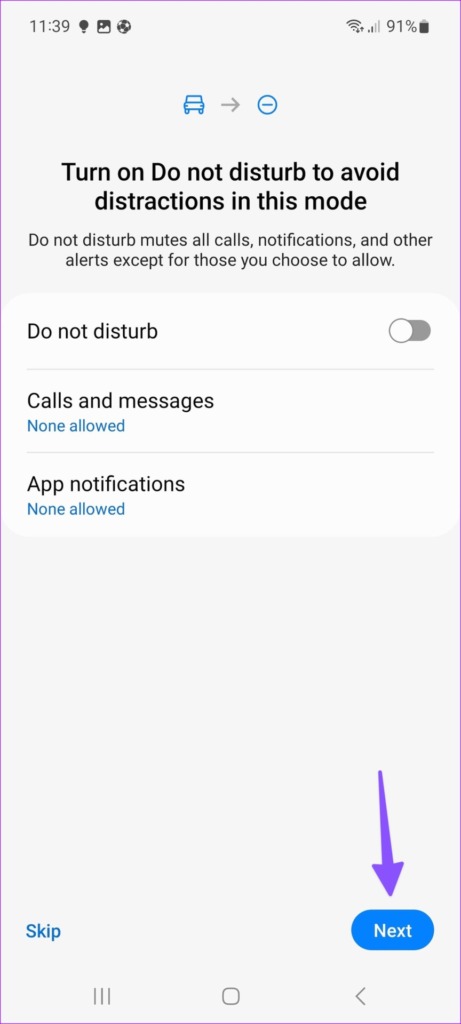
Step 2: Enable DND on during Driving mode and make an exception for selected contacts and apps.

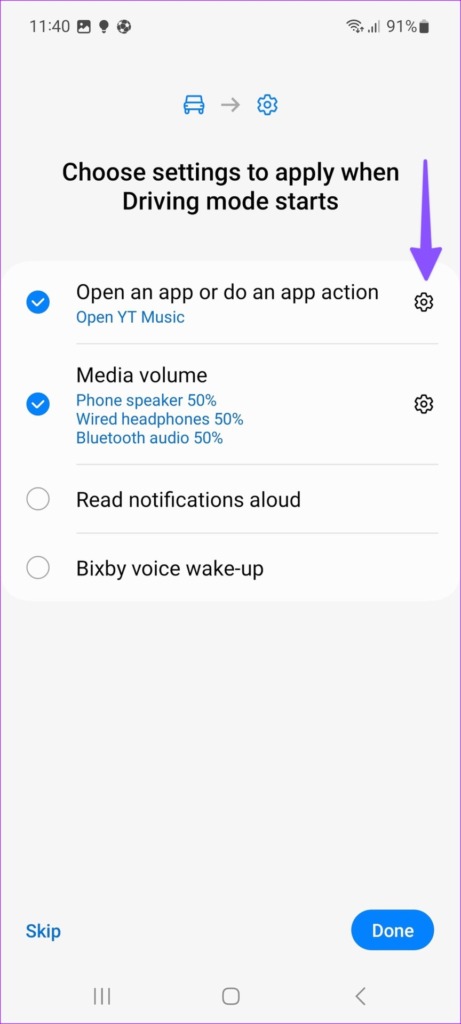
Step 3: Choose settings to apply when Driving mode starts. You can perform an app action (open Downloads menu in YouTube Music or open Google Maps), change media volume, allow the system to read notifications aloud, and enable Bixby voice wake-up. The possibilities are endless.

Method 2: How to Create a Custom Mode on Samsung Galaxy Phones
One UI only comes with five Modes. You can also create a custom one based on your preference. Go through the steps below.
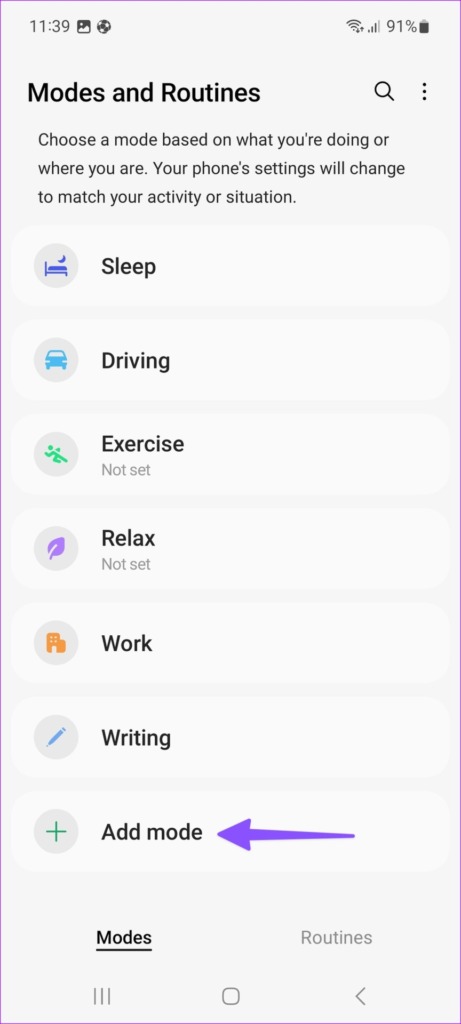
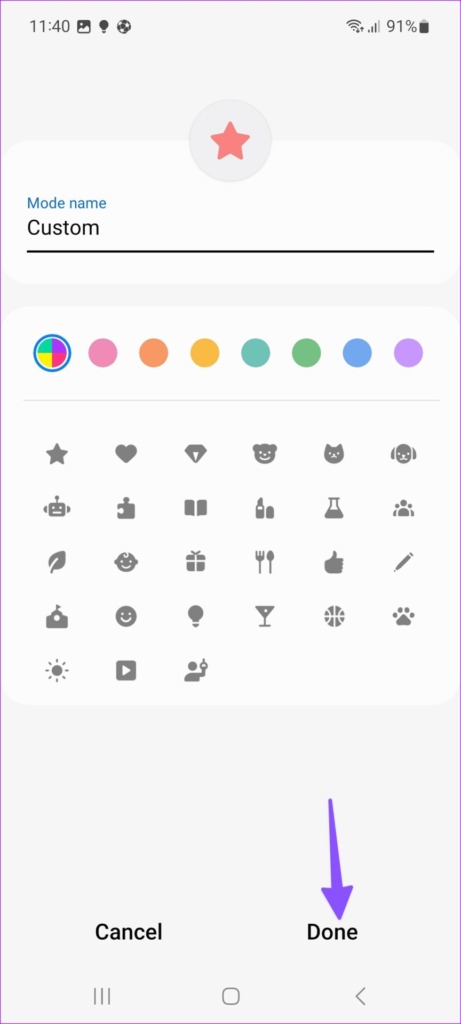
Step 1: Open the Settings app on your Galaxy phone. Select Modes and Routines. Select ‘Add mode.’ Enter mode name, select color, and set an icon for it.

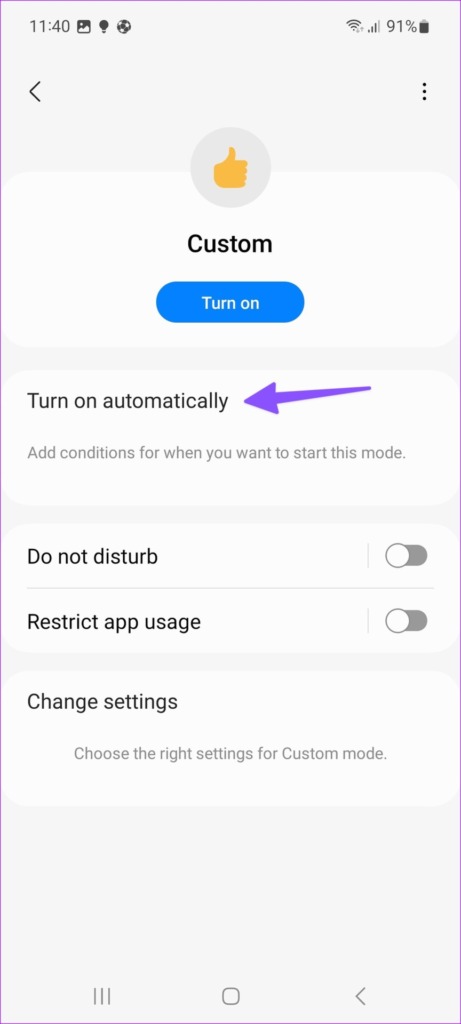
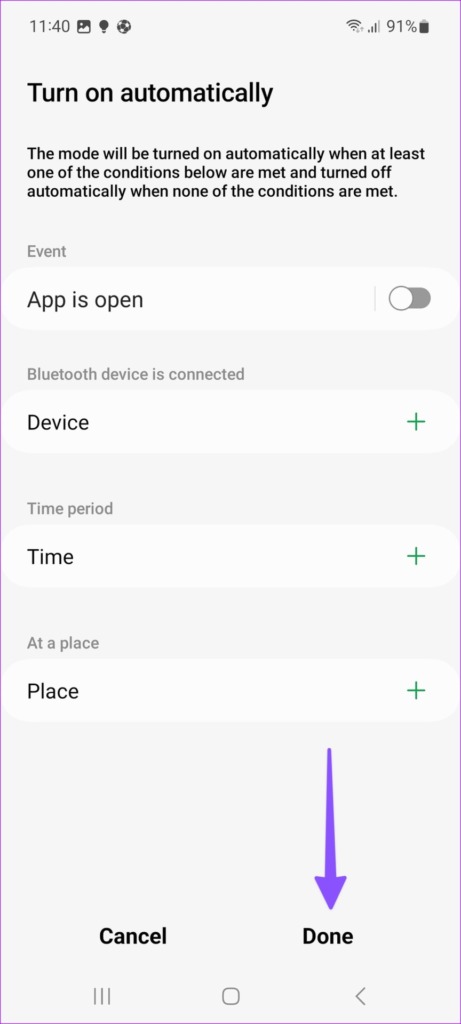
Step 2: Tap ‘Turn on automatically’ and set conditions for when you want to start this mode.
What Are Routines on Samsung Galaxy Phones
Routines are Samsung’s take on IFTTT (If This Then That). You can create several criteria and automate actions based on it. For example, when you reach your office, your Samsung phone triggers a routine based on your location and automatically enable DND, lowers the brightness, and turns on Wi-Fi.
Method 1: How to Use Default Routines on Samsung Galaxy Phones
One UI packs several routines to choose from. Here’s how you can use them.
Step 1: Open the Settings app on your Galaxy phone. Select Modes and Routines. Move to Routines tab and select the explore button at the top


Step 2: Select All Routines and the select ‘Streaming video.’
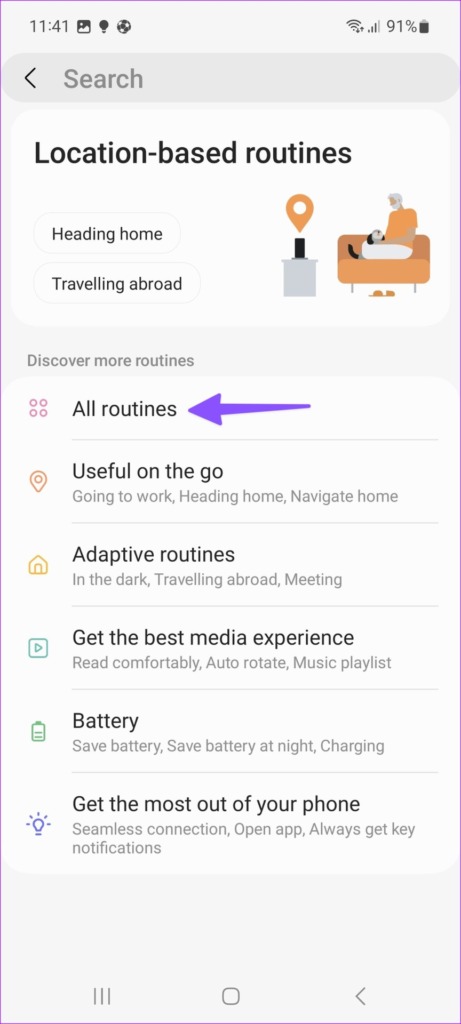

Now whenever you open a streaming app such as YouTube, Netflix, or Prime Video, the system enables Wi-Fi, Dolby Atmos, DND, and screen orientation.
Similarly, you can enable ‘Always On Display‘ when you charge your phone, disable ringtone, sound, notifications, and system volume when you reach school, and more.
Was this helpful?
Last updated on 03 September, 2024
1 Comment
Leave a Reply
Read Next
 6 Great Automated Routines for Travellers on Google Nest Hub
One of the most powerful yet underutilized features on Google Nest devices is Routines or Automations.
6 Great Automated Routines for Travellers on Google Nest Hub
One of the most powerful yet underutilized features on Google Nest devices is Routines or Automations.
 How to Set Up Data Limit on Samsung Galaxy Phones
How to Add or Change Data Usage Limit You can set up data limit warnings on your Samsung Galaxy phone to ensure you're warned once you reach the relevant threshold.
How to Set Up Data Limit on Samsung Galaxy Phones
How to Add or Change Data Usage Limit You can set up data limit warnings on your Samsung Galaxy phone to ensure you're warned once you reach the relevant threshold.
 4 Ways to Fix “Not Registered on Network” Error on Samsung Galaxy Phones
Basic Fixes Remove and reinsert the SIM: An improperly inserted SIM can result in such network errors.
4 Ways to Fix “Not Registered on Network” Error on Samsung Galaxy Phones
Basic Fixes Remove and reinsert the SIM: An improperly inserted SIM can result in such network errors.
 Top 3 Ways to Change App Drawer on Samsung Galaxy Phones
https://youtu.be/A_ni2sV14uM 1.
Top 3 Ways to Change App Drawer on Samsung Galaxy Phones
https://youtu.be/A_ni2sV14uM 1.
 5 Ways to Fix Samsung Keyboard Not Working on Galaxy Phones
Fix 1: Update the Samsung Keyboard App Running an outdated version of the Samsung Keyboard app can cause it to malfunction and stop working on your phone.
5 Ways to Fix Samsung Keyboard Not Working on Galaxy Phones
Fix 1: Update the Samsung Keyboard App Running an outdated version of the Samsung Keyboard app can cause it to malfunction and stop working on your phone.
 5 Ways to Fix Delayed Notifications on Samsung Galaxy Phones
Common Fixes Turn off Power saver - This mode disables background tasks, syncing, and other activities to save battery, creating notification delays.
5 Ways to Fix Delayed Notifications on Samsung Galaxy Phones
Common Fixes Turn off Power saver - This mode disables background tasks, syncing, and other activities to save battery, creating notification delays.
 5 Ways to Fix Bixby Not Working on Samsung Galaxy Phones
Fix 1: Enable App Permissions for Bixby Bixby requires a few permissions to access your phone's microphone, location, sensors, and other features.
5 Ways to Fix Bixby Not Working on Samsung Galaxy Phones
Fix 1: Enable App Permissions for Bixby Bixby requires a few permissions to access your phone's microphone, location, sensors, and other features.
 6 Ways to Turn off Do Not Disturb on Samsung Galaxy Phones
Basic Ways: Using Quick Settings: Swipe down twice from the top of the screen to open the Quick Settings panel.
6 Ways to Turn off Do Not Disturb on Samsung Galaxy Phones
Basic Ways: Using Quick Settings: Swipe down twice from the top of the screen to open the Quick Settings panel.
The article above may contain affiliate links which help support Guiding Tech. The content remains unbiased and authentic and will never affect our editorial integrity.

The modes and routines app quits working. To get it working you have reboot the phone. It quits working within 12 hours. Repeat. This is annoying. Your help is appreciated
Kevin